Fast2SMS Integration with HubSpot CRM
About
Fast2SMS and HubSpot are integrated to make customer communication faster and more efficient. The Fast2SMS integration for HubSpot CRM offers intelligent messaging capabilities that ensure messages are delivered reliably to end users, enabling seamless communication and improving customer engagement without interruptions.
Pre-requisites for App Installation
-
Should have a HubSpot CRM account
-
Should have a Fast2SMS account
-
Should have Fast2SMS sender number
-
Should have approved Fast2SMS templates to initiate the conversation.
Features
-
Send a single message to leads or contacts module
-
Send bulk messages to leads or contacts module
-
Create and manage templates
-
View the history of Fast2SMS messages
-
Send automated messages through workflows
Application Authorization
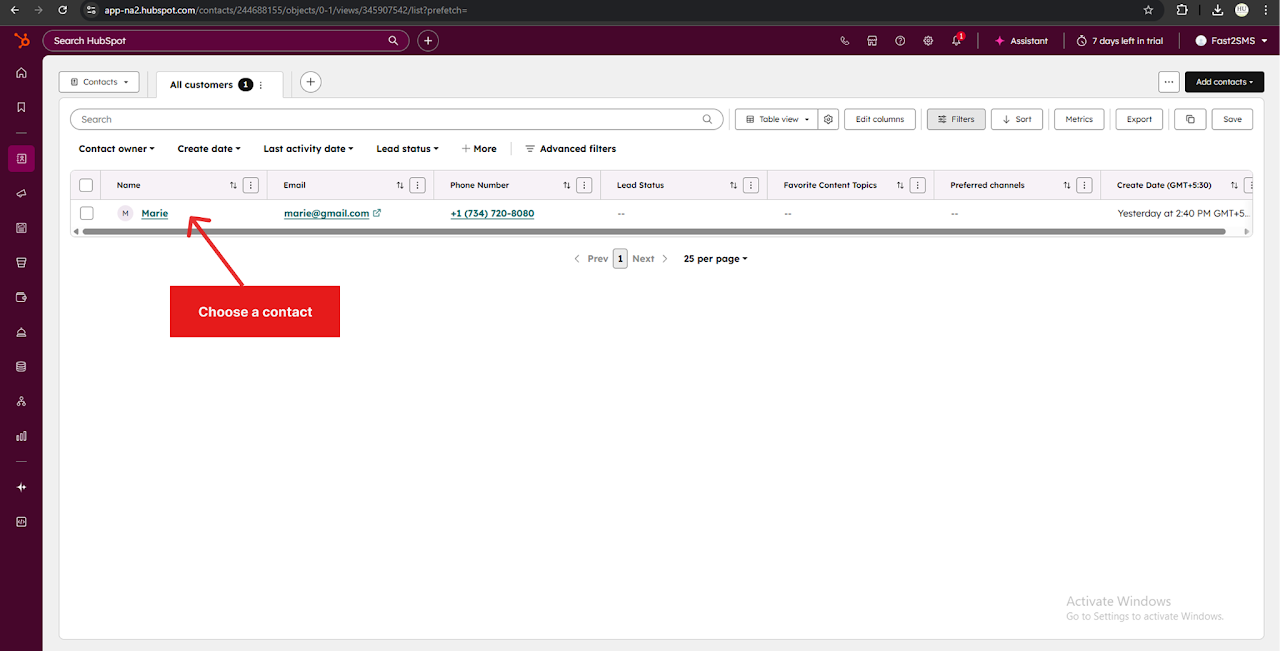
Step 1: Go to the contacts module and a choose a contact from the list.
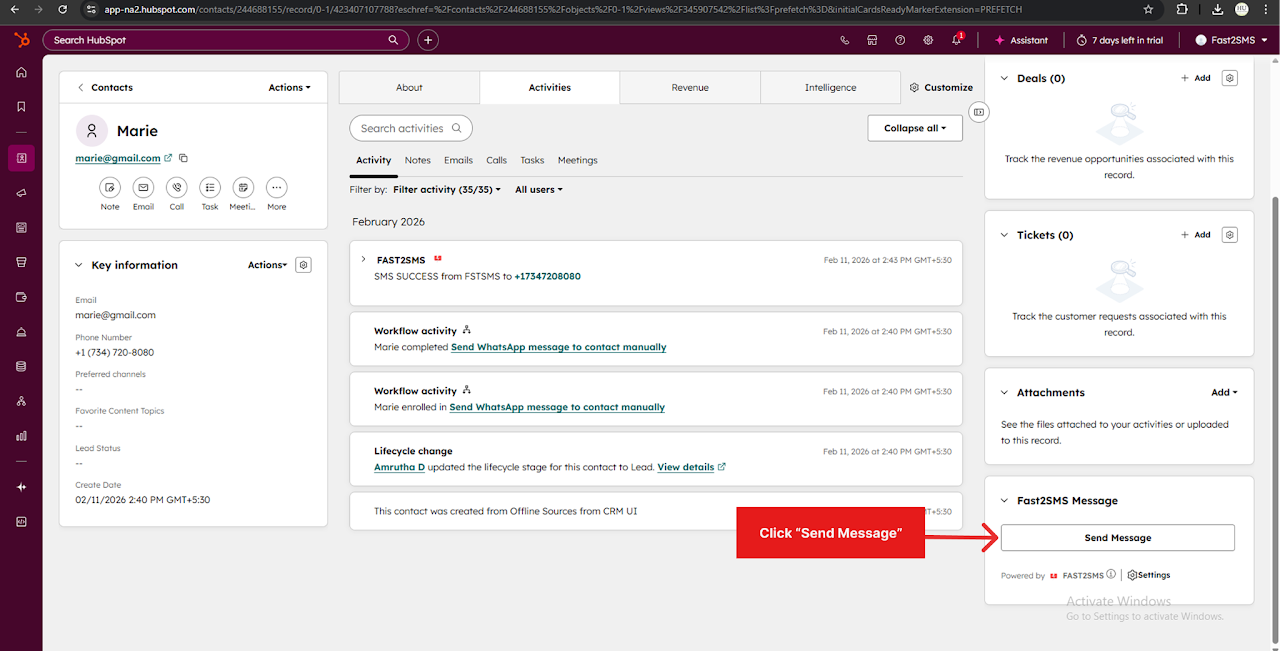
Step 2: Scroll down on the right side panel and click the “Send Message” button under the Fast2SMS section.
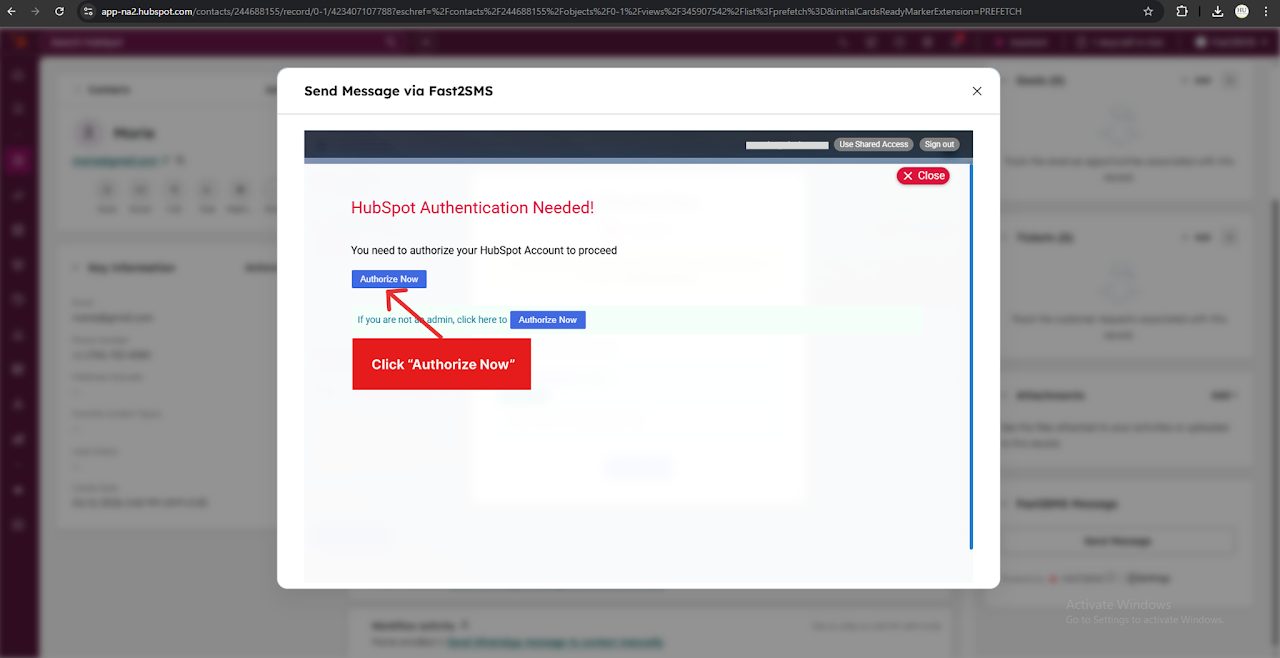
Step 3: Click “Authorize Now” to start the HubSpot authentication.
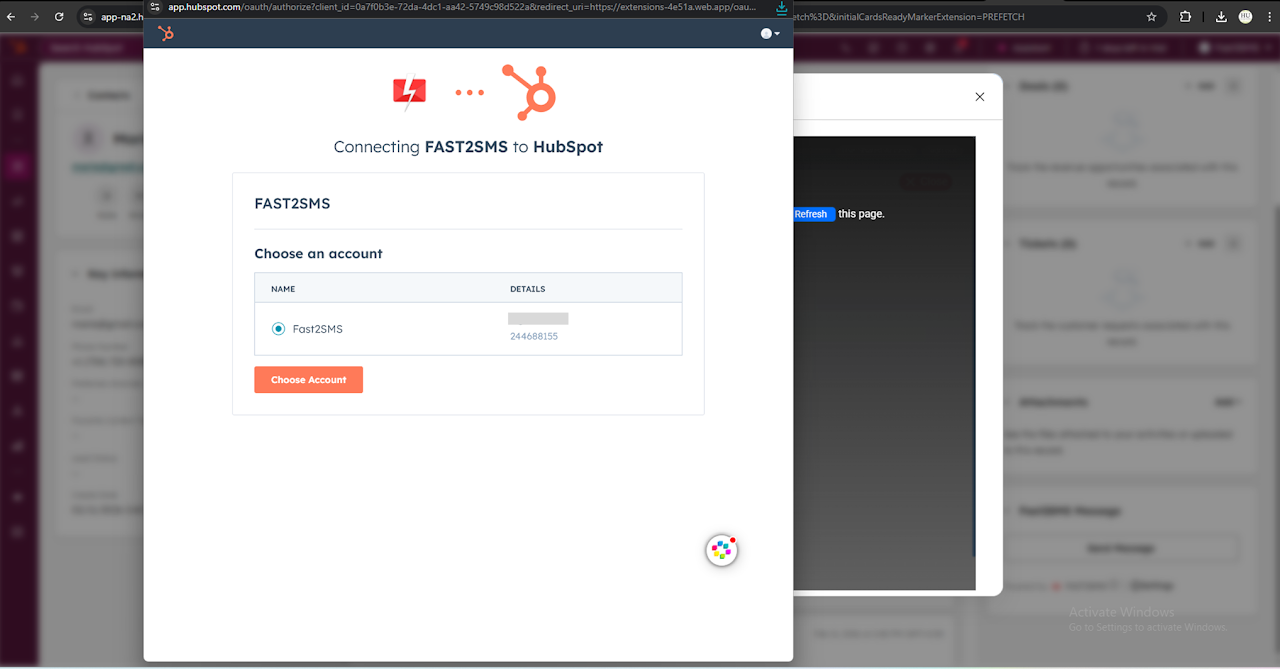
Step 4: Choose an account to complete the authentication. Choose an account to complete the authentication.
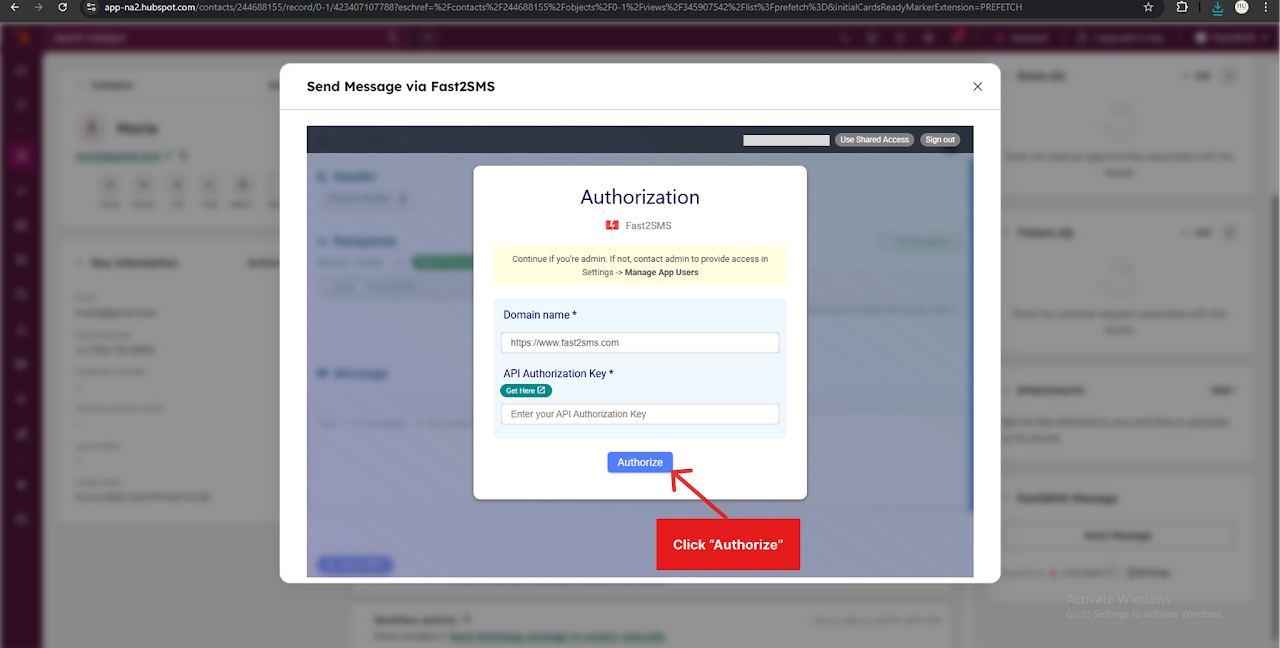
Step 5: Fill the required fields for domain name and API Authorization Key. Click “Authorize” to complete the Fast2SMS authorization.
Application Working
Sending Fast2SMS Messages from HubSpot CRM Contacts
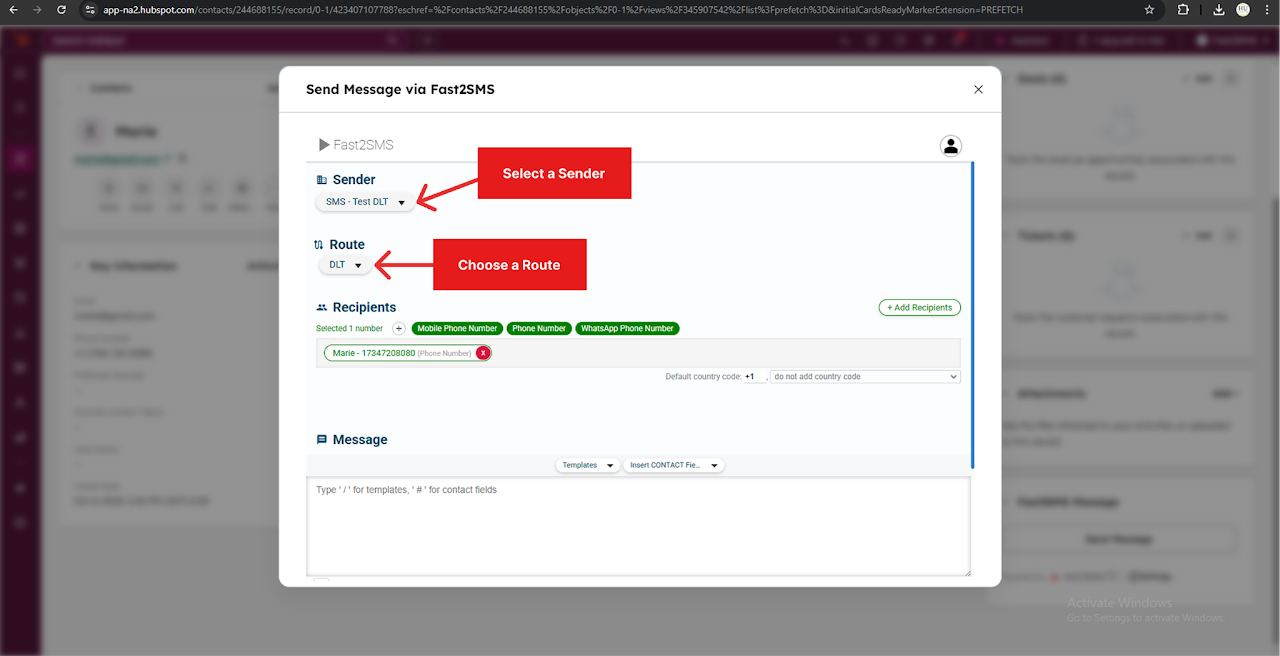
Step 1: Select the sender and route. Recipient numbers are automatically fetched from the lead or contact.
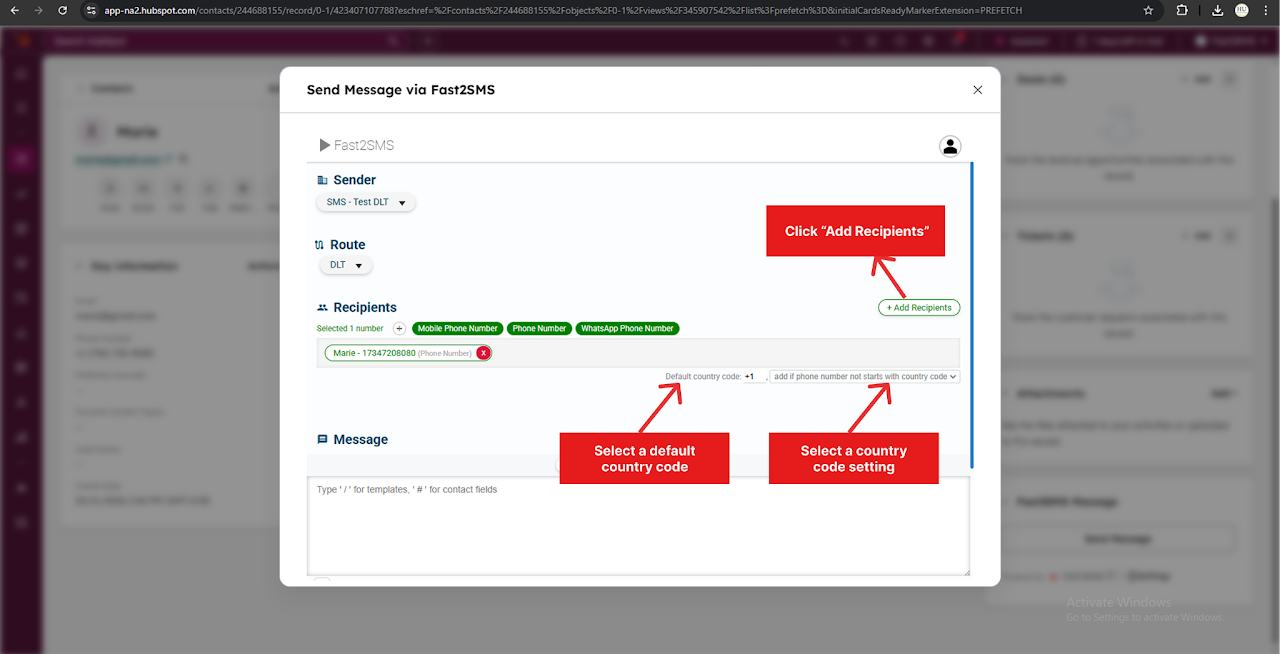
Step 2: You can add additional recipients using the “Add Recipients” button. Select a default country code and a country code setting for the recipient numbers if required.
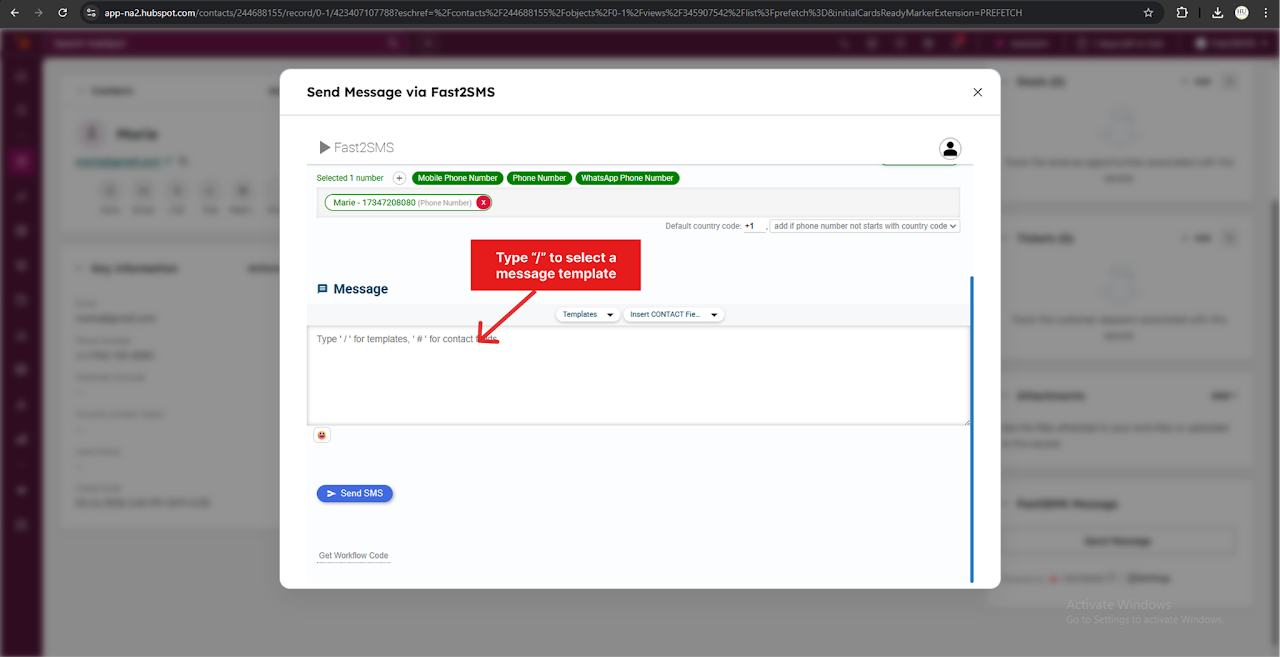
Step 3: Type “/” to insert a template message.
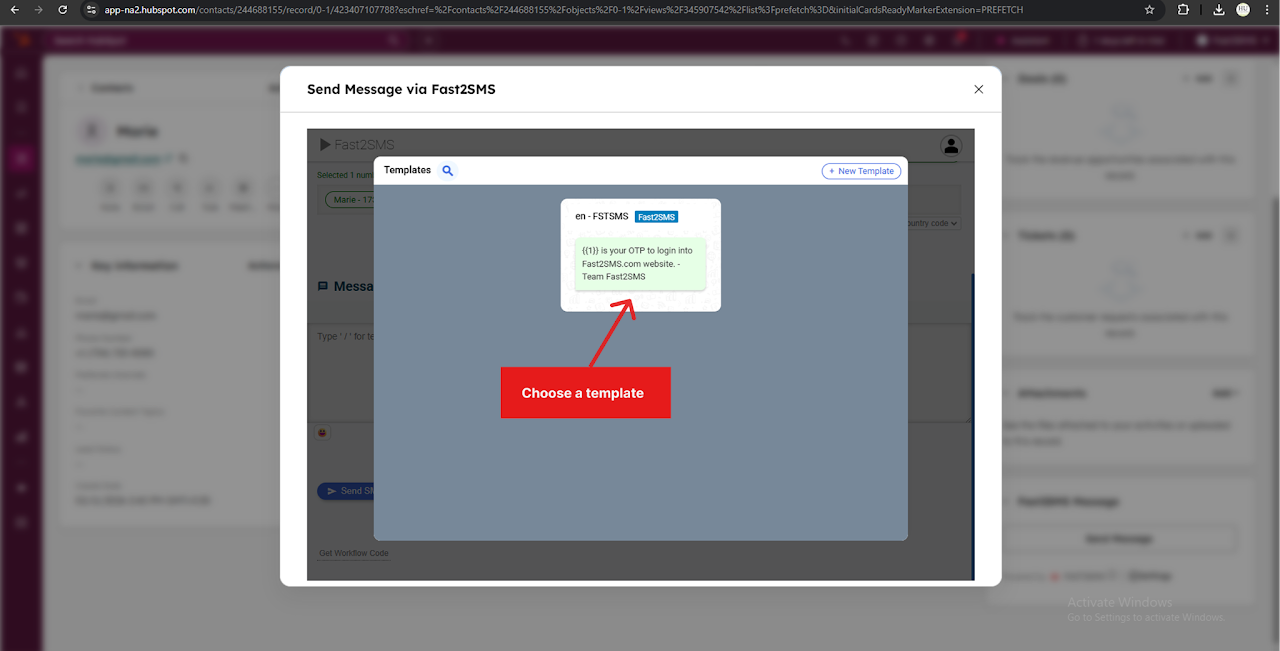
Step 4: Choose a template from the Templates list page.
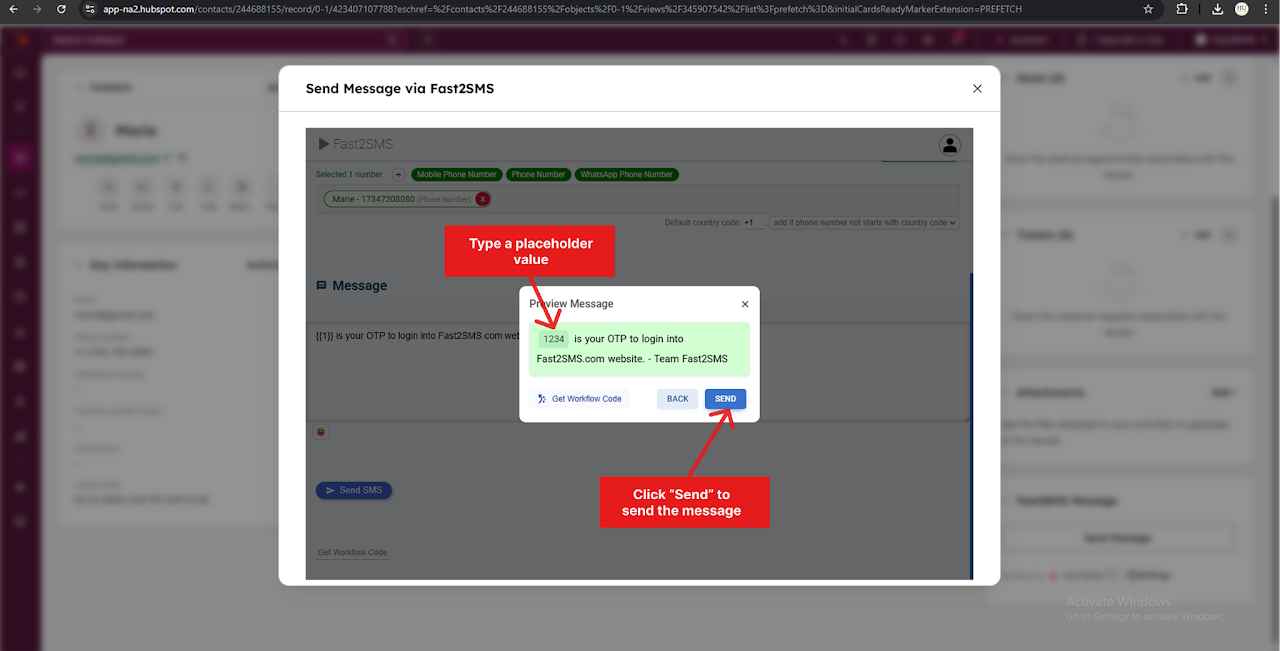
Step 5: The preview of the chosen template will be shown. Click “#” to add a placeholder value to the message template to send personalized messages. You can also manually type a placeholder value. Click “Send” to send the message.
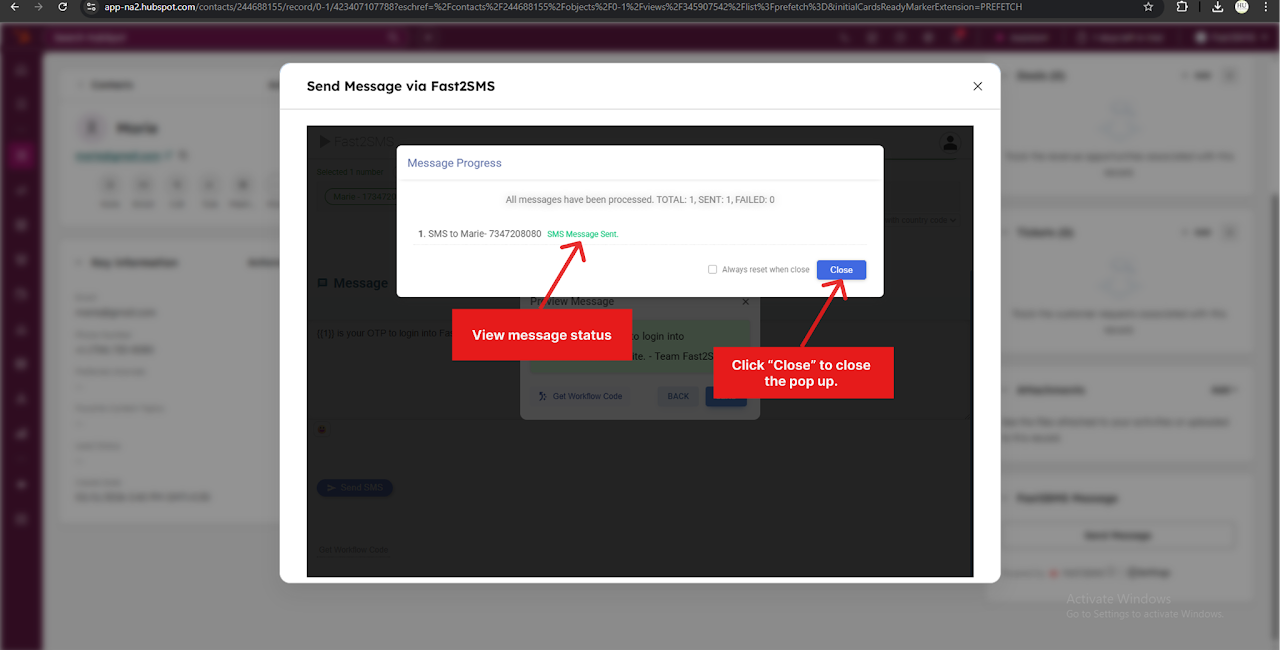
Step 6: A pop up appears to notify that the messages are sent.
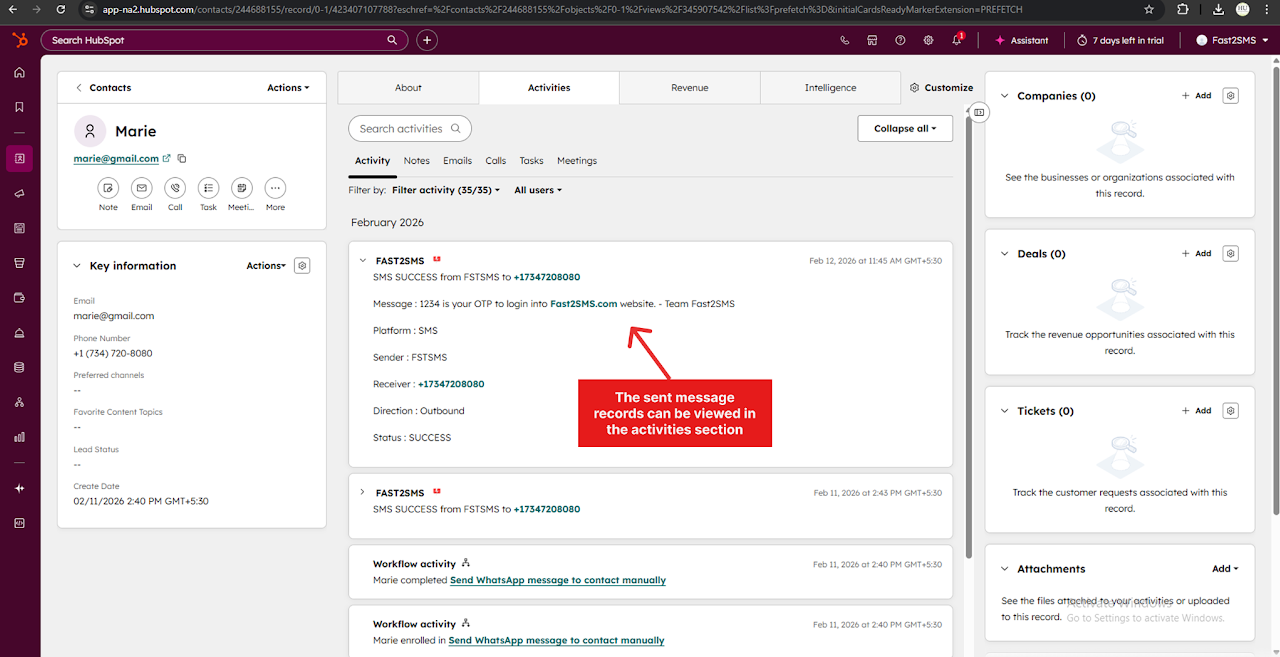
Step 7: Find the message record history for the sent messages in the activities section.