
Free Auto Reply WhatsApp Business Incoming Message In Fast2SMS
A new feature has been launched on Fast2SMS – Auto Reply, for WhatsApp and RCS messages. This feature is only applicable for Custom Bots, which means businesses who have opted to send messages with their names and not with “-91.” However, to apply for Custom Bot businesses should have requirement of at least 1 lakh RCS messages per month. Now let’s move to Auto Reply:
What is Auto Reply?
Auto reply is a feature which allows you to automatically respond to customer messages based on keywords, welcome messages, office hours or delayed responses.
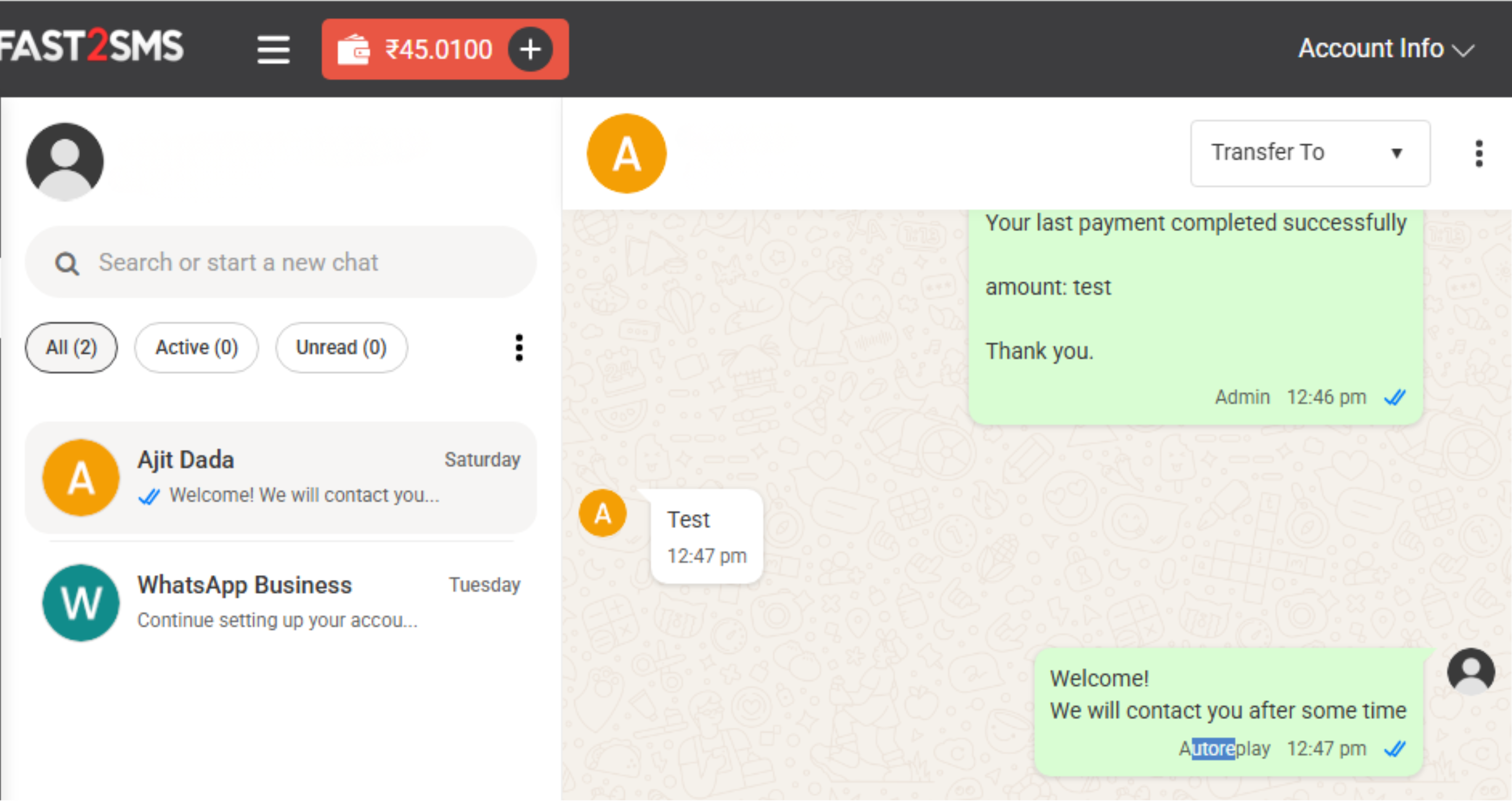
How to enable Auto Reply in Fast2SMS?
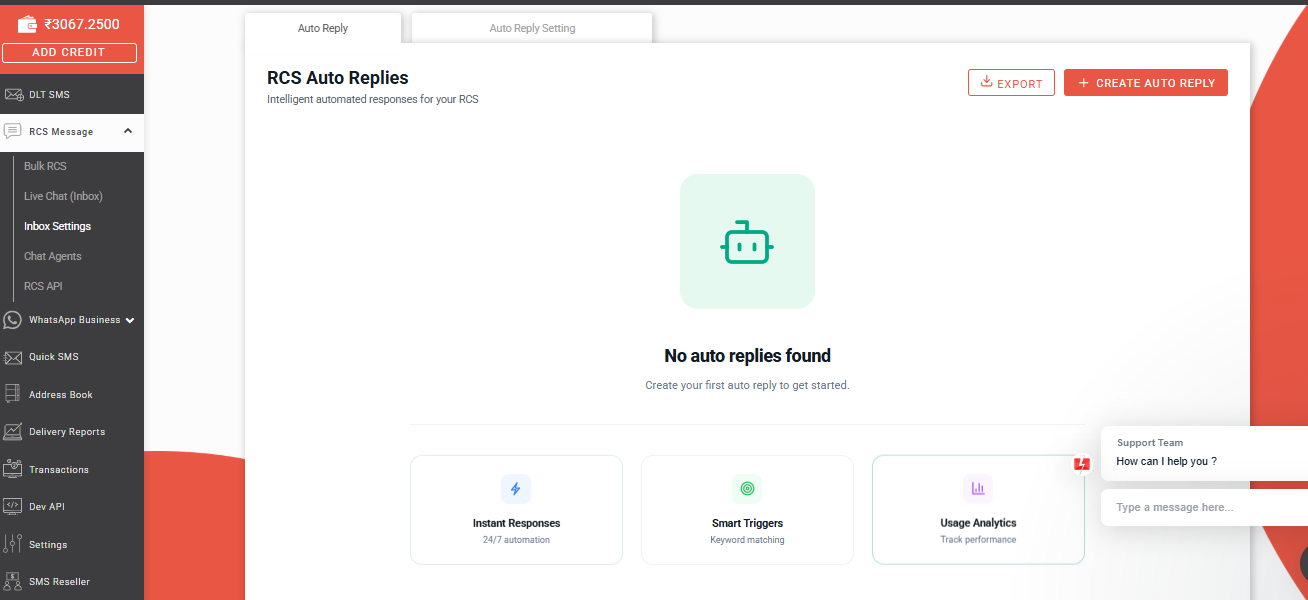
Follow below steps to enable Auto Reply feature in your Fast2SMS account:
- Login to your Fast2SMS account by clicking here.
- Click on WhatsApp Business.
(Applicable for Custom Bots only) - Click on Inbox settings.
- Select “Auto Reply.”
- Click “Create Auto Reply.”
This feature allows us to set up automatic responses which is invoked when some particular message is sent to the business. Please note, after you become a Custom Bot then only you will be able to apply Auto Reply in your account. After becoming Custom Bot, same options and process will be there for RCS message as it is for WhatsApp.
Things to be taken care!
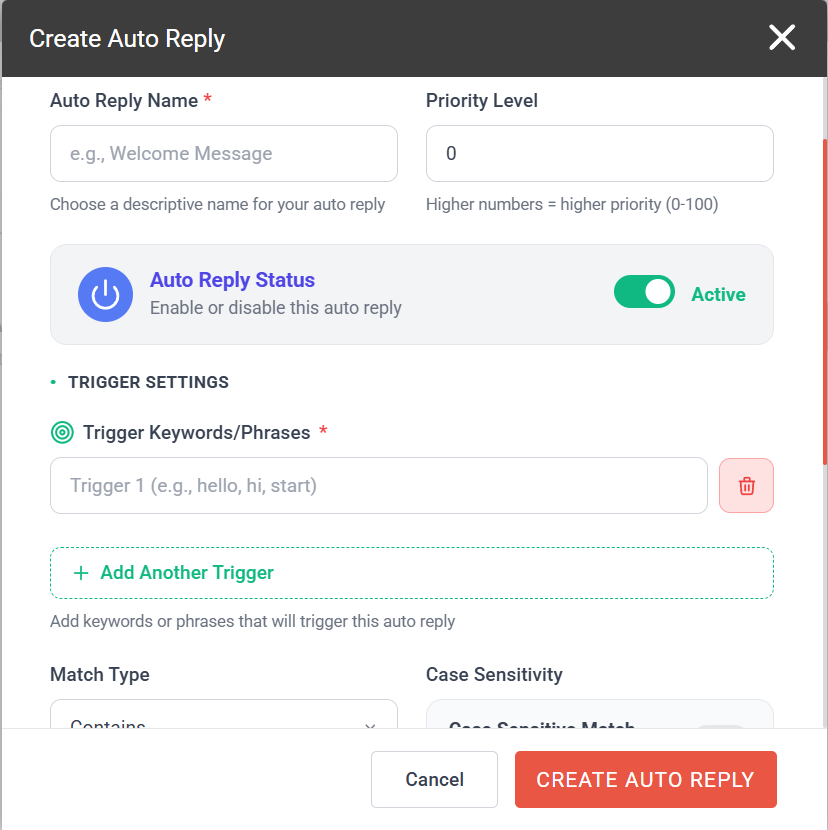
While creating Auto Reply please consider following fields:
- Auto Reply Name
Enter a name for your Auto Reply rule. This helps to manage multiple auto replies with ease.
For example, “Sales Enquiry Reply”, “Welcome Reply”. - Priority
You can set a priority level for your Auto Reply and priority helps determine out of many which auto reply should manifest first when multiple Auto Replies follows the same rule. - Auto Reply Status
This options allows you to enable or disable the auto reply.
ON -> Auto Reply is activated and will be triggered automatically when keyword hits.
OFF -> Auto reply is deactivated and will stop sending responses. - Trigger Keywords
These keywords actually invokes the process of Auto Reply. As soon as user sends the pre defined message which Admin has defined as keywords then the set message will be sent to the user. You can also add multiple keywords by clicking “Add Another Trigger”
For example, “Hi”, “Hello”, “Pricing”. - Reply Type
You can choose what type of reply you would like to send automatically. Supported reply type includes:
– Text
– Audio
– Image
– Video
For example, you can send an image or video for product details.
Auto Reply Settings
If you do want to use keyword based replies, you can apply Auto Reply using following options:
- Welcome Message
Welcome message is a message which is pinned to the user when the user sends the message for the very first time. Welcome message is customizable as per the requirements of the business.
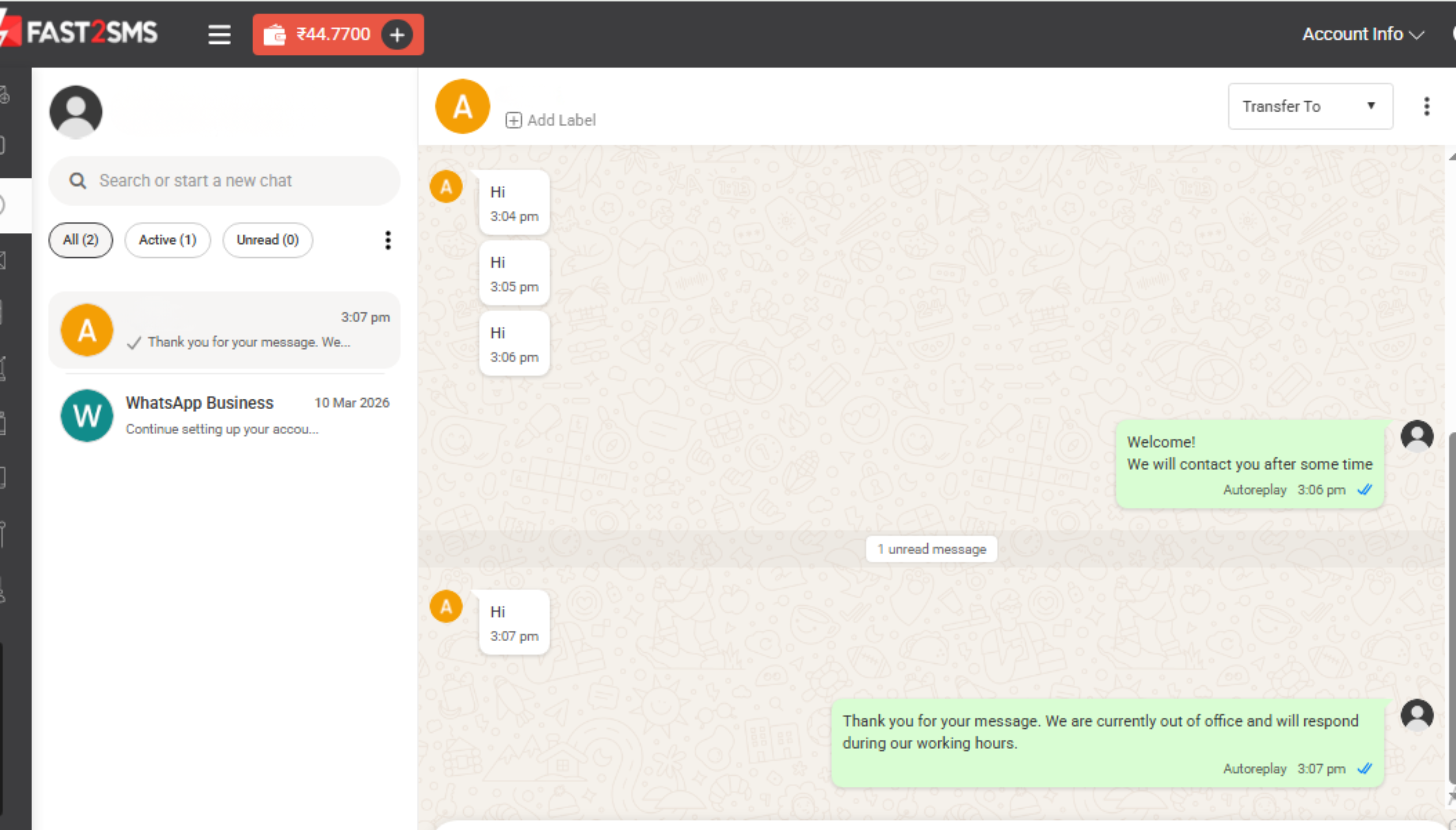
For example, “Hello! Thanks for reaching out to us. Our team will contact you shortly for assistance.” - Out of Office Message
Out of office message is sent automatically to the users when you are out of your office hours. It is decided based on organization’s working hours. Below in the image you can see the example:
- Delayed Response Message
Delayed response message is sent automatically when none of the agent replies to the user within a defined time. Limits of Delayed response message are as follows:
– Minimum: 15 minutes
– Maximum: 23 hours 59 minutes 59 seconds
For example, “We apologize for the delay. Our team will get back to you shortly. Thank you for your patience!”
Benefits of Auto Reply
- Instant responses to customers.
- Better customer engagement.
- Automated support handling.
- Reduced manual workload for agents.