Fast2SMS Integration for Google Sheets
About
Connect Fast2SMS to Google Sheets to easily initiate conversations using WhatsApp, SMS channels. Utilize the entire data or a subset of data within the Sheet to contact your desired customers.
Features
- Send messages from your desired Fast2SMS channels.
- Access approved WhatsApp templates within Google Sheets.
- Send messages to all or a subset of data from Sheets.
- Send customized messages to contacts from Sheets.
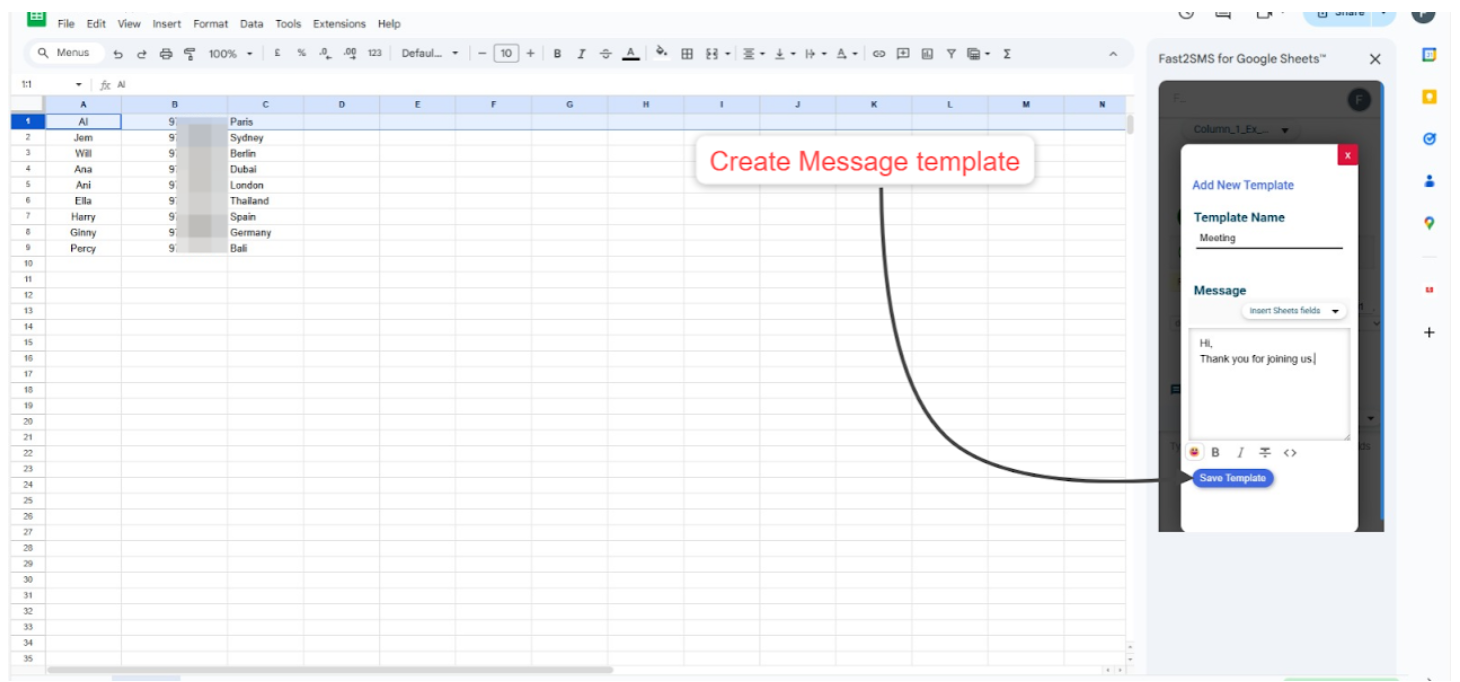
- Create message templates within Sheets.
Pre-requisites
-
Must have a Fast2SMS account.
-
Must have the SMS, WhatsApp channel of Fast2SMS.
-
In case of WhatsApp, must have approved number and templates from Fast2SMS.
Installation
-
Install Fast2SMS for Google Sheets from the Google Workspace Marketplace.
-
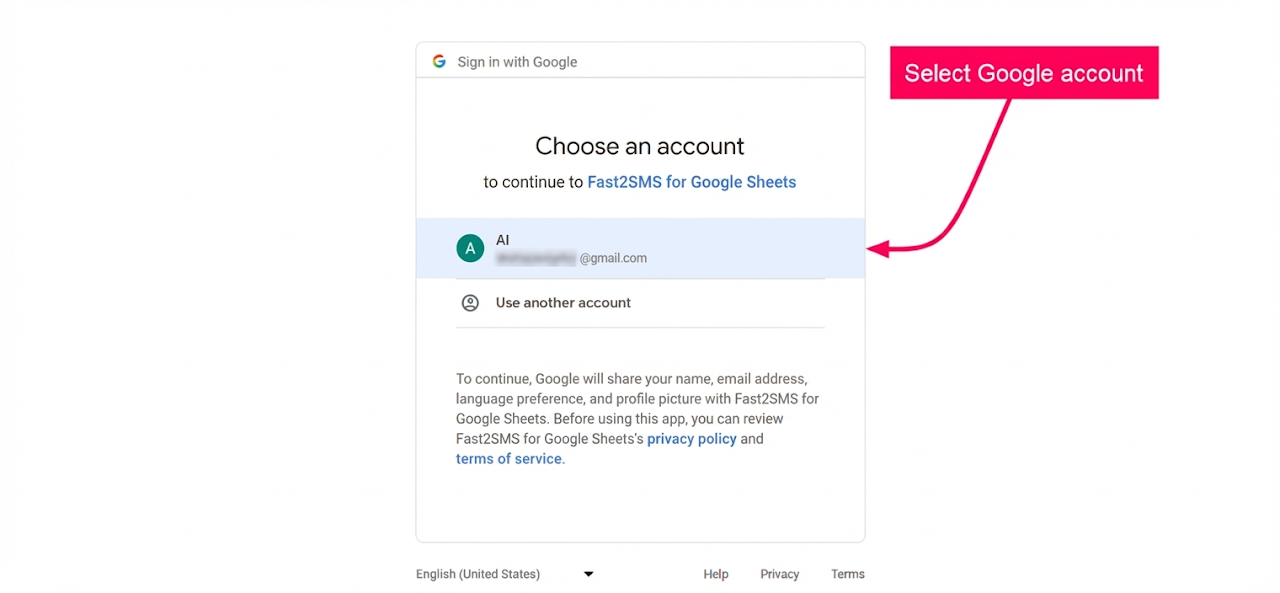
Select the Google account to install the app in.
-
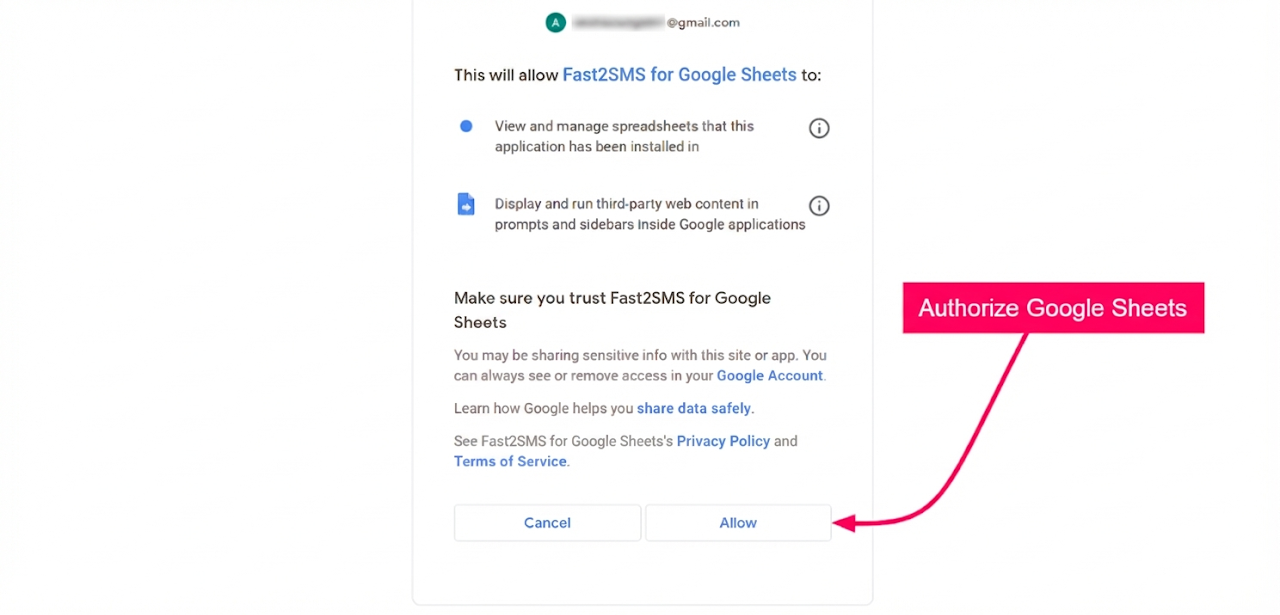
Click on ‘Allow’ to complete Sheets’ authorization.
-
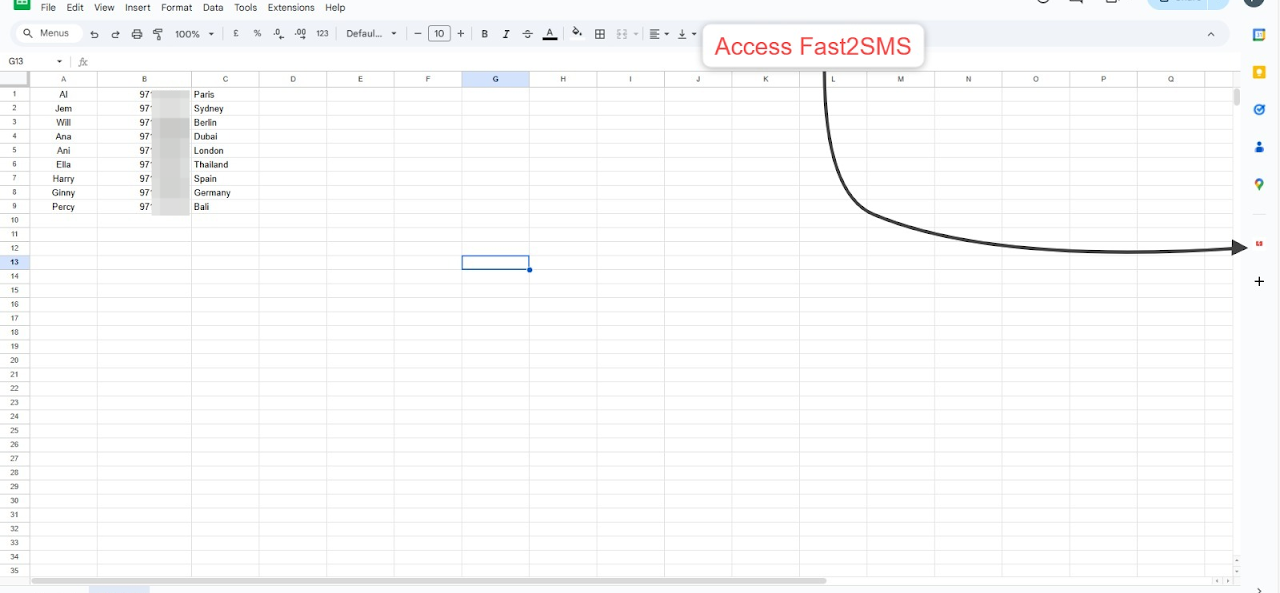
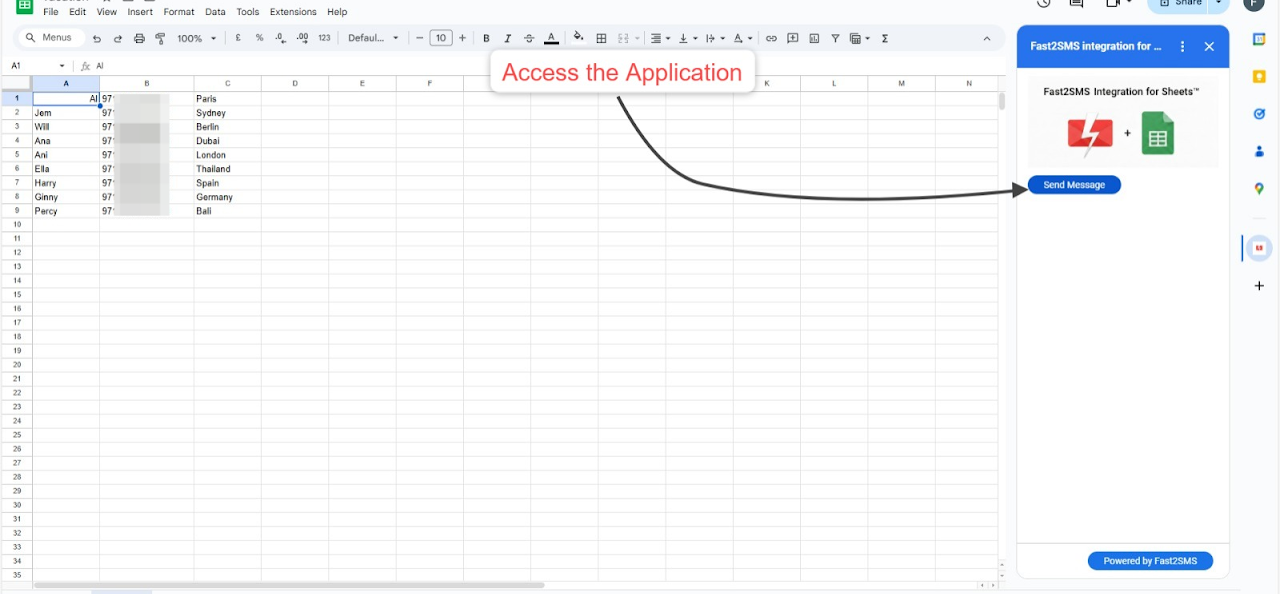
Click on the Fast2SMS icon at the panel on the right.
-
Click on ‘Send Message’.
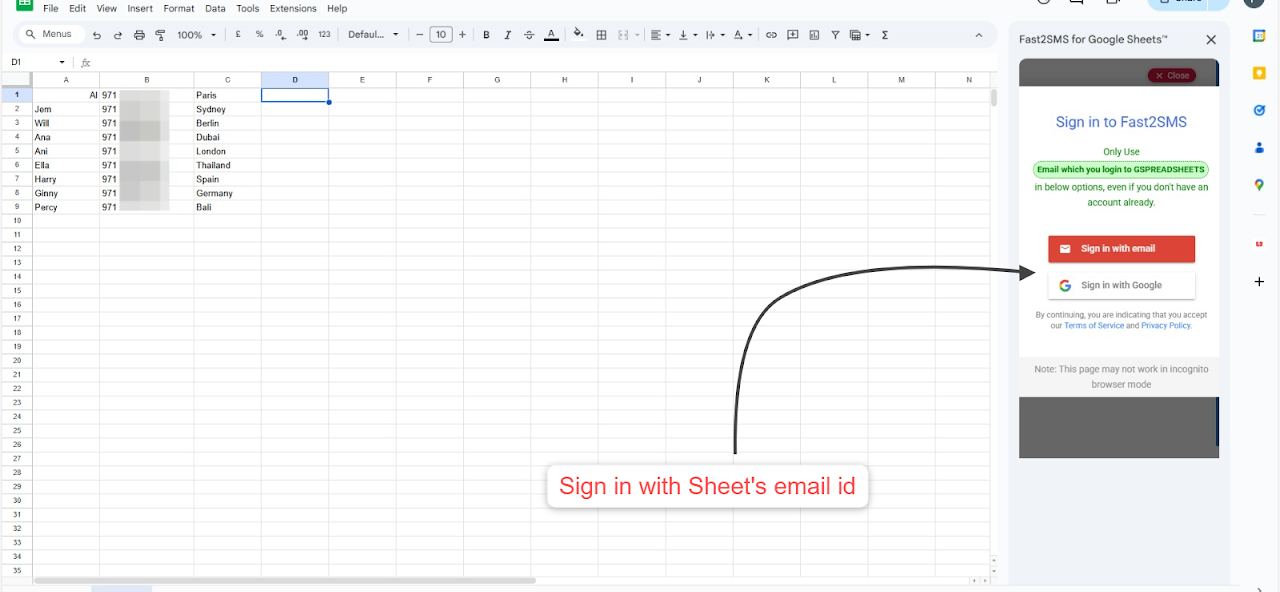
- Sign in to Fast2SMS using your Sheets’ account email id.
-
Enter the Fast2SMS access key.
-
Click on ‘Authorize’.
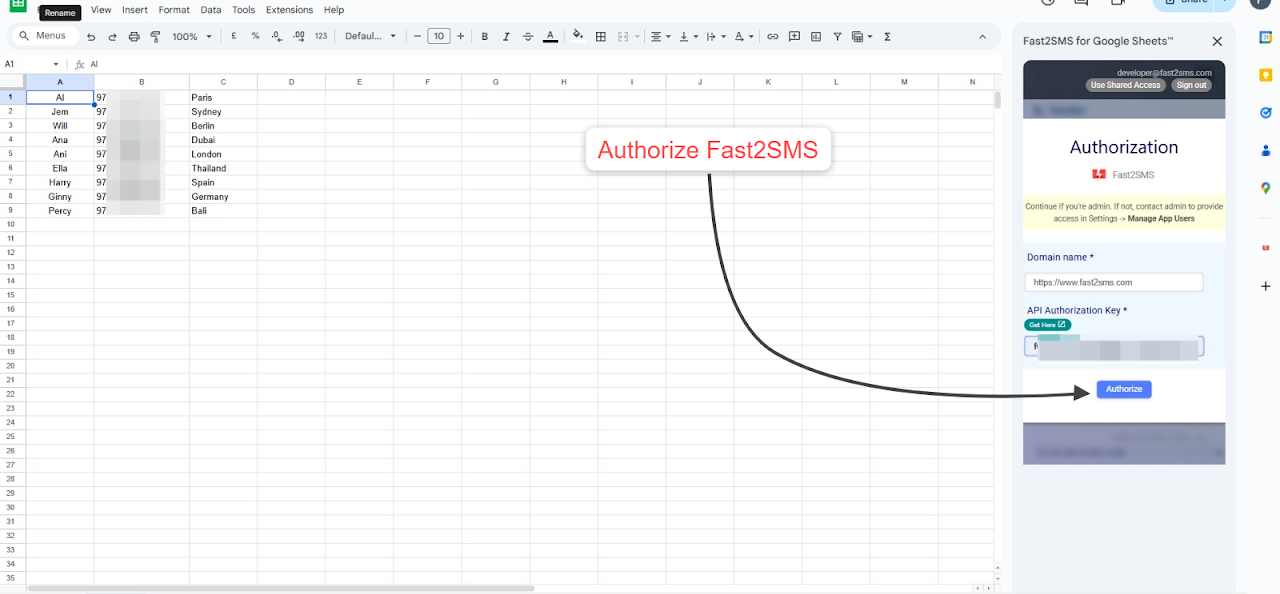
Fast2SMS now been connected to Google Sheets.
Application Working
Initiate Conversations
-
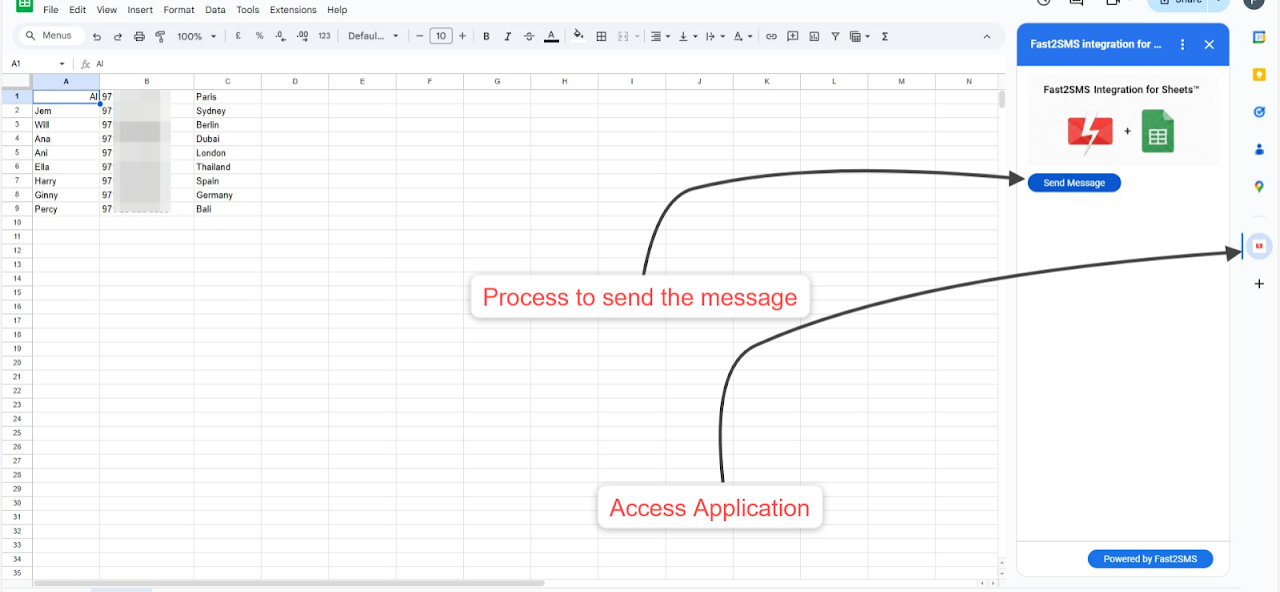
Click on the Fast2SMS icon from the panel at the right side.
-
Click on ‘Send Message’.
-
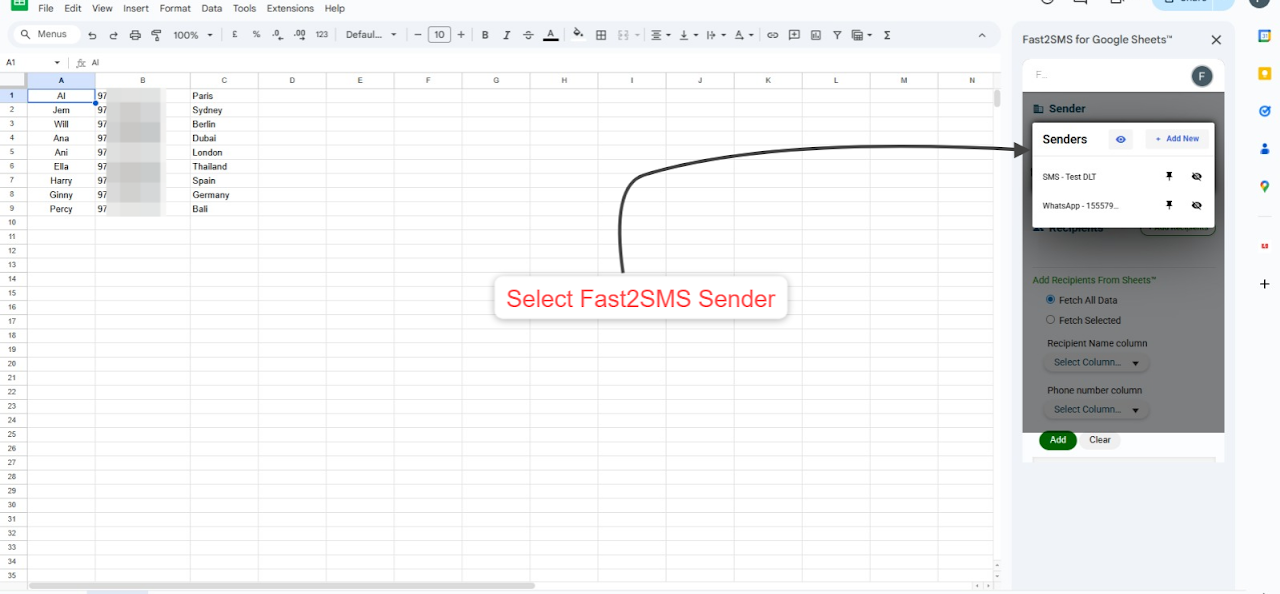
Click on ‘Choose Sender’.
-
Select the Fast2SMS sender to send the messages from.
-
Conversations can be initiated using the SMS, WhatsApp channels.
-
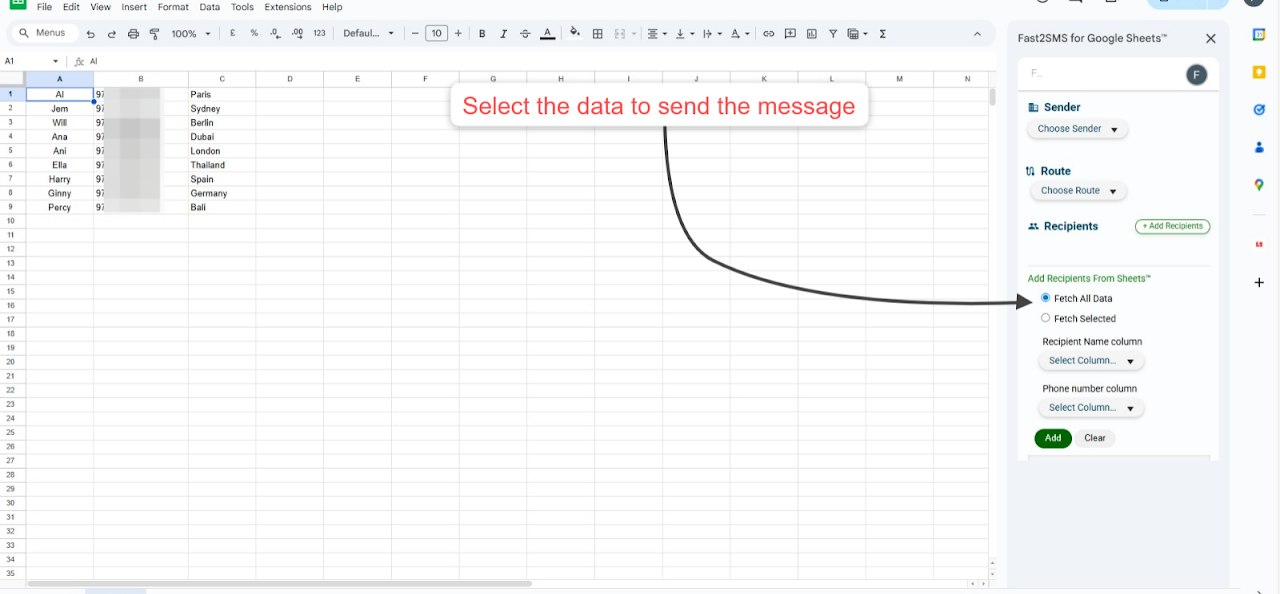
Select the data from the Sheet to which the message is to be sent.
-
Select ‘Fetch All Data’ to send messages to all the contacts within the Sheet.
-
Select the desired rows within the Sheet and click on ‘Fetch Selected’ to send the messages to a subset of data within the Sheet.
-
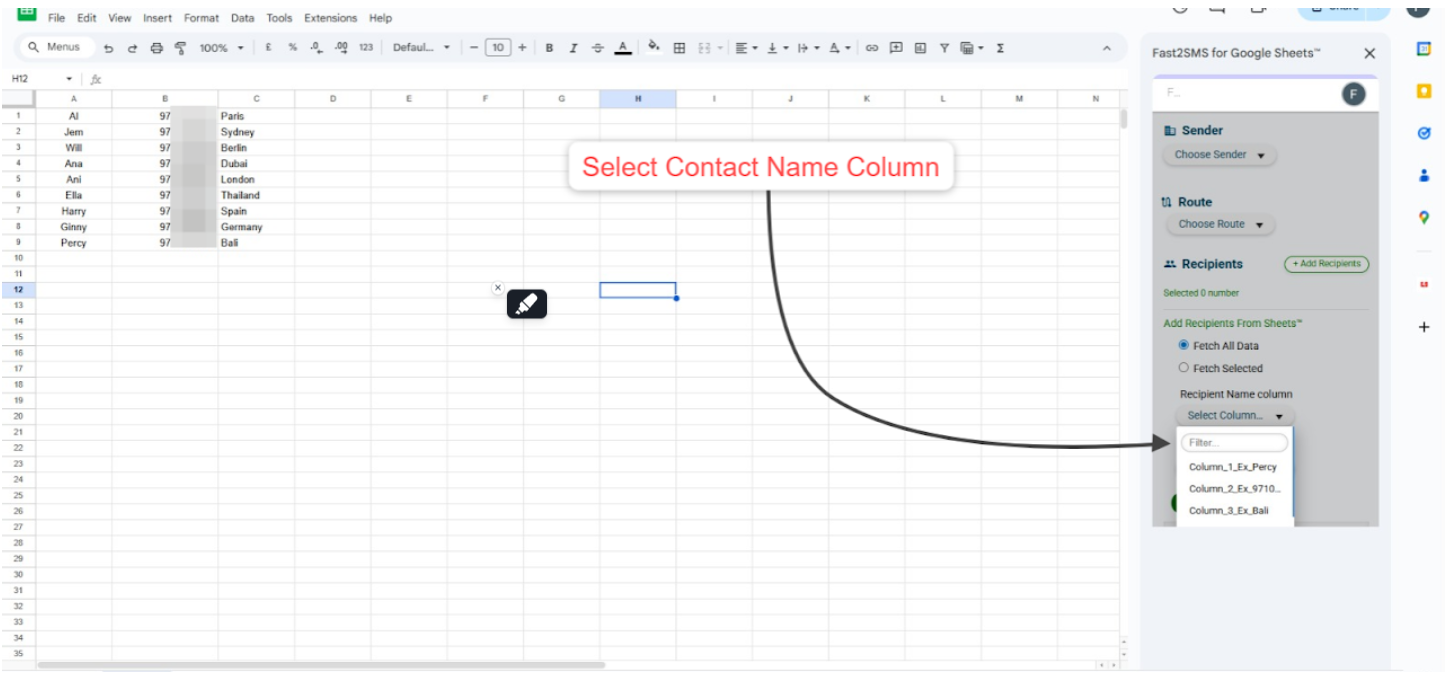
Select the column in which the contact name is present.
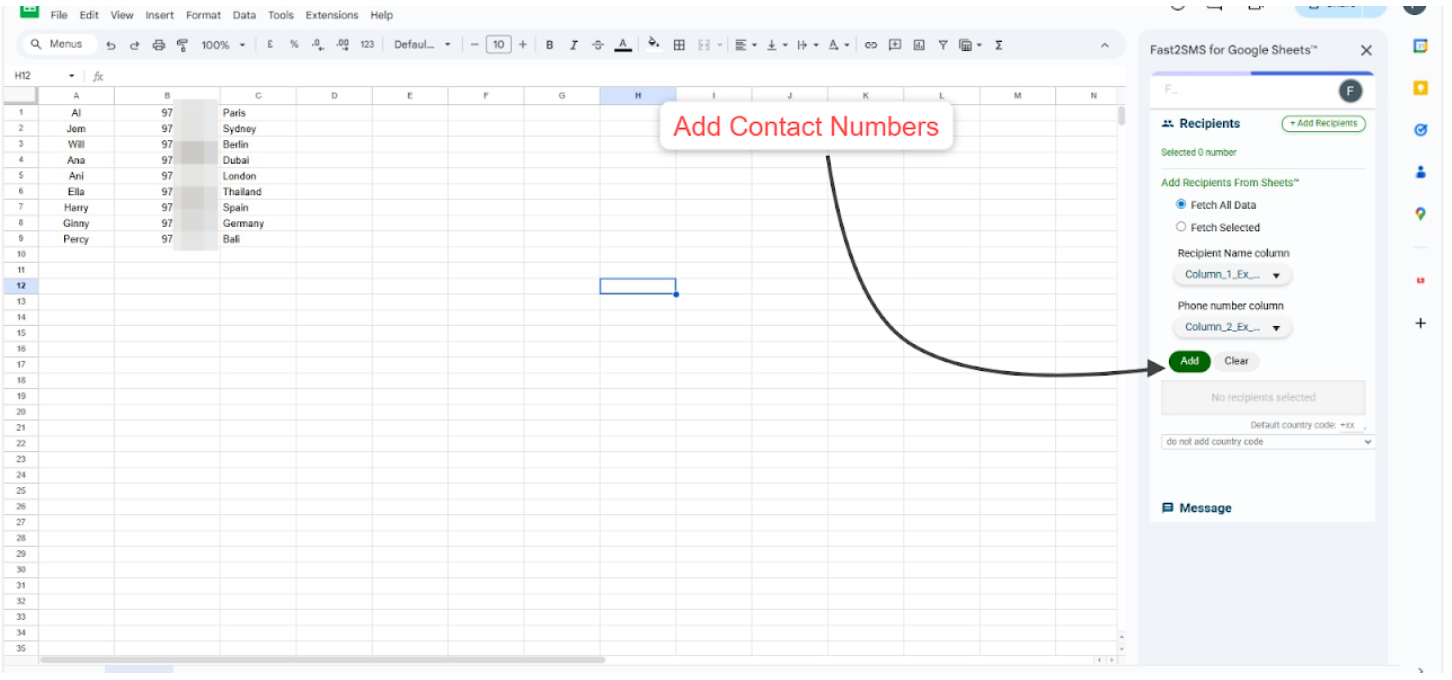
- Select the column in which the contact number is present.

-
Click on ‘Add’ to include the contacts within recipients.
-
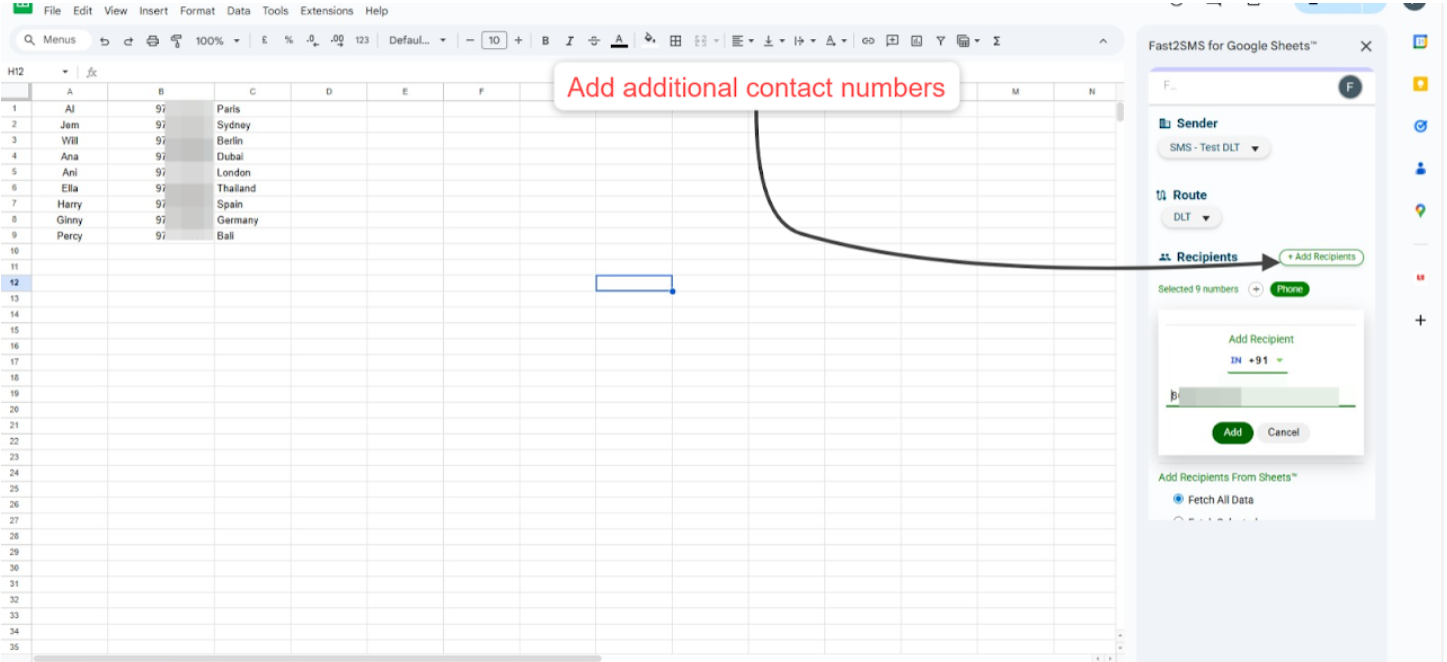
In case you wish to add additional contacts, click on ‘Add Recipients’.
-
Select the country code and enter the contact number to be added.
-
Click on ‘Add’.
-
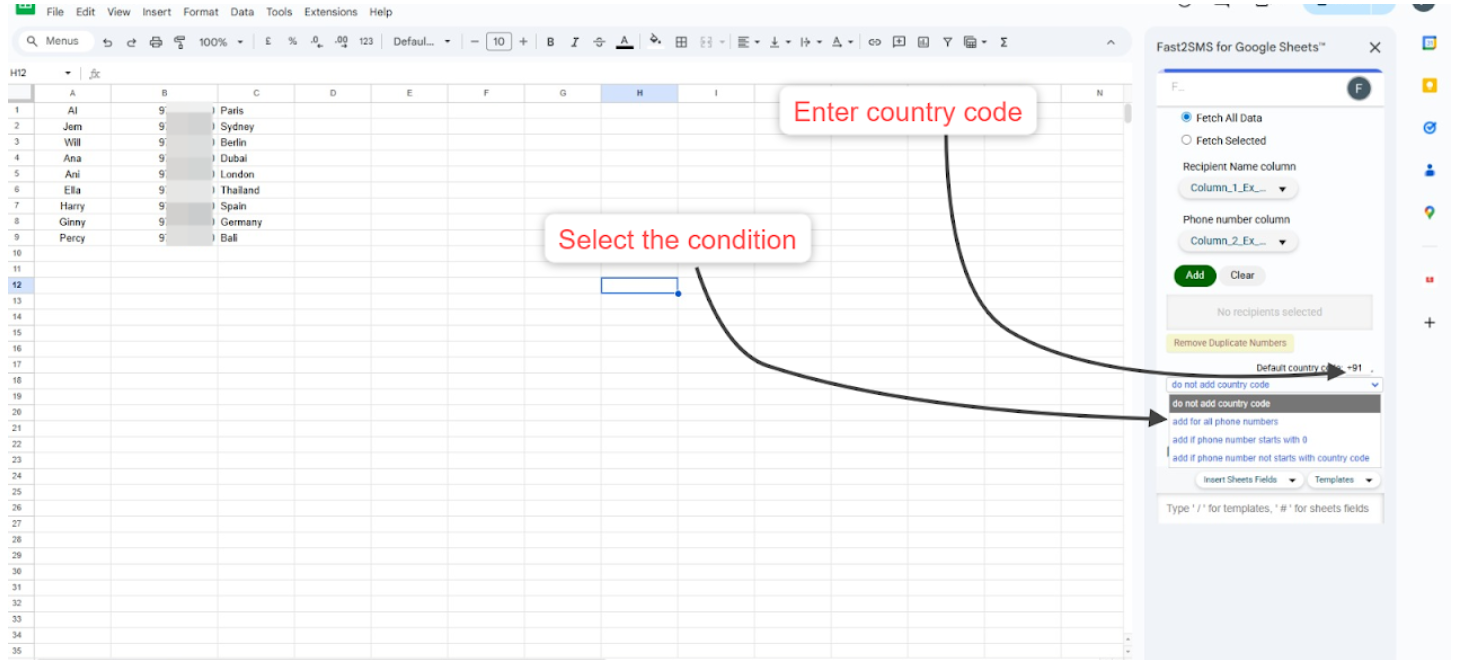
You can utilize the default country code option in case contact numbers do not contain a country code.
-
Enter the default country code.
-
Select the conditions for the default country code.
-
Enter the message to be sent or insert a message template.
-
Click on ‘Insert WhatsApp Templates’ to access your Fast2SMS approved WhatsApp templates.
-
Click on ‘Templates’ access the message templates created within the application.
-
Select and insert any message template.
-
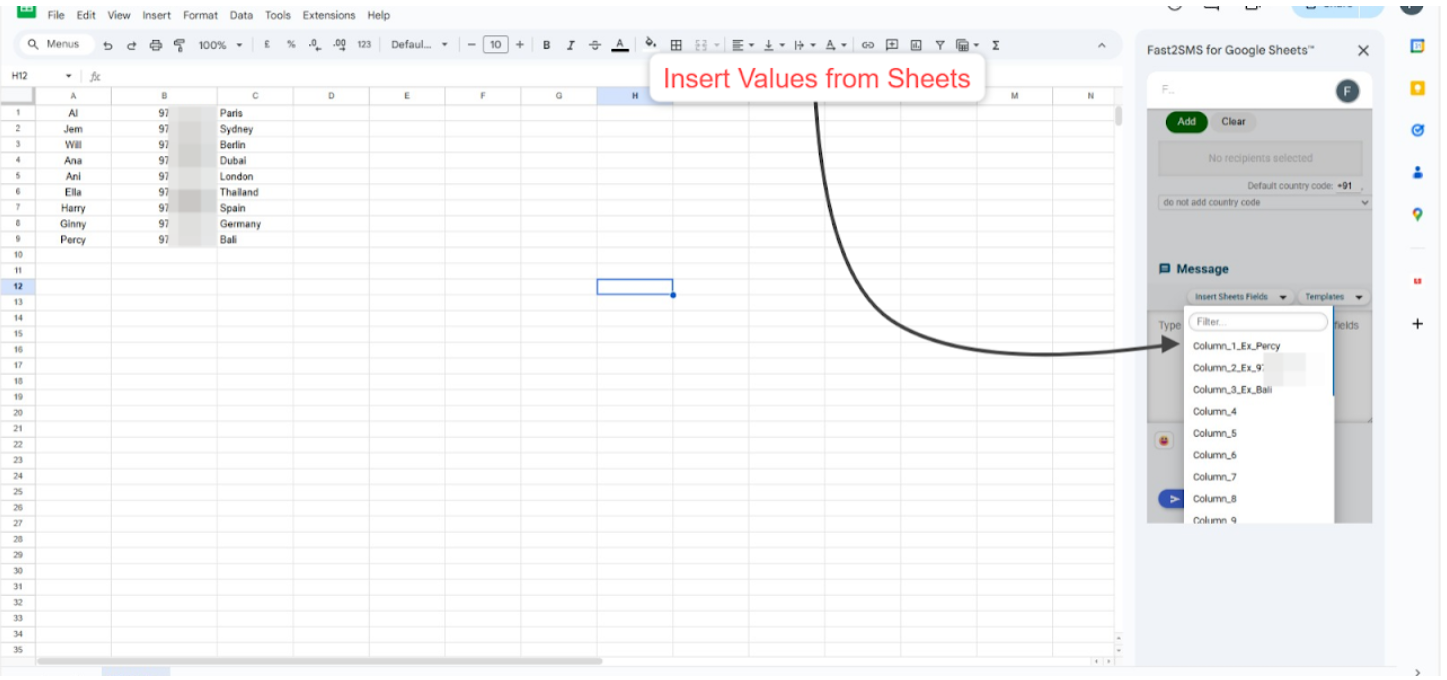
Enter ‘#’ and select any column to insert any field from the Sheet.
-
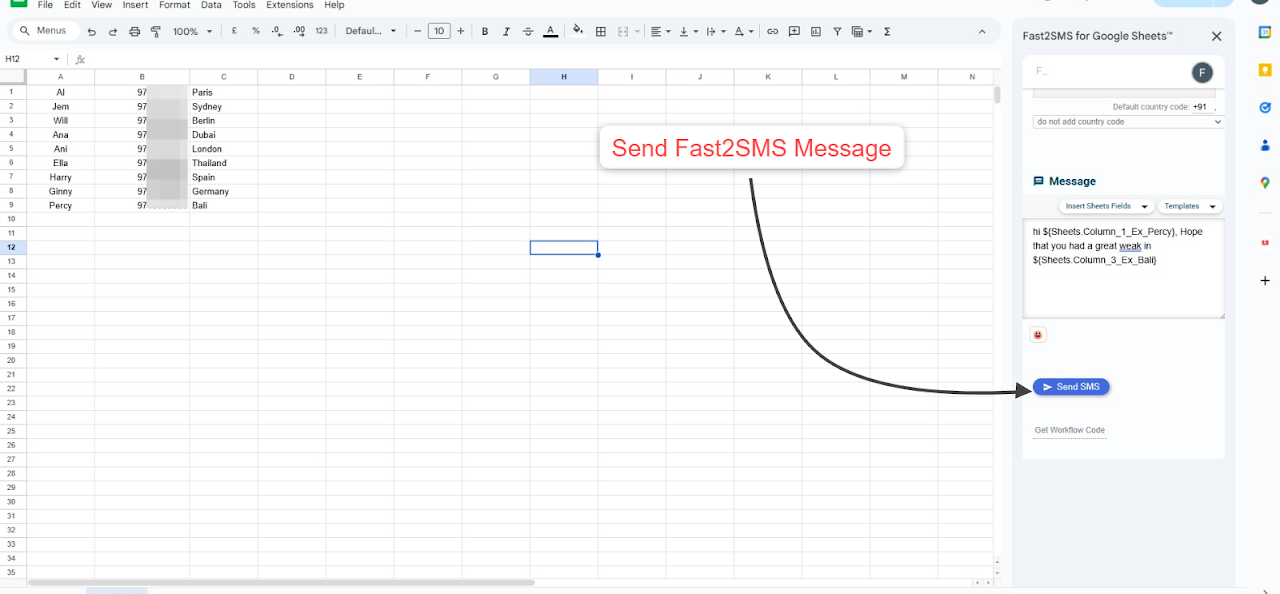
Send the Fast2SMS message to the contacts from Google Sheets.
Message Templates
Approved Templates
-
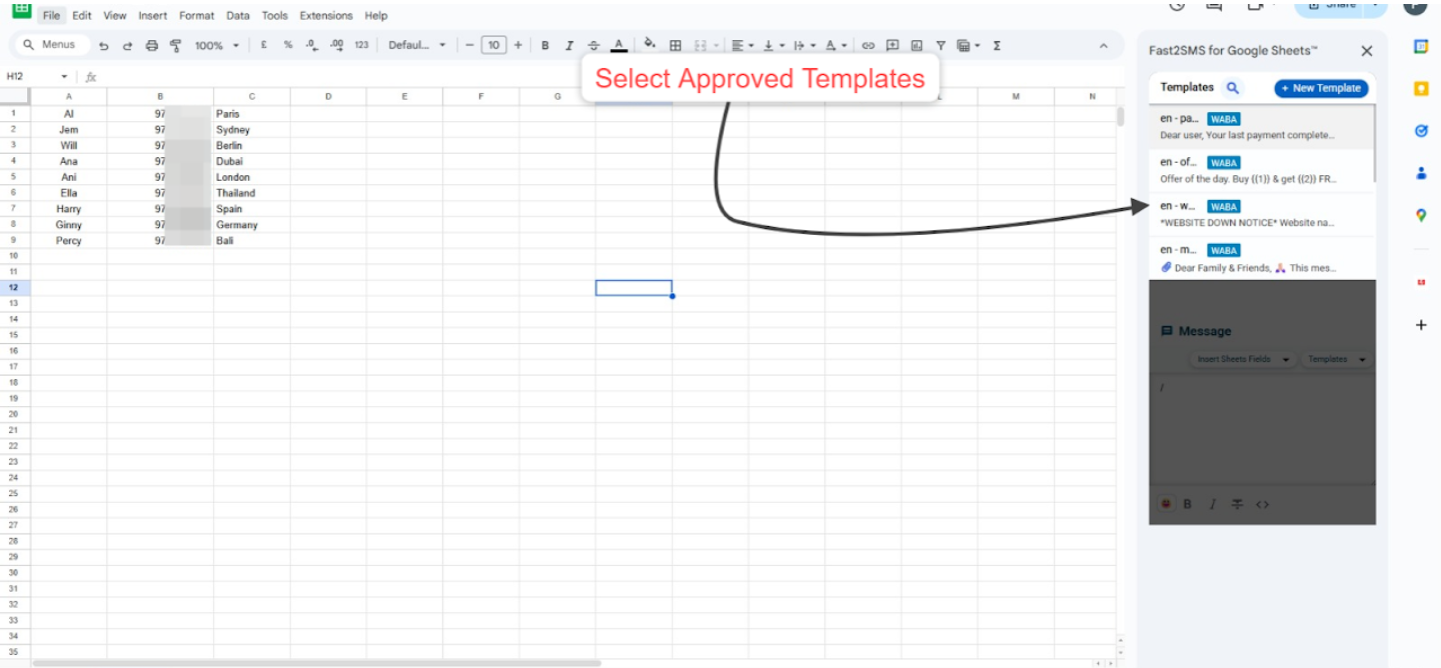
Select ‘Insert WhatsApp Templates’ to access the Fast2SMS approved templates.
-
Select and insert any template.
-
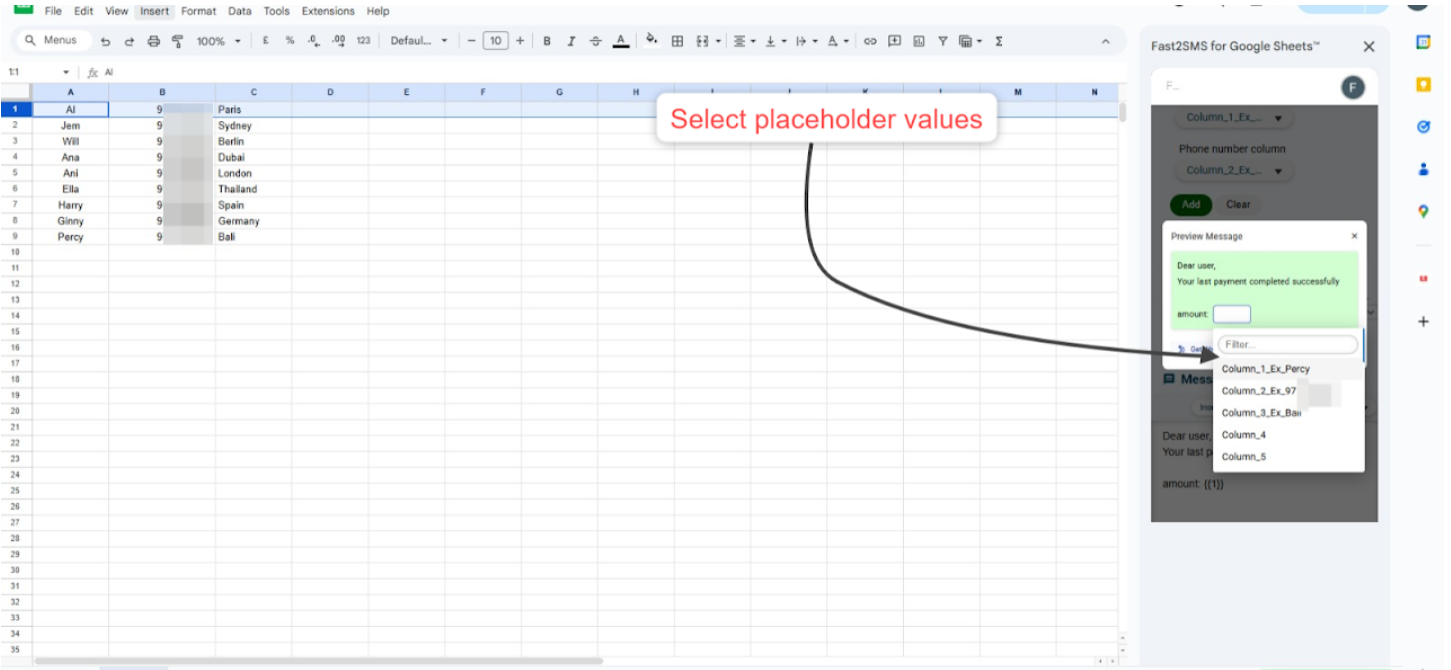
Enter the values for the placeholders within the template.
-
Enter a custom value or insert a field from any Sheets’ column.
Create Template
-
Select the ‘Insert Templates’ drop-down.
-
Select any template from the ‘Insert Templates’ drop-down to insert and send the template message.
-
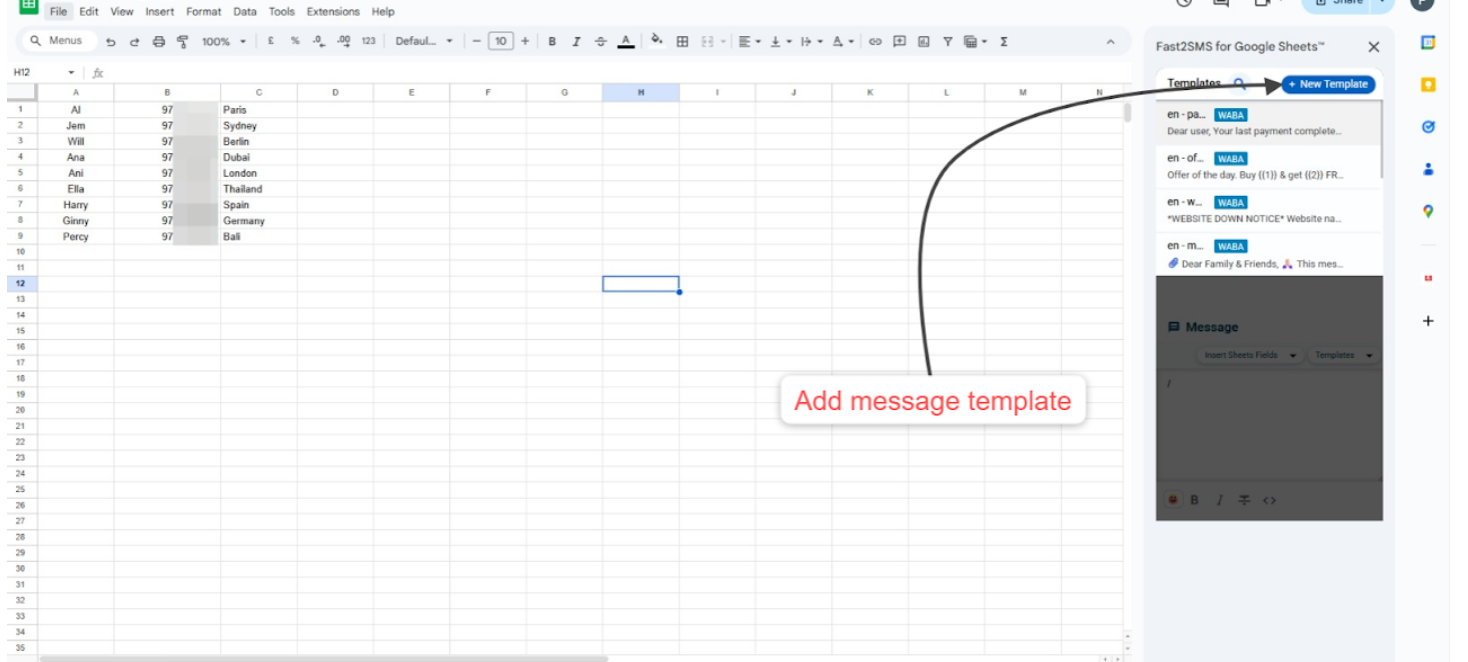
Click on ‘Add New Template’.
-
Enter the name of the template.
-
Enter the content within the template.
-
Include attachments if required.
-
Click on ‘Save Template’.