
Fast2SMS WordPress Plugin: Send OTP SMS & WhatsApp Notifications from WooCommerce
How to Send OTP SMS & WhatsApp Notifications from WordPress & WooCommerce with the Official Fast2SMS Plugin (Step-by-Step Guide)
Want to send automatic order updates on SMS and WhatsApp, let customers log in with OTP, verify Cash-on-Delivery orders, recover abandoned carts and run bulk SMS campaigns — all from your WordPress dashboard? The official Fast2SMS plugin for WordPress & WooCommerce does all of it with one free plugin and your own Fast2SMS account.
In this guide, you will install the plugin, connect your Fast2SMS API key, and set up your first automation in under 10 minutes. No coding required.
What the Fast2SMS WordPress Plugin Can Do
- WooCommerce order notifications — order placed, payment received, processing, completed, on hold, failed, cancelled, refunded — on SMS, WhatsApp or both
- OTP login & signup verification — passwordless login with mobile OTP on WooCommerce and WordPress login/registration forms
- COD order verification — customers confirm Cash-on-Delivery orders via OTP, reducing RTO losses
- Abandoned cart recovery — automatic reminder with a checkout link after a configurable delay
- Bulk campaigns — send approved templates to all customers or any list, instantly or scheduled
- Form OTP & alerts — OTP verification on Contact Form 7, WPForms and Elementor forms, plus instant admin alerts on submissions
- WhatsApp media messages — send invoices (PDF) or offer images through WhatsApp template headers
- Review requests, stock alerts, welcome messages and more
The plugin is free and works on the bring-your-own-key model: every message is billed to your own Fast2SMS wallet at your account rates, and delivery reports appear in your own Fast2SMS panel. Note: Fast2SMS works with Indian mobile numbers (10-digit) only.
Requirements
- A WordPress website (WordPress 5.8 or later, PHP 7.4+)
- A free account at www.fast2sms.com with your API key (Dev API section)
- For SMS: approved DLT templates in your Fast2SMS panel (required by TRAI regulations in India)
- For WhatsApp: approved WhatsApp templates in your Fast2SMS panel
- For OTP features: an OTP ID created in your Fast2SMS panel (Smart OTP section)
- WooCommerce (optional) — unlocks order notifications, COD verification and cart recovery
Step 1: Install the Plugin
The plugin is on the official WordPress plugin directory: wordpress.org/plugins/fast2sms
In your WordPress admin:
- Go to Plugins → Add New
- Search for Fast2SMS and click Install Now
- Click Activate
A new Fast2SMS menu appears in your WordPress sidebar.
Step 2: Connect Your Fast2SMS API Key
Open Fast2SMS from the sidebar. On the Dashboard tab, paste your API key (from fast2sms.com → Dev API) and click Validate & Save. The key is verified live against your account and stored encrypted. Once connected, your wallet balance and SMS count appear at the top, and the setup checklist guides you through the rest.
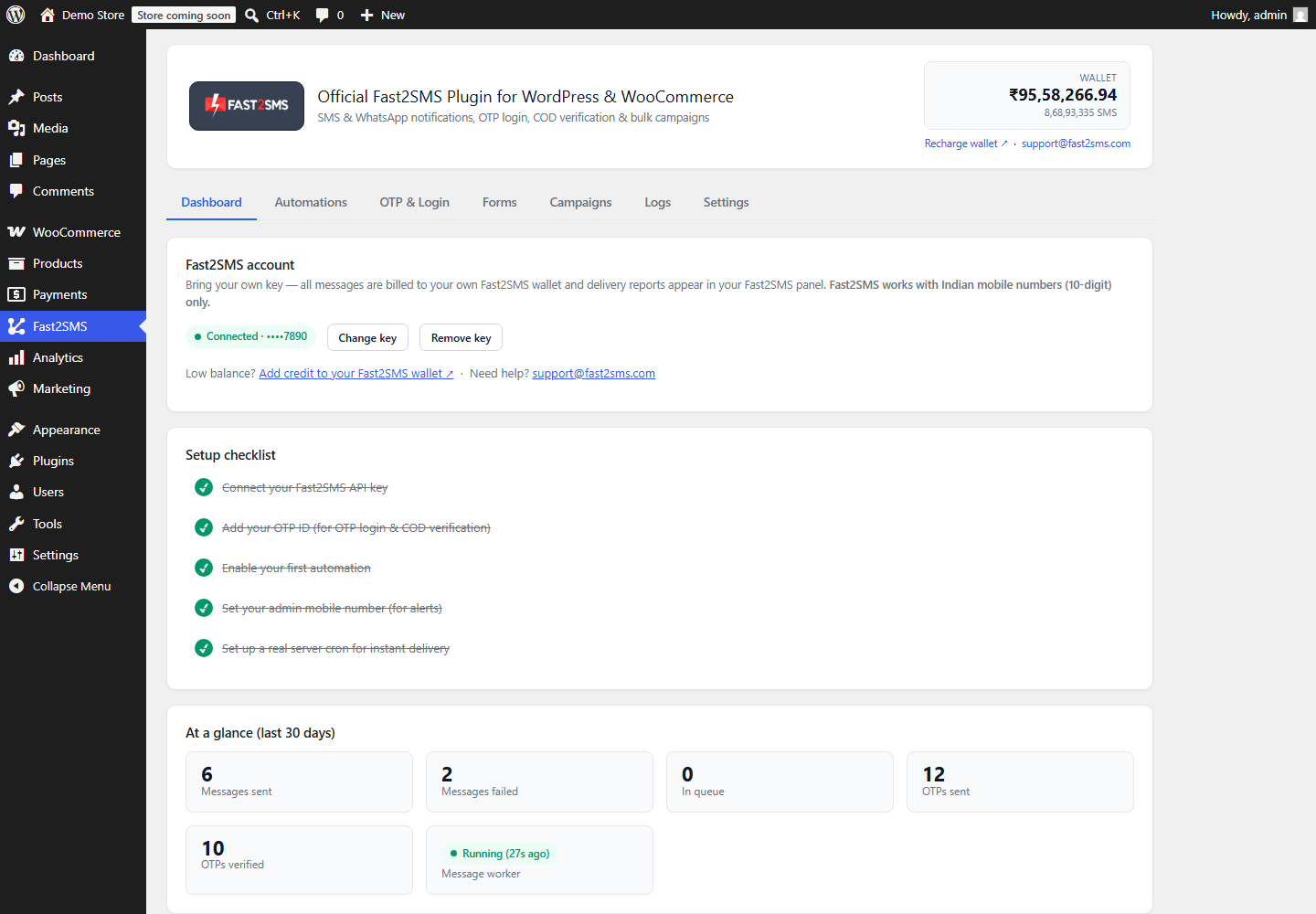
Fast2SMS plugin dashboard — connected account, wallet balance, setup checklist and 30-day stats.
Step 3: Enable SMS & WhatsApp Order Notifications (WooCommerce)
Open the Automations tab. Every WooCommerce event has its own card — flip the toggle to enable it, then pick your approved template:
- Choose the channel: SMS, WhatsApp or Both
- Click Fetch templates from Fast2SMS — your approved DLT/WhatsApp templates load automatically
- Map each template variable to order data like {name}, {order_id}, {amount}, {payment_method}
- Watch the live phone preview on the right — you see the exact message your customer will receive
- Use Send test to fire a real message with sample values to your own number before going live
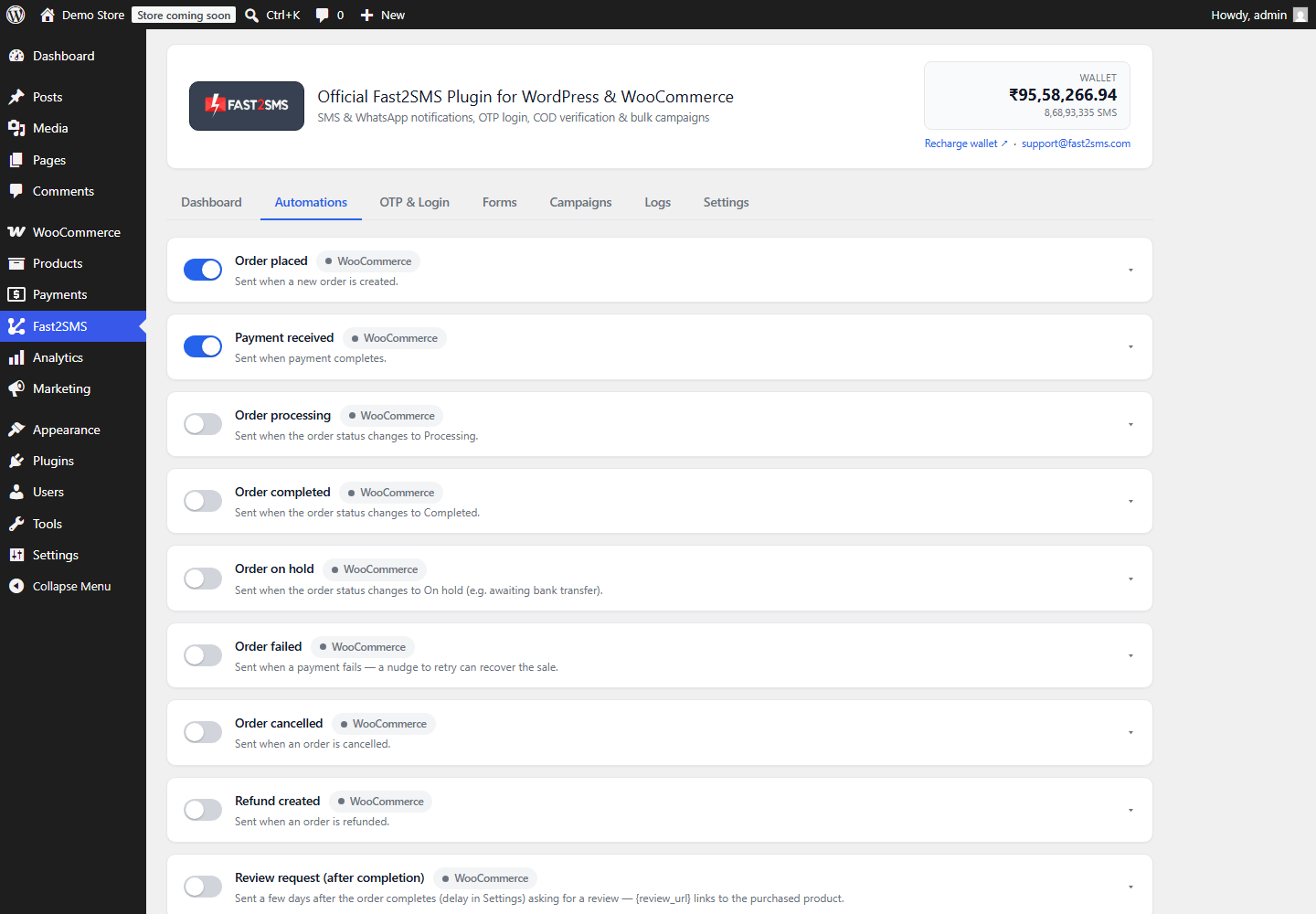
Automations tab — one toggle per WooCommerce event, from order placed to review requests.
Step 4: Set Up OTP Login and Signup Verification
On the OTP & Login tab, enter your OTP ID (created in your Fast2SMS panel → Smart OTP section). Whether the OTP is delivered by SMS or WhatsApp is controlled by that OTP ID’s configuration at Fast2SMS. Then choose where to ask for OTP:
- Login with OTP on the WooCommerce login form
- Login with OTP on wp-login.php
- Require phone verification on registration/signup (WooCommerce My Account + WordPress)
- COD order verification for Cash-on-Delivery orders
Use the built-in Test your OTP setup card to send yourself a real OTP and verify it — proving the whole flow end-to-end. You can also customize the login form’s theme, button color and corner style with a live preview, and place it anywhere with the [fast2sms_otp_login] shortcode.
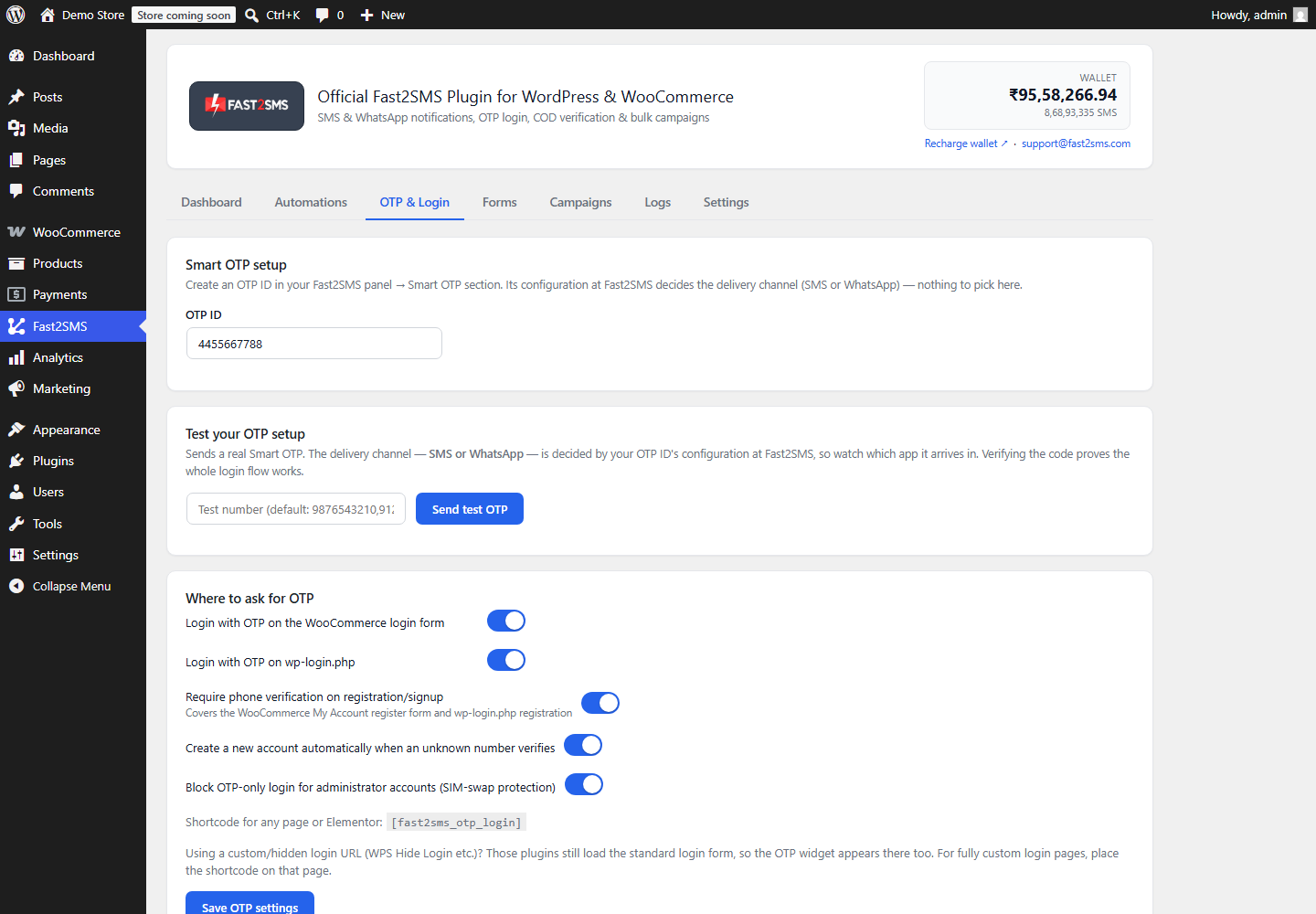
OTP & Login tab — Smart OTP setup, end-to-end test, and login form options.
This is what your customers see on the login page:
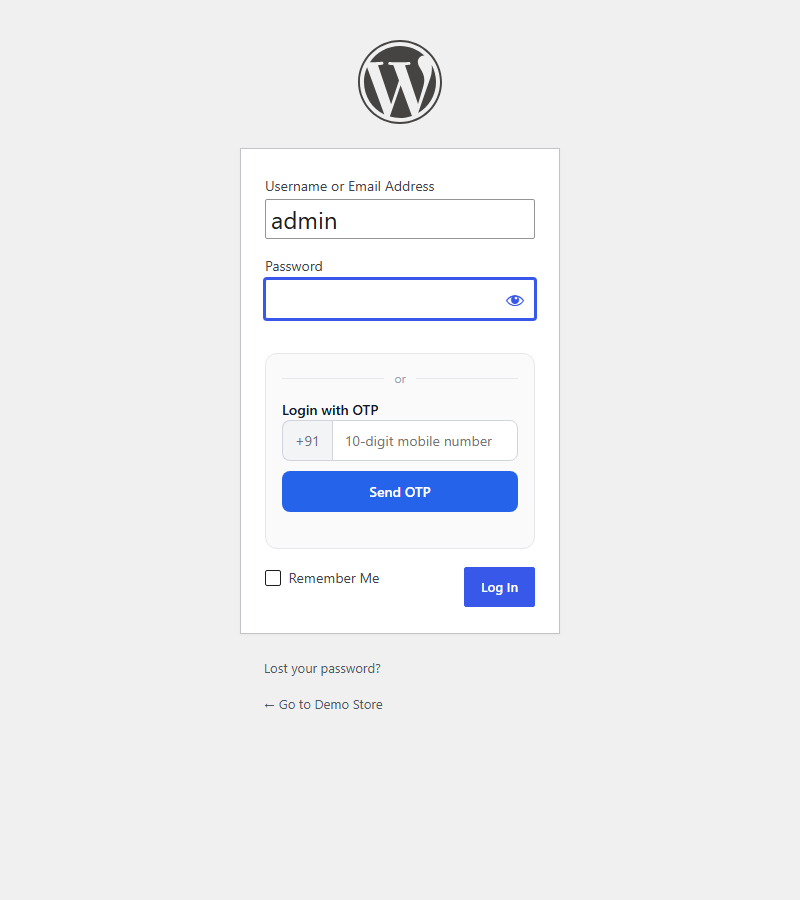
“Login with OTP” appears right inside your existing login form.
Step 5: Add OTP Verification to Contact Forms
Stop fake enquiries by requiring a verified mobile number before a form can be submitted. The Forms tab supports the three most popular form plugins:
- Contact Form 7 — add the [f2s_otp] tag to your form
- WPForms — add an HTML field containing [fast2sms_otp_verify] and list the form ID
- Elementor Pro Forms — same shortcode inside the form, listed by form name
You can also get an instant SMS/WhatsApp alert on your own number every time a form is submitted — enable the “Form submitted (notify admin)” automation.
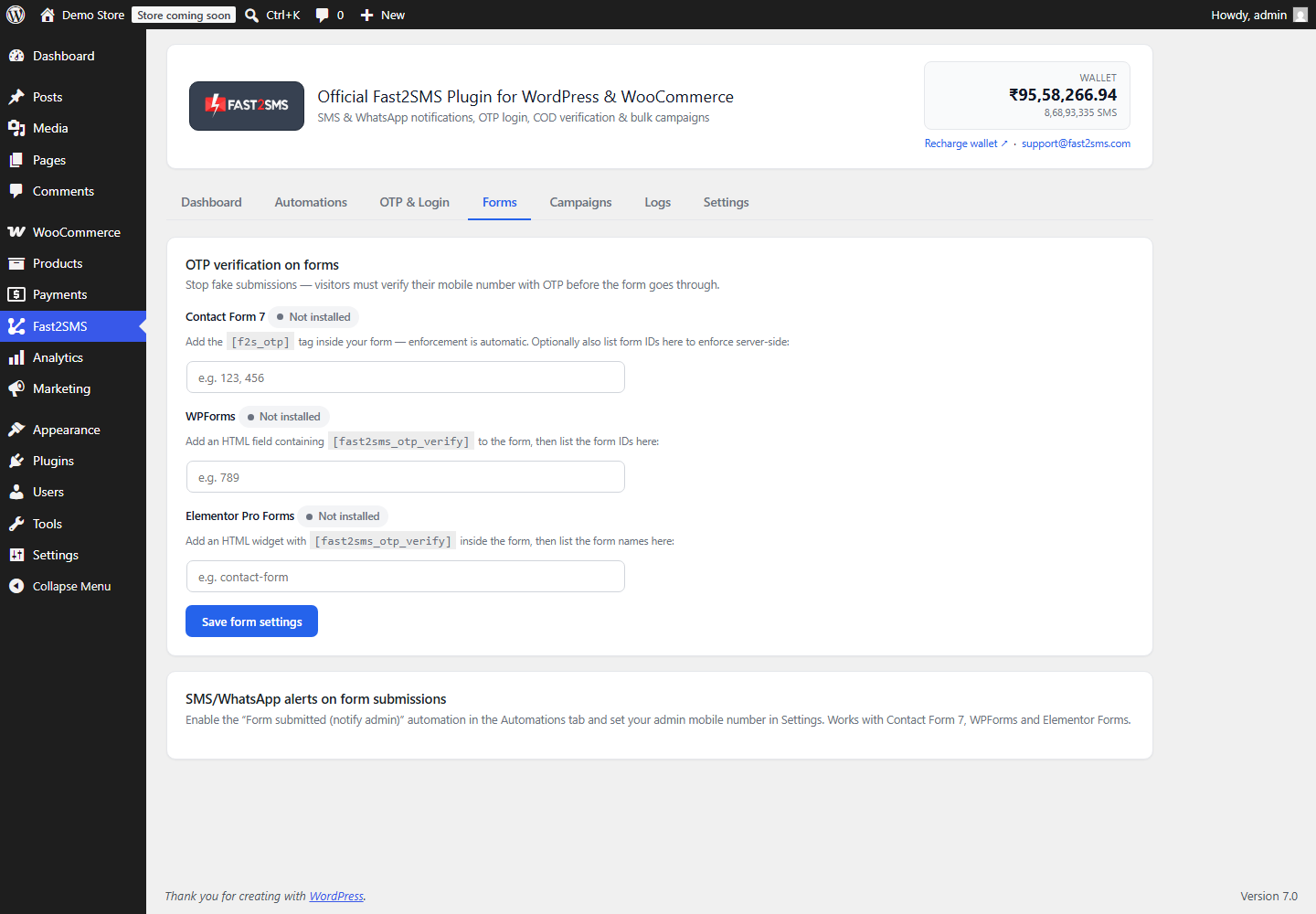
Forms tab — OTP enforcement for Contact Form 7, WPForms and Elementor Pro.
Step 6: Send Bulk SMS & WhatsApp Campaigns
The Campaigns tab sends an approved template to all your WooCommerce customers, all WordPress users, or any pasted list of numbers. Pick a template, map the variables, choose the audience — and either send immediately or schedule it for a date and time. Campaigns use Fast2SMS’s bulk API, so even thousands of messages go out fast, and progress (sent/failed/total) is tracked live.
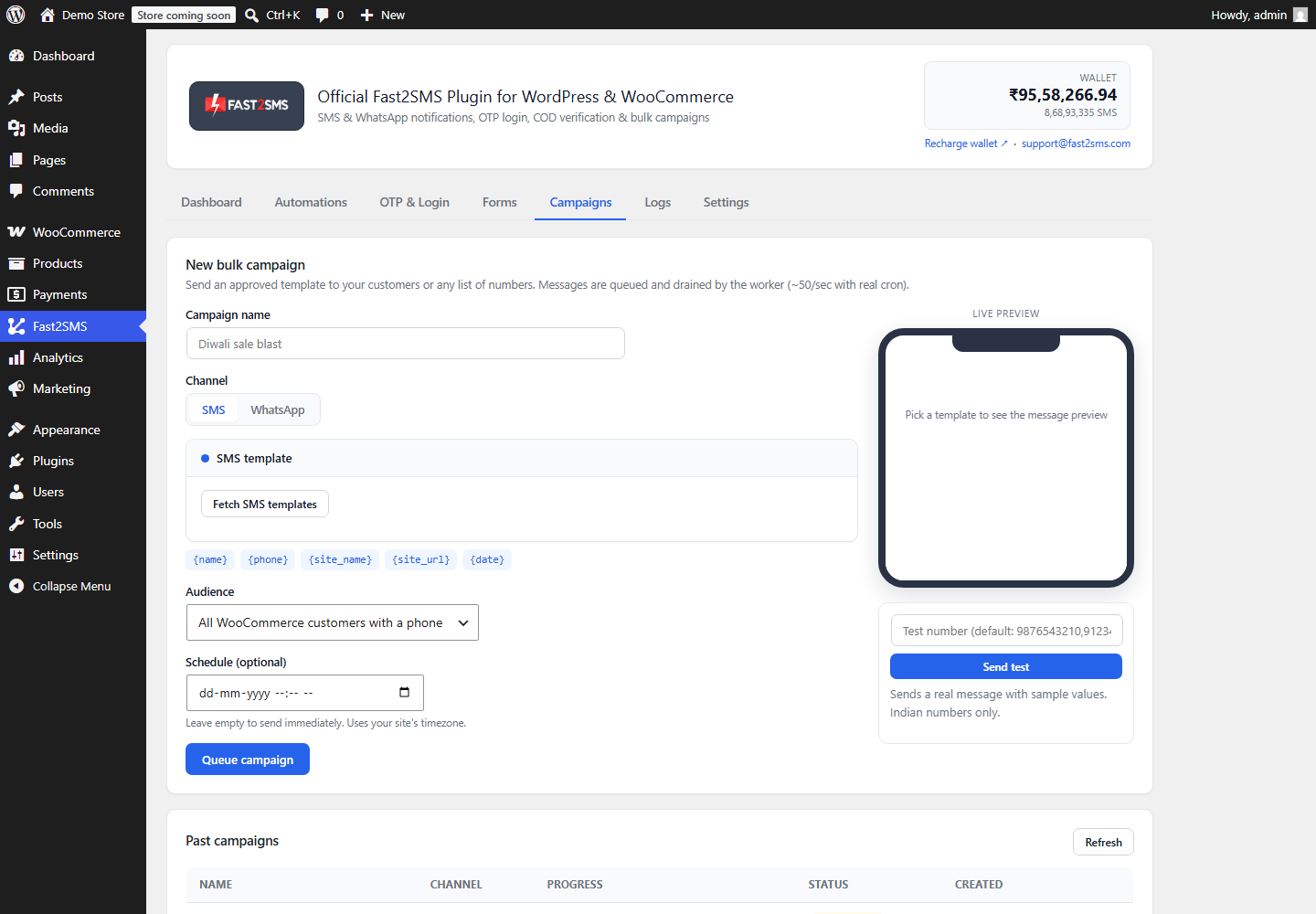
Campaign composer — audience selection, scheduling and a live message preview.
Step 7: Track Every Message in Logs
The Logs tab shows every message with time, event, channel, masked phone number and status. Failed messages show the exact Fast2SMS error and can be retried with one click. You can also export the log as CSV. Detailed delivery reports are always available in your own Fast2SMS panel.
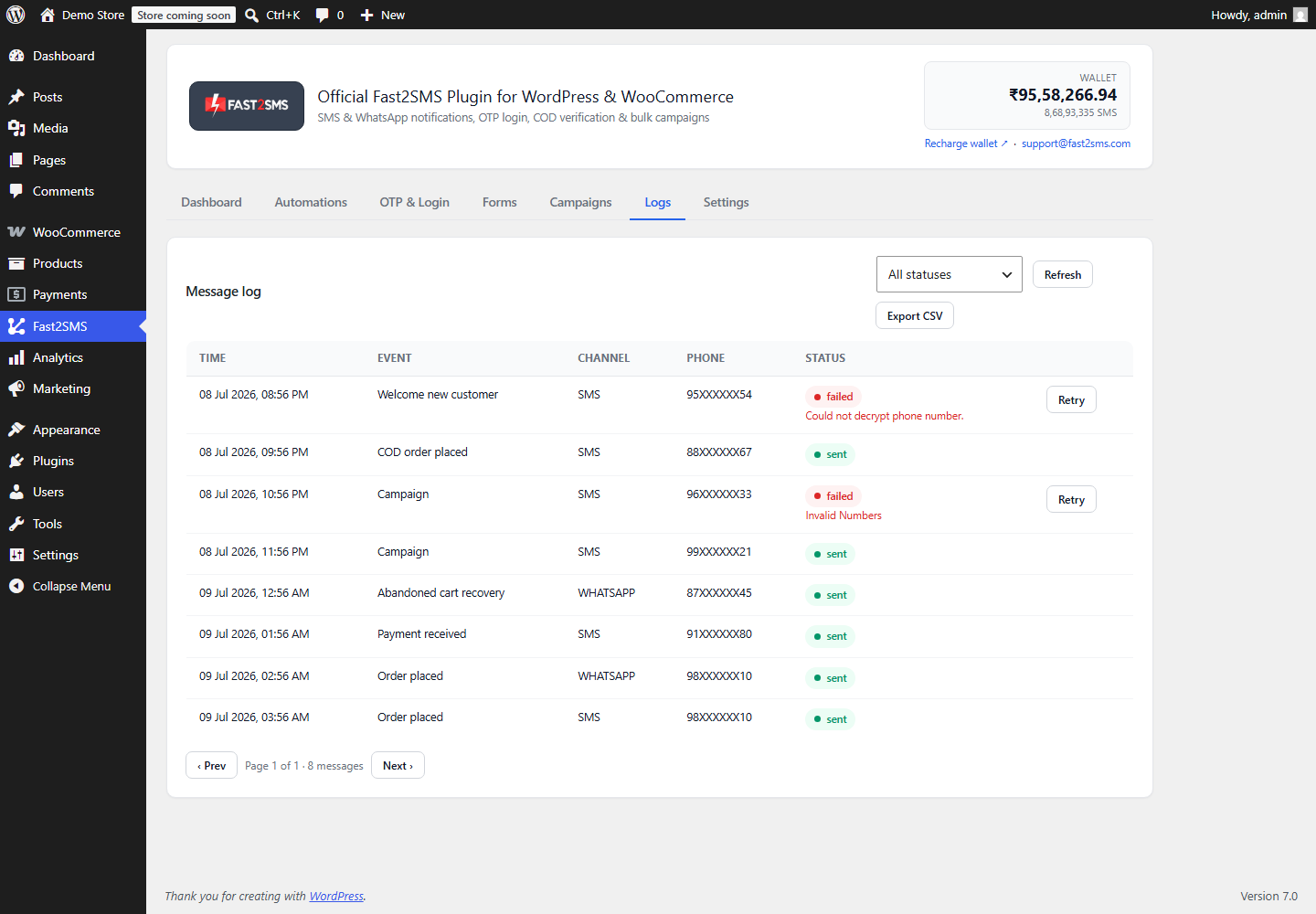
Logs tab — full message history with one-click retry for failures.
Step 8: Fine-Tune Settings
In Settings you control abandoned-cart delay, admin alert numbers (add multiple), the checkout consent checkbox, review-request timing, a do-not-send list for opted-out customers, low-balance alerts and data retention. Everything auto-saves. Phone numbers are stored encrypted and masked everywhere
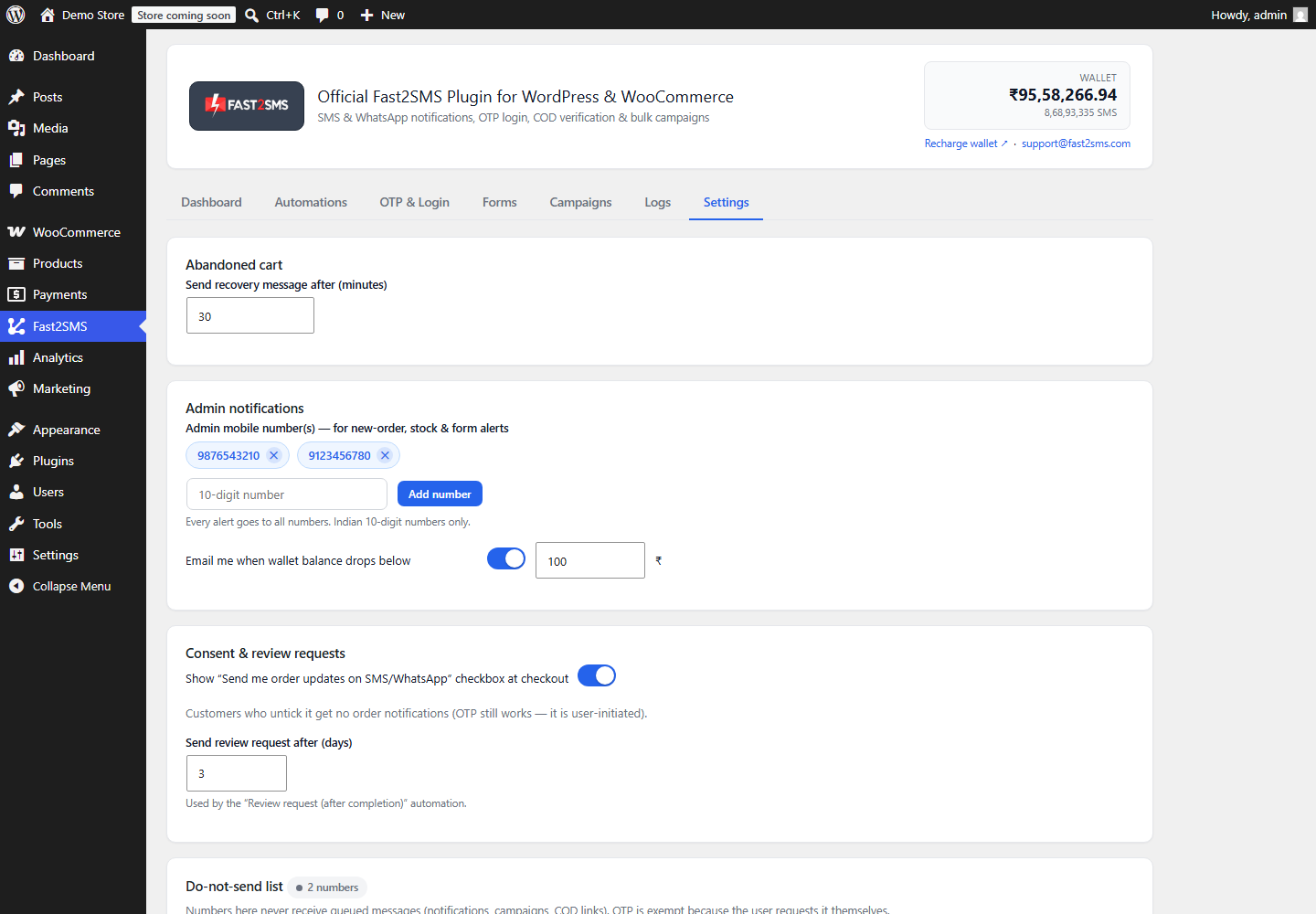
Pro Tip: Instant Delivery with a Real Cron
WordPress’s built-in scheduler only runs when someone visits your site. For instant message delivery, add the one-line server cron shown on the plugin’s Dashboard tab (most hosting panels have a “Cron Jobs” section). Without it the plugin still works — messages just wait for the next site visit.
Frequently Asked Questions
Is the Fast2SMS WordPress plugin free?
Yes. The plugin is completely free. You only pay for the messages you send, billed to your own Fast2SMS wallet at your account’s rates.
Does it work without WooCommerce?
Yes. OTP login, signup verification, form OTP, form alerts and bulk campaigns work on any WordPress site. WooCommerce unlocks order notifications, COD verification, abandoned cart recovery and review requests automatically when installed.
Which countries are supported?
Fast2SMS works with Indian mobile numbers (10-digit) only, with full DLT compliance for SMS as required by TRAI.
Can I send WhatsApp messages with images or PDF invoices?
Yes. WhatsApp templates with media headers are fully supported — attach an image or a PDF (like the order invoice) via a URL, with per-order variables such as {order_id} in both the URL and the filename.
How do customers opt out of messages?
Two ways: an optional “Send me order updates” consent checkbox at checkout, and a do-not-send list in the plugin settings that all notifications, campaigns and COD links respect automatically.
Where do I see delivery reports?
Message-level status is in the plugin’s Logs tab; full delivery reports are in your own Fast2SMS panel at fast2sms.com, since messages are sent through your own account.
Start Sending Today
Install the official plugin now: get it free on WordPress.org or search for Fast2SMS under Plugins → Add New.
Create your free account and get your API key at fast2sms.com.
Questions? Our team is happy to help: [email protected]
More WooCommerce OTP, SMS and WhatsApp guides
- WooCommerce OTP plugin: 110 FAQs
- WooCommerce checkout OTP verification
- WooCommerce login with mobile number
- Phone number verification at registration
- WooCommerce WhatsApp OTP login
- WooCommerce COD OTP verification
- WooCommerce OTP not received: fixes
- WooCommerce OTP cost
- Best WooCommerce OTP plugins compared
- Free mobile login plugin alternative
- WooCommerce WhatsApp plugin: 100+ FAQs
- WooCommerce SMS notification plugin: 100+ FAQs
- Order status SMS and WhatsApp
- COD to prepaid and pending payment reminders
- Abandoned cart recovery on WhatsApp and SMS
- Back in stock notifier
- WooCommerce SMS marketing campaigns
- Best WooCommerce SMS and WhatsApp plugins
- Twilio SMS alternative for India
- WooCommerce OTP plugin guide in Hindi
High volume? Rates are negotiable: call sales on +91-6262778811, email [email protected] or book a free meeting with our team.