
How to get DLT Template ID for OTP and Transactional SMS
DLT Template ID for OTP and Transactional SMS is found on the DLT portal in the template tab under Content template details section. With the advent of new TRAI rules, every business entity has to now register on a DLT portal to send Bulk SMS to their customers. In this post, we will understand what is DLT, why it is mandatory and the complete process to get DLT Template ID for OTP and Transactional SMS.

What is DLT?
Distributed Ledger Technology (DLT) is an online portal that maintains the record of every detail entered in the panel. It is managed using blockchain technology wherein all entities are interconnected with each other and functions as a shared database panel. DLT has been introduced as per TRAI regulations to curb the menace of fraudulent and unsolicited texts in the Bulk SMS industry.
Why is DLT registration mandatory?
Telecom Regulatory Authority of India (TRAI) has made DLT registration mandatory due to the rising problem of spam and fraudulent messages. With the introduction of DLT in Bulk messaging industry, every business (Principal Entity) has to register on a DLT platform to continue sending messages to their customers and also Sender ID (Header) and messages (Templates) have to approved before they are sent. DLT registration is made compulsory due to the following reasons:
- Rising issue of unwanted texts
- Getting spam messages even after registering on DND
- Manage complaints regarding unsolicited texts
- Bring more transparency in the messaging industry
- Long complaint resolution process
- Misuse of Transactional messaging services
- Setbacks in the previous framework
- Make the messaging industry secure and systematic
How to get DLT Template ID for OTP and Transactional SMS?
STEP 1: Principal Entity Registration
1. Visit the link: https://trueconnect.jio.com
Click on the Register Now button to register as an Entity in the Jio DLT platform.
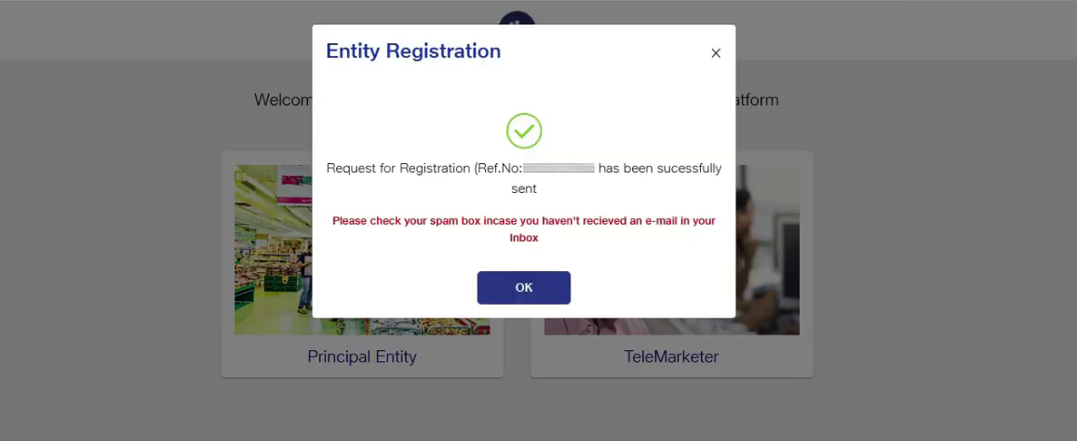
2. The following page will be displayed. Select the Principal Entity option.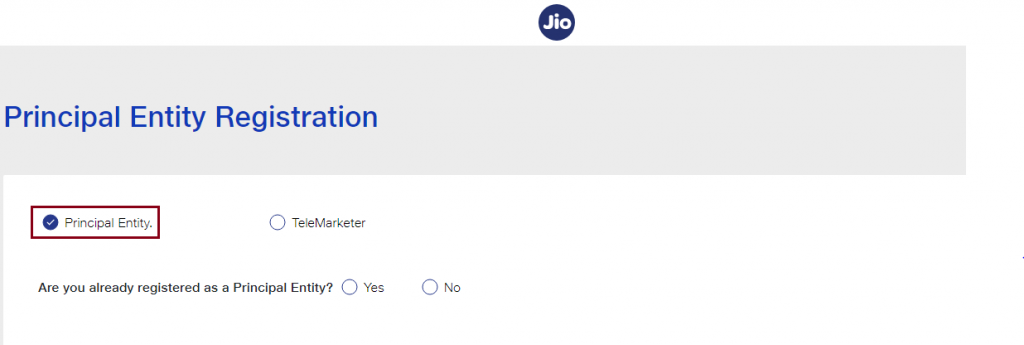
3. If you are registering on the DLT platform for the first time, select No & Fill the requested details.
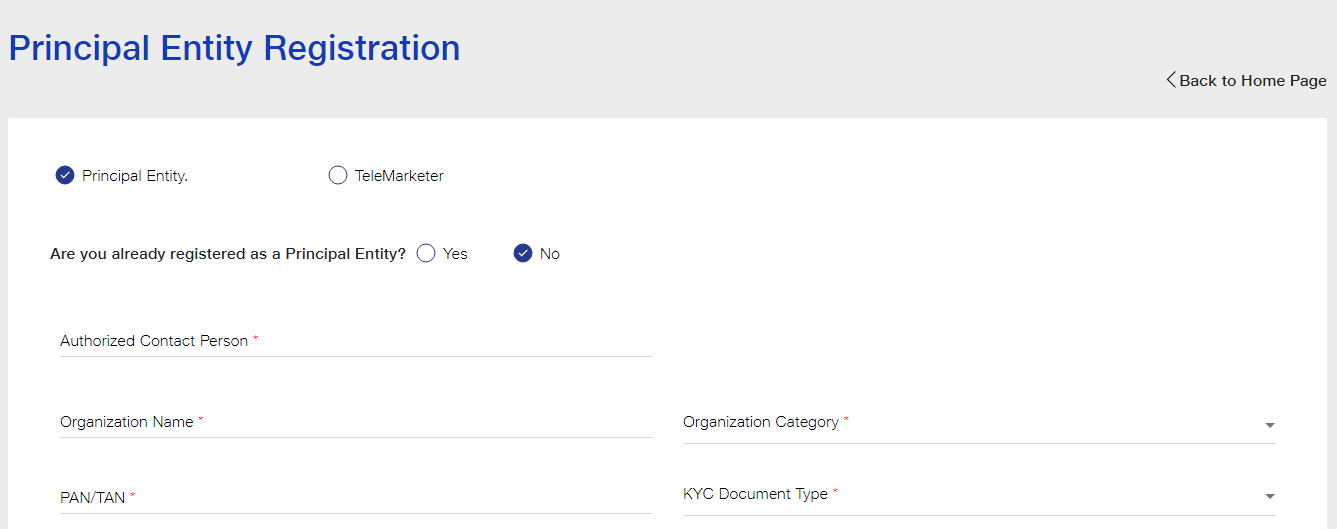
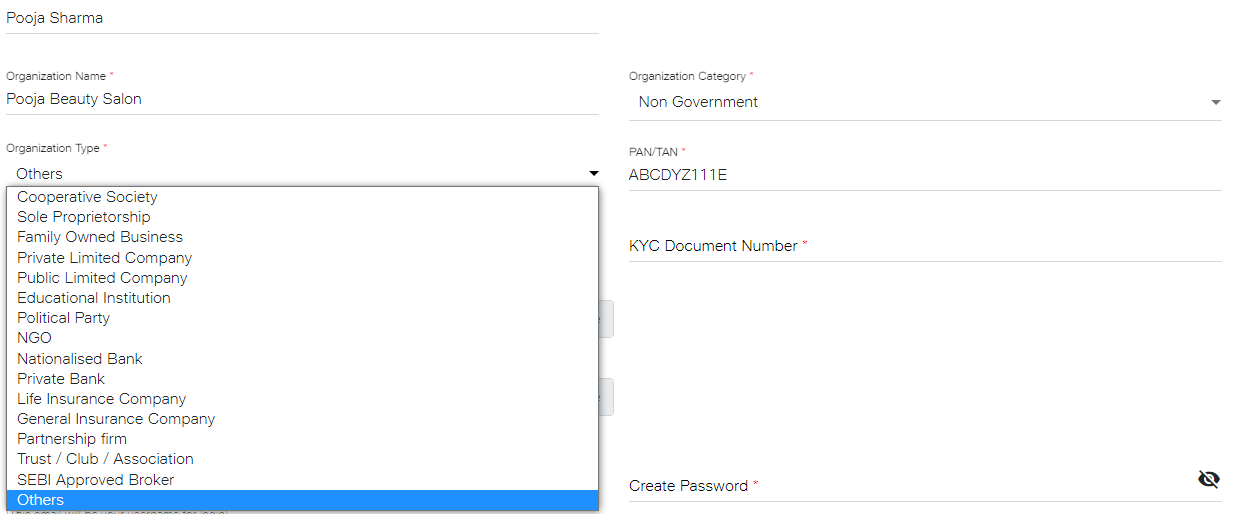
4. Enter the details as shown in the image below. Select your Organization Type from the drop down list.
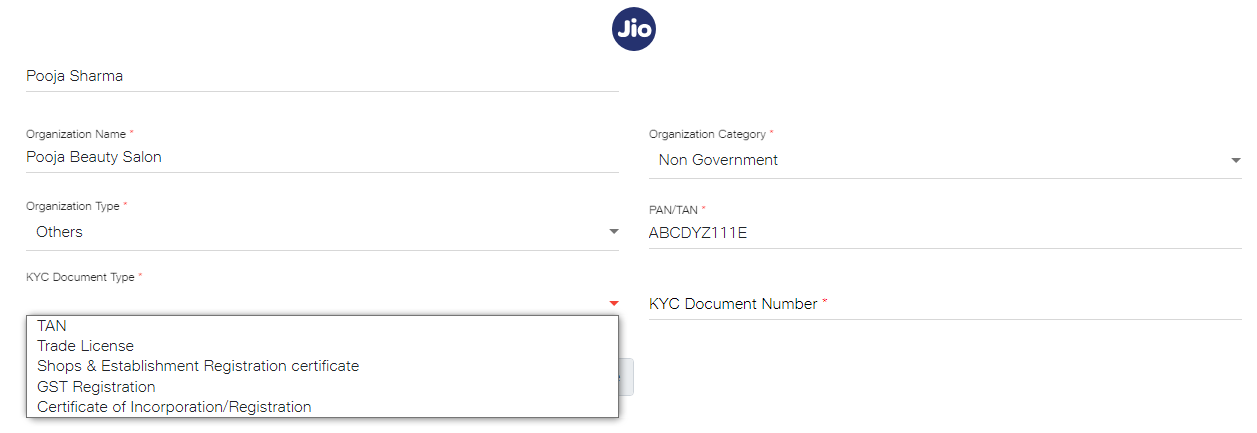
5. Select the KYC Document Type from the drop down list and enter the KYC Document Number.
6. Upload your KYC Document and PAN/TAN. Make sure the file size is less than 5 MB.
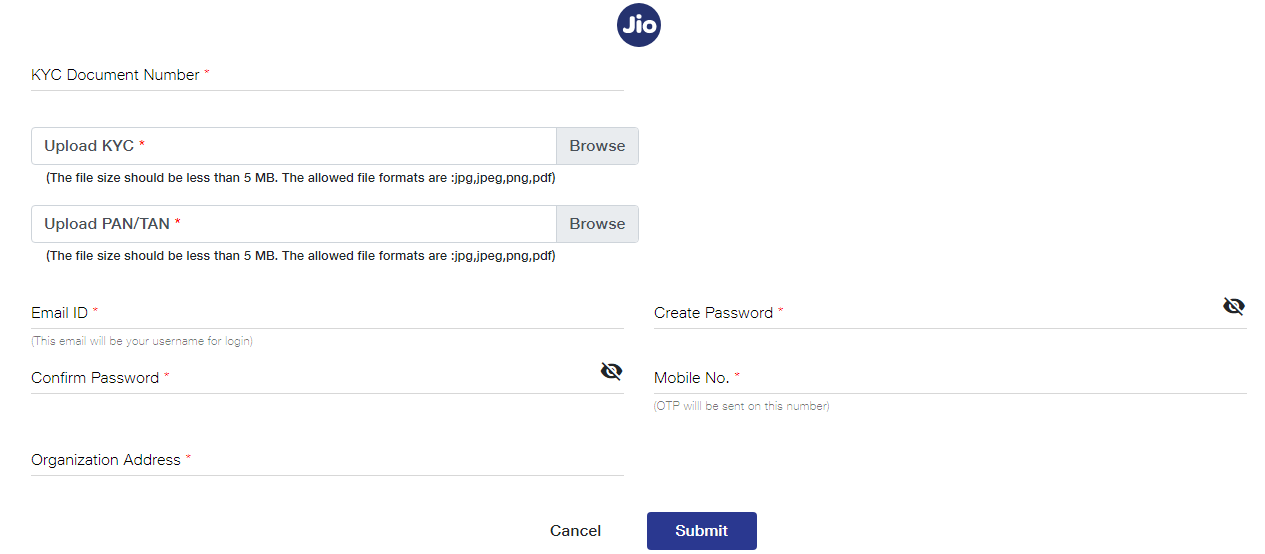
7. After uploading KYC document and PAN Card. Next, enter your email ID, password, mobile number and organization address. After providing the details, click on the Submit button.
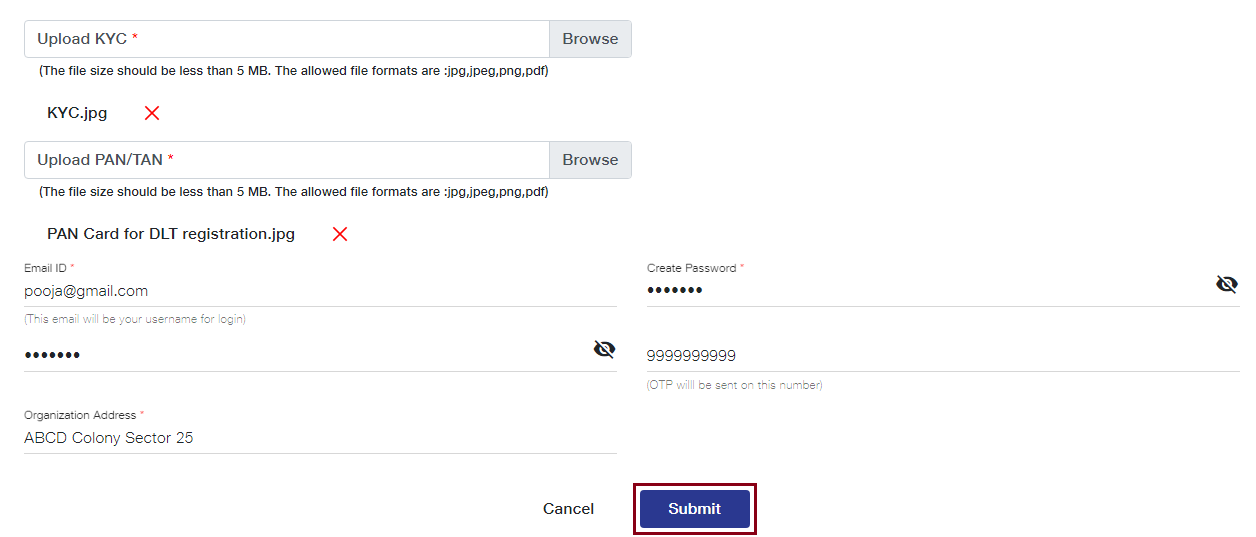
As you click on the Submit button, an OTP will be sent to your registered mobile number. Enter the OTP received to complete the mobile number verification.
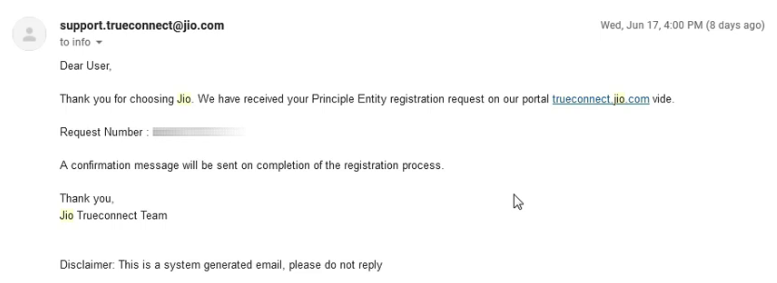
8. As shown in the image below, an email will be sent by Jio that your Entity registration request has been received and is being processed. After submitting registration request, you need to wait for 2-3 days for its approval.
9. Once your entity gets approved, an email will be sent by Jio as shown in the image below. You will receive your login details and Entity Number on your registered email ID.
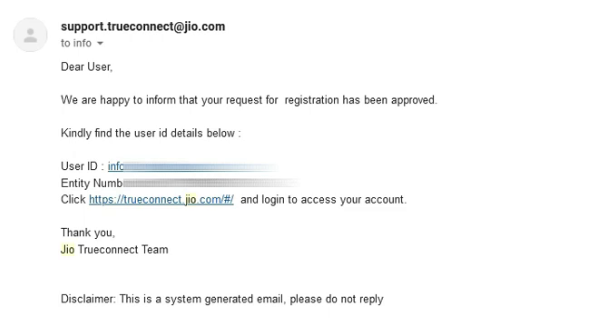
10. Now, you can login and access your JIO DLT account.
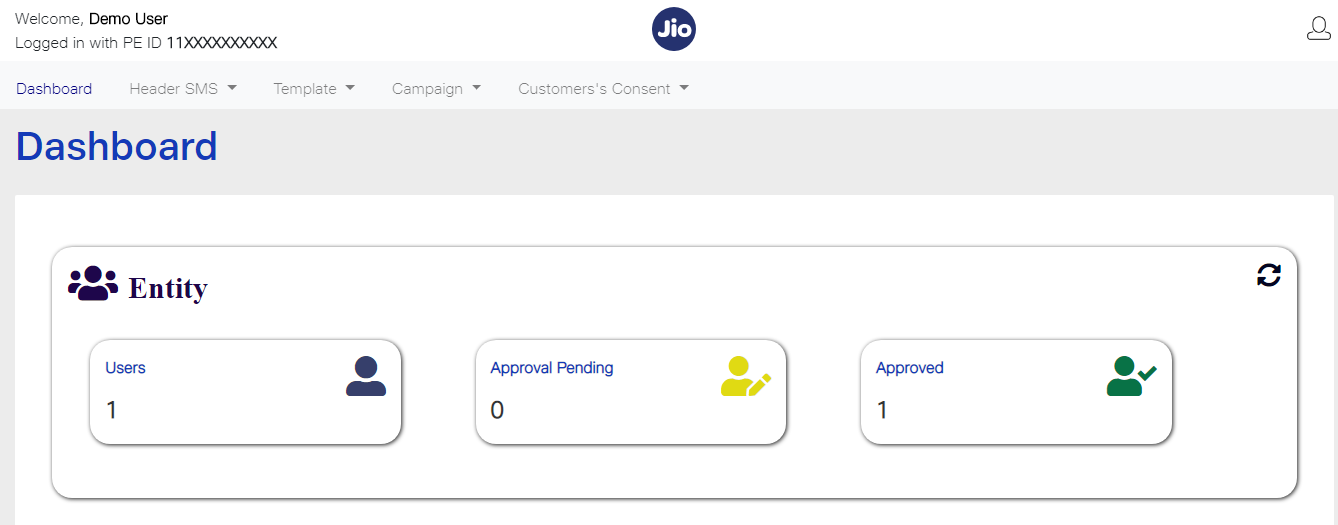
11. After login into Jio DLT, you’ll get following dashboard page.
Now you need to add SID GROUPS PRIVATE LIMITED as your Telemarketer in your Jio DLT entity account.
How to add Telemarketer in the Jio DLT platform?
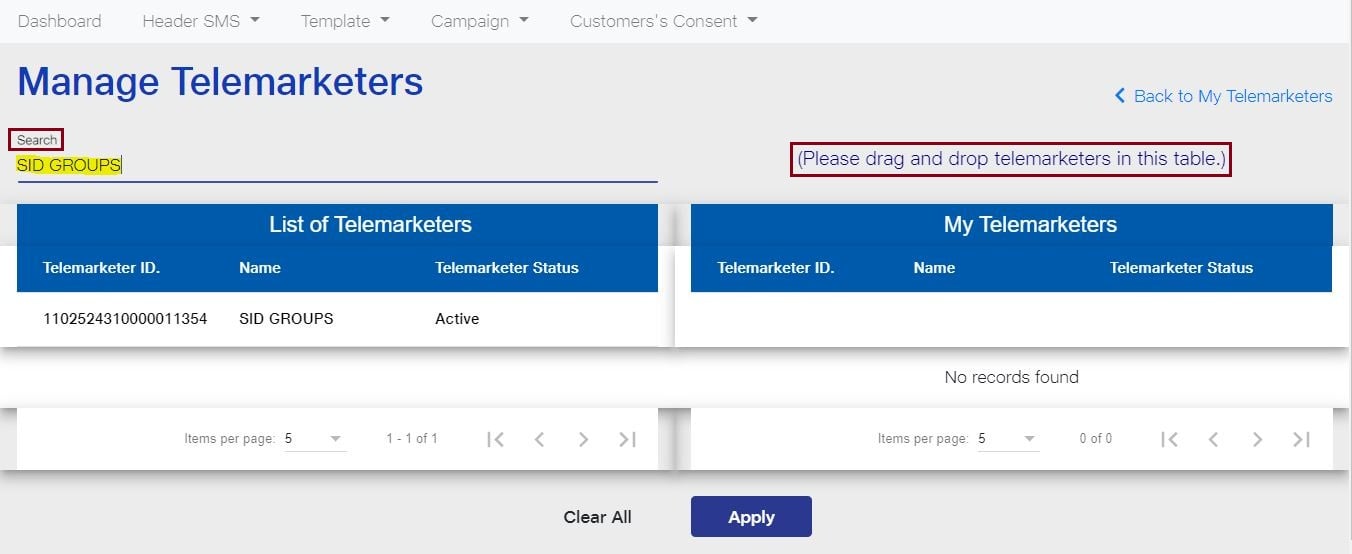
- Click on the Campaign option and select My Telemarketer. Then, click on the Manage Telemarketer tab displayed at the right side of the screen.
- In the Search box, type SID GROUPS PRIVATE LIMITED and press enter. SID GROUPS PRIVATE LIMITED Telemarketer ID will be visible in the option List of Telemarketers.
The following details will be displayed as you search for SID GROUPS PRIVATE LIMITED
Telemarketer Name: SID GROUPS PRIVATE LIMITED
Telemarketer ID: 1702178720558766591
- Next, you need to drag and drop the row in which the details of SID GROUPS PRIVATE LIMITED have been displayed. As it is visible in the image below, you need to drag the row from the List of Telemarketers and place at the My Telemarketer table. After that, click on Apply.
- A dialog box will appear on your window screen with the message that PE and TM mapping has been successfully completed. PE stands for Principal Entity and TM denotes Telemarketer. Click on OK.
STEP 2: Header Registration
1. Login to your Jio DLT SMS portal. Header SMS option will be visible on your dashboard screen. Once you click on that tab, two options will get displayed – Header SMS Registration and Header SMS Details. Select the first option Header SMS Registration.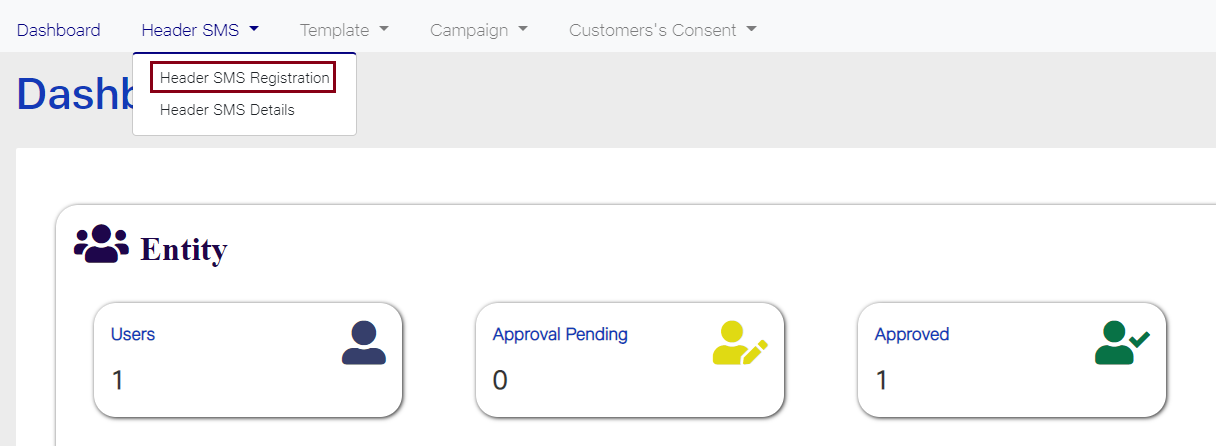
2. Once you select it the following screen will get displayed.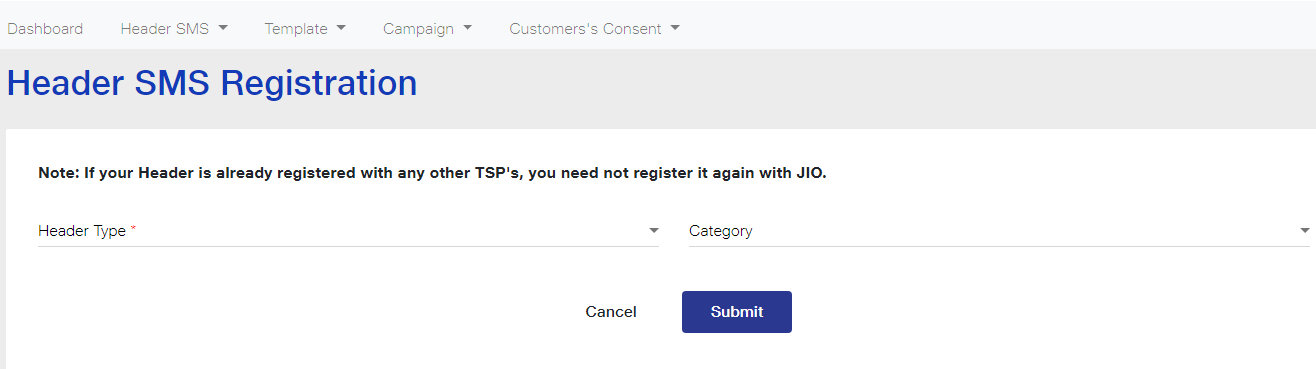
3. Select the Header Type based on your SMS content. If your SMS is promotional in nature select the first option Promotional and if the SMS is informative then choose the second option Others (Transactional, Service Explicit, Service Implicit).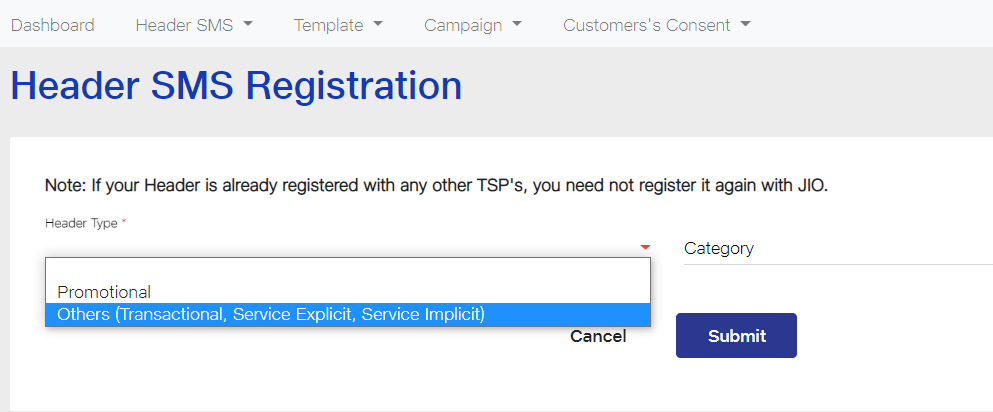
4. Select the Header Category from the dropdown list. If your business or industry is related to Finance choose the first option, if you are a Real Estate Business owner choose the second and so on. If your business does not fall in any of the listed categories, select Others.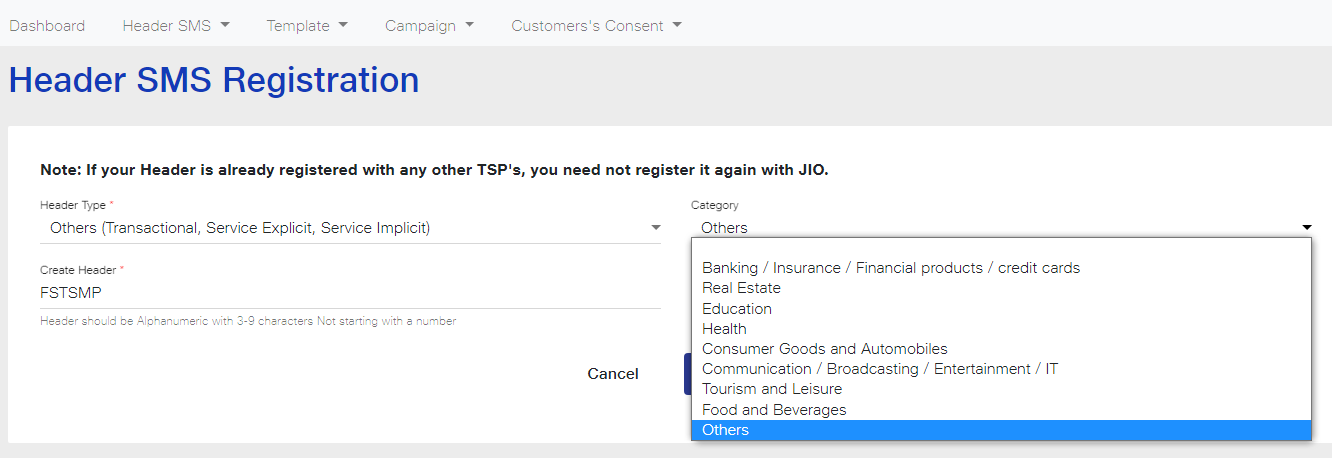
5. Create a Header Name of six letters representing your company name.
Create a Header name in accordance with the specified rules and then click on the Submit button. As you can see in the image below, we have created Header Name as FSTSMP as the Header Type is Others and is for Transactional, Service Explicit and Service Implicit messages.
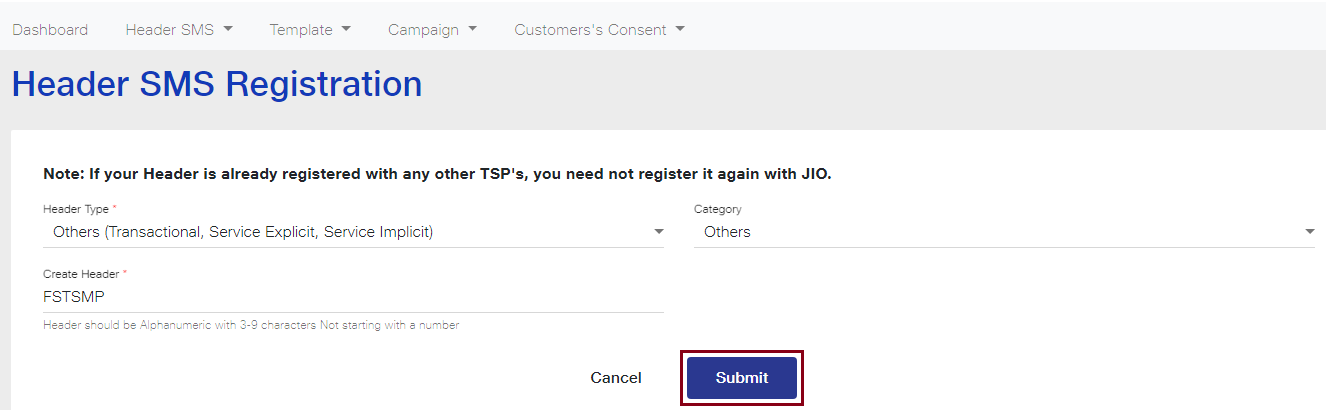
Header Name must be as follows:
Promotional Route: 6 Digit Numeric only.
Other Route: 6 alphabetical characters only (without number)
6. As you click on the Submit button, a dialog box will appear on your screen as shown below.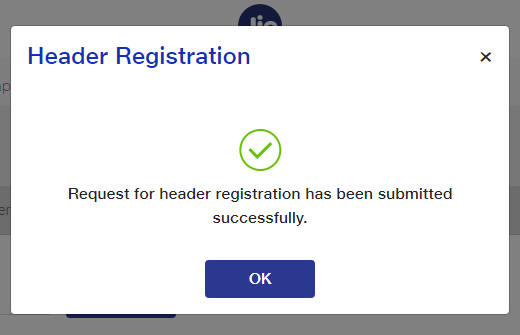
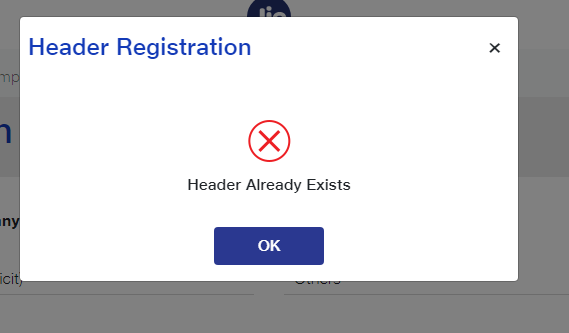
Note: If your Header name has been already taken by someone else, the following message will appear on your screen.
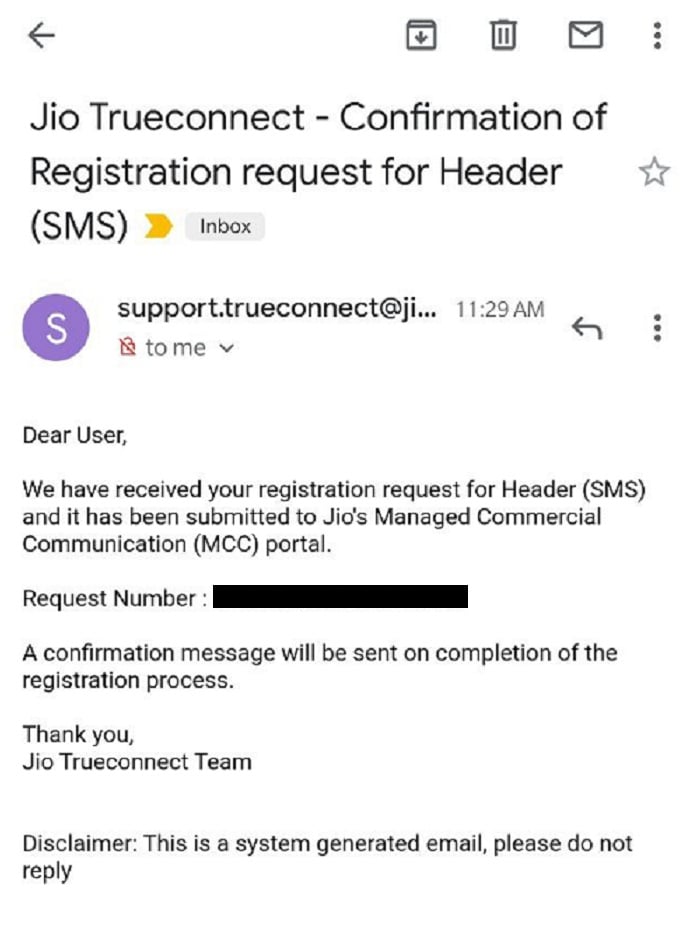
7. Once you have submitted the Header request, an email will be sent on your registered email ID stating that Header registration request is received and is being processed.
8. It can take 3-7 working days for headers approval from Jio DLT after submitting your request.
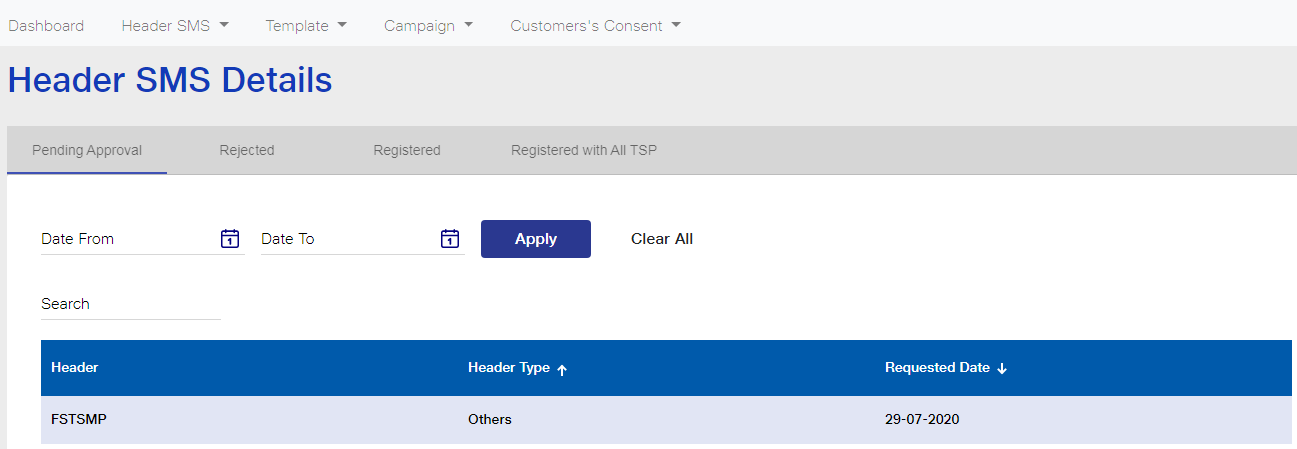
You can check the status of your Header Registration Request from the Header SMS Details option in the Header SMS tab. The status of Headers pending for approval, rejected and registered can be viewed from this tab.
As you can see in the image below, Header FSTSMP submitted for approval is in the Pending Approval tab. Here, the Header Name, Type and Registered Date will also be displayed. You can even search for a Header within a specific time frame. As shown in the image, a date selection field is visible. Enter the time period in the Date From and Date To fields and then click on Apply. The Headers based on the selected time frame will be displayed.
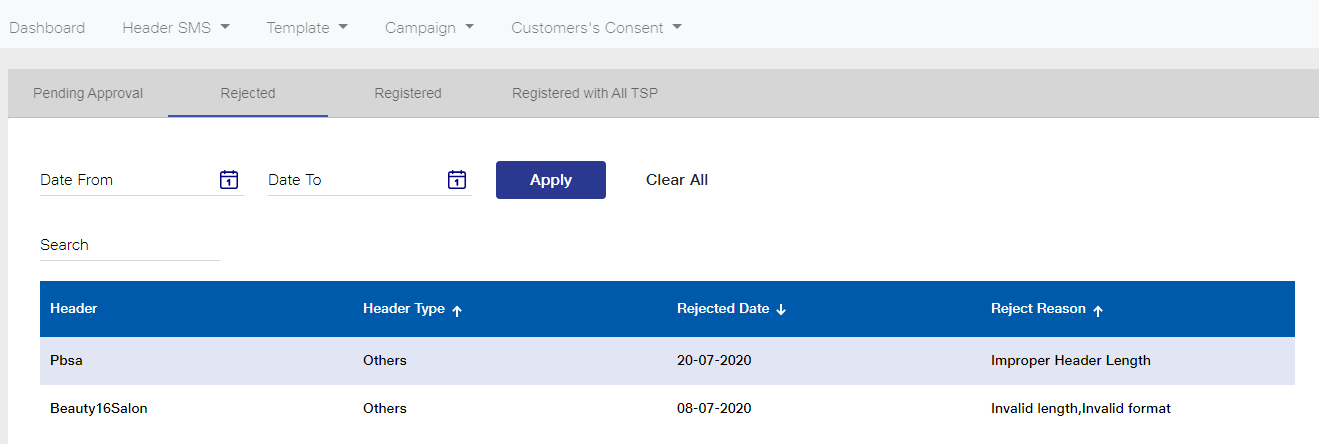
The Headers which have been rejected will be visible in the Rejected tab. As you click on that tab, the Headers rejected will be displayed as shown in the image. The Header Type, Rejected Date and the Reason for Rejection will also be available to view.
As you can see in the image below, Header Pbsa has been rejected with the reason of improper Header length. Next, Beauty16Salon has been rejected because of Invalid length and Invalid format.
Similarly, your registered Headers can be viewed from the Registered tab.
STEP 3: Content Template Registration
1. Login to the Jio DLT portal.
2. Select Content Template Registration from the Template tab.
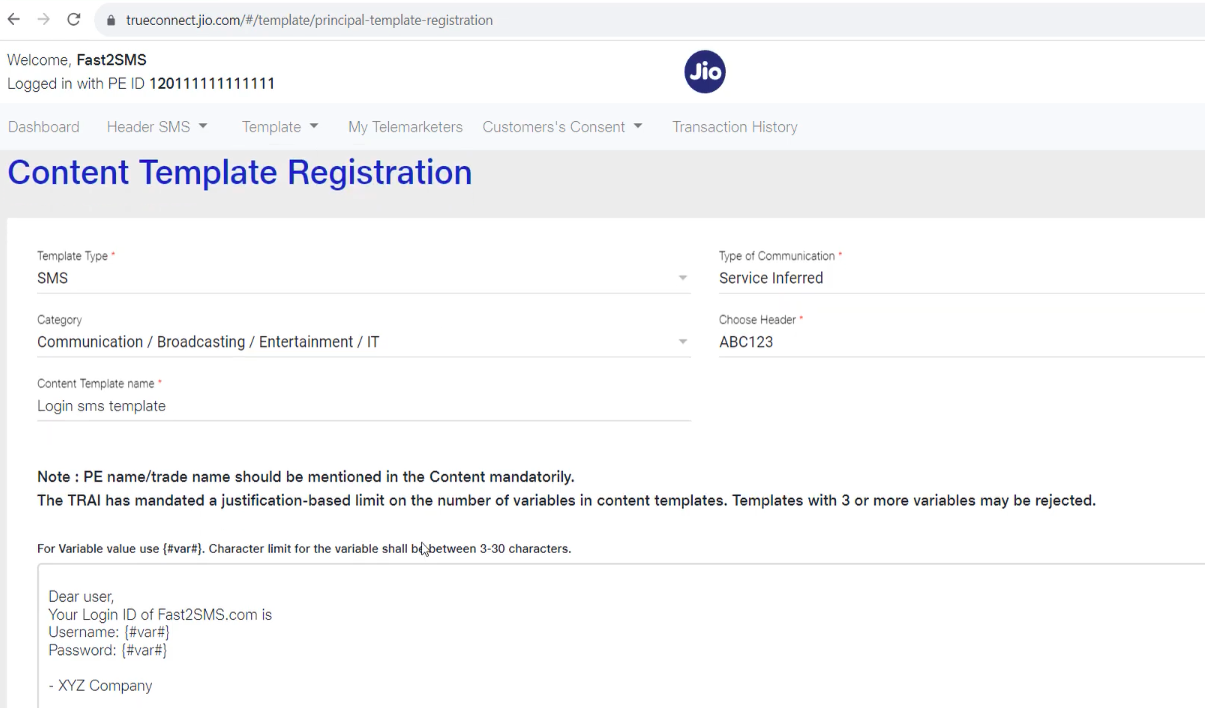
3. In the dashboard, Template Type field, SMS will get displayed by default. In the next field ‘Type of Communication’ 4 routes will get displayed – Transactional, Promotional, Service Explicit, Service Inferred.
Transactional route is reserved only for banks, so if your registration is under banking sector then only you can use this route. Promotional route will sent messages to non DND numbers from 10am to 9 pm only and its Header can only be Numeric.
In Service Explicit route, messages will get sent only to Non DND numbers but in this route, you get the option of alphabetical Sender ID. In Service Inferred, you can send informative messages to all numbers, promotional SMS is not allowed.
Next, enter the template content. You can add variables (var) in the content template to send messages like OTP to every user. This option is given so that you can change the variable value and keep rest of the message same for every user.
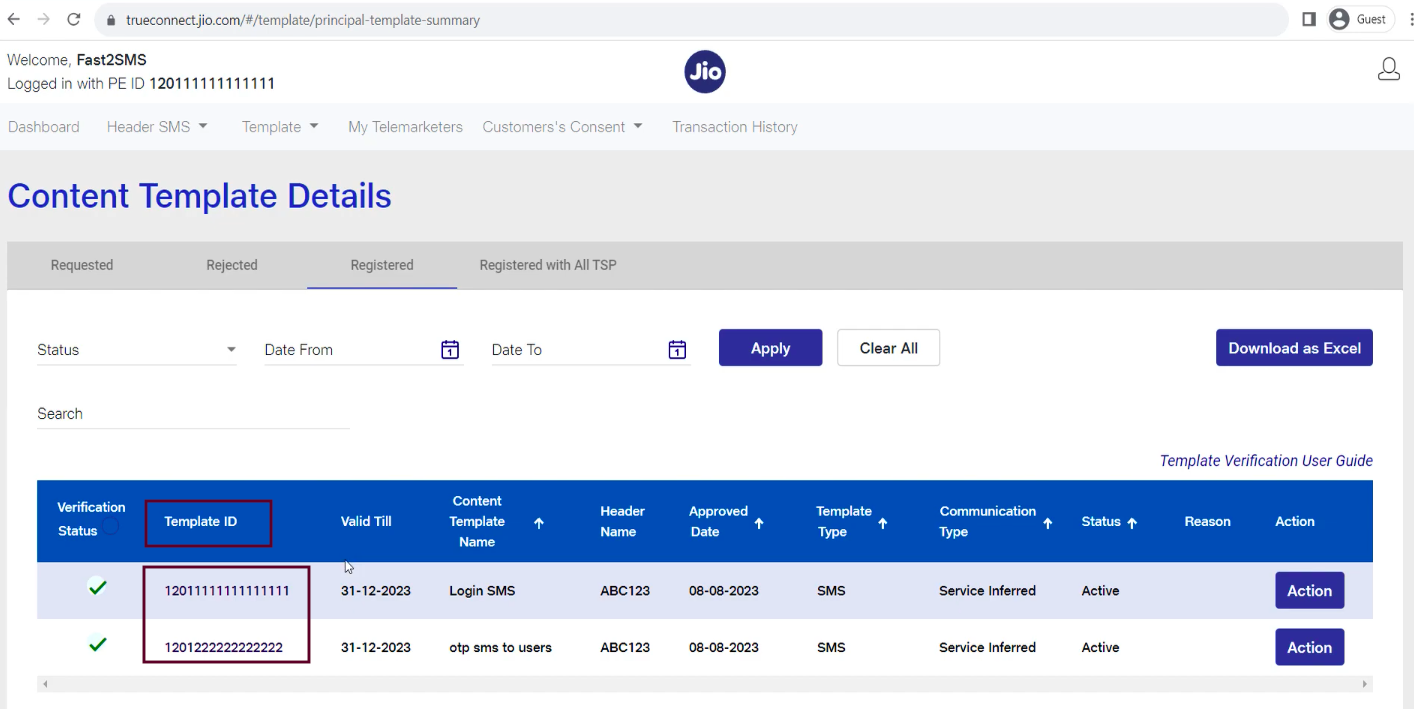
4. The template will be submitted for approval. You can check the status on the Template tab in the Content Template details section. Once the template gets approved, it will appear on the Registered tab.
As you can see in the image below, once your template gets approved, it will appear on the Registered tab as shown along with the Template ID (highlighted text). This template ID you can copy, and use it while sending SMS with the Bulk SMS Service Provider (Fast2SMS).
Watch this video for complete Content Template Registration process
Get free DLT support and step by step guidance from Fast2SMS. With over 15 years in the industry, we understand the challenges faced by an enterprise in communicating with their customers. We help in bridging the gap between the brand and the target audience and make your bulk messaging experience smooth and hassle-free. Sign up at Fast2SMS to send SMS without any minimum purchase limit. Call us on 6262778822 for DLT support or assistance.