
Send Invoice on WhatsApp from Tally: Free Plugin, Full Steps
Your customer wants the invoice on WhatsApp. Everyone’s customer does. So after every sale you export the PDF from TallyPrime, save it, open WhatsApp on your phone, find the contact, attach, send. Ten invoices a day means an hour lost. There is a faster way: a free plugin adds a WhatsApp button right on your Tally sales voucher, and the invoice PDF lands in the customer’s chat seconds after you save the entry. This guide shows every step, from download to first delivered invoice.
How the invoice reaches WhatsApp
The Fast2SMS Tally plugin uses official WhatsApp Business API templates. When you press send on a voucher, Tally generates the invoice PDF, the plugin attaches it as a document inside an approved Meta template, and the message goes out with your invoice details filled in: party name, invoice number, amount, closing balance. Your customer taps the document and reads the invoice inside WhatsApp, no app, no login, no printout.
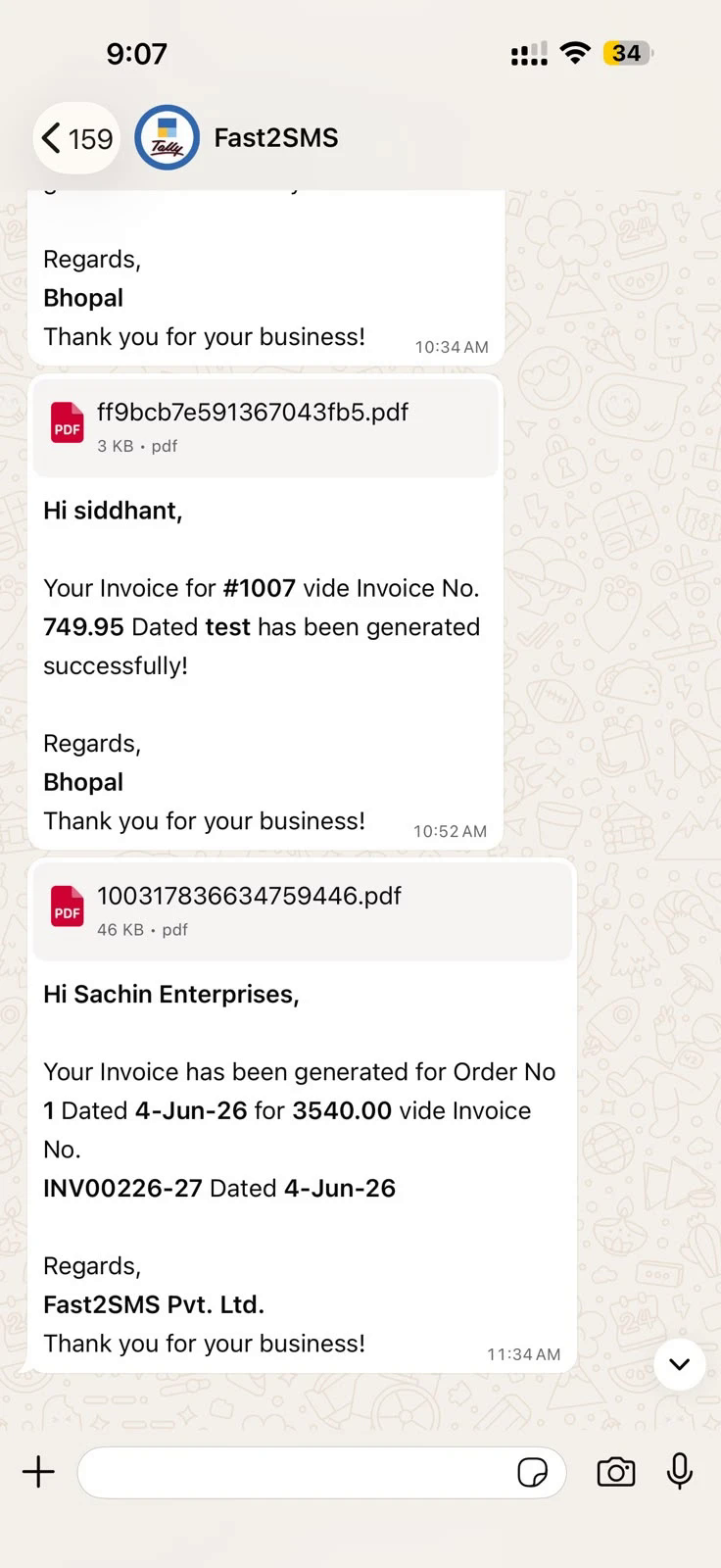
Because it works through the official API, it is nothing like the risky auto-clicker tools that run WhatsApp Web in the background and get numbers banned. Every message is a proper template delivery with a delivery report behind it. Here is a real sample of what lands in the customer’s chat:
What you need before starting
- TallyPrime with admin access to your company.
- A free account on fast2sms.com with some wallet balance. You pay per message only; the plugin itself is free, with no licence or annual fee.
- Customer mobile numbers in your ledger masters (the plugin can bulk-import them from Excel, covered below).
Step 1: Install the plugin in TallyPrime
- Download the plugin and copy the .TCP file into your TallyPrime folder as a Local TDL, or upload it in your Tally.NET account as an Account TDL.
- In your Tally company press F1: Help > TDLs & Add-ons and confirm the plugin shows as loaded.
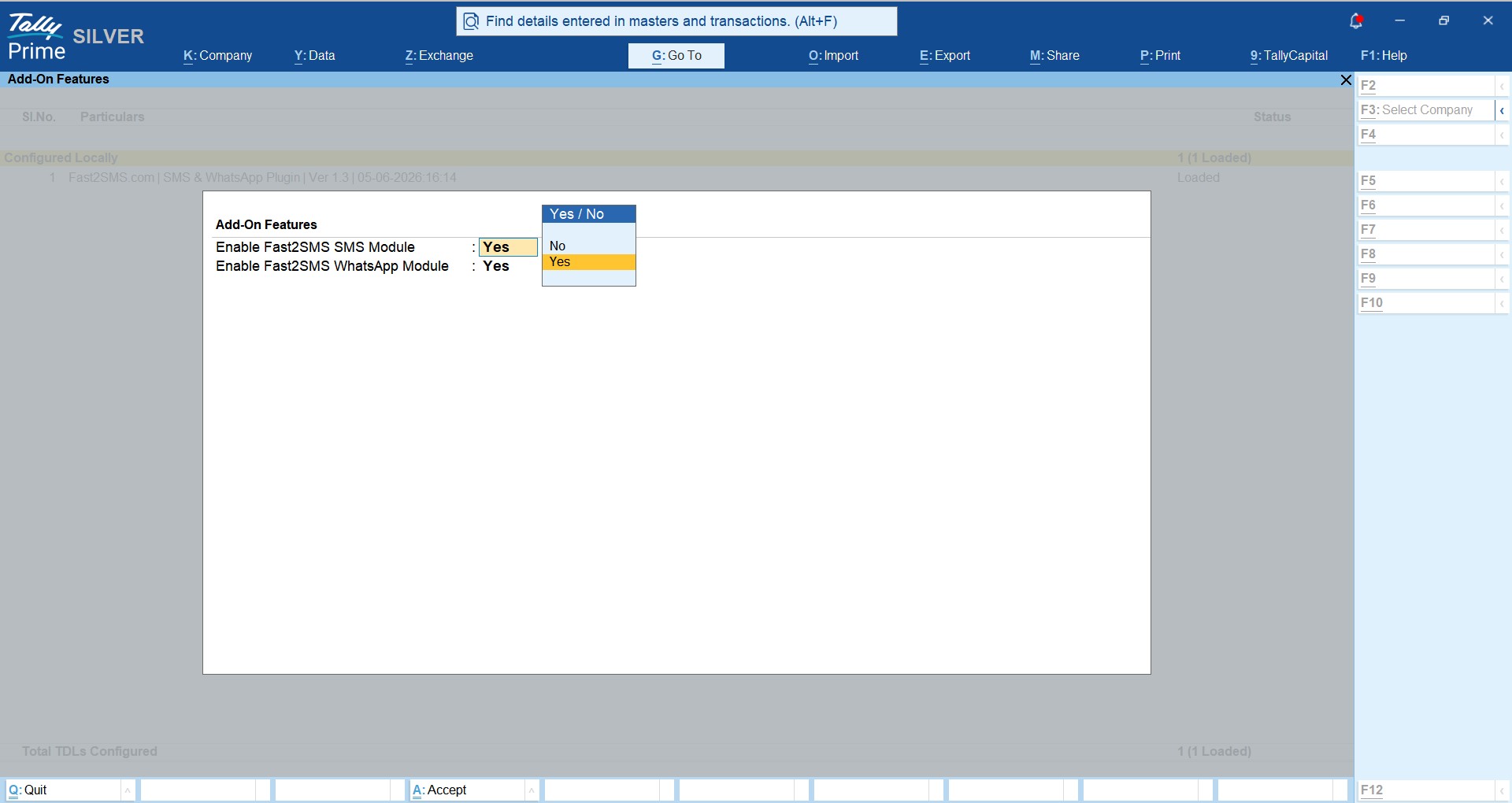
- Press F6: Add-On Features and enable the WhatsApp module (and the SMS module too if you want both channels).
Step 2: Paste your API key
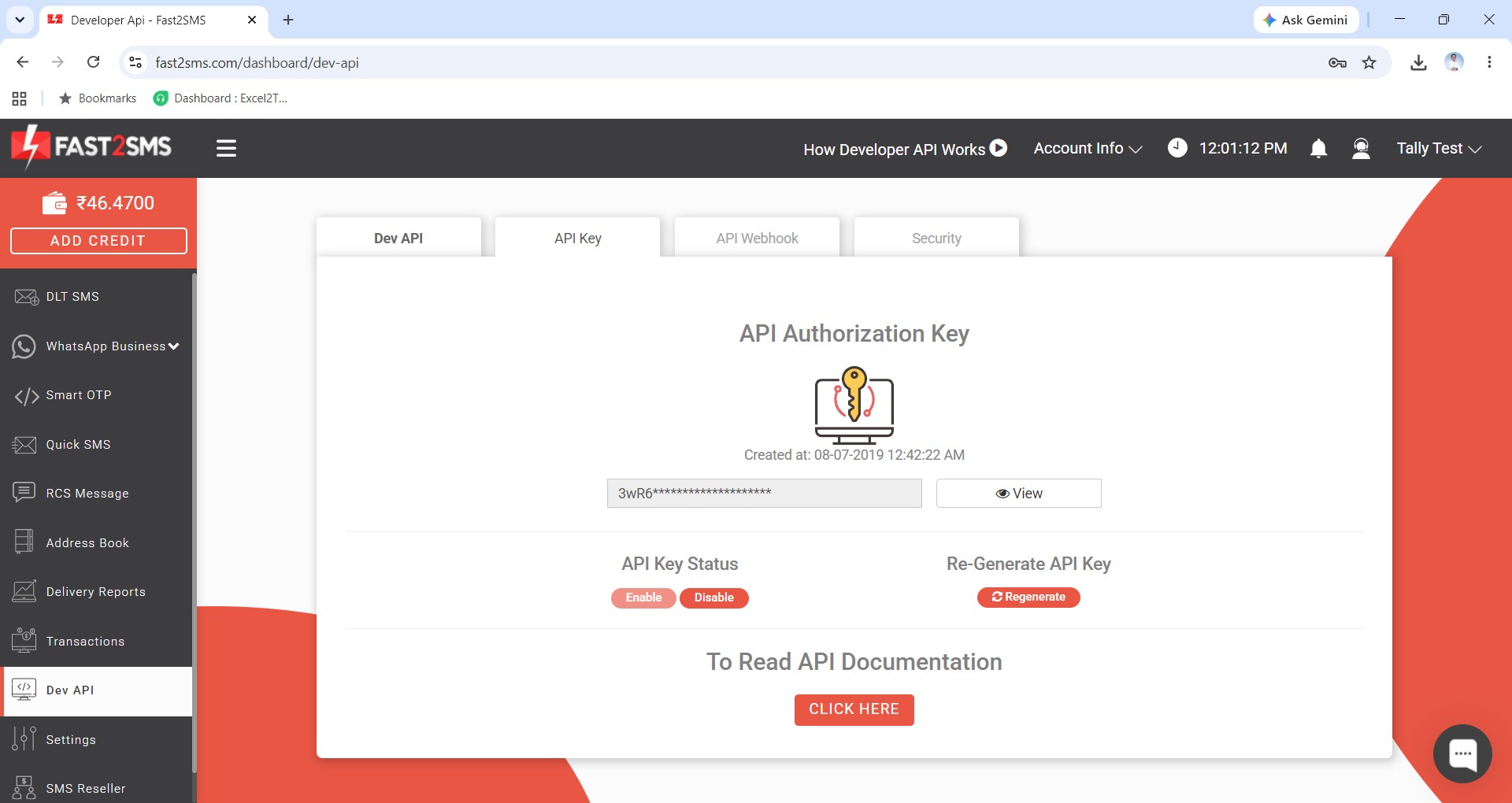
Copy your API key from the Dev API section of your Fast2SMS panel and paste it in the plugin’s API Key Update screen. Your wallet balance now shows inside Tally, with recharge one keypress away.
Step 3: Two entries and WhatsApp is live
You do not need your own WhatsApp Business number to start. Fast2SMS gives 20 ready-approved invoice templates on a default sender, and the plugin needs exactly two things:
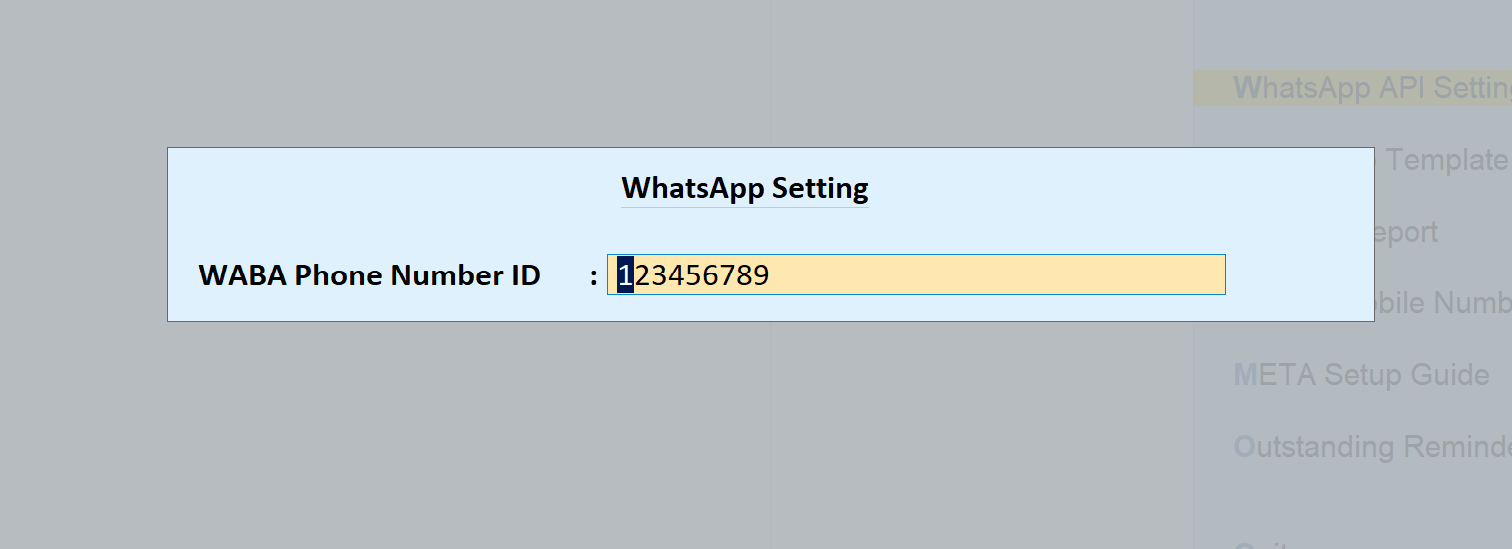
First, open Tally to WhatsApp > WhatsApp API Settings and type 123456789 as the WABA Phone Number ID:
Second, open Tally to WhatsApp > WhatsApp Template Settings and fill message IDs T101 to T120 against the 20 template rows. For invoices the ones you will use most: T101 Sales With Closing Balance, T102 Sales Without Closing Balance, T103 Sales With Order Details, T104 Delivery Note, T111 POS Voucher.
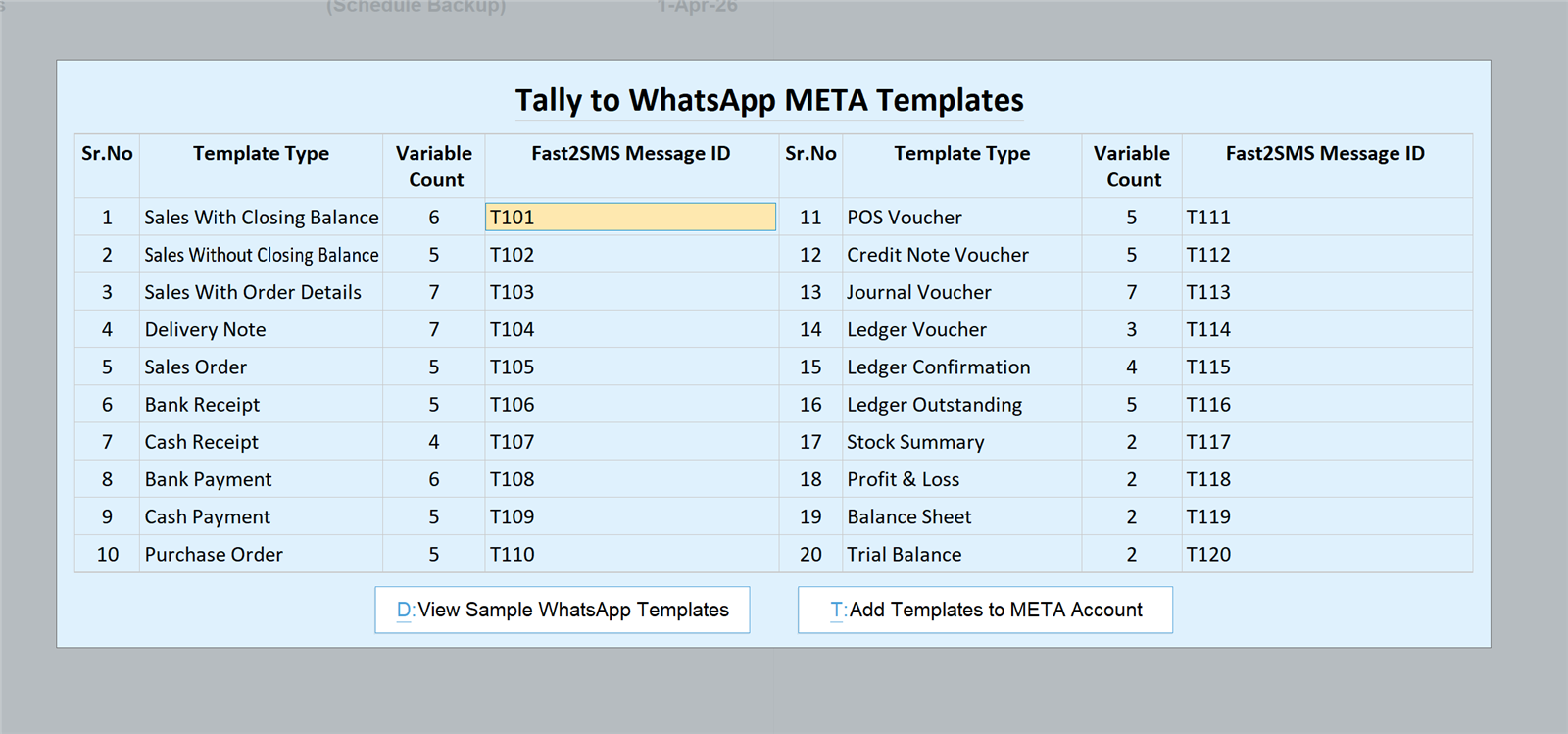
The complete T101–T120 table with variable counts for every voucher type is in the full Tally plugin guide.
Step 4: Add customer mobile numbers
Enter the mobile number in each customer’s ledger master, or do the whole debtor list at once: Update Mobile Numbers edits them in bulk, and Import Mobile Numbers loads them from Excel with a ready sample file.
Step 5: Send your first invoice
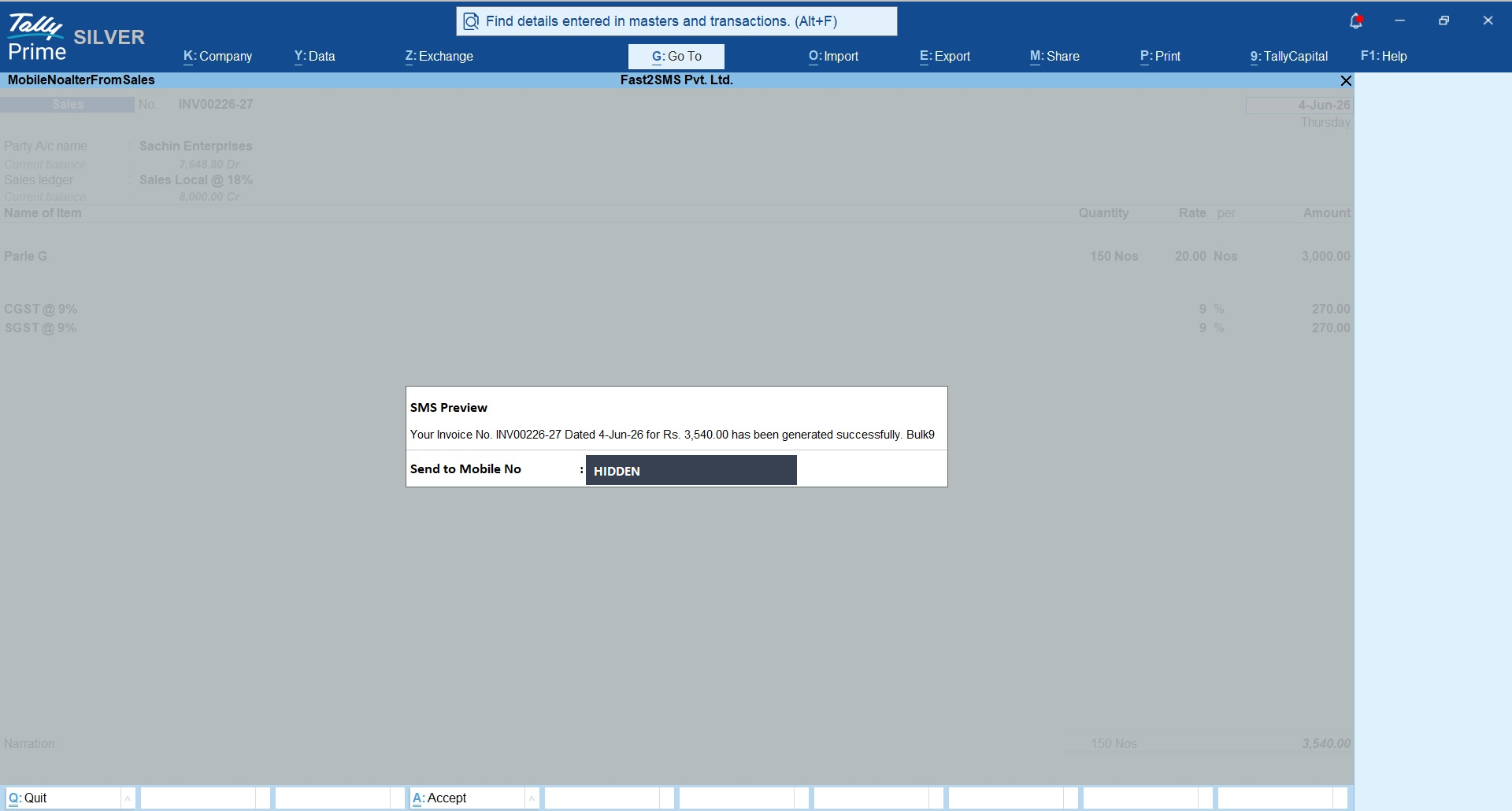
Open a sales voucher and press the WhatsApp send button. The plugin shows a preview with the customer’s number before sending, then the invoice PDF travels inside the template message. Done: your customer has the invoice on WhatsApp while the goods are still being packed.
Make it automatic
- Auto-send on save: under the voucher type, enable WhatsApp on creation or alteration. Save the invoice, and it sends itself. No button, no step, no forgetting.
- Bulk from the sales register: select any set of invoices and send them all in one go, perfect for end-of-day dispatch.
- Beyond invoices: receipts, payments, purchase orders, credit notes, outstanding payment reminders, ledger reports and confirmations all have their own send options.
Want your own brand name on the messages?
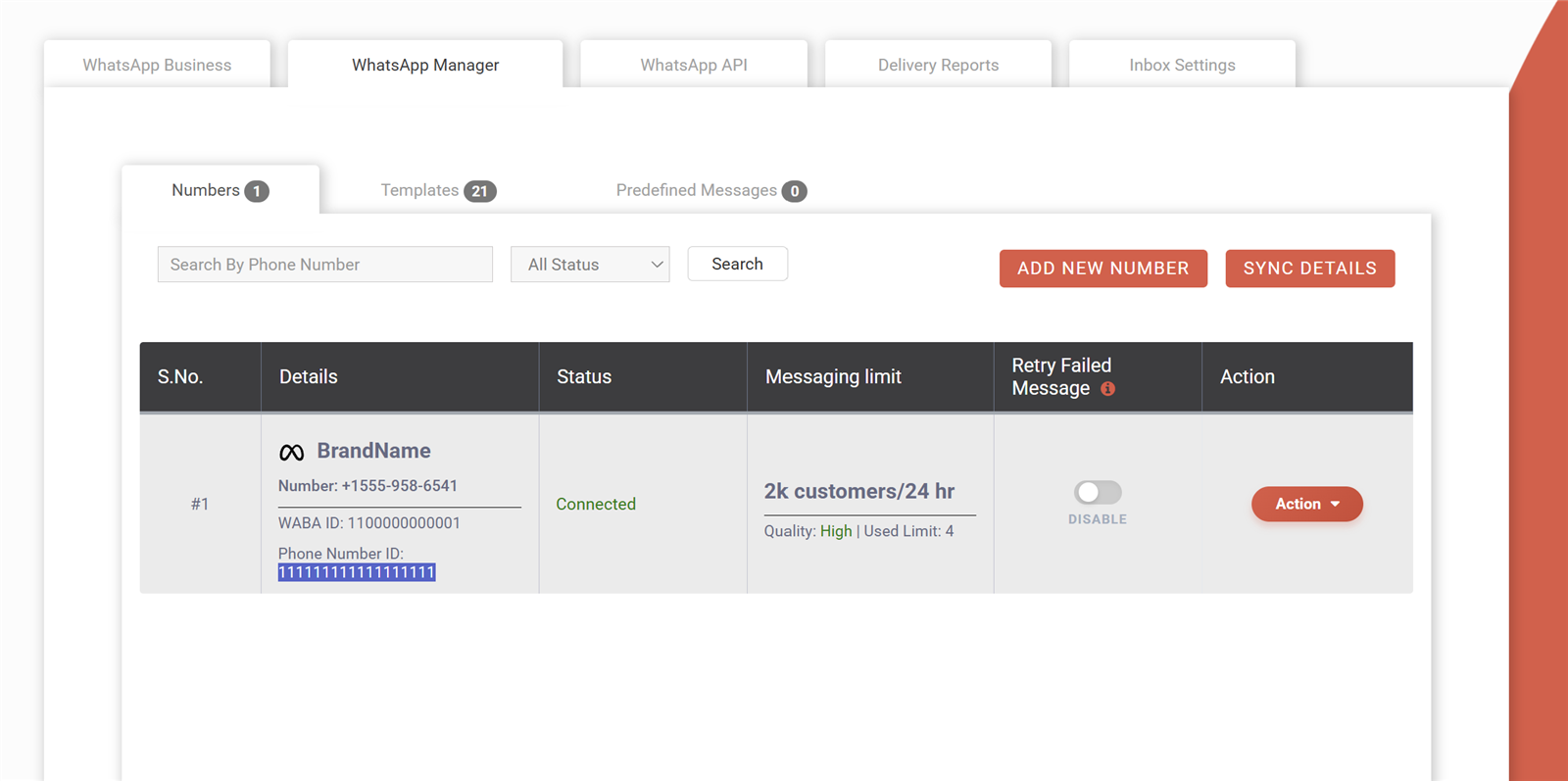
The default sender works from day one. When you want invoices arriving from your business name, connect your own number: complete the free Meta embedded signup from your Fast2SMS panel (keep your existing WhatsApp Business app number if you like), press Add Templates to META Account in the plugin to push all 20 templates for approval, then replace 123456789 with your own phone number ID from WhatsApp Manager and T101 to T120 with your approved IDs.
Full walkthrough: free WhatsApp Cloud API access, with no monthly or setup fee.
Ways to send Tally invoices on WhatsApp, compared
| Method | Cost | Effort per invoice | Auto-send | Delivery report |
|---|---|---|---|---|
| Manual: export PDF, share from phone | Free | High, every single time | No | No |
| Official Tally WhatsApp connected service | Paid subscription plans | Low | Yes | Yes |
| WhatsApp Web auto-clicker tools | Varies | Low | Partly | No, and number ban risk |
| Fast2SMS free plugin (official API) | Free plugin, pay per message only | One button, or zero with auto-send | Yes | Yes, inside Tally + panel |
Frequently asked questions
Can I send an invoice PDF on WhatsApp directly from Tally?
Yes. The plugin attaches the invoice PDF as a document in an approved WhatsApp template and sends it from the voucher screen, or automatically on voucher save.
Is the plugin really free?
Yes. No licence fee, no annual charge, no setup cost. You pay only the per-message WhatsApp rate from your Fast2SMS wallet.
Do I need a WhatsApp Business API account first?
No. Start with the ready default: phone number ID 123456789 and templates T101 to T120. Your own branded number is optional and free to connect later.
Does this work without scanning WhatsApp Web?
Yes. Messages go through the official WhatsApp Business API, so nothing runs on your phone or browser and there is no ban risk that comes with auto-clicker tools.
Can invoices send automatically when I save the voucher?
Yes. Enable send on creation or alteration for the voucher type, and every saved invoice goes out on its own.
Can I send old invoices in bulk?
Yes. Open the sales register, select the invoices, and send them together on WhatsApp.
Which TallyPrime versions are supported?
The plugin loads as a standard .TCP add-on in TallyPrime, as a Local TDL or through your Tally.NET account.
What about SMS?
The same plugin sends DLT SMS too, with the invoice PDF auto-converted to a short link. See the Tally SMS plugin guide.
Where do I get support?
Email [email protected] or call +91-6262778822.
Your next invoice can go out on WhatsApp
Download the plugin, paste your API key, type 123456789 and T101 to T120, and press send on your next sales voucher.
Download Tally Plugin
Signup Now
Questions? Write to [email protected] or call +91-6262778822.