
DLT Template Migration Guide: Update Old Templates to Tagged Variables
Your approved DLT templates still use the old {#var#} placeholders, and the new rules want typed variables like {#numeric#} and {#url#}. The good news: you do not re-register anything. The DLT portals provide a bulk migration path where one CSV file re-tags all your eligible templates at once. This guide walks the whole process, including the one mistake that fails most uploads.
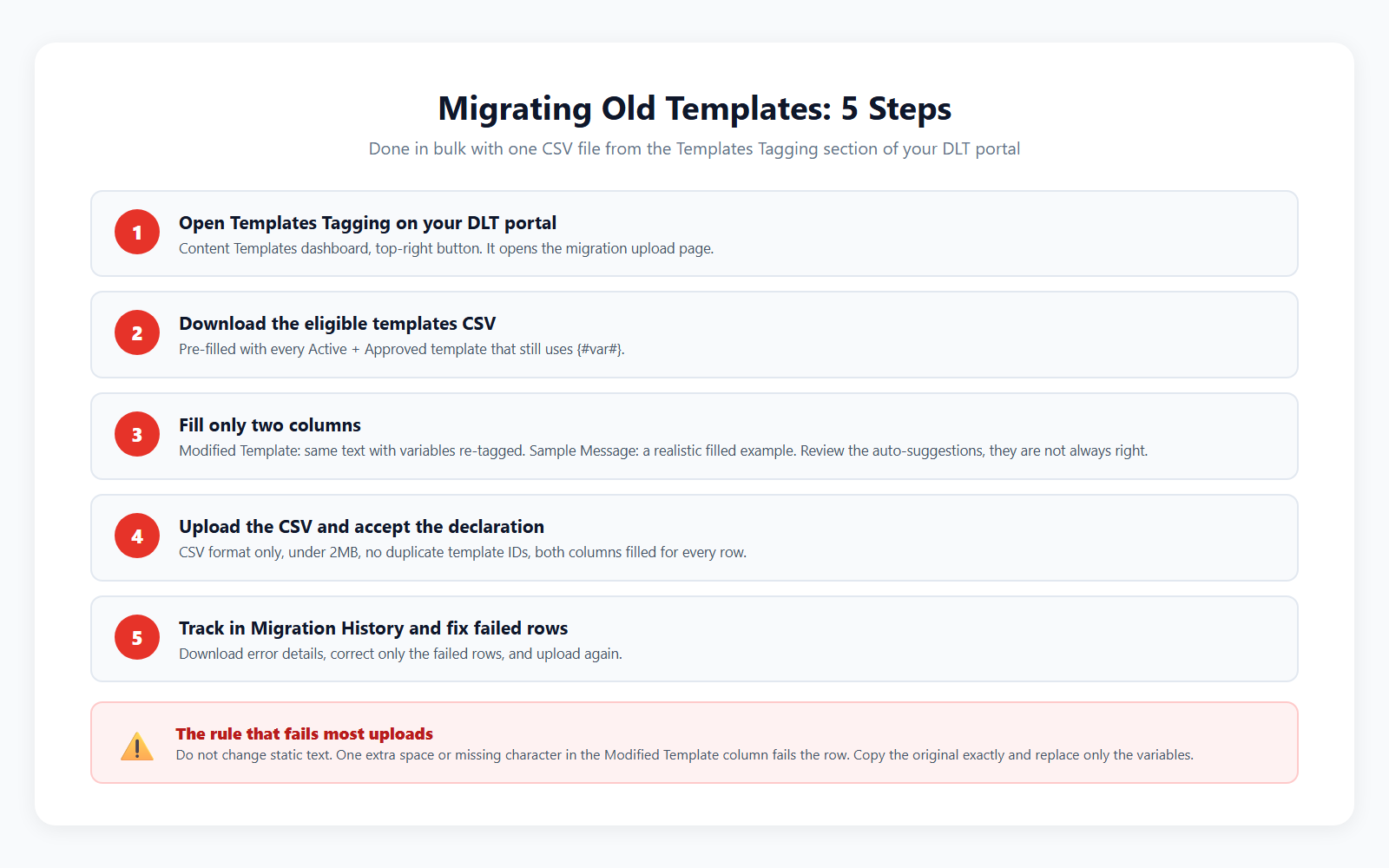
The process in five steps
Which templates are eligible
The downloadable migration file includes only templates that meet all three conditions:
- Status is Active and approval status is Approved.
- The message contains at least one variable. Static-only templates need no migration.
- The template has not already been migrated to the new format.
Step by step on the portal
- Open Templates Tagging. Log in to your DLT portal, go to the Content Templates dashboard, and click the Templates Tagging button in the top-right area.
- Download eligible templates. The link below the upload area gives you a pre-filled CSV of every eligible template.
- Fill exactly two columns. The file has five columns. Template ID, Template Name and Template Message come pre-filled and must not be touched. You complete only Modified Template and Sample Message.
- Upload and acknowledge. Save as CSV (not XLSX, under 2MB), drag it into the upload area, tick the TRAI compliance declaration, and submit.
- Track in Migration History. Filter by status, download error details for failed rows, fix only those rows, and upload again.
Filling the Modified Template column right
This is where uploads pass or fail. The rules:
- Copy the original message exactly. Change nothing in the static text. One extra space, one missing full stop, and the row fails validation.
- Replace only the variables. Each
{#var#}becomes its typed equivalent: {#numeric#}, {#alphanumeric#}, {#url#}, {#urlott#}, {#cbn#} or {#email#}. Not sure which? Use the variable tagging reference. - Keep the variable count identical. No adding, no removing. Four variables in, four variables out.
- Watch consecutive variables. Back-to-back variables without static text between them must all be {#alphanumeric#}.
A correct row looks like this:
Dear {#var#}, your order {#var#} of Rs {#var#} is confirmed. Track here: {#var#} – BRAND
Dear {#alphanumeric#}, your order {#alphanumeric#} of Rs {#numeric#} is confirmed. Track here: {#url#} – BRAND
Dear Priya, your order ORD4821 of Rs 1499 is confirmed. Track here: https://brand.in/t/4821 – BRAND
About the auto-suggestions: the downloaded CSV usually arrives with suggested values already in both columns. Treat them as a head start, not an answer. The suggestions misjudge tags often enough that blind uploads fail. Review every row before submitting.
What happens after enforcement
The new validations start in logger mode: messages from unmigrated templates still deliver, but failures are logged and flagged so you can fix them calmly. Once enforcement fully switches on, non-compliant messages are rejected and simply do not reach customers. The right time to migrate is while the flags are still warnings.
What Fast2SMS users need to do
If you send through Fast2SMS, the platform side is handled: your panel maps old and new template versions automatically, so the same template dropdowns keep working in the WordPress plugin, the Shopify app and your API integrations. Your job is only the DLT-portal migration above, and even there the free DLT support team will review your CSV before you upload it.
Keep OTPs safe during the transition
OTP is the one message type you cannot afford to have flagged or dropped mid-migration. Two moves protect it:
- Migrate OTP templates first. They are usually one line with a single {#numeric#} variable, the easiest rows in your CSV.
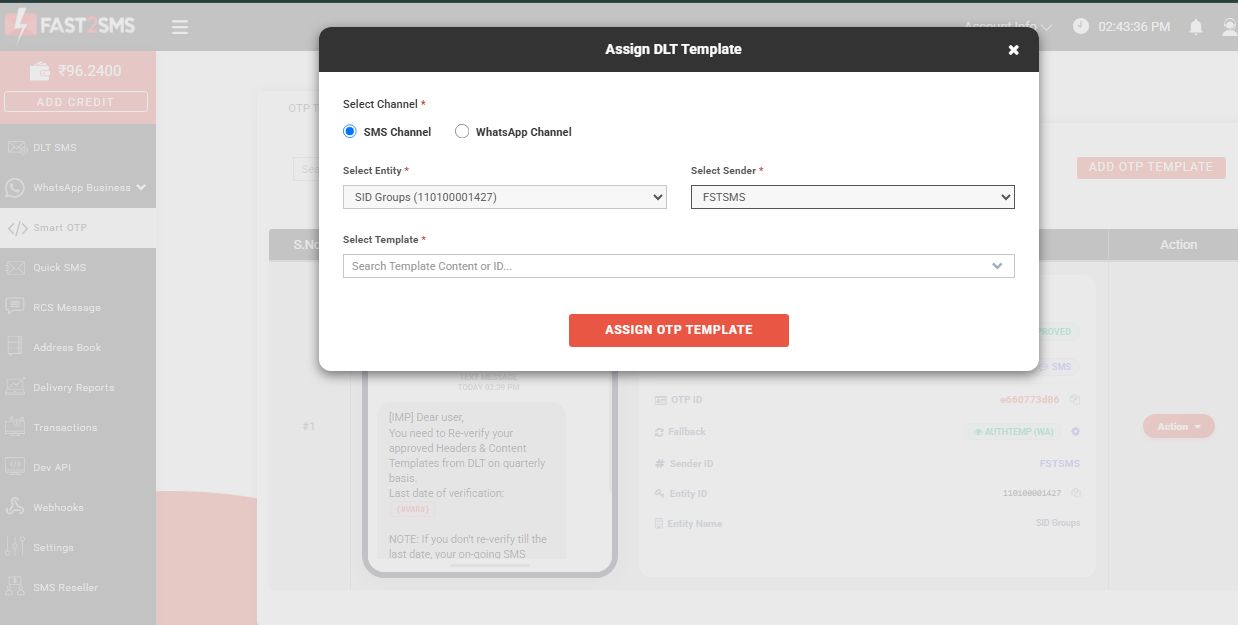
- Put WhatsApp in front. A Smart OTP ID with WhatsApp primary and SMS fallback keeps codes flowing even if an SMS template hits a validation flag, because the WhatsApp leg needs no DLT at all. WhatsApp authentication messages cost INR 0.25 with automatic refunds, and the free API takes one call:
curl --request POST \
     --url https://www.fast2sms.com/dev/otp/send \
     --header 'Authorization: YOUR_API_KEY' \
     --header 'content-type: application/json' \
     --data '{ "otp_id": "11111111", "mobile": "8888888888" }'
Frequently asked questions
Do I have to migrate every template?
Every active, approved template that contains at least one variable, yes, eventually. Templates without variables are unaffected.
Will my messages stop during migration?
No. Migration replaces the variable format on an already-approved template. And during the logger phase, even unmigrated templates keep delivering while being flagged.
Why did my row fail even though the tags look right?
Almost always static text drift: an extra space, a changed punctuation mark, or an edited word in the Modified Template column. It must be character-for-character identical to the original apart from the variable placeholders.
Can I change my message wording during migration?
No. Migration only re-tags variables. Wording changes mean registering a new template, with tagged variables, one header and a sample message.
The downloaded file already has suggestions filled in. Can I upload it as is?
Do not. Suggestions are auto-generated and often mistag variables. Review and correct every row first.
What file rules apply to the upload?
CSV format only, maximum 2MB, exact column headers, no duplicate template IDs, and both editable columns filled for every row.
How do I fix failed rows?
Open Migration History, download the error details, correct only the failed rows in your CSV, and upload again. Successful rows are already done.
Does the plugin need reconfiguring afterwards?
No. Fast2SMS maps old and new template versions automatically, and the plugin fetches templates live from your account.
Migrate with a second pair of eyes
Create your free account, send your migration CSV to the free DLT support team, and upload once, correctly.
Questions? Write to [email protected].