
Free OTP Login for WordPress: Let Users Sign In with Their Mobile Number
Passwords are a pain. People forget them, reuse them, and give up when the reset email never arrives. OTP login fixes this. A user types their mobile number, receives a one time password by SMS or WhatsApp, enters it, and they are in. No password at all.
The free Fast2SMS WordPress plugin adds OTP login to your site in a few minutes. No code needed. This guide shows you the full setup, step by step.
Why add OTP login to WordPress
- No forgotten passwords. A mobile number is much easier to remember than a password.
- Faster login. Two taps and an OTP beat typing a username and password on a phone.
- Verified mobile numbers. Every user who logs in with OTP has a real, working number. That number is gold for order updates and offers later.
- Fewer fake signups. With OTP verification on your registration form, bots and throwaway signups drop sharply.
Is it really free?
Yes. The plugin itself is completely free. There is no monthly fee and no per-site licence. You only pay for the OTP messages you actually send, from your Fast2SMS wallet, at normal Fast2SMS rates. If nobody logs in today, you pay nothing today.
What you need
- A WordPress site where you can install plugins.
- A free Fast2SMS account and its API key.
- Your users should have Indian mobile numbers. Fast2SMS works with Indian 10-digit numbers only.
Step 1: Install the free plugin
Install it from the official WordPress plugin directory. In your WordPress admin go to Plugins > Add New, search for Fast2SMS, click Install Now, and activate it. You can also get it from the official plugin page. A Fast2SMS menu appears in your admin sidebar.
Step 2: Connect your Fast2SMS account
Log in to your Fast2SMS account and copy your API key from the Dev API section. Paste it into the plugin on the Fast2SMS dashboard screen and save. The plugin shows your wallet balance once the key is connected, so you know it is working. If you get stuck here, the full Fast2SMS plugin setup guide covers this step with screenshots.
Step 3: Turn on OTP login
Open the OTP & Login tab in the plugin. You get three simple switches:
- Login with OTP on the WordPress login page (wp-login.php).
- Login with OTP on the WooCommerce My Account page. Running a store? Read the full WooCommerce OTP login guide.
- OTP verification on registration, so every new account starts with a verified mobile number.
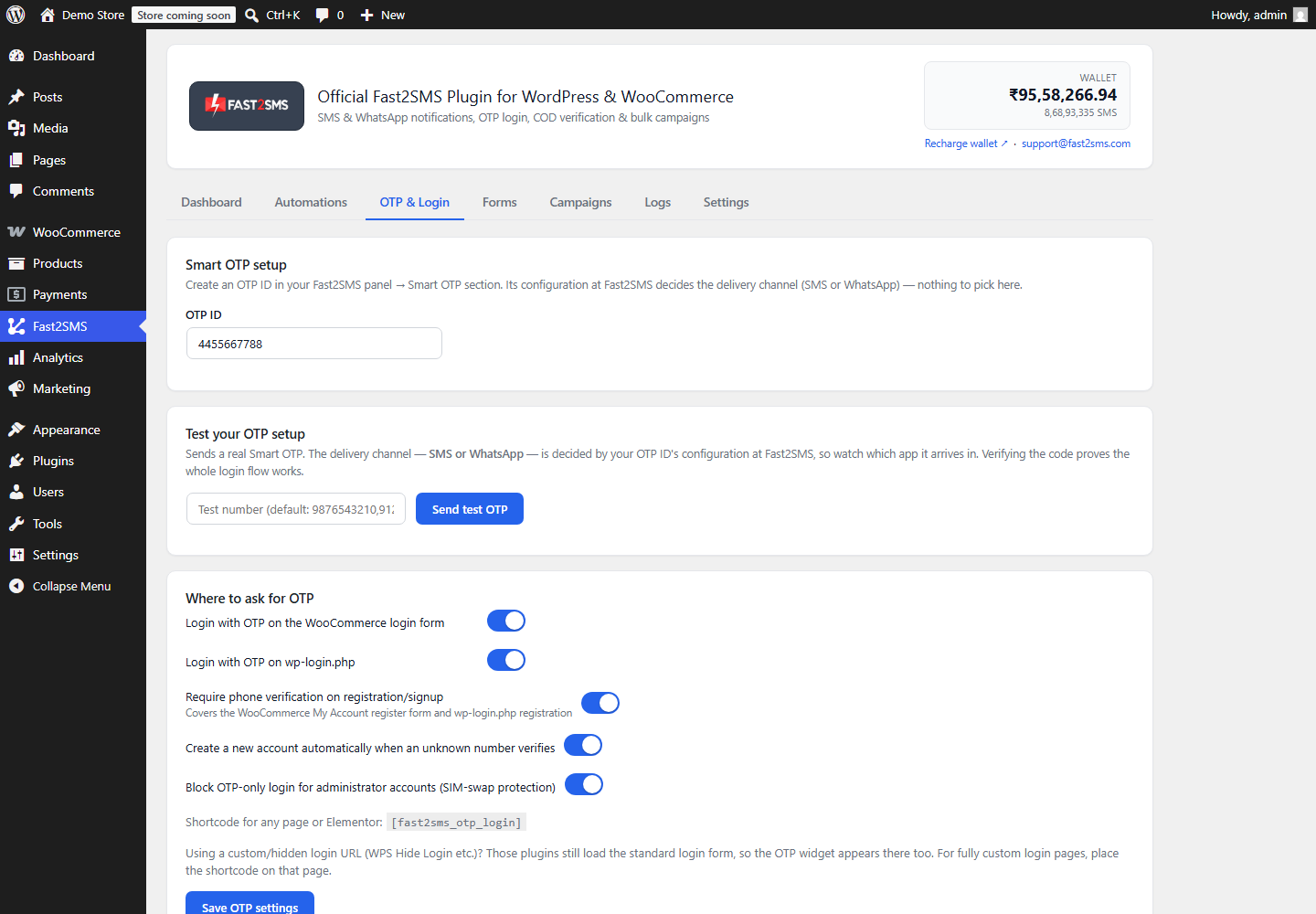
You can also test the whole OTP flow from this tab. Send a test OTP to your own number and verify it before your users ever see the form.
Step 4: See it on your login page
Open your login page in a private browser window. Below the normal username and password form you will see a new box: Login with OTP.
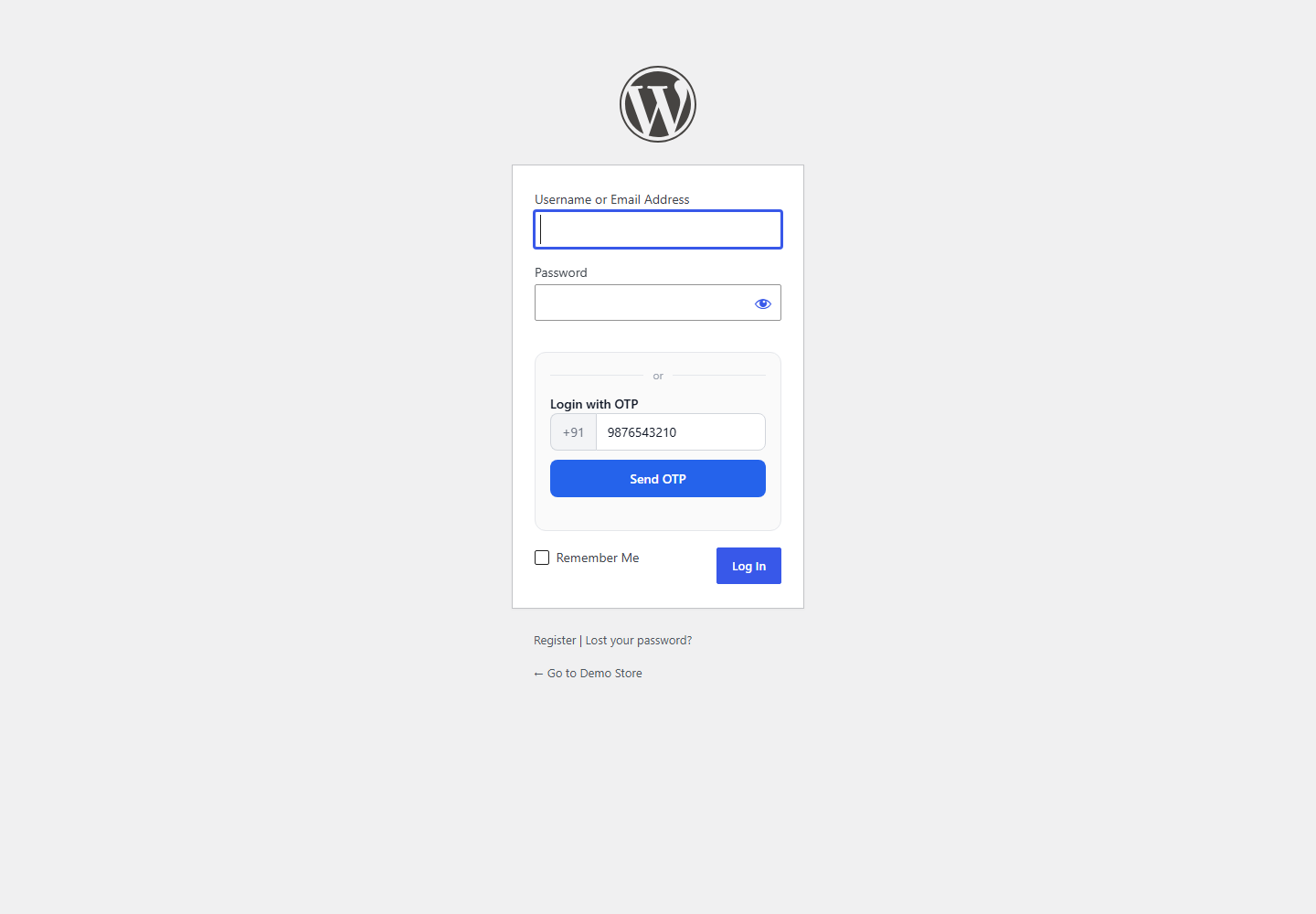
The user enters their 10-digit mobile number and taps Send OTP. The form switches to the code step:
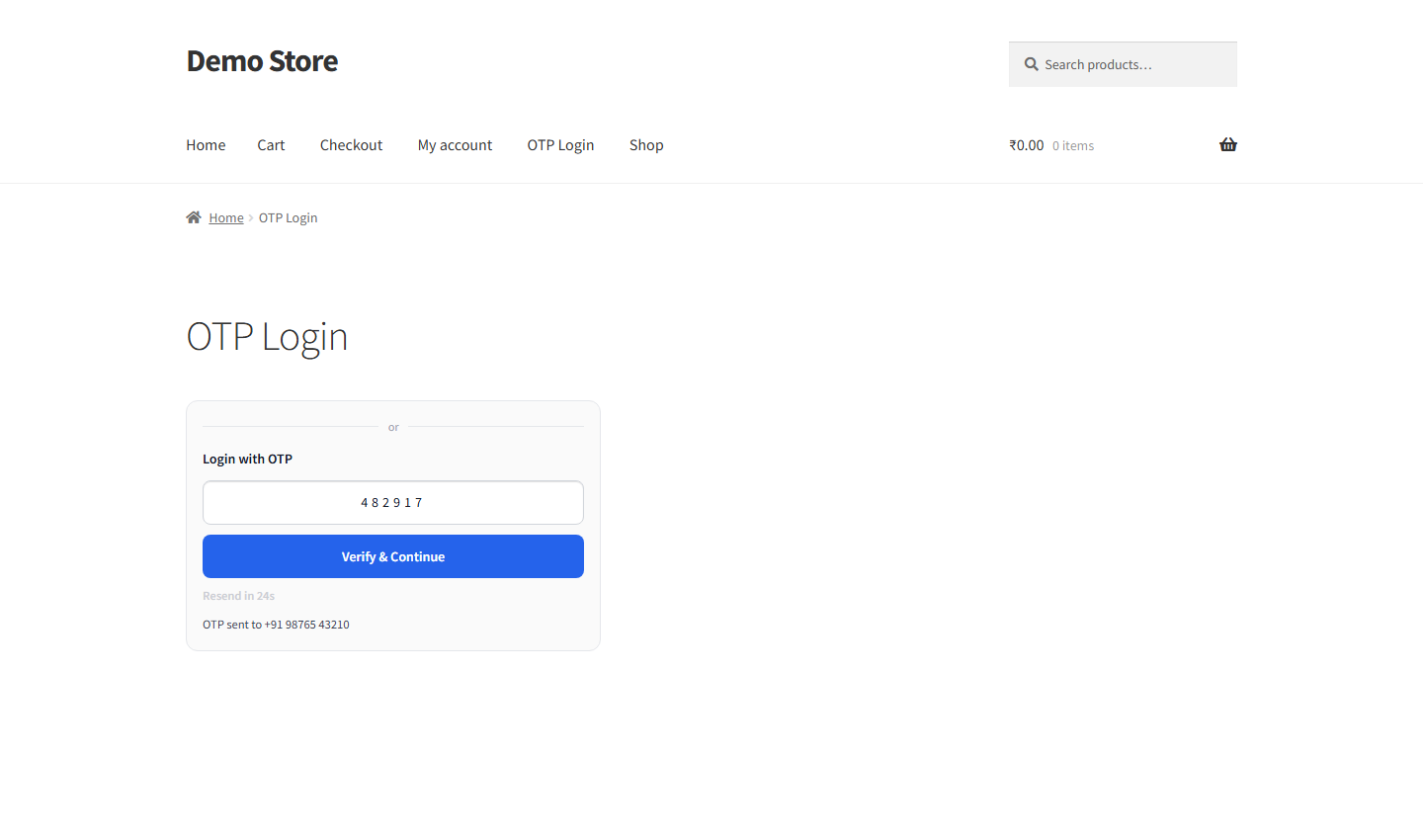
There is a resend timer, so users cannot spam the Send button, and each OTP works only once.
Put the login form on any page
You are not limited to the login page. Drop this shortcode on any page or post:
[fast2sms_otp_login]
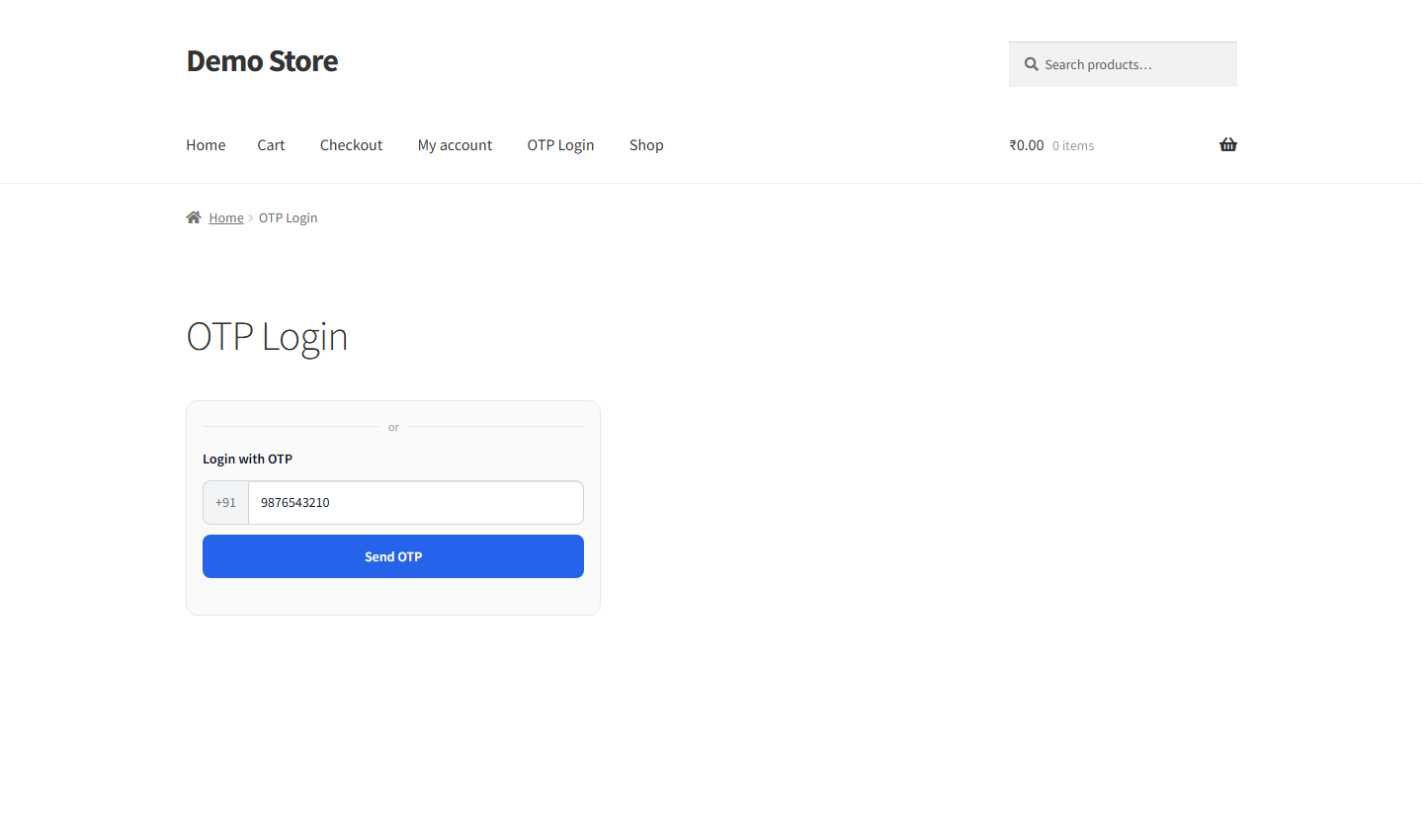
The shortcode works inside Elementor and other page builders too, so you can build a custom login page that matches your design. You can also change the widget title, accent color, corner radius, and switch between light and dark themes from the plugin settings.
OTP verification on registration
Turn on registration verification and new users must verify their mobile number before the account is created. This works on the WordPress registration form and on the WooCommerce My Account registration form.
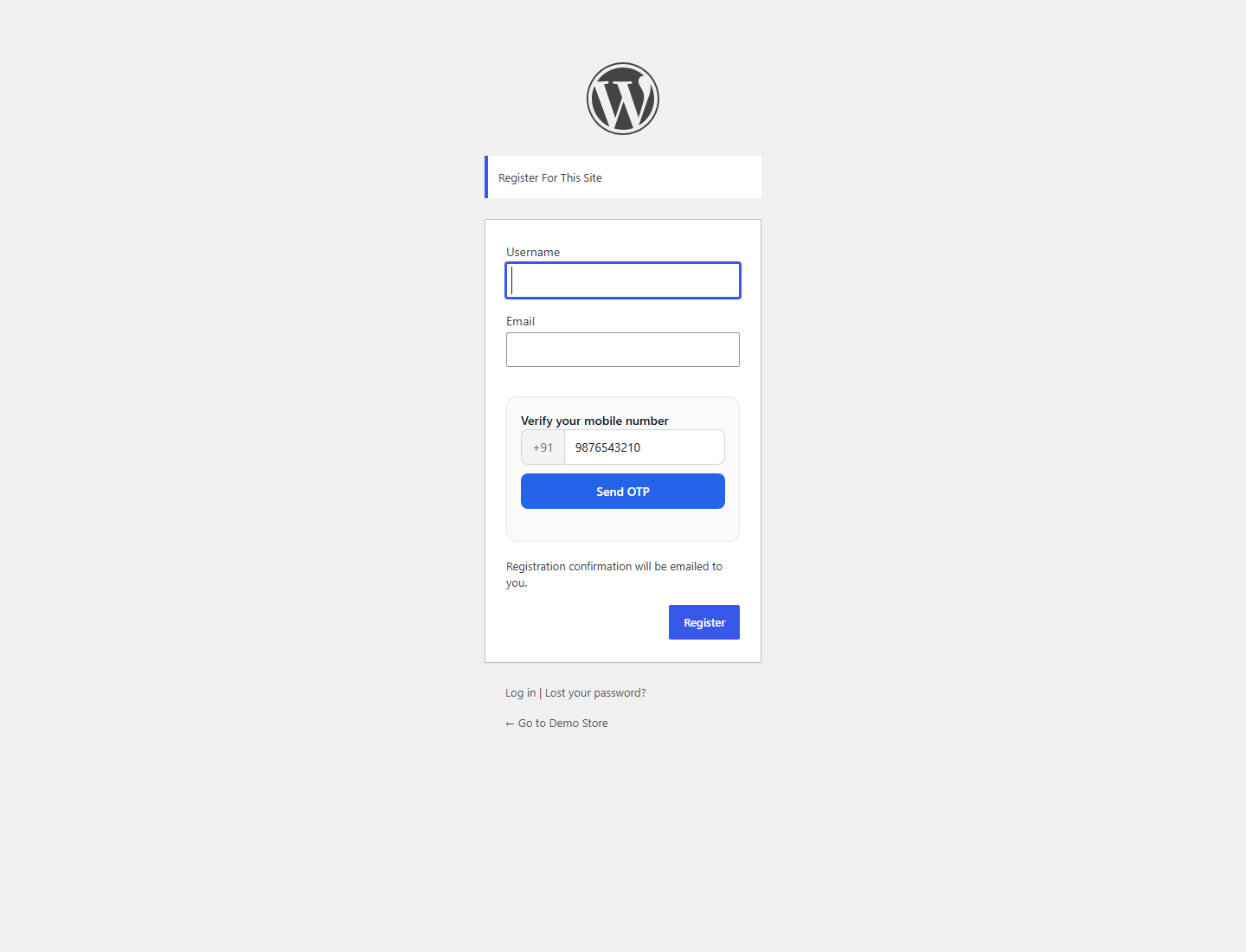
The verified number is saved to the user profile, so you can use it later for order updates, alerts, or campaigns.
Built-in safety
- Administrator accounts are protected. By default, nobody can enter an admin account with only an OTP. Admins keep using their password. This blocks SIM-swap attacks on your most important accounts.
- Each OTP works once and expires quickly.
- A resend cooldown stops abuse of the Send OTP button.
- Optional account creation. You choose whether a brand new visitor logging in by OTP gets an account automatically or sees a polite error instead.
Frequently asked questions
Is the OTP login plugin really free?
Yes. The plugin is free to download and use. You only pay for the OTP messages you send, from your Fast2SMS wallet. There is no monthly charge.
Does OTP login work with WooCommerce?
Yes. One switch adds Login with OTP to the WooCommerce My Account page. See the full WooCommerce OTP login guide for store-specific steps.
Which mobile numbers are supported?
Indian 10-digit mobile numbers only. Fast2SMS is an Indian service, so OTPs cannot be sent to international numbers.
Can users still log in with their password?
Yes. The OTP box appears below the normal login form. Nothing about your existing login changes. Users simply get one more option.
What if the mobile number has no account yet?
You decide. Allow automatic account creation and a new user account is created on the spot with the verified number saved. Or turn it off and only existing users can log in with OTP.
Can OTPs go on WhatsApp instead of SMS?
Yes. The plugin supports both SMS and WhatsApp through your Fast2SMS account, and you can test both from the OTP & Login tab.
Get started
Install the free plugin from WordPress.org, create your free account at fast2sms.com, and follow the setup guide if you need help with any step. Running a WooCommerce store? The same plugin also sends SMS and WhatsApp order notifications.
Questions? Write to us at [email protected]. We are happy to help.
More WooCommerce OTP, SMS and WhatsApp guides
- WooCommerce OTP plugin: 110 FAQs
- WooCommerce checkout OTP verification
- WooCommerce login with mobile number
- Phone number verification at registration
- WooCommerce WhatsApp OTP login
- WooCommerce COD OTP verification
- WooCommerce OTP not received: fixes
- WooCommerce OTP cost
- Best WooCommerce OTP plugins compared
- Free mobile login plugin alternative
- WooCommerce WhatsApp plugin: 100+ FAQs
- WooCommerce SMS notification plugin: 100+ FAQs
- Order status SMS and WhatsApp
- COD to prepaid and pending payment reminders
- Abandoned cart recovery on WhatsApp and SMS
- Back in stock notifier
- WooCommerce SMS marketing campaigns
- Best WooCommerce SMS and WhatsApp plugins
- Twilio SMS alternative for India
- WooCommerce OTP plugin guide in Hindi
High volume? Rates are negotiable: call sales on +91-6262778811, email [email protected] or book a free meeting with our team.