
Shopify WhatsApp Message Templates: Copy-Paste Templates for Meta Approval
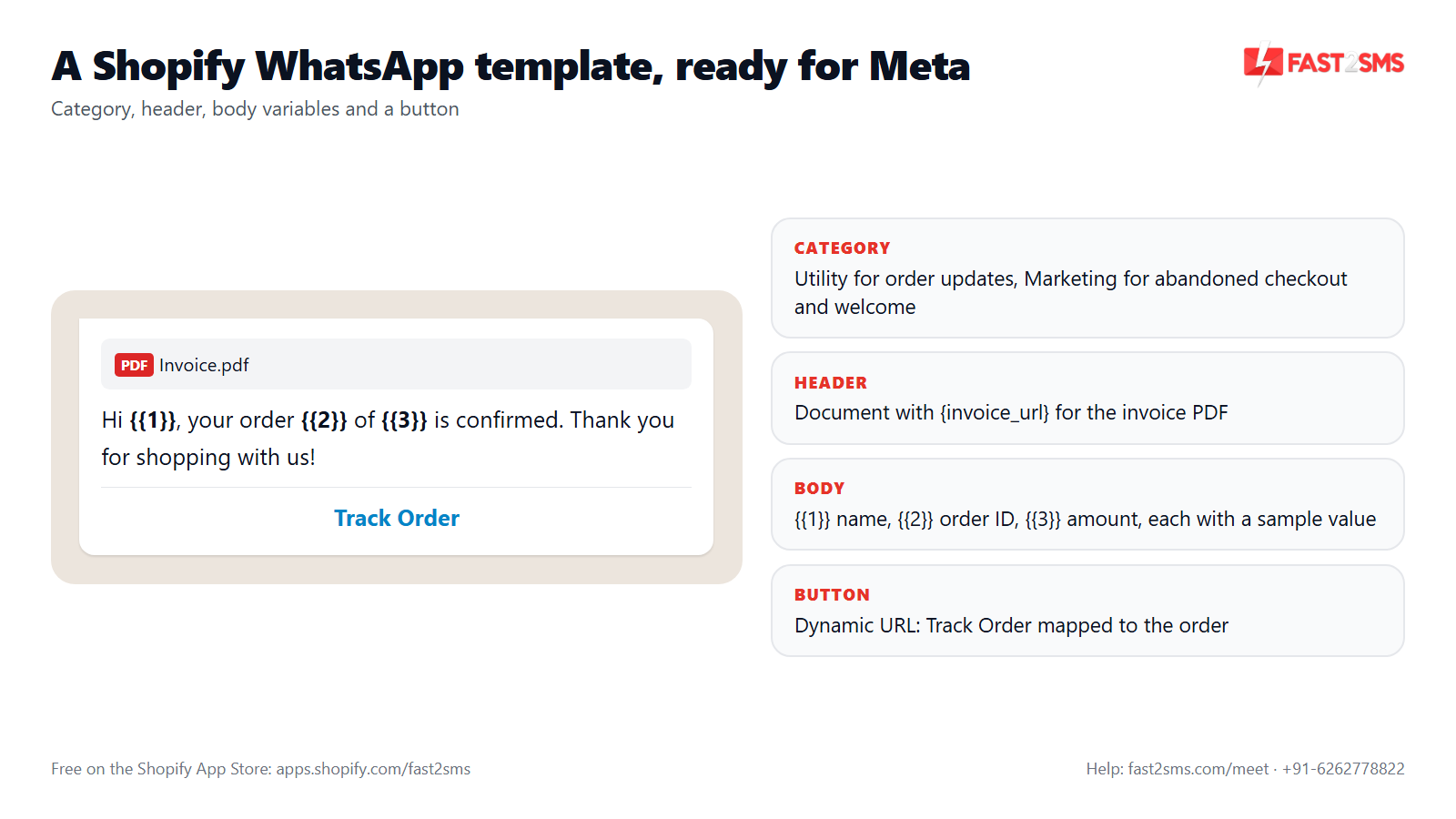
Every WhatsApp message your Shopify store sends to a customer has to use a template that Meta has approved first. Most rejections happen for small reasons: a variable at the very end, promotional words in an order update, or the wrong category. This page gives you 12 ready-to-copy Shopify WhatsApp templates, one for each order event in the free Fast2SMS Shopify app.
Each template comes with a suggested name, category, header, button, a copy box with the exact body text, sample values Meta asks for, and which app variable goes into each {{1}}, {{2}} slot. Create them once in your Fast2SMS panel, and the app fetches them automatically. You pay only per delivered message from your own Fast2SMS wallet.
How WhatsApp templates work with the Shopify app
There are three steps, and only the first one needs any writing:
- Create the template in your Fast2SMS panel and submit it to Meta. Approval usually comes back quickly, but it can take longer if Meta reviews it by hand.
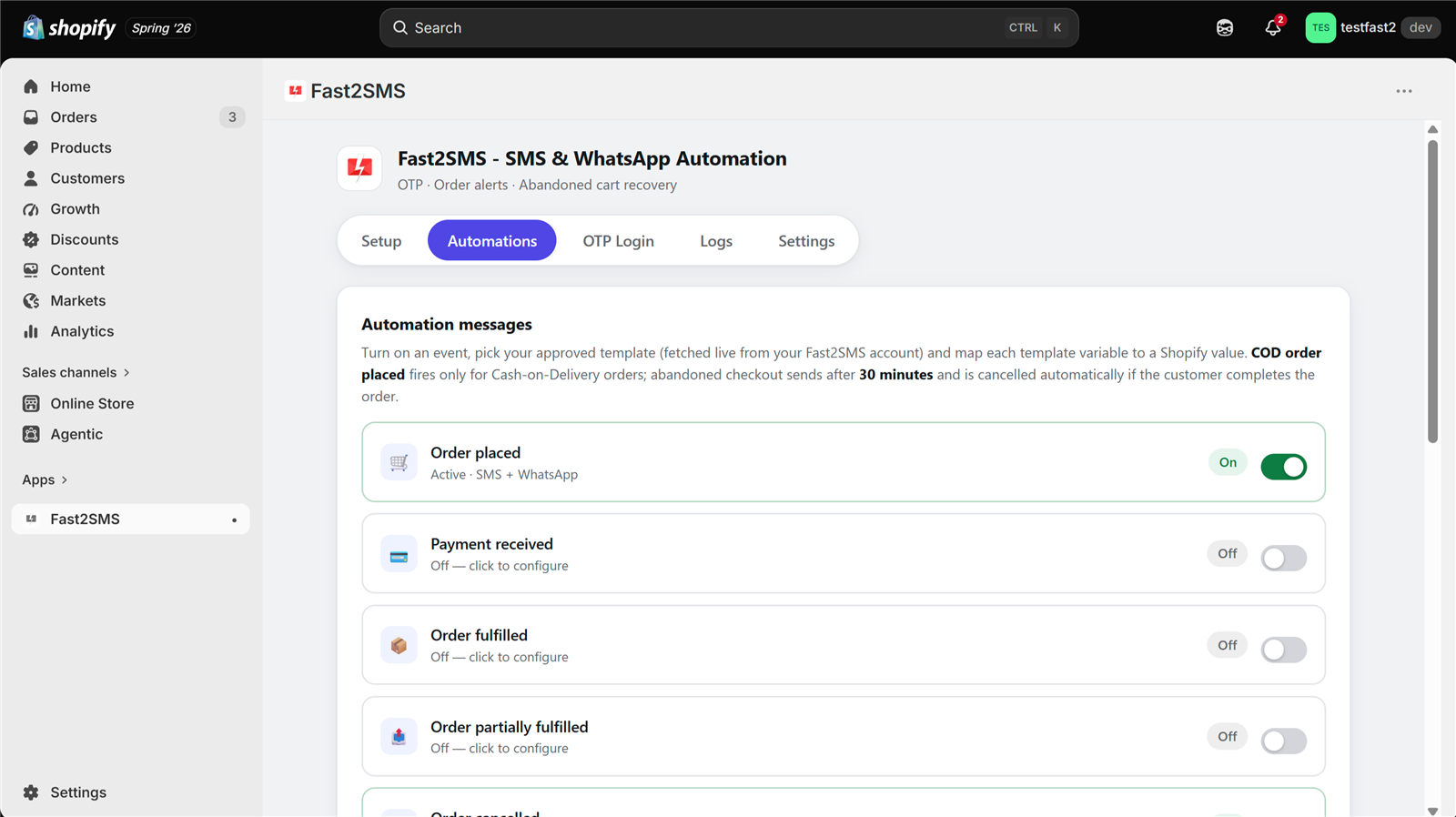
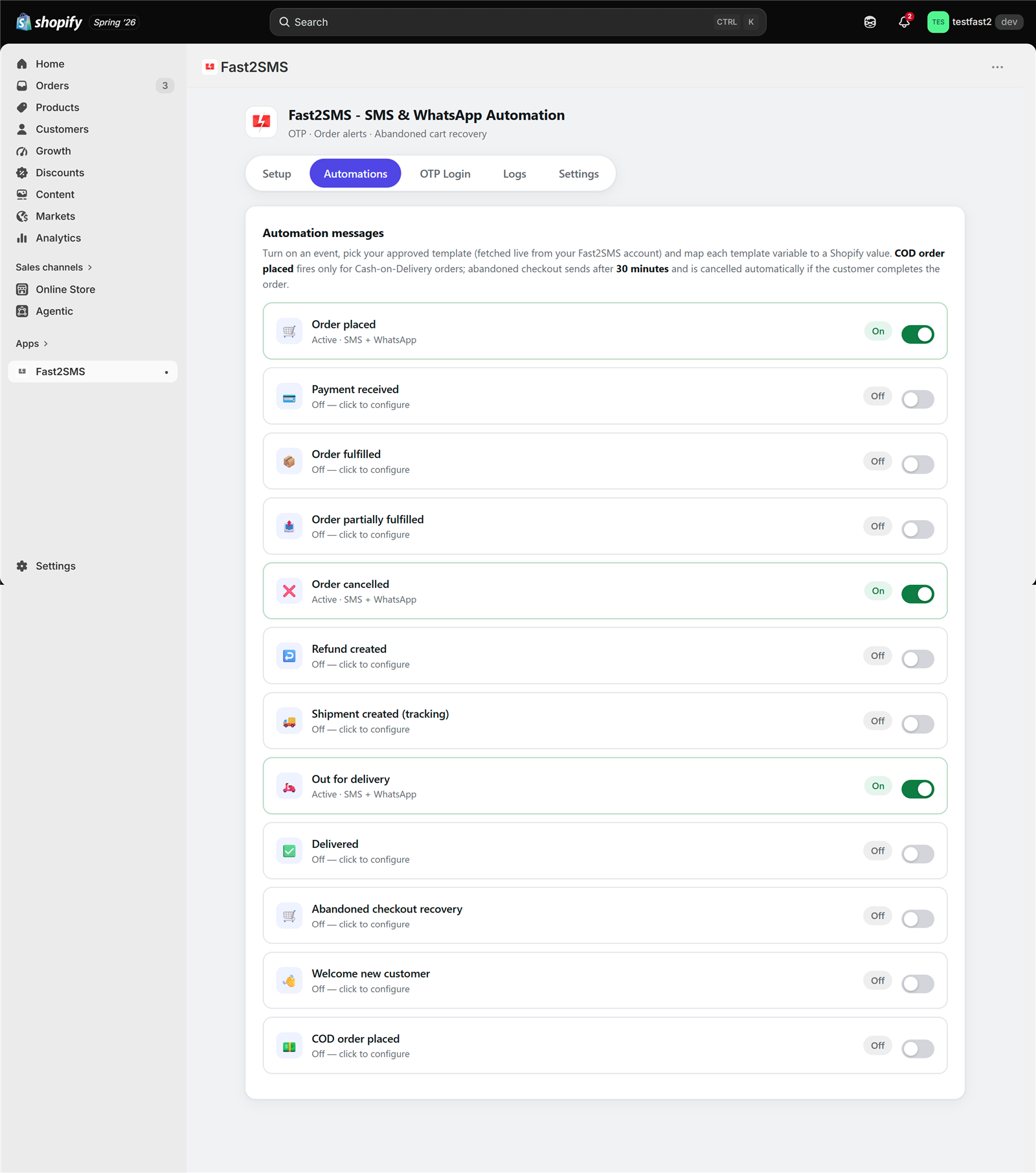
- Open the Automations tab in the app, turn on an event, choose WhatsApp (or Both), and click to fetch your approved templates. The picker is searchable by name, ID or text, so you never copy template IDs.
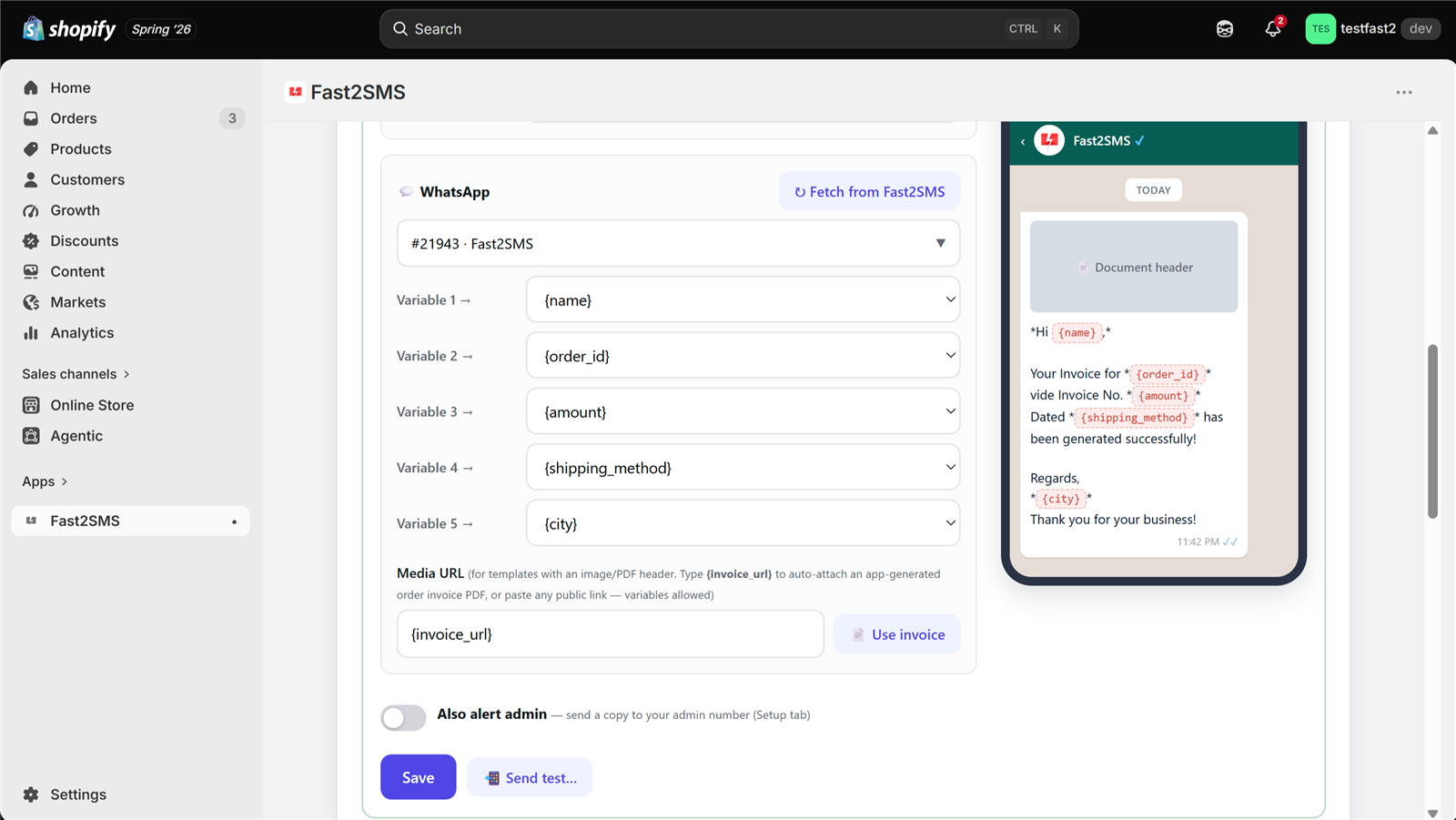
- Map each variable from a dropdown of 18+ store variables (customer name, order ID, amount, tracking URL and more), check the live WhatsApp preview, and send a test to your own admin number.
If you are new to the app, start with the Fast2SMS Shopify app guide and the list of all 12 Shopify order events. For SMS, the matching DLT versions are in Shopify DLT SMS templates.
Rules that get Shopify WhatsApp templates approved
All 12 templates below already follow these rules. If you edit them, keep these in mind:
- Name: lowercase letters, numbers and underscores only, like
order_confirmation. - Variables in order: {{1}}, {{2}}, {{3}}, with no gaps and no two variables side by side.
- Never start or end the body with a variable. Put a fixed sentence after the last one.
- Give a real-looking sample for every variable. “Priya” and “#1045” pass; “test” or “xyz” often does not.
- No sales talk in Utility templates. Offers, coupon codes and “shop now” lines belong in Marketing templates.
- Keep enough fixed text. A body that is mostly variables looks like spam to reviewers.
- Replace YourBrand with your store name before you submit, and avoid link shorteners in buttons.
Rejected anyway? The reasons and fixes are listed in our WhatsApp template rejected FAQ.
Utility or Marketing: how the category changes your cost
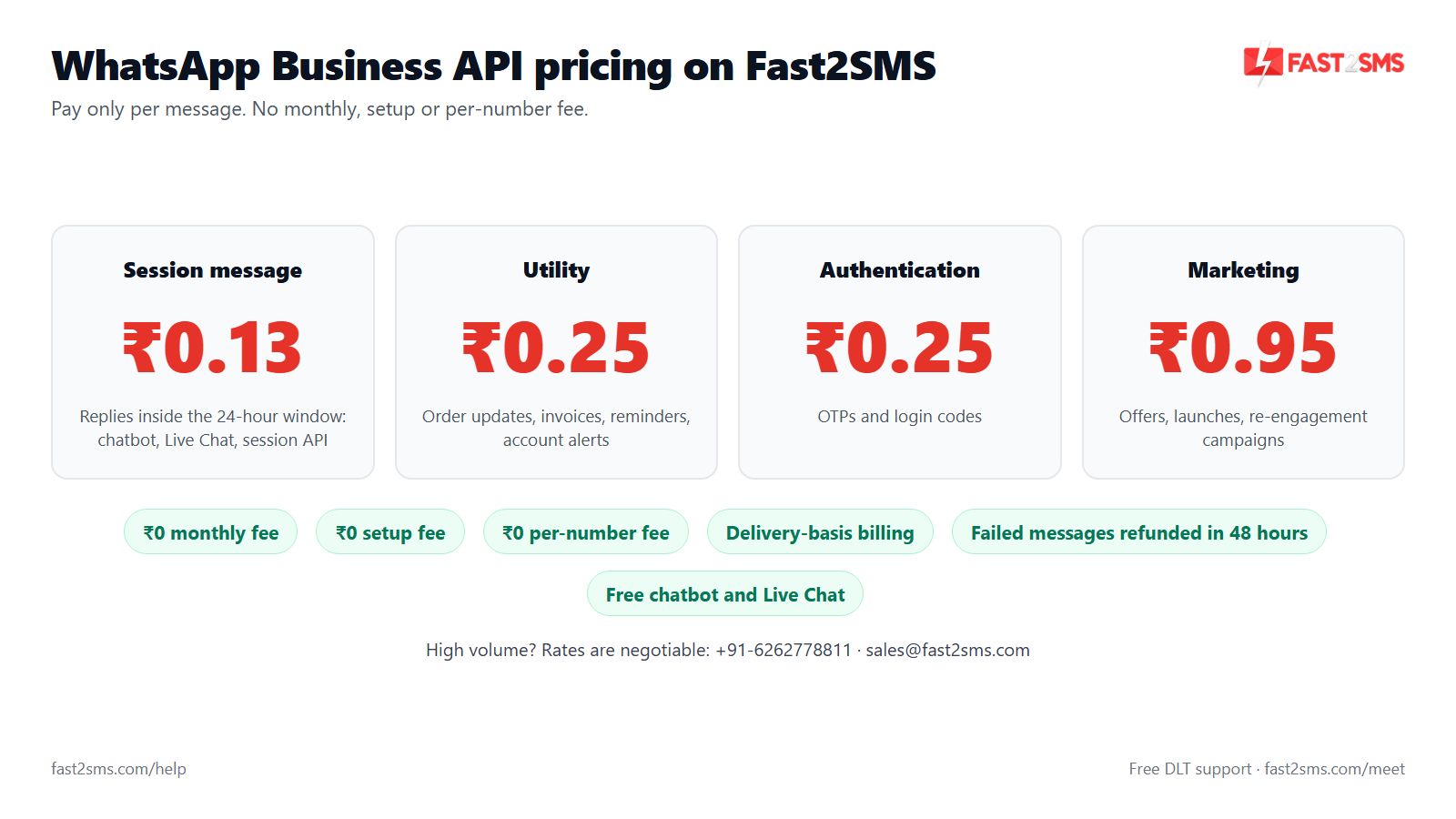
The category decides what you pay per message. Order updates the customer expects (confirmation, shipping, delivery, refund) are Utility. Messages that try to bring the customer back to buy (abandoned checkout, welcome) are Marketing.
| Category | Shopify events | Fast2SMS rate per delivered message |
|---|---|---|
| Utility | Order placed, Payment received, Order fulfilled, Order partially fulfilled, Order cancelled, Refund created, Shipment created, Out for delivery, Delivered, COD order placed | ₹0.25 |
| Marketing | Abandoned checkout recovery, Welcome message for new customers | ₹0.95 |
| Session reply | Your replies to a customer inside the 24-hour window, from portal Live Chat | ₹0.13 |
Charges apply on delivery, and failed WhatsApp messages are refunded within 48 hours. One thing to watch: if a Utility template has promotional lines, Meta can move it to Marketing, and every message then costs ₹0.95. That is why the order update templates below stay strictly about the order. Replies are explained in WhatsApp session message pricing.
How pricing works: free app, pay only per message
- The Fast2SMS Shopify app is free: no subscription, no monthly fee, no setup fee, no commission.
- Messages are billed by Fast2SMS from your own wallet, never through Shopify billing.
- WhatsApp order updates (Utility): ₹0.25 per delivered message; Marketing templates such as abandoned checkout and welcome: ₹0.95; failed WhatsApp messages are refunded within 48 hours.
- SMS: your DLT SMS rate per message.
- Free signup with ₹50 test credit.
All 12 templates at a glance
| Event | Template name | Category | Header | Button |
|---|---|---|---|---|
| 1. Order placed | order_confirmation |
Utility | Text | View order |
| 2. Payment received | payment_received_invoice |
Utility | Document (invoice) | – |
| 3. Order fulfilled | order_fulfilled_invoice |
Utility | Document (invoice) | View order |
| 4. Order partially fulfilled | order_partially_shipped |
Utility | Text | View order |
| 5. Order cancelled | order_cancelled |
Utility | Text | – |
| 6. Refund created | refund_processed |
Utility | Text | – |
| 7. Shipment created | shipment_tracking |
Utility | Text | Track Order |
| 8. Out for delivery | out_for_delivery |
Utility | Text | Track Order |
| 9. Delivered | order_delivered |
Utility | Text | – |
| 10. Abandoned checkout recovery | cart_reminder |
Marketing | Text | Complete checkout |
| 11. Welcome message for new customers | welcome_new_customer |
Marketing | Text | Shop now |
| 12. COD order placed | cod_order_confirmation |
Utility | Text | – |
Copy-paste WhatsApp templates for each Shopify event
In each box, *text* between stars shows as bold on WhatsApp. Click inside a box, press Ctrl+A and Ctrl+C, and paste it into the body field when you create the template in your Fast2SMS panel. Add the header and button separately as shown.
1. Order placed
Template name: order_confirmation · Category: Utility · Header: Text: “Order confirmed” · Button: View order (Dynamic URL, map to order status URL)
Order confirmed
Hi {{1}}, thank you for shopping with YourBrand.
Your order {{2}} is confirmed.
Items: {{3}}
Order total: ₹{{4}}
Payment: {{5}}
We will send you another update when your order ships.
Copy the body:
| Variable | Map to in the app | Sample value for Meta |
|---|---|---|
| {{1}} | Customer name | Priya |
| {{2}} | Order ID | #1045 |
| {{3}} | Items count | 2 |
| {{4}} | Amount | 1,499.00 |
| {{5}} | Payment method | UPI |
If you also turn on COD order placed, this template goes only to prepaid orders. Keep the ₹ sign as fixed text so the amount variable never sits next to another variable.
2. Payment received
Template name: payment_received_invoice · Category: Utility · Header: Document (invoice PDF, {invoice_url}) · Button: None
Hi {{1}}, we have received your payment of ₹{{2}} for order {{3}}.
Payment method: {{4}}
Your invoice is attached to this message. We are now preparing your order and will update you when it ships.
Copy the body:
| Variable | Map to in the app | Sample value for Meta |
|---|---|---|
| {{1}} | Customer name | Rahul |
| {{2}} | Amount | 2,350.00 |
| {{3}} | Order ID | #1046 |
| {{4}} | Payment method | Razorpay |
This is a Document header template. In the Fast2SMS panel choose Document as the header and upload any sample PDF for Meta review. In the app, put {invoice_url} in the Media URL field or click “Use invoice”, and the app attaches the invoice PDF it generates for that order. More on this in sending Shopify invoice PDFs on WhatsApp.
3. Order fulfilled
Template name: order_fulfilled_invoice · Category: Utility · Header: Document (invoice PDF, {invoice_url}) · Button: View order (Dynamic URL, map to order status URL)
Hi {{1}}, your order {{2}} has been packed and handed over for delivery.
Shipping method: {{3}}
Your invoice is attached for your records. Tap the button below to see your order status.
Copy the body:
| Variable | Map to in the app | Sample value for Meta |
|---|---|---|
| {{1}} | Customer name | Aisha |
| {{2}} | Order ID | #1047 |
| {{3}} | Shipping method | Standard Shipping |
Many stores turn on either Order fulfilled or Shipment created, not both, so the customer does not get two similar messages. Pick the one that matches how you ship.
4. Order partially fulfilled
Template name: order_partially_shipped · Category: Utility · Header: Text: “Part of your order has shipped” · Button: View order (Dynamic URL, map to order status URL)
Part of your order has shipped
Hi {{1}}, some items from your order {{2}} have been shipped today.
The remaining items will follow soon, and we will message you again when they ship.
Tap the button below to see which items are on the way.
Copy the body:
| Variable | Map to in the app | Sample value for Meta |
|---|---|---|
| {{1}} | Customer name | Karan |
| {{2}} | Order ID | #1048 |
Useful for stores that ship from more than one warehouse or ship pre-order items later.
5. Order cancelled
Template name: order_cancelled · Category: Utility · Header: Text: “Order cancelled” · Button: None
Order cancelled
Hi {{1}}, your order {{2}} for ₹{{3}} has been cancelled.
If you paid online, any refund due will go back to your original payment method.
Have a question about this? Just reply to this message and our team will help you.
Copy the body:
| Variable | Map to in the app | Sample value for Meta |
|---|---|---|
| {{1}} | Customer name | Neha |
| {{2}} | Order ID | #1049 |
| {{3}} | Amount | 899.00 |
Replies to this message land in the Live Chat inside your fast2sms.com portal, not in Shopify, so make sure someone checks it.
6. Refund created
Template name: refund_processed · Category: Utility · Header: Text: “Refund processed” · Button: None
Refund processed
Hi {{1}}, a refund has been created for your order {{2}}.
It goes back to your original payment method: {{3}}.
Banks usually take a few working days to show the amount in your account. Reply here if you need help.
Copy the body:
| Variable | Map to in the app | Sample value for Meta |
|---|---|---|
| {{1}} | Customer name | Vikram |
| {{2}} | Order ID | #1050 |
| {{3}} | Payment method | UPI |
The variable list does not have a separate refund amount, so this template does not show one. Do not map the order Amount here, because a partial refund would show the wrong number.
7. Shipment created
Template name: shipment_tracking · Category: Utility · Header: Text: “Your order has shipped” · Button: Track Order (Dynamic URL, map to tracking URL)
Your order has shipped
Hi {{1}}, your order {{2}} is on its way.
Tracking number: {{3}}
Tap Track Order below to see the latest status of your parcel.
Copy the body:
| Variable | Map to in the app | Sample value for Meta |
|---|---|---|
| {{1}} | Customer name | Sneha |
| {{2}} | Order ID | #1051 |
| {{3}} | Tracking number | SR123456789IN |
This is the template most customers look for after they pay. See the button section below before you set the Track Order link.
8. Out for delivery
Template name: out_for_delivery · Category: Utility · Header: Text: “Out for delivery today” · Button: Track Order (Dynamic URL, map to tracking URL)
Out for delivery today
Hi {{1}}, your order {{2}} is out for delivery in {{3}} today.
Please keep your phone reachable so the delivery partner can contact you.
Tap Track Order to follow your parcel.
Copy the body:
| Variable | Map to in the app | Sample value for Meta |
|---|---|---|
| {{1}} | Customer name | Arjun |
| {{2}} | Order ID | #1052 |
| {{3}} | City | Pune |
Keep this one short. It is read on the doorstep.
9. Delivered
Template name: order_delivered · Category: Utility · Header: Text: “Delivered” · Button: None
Delivered
Hi {{1}}, your order {{2}} has been delivered.
We hope you like it. If anything is missing or damaged, reply to this message and our team will sort it out.
Copy the body:
| Variable | Map to in the app | Sample value for Meta |
|---|---|---|
| {{1}} | Customer name | Meera |
| {{2}} | Order ID | #1053 |
Keep review requests and discount codes out of this template. Promotional lines can make Meta treat it as Marketing, which costs ₹0.95 instead of ₹0.25.
10. Abandoned checkout recovery
Template name: cart_reminder · Category: Marketing · Header: Text: “You left something behind” · Button: Complete checkout (Dynamic URL, map to checkout recovery URL)
You left something behind
Hi {{1}}, you left {{2}} in your cart at YourBrand.
Cart total: ₹{{3}}
Your items are saved. Tap Complete checkout to finish your order in one step.
Copy the body:
| Variable | Map to in the app | Sample value for Meta |
|---|---|---|
| {{1}} | Customer name | Rohan |
| {{2}} | Product name | Cotton Kurta Set |
| {{3}} | Amount | 1,299.00 |
The app sends this after your chosen delay (5 minutes to 24 hours) and cancels it if the customer completes the order first. It can respect Shopify marketing consent and your opt-out list. Full setup: Shopify abandoned cart recovery on WhatsApp.
11. Welcome message for new customers
Template name: welcome_new_customer · Category: Marketing · Header: Text: “Welcome to YourBrand” · Button: Shop now (Static URL, your store home page)
Welcome to YourBrand
Hi {{1}}, welcome to YourBrand. We are happy to have you with us.
You will get your order updates on this WhatsApp number.
Tap Shop now to see our latest collection.
Copy the body:
| Variable | Map to in the app | Sample value for Meta |
|---|---|---|
| {{1}} | Customer name | Kavya |
A static button needs no mapping. If you want to add a welcome offer, write it as fixed text; the category is already Marketing.
12. COD order placed
Template name: cod_order_confirmation · Category: Utility · Header: Text: “COD order received” · Button: None
COD order received
Hi {{1}}, thank you for your cash on delivery order {{2}} with YourBrand.
Amount to pay at delivery: ₹{{3}}
Items: {{4}}
Please keep the amount ready. If you did not place this order, reply to this message.
Copy the body:
| Variable | Map to in the app | Sample value for Meta |
|---|---|---|
| {{1}} | Customer name | Suresh |
| {{2}} | Order ID | #1054 |
| {{3}} | Amount | 749.00 |
| {{4}} | Items count | 1 |
With this event on, COD orders skip the generic Order placed message, so no customer gets two confirmations. Replies land in your portal Live Chat; the app never edits orders, so your team acts on them. Read Shopify COD verification for the full flow.
Setting up Track Order and Complete checkout buttons
A dynamic URL button has a fixed start and one {{1}} at the very end. Meta allows only that last part to change for each message. When you create the button in your Fast2SMS panel, you give Meta the fixed part and a sample of the full link.
In the app, button variables are detected automatically and appear in the same mapping dropdown as the body variables. Map Track Order to the tracking URL, View order to the order status URL, and Complete checkout to the checkout recovery URL. Make sure the fixed start of the button matches the links you map. For example, if your tracking links come from a courier domain, the button start must match that domain, not your store domain.
The safe check is the Test send in the Automations tab. Send the template to your own admin number, tap the button on your phone, and confirm it opens the right page. The request ID is shown, and the result appears in the Logs tab.
After approval: switch them on in the app
- In the Automations tab, turn on each event and pick WhatsApp, SMS or Both.
- Fetch templates, search by name, and select the approved one.
- Map variables using the tables above, and check the live preview. It shows your verified business name, media header and buttons.
- Tick “Also alert admin” if you want a copy on the owner numbers you add in Settings.
- Send a test, then watch the Logs tab. Failed messages show the reason on hover, with one-click retry.
Messages go out within seconds of the Shopify order event. Delivery still depends on the customer’s phone and WhatsApp, so no provider can promise 100% delivery. For a walkthrough of each order update, read Shopify WhatsApp order notifications.
Want us to check your templates before you submit them? Our team will do it with you, free.
We can review your template text, pick the right category, create the templates in your Fast2SMS panel and map every variable in the Shopify app on a screen-share call. Schedule a free meeting, call +91-6262778822 or email [email protected].
Frequently asked questions
What is a WhatsApp message template for Shopify?
A WhatsApp message template is a pre-approved message format, with fixed text and {{1}} style variables, that Meta must approve before your Shopify store can send it to customers who have not messaged you first. The Fast2SMS app fills the variables with order data.
Do I need Meta approval for every Shopify WhatsApp template?
Yes, every template that starts a conversation with a customer needs Meta approval, including order confirmation, shipping and abandoned cart messages. Your replies inside the 24-hour customer service window do not need a template.
How long does WhatsApp template approval take?
Most templates submitted through your Fast2SMS panel are approved quickly, often within minutes, but some go to manual review at Meta and take longer. We cannot promise an exact time, so create all 12 before you switch events on.
What category should a WhatsApp order confirmation template use?
A WhatsApp order confirmation template should use the Utility category, because it confirms a purchase the customer has just made and gives them details they expect to receive. Keep offers and coupon codes out of it, or Meta may move it to Marketing and charge the higher rate.
Why is the abandoned cart WhatsApp template Marketing and not Utility?
An abandoned cart message asks the customer to come back and buy, so Meta treats it as Marketing even though it relates to their cart. That is why the cart_reminder template here is created as Marketing from the start, at ₹0.95 per delivered message.
How much does each Shopify WhatsApp message cost with Fast2SMS?
With Fast2SMS, Utility templates cost ₹0.25, Marketing templates cost ₹0.95 and session replies cost ₹0.13 per delivered message, paid from your own wallet. The Shopify app itself is free, and failed WhatsApp messages are refunded within 48 hours.
Can Meta change my template category after approval?
Yes, Meta can change a template’s category if the content does not match the category you chose, for example a Utility template with promotional lines. When that happens, messages are charged at the new category’s rate, so keep order updates free of sales talk.
What do {{1}} and {{2}} mean in a WhatsApp template?
{{1}} and {{2}} are placeholders that get replaced with real values for each customer, such as their name and order ID. In the Fast2SMS Shopify app you choose which store variable fills each placeholder from a dropdown.
Which variables can I map in the Fast2SMS Shopify app?
You can map 18+ store variables, including customer name, order ID, amount, phone, city, pincode, payment method, items count, product name, order date, subtotal, discount, tax, currency, coupon code, shipping method, order status URL, tracking number and URL, checkout recovery URL and invoice URL.
Why was my WhatsApp template rejected by Meta?
Common reasons are a variable at the start or end of the body, variables out of order, too little fixed text, weak sample values, or promotional content in a Utility template. Our WhatsApp template rejected FAQ lists each reason with a fix.
Can a WhatsApp template body end with a variable?
No, Meta usually rejects a body that starts or ends with a variable, so always add a fixed sentence after the last placeholder. Every template on this page ends with plain text for that reason.
How do I add a Track Order button to a Shopify WhatsApp template?
Add a dynamic URL button named Track Order when you create the template in your Fast2SMS panel, with a fixed link start and {{1}} at the end. In the app, map that button variable to the tracking URL and send a test to confirm it opens correctly.
Can I send the invoice PDF inside a WhatsApp order message?
Yes, use a template with a Document header and, in the app, put {invoice_url} in the Media URL field or click Use invoice. The app generates the invoice PDF itself and attaches it to order event messages.
Do I need to copy template IDs into the Shopify app?
No, you never copy template IDs into the Fast2SMS Shopify app, because it fetches your approved DLT SMS and Meta-approved WhatsApp templates from your Fast2SMS account with one click, and you pick them from a searchable list.
Can I use the same template for Order placed and COD order placed?
You can, but a separate COD template works better for most stores because it can clearly show the amount the customer must pay at delivery. When the COD order placed event is on, COD orders skip the Order placed message, so customers never get both.
Should I write templates in Hindi or English?
You can write templates in English, Hindi or any language Meta supports, as long as you choose the matching language when you create the template. Many Indian stores keep order updates in English and create a Hindi copy if their buyers prefer it.
Can I add emojis or bold text to Shopify WhatsApp templates?
Yes, WhatsApp templates support bold with *stars* and emojis are allowed by Meta, but keep formatting light so the message reads cleanly. The templates here use bold only for the order ID and amount.
Can I put a discount code in a Utility order template?
No, a discount code is promotional content, and adding it to a Utility template can get it rejected or moved to Marketing. Put offers in a separate Marketing template, such as the welcome message or abandoned cart reminder.
What sample values should I give Meta for Shopify variables?
Give realistic sample values that look like real order data, such as Priya for the name, #1045 for the order ID and 1,499.00 for the amount. Each template on this page includes a sample value table you can copy.
Can customers reply to Shopify WhatsApp order messages?
Yes, customers can reply to any template message, and their replies arrive in the Live Chat inside your fast2sms.com portal, not in Shopify. You can answer there or set up the free WhatsApp chatbot for common questions.
Is there a WhatsApp chat button for my Shopify storefront?
No, the Fast2SMS Shopify app does not add a storefront WhatsApp chat button; it sends automatic order event messages, and incoming customer replies are read in the Live Chat of your fast2sms.com portal.
Can I send bulk WhatsApp promotions from the Shopify app?
No, the Fast2SMS Shopify app sends only automatic messages for the 12 order events, not broadcasts or campaigns to your whole customer list. For bulk WhatsApp promotions, use the bulk WhatsApp option in your fast2sms.com portal with an approved Marketing template.
How do I test a template before customers get it?
Use Test send in the Automations tab to send the mapped template to your own admin number, and the request ID is shown so you can check it. Tap every button on your phone and confirm the values look right before turning the event on.
Do I also need DLT SMS templates if I only use WhatsApp?
No, if you choose only WhatsApp for your Shopify events, you do not need any DLT SMS templates, entity registration or SMS header for the app to work. You need approved DLT templates only for events where you pick SMS or Both, because every business SMS in India must match a registered template.
Will my customer get two messages if I choose Both?
Yes, choosing Both sends the same event as an SMS and a WhatsApp message, and each is billed at its own rate. Many stores use Both only for key events like shipping, and WhatsApp alone for the rest.
Is the Fast2SMS WhatsApp app for Shopify really free?
Yes, the Fast2SMS app for Shopify is free with no subscription, monthly fee, setup fee or per-message commission, and you pay only the per-message charges from your own Fast2SMS wallet, billed by Fast2SMS directly and never through Shopify billing.
Create your templates and switch on WhatsApp
Copy the 12 templates, replace YourBrand with your store name, and submit them from your Fast2SMS panel. Once they are approved, map the variables in the Automations tab, send a test, and your Shopify order notifications go out on WhatsApp from then on.
Need help? Schedule a free meeting · [email protected] · +91-6262778822 · Sales: +91-6262778811