
Automatic WhatsApp from Tally: Send Invoices the Moment You Save a Voucher
Tally WhatsApp automation means your customer gets the invoice on WhatsApp the moment you save the voucher in TallyPrime. No extra button, no copying the PDF to your phone, no “I will send it in the evening”. With the free Fast2SMS plugin you can auto send invoice on WhatsApp from Tally for each voucher type you choose, and keep manual, preview-first sending for everything else.
This guide shows you exactly how automatic WhatsApp from Tally Prime works: where the switch sits inside the voucher type, which default template each voucher uses, when to keep sending manual, how to stop duplicate messages when you alter a bill, and how to check that every message was delivered. It is written for shop owners, traders, distributors and the accountants who run Tally for them.
Download Tally PluginSignup Now
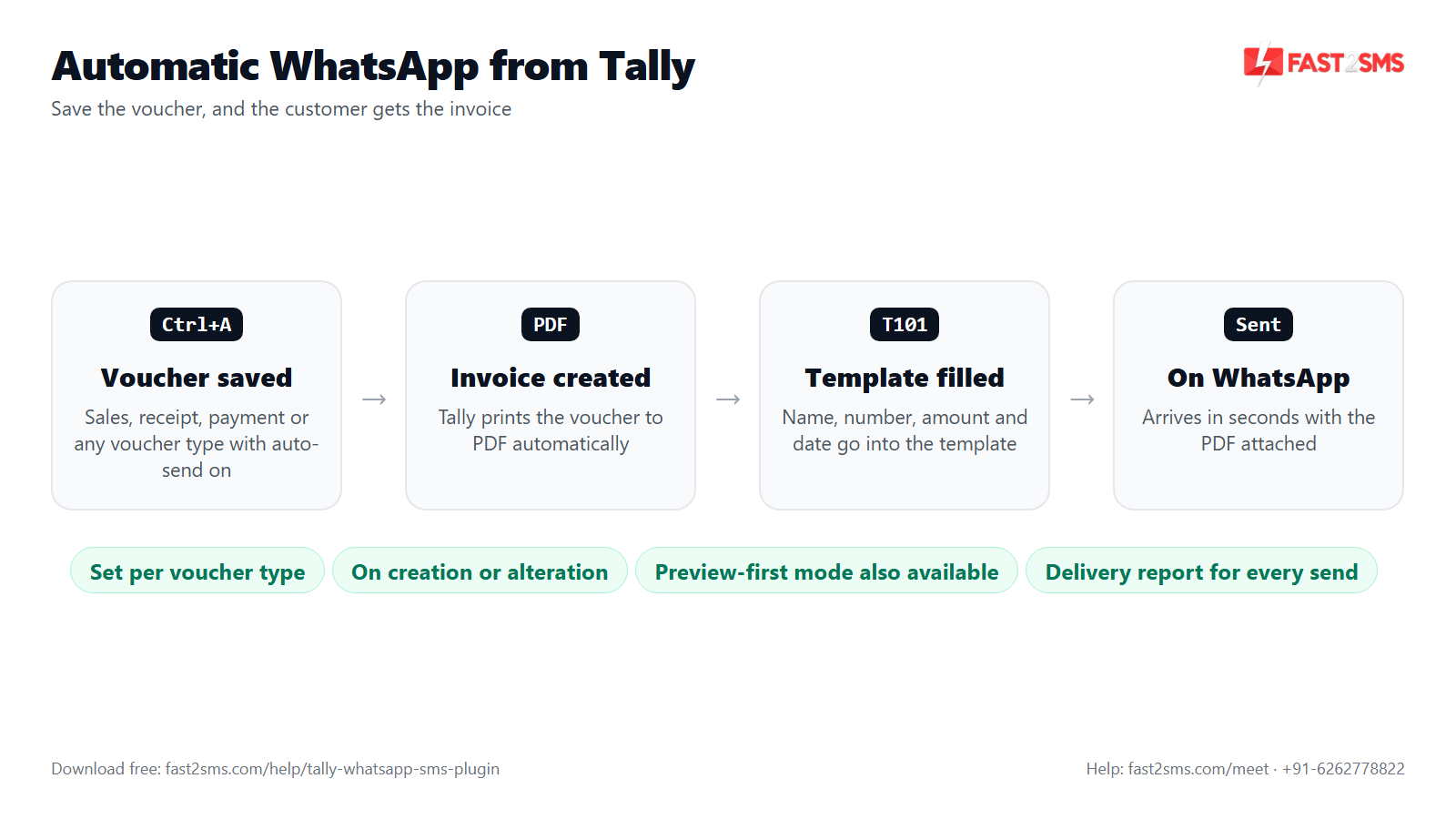
What automatic WhatsApp from Tally actually does
Normally, sending an invoice from Tally is a two-step job. You save the voucher, then you press a send button on the voucher screen, look at the preview and confirm. That works well, but on a busy counter the second step is the one people forget.
Auto-send removes that second step. The Fast2SMS tally prime whatsapp plugin adds a small settings block to the voucher type itself. When it is switched on, the plugin sends the WhatsApp message on its own as soon as you save a new voucher of that type. You can also tell it to send again when a voucher of that type is altered.
Here is what the customer receives:
- A WhatsApp message from an approved Meta template, with your business name, the voucher number, date and amount filled in.
- The invoice PDF attached as a document inside the message, for templates that carry a document.
- Nothing that looks like spam: it goes out through the official WhatsApp Business API, so there is no QR code to scan, no phone that must stay on and no ban risk from WhatsApp Web automation.
The setting is per voucher type. So you can auto-send every Sales invoice, keep Receipts manual, and never auto-send Journals. You decide voucher by voucher. For the bigger picture of what the plugin can do, see the main Tally WhatsApp and SMS plugin guide.
Before you switch on auto-send
Auto-send only works once the basic tally whatsapp integration is in place. If you have already sent one WhatsApp from Tally, you can skip to the next section. If not, this is the short checklist:
- Download and load the plugin. The plugin is a free .TCP file (a tally whatsapp tdl). Copy it into your TallyPrime folder and load it as a Local TDL, or upload it to your Tally.NET account as an Account TDL. Get the file from the Tally WhatsApp plugin free download folder.
- Enable the WhatsApp module. Open your company, press F1: Help > TDLs & Add-ons > F6: Add-On Features and set the WhatsApp module (and SMS, if you want it) to Yes. Only the company administrator sees this option. A new Fast2SMS.com menu now appears on the Gateway of Tally.
- Paste your API key. Create a free account on Fast2SMS, copy your API key from the Dev API section and paste it into the plugin. The account is mandatory, and you get ₹50 free test credit after signup.
- Fill the WhatsApp settings. Under Tally to WhatsApp > WhatsApp API Settings and WhatsApp Template Settings, enter the default values given further down in this article. It takes two minutes.
- Add mobile numbers to your party ledgers. Auto-send can only reach a customer whose ledger has a mobile number. Add it in the ledger master, update many at once from Update Mobile Numbers > Sundry Debtors, or use Import Mobile Numbers with the sample Excel file the plugin gives you.
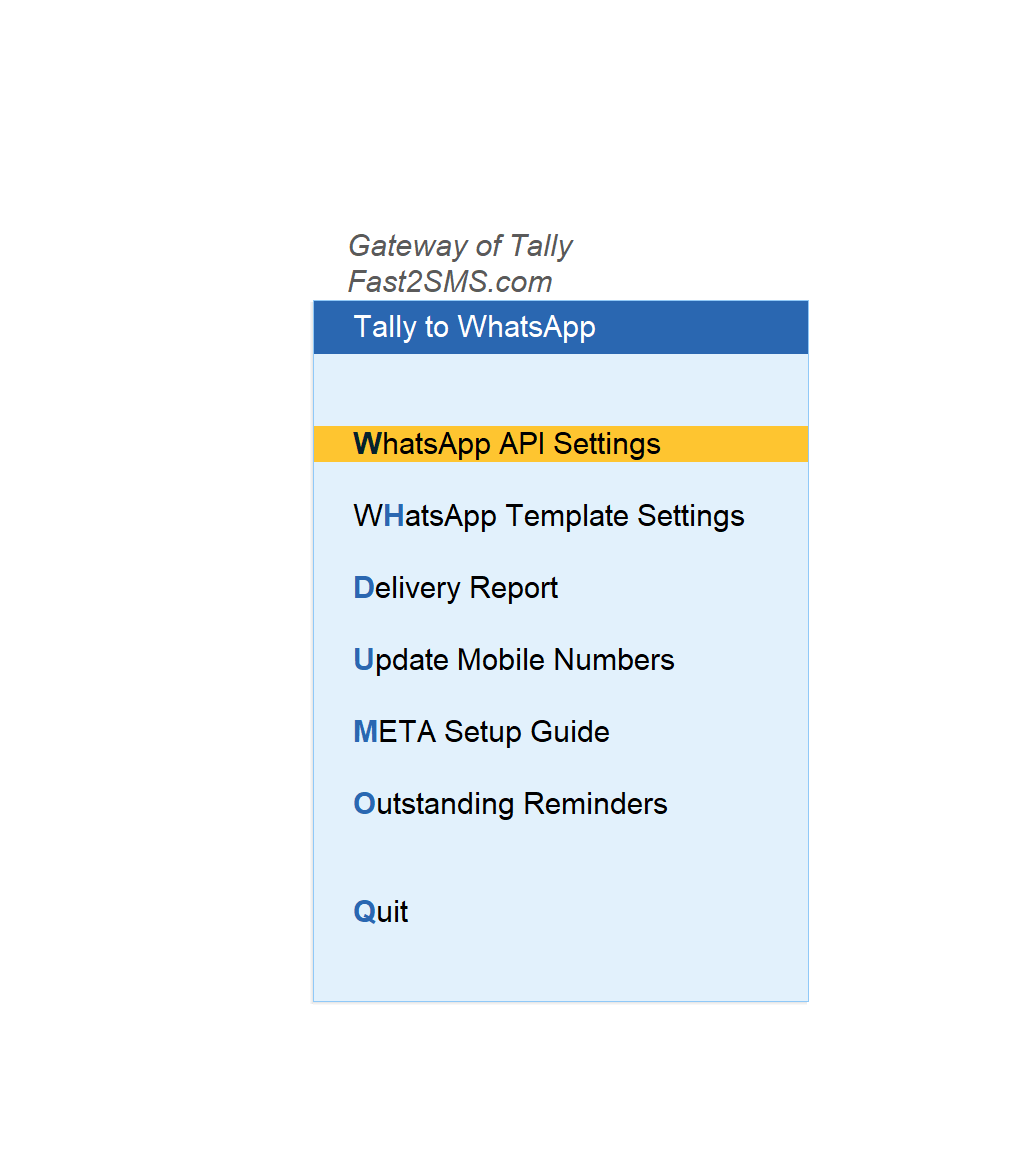
Do one manual test before you automate anything. Open a sales voucher for a ledger that has your own mobile number, press the WhatsApp send button, check the preview and send. If that message reaches your phone, auto-send will work too. If you want the full install walk-through, read how to send invoice on WhatsApp from Tally.
How to switch on auto-send for a voucher type
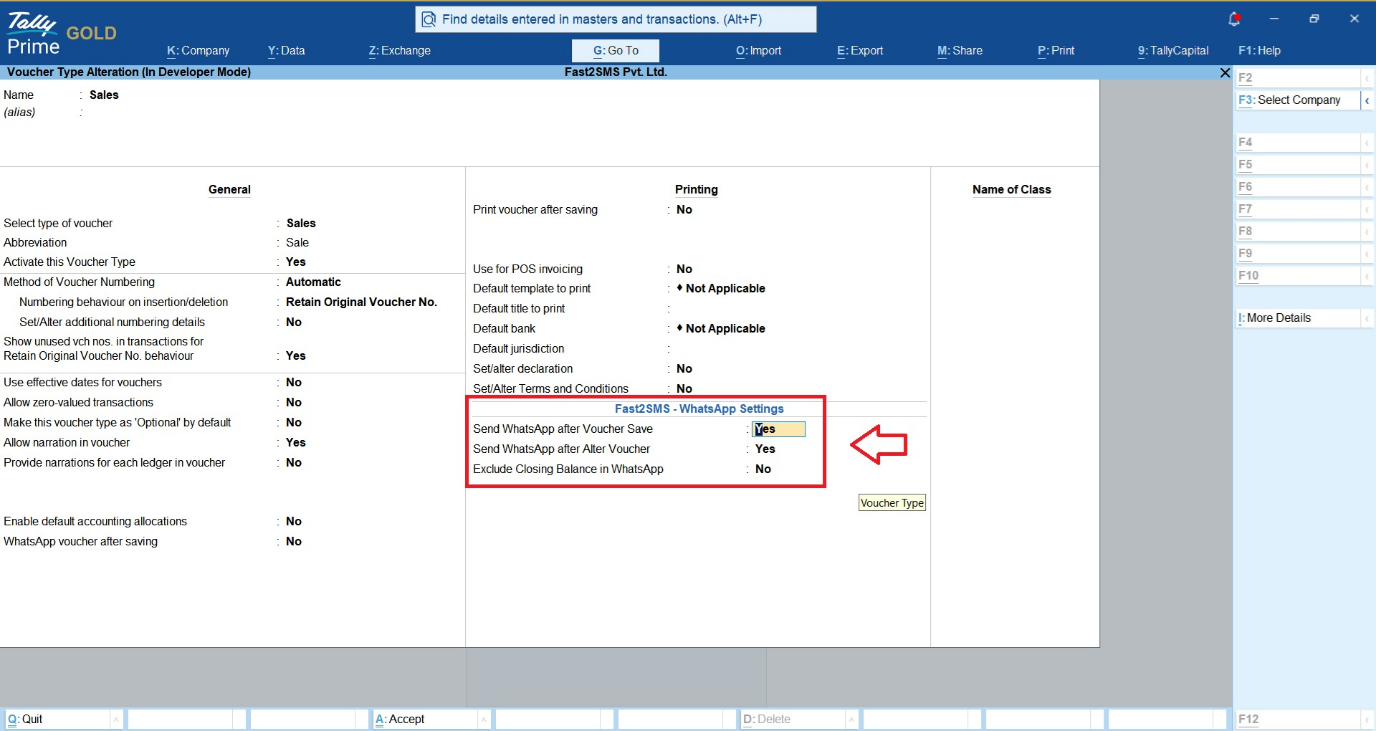
The plugin manual puts it simply: under the voucher type you will find extra WhatsApp settings to send a WhatsApp message instantly when a voucher is created or altered. Here is how to reach them for the Sales voucher type:
- From the Gateway of Tally, go to Alter > Voucher Types and pick Sales (or whichever sales voucher type you use, such as a separate type for a branch or counter).
- The Voucher Type Alteration screen opens. In the right-hand column you will see a block titled Fast2SMS – WhatsApp Settings.
- Set Send WhatsApp after Voucher Save to Yes. This is the main switch for new vouchers.
- Decide on Send WhatsApp after Alter Voucher. Leave it at No unless you really want customers to get a fresh message every time you correct a bill (more on this below).
- Decide on Exclude Closing Balance in WhatsApp. Set it to Yes if you do not want the customer’s running balance to show in the invoice message.
- Accept the screen with A: Accept (or Ctrl+A).
That is all. The next sales voucher you save for a party with a mobile number goes out on WhatsApp by itself. Repeat the same steps for every other voucher type you want to automate. The manual adds that you can send WhatsApp from other vouchers in the same way, so open each voucher type you care about and look for the same Fast2SMS block.
| Setting in Fast2SMS – WhatsApp Settings | What it does | Good starting value |
|---|---|---|
| Send WhatsApp after Voucher Save | Sends the WhatsApp as soon as a new voucher of this type is saved. | Yes for Sales, No for internal vouchers |
| Send WhatsApp after Alter Voucher | Sends again when an existing voucher of this type is altered and saved. | No, unless corrections must reach the customer |
| Exclude Closing Balance in WhatsApp | Leaves the party’s closing balance out of the message. | No if you want balance shown, Yes for walk-in or cash customers |
Which voucher type uses which default template
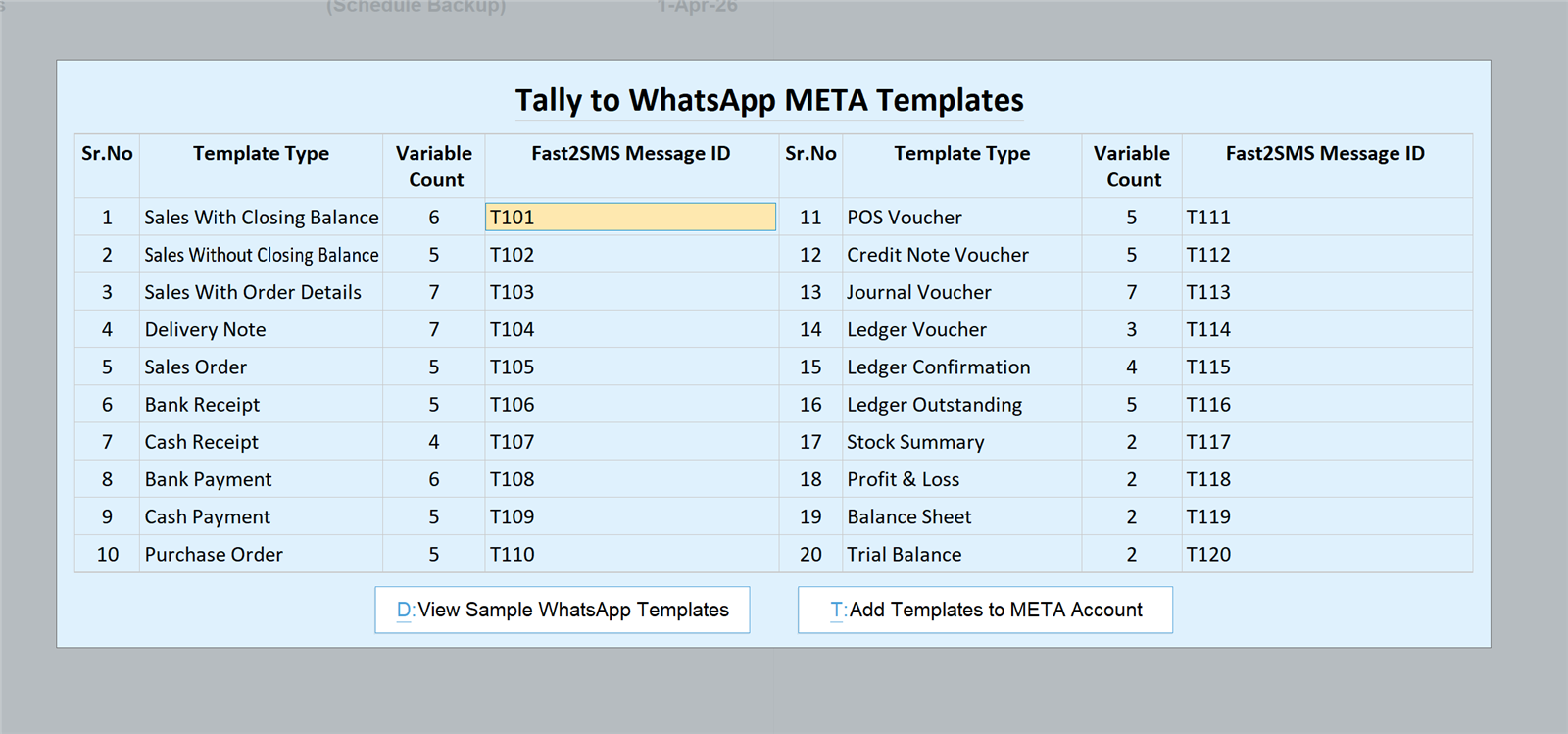
Every WhatsApp the plugin sends is built on a Meta-approved template. Fast2SMS gives you 20 of them ready to use, with message IDs T101 to T120. The table below shows which template each common voucher type uses and whether it is a good candidate for auto-send.
| Voucher type | Default template | Auto-send suggestion |
|---|---|---|
| Sales (credit customers) | T101 Sales with closing balance | Yes. The customer sees the bill and what they owe in one message. |
| Sales (cash or walk-in customers) | T102 Sales without closing balance | Yes, with Exclude Closing Balance in WhatsApp set to Yes. |
| Sales against an order | T103 Sales with order details | Usually manual, using the WhatsApp With Order Details button, so you pick this version on purpose. |
| Delivery Note | T104 Delivery note | Yes, if your dispatch team enters delivery notes as goods leave. |
| Sales Order | T105 Sales order | Yes. An instant order confirmation stops “did you get my order?” calls. |
| Receipt (bank) | T106 Bank receipt | Yes. Customers like proof that their NEFT or UPI payment is booked. |
| Receipt (cash) | T107 Cash receipt | Yes. It works as a digital cash receipt and builds trust. |
| Payment (bank) | T108 Bank payment | Optional. Useful if suppliers keep asking whether you have paid. |
| Payment (cash) | T109 Cash payment | Optional, same as above. |
| Purchase Order | T110 Purchase order | Manual is safer. POs are often revised before they are final. |
| POS invoice | T111 POS voucher | Yes, for retail counters that capture the customer’s number. |
| Credit Note | T112 Credit note | Manual. Check returns and discounts before the customer sees them. |
| Journal | T113 Journal voucher | No. Journals are mostly internal adjustments. |
Reports are a different story. Ledger voucher (T114), ledger confirmation (T115), ledger outstanding (T116), stock summary (T117), profit and loss (T118), balance sheet (T119) and trial balance (T120) are sent from report screens when you choose to, not on voucher save. You can read about them in sending Tally reports on WhatsApp.
Preview-first manual sending: the other option
Auto-send is not for everyone. Some owners like to see every message before it leaves. For them, the plugin’s send buttons on the voucher screen are the better fit, and you can use both methods side by side in the same company.
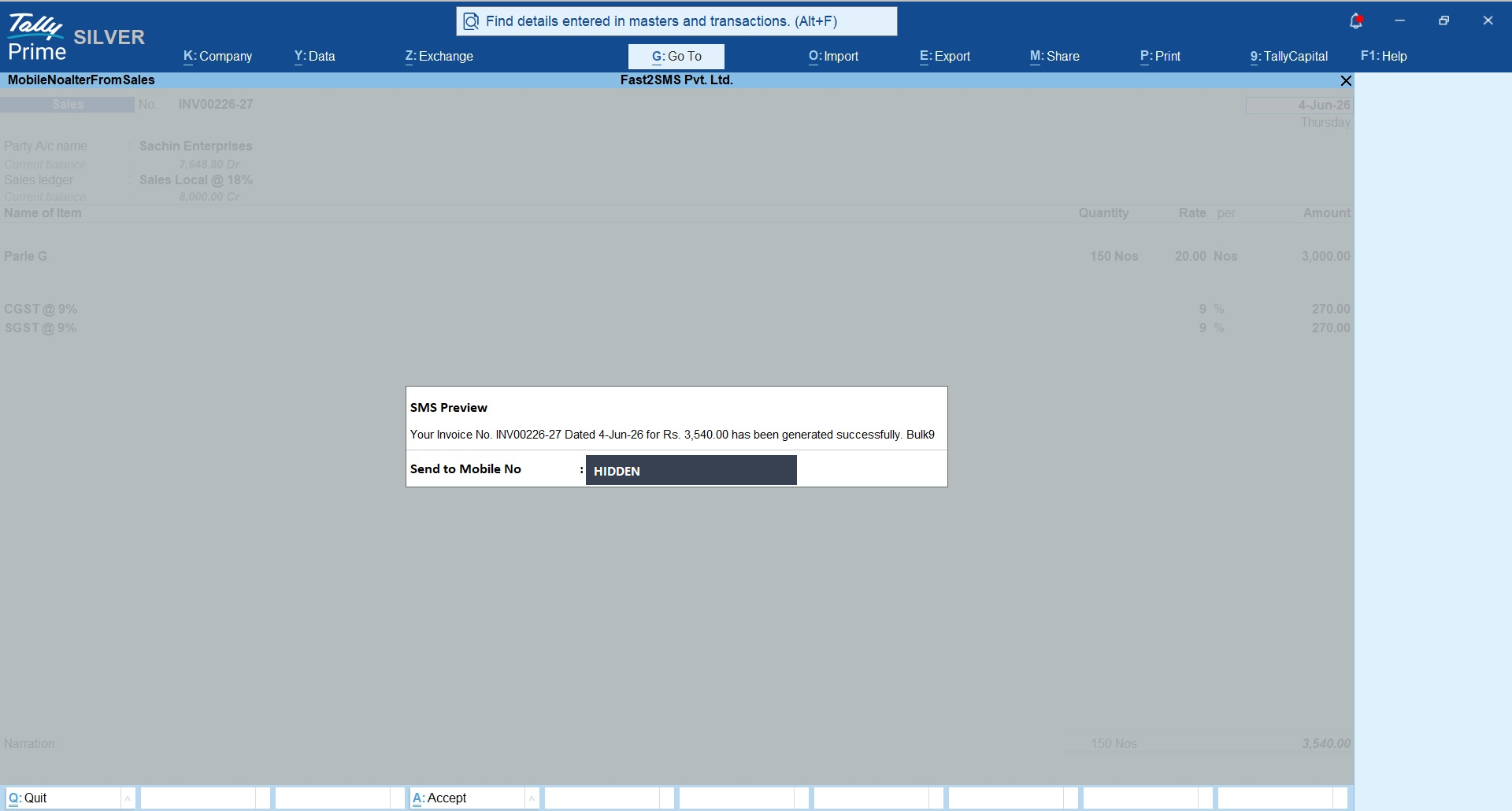
On a sales voucher you will see red buttons on the right side, such as W: WhatsApp Simple Sales and L: WhatsApp With Order Details. Which buttons appear depends on the message IDs you have filled in the template settings. Press one and a Message Details window opens with:
- Mobile No: the number picked from the party ledger.
- Message Variables: the values going into the template (party name, date, amount, invoice number, your company name).
- Message Preview: the full text the customer will read.
At the bottom Tally asks Accept? with Yes or No. Press Yes to send, No to cancel. Once the message is sent, you see a message sent prompt.
There is a third way too: bulk sending. Open the sales register, select the invoices with Space, and press W: Send Multiple WhatsApp. Many businesses use this as an end-of-day batch instead of auto-send. The same idea works for outstanding reminders from Statement of Account > Outstanding > Group > Debtors, covered in the Tally payment reminder guide.
Auto-send or manual: which one suits you
There is no single right answer. Think about who enters the vouchers and how often bills change after saving.
| Your situation | Best method |
|---|---|
| Retail or wholesale counter, bills are final when saved | Auto-send on Sales and Receipt |
| Bills often corrected after saving (rates, discounts, GST) | Manual with preview, or bulk at day end |
| One accountant enters bills for many clients | Manual per voucher, bulk from the register |
| Distributor with orders, dispatch and credit | Auto-send on Sales Order and Delivery Note, auto or bulk for invoices |
| Old data entry of past bills (back-dated work) | Switch auto-send off first |
That last row matters. If you are entering last month’s bills in one sitting, turn Send WhatsApp after Voucher Save to No for that session. Otherwise every old bill goes out to customers, who will be confused, and you pay for every message. Accountants handling client books can find more on this in Tally WhatsApp for accountants and CA firms.
How to avoid duplicate sends on alteration
Duplicates are the most common complaint once auto-send is live, and almost all of them come from one of four habits. Each message costs money and a customer who gets three copies of one bill starts to ignore your messages.
- Alteration is switched on without a reason. If Send WhatsApp after Alter Voucher is Yes, every save after an edit sends a new message, even if you only fixed a narration. Keep it at No. When a correction must reach the customer, open the voucher and send it manually with the button.
- Someone presses the manual button after auto-send. Auto-send has already done the job on save. Tell staff that for automated voucher types, the button is only for resending when a customer asks.
- Bulk sending from the register covers auto-sent bills. If you run Send Multiple WhatsApp at day end, select only invoices of voucher types that are not on auto-send, or only the ones a customer asked for again.
- Two voucher types for the same bill flow. If a Sales Order, a Delivery Note and a Sales invoice all auto-send, the customer gets three messages for one purchase. That is fine for a distributor who wants order, dispatch and bill updates. For a shop it is too much, so automate only the Sales invoice.
A simple rule works for most businesses: auto-send on save, manual on change. It keeps the message count low and every message the customer receives means something.
How to check delivery reports
With automation you are not watching each send, so check delivery once a day. There are two places to look.
- Inside Tally: go to Gateway of Tally > Fast2SMS.com > Tally to WhatsApp > Delivery Report. You see the messages sent from Tally and their status.
- In the Fast2SMS panel: log in to your account and open the WhatsApp delivery reports. This is useful when the owner wants to check from a phone or another office.
WhatsApp utility messages cost ₹0.25 each and you are charged only on delivery. If a message fails, the amount is refunded to your wallet automatically within 48 hours. You can see your wallet balance and recharge without leaving Tally.
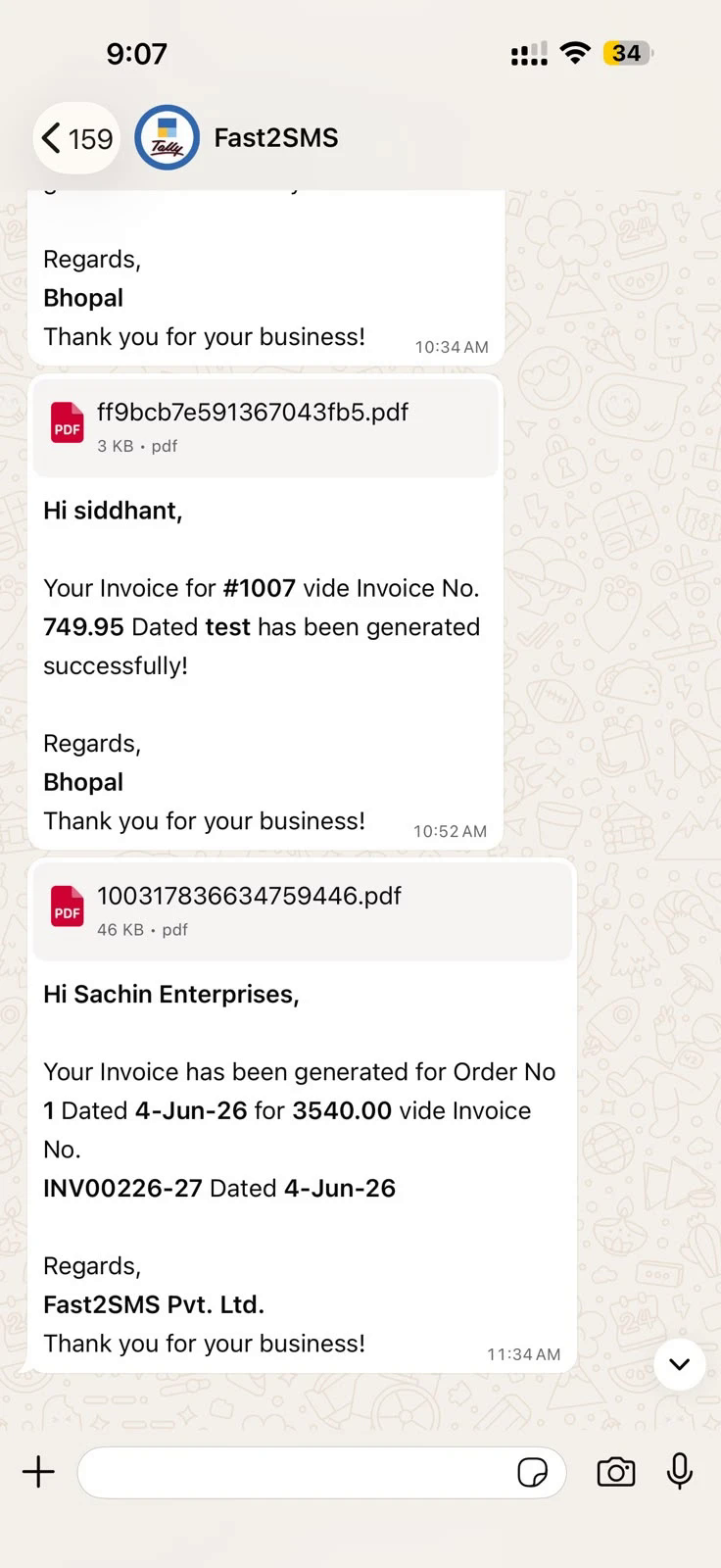
When a message does not reach, the cause is usually on the customer side of your data, not in the plugin:
- No mobile number, or a wrong one, in the party ledger.
- A landline or an old number that is not on WhatsApp.
- A message ID typed wrongly in WhatsApp Template Settings (for example T1O1 with a letter O).
- A wallet balance too low to send.
Fix the ledger or the setting, then resend that voucher manually with the button. Do not alter and re-save the voucher to trigger auto-send again, because that is how duplicates start.
What automatic sending costs
The plugin itself is a free WhatsApp plugin for Tally. There is no licence fee, no renewal, no setup charge and no monthly fee. You only pay per delivered message from your Fast2SMS wallet: ₹0.25 per WhatsApp utility message. The invoice, receipt and report templates are all utility templates.
Compare that with the options you may have been quoted. Tally’s own “TallyPrime with WhatsApp” is a paid subscription service. Paid third-party Tally WhatsApp TDLs commonly cost ₹3,000 to ₹6,000 plus GST, and some add a yearly panel renewal. The Tally WhatsApp TDL price comparison goes through the numbers side by side.
Start in two minutes with the ready default templates
Auto-send uses exactly these templates, so once the message IDs below are saved, every automated voucher already knows which message to send.
You do not need your own WhatsApp Business number or any Meta approval to start. Fast2SMS gives 20 ready, pre-approved templates on a default sender. After you paste your API key, make two entries:
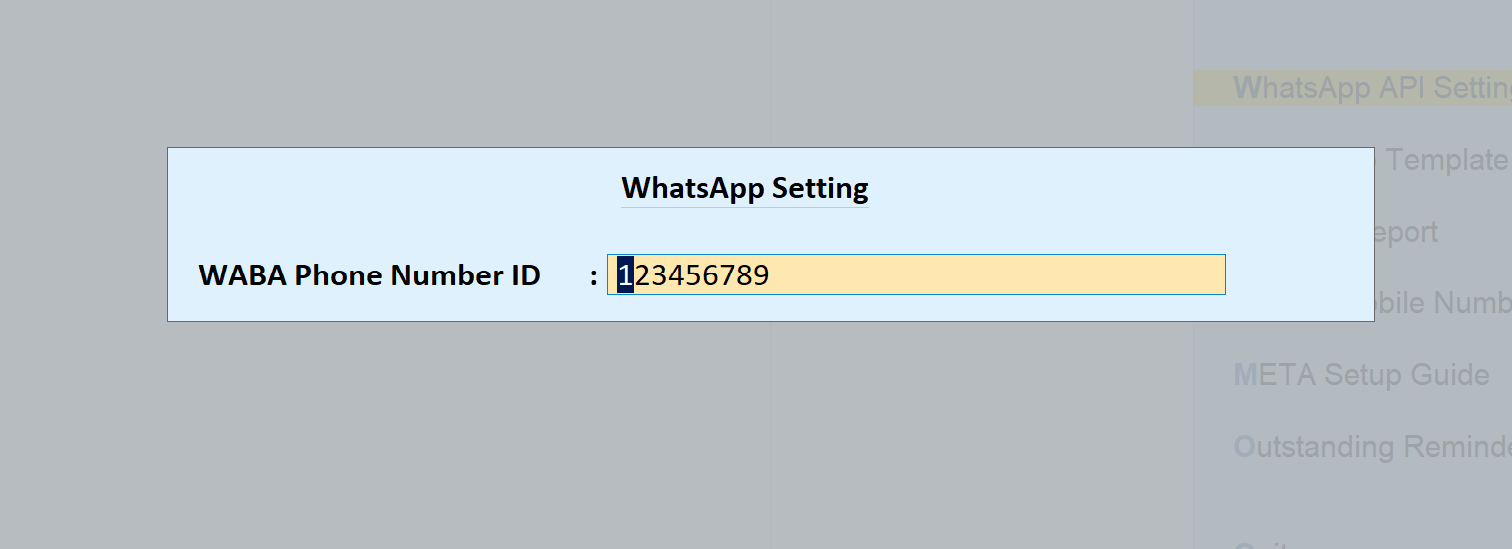
- Tally to WhatsApp > WhatsApp API Settings: type 123456789 as the WABA Phone Number ID.
- Tally to WhatsApp > WhatsApp Template Settings: enter the message IDs T101 to T120 exactly as in the table below.
| Message ID | Use it for |
|---|---|
| T101 | Sales with closing balance |
| T102 | Sales without closing balance |
| T103 | Sales with order details |
| T104 | Delivery note |
| T105 | Sales order |
| T106 | Bank receipt |
| T107 | Cash receipt |
| T108 | Bank payment |
| T109 | Cash payment |
| T110 | Purchase order |
| T111 | POS voucher |
| T112 | Credit note |
| T113 | Journal voucher |
| T114 | Ledger voucher |
| T115 | Ledger confirmation |
| T116 | Ledger outstanding |
| T117 | Stock summary |
| T118 | Profit and loss |
| T119 | Balance sheet |
| T120 | Trial balance |
Save, and WhatsApp sending is live from the Fast2SMS default sender. Your business name appears inside every message.
Upgrade to your own WhatsApp number later
When you want messages to come from your own business number, connect it to Meta through the embedded signup in the Fast2SMS panel. Then open WhatsApp Template Settings in Tally and press Add Templates to META Account so the same 20 templates are submitted for approval on your account. Once approved, replace 123456789 with your own Phone Number ID and T101 to T120 with your own approved message IDs. Your auto-send settings in the voucher types stay exactly as they are. The steps and sample templates are in the Tally WhatsApp templates Meta approval guide.
Need help installing the Tally plugin? Our team will do it with you, free.
We can load the TDL, fill the default templates and switch on auto-send for your Sales and Receipt voucher types on a short screen-share call. Schedule a free meeting, call +91-6262778822 or email [email protected].
Frequently asked questions
Can Tally send WhatsApp automatically when I save an invoice?
Yes, with the free Fast2SMS plugin TallyPrime sends the WhatsApp on its own when you save a voucher. Set Send WhatsApp after Voucher Save to Yes in the Fast2SMS – WhatsApp Settings block of the voucher type.
How do I auto send invoice on WhatsApp from Tally Prime?
Go to Gateway of Tally > Alter > Voucher Types > Sales and set Send WhatsApp after Voucher Save to Yes, then accept. The plugin, API key, template settings and customer mobile numbers must already be set up.
Where is the auto-send setting in Tally?
It sits inside the Voucher Type Alteration screen, in a block called Fast2SMS – WhatsApp Settings on the right side. You only see it after the plugin is loaded and the WhatsApp module is enabled from F6: Add-On Features.
Is automatic WhatsApp from Tally free?
The plugin and the auto-send feature are free, with no licence, renewal or monthly fee. You only pay ₹0.25 per delivered WhatsApp utility message from your Fast2SMS wallet, and failed messages are refunded within 48 hours.
Can I turn on auto-send only for sales and not for other vouchers?
Yes, the setting works per voucher type, so you switch it on only where you want it. Many businesses automate Sales and Receipt and keep Credit Notes, Purchase Orders and Journals manual.
What does “Send WhatsApp after Alter Voucher” do?
It sends the WhatsApp again every time an existing voucher of that type is altered and saved. Keep it at No unless you want customers to receive each corrected version, otherwise small edits create duplicate messages.
How do I stop customers getting the same invoice twice?
Keep Send WhatsApp after Alter Voucher at No, do not press the manual button after auto-send, and leave auto-sent invoices out of bulk sending. For corrections, resend once manually with the button on the voucher.
What does “Exclude Closing Balance in WhatsApp” mean?
It removes the customer’s closing balance from the WhatsApp message. Use Yes for cash or walk-in customers, and No for credit customers who should see the bill and their total dues together.
Which template does an automatic sales invoice use?
With the default templates, a sales invoice uses T101 (sales with closing balance) or T102 (sales without closing balance). T103 is the sales with order details version, usually sent with its own button.
Does the invoice PDF go automatically with the WhatsApp message?
Yes, the invoice PDF is attached as a document inside the approved template message. The customer opens it right in WhatsApp, with no link to click and nothing to download from a website.
Do I need to keep my phone on for automatic WhatsApp from Tally?
No, your phone does not need to be on or even nearby. The plugin sends through the official WhatsApp Business API, so there is no QR scan and no WhatsApp Web session. See Tally to WhatsApp without QR.
Can my WhatsApp number get banned from auto-sending invoices?
No, there is no ban risk of the kind WhatsApp Web automation tools carry. Messages go out on approved Meta templates through the official API, which is the method WhatsApp itself allows for business messages.
Will auto-send work without Meta approval or my own WhatsApp number?
Yes, you can start on the Fast2SMS default sender. Enter 123456789 as the WABA Phone Number ID and T101 to T120 as message IDs, and your business name still appears inside every message.
Can I preview the WhatsApp message before it is sent?
Yes, if you send manually with the button on the voucher. The Message Details window shows the mobile number, the variables and the full preview, then asks Accept? before sending. Auto-send skips this step by design.
What happens if the customer ledger has no mobile number?
The message cannot be sent, because the plugin takes the number from the party ledger. Add numbers in the ledger master, in bulk from Update Mobile Numbers > Sundry Debtors, or through Import Mobile Numbers with the sample Excel.
How do I check if an automatic WhatsApp was delivered?
Open Gateway of Tally > Fast2SMS.com > Tally to WhatsApp > Delivery Report inside Tally. You can also check the WhatsApp delivery reports in your Fast2SMS panel from any browser.
Am I charged for WhatsApp messages that fail?
No, you are charged only on delivery. If a message fails, the amount comes back to your Fast2SMS wallet automatically within 48 hours, so wrong or inactive numbers do not cost you money.
Can I auto-send receipts on WhatsApp from Tally?
Yes, receipts have their own default templates, T106 for bank receipt and T107 for cash receipt. Switch on the Fast2SMS setting in the Receipt voucher type and customers get payment confirmation as you save.
Should I turn off auto-send when entering old bills?
Yes, switch Send WhatsApp after Voucher Save to No before back-dated entry. Otherwise every old bill goes out to customers as if it were new, and you pay for each message.
Can I send many invoices at once instead of auto-sending each one?
Yes, open the sales register, select invoices with Space and press Send Multiple WhatsApp. Some businesses prefer this end-of-day batch to auto-send because they can check the day’s bills first.
Does auto-send also work for SMS?
The voucher type settings described here are for WhatsApp. SMS sending uses buttons on vouchers and bulk sending from the register, with DLT-approved templates. Read the Tally SMS plugin guide for SMS.
Does this work in Tally ERP 9?
The plugin works only in TallyPrime, and these steps are TallyPrime screens. It does not work in Tally ERP 9, so if you are still on ERP 9, upgrade to TallyPrime first.
Where do I download the Tally WhatsApp plugin?
You can download the Tally WhatsApp plugin free from the Fast2SMS Google Drive folder linked on this page. It is a .TCP file that you load as a Local TDL or upload as an Account TDL on Tally.NET.
Can I auto-send sales orders and delivery notes too?
Yes, they have their own default templates, T105 for sales order and T104 for delivery note. Open those voucher types in alteration and switch on the same Fast2SMS setting to send order and dispatch updates on save.
Is there a Hindi guide for the Tally WhatsApp setup?
Yes, there is a full Hindi walk-through of the same plugin and setup. Read Tally se WhatsApp par invoice kaise bheje for the steps in Hindi.
Save the voucher, and let Tally do the rest
Automatic WhatsApp from Tally is one setting per voucher type. Load the free plugin, fill the default templates, switch on Send WhatsApp after Voucher Save for Sales and Receipt, keep alteration sending off, and check the delivery report once a day. Your customers get their bills while they are still at the counter, and you stop chasing forgotten sends.
Download Tally PluginSignup Now
Help with the Tally plugin: schedule a free meeting · [email protected] · +91-6262778822