
Free SMS and WhatsApp App for Shopify India: The Complete FAQ (100+ Answers)
If you run a Shopify store in India, your customers expect a message the moment they order, when the parcel ships and when it is out for delivery. The Fast2SMS app gives you those SMS and WhatsApp order updates for free. You install it, paste your API key, pick your templates and switch on the events you want. You pay only for the messages you send, from your own Fast2SMS wallet.
We have helped a lot of Indian D2C brands set this up, and the same questions come up every time. So we put all of them in one place. This FAQ covers pricing, setup, the 12 automation events, templates, WhatsApp invoice PDFs, abandoned checkout, COD orders, OTP login, logs, settings and security, plus a clear list of what the app does not do.
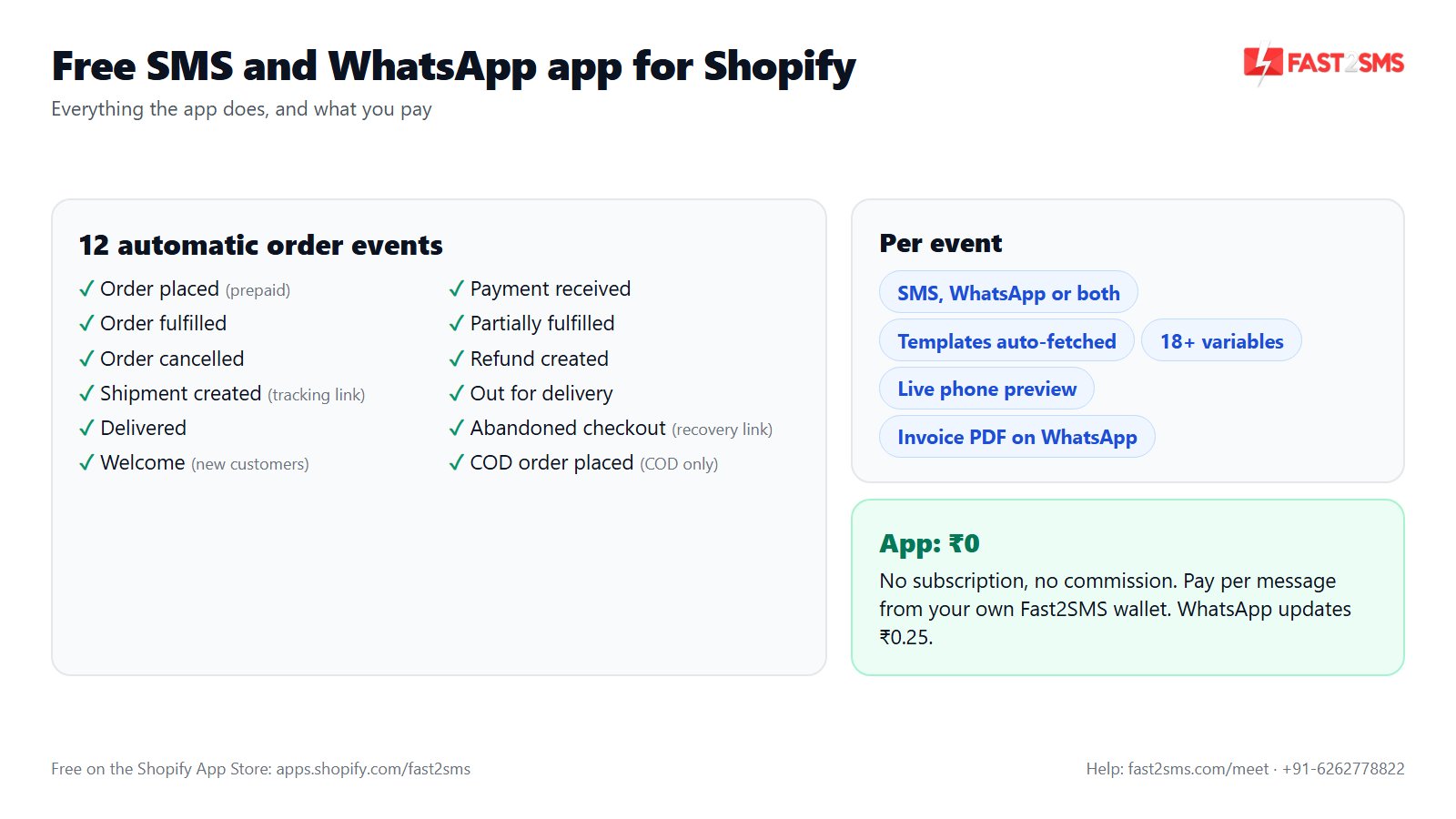
Table of contents
About the free Shopify SMS app and pricing
Start here if you are still deciding. These answers explain what the app is, who it suits, and exactly how the money side works. The short version: the app costs nothing, and every message is billed by Fast2SMS from your own wallet.
What is the Fast2SMS app for Shopify?
Fast2SMS – SMS & WhatsApp Automation is the official Fast2SMS app on the Shopify App Store that sends automatic SMS and WhatsApp messages to your customers when something happens to their order. It covers 12 events, from order placed to delivered, plus abandoned checkout, COD orders and a welcome message. You connect your Fast2SMS account with an API key and the app does the rest. For a full walkthrough, see our Fast2SMS Shopify app guide.
Is the Fast2SMS Shopify app really free?
Yes, the app itself is completely free, with no subscription, no monthly fee, no setup fee and no per-message commission. There is no paid plan hiding behind a trial. The only thing you pay for is the messages you actually send, and those are charged by Fast2SMS from your own wallet at normal Fast2SMS rates.
Is this a free WhatsApp app for Shopify as well as an SMS app?
Yes, the same free app handles both SMS and WhatsApp, and you choose the channel for each event separately. You can send order placed on WhatsApp, shipment updates on SMS, or both channels for the same event. It is one install for your full Shopify WhatsApp integration and your Shopify SMS alerts, not two separate apps.
How much does each WhatsApp message cost?
WhatsApp utility messages, which is what order updates are, cost ₹0.25 per delivered message at Fast2SMS rates. Authentication messages such as OTPs are also ₹0.25, marketing messages are ₹0.95, and session replies inside an open chat are ₹0.13. WhatsApp is billed on delivery, and failed WhatsApp messages are refunded within 48 hours.
How much does each SMS cost?
Each SMS is billed at your own DLT SMS rate from your Fast2SMS wallet. That rate depends on your account and route, so check it in your Fast2SMS panel or ask the sales team on +91-6262778811. The Shopify app adds nothing on top. A long SMS that runs past one message length is split into parts, and each part usually counts as one SMS.
Will I be billed through Shopify?
No, nothing is ever billed through Shopify billing, because the app has no charge of its own. You will not see a Fast2SMS line on your Shopify invoice. You recharge your Fast2SMS wallet directly on fast2sms.com, and message charges are deducted from that wallet by Fast2SMS as messages go out.
Is there a free trial or test credit?
Yes, when you sign up free at fast2sms.com you get ₹50 of test credit. That is enough to connect the app, fetch your templates and send test messages to your own number before any customer sees a message. After that, you add money to your wallet whenever you like; there is no minimum monthly spend.
What does “bring your own key” mean here?
It means the app sends messages through your own Fast2SMS account, using your own API key, instead of reselling messages to you. Your templates, sender IDs, wallet and reports all live in your Fast2SMS account. The app is just the bridge between your Shopify orders and that account, which is why it can stay free with no markup.
Who is this Shopify SMS app India version built for?
It is built for Indian Shopify stores that ship to customers with +91 mobile numbers. D2C brands, small home businesses, COD-heavy stores and larger stores with a support team all use it the same way. If most of your buyers are in India and you want order updates on SMS or WhatsApp, it fits.
Do I need a developer to use it?
No, you do not need a developer for order notifications. Everything is done inside the app with toggles, dropdowns and a template picker. The only place a small code step appears is the optional OTP login button, which needs one script tag added to your theme, and our team can help you with that on a free meeting.
How fast do the messages go out?
Messages go out within seconds of Shopify telling the app about the order. The app picks up each order event from Shopify and sends messages in parallel, so a busy sale day does not create a long queue. Final delivery still depends on the customer’s phone and network, so no provider can promise guaranteed delivery.
How is this different from Shopify’s own email notifications?
Shopify’s built-in notifications go mostly by email, while this app sends SMS and WhatsApp to the customer’s phone. Many Indian buyers check WhatsApp and SMS far more than email, especially for COD orders. You can keep Shopify emails on and add phone messages on top; the two do not clash.
How pricing works: free app, pay only per message
- The Fast2SMS Shopify app is free: no subscription, no monthly fee, no setup fee, no commission.
- Messages are billed by Fast2SMS from your own wallet, never through Shopify billing.
- WhatsApp order updates: ₹0.25 per delivered message; failed WhatsApp messages are refunded within 48 hours.
- SMS: your DLT SMS rate per message.
- Free signup with ₹50 test credit.
Want a per-order cost estimate for your own store? Our Shopify SMS and WhatsApp cost guide works through the numbers event by event.
Install and the Setup tab
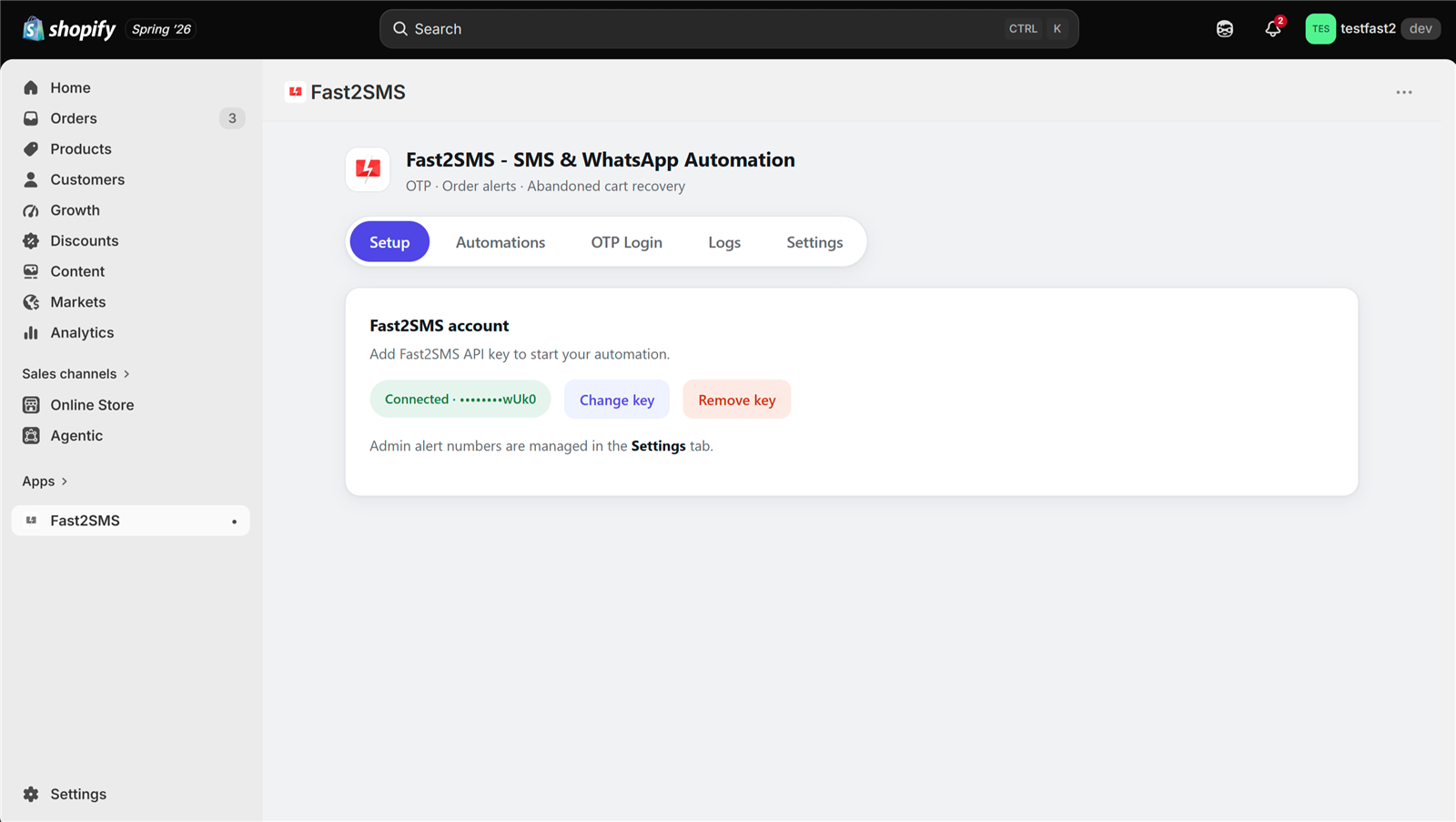
Setup takes one screen. You install the app from the Shopify App Store, open the Setup tab, paste your Fast2SMS API key and click Validate & Save. Once you see the Connected badge, the app can fetch your templates and send messages.
The setup we follow for most stores, in five steps:
- Sign up free at fast2sms.com and get your approved DLT SMS templates and/or Meta-approved WhatsApp templates ready in the Fast2SMS panel.
- Install the app from the Shopify App Store and open the Setup tab.
- Paste your API key, click Validate & Save and wait for the Connected badge.
- In the Automations tab, open one event, pick the channel, fetch templates, map the variables and check the live preview.
- Send a test to your admin number, confirm it in the Logs tab, then switch the event on for customers. Repeat for each event you want.
How do I install the Fast2SMS app on Shopify?
Open the Fast2SMS listing on the Shopify App Store, click Install and approve the permissions Shopify shows you. The app then opens inside your Shopify admin with five tabs: Setup, Automations, OTP Login, Logs and Settings. The whole install takes a couple of minutes, and nothing is sent to customers until you turn on an event.
Do I need a Fast2SMS account before installing?
You need a Fast2SMS account to connect the app, but you can create it after installing if you like. Signup at fast2sms.com is free and gives you ₹50 test credit. Your account is where your API key, wallet, DLT templates and WhatsApp templates live, so the app has nothing to send without it.
Where do I find my Fast2SMS API key?
Your API key is in your Fast2SMS panel after you log in at fast2sms.com, in the developer or API section of the dashboard. Copy the full key and paste it into the Setup tab of the Shopify app. Treat it like a password: do not share it in chats or screenshots, and change it if you think someone else has seen it.
What does Validate & Save do?
Validate & Save checks your API key live against your Fast2SMS account before storing it. If the key works, you see a Connected badge with the key shown masked. If it fails, the key is not saved, so you never end up with a half-connected store that silently drops messages.
My API key shows as invalid. What should I check?
An invalid key almost always means a copy mistake, an old key that was changed, or a space picked up at the start or end. Copy the key again from your Fast2SMS panel and paste it fresh. If it still fails, email [email protected] or call +91-6262778822 and the team will check your account.
Can I change or remove the API key later?
Yes, you can change or remove the key any time from the Setup tab. Changing it is useful if you rotate keys for security or move the store to a different Fast2SMS account. Removing it disconnects the app, so automations stop sending until a working key is saved again.
Is my API key stored safely?
Yes, your API key is stored encrypted with AES-256, and the app only ever shows it masked in the screen. Staff who open the app in your Shopify admin can see that a key is connected, but not the key itself. Customer phone numbers are encrypted at rest in the same way.
Do I have to copy template IDs into the app?
No, you never copy template IDs by hand. Once your key is connected, the app fetches your approved DLT SMS templates and Meta-approved WhatsApp templates straight from your Fast2SMS account. You pick them from a searchable list in the Automations tab, which removes the most common setup mistake we used to see.
What should I set up in Fast2SMS before connecting the app?
For SMS, you need DLT registration with an approved header and approved templates. For WhatsApp, you need a WhatsApp Business API number with Meta-approved templates. You can start with just one channel. Fast2SMS gives free DLT support, and the team can guide you through WhatsApp onboarding too.
Can I set up WhatsApp only and skip SMS?
Yes, you can run the app on WhatsApp only, SMS only, or both. Channel is chosen per event, so a WhatsApp-only store just sets every event to WhatsApp. Many stores start with WhatsApp while their DLT registration is pending, then add SMS later as a backup channel on key events.
Is there a one-time setup call if I get stuck?
Yes, you can book a free meeting and the Fast2SMS team will set the app up with you on a screen share. That includes the API key, template choice, variable mapping and a test send. Book at fast2sms.com/meet, or call +91-6262778822 if you prefer to talk first.
The 12 automation events
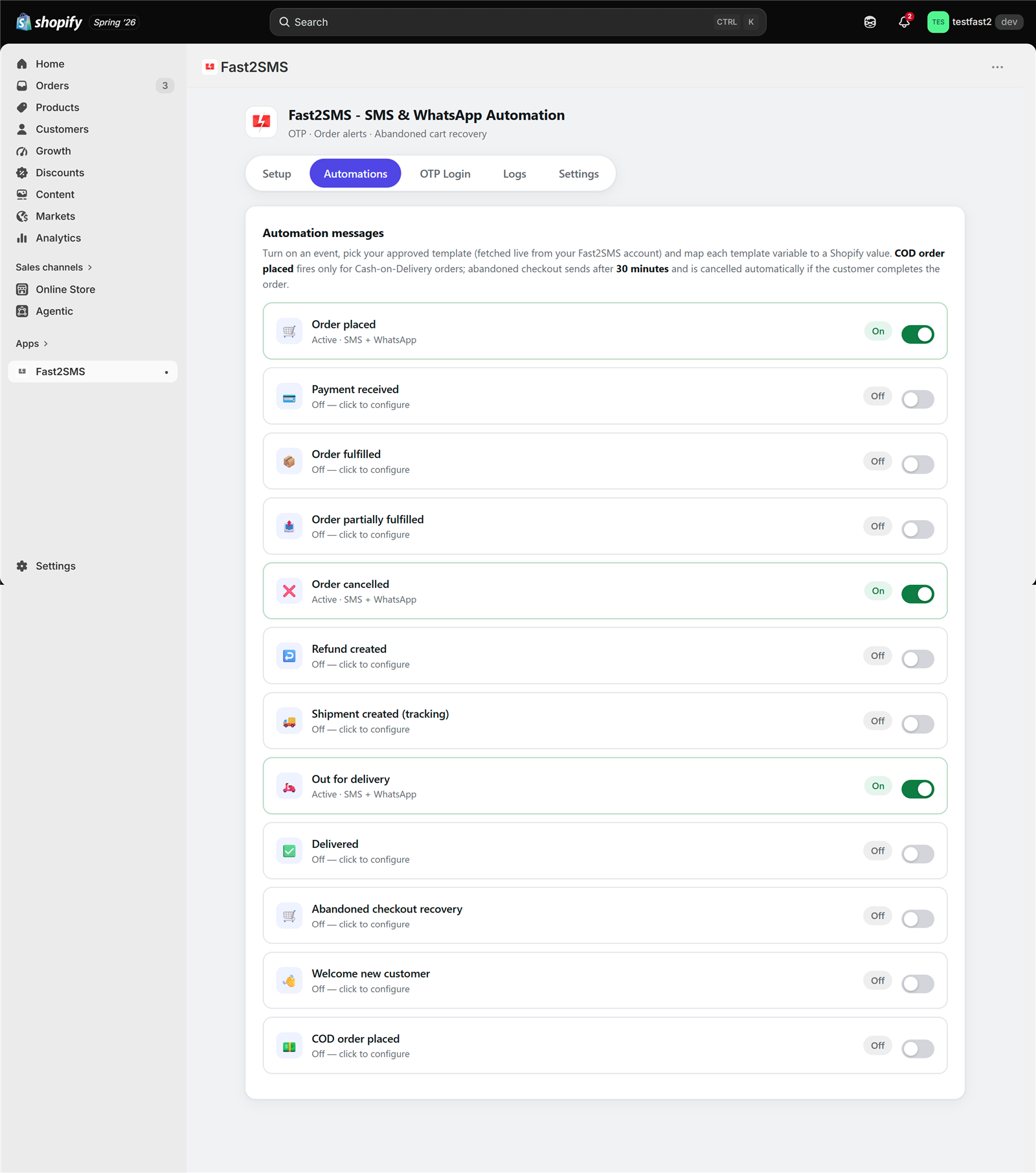
The Automations tab lists 12 events, each with its own on/off toggle. Turn on only the ones you need. Here is what each event does, when it fires and which channel we usually suggest for Indian stores.
| Event | When it fires | Suggested channel |
|---|---|---|
| 1. Order placed | A new order is created (prepaid orders only when the COD event is on) | WhatsApp, or Both |
| 2. Payment received | Shopify marks the order as paid | |
| 3. Order fulfilled | All items in the order are fulfilled | |
| 4. Order partially fulfilled | Some items ship and the rest follow later | |
| 5. Order cancelled | The order is cancelled in Shopify | Both |
| 6. Refund created | A refund is issued on the order | Both |
| 7. Shipment created | A shipment with tracking number and link is added | Both |
| 8. Out for delivery | Shopify gets an out-for-delivery status for the shipment | SMS, or Both |
| 9. Delivered | Shopify gets a delivered status for the shipment | |
| 10. Abandoned checkout recovery | A checkout is left unfinished for your chosen delay | |
| 11. Welcome message for new customers | A new customer is created in your store | |
| 12. COD order placed | A new order is placed with cash on delivery | Both |
Want sample wording for each event? See Shopify WhatsApp order notifications for message ideas and template tips.
Which Shopify order notifications does the app send?
The app sends 12 automatic messages: Order placed, Payment received, Order fulfilled, Order partially fulfilled, Order cancelled, Refund created, Shipment created, Out for delivery, Delivered, Abandoned checkout recovery, Welcome message for new customers and COD order placed. Each one can be switched on or off on its own, with its own channel and template.
Which events should I turn on first?
Most Indian stores start with Order placed, COD order placed, Shipment created and Delivered. Those four answer the questions customers call you about most: did my order go through, when will it ship, and has it arrived. Add Out for delivery, cancellations, refunds and abandoned checkout once the first four look right in your Logs.
When exactly does the Order placed event fire?
Order placed fires when Shopify creates a new order in your store and tells the app about it. The message goes out within seconds. If you also turn on the COD order placed event, Order placed then covers prepaid orders only, so COD buyers never get two confirmations for the same order.
What is the Payment received event for?
Payment received fires when Shopify marks an order as paid. It is useful when payment is captured after the order, such as a bank transfer, a manual payment method or a COD order marked paid later. For simple prepaid checkouts, many stores leave it off because the Order placed message already confirms payment.
What is the difference between Order fulfilled and Shipment created?
Order fulfilled tells the customer their order has been packed and handed over, while Shipment created is built around the tracking number and tracking link. If your shipping app adds tracking when it fulfils, you can use either one. Many stores use Shipment created because the tracking link is what customers actually want.
When should I use Order partially fulfilled?
Turn on Order partially fulfilled if you often ship multi-item orders in more than one box. It fires when some items are fulfilled and the rest are still pending. A clear message here stops the “I only got half my order” calls, because the customer already knows the rest is on its way.
Do Out for delivery and Delivered work with my courier?
These two events fire when Shopify receives an out-for-delivery or delivered status for the shipment. That status usually comes from your courier or shipping app pushing tracking updates into Shopify. If your shipping setup does not send those updates to Shopify, these two events have nothing to react to, so check that first.
Should I send cancellation and refund messages?
Yes, we suggest turning both on. A cancelled order or a refund is exactly when a customer gets anxious, and a quick message with the order ID and amount heads off support tickets. Sending these on both SMS and WhatsApp is common, since they matter more than a routine update.
What does the Welcome message for new customers do?
It sends a short welcome when a new customer is created in your store, for example after they sign up or place a first order. The app treats it as a marketing-type message, so it respects Shopify marketing consent if you keep that setting on, and it skips numbers on your opt-out list.
Can I send the same event on SMS and WhatsApp together?
Yes, every event has a channel choice of SMS, WhatsApp or Both. With Both, the customer gets one SMS and one WhatsApp message for that event, each using its own approved template. Stores often use Both for COD confirmation and shipment updates, and WhatsApp alone for friendlier updates like Delivered.
Can I turn an event off without losing its template settings?
Yes, the toggle only controls whether the event sends. Your channel, template choice and variable mapping stay saved, so you can pause an event during a sale or a stock issue and switch it back on later without redoing anything.
Can I also get a copy of order messages myself?
Yes, each event has an “Also alert admin” option that sends a copy to your owner numbers. You set those numbers in the Settings tab: one primary number plus up to 10 more. It is handy for new-order and cancellation alerts on your own phone or your packing team’s phone.
Will a COD customer get two order confirmations?
No, not when the COD order placed event is on, because the Smart COD rule makes COD orders skip the generic Order placed message. The COD buyer gets only the COD message, and prepaid buyers get Order placed. If you ever think a customer got a duplicate, check the Logs tab, which shows each message with its event, time and status.
Can I add my own custom events?
No, the app works with the 12 built-in events listed above. They cover the full order journey that Shopify reports, from checkout to delivery. If you need a message at a point these do not cover, talk to the team on a free meeting and we can suggest the closest fit.
Templates, variables and live previews
Every message the app sends comes from a template you have already approved: a DLT template for SMS, or a Meta-approved template for WhatsApp. The app fetches these from your Fast2SMS account, lets you map each blank to real order data, and shows you a phone preview before anything goes live.
Before you map anything, it helps to know what makes a good order template. From the stores we have set up, the ones that work best share a few habits:
- They name the store clearly, so the customer knows who is messaging.
- They carry the order ID, so support can find the order fast when a customer calls.
- They say one thing per message: confirmed, shipped, out for delivery or delivered.
- They include one useful link, such as the order status URL or tracking URL, and nothing else to click.
- They keep SMS short enough to fit in one SMS part where possible, and save richer detail for WhatsApp.
How do I choose a template for an event?
Open the event in the Automations tab, pick the channel and click to fetch your templates. The app pulls your approved DLT SMS templates and Meta-approved WhatsApp templates from your Fast2SMS account in one click. You then search the picker by template name, template ID or a few words of the message text, and select the one you want.
Why can’t I see a template I just created?
The picker only shows templates that are already approved: DLT-approved for SMS and Meta-approved for WhatsApp. If a template is still pending or was rejected, it will not appear. Check its status in your Fast2SMS panel, wait for approval, then fetch again in the app. Rejected WhatsApp templates usually need small wording changes before they pass.
What variables can I use in my Shopify messages?
The app offers 18+ variables you map from a dropdown: customer name, order ID, amount, phone, city, pincode, payment method, items count, product name, order date, subtotal, discount, tax, currency, coupon code, shipping method, order status URL, tracking number, tracking URL, checkout recovery URL and invoice URL. You choose which one fills each blank in your template.
How does variable mapping work?
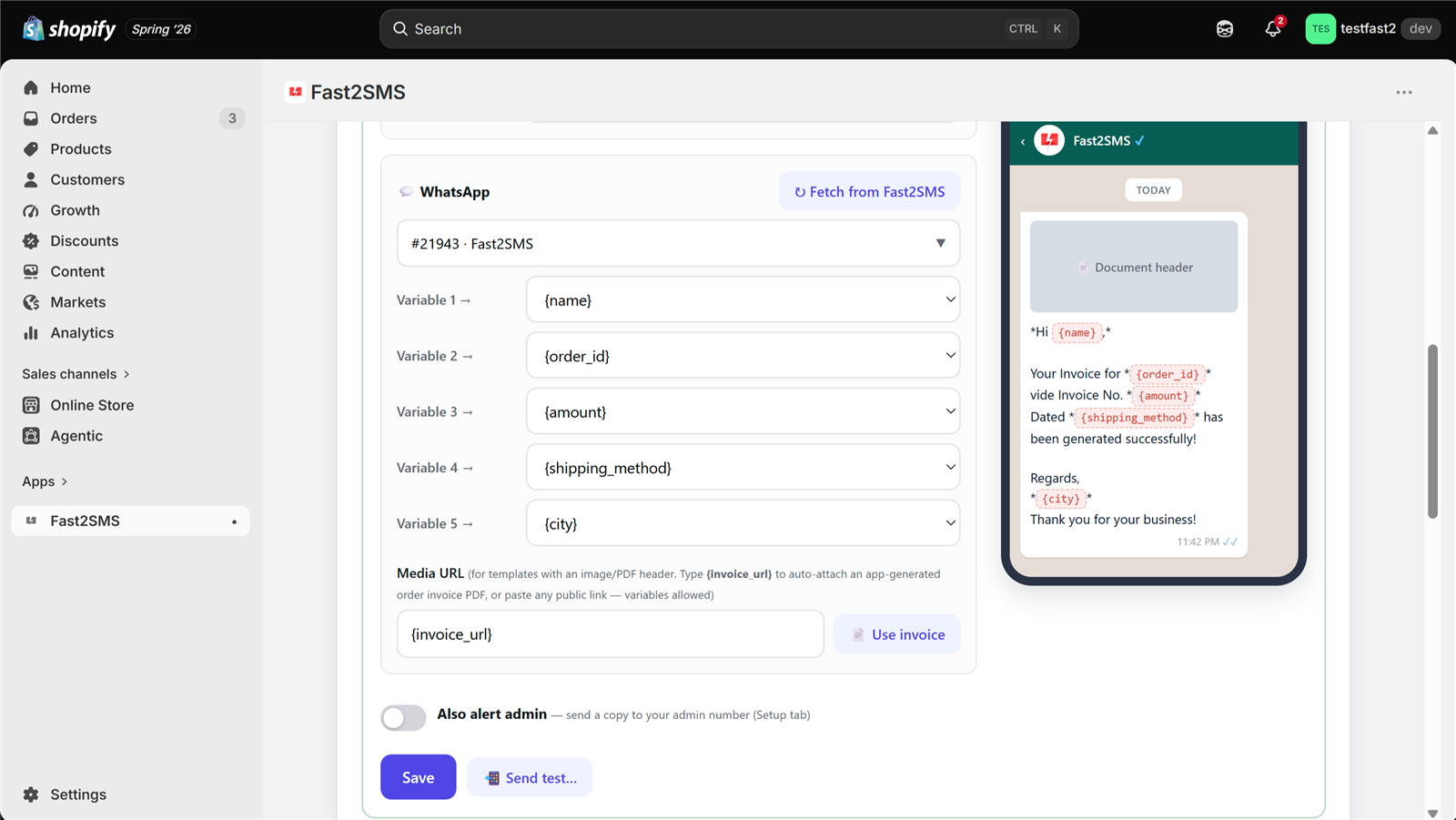
Each blank in your approved template shows up as a slot, and you pick which Shopify value fills it from a dropdown. For example, the first blank might be customer name, the second order ID and the third amount. There is no code and no special syntax to type, which keeps mistakes low.
What happens if I map the wrong variable?
The message would still send, but with the wrong detail in that spot, such as the city where the order ID should be. That is why the live preview matters: it shows the filled-in message before you go live. Always check the preview and send a test to your own number after changing any mapping.
What is the live phone preview?
It is a mock phone screen next to your settings that shows the message as a customer would see it. SMS appears in an iPhone-style message view. WhatsApp appears in a WhatsApp-style chat with your verified business name, any media header such as an image or PDF, and the template’s buttons, so you can spot problems before a customer does.
Can my WhatsApp messages have a Track Order button?
Yes, if your Meta-approved template has a dynamic URL button, the app detects the button’s variable and lets you map it. For a Track Order button you would map it to the tracking URL or the order status URL. The customer then taps the button and lands on the right page for their own order.
How do I send a test message before going live?
Use the test send option on the event to send the message to your own admin number. The app shows a request ID for each test, which helps if you need support to trace it. Tests also appear in the Logs tab, so you can confirm delivery before switching the event on for customers.
Can I use Hindi or other Indian languages in templates?
Yes, as long as the template itself is approved in that language. WhatsApp templates can be approved by Meta in Hindi and other languages, and DLT SMS templates can be registered in Unicode. Keep in mind that Unicode SMS fit fewer characters per SMS part, so a Hindi SMS can cost more parts than the same English text.
Can I edit the wording of a template inside the app?
No, the wording is fixed by the approval, so you cannot edit template text inside the app. To change the message, edit or create a new template in your Fast2SMS panel, get it approved by DLT or Meta, then fetch and select it in the app. Variable mapping is the part you control inside the app.
Do I need separate templates for SMS and WhatsApp?
Yes, SMS and WhatsApp use different approval systems, so each channel needs its own template. An SMS template is approved on DLT and a WhatsApp template is approved by Meta. If you set an event to Both, you pick one template for each channel. The wording can be similar, but WhatsApp allows buttons and media while SMS does not.
Where can I get sample templates that pass approval?
Our Shopify guides include sample SMS and WhatsApp wording for each event that you can adapt. For the SMS side, the Shopify SMS alerts and DLT FAQ explains how to write DLT templates around Shopify variables. Fast2SMS also gives free DLT support if a template keeps getting rejected.
WhatsApp invoice PDF
The app can generate an invoice PDF for an order and attach it to a WhatsApp message. You do not need a separate invoice app for this. It works through WhatsApp templates that have a document header.
For many stores this is the feature that saves the most support time. Customers who need a bill for office claims, GST input or returns no longer have to email you and wait. The PDF simply arrives in the same chat as their order update, and they can forward it wherever they need it.
Can the app send invoices on WhatsApp from Shopify?
Yes, the app generates the invoice PDF for the order itself and sends it as the document attached to your WhatsApp message. The customer sees the PDF right inside the chat and can open or save it. It is one of the most useful parts of the free WhatsApp app for Shopify, especially for B2B buyers who need a bill.
What kind of WhatsApp template do I need for invoices?
You need a Meta-approved WhatsApp template with a document header, which is the header type that carries a PDF. Text-only templates cannot carry the invoice. Create the document-header template in your Fast2SMS panel, get it approved, then fetch it in the app and choose it for the event.
How do I attach the invoice to the template?
In the event’s template settings, either put {invoice_url} in the Media URL field or use the “Use invoice” option. Both tell the app to generate the order’s invoice PDF and place it in the document header. Then check the live preview, which shows the PDF header, and send a test to your own number.
Which events can carry the invoice PDF?
The invoice PDF works on order events, since it needs an order to build from. Most stores attach it to Order placed, Payment received or Order fulfilled. Pick the point where your prices, taxes and discounts are final, so the invoice the customer keeps matches what they actually paid.
Do I need a separate invoice app for WhatsApp PDFs?
No, the Fast2SMS app creates the PDF on its own, so you do not need another app just to get an invoice onto WhatsApp. If you already use a GST invoice app for your records, you can keep it. The WhatsApp PDF is simply what the customer receives in chat.
How long are invoice PDFs kept?
Invoice PDFs are stored encrypted and kept for 90 days. That gives customers enough time to open the file from the chat. If a customer asks for an old invoice after that, share it from your Shopify admin or your accounting records.
Does sending an invoice PDF cost extra?
No, there is no extra charge for the PDF itself. The message is billed as a normal WhatsApp message of its template category, which for order updates is utility at ₹0.25 per delivered message. The app does not charge for creating the invoice.
Can I send the invoice by SMS?
SMS cannot carry a PDF attachment, so the file itself goes only on WhatsApp. If your DLT SMS template has a URL variable, you can map the invoice URL into it so the customer gets a link instead. Make sure that link type is allowed in your approved DLT template.
Where can I read more about invoice PDFs on WhatsApp?
We have a full guide on Shopify WhatsApp invoice PDFs with template wording, header setup and common mistakes. It walks through getting a document-header template approved and linking it to your order events step by step.
Abandoned checkout recovery
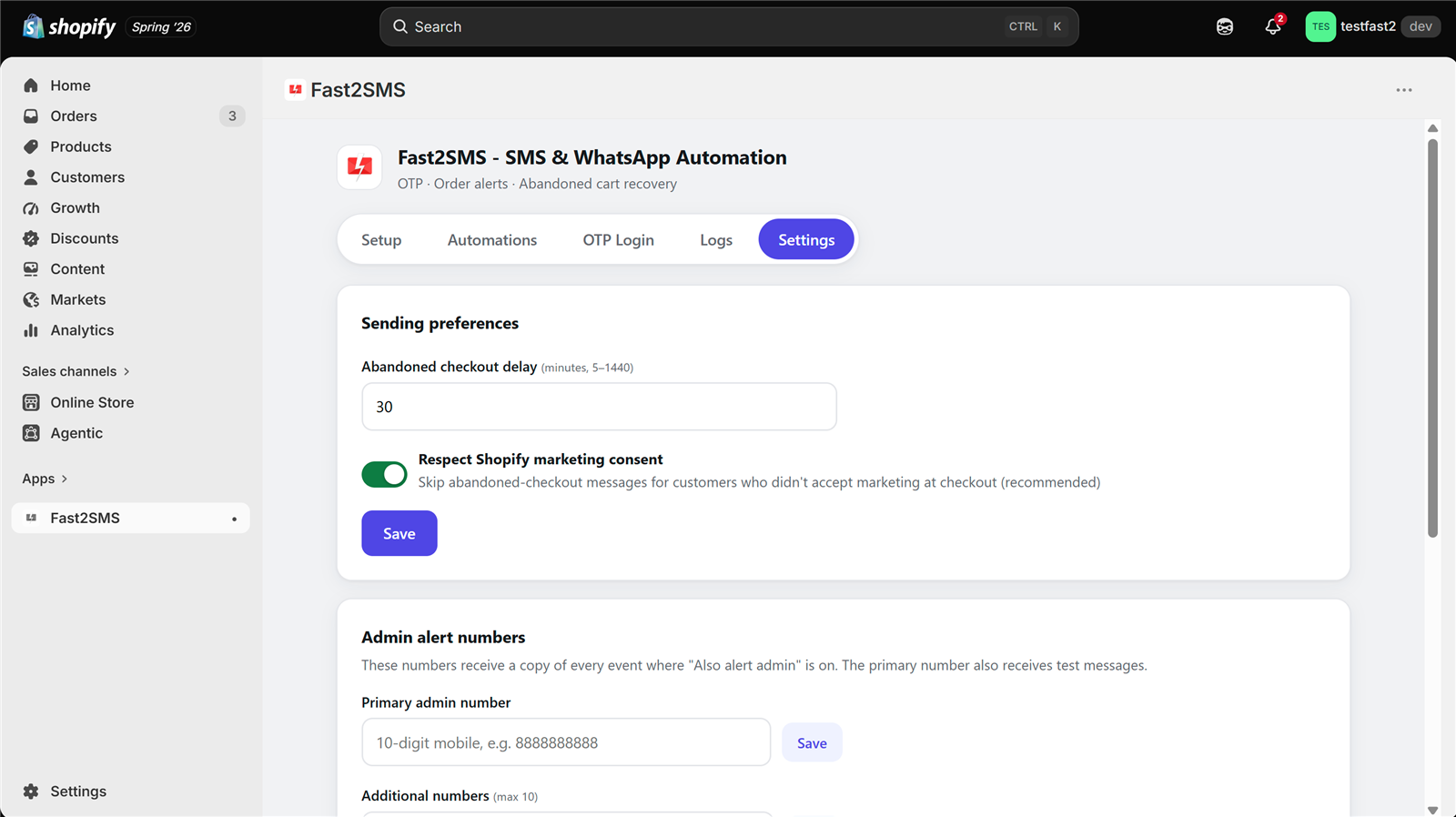
When a shopper reaches checkout, enters a phone number and then leaves, the app can send a reminder with a one-tap link back to their cart. You control the delay, the channel and whether it respects consent.
Think of this message as a polite reminder, not a sales push. The shopper was already at checkout and simply got interrupted: a call came in, the payment page timed out, or they wanted to compare prices. A short note with their cart link, sent at a sensible time, is often all they need to finish the order.
How does abandoned checkout recovery work in the app?
When a customer starts checkout and does not finish, the app waits for your chosen delay and then sends an SMS, a WhatsApp message or both. The message carries a one-tap recovery link that opens their cart with everything still in it. If they complete the order before the delay ends, the reminder is cancelled automatically.
What delay should I set for abandoned checkout messages?
You can set any delay from 5 minutes to 24 hours, which is 5 to 1440 minutes in the Settings tab. Many stores start somewhere between 30 minutes and a few hours, then adjust after watching results. A very short delay can feel pushy, and a very long one can arrive after the shopper has bought elsewhere.
Will a customer who already ordered get a reminder?
No, the reminder is cancelled automatically if the customer completes the order before the delay ends. That stops the awkward “you left something in your cart” message reaching someone who just paid. It is one reason to keep the delay reasonable instead of very long.
What does the recovery link open?
The recovery link opens the shopper’s own checkout with their cart intact, so they do not have to search and add products again. You map it using the checkout recovery URL variable. On WhatsApp, you can put it behind a dynamic URL button so the customer just taps once.
Does abandoned checkout respect marketing consent?
Yes, if you want it to. The Settings tab has an option to respect Shopify marketing consent, and it is on by default. With it on, reminders go only to shoppers who agreed to marketing at checkout. Numbers on your opt-out list are also skipped, because abandoned checkout is treated as a marketing-type message.
Is it better to send cart reminders on SMS or WhatsApp?
Most stores use WhatsApp for cart reminders because it can show a button and your verified business name. SMS reminders need a DLT template approved for that kind of message, which is stricter than for order updates. You can also use Both if you have approved templates on each channel.
Which WhatsApp category is a cart reminder?
A cart reminder is usually a marketing template on WhatsApp, because it nudges a shopper to buy rather than updating an existing order. Marketing messages cost ₹0.95 per delivered message at Fast2SMS rates. Meta decides the final category when it approves your template, so write it honestly and do not dress it up as an order update.
Can I add a discount code to the reminder?
Yes, if your approved template has a slot for it. You can type the code into the template when you create it, or map the coupon code variable if it fits your setup. Keep the offer honest and simple, since a clear reason to come back tends to work better than pressure.
Do abandoned checkout messages appear in Logs?
Yes, every abandoned checkout message is logged with the event, channel, masked phone, time and delivery status. Failed ones can be retried from the Logs tab. For a deeper report, open your Fast2SMS panel, which keeps full delivery reports for all your messages.
Where can I learn more about cart recovery on WhatsApp?
Our guide on Shopify abandoned cart WhatsApp messages covers delay choice, template wording and consent in more detail. It also shows how to set up a recovery button so the cart opens in one tap.
Want your Shopify SMS and WhatsApp set up for you? Our team will do it with you, free.
We will connect your API key, pick your templates, map the variables and send a test to your phone, all on one screen share. Schedule a free meeting, call +91-6262778822 or email [email protected].
COD orders
Cash on delivery is still a big share of orders for many Indian stores. The app has a dedicated COD order placed event, and a Smart COD rule that keeps your messages clean.
COD orders carry more risk than prepaid ones. The customer has not paid, the number may be mistyped, and some orders are placed on a whim. A clear message right after the order, followed by shipping and out-for-delivery updates, keeps the buyer informed from order to doorstep, which is exactly what a COD buyer needs before handing over cash.
What is the COD order placed event?
COD order placed is a separate event that fires only for cash on delivery orders. It lets you send COD buyers a message written just for them, for example reminding them to keep cash ready or asking them to reply if they did not place the order. Prepaid orders never trigger it.
What is Smart COD?
Smart COD is the rule that when the COD order placed event is on, COD orders skip the generic Order placed message. Order placed then covers prepaid orders only. The result is one clear message per order, with no duplicate confirmations for COD buyers.
Why send a separate message for COD orders?
A COD buyer has not paid yet, so the message they need is different from a prepaid confirmation. You can confirm the amount to be paid, the delivery address city and a support number. A clear COD message helps catch wrong numbers and accidental orders early, before you spend money shipping them.
Can the app verify COD orders?
The app sends the COD order placed message with your order details, and your template can ask the customer to confirm or contact you. Customer replies on WhatsApp are read in Live Chat in your fast2sms.com portal, not inside the Shopify app. For ideas on setting up a confirmation process, see our guide on Shopify COD verification.
Can COD messages help reduce RTO?
Clear COD messages can help, because customers who know exactly what is coming and when are more likely to accept the parcel. The app gives you the tools: a COD-specific message, shipment tracking, out-for-delivery alerts and delivered updates. We do not quote a fixed reduction, since results depend on your products and customers. Read more in how to reduce COD RTO on Shopify.
Which channel is best for COD messages?
Many stores send COD order placed on Both, so the customer sees it on WhatsApp and also gets an SMS if they do not use WhatsApp on that number. SMS reaches any phone that has network. WhatsApp adds your verified business name, buttons and an easy way to reply.
Which variables are useful in a COD message?
The most useful are customer name, order ID, amount, payment method, items count and city. Amount is the key one, so the customer knows how much cash to keep ready. You can also map the order status URL so they can check their order themselves instead of calling you.
What happens when a COD order is marked paid?
When Shopify marks the order as paid, the Payment received event can fire if you have it switched on. Some stores use it to send a thank-you after COD cash is collected. If you do not want that message for COD orders, simply leave Payment received off.
Do COD messages go to numbers on my opt-out list?
Yes, COD order placed is a transactional order update, so it still delivers to numbers on your opt-out list. The opt-out list only skips marketing-type messages, which are abandoned checkout and welcome. Customers keep getting the order updates they need, even if they said no to promotions.
OTP login for Shopify
The OTP Login tab adds passwordless login to your storefront: the customer types a 10-digit mobile number and logs in with a one-time code. Please read the first answer below before you plan around it, because it only works on certain stores.
Where it does fit, mobile login makes a real difference for Indian shoppers. Many people forget passwords, share a family email, or simply prefer typing a phone number. A one-time code on SMS or WhatsApp gets them into their account and order history in a few taps.
Does OTP login work on every Shopify store?
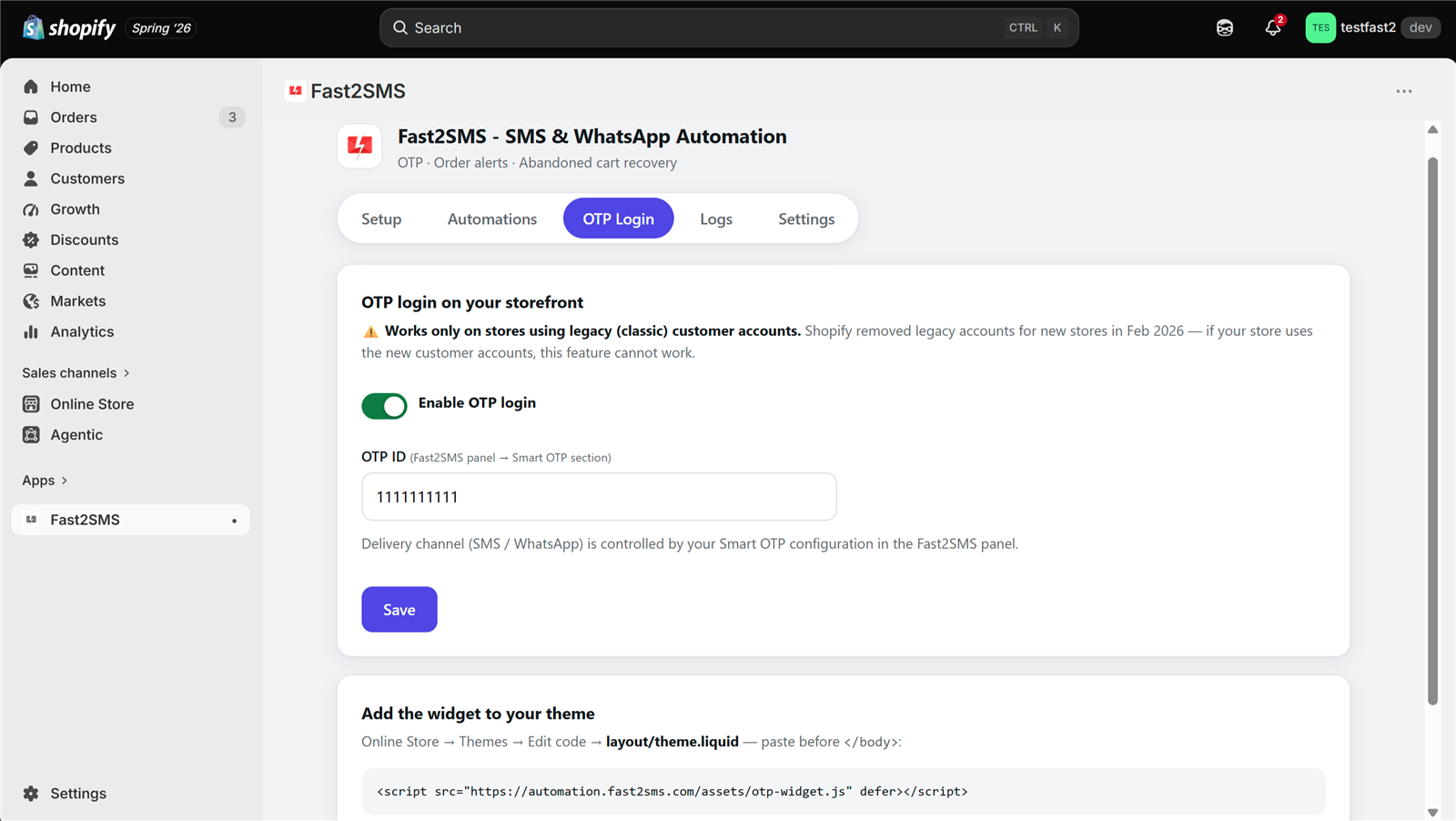
No, OTP login works only on stores that use legacy, also called classic, customer accounts. Shopify removed legacy customer accounts for new stores, so this feature suits existing stores that still run classic accounts. Every notification feature in the app, including all 12 events, works on every store whatever account type it uses.
How do I know if my store uses classic customer accounts?
Check the customer accounts setting in your Shopify admin, under Settings and then Customer accounts. If your store is on the newer customer accounts, OTP login from this app will not work there. If you are not sure what you are looking at, book a free meeting and our team will check it with you.
How does the OTP login flow work for the customer?
On your login page, the customer taps the Login with OTP button, enters their 10-digit mobile number and receives a one-time code. They type the code and they are logged in, with no password to remember. The code is sent by SMS or WhatsApp, depending on how your Smart OTP is configured in Fast2SMS.
How do I set up OTP login in the app?
Open the OTP Login tab and enter your Smart OTP ID from your Fast2SMS account. Then add the one-line script tag the app gives you to your theme, which places the Login with OTP button on the login page. Test it yourself with your own number before telling customers about it.
Can the OTP go on WhatsApp instead of SMS?
Yes, the OTP goes by SMS or WhatsApp based on your Smart OTP setup in Fast2SMS. WhatsApp authentication messages cost ₹0.25 each at Fast2SMS rates, and SMS OTPs are billed at your DLT SMS rate. Smart OTP is configured in your Fast2SMS panel, and the app just uses the OTP ID you enter.
Is OTP login secure against misuse?
Yes, OTP requests are rate-limited so one number cannot be flooded with codes, and requests are signed through the Shopify App Proxy. That means the request comes through Shopify’s own proxy layer instead of an open endpoint anyone can call. As with any OTP system, keep an eye on your Logs for anything unusual.
Do OTP messages show in the Logs tab?
Yes, OTP messages are logged alongside your automations, abandoned checkout messages and tests. Each entry shows the channel, masked phone, time and delivery status. If a customer says they did not get a code, the Logs tab is the first place to look.
Does OTP login cost anything extra?
No, the OTP Login feature itself is free like the rest of the app. You pay only for each OTP message sent, from your Fast2SMS wallet. There is no separate OTP subscription or per-login fee.
Where can I read more about OTP on Shopify?
Our guide on integrating OTP with Shopify covers the setup in more detail, including the classic accounts limit. If your store is on new customer accounts, the rest of the app is still fully usable for order notifications.
Logs and Settings
The Logs tab is your record of every message the app has sent. The Settings tab holds the store-wide choices: abandoned checkout delay, marketing consent, admin alert numbers and your opt-out list.
A simple habit we suggest to every store: open the Logs tab once a day for the first week, and once a week after that. Look for failed messages, read the reason, fix the cause and retry. Most problems show up in the first few days, and catching them early means customers never notice.
What does the Logs tab show?
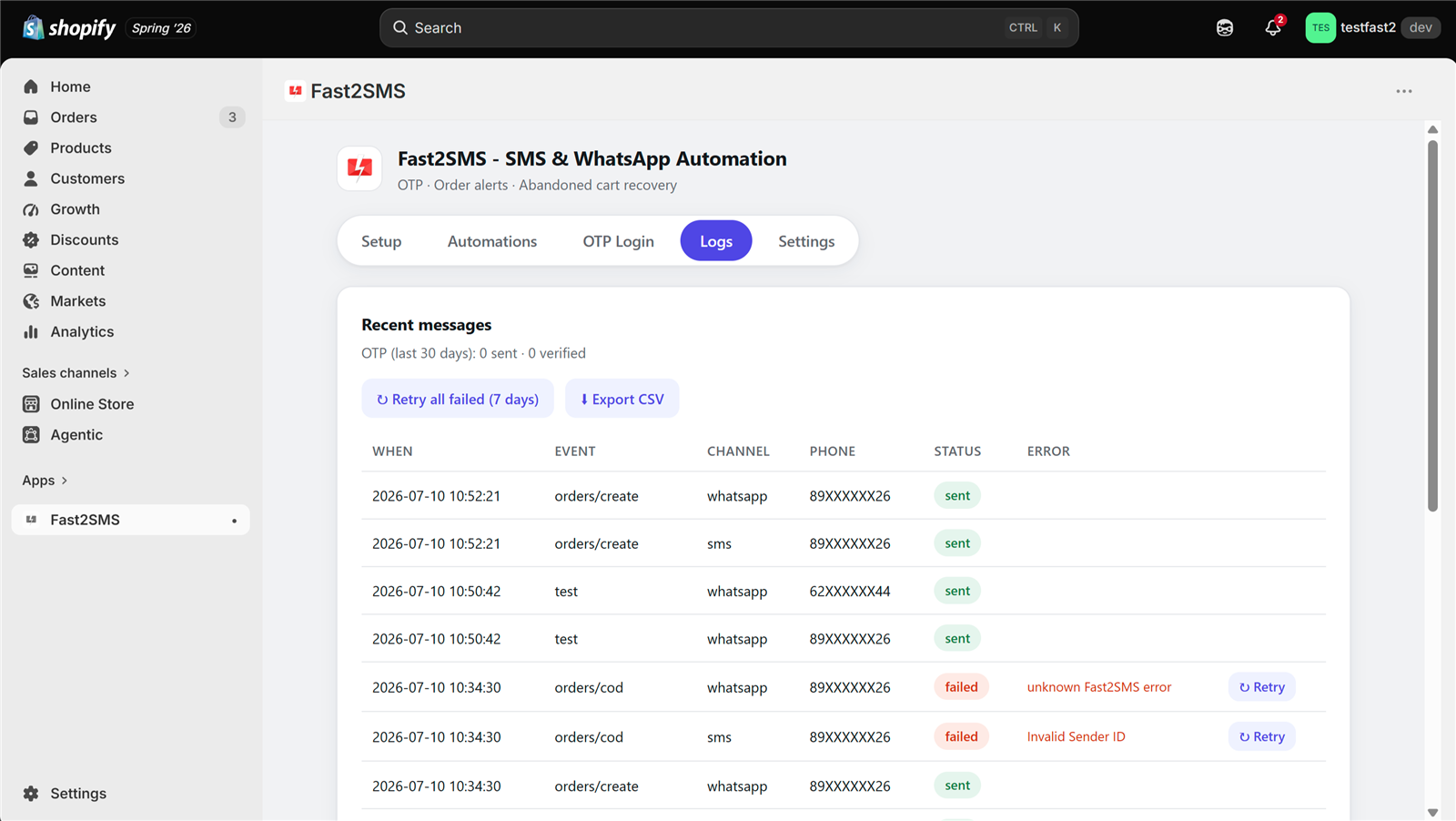
The Logs tab shows every message the app sends: automations, abandoned checkout messages, tests and OTPs. Each row lists the event, the channel, the customer’s phone number masked for privacy, the time and the delivery status. It is the quickest way to answer “did my customer get the message?” without leaving Shopify.
How do I find out why a message failed?
Hover over a failed message in the Logs tab and the app shows the failure reason. Common reasons include a template problem, a wrong or inactive number, or not enough balance in your Fast2SMS wallet. Once you have fixed the cause, you can retry the message right there.
Can I retry failed messages?
Yes, you can retry a single failed message with one click, or use “Retry all failed (7 days)” to resend every failed message from the last 7 days in one go. This is useful after you top up your wallet or fix a template, because customers get their updates without you resending each one by hand.
Can I export my message logs?
Yes, the Logs tab has a CSV export. You can open the file in Excel or Google Sheets to share with your team, check message volume, or match messages against orders. For full delivery reports across all your messages, including those sent outside Shopify, use your Fast2SMS panel.
Does the app show my wallet balance?
No, the app does not show your wallet balance. You check and recharge your balance in your Fast2SMS panel at fast2sms.com. If messages start failing for balance reasons, the failure reason in the Logs tab will point you there, and you can retry once you have added credit.
What settings are in the Settings tab?
The Settings tab has four things: the abandoned checkout delay from 5 to 1440 minutes, the option to respect Shopify marketing consent, your admin alert numbers, and your opt-out list. These apply store-wide, while channel and template choices are set per event in the Automations tab.
How many admin alert numbers can I add?
You can add one primary admin number plus up to 10 more, so 11 in total. These numbers receive copies when you tick “Also alert admin” on an event, and the primary number is also used for test sends. Owners often add a partner, a packing lead and a support person.
What does the opt-out list do?
The opt-out list holds numbers that should not get marketing-type messages. Numbers on it are skipped for abandoned checkout and welcome messages. Transactional order updates, such as order placed, shipment created and delivered, still go through, because customers need them to track what they bought.
Should I keep “respect marketing consent” on?
We suggest keeping it on, which is the default. It means marketing-type messages like abandoned checkout go only to shoppers who agreed to marketing in Shopify. It keeps you on the right side of customer trust and messaging rules, and it lowers the chance of people blocking or reporting your number.
Where do I see detailed delivery reports?
Full delivery reports live in your Fast2SMS panel at fast2sms.com. The app’s Logs tab covers messages sent from Shopify, while the panel covers every message on your account, including any bulk campaigns you send from the portal. Support can also trace a single message using its request ID.
What should I do if messages are not sending at all?
First check the Setup tab still shows Connected, then make sure the event’s toggle is on and a template is selected. Next, look in the Logs tab for failure reasons, and check your Fast2SMS wallet has credit. If it still does not work, email [email protected] or call +91-6262778822.
Security, requirements and what the app does not do
This section covers how customer data is protected, what you need before you start, and the features that live in the fast2sms.com portal instead of the Shopify app. Knowing the last part up front saves a lot of confusion.
| What you want to do | Where you do it |
|---|---|
| Automatic order, shipping, COD, cart and welcome messages | Shopify app, Automations tab |
| Passwordless OTP login (classic customer accounts only) | Shopify app, OTP Login tab |
| Check sent messages and retry failed ones | Shopify app, Logs tab |
| Create and get templates approved, recharge wallet, full reports | fast2sms.com portal |
| Bulk SMS and bulk WhatsApp campaigns | fast2sms.com portal |
| Read and reply to customer WhatsApp messages, chatbot | fast2sms.com portal, Live Chat and chatbot builder |
How does the app protect customer data?
Secrets such as your API key and customer phone numbers are encrypted at rest with AES-256-GCM, and phone numbers are shown masked in the app screens. Invoice PDFs are stored encrypted too. The app supports Shopify’s GDPR webhooks, so when data deletion is requested, it deletes that data, including queued messages and invoices.
What Shopify permissions does the app ask for?
The app asks for minimal permissions: it reads customers and orders only. It never edits your orders. It needs to read orders to know when to send a message and what details to fill in, and it reads customers to get the phone number and name for each message.
Is Fast2SMS certified for security?
Yes, Fast2SMS holds ISO 27001 and SOC 2 certifications and has completed CERT-In VAPT. You can view the certificates on the Fast2SMS certificates page. That is helpful if your team or a larger client asks for proof before you connect customer data.
What do I need before using the app?
You need a free Fast2SMS account with credit in your own wallet, approved DLT SMS templates and/or Meta-approved WhatsApp templates, and customers with Indian +91 numbers. Templates are managed in your Fast2SMS panel and fetched automatically. OTP login additionally needs a store on classic customer accounts.
Will the app slow down my Shopify store?
No, order notifications run in the background from Shopify’s order updates, so they add nothing to your storefront pages. Your theme, product pages and checkout load exactly as before. The only storefront piece is the optional OTP login button, which is a single script tag on the login page.
Can I use my existing Fast2SMS account with the app?
Yes, if you already use Fast2SMS for OTPs, bulk SMS or WhatsApp, just connect the same account with its API key. Your existing DLT templates, WhatsApp templates and wallet are all picked up, and you keep using the portal for everything else exactly as you do today. There is nothing to migrate.
Does the app work for international numbers?
The app is built India-first for +91 mobile numbers. If most of your customers are outside India, it is not the right fit for them. For Indian buyers, it covers both SMS through DLT and WhatsApp through the official WhatsApp Business API.
Can I send bulk marketing campaigns from the Shopify app?
No, the Shopify app does not send marketing broadcasts or campaigns. It sends automatic messages tied to store events. For festive sale blasts or new-launch announcements, use Bulk SMS or bulk WhatsApp in your fast2sms.com portal. Our guide on bulk SMS and WhatsApp for Shopify customers explains how to do it with your customer list.
Does the app add a WhatsApp chat button to my store?
No, the app does not add a WhatsApp chat button to your storefront. It sends outgoing messages only. When customers reply to your WhatsApp messages, you read and answer those replies in Live Chat inside your fast2sms.com portal, which is free to use.
Can I reply to customers who message back on WhatsApp?
Yes, but you reply from the fast2sms.com portal, not from Shopify. Live Chat in the portal shows incoming WhatsApp messages so your team can answer them. Replies inside an open chat are session messages at ₹0.13 each at Fast2SMS rates. You can also build a free WhatsApp chatbot for common questions; see our free WhatsApp chatbot guide.
Does Fast2SMS guarantee delivery of every message?
No provider can honestly guarantee delivery of every message, because the last step depends on the customer’s phone, network and settings. What the app does is send within seconds, log every message with its status, show a reason when one fails, and let you retry. That gives you full visibility instead of guesswork.
Who do I contact for help with the Shopify app?
Email [email protected] or call +91-6262778822 for setup and technical help. For pricing or larger volumes, call sales on +91-6262778811 or email [email protected]. You can also book a free meeting at fast2sms.com/meet and the team will set things up with you on a call.
Get started with free Shopify SMS and WhatsApp alerts
The app is free, the setup is one screen, and you pay only for messages you send from your own Fast2SMS wallet. Install it, connect your key, turn on Order placed, COD order placed, Shipment created and Delivered, and check your first messages in the Logs tab. Add the rest when you are ready.
If you are still waiting on DLT approval, start with WhatsApp and add SMS later. If your store has lots of COD orders, switch on the COD order placed event early. And if you would rather not do any of this alone, book a free meeting and we will set it up with you, template by template, until your first real order message lands on your customer’s phone.
Need help? Schedule a free meeting · [email protected] · +91-6262778822 · Sales: +91-6262778811