
Send Bulk WhatsApp Messages from Tally to All Customers at Once
Sending invoices one by one on WhatsApp eats up your evening. With the free Fast2SMS plugin you can send bulk WhatsApp from Tally in one go: pick a day’s invoices in the sales register and send them all, or send a payment reminder to every customer who owes you money from the outstanding report. Each customer gets their own invoice PDF or their own pending amount, not a group message.
This guide shows how to send bulk invoice WhatsApp from Tally, how to send WhatsApp to all customers from Tally for outstanding reminders, how to load every mobile number quickly, and what it costs. Grab the Tally WhatsApp plugin free download and create your free Fast2SMS account below. The account is required, because the plugin sends through your own API key.
Download Tally PluginSignup Now
What bulk WhatsApp from Tally can do
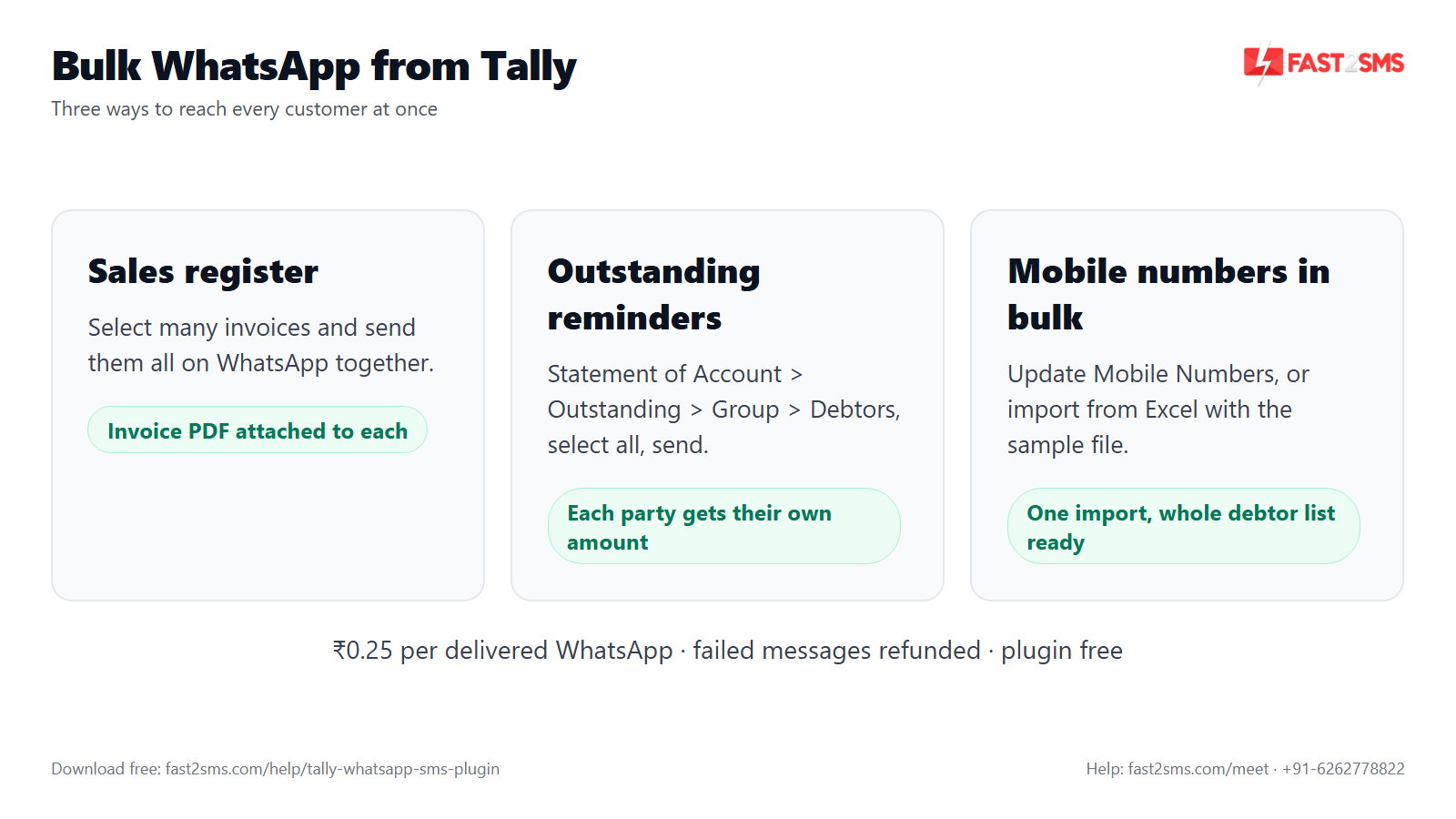
The plugin adds bulk sending in two places you already use every day. Neither needs a separate software or an Excel export.
| What you want to send | Where you do it in Tally | What each customer gets |
|---|---|---|
| Many sales invoices at once | Sales Register, select the invoices | Their own invoice details with the invoice PDF attached |
| Payment reminders to all debtors | Statement of Account > Outstanding > Group > Debtors | Their own outstanding amount as a reminder |
| The same by SMS | Same screens, SMS module | A DLT-approved SMS with a short link to the PDF |
Everything goes through the official WhatsApp Business API. There is no QR code to scan and no phone that needs to stay on, so a bulk run of a few hundred messages does not tie up anyone’s mobile. For single invoices and auto-send on save, see the send invoice on WhatsApp from Tally guide.
Before you start: a five-point check
Bulk sending uses the same setup as single sending. If one voucher goes out fine, bulk will work too. Tick these off first:
- Plugin loaded: the .TCP file is loaded as a Local TDL or Account TDL, and the WhatsApp module is set to Yes in F1: Help > TDLs & Add-ons > F6: Add-On Features (administrator only).
- API key entered: copied from the Dev API section of your Fast2SMS panel.
- WhatsApp settings done: 123456789 in WhatsApp API Settings and T101-T120 in WhatsApp Template Settings (see the default templates section below).
- Mobile numbers loaded: every customer you want to reach has a number in their ledger.
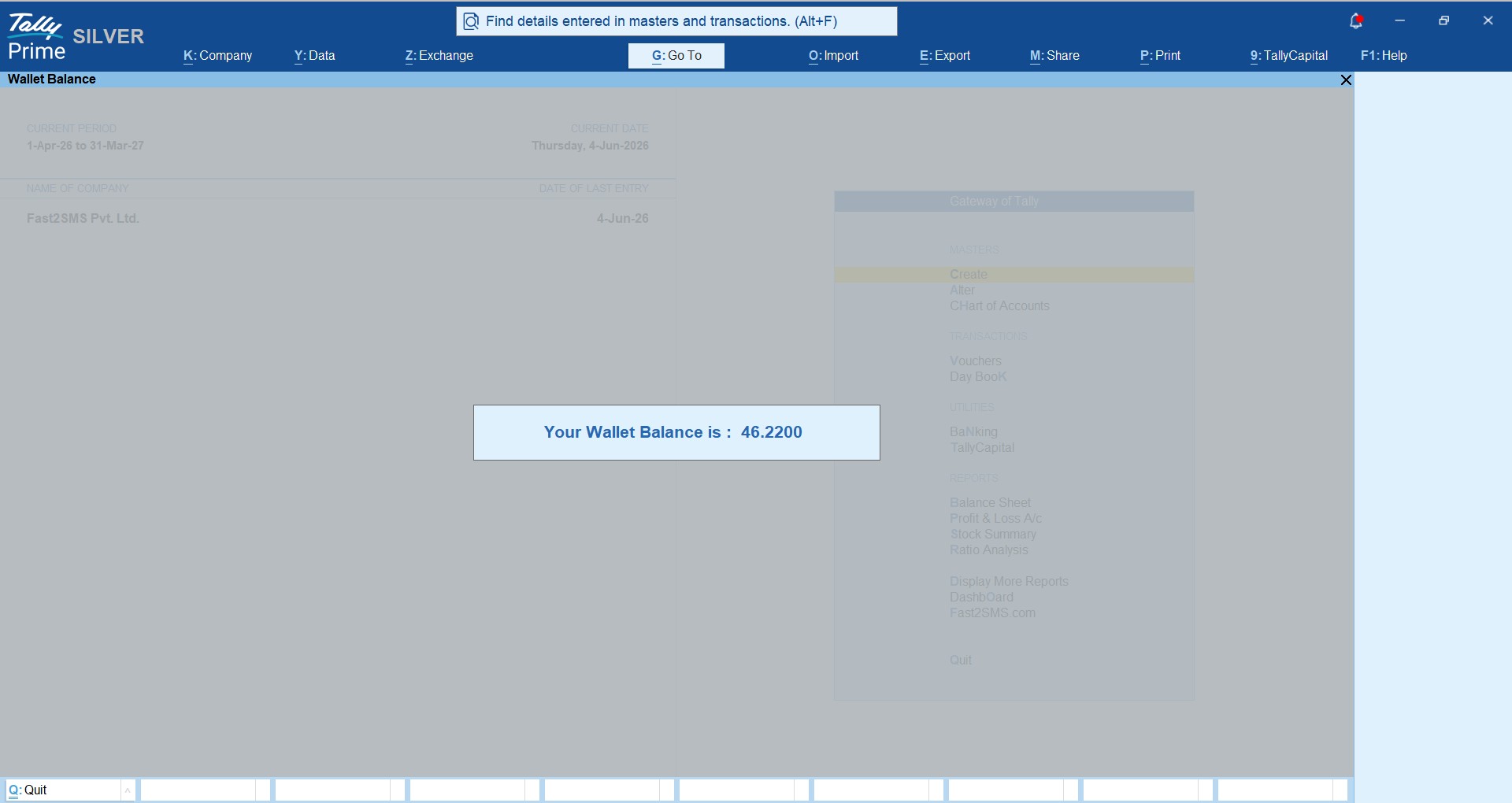
- Wallet topped up: enough balance for the whole run. You can check and recharge inside Tally.
New to the plugin? The main Tally WhatsApp and SMS plugin guide covers the full install, and the Tally WhatsApp integration guide explains how the pieces fit together.
Step 1: load all customer mobile numbers
A bulk send is only as good as your numbers. Customers without a number in Tally simply cannot receive anything. The plugin gives you three ways to fill them, from one at a time to hundreds at once.
| Method | Where | Best for |
|---|---|---|
| Ledger master | Alter the customer ledger and type the mobile number | New customers, or a few corrections |
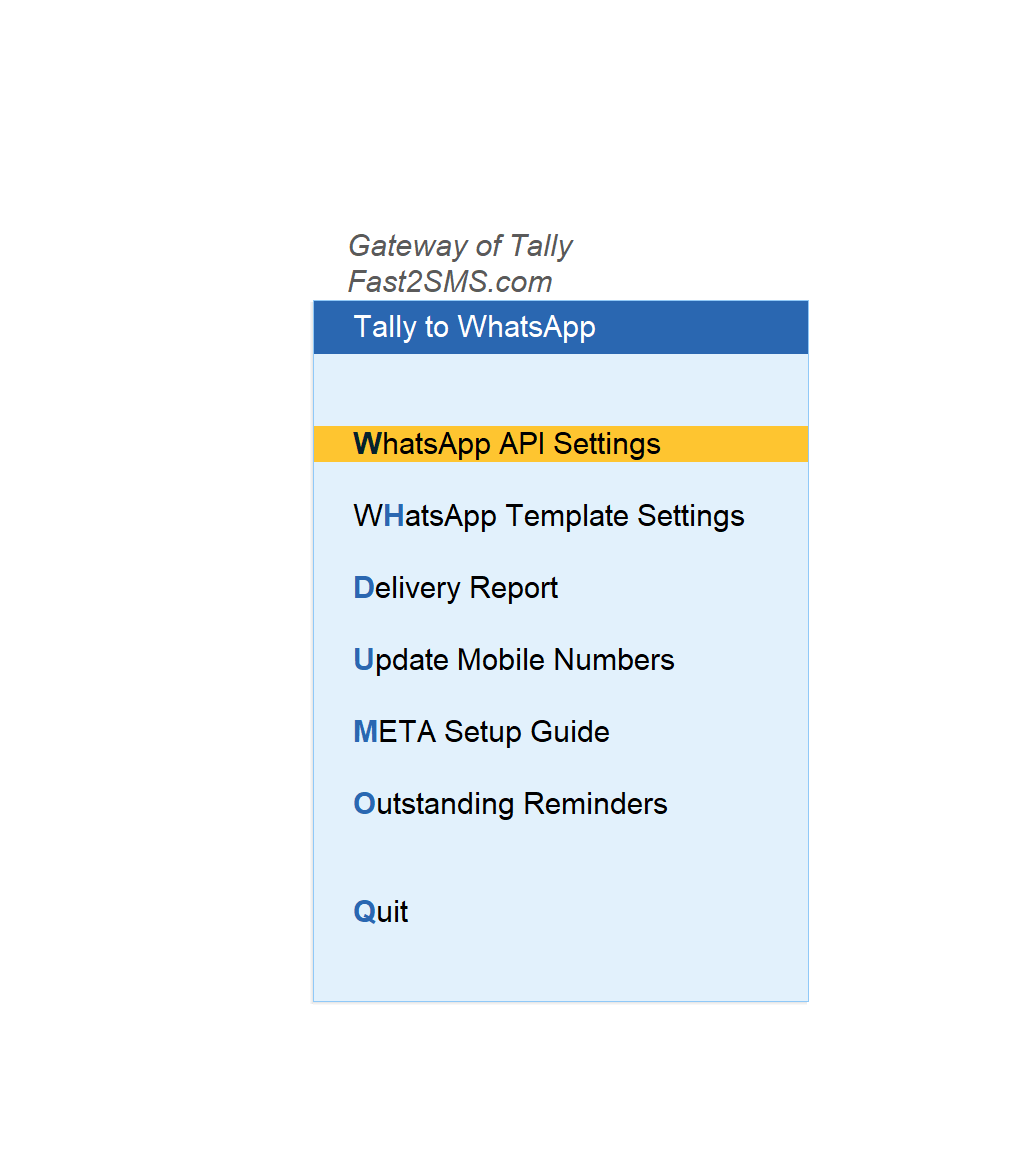
| Update Mobile Numbers | Gateway of Tally > Fast2SMS.com > Tally to WhatsApp > Update Mobile Numbers > Sundry Debtors | Typing numbers for many existing customers on one screen |
| Import from Excel | Gateway of Tally > Fast2SMS.com > Tally to WhatsApp > Import Mobile Numbers | Hundreds of numbers you already have in a sheet or phone export |
Import numbers from Excel with the sample file
On the Import Mobile Numbers screen you will find an option to download a sample Excel file. Use it, do not make your own layout. Fill in your ledger names and mobile numbers in that file, save it, and import it into your existing ledgers.
The one thing that trips people up is ledger names. They must match Tally exactly, letter for letter. “Sharma Traders” and “M/s Sharma Traders” are two different names to Tally. The safest way is to copy names from Tally into the sheet rather than typing them.
Keep one clean mobile number per customer, digits only, no spaces, dashes or a second number in the same cell. The same menus exist under Tally to SMS if you mainly send SMS.
Step 2: send bulk invoices from the sales register
This is how a distributor or wholesaler sends all of today’s bills in one shot after the last dispatch.
- Open the Sales Register in TallyPrime (Display More Reports > Account Books > Sales Register).
- Set the period to the days you want, for example today, and open the month to see the list of invoices.
- Select the sales invoices you want to send. Leave out cash walk-in bills or any customer without a number.
- Press the WhatsApp send option the plugin adds to the register. Each selected customer gets their own invoice.
- Open Tally to WhatsApp > Delivery Report a little later to confirm what was delivered.
The template used is the one you mapped for sales: T101 (sales with closing balance), T102 (sales without closing balance) or T103 (sales with order details). If you want customers to see their running balance on every bill, keep T101 in the sales row. More on this in the Tally GST invoice on WhatsApp guide.
A good habit: before your first bulk run, send one invoice to your own number from the sales voucher. The plugin shows a preview with the message and mobile number before sending, so you can check the wording once.
Step 3: send bulk outstanding reminders to all customers
Collections are where bulk sending saves the most time. Instead of calling twenty customers, you send each one a polite reminder with their own pending amount.
- Go to Gateway of Tally > Statement of Account > Outstanding > Group.
- Choose Debtors (Sundry Debtors) to see every customer with a balance.
- Select the customers you want to remind, or select all customers.
- Click the Send WhatsApp button. Each customer gets a reminder with their own outstanding.
This uses the T116 ledger outstanding template. You can also send a single customer’s outstanding from their ledger, which is handy when someone asks “how much do I owe?”. The full collections workflow, including SMS reminders, is in the Tally payment reminder guide.
Before you select all, glance at the list. Remove customers with disputed bills, those who have just paid by cheque that is not yet entered, and any credit balances. A wrong reminder costs goodwill more than it costs money.
What each customer receives
Bulk does not mean one message for everyone. Tally fills each customer’s own details into the approved template, so every message is personal.
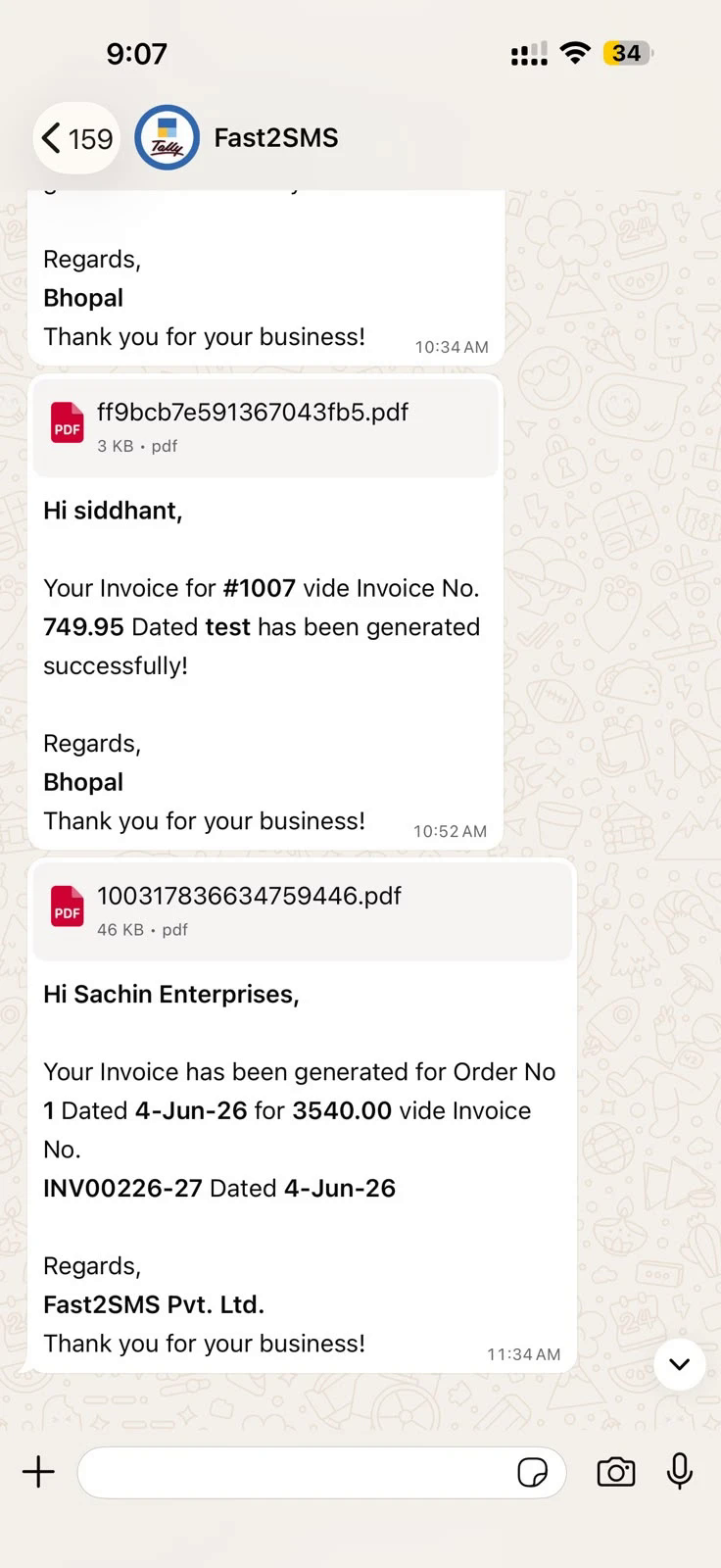
- Invoice messages: the customer’s name, invoice number, amount and date as per the template, with the invoice PDF attached as a document they can open, save or forward to their accountant.
- Outstanding reminders: the amount pending from that customer, so they know exactly what to pay.
- Sender: with the default setup, messages come from the Fast2SMS default sender and your business name appears inside every message. After you move to your own number, they come from your business number. The Tally WhatsApp sender guide compares the two.
On SMS, the same bulk send gives each customer a DLT-approved SMS in which the PDF is a short link that opens in the browser.
What bulk WhatsApp from Tally costs
The plugin is free: no licence, no renewal, no setup or monthly fee. You pay only for messages, from your Fast2SMS wallet. Tally templates are utility messages, charged at ₹0.25 per delivered message. Failed messages are refunded to your wallet automatically within 48 hours.
Here is a small worked example for a distributor with 120 active customers:
| Send | Messages sent | Delivered | Cost at ₹0.25 |
|---|---|---|---|
| One day’s invoices from the sales register | 40 | 40 | ₹10 |
| Outstanding reminder to all debtors | 120 | 116 (4 numbers not on WhatsApp) | ₹29 (the 4 failed are refunded) |
| A month of daily invoices (40 a day, 25 working days) | 1,000 | 1,000 | ₹250 |
The ₹50 free test credit you get after signup covers 200 delivered utility messages, enough to try a real bulk run before you recharge. For comparison, paid Tally WhatsApp TDLs commonly cost ₹3,000-₹6,000 plus GST before you send a single message; the Tally WhatsApp TDL price comparison has the details.
Good practice for bulk sending
Bulk sending is powerful, so use it the way a careful business would. These habits keep customers happy and your sender in good standing.
- Only your own customers. Send to people who buy from you and gave you their number. Do not load bought lists or other people’s contacts into Tally for a bulk send.
- Transaction messages only. The Tally templates are utility templates for invoices, receipts and reminders. Do not use them for offers or festival greetings.
- Sensible frequency. Invoices go when they are made. Outstanding reminders once a week or once a fortnight is plenty for most businesses. Daily reminders make customers block you.
- Check the list before select all. Remove disputed bills, fresh payments not yet entered and customers who asked not to be messaged.
- Test once, then send. Send one voucher to yourself after any change in templates.
- Read the delivery report. Failed numbers are a to-do list: call those customers and update their ledgers.
Once you move to your own WhatsApp number, this matters even more, because Meta watches how customers react to your messages. For CA firms sending on behalf of many clients, the Tally WhatsApp for accountants guide covers extra care points.
Start in two minutes with the ready default templates
Bulk invoices use the sales templates (T101 to T103) and bulk reminders use T116, so this setup is all you need before your first bulk run.
You do not need your own WhatsApp Business number or any Meta approval to start. Fast2SMS gives 20 ready, pre-approved templates on a default sender. After you paste your API key, make two entries:
- Tally to WhatsApp > WhatsApp API Settings: type 123456789 as the WABA Phone Number ID.
- Tally to WhatsApp > WhatsApp Template Settings: enter the message IDs T101 to T120 exactly as in the table below.
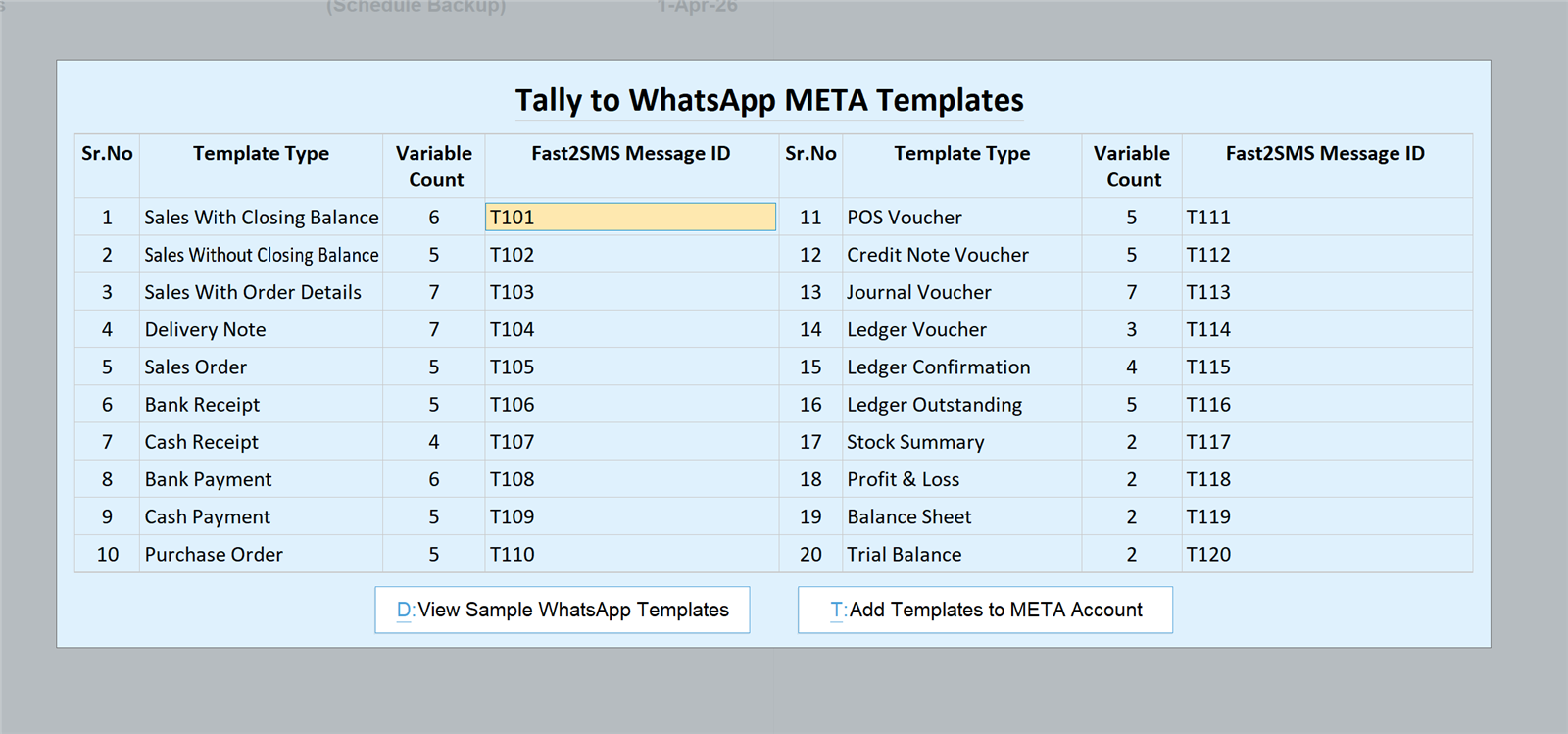
| Message ID | Use it for |
|---|---|
| T101 | Sales with closing balance |
| T102 | Sales without closing balance |
| T103 | Sales with order details |
| T104 | Delivery note |
| T105 | Sales order |
| T106 | Bank receipt |
| T107 | Cash receipt |
| T108 | Bank payment |
| T109 | Cash payment |
| T110 | Purchase order |
| T111 | POS voucher |
| T112 | Credit note |
| T113 | Journal voucher |
| T114 | Ledger voucher |
| T115 | Ledger confirmation |
| T116 | Ledger outstanding |
| T117 | Stock summary |
| T118 | Profit and loss |
| T119 | Balance sheet |
| T120 | Trial balance |
Save, and WhatsApp sending is live from the Fast2SMS default sender. Your business name appears inside every message.
Send bulk messages from your own business number
To have every bulk message come from your own WhatsApp number, complete the Meta embedded signup from the Fast2SMS panel. Then press “Add Templates to META Account” in the plugin to send all 20 templates to Meta for approval. After approval, replace 123456789 with your own phone number ID and T101-T120 with your approved message IDs. The template wording is on the Tally WhatsApp Meta templates page.
Need help installing the Tally plugin? Our team will do it with you, free.
We can install the plugin, import your customer numbers from Excel and run your first bulk send with you on a screen share. Schedule a free meeting, call +91-6262778822 or email [email protected].
Frequently asked questions
Can I send bulk WhatsApp messages from Tally?
Yes, with the free Fast2SMS plugin you can send bulk WhatsApp from Tally in two ways: many invoices at once from the sales register, and outstanding reminders to all debtors from the outstanding report. Each customer gets their own message.
How do I send bulk invoices on WhatsApp from Tally?
To send bulk invoices on WhatsApp from Tally, open the Sales Register in TallyPrime, select the sales invoices you want, and use the plugin’s WhatsApp send option. Each customer receives their own invoice with the PDF attached.
How do I send WhatsApp to all customers from Tally?
To send WhatsApp to all customers from Tally, go to Gateway of Tally > Statement of Account > Outstanding > Group > Debtors, select all customers, and click Send WhatsApp. Every debtor gets a reminder with their own pending amount.
Does every customer get their own invoice in a bulk send?
Yes, in a bulk send every customer gets only their own invoice, with their own details and PDF, because Tally fills each customer’s data into the approved template separately. It is not one broadcast message.
Is the Tally bulk WhatsApp plugin free?
Yes, the Tally bulk WhatsApp plugin is free, with no licence, renewal, setup or monthly fee, because bulk sending is part of the same free .TCP add-on. You pay only per message from your Fast2SMS wallet, at ₹0.25 per delivered utility message on WhatsApp.
How much does it cost to send 1,000 invoices on WhatsApp from Tally?
Sending 1,000 delivered invoices on WhatsApp from Tally costs ₹250, because each utility message is ₹0.25 and you pay only on delivery. Failed messages are refunded to your wallet automatically within 48 hours.
Am I charged for bulk messages that fail?
No, you are not charged for bulk messages that fail, because WhatsApp is charged on delivery and any failed message, such as one to a number without WhatsApp, is refunded to your Fast2SMS wallet within 48 hours.
Where do I download the Tally WhatsApp plugin for bulk sending?
You can download the Tally WhatsApp plugin from the Fast2SMS Google Drive folder behind the Download Tally Plugin button on this page. Bulk sending is built into the same free .TCP file, with no separate add-on.
How do I add mobile numbers of all customers in Tally at once?
To add mobile numbers of all customers at once, use Update Mobile Numbers > Sundry Debtors under Tally to WhatsApp to type them on one screen, or Import Mobile Numbers to load them from Excel with the sample file.
Can I import customer mobile numbers into Tally from Excel?
Yes, the plugin’s Import Mobile Numbers screen lets you import customer mobile numbers from Excel into existing ledgers using the sample Excel file it provides. Ledger names in the sheet must match Tally exactly.
Why did some customers not get my bulk WhatsApp?
Some customers miss a bulk WhatsApp when their ledger has no mobile number, the number is wrong, or the number is not on WhatsApp. Check Tally to WhatsApp > Delivery Report, correct those ledgers and resend.
How many invoices can I send at once from the sales register?
You decide how many invoices to send at once by selecting them in the sales register, whether that is one day’s bills or a larger batch. Just make sure your wallet has enough balance for the whole run.
Do I need my own WhatsApp Business number for bulk sending?
No, you do not need your own WhatsApp Business number, because you can start bulk sending on the Fast2SMS default sender with 123456789 and T101-T120. Your business name appears inside each message, and you can move to your own number later.
Is it safe to send bulk WhatsApp from Tally, or will my number get banned?
Bulk WhatsApp from Tally goes through the official WhatsApp Business API rather than WhatsApp Web automation, so it avoids that ban risk. Send only transaction messages to your own customers at a sensible frequency.
Does my phone need to be on during a bulk send?
No, your phone does not need to be on during a bulk send, and there is no QR scan, because messages go through the WhatsApp Business API from the server. See Tally to WhatsApp without QR.
How often should I send bulk outstanding reminders?
For most Indian businesses, one bulk outstanding reminder a week or once a fortnight is enough, because daily reminders annoy customers and lead to blocks. Send single reminders from the ledger when one customer needs a nudge.
Can I send promotional offers in bulk from Tally?
No, you should not send promotional offers in bulk from Tally, because the Tally templates are utility templates approved for invoices, receipts, reminders and reports. Keep bulk sends from Tally to transaction messages only.
Can I send bulk SMS from Tally instead of WhatsApp?
Yes, the plugin can also send bulk invoices by SMS from the sales register and bulk outstanding reminders by SMS. SMS needs DLT registration, and the PDF arrives as a short link. See the Tally SMS plugin guide.
Which template does a bulk invoice send use?
A bulk invoice send uses the sales template mapped in WhatsApp Template Settings: T101 for sales with closing balance, T102 without closing balance, or T103 with order details. Bulk outstanding reminders use T116.
Can I pick only some customers for a bulk reminder?
Yes, in Statement of Account > Outstanding > Group > Debtors you can select only the customers you want to remind instead of selecting all. Leave out disputed bills and payments not yet entered.
Can I send bulk reports like ledger statements from Tally?
Ledger reports and ledger confirmations are sent from each customer’s ledger screen, one customer at a time, while bulk sending covers sales invoices and outstanding reminders. See send Tally reports on WhatsApp.
Can I check my wallet balance before a bulk send?
Yes, the plugin shows your Fast2SMS wallet balance inside Tally and lets you recharge from the same screen, so you can check before a bulk send. At ₹0.25 per delivered message, 200 messages need ₹50.
Does bulk WhatsApp from Tally work in Tally ERP 9?
The plugin works only in TallyPrime, and every step here is a TallyPrime screen. It does not work in Tally ERP 9, so if you are still on ERP 9, upgrade to TallyPrime first.
How do I know which bulk messages were delivered?
You can see which bulk messages were delivered in Gateway of Tally > Fast2SMS.com > Tally to WhatsApp > Delivery Report, or in your Fast2SMS panel. Treat the failed ones as a list of numbers to fix.
Can someone set up bulk WhatsApp in Tally for me?
Yes, the Fast2SMS team will set up bulk WhatsApp in Tally with you free over a screen share, including the Excel import of your customer numbers. Book at fast2sms.com/meet, call +91-6262778822 or email [email protected].
Send your first bulk run today
Load your customer numbers once, set the default templates, and your next batch of invoices or reminders is a few clicks away instead of an evening of forwarding PDFs. Start with a small batch, read the delivery report, then make it part of your daily closing routine. For more on WhatsApp pricing in general, see WhatsApp message pricing.
Download Tally PluginSignup Now
Help with the Tally plugin: schedule a free meeting · [email protected] · +91-6262778822