
Tally WhatsApp for Retail Shops: Send Bills on WhatsApp Instead of Paper
Your counter prints a bill, the customer folds it into a pocket, and a week later they come back for an exchange without it. Sound familiar? With the free Fast2SMS plugin you can send the bill on WhatsApp from Tally the moment you save the voucher. The customer gets the bill as a PDF inside WhatsApp, and it stays in their chat for as long as they need it.
This guide is written for retail shops, showrooms and counters that bill in TallyPrime. It covers POS bills, sales invoices, collecting the customer’s mobile number at the counter, walk-in versus regular customers, credit notes for returns and receipts when a regular customer clears dues. The plugin is a free WhatsApp plugin for Tally. You pay only for the messages you send.
Download Tally PluginSignup Now
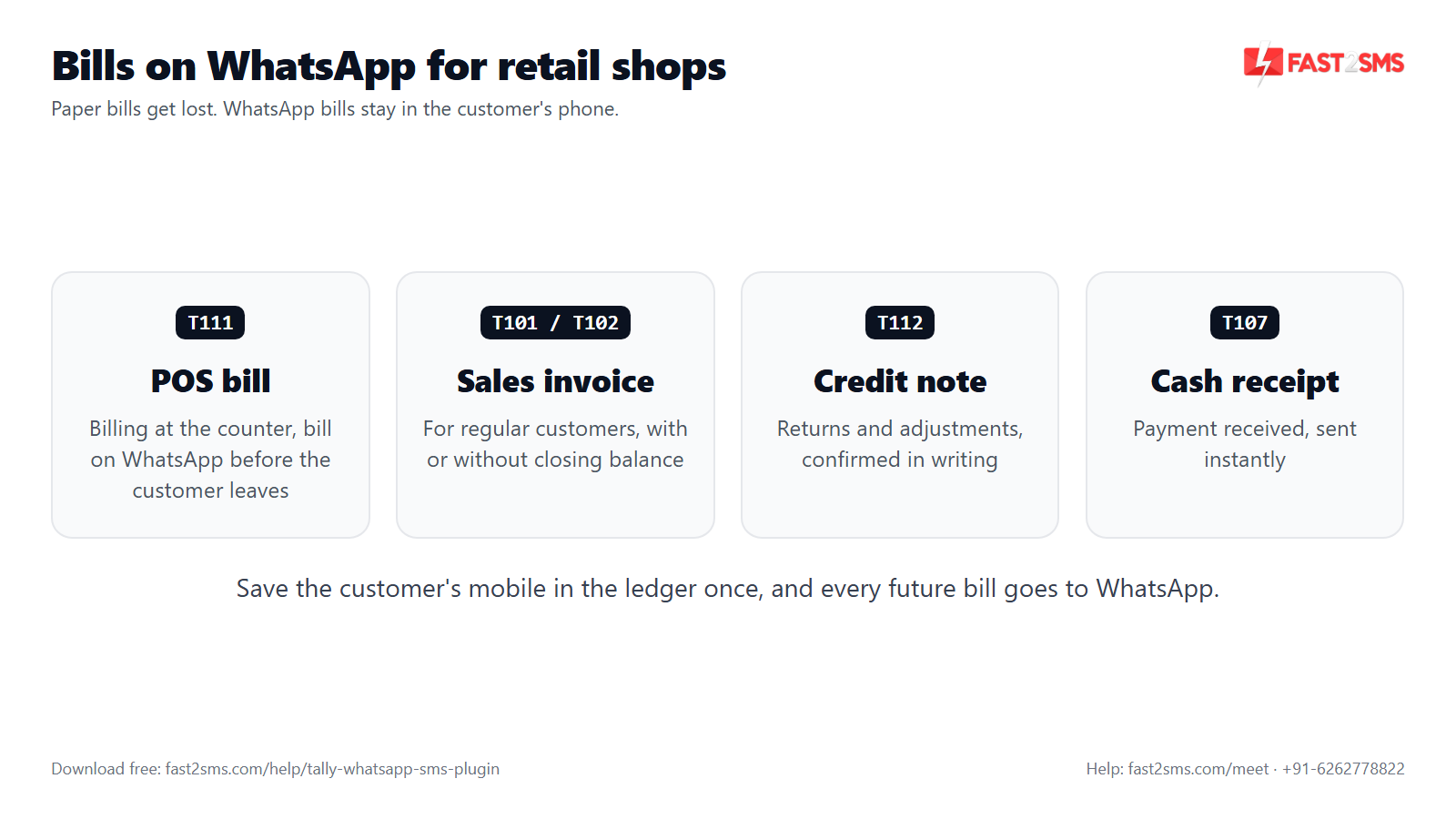
Why a WhatsApp bill for shop customers beats paper
A paper bill does one job: it shows the customer what they paid. After that it gets lost, torn or faded. A WhatsApp bill does the same job and then keeps working for you. Here is what changes at the counter, in plain terms:
- The customer cannot lose it. The bill sits in their WhatsApp chat. When they come back for a warranty claim or an exchange, they scroll up and show it.
- Less printing. You still print when a customer asks for paper. For everyone else, you skip the printout.
- Your name stays on their phone. Every bill carries your business name. The next time the customer needs something, your shop is already in their chat list.
- Fewer “please send me a copy” calls. Customers who need a bill for office claims or GST input can forward the PDF themselves.
- A clean record on both sides. The bill number, date and amount are in the message, and delivery reports stay in Tally and in your Fast2SMS panel.
None of this changes how you bill. The plugin only adds a send button and, if you want, an automatic send on save.
Setting up the free WhatsApp plugin for Tally
The Fast2SMS plugin is a free .TCP add-on for TallyPrime. There is no licence fee, no renewal and no setup charge. If you have not installed it yet, the full walkthrough is in the main Tally WhatsApp and SMS plugin guide. The short version for a shop:
- Download Tally WhatsApp plugin files from the button on this page and copy the .TCP file into your TallyPrime folder as a Local TDL. If you use Tally.NET, you can upload it as an Account TDL instead.
- Open your company and press F1: Help > TDLs & Add-ons. The plugin shows as loaded.
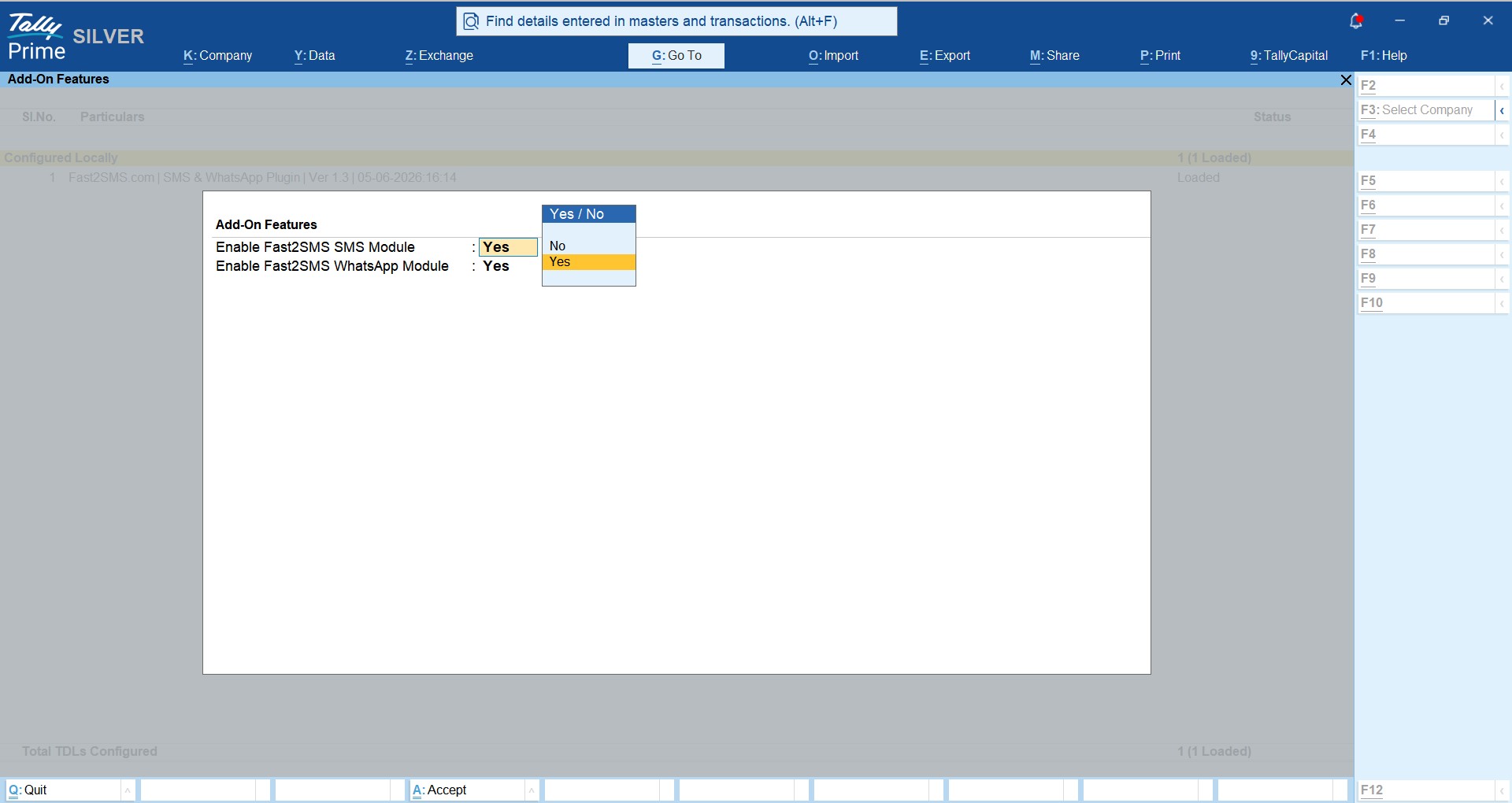
- Press F6: Add-On Features and set the WhatsApp module to Yes. Set the SMS module to Yes as well if you plan to send SMS. Only the company administrator sees this option.
- A Fast2SMS.com menu now appears on the Gateway of Tally.
- Create a free account at fast2sms.com, copy your API key from the Dev API section and paste it in the plugin’s API key screen. The account is required, because the plugin sends through your Fast2SMS wallet. You get ₹50 free test credit after signup.
Your wallet balance also shows inside Tally, with a recharge option.
Which Tally voucher sends which bill
A shop usually uses more than one voucher type. Quick counter sales may go through POS, a showroom sale with delivery or finance may go through a regular sales invoice, and returns go through a credit note. Each one has its own ready WhatsApp template in the plugin:
| Counter situation | Tally voucher | Default message ID | What the customer receives |
|---|---|---|---|
| Quick counter sale | POS voucher | T111 | Bill number, date and what was billed, with the bill PDF attached |
| Regular customer on credit | Sales invoice | T101 | Invoice PDF plus their updated closing balance |
| Showroom sale, paid in full | Sales invoice | T102 | Invoice PDF without any balance line |
| Return or exchange | Credit note | T112 | Credit note number, date and amount, with the PDF |
| Customer pays dues by UPI or bank | Bank receipt | T106 | A text confirmation that the payment was received |
| Customer pays dues in cash | Cash receipt | T107 | A text confirmation that the cash was received |
| Home delivery from the showroom | Delivery note | T104 | Delivery note details with the PDF |
You do not have to use all of them. Tally sends only for the template types that have a message ID filled in, so a small shop can start with T111 and T112 alone.
Sending a Tally POS bill on WhatsApp (T111)
If your counter bills through a POS voucher in TallyPrime, this is the template you will use most. The customer gets a WhatsApp message with the bill number, the date and what was billed, and the bill itself arrives as a PDF document inside the chat. They open it with one tap. No download link, no app to install.
Here is how a Tally POS bill goes on WhatsApp at a busy counter:
- Make the POS voucher the usual way and select the customer’s ledger.
- Use the WhatsApp send button on the voucher screen.
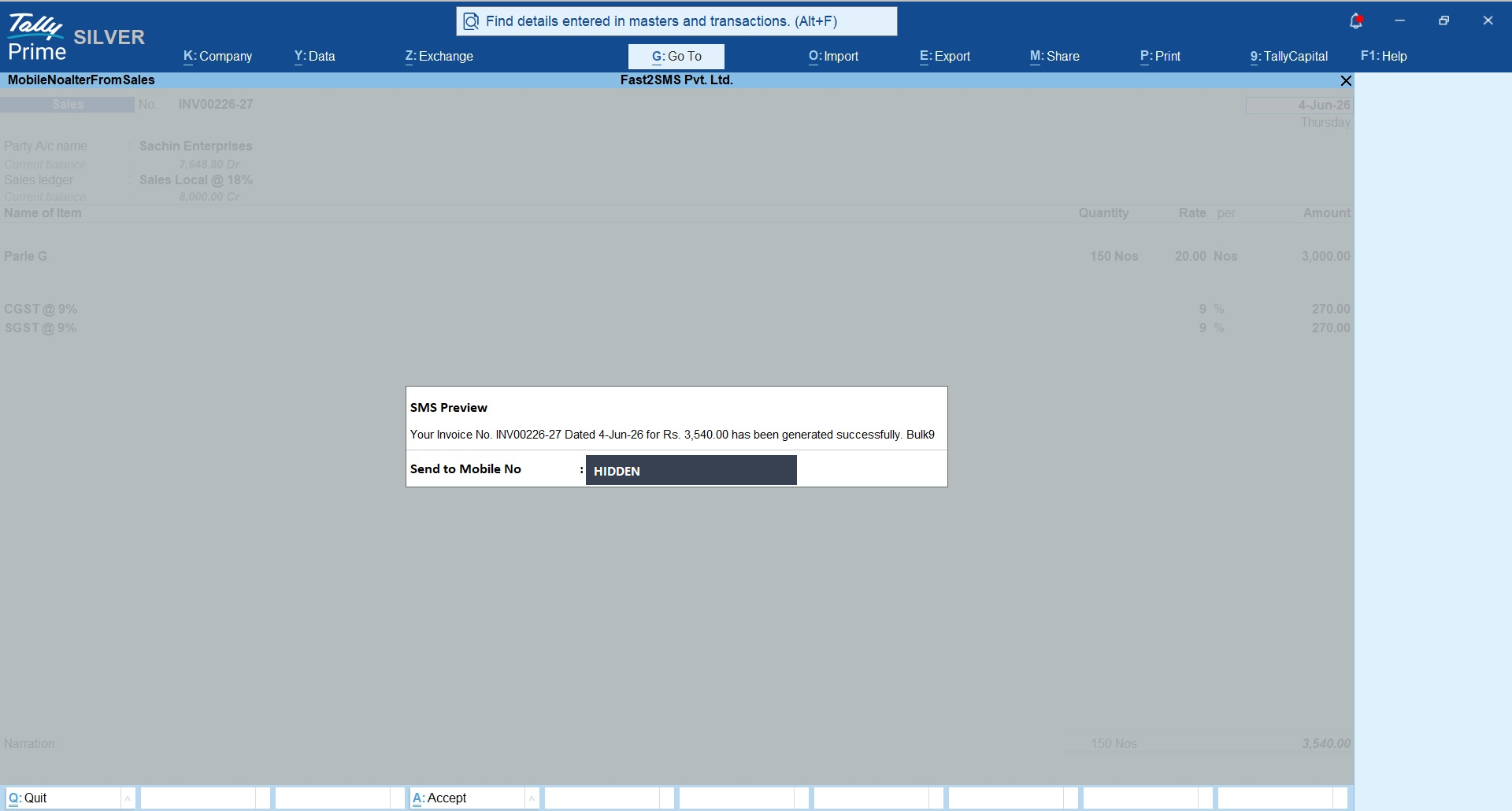
- The plugin shows a preview with the message and the mobile number it will go to. Check the number, then send.
- You see a message sent prompt. The delivery status appears in the Delivery Report screen in the Tally to WhatsApp menu, and in your Fast2SMS panel.
If your counter is fast and you do not want to press a button on every bill, turn on auto-send for the POS voucher type. The plugin has an extra WhatsApp setting under the voucher type that sends the message as soon as the voucher is created or altered. We cover when to use each option further down.
Sending sales invoices from a showroom (T101 and T102)
Showrooms selling furniture, electronics, mobiles, jewellery or two-wheeler accessories often raise a full sales invoice instead of a POS bill. These invoices carry more detail and are the ones customers keep for warranty and finance paperwork. The plugin gives you two formats for them:
- T101, sales with closing balance. Use this for regular customers who buy on credit. After the invoice details, the message shows their updated closing balance, so they know what they owe without calling you.
- T102, sales without closing balance. Use this for customers who paid in full, or for anyone you do not want to show a balance to. The message carries the invoice details only.
Both formats attach the invoice PDF as a document. For GST invoices, the PDF is the same invoice Tally generates, so the customer gets the full tax invoice in the chat. The GST invoice on WhatsApp guide goes deeper on that side, and the send invoice on WhatsApp from Tally guide covers the sales invoice buttons step by step.
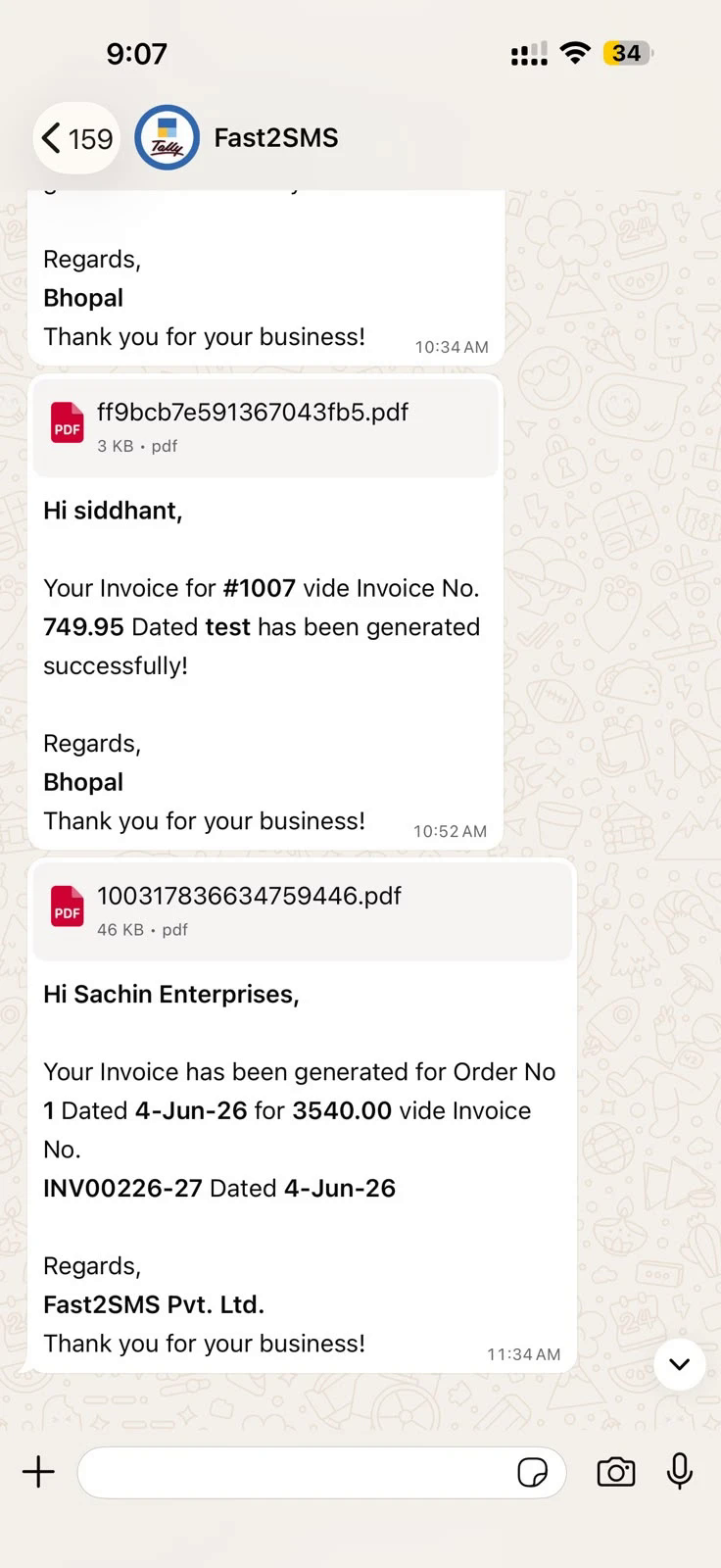
End of day, if some invoices were saved without sending, open the sales register, select those invoices and send them in one go. The plugin supports bulk sending from the sales register.
Collecting the customer’s mobile number at the counter
The plugin sends to the mobile number saved in the customer’s ledger master. So the whole system depends on one small habit at the counter: asking for the number and saving it once.
A simple line works well: “Shall I send your bill on WhatsApp? It stays on your phone for warranty and exchange.” Most customers say yes because they see the benefit straight away. Some tips from shops that do this well:
- Ask before you bill, not after. Once the voucher is saved and the customer is walking out, it is too late.
- Read the number back. One wrong digit sends the bill to a stranger. Repeat the number aloud, then save it.
- Save the WhatsApp number. Some customers have two phones. Ask which one has WhatsApp.
- Save it in the ledger, once. After the number is in the ledger master, every future bill for that customer goes to the right phone without asking again.
The plugin gives you three ways to get numbers into Tally:
| Method | Where | Best for |
|---|---|---|
| Single ledger | The mobile number field in the customer’s ledger master | A new customer at the counter |
| Bulk update | Gateway of Tally > Fast2SMS > WhatsApp Module > Update Mobile Numbers > Sundry Debtors | Filling numbers for many existing customers on one screen |
| Excel import | Gateway of Tally > Fast2SMS > WhatsApp Module > Import Mobile Numbers | Numbers you already have in a register or a loyalty list; a sample Excel file is provided |
Many shops already have customer numbers in an old billing software or a loyalty notebook. Type them into the sample Excel file once, import, and your regular customers are ready for WhatsApp bills from day one.
Walk-in customers vs regular customers
Retail billing in Tally usually has two kinds of customers, and they need slightly different handling.
Regular customers have their own ledger. This is the easy case. Their number is saved once, and every POS bill, invoice, receipt and credit note goes to their WhatsApp. If they buy on credit, T101 shows their closing balance, and you can send outstanding reminders to them in bulk from Statement of Account > Outstanding > Group > Debtors. The payment reminder guide explains that flow.
Walk-in customers are often billed against a general cash ledger. That ledger has no single customer behind it, so there is no one number to send to. You have two practical choices:
- Create a ledger for anyone who wants the bill on WhatsApp. It takes a few seconds: name and mobile number. TallyPrime lets you create a ledger from the party field while entering the voucher (Alt+C), so you do not have to leave the bill. Next time that person walks in, they are a regular.
- Keep printing for true one-time buyers. A tourist buying one item may not want to share a number at all. That is fine. Print as usual.
Over time the first choice builds you a customer list with phone numbers attached, which a cash ledger never gives you.
One caution: do not save one number on the general cash ledger. Every walk-in bill would go to that single phone.
Returns and exchanges: sending the credit note on WhatsApp (T112)
Returns are where paper causes the most trouble. The customer has lost the bill, the staff cannot find the sale, and the counter argument starts. WhatsApp bills fix the first half of that problem. Credit notes on WhatsApp fix the second half.
When you accept a return or exchange and record a credit note in Tally, send it with the T112 template. The customer receives the credit note number, the date and the amount, with the credit note PDF attached. Now they have written proof of the return, and you have a record that it was sent.
This helps in everyday cases:
- Store credit. If you give credit against a return instead of cash, the customer has the credit note on their phone for the next visit.
- Exchanges on another day. The customer returns something today and picks the replacement next week. Both sides have the note in writing.
- Credit customers. For regulars on credit, the credit note reduces what they owe, and they can see the adjustment without calling you.
Receipts when regular customers clear their dues
Many shops run a credit account for trusted regulars: a kirana store, a hardware shop, a medical store near a hospital. When those customers pay, they want proof. The plugin has send buttons on receipt vouchers too:
- T106, bank receipt: for payments by UPI, card or bank transfer recorded as a bank receipt.
- T107, cash receipt: for cash handed over at the counter.
These two are short text confirmations without a PDF, so your staff no longer write receipts by hand.
Send button or auto-send: which suits your counter?
The plugin gives you two ways to send, and the right one depends on how busy your counter is.
The send button shows a preview before anything goes out. You see the message and the mobile number, then you press send. This suits showrooms where each sale takes time and staff can check details calmly.
Auto-send is set per voucher type. Under the voucher type you will find the WhatsApp setting to send instantly when a voucher is created or altered. This suits fast counters where nobody has time to press an extra button. Turn it on for the POS voucher type and every saved POS bill goes to the customer’s WhatsApp on its own. For this to work well, bill every customer against a ledger that has a mobile number, as described above.
Many shops use both: auto-send for POS bills at the front counter, and the manual button for showroom invoices and credit notes, where the staff like to check first.
What it costs a shop
The plugin itself is free: no licence, no renewal, no monthly fee and no setup charge. You pay only for messages, from your own Fast2SMS wallet:
- WhatsApp bills use utility templates at ₹0.25 per message, charged only when the message is delivered.
- If a message fails, the amount is refunded to your wallet automatically within 48 hours.
- If you send nothing in a month, you pay nothing that month.
Paid Tally WhatsApp TDLs from third parties commonly cost ₹3,000 to ₹6,000 plus GST, and some also charge a yearly renewal for their panel. The Tally WhatsApp TDL price comparison lays out the options side by side.
The plugin also uses the official WhatsApp Business API. There is no QR code to scan, no phone that must stay switched on at the counter, and no ban risk from WhatsApp Web tricks. More in the Tally to WhatsApp without QR guide.
What about customers who do not use WhatsApp?
Most customers have WhatsApp, but not all. The same plugin also has an SMS module. On SMS the invoice PDF becomes a short link that opens in the phone’s browser. SMS needs DLT registration of your sender ID and templates first, and the SMS side covers eight template types: three sales formats, bank and cash receipts and payments, and outstanding. POS bills and credit notes are WhatsApp templates. See the Tally SMS plugin guide and the ready DLT templates for Tally if you want both channels.
Start in two minutes with the ready default templates
Every template in this article, from the POS bill (T111) to the credit note (T112), is already part of this ready set, so your shop can send its first WhatsApp bill today.
You do not need your own WhatsApp Business number or any Meta approval to start. Fast2SMS gives 20 ready, pre-approved templates on a default sender. After you paste your API key, make two entries:
- Tally to WhatsApp > WhatsApp API Settings: type 123456789 as the WABA Phone Number ID.
- Tally to WhatsApp > WhatsApp Template Settings: enter the message IDs T101 to T120 exactly as in the table below.
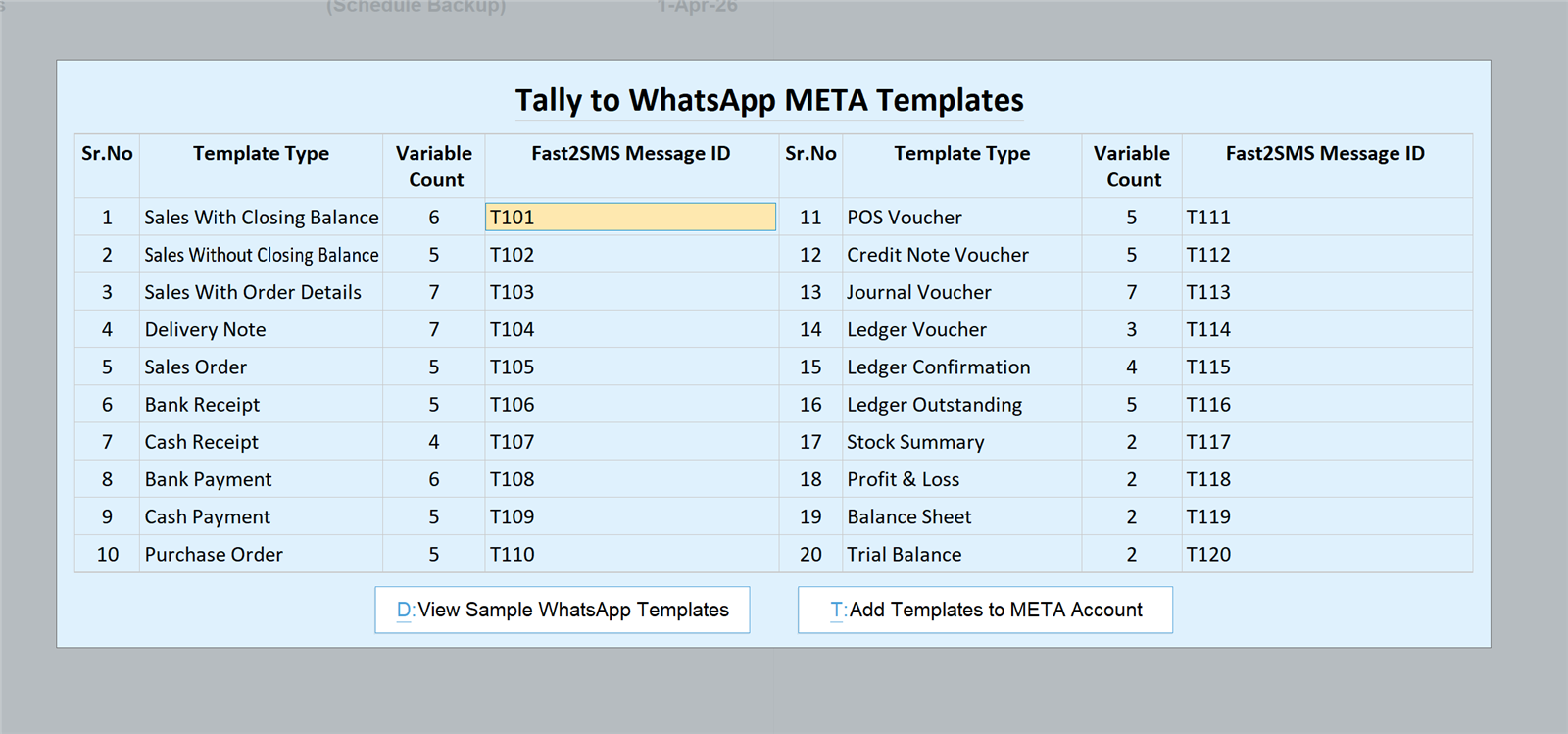
| Message ID | Use it for |
|---|---|
| T101 | Sales with closing balance |
| T102 | Sales without closing balance |
| T103 | Sales with order details |
| T104 | Delivery note |
| T105 | Sales order |
| T106 | Bank receipt |
| T107 | Cash receipt |
| T108 | Bank payment |
| T109 | Cash payment |
| T110 | Purchase order |
| T111 | POS voucher |
| T112 | Credit note |
| T113 | Journal voucher |
| T114 | Ledger voucher |
| T115 | Ledger confirmation |
| T116 | Ledger outstanding |
| T117 | Stock summary |
| T118 | Profit and loss |
| T119 | Balance sheet |
| T120 | Trial balance |
Save, and WhatsApp sending is live from the Fast2SMS default sender. Your business name appears inside every message.
Upgrade to your shop’s own WhatsApp number
When you want bills to arrive from your shop’s own name and number, complete the free Meta embedded signup from your Fast2SMS panel. Then open WhatsApp Template Settings in the plugin and press Add Templates to META Account, which sends all 20 templates to your account for approval in one go. Once they are approved, replace 123456789 with your own phone number ID and T101 to T120 with your own approved message IDs. The Tally WhatsApp templates for Meta approval guide has the full text of every template.
Need help installing the Tally plugin? Our team will do it with you, free.
We can install the plugin on your counter PC, fill the default templates and send a test POS bill to your own phone while you watch. Schedule a free meeting, call +91-6262778822 or email [email protected].
Frequently asked questions
How do I send bill on WhatsApp from Tally?
Install the free Fast2SMS plugin, enable the WhatsApp module, paste your API key and fill the default templates, then use the WhatsApp send button on the voucher. The customer gets the bill as a PDF inside WhatsApp.
Can I send a Tally POS bill on WhatsApp?
Yes, the plugin has a dedicated POS voucher template, T111. The customer receives the bill number, date and billed details, with the POS bill attached as a PDF document in the chat.
Is the Tally WhatsApp plugin really free for shops?
Yes, the plugin is free with no licence fee, renewal, setup or monthly charge. Your shop pays only for messages sent, at ₹0.25 per WhatsApp utility message from your Fast2SMS wallet.
Where do I download the Tally WhatsApp plugin?
Use the Download Tally Plugin button on this page for the Tally WhatsApp plugin free download; it opens the official Google Drive folder with the .TCP file. Also sign up free at fast2sms.com, because the plugin needs your API key.
Does the customer need to save my number to get the bill?
No, the customer does not need to save your number. The message arrives through the official WhatsApp Business API, and they can open the PDF bill straight away.
Which template should I use for a walk-in customer?
Use T111 if you bill walk-ins through a POS voucher, or T102 if you raise a regular sales invoice. Either way, bill them against a ledger with their mobile number so the message has somewhere to go.
Can I send a WhatsApp bill to a customer billed under the cash ledger?
Not usefully, because a general cash ledger has no single customer number behind it. Create a quick ledger with the customer’s name and mobile, then bill against it, and the WhatsApp bill goes to them.
Where do I save the customer’s mobile number in Tally?
Save it in the mobile number field of the customer’s ledger master. The plugin reads the number from there for every POS bill, invoice, receipt and credit note sent to that customer.
Can I add mobile numbers for all my old customers at once?
Yes, use Update Mobile Numbers > Sundry Debtors in the plugin’s WhatsApp Module to fill many ledgers on one screen. You can also import numbers from Excel with the sample file under Import Mobile Numbers.
Does my counter phone need to stay on for WhatsApp bills?
No, no phone needs to stay on and there is no QR code to scan. The plugin sends through the official WhatsApp Business API, so bills go out from Tally even when your own phone is off.
Can WhatsApp bills go out automatically when I save the voucher?
Yes, turn on the WhatsApp setting under the voucher type to send on creation or alteration. Many shops enable it for the POS voucher type so every saved bill goes out without a button press.
Will the customer see a preview of the message before it is sent?
The customer does not, but you do. When you use the send button, the plugin shows you the message and the mobile number first, so you can check the details before sending.
Can I send a credit note on WhatsApp for a return?
Yes, record the return as a credit note and send it with template T112. The customer gets the credit note number, date and amount, with the credit note PDF attached.
What is the difference between T101 and T102?
T101 shows the customer’s updated closing balance after the invoice details, while T102 does not. Use T101 for credit customers and T102 for customers who paid in full.
Can I send a receipt when a regular customer pays dues?
Yes, receipt vouchers have their own send buttons. Use T106 for bank or UPI payments recorded as bank receipts and T107 for cash receipts. Both go as short text confirmations.
Is a WhatsApp bill accepted as a proper invoice?
The PDF sent is the same invoice Tally generates, so it carries the same details as your printed copy. For specific GST compliance questions about your business, check with your CA.
How much does each WhatsApp bill cost?
Each WhatsApp bill costs ₹0.25, charged only on delivery. If a message fails, the amount returns to your Fast2SMS wallet automatically within 48 hours.
Do I need my own WhatsApp Business number to start?
No, you can start on the Fast2SMS default sender by typing 123456789 as the phone number ID and T101 to T120 as message IDs. Your business name still appears inside every message.
Can bills come from my shop’s own WhatsApp number?
Yes, complete the free Meta embedded signup, press Add Templates to META Account in the plugin, and swap in your own phone number ID and approved message IDs once approved.
Does the Tally WhatsApp plugin work with Tally ERP 9?
The plugin works only in TallyPrime, and every step here is a TallyPrime screen. It does not work in Tally ERP 9, so if you are still on ERP 9, upgrade to TallyPrime first.
Can I send bills on WhatsApp for sales I already saved earlier?
Yes, open the sales register, select the invoices you want and send them in bulk. This is handy at closing time for bills the counter saved without sending.
Can I still print bills for customers who want paper?
Yes, nothing changes in your printing. The plugin only adds WhatsApp sending, so you can print for some customers and send on WhatsApp for others.
Can I send outstanding reminders to my credit customers?
Yes, send a single reminder from the customer’s ledger, or bulk reminders from Statement of Account > Outstanding > Group > Debtors by selecting customers and pressing the Send WhatsApp button.
How do I know if the customer received the bill?
Check the Delivery Report screen in the Tally to WhatsApp menu. Full message logs are also available in your Fast2SMS panel.
Can I send POS bills by SMS instead of WhatsApp?
POS bills are a WhatsApp template in the plugin. The SMS side covers sales invoice formats, receipts, payments and outstanding, and it needs DLT registration before you can send.
Is a free Fast2SMS account really required?
Yes, the account is mandatory because the plugin needs the API key from the Dev API section. Signup is free and includes ₹50 test credit.
Put your next bill on WhatsApp
Download the plugin, paste your API key, type 123456789 and T101 to T120, and ask your next customer for their WhatsApp number. The bill will be on their phone before they reach the door. For more on the plugin, read the guide to sending Tally invoices instantly or the Hindi walkthrough, Tally se WhatsApp par invoice kaise bheje.
Download Tally PluginSignup Now
Help with the Tally plugin: schedule a free meeting · [email protected] · +91-6262778822