
Tally WhatsApp Plugin Not Working? 30 Common Problems and How to Fix Them
Is your Tally WhatsApp plugin not working? Maybe the TCP file is not loading in Tally, the Fast2SMS.com menu is missing, or Tally says the message went but your customer never got it. Almost every Tally WhatsApp plugin error comes down to a handful of setup slips, and each one takes a minute or two to fix once you know where to look.
This guide lists 30 common problems with the free WhatsApp plugin for Tally from Fast2SMS (a TallyPrime WhatsApp plugin and SMS add-on in one .TCP file), grouped by what you see on screen. For each one you get the symptom, the cause and the fix. If you have not installed it yet, use the Tally WhatsApp plugin free download below and create your free Fast2SMS account first, because the plugin needs your API key to send anything.
Download Tally PluginSignup Now
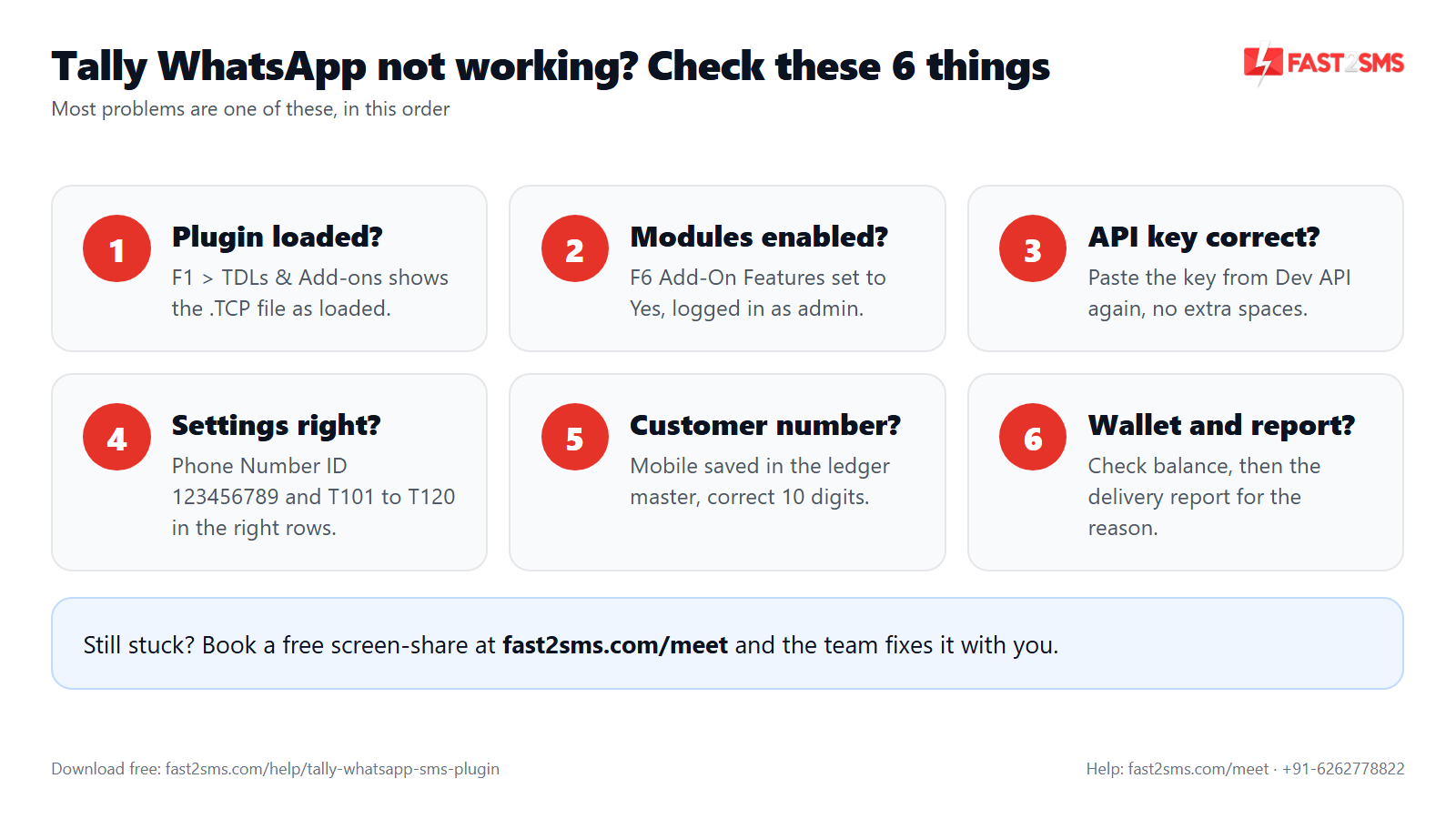
Quick diagnosis table for any Tally WhatsApp plugin error
Match what you see with the left column, then jump to the problem number below. Most people find the answer in the first three groups.
| What you see | Most likely cause | Problems |
|---|---|---|
| TCP file not listed or not loading in TDLs & Add-ons | Wrong folder, incomplete download, old copy, Tally.NET account mix-up | 1 to 5 |
| No Fast2SMS.com menu on the Gateway of Tally | Modules not set to Yes in F6: Add-On Features, or you are not the administrator | 6 to 9 |
| Nothing sends, wallet balance does not show | API key missing, pasted wrong, or from another account | 10 to 12 |
| WhatsApp fails, wrong message goes, or a send button is missing | Phone number ID or template IDs wrong, empty or in the wrong rows | 13 to 18 |
| Preview shows no number, or the wrong person gets it | Mobile number missing, badly typed or old in the ledger | 19 to 22 |
| Message arrives without the invoice PDF | Text-only template, or SMS (where the PDF is a link) | 23 to 24 |
| Tally says sent, customer says nothing came | Number not on WhatsApp, low wallet, or a failed delivery | 25 to 27 |
| Auto-send does not fire, or fires twice | Voucher type setting off, on the wrong voucher type, or on for alteration too | 28 to 29 |
| WhatsApp works but SMS does not | DLT sender ID or SMS message IDs not set correctly | 30 |
If you want the full setup from the start instead, the main Tally WhatsApp and SMS plugin guide walks through every screen in order.
Problems 1 to 5: TCP file not loading in Tally
The plugin is one .TCP file, loaded as a Local TDL from your TallyPrime folder or as an Account TDL through Tally.NET. If TallyPrime cannot read it, nothing else works, so start here.
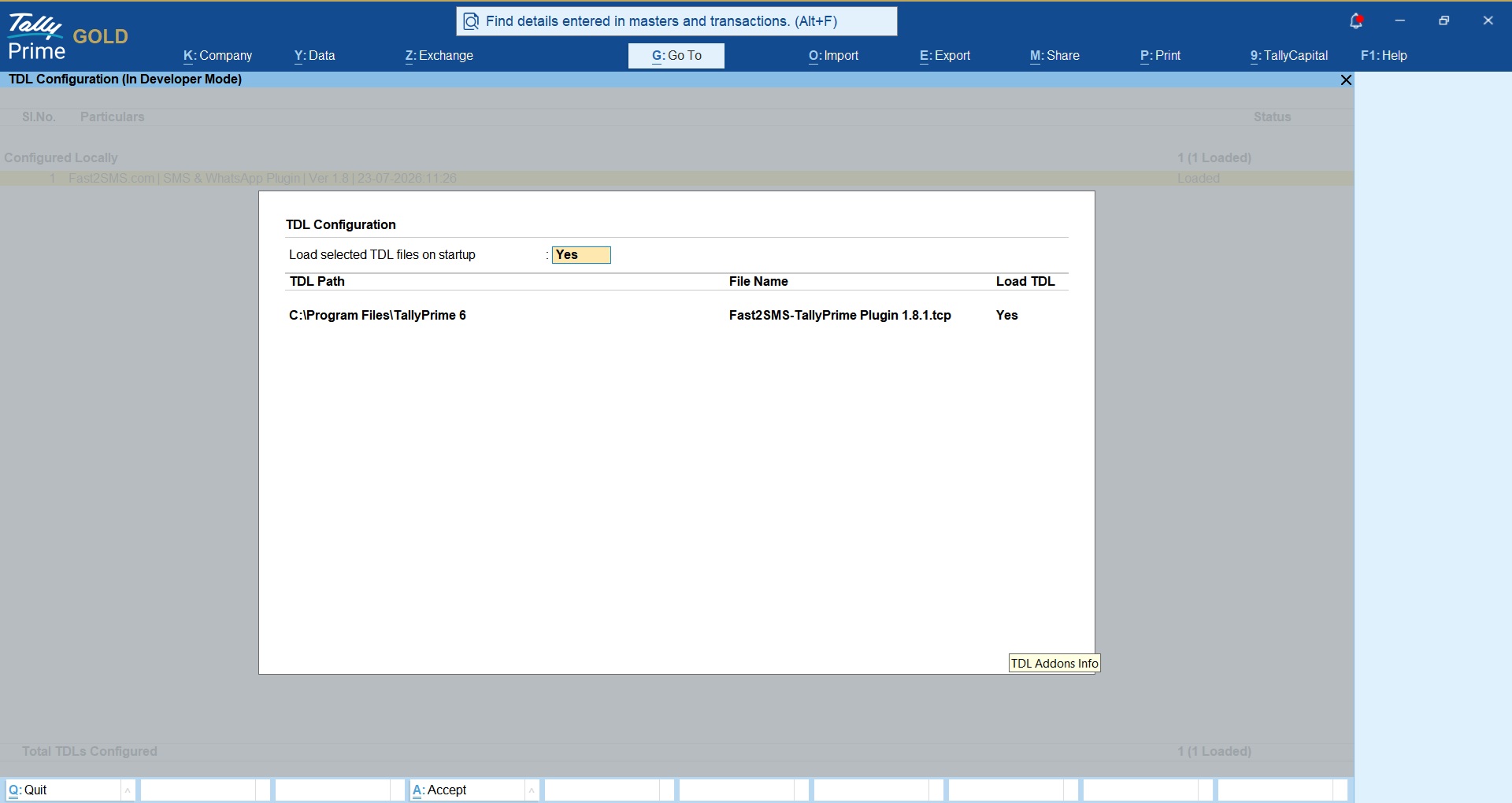
1. The TCP file does not appear in TDLs & Add-ons
Symptom: The Fast2SMS file is not in the F1: Help > TDLs & Add-ons list.
Cause: The file sits in Downloads or on the desktop, and TallyPrime was never pointed to it.
Fix: Copy the .TCP into your TallyPrime folder, add it as a Local TDL with its full path, and check it shows as loaded.
2. The download is incomplete or still zipped
Symptom: The file is listed but does not load.
Cause: The Drive download stopped halfway, or Tally was pointed at a zip instead of the .TCP inside it.
Fix: Download again from the Drive folder, extract it if zipped, and load the .TCP file itself.
3. The plugin disappears after you restart Tally
Symptom: It worked today, but tomorrow the Fast2SMS.com menu is gone.
Cause: The TDL was loaded for one session only, or the file was later moved or renamed.
Fix: Keep the .TCP in one fixed place, set it to load when TallyPrime starts in the TDL configuration, and do not move or rename it.
4. An old copy and a new copy are both loaded
Symptom: Menus look odd, settings do not save, or two Fast2SMS entries show.
Cause: A new version was added without removing the old one.
Fix: Keep only one Fast2SMS .TCP in TDLs & Add-ons, remove the old entry and restart TallyPrime.
5. The Account TDL through Tally.NET does not show
Symptom: You uploaded the .TCP to Tally.NET, but TallyPrime does not load it.
Cause: It went to a different Tally.NET account than the one linked to this licence, or TallyPrime was not restarted.
Fix: Upload it to the account linked to this licence and restart TallyPrime. On a single computer, a Local TDL is simpler.
Problems 6 to 9: Fast2SMS.com menu not showing
Loading the file is step one. Switching the modules on is step two, and until you do it the Gateway of Tally looks unchanged.
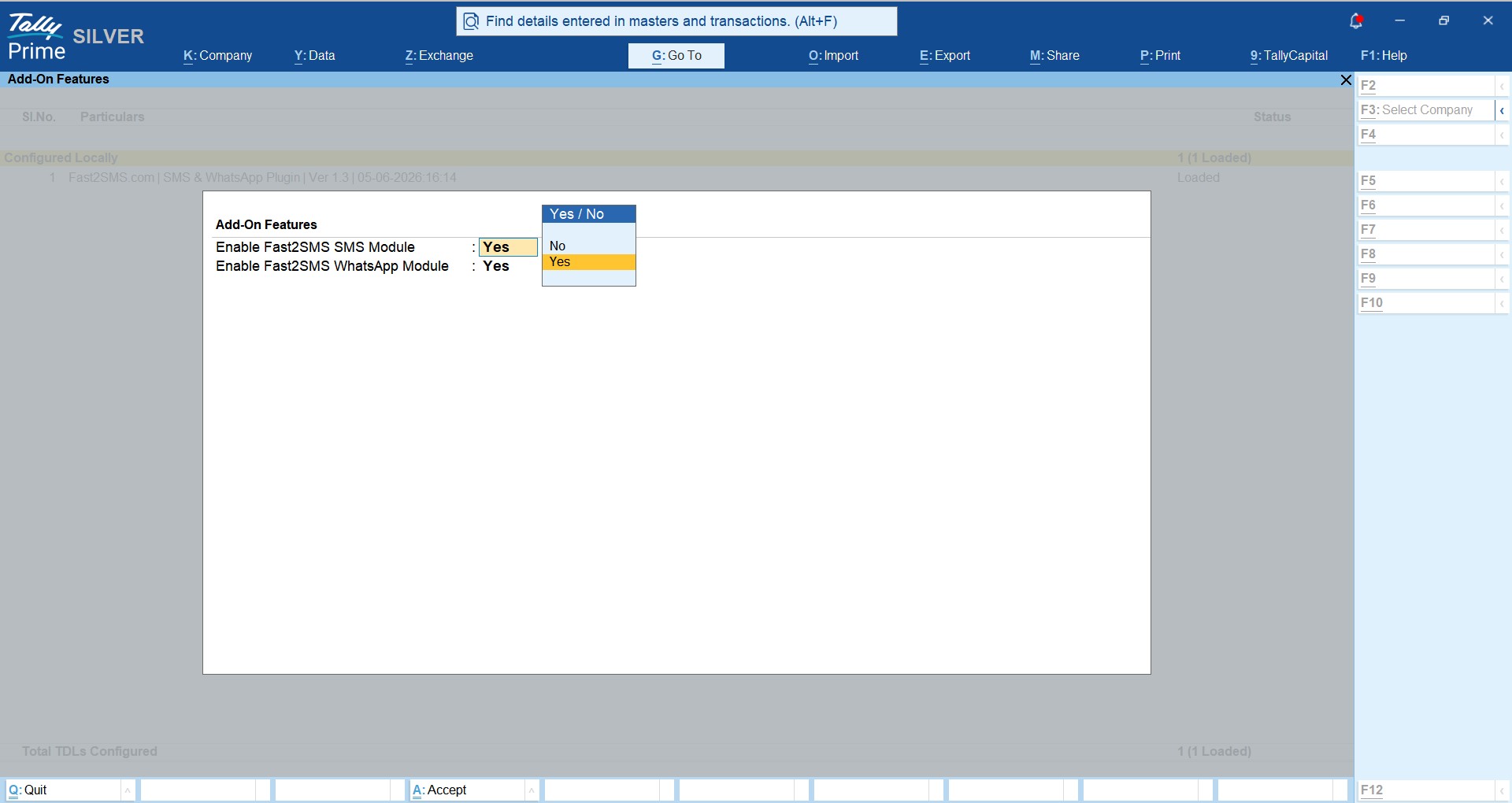
6. Modules are not enabled in F6: Add-On Features
Symptom: The TCP is loaded, but there is no Fast2SMS.com menu on the Gateway of Tally.
Cause: The SMS and WhatsApp modules are still set to No.
Fix: Open your company, press F1: Help > TDLs & Add-ons > F6: Add-On Features, set the WhatsApp module (and SMS if needed) to Yes, and save.
7. You are not logged in as the administrator
Symptom: You cannot find or change the Fast2SMS options in F6: Add-On Features.
Cause: For security, these settings are visible to the company administrator only.
Fix: Log in as the administrator, enable the modules, then return to the regular user.
8. Only the SMS menu or only the WhatsApp menu shows
Symptom: Tally to WhatsApp (or Tally to SMS) is missing inside Fast2SMS.com.
Cause: Only one module was set to Yes.
Fix: Set the missing module to Yes in F6: Add-On Features.
9. The menu shows in one company but not another
Symptom: Your main company has the menu, your second firm does not.
Cause: The modules are enabled with a company open, and the second company was never set up.
Fix: Open the second company, repeat the F6 step, and enter the API key and WhatsApp settings there too.
Problems 10 to 12: API key problems
The plugin sends through your Fast2SMS account using the API key from the Dev API section of the panel. A free account is mandatory, with ₹50 free test credit after signup.
10. The API key was pasted wrong
Symptom: Nothing sends and the wallet screen in Tally shows no balance.
Cause: Part of the key was missed, or an extra space came along.
Fix: Copy the key again in full from Dev API, clear the old value in the API Key Update screen, and paste it fresh.
11. The key in the panel has changed
Symptom: Sending worked for weeks, then stopped on every voucher at once.
Cause: The API key in your Fast2SMS account changed and Tally still holds the old one.
Fix: Paste the current key from Dev API into every computer and company that uses the plugin.
12. Wallet does not load, or balance looks wrong
Symptom: The Fast2SMS Wallet screen is blank, or the balance does not match your panel.
Cause: No internet at that moment, or the key belongs to another account, such as your CA’s.
Fix: Check the connection, then use the key of the account you actually pay into. Costs and delivery reports go to whichever account the key belongs to.
Problems 13 to 18: WhatsApp settings wrong
This group causes the most “Tally WhatsApp not working” calls. There are only two screens to fill, Tally to WhatsApp > WhatsApp API Settings and Tally to WhatsApp > WhatsApp Template Settings, and one wrong character breaks sending.
13. The phone number ID is wrong
Symptom: Every WhatsApp fails, from every voucher.
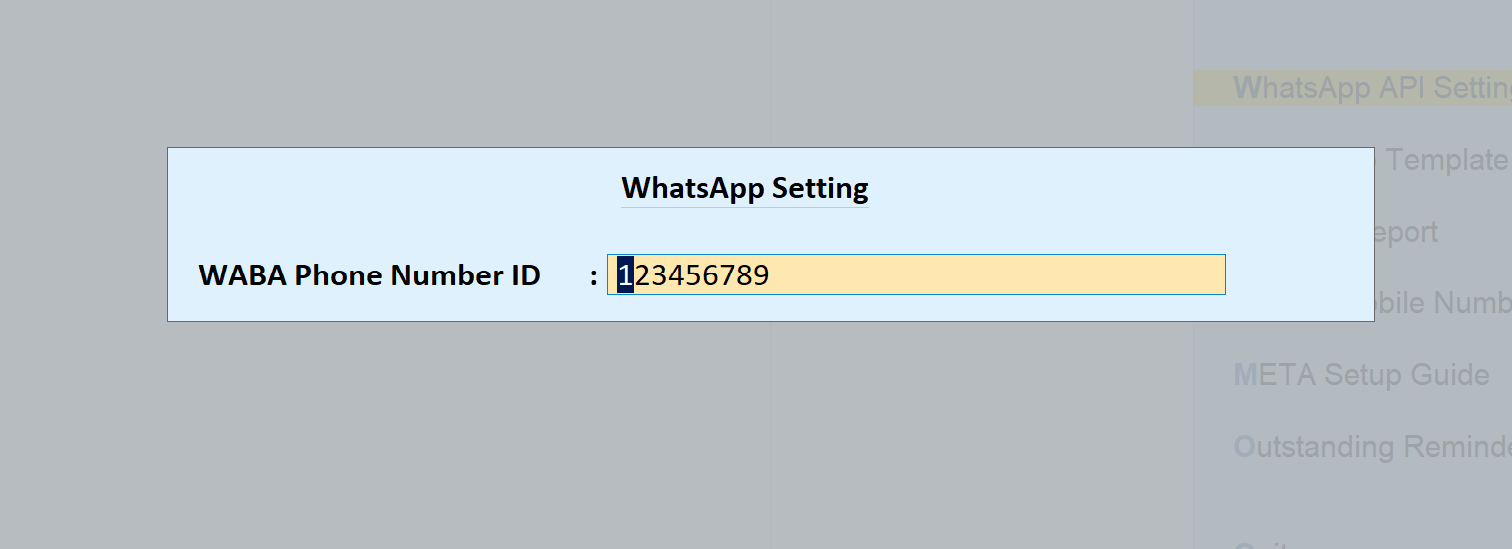
Cause: The WABA Phone Number ID has a typo or a space. For the default sender it must be exactly 123456789.
Fix: Clear the field in WhatsApp API Settings and type 123456789 again, or your own phone number ID if you have moved to your own number.
14. Your own phone number ID is mixed with the default T101-T120 IDs
Symptom: You connected your own WhatsApp number and messages stopped.
Cause: T101 to T120 only work with 123456789. Your own number needs your own approved message IDs.
Fix: Keep both halves matched: 123456789 with T101-T120, or your own phone number ID with your own IDs, never one of each. The default sender vs own brand guide explains the difference.
15. Template IDs are not typed as T101-T120
Symptom: Some vouchers send fine, others fail.
Cause: IDs typed as “T-101”, “t101” or “T 101”, or a digit dropped.
Fix: Check every row in WhatsApp Template Settings against the table below: capital T, three digits, no space or dash.
16. Template IDs are in the wrong order
Symptom: A customer gets receipt wording on a sales invoice, or a delivery note message for a sales order.
Cause: Valid IDs sit in the wrong rows. Each row is one voucher type.
Fix: Re-enter the IDs row by row from the mapping table: T101 sales with closing balance, T106 bank receipt, T107 cash receipt, and so on.
17. The WhatsApp send button is missing on a voucher
Symptom: Sales has a send button, but the receipt or credit note does not.
Cause: Buttons follow the message IDs you have entered, so an empty row means no button.
Fix: Fill that row in WhatsApp Template Settings, save and reopen the voucher.
18. Your own templates are not approved yet
Symptom: After switching to your own number, some voucher types fail.
Cause: You pressed Add Templates to META Account, but Meta has not approved every template yet.
Fix: Check template status in your Fast2SMS panel and enter only approved IDs. Until then, stay on 123456789 with T101-T120. The Meta template approval guide has all 20 templates.
Problems 19 to 22: customer number missing or wrong
Before sending, the plugin shows a preview with the message and the customer’s mobile number. If the number there is blank or wrong, fix the ledger, not the plugin.
19. The mobile number is missing in the ledger
Symptom: The preview shows no mobile number.
Cause: The customer ledger master has no number.
Fix: Add it in the ledger master, or fill many at once in Gateway of Tally > Fast2SMS.com > Tally to WhatsApp > Update Mobile Numbers > Sundry Debtors.
20. The number is in the wrong format
Symptom: The number shows in the preview, but the message fails.
Cause: Spaces, dashes or brackets, two numbers typed together, a landline, or a missing digit.
Fix: Keep one clean mobile number per ledger, digits only. If unsure, copy the style of a ledger where WhatsApp works.
21. The message goes to the wrong person
Symptom: A customer never got the invoice, and someone else did.
Cause: The ledger holds an old number, a salesman’s number, or another party’s number.
Fix: Read the number in the preview before every send, and correct the ledger master once.
22. The Excel import did not update the numbers
Symptom: You used Import Mobile Numbers, but ledgers still have no numbers.
Cause: The sheet was not in the sample file’s layout, or ledger names differ from Tally (extra spaces, “M/s” in one and not the other).
Fix: Download the sample Excel file from the Import Mobile Numbers screen, paste your data into it, and copy ledger names straight from Tally.
Problems 23 to 24: PDF not attaching
On WhatsApp the invoice PDF travels as a document inside an approved Meta template. On SMS it becomes a short link that opens in the browser.
23. The WhatsApp message arrives without a PDF
Symptom: The customer gets the text but no document.
Cause: The bank and cash receipt and payment templates (T106 to T109) are text only by design. It also happens if a receipt ID sits in a sales row, or your own template was approved without a document header.
Fix: Keep T101, T102 and T103 in the sales rows. For your own templates, use the Add Templates to META Account button, which sets up the document header where one is needed.
24. On SMS the customer gets a link, not a PDF
Symptom: The SMS shows a short link instead of an attached invoice.
Cause: This is normal. SMS cannot carry files.
Fix: Nothing to fix; one tap opens the invoice. For the file inside the chat, send on WhatsApp.
Problems 25 to 27: message sent but not delivered
“Sent” in Tally means the request left your computer. “Delivered” means it reached the phone. The Delivery Report in the plugin and the reports in your Fast2SMS panel show which happened.
25. Tally shows sent, customer says nothing came
Symptom: You saw the message sent prompt, but the customer has nothing.
Cause: Delivery failed at the phone end, or it is still on its way.
Fix: Check Tally to WhatsApp > Delivery Report or your panel. If it failed, check the number (problems 19 to 21) and resend.
26. The wallet balance is too low
Symptom: Sending stops partway through a busy day or a bulk run.
Cause: The wallet ran short. WhatsApp costs ₹0.25 per delivered utility message.
Fix: Check and recharge from the Fast2SMS Wallet screen inside Tally. Failed messages are refunded automatically within 48 hours.
27. The customer’s number is not on WhatsApp
Symptom: One customer never receives anything while everyone else does.
Cause: That number has no WhatsApp account, or the customer blocked the sender.
Fix: Ask for their WhatsApp number and update the ledger, or send the voucher by SMS with the Tally SMS plugin.
Problems 28 to 29: auto-send not firing
Auto-send is set per voucher type. Under the voucher type you get WhatsApp settings to send the moment a voucher is created or altered.
28. Auto-send does not send on save
Symptom: You save an invoice and no WhatsApp goes, though the manual button works.
Cause: The setting is off, or it is on for a different voucher type. Many businesses have more than one sales voucher type, such as one per branch, and set up only one.
Fix: Open each voucher type you actually use, turn on send on creation, and save. Also check the ledger has a number.
29. Auto-send sends again every time you edit
Symptom: A customer gets the same invoice two or three times.
Cause: Send on alteration is also on, so every correction resends it.
Fix: Keep only send on creation if you often correct invoices, and resend by button when a real change must reach the customer.
Problem 30: SMS not going when WhatsApp works
SMS in India runs under TRAI’s DLT rules, so the SMS side has two settings of its own.
30. DLT sender ID or SMS message IDs are not right
Symptom: WhatsApp works, but SMS from the same voucher fails or the SMS button is missing.
Cause: The approved DLT sender ID is missing in Tally to SMS > SMS Setting, or the message IDs in SMS Templates are missing, in the wrong rows, or not DLT-approved.
Fix: Enter your approved sender ID, then copy each approved message ID from your Fast2SMS panel into the matching row. The Tally SMS DLT templates page has copy-paste wording for all 8 SMS templates.
Start in two minutes with the ready default templates
Many Tally WhatsApp plugin errors in problems 13 to 18 disappear when you reset to the defaults, so use this section as your known-good starting point.
You do not need your own WhatsApp Business number or any Meta approval to start. Fast2SMS gives 20 ready, pre-approved templates on a default sender. After you paste your API key, make two entries:
- Tally to WhatsApp > WhatsApp API Settings: type 123456789 as the WABA Phone Number ID.
- Tally to WhatsApp > WhatsApp Template Settings: enter the message IDs T101 to T120 exactly as in the table below.
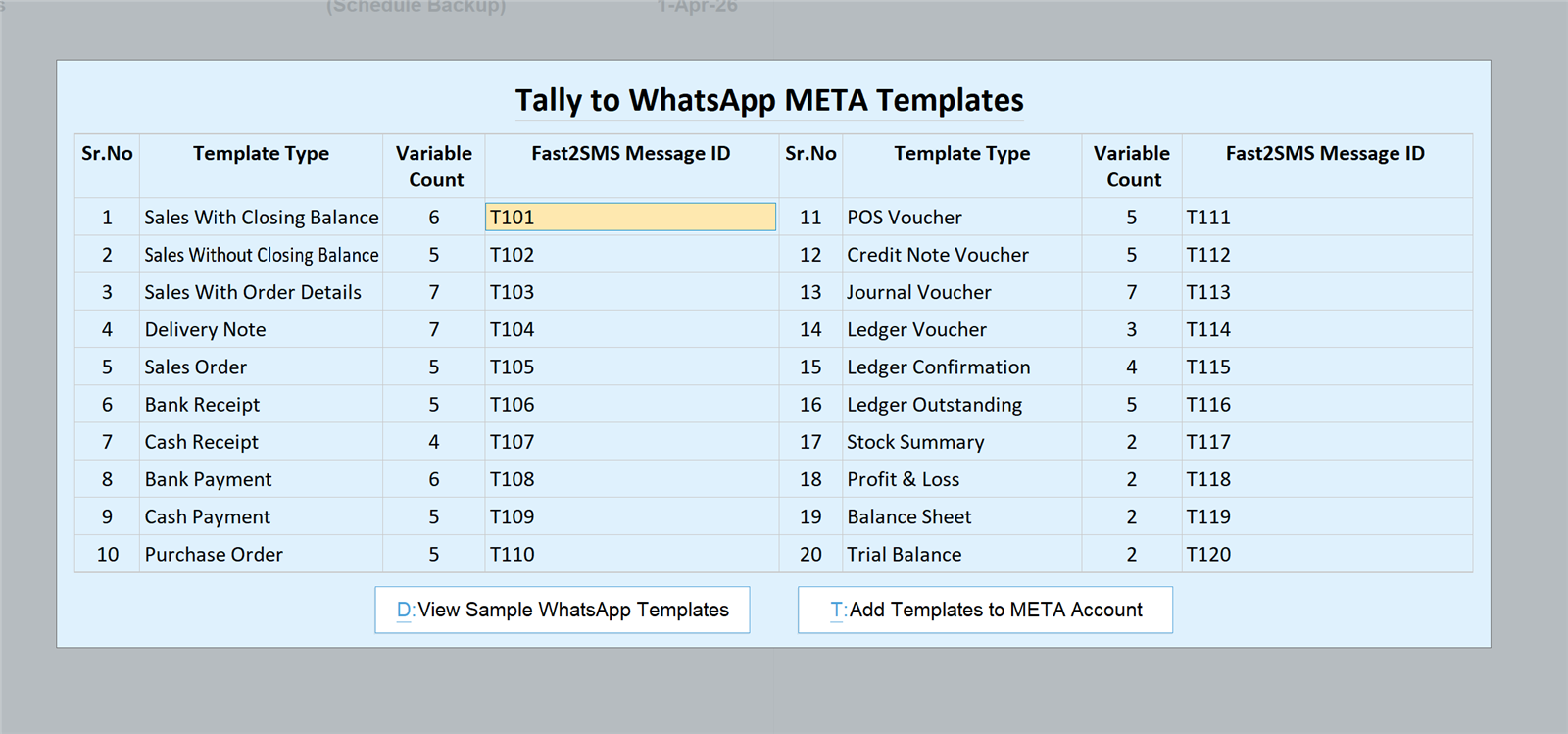
| Message ID | Use it for |
|---|---|
| T101 | Sales with closing balance |
| T102 | Sales without closing balance |
| T103 | Sales with order details |
| T104 | Delivery note |
| T105 | Sales order |
| T106 | Bank receipt |
| T107 | Cash receipt |
| T108 | Bank payment |
| T109 | Cash payment |
| T110 | Purchase order |
| T111 | POS voucher |
| T112 | Credit note |
| T113 | Journal voucher |
| T114 | Ledger voucher |
| T115 | Ledger confirmation |
| T116 | Ledger outstanding |
| T117 | Stock summary |
| T118 | Profit and loss |
| T119 | Balance sheet |
| T120 | Trial balance |
Save, and WhatsApp sending is live from the Fast2SMS default sender. Your business name appears inside every message.
Moving to your own WhatsApp number without breaking anything
When you want messages to come from your own business number, complete the Meta embedded signup from the Fast2SMS panel first. Then press “Add Templates to META Account” in the plugin so all 20 templates go to Meta for approval. Once they are approved, replace 123456789 with your own phone number ID and T101-T120 with your approved message IDs, all in one sitting so the two halves always match. Every template’s wording is on the Tally WhatsApp Meta templates page.
Need help installing the Tally plugin? Our team will do it with you, free.
Still stuck after trying the fixes above? Share your screen with our team and we will find the problem with you, whether it is the TCP file, the settings or a customer’s number. Schedule a free meeting, call +91-6262778822 or email [email protected].
Frequently asked questions
Why is my Tally WhatsApp plugin not working?
Most of the time the Tally WhatsApp plugin is not working because of one setup slip: the TCP is not loaded, modules are off in F6, the API key is wrong, or the IDs do not match. The diagnosis table at the top points you to the fix.
Why is the TCP file not loading in Tally?
A TCP file usually does not load in Tally because TallyPrime cannot find it at the given path, the download is incomplete, or you pointed Tally at the zip. Copy the .TCP into your TallyPrime folder and add that exact path in TDLs & Add-ons.
Where do I download the Tally WhatsApp plugin again?
You can download the Tally WhatsApp TDL again from the Fast2SMS Google Drive folder behind the Download Tally Plugin button on this page, which is the quickest fix for a damaged or old file.
Why is the Fast2SMS.com menu not showing on the Gateway of Tally?
The Fast2SMS.com menu stays hidden until the company administrator sets the SMS and WhatsApp modules to Yes in F1: Help > TDLs & Add-ons > F6: Add-On Features, with the company open.
Why can I not see the Fast2SMS options in F6: Add-On Features?
You cannot see the Fast2SMS options in F6: Add-On Features because, for security, they are shown only to the company administrator. Log in as the administrator, switch the modules on, and other users can then use the menu.
Does the Tally WhatsApp plugin work in Tally ERP 9?
The plugin works only in TallyPrime, and every step here is a TallyPrime screen. It does not work in Tally ERP 9, so if you are still on ERP 9, upgrade to TallyPrime first.
Do I need to set up the plugin separately for each company?
Yes, each company you run needs its own setup: open it, enable the modules in F6: Add-On Features, then enter the API key and WhatsApp settings. A company that was never set up will not show the menu.
Where do I find my Fast2SMS API key for Tally?
Your Fast2SMS API key for Tally is in the Dev API section of your panel at fast2sms.com; copy it in full and paste it into the plugin’s API Key Update screen. Signup is free and gives ₹50 test credit.
Can I use the Tally plugin without a Fast2SMS account?
No, the plugin cannot send anything without a Fast2SMS account, because every message goes through your own account’s API key and wallet. Signing up is free and takes a few minutes.
Why does my wallet balance not show inside Tally?
The wallet balance does not show inside Tally when the API key is missing or wrong, the key belongs to another Fast2SMS account, or the computer is offline. Recheck the key and connection, then reopen the Fast2SMS Wallet screen.
What phone number ID should I enter in Tally for WhatsApp?
For the default Fast2SMS sender, enter exactly 123456789 as the WABA Phone Number ID in Tally to WhatsApp > WhatsApp API Settings. After connecting your own number, enter your own phone number ID there instead.
Why did WhatsApp stop after I added my own phone number ID?
WhatsApp usually stops because your own phone number ID is still paired with T101-T120, and those default IDs only work with 123456789. Enter your own approved message IDs at the same time, or switch both back to the defaults.
What happens if I enter the template IDs in the wrong order?
If the template IDs sit in the wrong rows, customers get the wrong kind of message, such as receipt wording on a sales invoice. Re-enter T101 to T120 row by row against the mapping table in this article.
Why is the WhatsApp button missing on some vouchers?
The WhatsApp button is missing on a voucher when that voucher type’s row in WhatsApp Template Settings is empty, because the plugin only shows buttons for message IDs you have entered. Fill the row, save and reopen the voucher.
How do I check whether my own Meta templates are approved?
You can check the approval status of your own templates in your Fast2SMS panel after pressing Add Templates to META Account. Enter only approved message IDs in Tally, and keep the defaults until every template is approved.
Why is the customer mobile number blank in the preview?
The customer mobile number is blank in the preview because the customer ledger master in Tally has no mobile number saved for that party yet. Add it in the ledger, or fill many at once through Update Mobile Numbers > Sundry Debtors.
How should I type the customer mobile number in the Tally ledger?
Type one clean mobile number per ledger, digits only, with no spaces, dashes, brackets or second number, and copy the style of a ledger where WhatsApp already works. Always read the number in the preview before sending.
Why did my Excel import of mobile numbers not work?
An Excel import of mobile numbers usually fails because the sheet is not in the sample file’s layout or the ledger names do not match Tally exactly. Use the sample file from Import Mobile Numbers and copy names straight from Tally.
Why is the invoice PDF not attaching on WhatsApp?
The invoice PDF does not attach on WhatsApp when a text-only template is used, such as the receipt and payment templates T106 to T109, or when a receipt ID sits in a sales row by mistake.
Why does my customer get a link instead of a PDF by SMS?
Your customer gets a link by SMS because SMS cannot carry files, so the plugin turns the invoice PDF into a short link that opens in the browser. To send the PDF itself inside the chat, use WhatsApp.
Tally says message sent, so why did my customer not get it?
“Sent” in Tally only means the request left your computer, not that the message actually reached the customer’s phone, so check the delivery status. Check the Delivery Report in Tally to WhatsApp or your Fast2SMS panel; a failed status usually means a wrong number or no WhatsApp.
Where is the delivery report in the Tally plugin?
The WhatsApp delivery report is under Gateway of Tally > Fast2SMS.com > Tally to WhatsApp > Delivery Report, with a separate one under Tally to SMS. Full logs are also in your Fast2SMS panel.
Am I charged for WhatsApp messages that fail?
No, you are charged only for delivered WhatsApp messages, at ₹0.25 per utility message, and failed messages are refunded to your Fast2SMS wallet automatically within 48 hours.
Why is auto-send not working when I save a voucher?
Auto-send does not work on save when the send-on-creation setting is off for that voucher type, or is switched on for a different voucher type than the one you use. Turn it on under each voucher type you want automated.
Why does my customer get the same invoice twice?
Your customer gets the same invoice twice because send on alteration is also switched on, so every edit to the voucher resends the message. Keep only send on creation if you often correct invoices after saving.
Why does SMS fail from Tally when WhatsApp works?
SMS fails while WhatsApp works when the DLT sender ID is missing in SMS Setting, or the SMS message IDs are wrong or not approved. SMS in India needs DLT registration; WhatsApp does not.
Do I need DLT registration for WhatsApp from Tally?
No, sending WhatsApp from Tally does not need DLT registration, because TRAI’s DLT rules apply only to SMS sent in India. With the default T101-T120 templates there is nothing for you to get approved either.
Does my phone need to stay on for the Tally WhatsApp plugin to work?
No, your phone does not need to stay on and there is no QR code to scan, because the plugin uses the official WhatsApp Business API. See Tally to WhatsApp without QR.
Is the Tally WhatsApp plugin really free, even for support?
Yes, the plugin is free with no licence fee, renewal, setup or monthly charge, and setup help from the Fast2SMS team is free too. You pay only per message from your Fast2SMS wallet.
Who can help me if my Tally WhatsApp problem is still not solved?
The Fast2SMS team will help you free over a screen share if your Tally WhatsApp problem is still not solved. Book at fast2sms.com/meet, call +91-6262778822, or email [email protected].
Get your Tally WhatsApp sending again
Work down the diagnosis table, fix one thing at a time, and test with a single voucher before you send in bulk. Once your TallyPrime WhatsApp plugin is sending again, you can send invoice on WhatsApp from Tally with one button, or let auto-send do it on save. When everything is set, the send invoice on WhatsApp from Tally guide and the payment reminder guide show how to get the most from it. Questions about the API itself are answered in the WhatsApp Business API India FAQ.
Download Tally PluginSignup Now
Help with the Tally plugin: schedule a free meeting · [email protected] · +91-6262778822