
WhatsApp Business API in India: The Complete FAQ (100+ Answers)
This FAQ is for Indian businesses that want to use WhatsApp properly: shops, D2C brands, clinics, schools, coaching centres, CA firms and app teams. Maybe you have outgrown the free WhatsApp Business app, or a vendor quoted you a WhatsApp API price and you are not sure what you are paying for. Either way, this page is written for you.
You will find plain answers to more than 100 real questions: how to get access, what each message costs, how templates and the 24-hour window work, how to protect your quality rating, how the green tick works and how to pick a provider. Every answer starts with the short version first, then adds the detail you need to act on it.
Signup NowSchedule Free Meeting
Quick answers
- The WhatsApp Business API lets you message many customers from software, with templates, chatbots, webhooks and a shared team inbox. The free app is for one phone and manual chats.
- On Fast2SMS there is no setup fee, no monthly fee and no per-number fee. You pay only per message from a prepaid wallet.
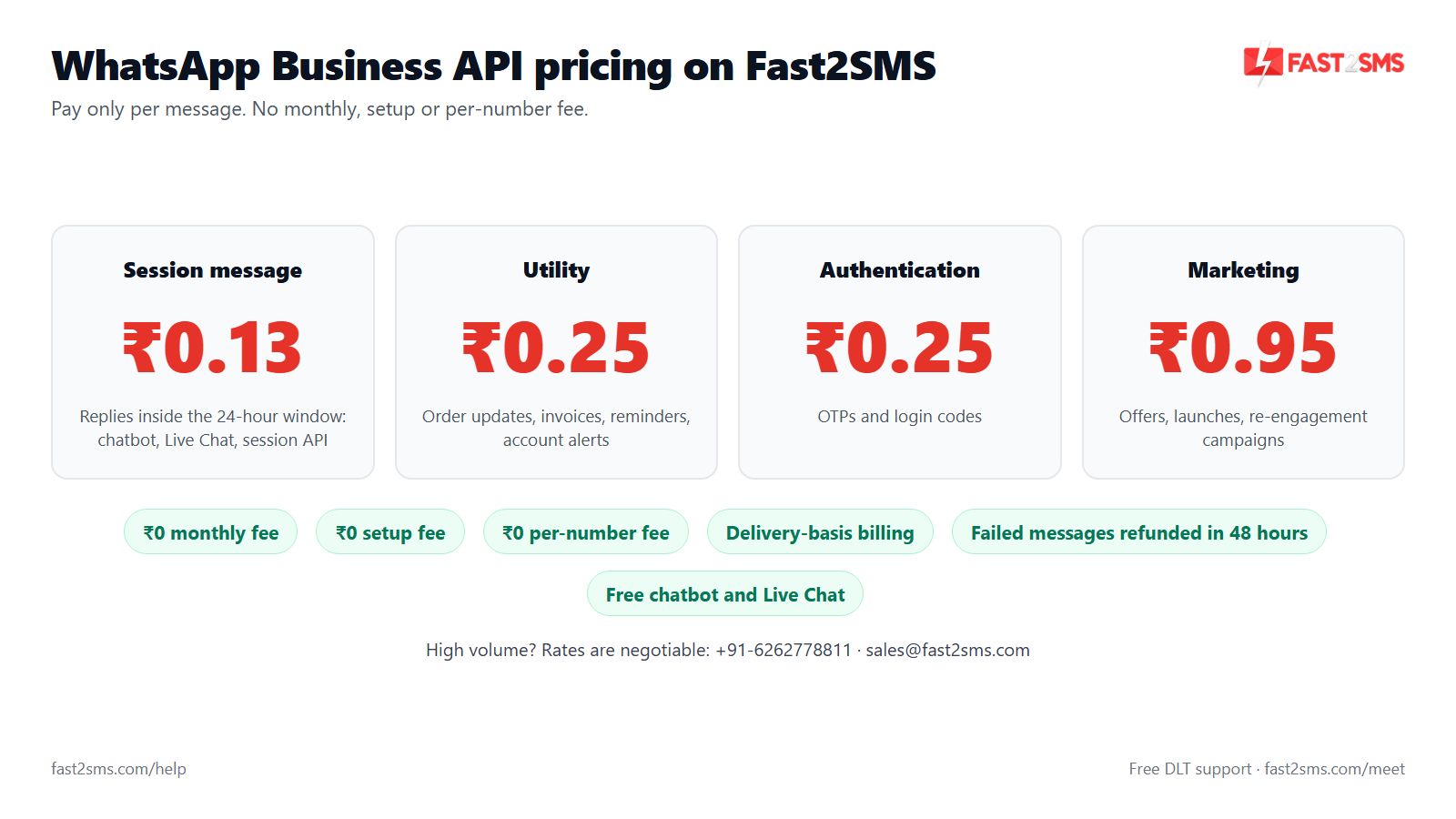
- Fast2SMS rates: session message ₹0.13, utility and authentication templates ₹0.25, marketing templates ₹0.95.
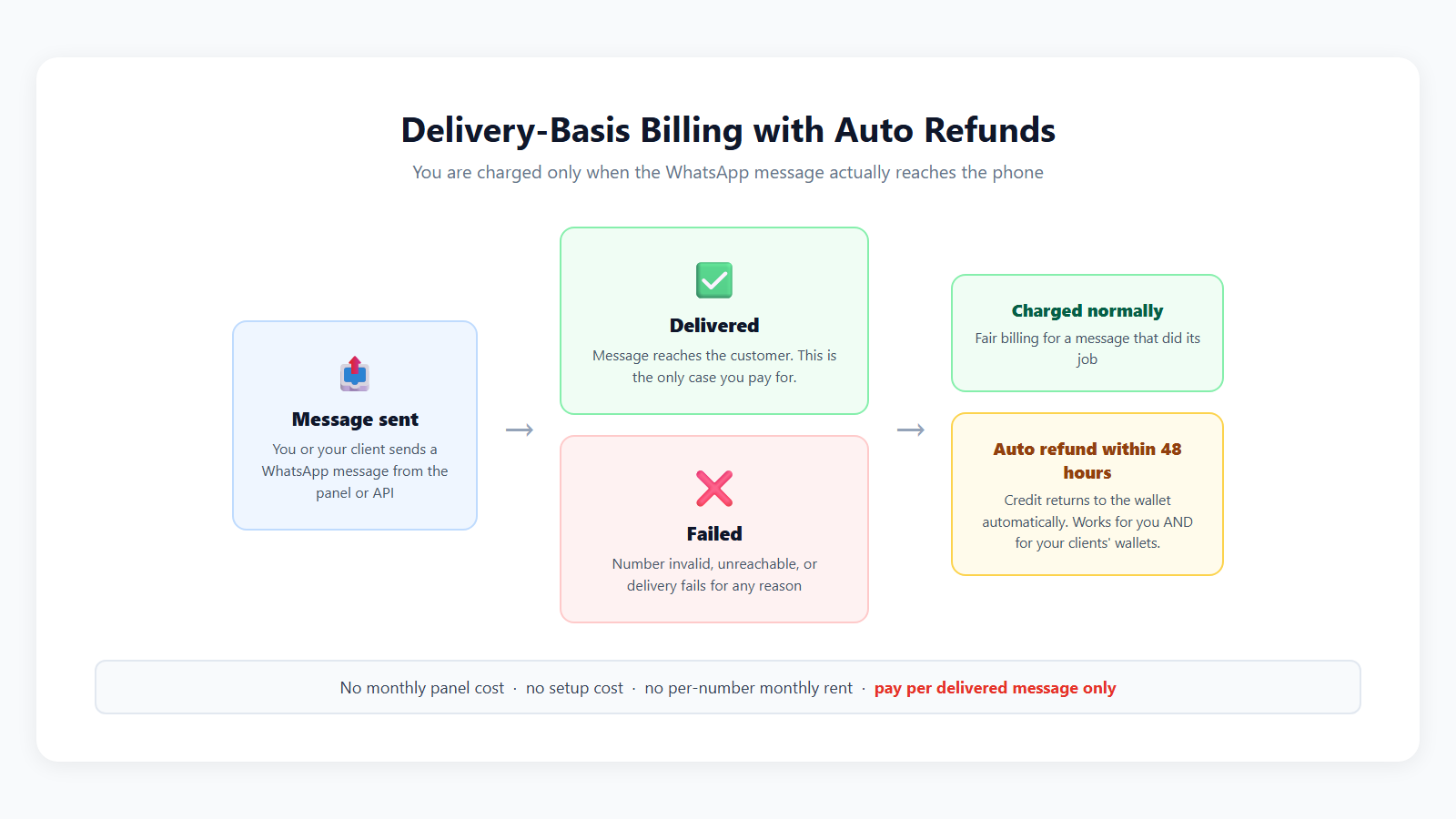
- You are billed only for delivered messages. Failed WhatsApp messages are refunded automatically within 48 hours.
- Any message you start must use a template approved by Meta. Review usually takes minutes and can take up to 24 hours.
- When a customer messages you, a 24-hour window opens in which you can reply freely with session messages.
- The green tick (Official Business Account) depends on your brand’s notability. No provider can guarantee it.
In this guide
- Basics: WhatsApp Business app vs WhatsApp Business API
- Getting access, embedded signup and phone numbers
- Pricing and billing
- Templates and categories
- The 24-hour window and session messages
- Messaging limits, quality rating and green tick
- Chatbot, Live Chat, webhooks and API
- Policies, opt-in and avoiding bans
- Integrations: WordPress, Shopify, Tally and CleverTap
- Choosing a WhatsApp API provider
- Wrap-up
Basics: WhatsApp Business app vs WhatsApp Business API
WhatsApp gives businesses two different tools. The WhatsApp Business app is a free phone app for small teams who reply by hand. The WhatsApp Business API, which Meta now runs as the Cloud API, is for sending messages from software: order updates, OTPs, reminders, campaigns, chatbots and a shared inbox for many agents. The table below shows the practical differences.
| Point | WhatsApp Business app | WhatsApp Business API |
|---|---|---|
| Best for | Small shops and solo owners chatting by hand | Businesses sending updates, OTPs and campaigns at volume |
| How you use it | Phone app plus a few linked devices | Provider dashboard, team inbox and REST API |
| Team access | Limited, everyone shares one login | Many agents on one number, each with their own login |
| Bulk messaging | Broadcast lists, only reach people who saved your number | Approved templates to any opted-in customer, within your messaging limit |
| Automation | Greeting, away message and quick replies | Chatbots, triggers from your website, app, CRM or billing software |
| Delivery reports | Ticks inside the app only | Sent, delivered, read and failed status through webhooks and reports |
| Green tick | Not available through the app | Official Business Account can be requested, subject to notability |
| Cost | Free app | Pay per message (on Fast2SMS no setup, monthly or per-number fee) |
What is the WhatsApp Business API?
The WhatsApp Business API is Meta’s official way for businesses to send and receive WhatsApp messages through software instead of a phone, so you can automate updates, run chatbots and let a whole team reply from one number. You do not install it like an app. You connect your number through a provider or directly to Meta, and then send messages from a dashboard or from your own code.
What is the difference between the WhatsApp Business app and the WhatsApp Business API?
The app is a free phone app for replying to customers by hand, while the API is a connection for software that lets you send approved templates at scale, automate replies and give many agents access to one number. If you send fewer than a handful of messages a day and only reply to people who message you, the app is often enough. Once you need order updates, OTPs, campaigns or a team inbox, you need the API.
What is the WhatsApp Cloud API?
The WhatsApp Cloud API is the version of the WhatsApp Business API that Meta hosts on its own servers, so neither you nor your provider needs to run WhatsApp software on a private server. It is what most providers use today. For you, it means faster setup, updates handled by Meta and no server to maintain. You can read more in our guide to getting WhatsApp Cloud API access with no monthly or setup fee.
Is the WhatsApp Cloud API the same as the WhatsApp Business API?
Yes, for practical purposes they are the same thing: the Cloud API is the current, Meta-hosted form of the WhatsApp Business API, and people use both names for it. When a provider says “WhatsApp API”, “WhatsApp Business API” or “WhatsApp Cloud API”, they almost always mean the same product. The rules on templates, the 24-hour window, quality rating and pricing categories apply in the same way.
Do I need a provider to use the WhatsApp Business API?
You do not strictly need one, because Meta lets developers connect to the Cloud API directly, but without a provider you must build your own inbox, template manager, contact lists, reports and billing setup. Most businesses use a provider because they get a ready dashboard, chatbot builder, team inbox and plugins on day one. A developer-heavy company with time to spare can go direct; a shop or clinic usually should not.
Who should use the WhatsApp Business API instead of the app?
Use the API if you send order or appointment updates, OTPs, payment reminders or offers to many customers, or if more than one or two people need to answer chats on the same number. Typical examples are a D2C brand sending shipping updates, a clinic sending appointment reminders, a school sending fee alerts to parents and an app sending login OTPs. A single tailor or kirana shop replying to regulars can stay on the app.
Can I use the WhatsApp Business API without coding?
Yes, you can use the WhatsApp Business API without writing any code if your provider gives you a dashboard for templates, campaigns, a chatbot builder and a live chat inbox. You upload contacts from Excel or CSV, pick an approved template and send. Coding is only needed if you want your own website, app or software to trigger messages automatically, and even then plugins for WordPress, Shopify and TallyPrime remove most of that work.
Is there an app or dashboard to chat with customers on the WhatsApp API?
The WhatsApp API itself has no chat screen, so you reply to customers through your provider’s web dashboard, usually called a live chat or team inbox, which works on a laptop or phone browser. Providers usually call this the Live Chat inbox, where agents see every conversation, reply, add notes and pick up chats handed over by the chatbot. You do not use the normal WhatsApp app on a phone for API conversations.
Can I send bulk WhatsApp messages with the API?
Yes, the API is the official way to send bulk WhatsApp messages, as long as every message uses an approved template and goes only to customers who have opted in to hear from you. How many unique customers you can reach per day depends on your messaging limit, which grows as your quality stays good. Our guide on how to send bulk WhatsApp messages walks through the steps.
Do WhatsApp messages need DLT registration like SMS?
No, WhatsApp messages do not need TRAI DLT registration, because DLT covers commercial SMS and calls sent over telecom networks, while WhatsApp messages are governed by Meta’s own template approval and policies. So you do not need a DLT header or DLT template for WhatsApp. If you also send SMS, that part still needs DLT, and our beginner’s guide to DLT explains it.
Getting access, embedded signup and phone numbers
Getting on the WhatsApp Business API is much quicker than it used to be. With embedded signup you log in with Facebook, create or pick your Meta business, add a phone number and verify it with an OTP, all inside your provider’s dashboard. The questions below cover documents, timelines, which numbers you can use and how to move a number from another provider.
How do I get WhatsApp Business API access in India?
Sign up with a WhatsApp API provider, open its WhatsApp section and complete embedded signup, which links your Meta business account, creates your WhatsApp Business Account and verifies your phone number with an OTP. After that you create templates, wait for Meta’s approval and start sending. On Fast2SMS you can sign up free, get ₹50 test credit and connect your number the same day.
What documents do I need for the WhatsApp Business API?
To start, you usually need only a Facebook login, your business name, a working website or business page, and a phone number that can receive an OTP; documents come in later for Meta business verification. For verification, Meta asks for papers that show your legal business name and address, such as a GST certificate, a registration or incorporation certificate, or a utility bill in the business name. Make sure the name on the document matches the name you enter.
What is embedded signup for WhatsApp?
Embedded signup is Meta’s in-built onboarding flow that runs inside your provider’s dashboard, where you log in with Facebook, pick or create your business, set a display name and verify your number in a few minutes. It replaced the old process of emails, forms and waiting for manual setup. Nothing is installed on your phone. When the flow finishes, your number appears in the dashboard ready for templates.
How long does it take to get the WhatsApp Business API?
Connecting a number through embedded signup takes a few minutes, and your first templates are usually approved by Meta within minutes, though a review can take up to 24 hours. Meta business verification and display name review run on Meta’s side and can take longer, so start them early. In practice, many businesses send their first live message on the same day they sign up.
Do I need Meta business verification before I start sending?
You can usually connect a number and start sending at a starter messaging limit before business verification, but verification is needed to move to higher limits and to be considered for a green tick. So verify as soon as you can, even if your first campaign is small. Keep your website live and your business details consistent, because mismatched names are a common reason verification gets stuck.
Can I use my existing WhatsApp number for the API?
Yes, an existing WhatsApp Business app number can be connected to the API through embedded signup, so customers keep messaging the number they already know. If the number is on personal WhatsApp, you would first need to move it to the Business app or delete that WhatsApp account before connecting it. Take a backup of important chats before you start, and keep the SIM or landline handy for the OTP.
Can I use the same number on the WhatsApp Business app and the API?
Meta now lets many existing WhatsApp Business app numbers be connected to the API while you keep using the app on your phone, but the two do not behave identically and some app features change once the API is linked. Earlier, a number could run on only one of them at a time. Because this depends on how the number is onboarded, confirm the exact behaviour with your provider before you connect a number your staff use every day.
Can I use a landline or toll-free number for the WhatsApp API?
Yes, you can use a landline or toll-free number for the WhatsApp API as long as it can receive the verification code, and landlines normally verify by choosing the voice call option instead of SMS. Many clinics and offices use their main landline this way so customers see a familiar number. The number must not already be active on another WhatsApp account at the time you connect it.
Can I connect more than one phone number to the WhatsApp API?
Yes, one Meta business can connect several phone numbers, for example one for sales, one for support and one for each branch, and each number has its own display name, quality rating and messaging limit. On Fast2SMS there is no per-number fee, so adding a second number costs nothing extra; you only pay for messages. Each number, however, can belong to only one WhatsApp Business Account at a time.
How do I move my WhatsApp API number from another provider?
Meta supports moving a number from one provider to another: you remove or turn off two-step verification with the old provider, then connect the same number through the new provider’s embedded signup. Your display name and account history normally stay with the number, but check whether templates need to be re-created on the new account. Plan the switch during a quiet hour, since there may be a short gap in sending while it completes.
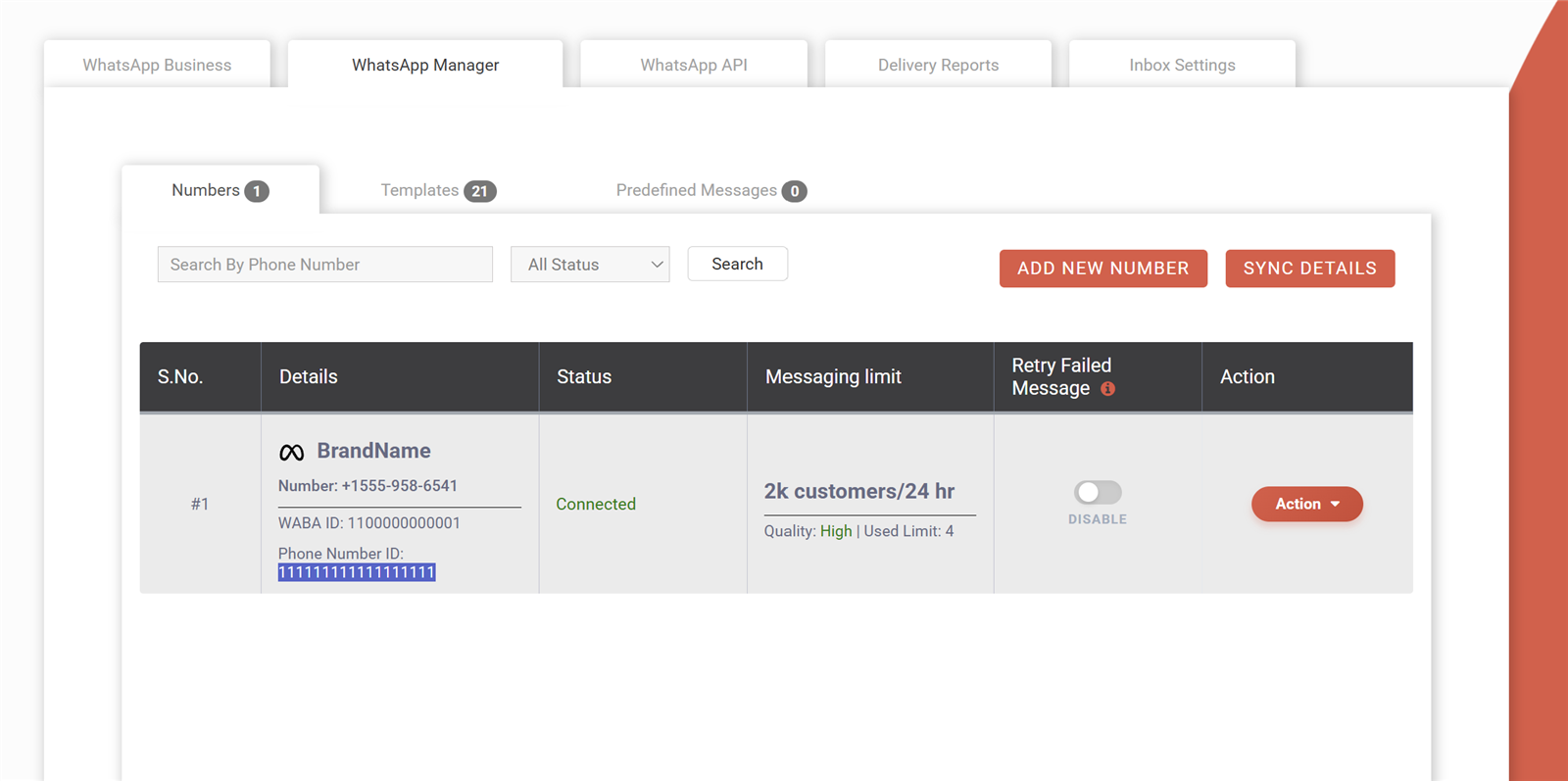
What is a phone number ID in the WhatsApp API?
A phone number ID is the unique ID Meta gives to each number connected to the WhatsApp API, and your code or plugin uses it to tell Meta which number should send a message. It is not the phone number itself. You find it in WhatsApp Manager or your provider’s dashboard next to the number, along with its quality rating and messaging limit, as the screenshot below shows.
What is a WABA (WhatsApp Business Account)?
A WABA, or WhatsApp Business Account, is the account inside your Meta business that holds your WhatsApp phone numbers, message templates and settings, and it is created automatically during embedded signup. Think of it as a folder: the Meta business is the company, the WABA is its WhatsApp setup and each phone number sits inside it. Templates are approved at the WABA level, so every number in that WABA can use them.
Pricing and billing
WhatsApp API pricing is per message, and the price depends on the type of message. Replies inside the 24-hour customer window are session messages, the cheapest type. Templates you start yourself are priced by category: utility and authentication cost less, marketing costs more. On Fast2SMS there is no setup fee, no monthly fee and no per-number fee, and you pay only for messages that are delivered.
| Message type | When it is used | Fast2SMS price |
|---|---|---|
| Session message | Replies inside the 24-hour customer window: chatbot, Live Chat and session API | ₹0.13 per message |
| Utility template | Order confirmations, shipping updates, appointment and payment reminders | ₹0.25 per message |
| Authentication template | OTPs for login, signup and verification | ₹0.25 per message |
| Marketing template | Offers, launches, festive sales, abandoned-cart nudges, re-engagement | ₹0.95 per message |
| Setup, monthly and per-number fees | Account setup, platform access, extra numbers | ₹0 (none) |
| High volume | Large monthly sending | Negotiable with the sales team |
How much does the WhatsApp Business API cost in India?
WhatsApp Business API cost in India depends on the message type: on Fast2SMS a session message is ₹0.13, a utility or authentication template is ₹0.25 and a marketing template is ₹0.95, with no setup, monthly or per-number fee. So your bill is simply the number of delivered messages of each type multiplied by its rate. For a deeper breakdown of session pricing, see our WhatsApp session message pricing guide.
Is the WhatsApp Business API free?
Access to the WhatsApp Business API can be free, meaning no setup or monthly fee with some providers, but the messages themselves are always paid, because Meta charges for them and so do providers. What you can get free is the setup, the dashboard, the chatbot builder, the Live Chat inbox and a small test credit. Be careful with any “free WhatsApp API” offer that turns out to be an unofficial tool, as those put your number at risk of a ban.
What is a session message and how much does it cost?
A session message is any reply you send inside the 24-hour window that opens when a customer messages you, whether it comes from your chatbot, an agent in Live Chat or your own code through the session API. On Fast2SMS each session message costs ₹0.13. Session messages can be free-form text, images, documents or interactive buttons, and they do not need a pre-approved template. Meta changed these service messages from free to paid, which is why they carry a price.
What is the difference between utility, authentication and marketing pricing?
Utility templates are transactional updates the customer expects, authentication templates carry one-time passwords, and marketing templates promote something; utility and authentication cost ₹0.25 each on Fast2SMS, while marketing costs ₹0.95. The category is decided when Meta approves your template, not when you send it. Keep promotional lines out of utility templates, because Meta can move such a template to marketing and you will then pay the marketing rate.
Why are marketing messages more expensive than utility messages?
Marketing messages cost more because Meta itself prices promotional messages higher than transactional ones, to protect users from spam and to keep WhatsApp inboxes useful, and providers pass that difference on. A shipping update is something the customer is waiting for; a sale offer is not. The higher price nudges businesses to send fewer, better targeted campaigns, which also protects your quality rating.
Are there any setup, monthly or per-number fees on Fast2SMS?
No, Fast2SMS charges no setup fee, no monthly fee and no per-number fee on WhatsApp or any other channel; you only pay for the messages you send, from a prepaid wallet. That means a quiet month costs you nothing. The chatbot builder and Live Chat inbox are also free, so there is no separate platform charge for using them.
Do I pay for WhatsApp messages that fail?
No, on Fast2SMS you do not pay for WhatsApp messages that fail, because billing is on a delivery basis and the amount for any failed message is refunded to your wallet automatically within 48 hours. You do not need to raise a ticket or claim it. Common reasons for failure are numbers not on WhatsApp, wrong number formats and Meta’s per-user marketing limits.
Am I charged when a WhatsApp message is delivered or when it is read?
You are charged when the message is delivered to the customer’s phone, not when they open or read it, so a delivered message counts even if the customer never taps on it. Read status is still useful for your reports, because it tells you how many people actually saw the message. If a message never reaches the phone, it is treated as failed and refunded.
How do I pay for WhatsApp messages?
You pay for WhatsApp messages by adding money to a prepaid wallet in your provider account, and each delivered message is deducted from that balance at its rate. There is no postpaid bill or contract. Keep an eye on the wallet before a big campaign, because sending stops when the balance runs out, and set up a habit of topping up a little before festive peaks.
Can I try the WhatsApp Business API for free?
Yes, when you sign up on Fast2SMS you get ₹50 of free test credit, which is enough to connect your number, get a template approved and send real test messages to your own team before you spend anything. Use the trial to check how templates look on a phone, how the chatbot behaves and whether your webhooks receive delivery reports. You can create a free account here.
Can I get lower WhatsApp rates for high volume?
Yes, businesses that send large volumes every month can negotiate rates directly with the sales team, since the standard per-message prices are the starting point, not the only option. Have your expected monthly numbers ready, split by marketing, utility, authentication and session messages, because each category is priced separately. You can call +91-6262778811 or email [email protected].
How do I estimate my monthly WhatsApp API bill?
Estimate your bill by counting how many messages of each type you expect in a month and multiplying each count by its rate, then adding the results together. For example, 2,000 order updates at ₹0.25 is ₹500, 1,000 marketing messages at ₹0.95 is ₹950 and 3,000 chatbot or agent replies at ₹0.13 is ₹390, so the total is ₹1,840. With no monthly fee, this is the full cost.
Do I pay extra for the WhatsApp chatbot or Live Chat inbox?
No, on Fast2SMS the WhatsApp chatbot builder and the Live Chat inbox are both free, so you pay only for the replies they send, which are session messages at ₹0.13 each inside the 24-hour window. There is no per-agent seat fee either. This makes it practical for a small clinic or shop to let several staff members answer chats without adding a monthly software cost.
Is it worth sending OTPs on WhatsApp instead of SMS?
For many apps and websites it is worth it, because WhatsApp OTPs arrive with your business name and a copy-code button, cost ₹0.25 as authentication templates on Fast2SMS, and can fall back to SMS if the user is not on WhatsApp. The fallback matters, since not every number uses WhatsApp. Our guide to Smart OTP with WhatsApp and SMS fallback shows how the two channels work together.
Templates and categories
A template is a message format you submit to Meta for approval before you can use it to start a conversation. Every template belongs to one of three categories: Marketing, Utility or Authentication. The category decides the price and the rules on what the message may contain. Most rejections come from a few simple mistakes, covered below.
What is a WhatsApp message template?
A WhatsApp message template is a pre-written message format, approved by Meta, that you must use whenever you start a conversation with a customer or message them after the 24-hour window has closed. It can contain variables such as a name or order number, a header with an image, video or document, a footer and buttons. Once approved, you can send it to any opted-in customer as many times as your limit allows.
What are the three WhatsApp template categories?
The three WhatsApp template categories are Marketing for promotions and offers, Utility for updates about an existing order, booking or account, and Authentication for one-time passwords used to verify a user. You choose a category when you create the template, and Meta checks it during review. A “your order has shipped” message is utility, a “20% off this weekend” message is marketing and a “your login code is 482913” message is authentication.
How long does WhatsApp template approval take?
Most WhatsApp templates are reviewed by Meta within a few minutes, though a review can take up to 24 hours, especially when the content needs a closer look. You see the status as pending, approved or rejected in your dashboard. If a template has not moved after a full day, check that it is not stuck because of a policy flag, and consider submitting a clearer version.
Why was my WhatsApp template rejected?
Templates are usually rejected because the category does not match the content, the variables are unclear or missing sample values, the text starts or ends with a variable, or the content breaks Meta’s commerce or messaging policies. Other common causes are spelling mistakes in variable brackets, vague messages with no context, and threatening or misleading wording. Fix the specific problem, make the message clear to a stranger reading it, and resubmit.
Can Meta change the category of my WhatsApp template?
Yes, Meta can change a template’s category, most often moving a utility template to marketing when it contains promotional content such as discounts, offers or product suggestions. When that happens, the marketing rate applies to every message sent with it. The fix is to keep utility templates strictly about the customer’s order, booking or account, and create a separate marketing template for promotions.
How do I add variables to a WhatsApp template?
You add variables by typing numbered placeholders such as {{1}} and {{2}} in the template body, then giving a sample value for each one so Meta can see how the real message will read. For example: “Hi {{1}}, your order {{2}} has been shipped.” with samples “Riya” and “ORD1023”. When you send, your dashboard, plugin or API fills each placeholder with real data for that customer.
Can I add images, videos, PDFs or buttons to a WhatsApp template?
Yes, a template can have a media header with an image, video or document such as a PDF invoice, and it can carry buttons like quick replies, a website link or a call button. Media headers work well for product launches, e-tickets and bills. Quick reply buttons such as “Confirm” or “Reschedule” make it easy for customers to respond, and each tap opens the 24-hour window for your follow-up.
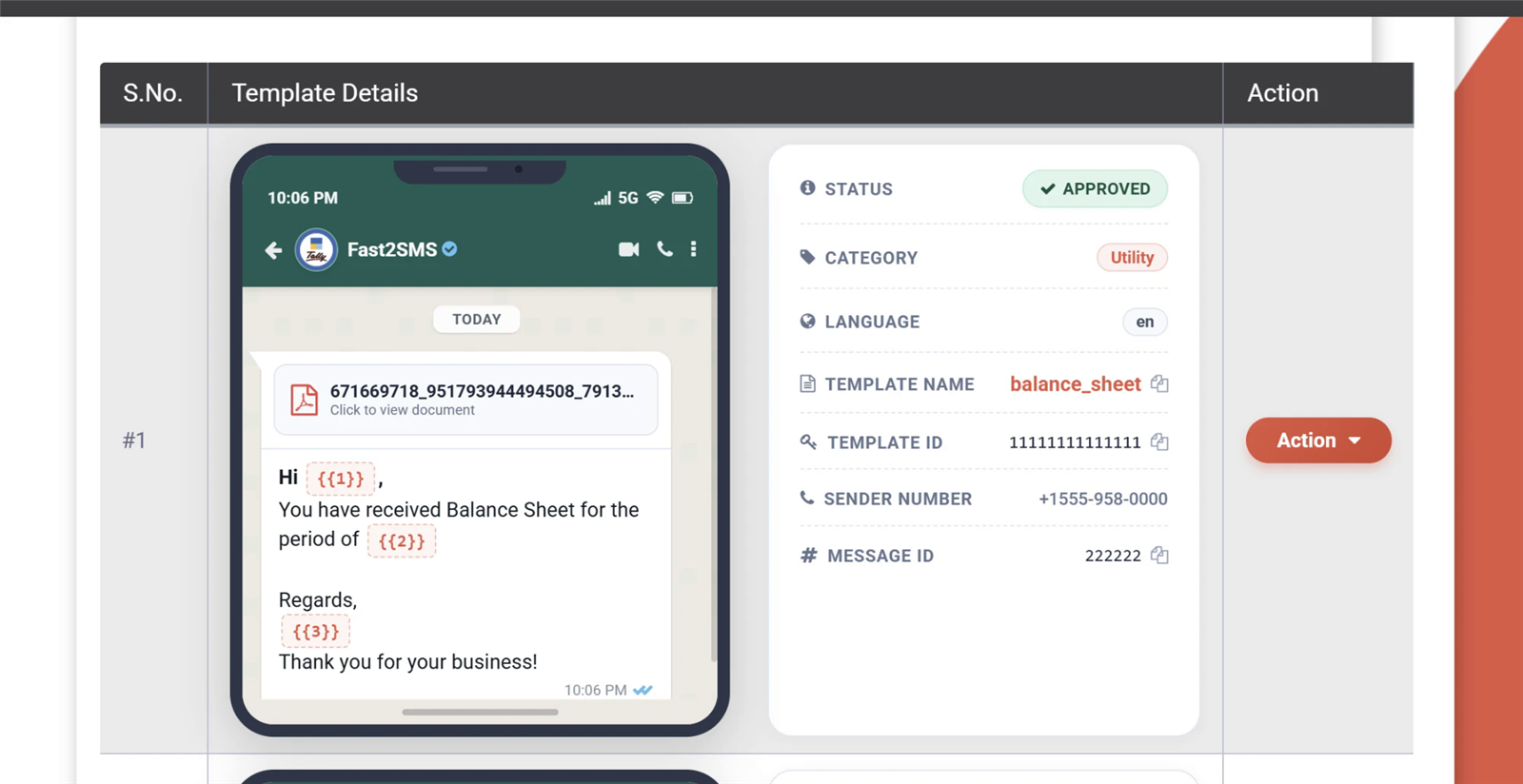
Where do I find the template name and ID in WhatsApp Manager?
You find the template name, language, category, status and template ID on the template’s card in WhatsApp Manager or in your provider’s template section, and your code or plugin uses the name and language to send it. Copy the name exactly as approved, since a small spelling difference will make the send fail. The screenshot below shows an approved template card with these details.
Can I edit a WhatsApp template after it is approved?
You can edit an approved template only in a limited way, and every edit goes back to Meta for review, so the template may be unavailable or restricted until the new version is approved. For anything more than a small correction, it is usually simpler to create a new template with a new name. Keep old templates until integrations that use them have been switched, so nothing breaks mid-campaign.
Can I send the same WhatsApp template in Hindi and English?
Yes, one template name can have several language versions, such as English, Hindi, Marathi or Tamil, and each language version is reviewed and approved by Meta separately. When sending, you choose the language code along with the template name. This is handy for businesses serving customers across states, since a parent in Pune and a parent in Chennai can get the same fee reminder in their own language.
What can an authentication template contain?
An authentication template can contain only a one-time password and a short fixed message around it, optionally with a copy-code button and a note on when the code expires; it cannot include links, media or promotional text. Meta keeps this format strict so OTP messages stay short and trusted. If you want to add an offer, send it separately as a marketing template instead of mixing it into the OTP.
Is a WhatsApp template the same as a DLT template?
No, they are completely separate: a WhatsApp template is approved by Meta for WhatsApp messages, while a DLT template is registered on an Indian operator’s DLT portal for commercial SMS. Approval on one does not count for the other. If you send the same OTP or order update on both channels, you need a Meta-approved WhatsApp template and a DLT-approved SMS template. Our sample DLT SMS templates help with the SMS side.
The 24-hour window and session messages
The 24-hour customer service window is the rule that decides when you can send free-form messages and when you must use a template. It opens when a customer messages you. While it is open, your chatbot and agents can reply with normal messages, charged as session messages. Once it closes, only an approved template can restart the conversation.
What is the 24-hour customer service window on WhatsApp?
The 24-hour customer service window is the period that opens each time a customer sends you a message, during which you can reply with any normal message without needing an approved template. Outside that window, you can only send template messages. The rule exists so businesses can chat freely with people who reach out, while cold messages must go through Meta’s template review.
When does the 24-hour window start and when does it reset?
The window starts at the moment the customer’s message reaches you and runs for 24 hours, and every new message from that customer resets the clock for another full 24 hours from that point. Your own replies do not extend it. So if a customer messages you at 6 PM and again at 10 AM next day, your window now lasts until 10 AM the day after.
What can I send inside the 24-hour window?
Inside the 24-hour window you can send free-form text, images, videos, documents, location, and interactive messages such as reply buttons and list menus, without any template approval. This is where chatbots and live agents do their work. Each reply you send in this window is billed as a session message, whether it comes from the bot or a person.
What happens after the 24-hour window closes?
After the 24-hour window closes, you can no longer send free-form messages to that customer, and any message you send must be an approved template, charged at its template category rate. Your dashboard or API will reject a free-form send once the window is over. If the customer replies to your template, a fresh 24-hour window opens and normal chat can continue.
How do I restart a WhatsApp conversation after 24 hours?
To restart a conversation after 24 hours, send an approved template that fits the situation, for example a utility follow-up about their order or booking, and wait for the customer to reply. A template with a quick reply button like “Yes, continue” works well, because a single tap reopens the window. Avoid sending a marketing template just to restart a support chat, since it costs more and may annoy the customer.
Can I message a customer who has never messaged me on WhatsApp?
Yes, you can message a customer who has never contacted you, but only with an approved template and only if that customer has opted in to receive WhatsApp messages from your business. A customer who ticked a WhatsApp checkbox at checkout or signup counts as opted in. Messaging random numbers without opt-in leads to blocks and reports, which quickly damage your quality rating.
Do chatbot replies count as session messages?
Yes, every reply your chatbot sends inside the 24-hour window counts as a session message, exactly like a reply typed by an agent, and each one is billed at the session message rate. A menu, a product list and a “thank you” are three separate messages. Design your bot flows to be short and useful, which keeps costs down and gets customers to their answer faster.
How can I get customers to message me first on WhatsApp?
Get customers to message you first by adding a click-to-chat link or WhatsApp button on your website, printing a QR code at your counter or on packaging, and putting your WhatsApp number on invoices and social profiles. Click-to-WhatsApp ads on Facebook and Instagram also bring people straight into a chat. Every such message opens a 24-hour window in which your chatbot or team can reply.
Can I send an offer inside the 24-hour window without a template?
Yes, inside an open window you can send any relevant message, including product details, prices or an offer the customer asked about, without a template. Keep it connected to what the customer came for. Pushing unrelated promotions in a support chat is the kind of behaviour that gets you blocked or reported, which lowers your quality rating and can shrink your messaging limit.
Why can’t I reply to a customer on the WhatsApp API?
The most common reason you cannot reply is that the customer’s 24-hour window has closed, so the API or Live Chat only lets you send an approved template until the customer writes back. Other reasons include a low wallet balance, a disconnected or restricted number, or the customer having blocked your business. Check the last customer message time first, then send a suitable utility template to restart the chat.
Want someone to set up WhatsApp with you?
Our team can connect your number, draft templates that get approved, and plan your chatbot and pricing with you on a free call. Schedule a free meeting, call +91-6262778811 or email [email protected].
Messaging limits, quality rating and green tick
Meta controls how many customers you can reach and how your business appears to them. Your messaging limit sets how many unique customers you can start conversations with in 24 hours. Your quality rating reflects how customers react to your messages. The green tick shows that WhatsApp has recognised a notable brand. All three depend on how you treat customers over time.
What is the WhatsApp messaging limit?
The messaging limit is the number of unique customers a phone number can start conversations with through templates in a rolling 24-hour period, and it grows in tiers as you send good quality messages. New numbers start at an entry tier in the low thousands of unique customers, then move to 10K, 100K and finally unlimited. Replies to customers who messaged you first do not count against this limit.
How do I increase my WhatsApp messaging limit?
Your messaging limit increases automatically when you keep your quality rating healthy and regularly send templates to a large share of your current limit, since Meta upgrades numbers that show steady, well-received use. Completing Meta business verification also helps. Do not try to jump tiers by blasting unknown numbers; that usually lowers quality and stops upgrades. Grow your opted-in list and send steadily instead.
What is the WhatsApp quality rating?
The quality rating is Meta’s score of how customers have received your recent messages, shown as Green for high, Yellow for medium and Red for low, based on signals such as blocks, reports and how people engage. You can see it next to your number in WhatsApp Manager or your dashboard. Treat Yellow as an early warning and act on it before it turns Red.
Why did my WhatsApp quality rating drop?
A quality rating usually drops because many recipients blocked or reported your messages, often after sending to people who did not opt in, sending too often, or sending offers that did not match what customers signed up for. A sudden large campaign to an old list is a common trigger. Look at your last few campaigns, pause the one that caused it, and clean your list before sending again.
What happens if my WhatsApp quality rating turns red?
If your quality rating turns red, Meta may lower your messaging limit, stop tier upgrades and, if the problem continues, restrict or flag the number, which can stop you from sending templates for a while. Replies inside open windows may still work. Stop marketing sends, focus on utility messages customers expect, and let quality recover over the following days before scaling up again.
What are Meta’s per-user marketing message limits?
Meta limits how many marketing template messages a single WhatsApp user receives from businesses in a given period, so some of your marketing messages may not be delivered to users who are already receiving many offers. This is Meta’s decision, not your provider’s, and it does not apply to utility or authentication templates. With delivery-basis billing, marketing messages that fail for this reason should not cost you anything.
What is the green tick on WhatsApp?
The green tick is a badge next to a business name that shows WhatsApp has granted it Official Business Account status, meaning it has confirmed the account belongs to an authentic, notable brand. It builds trust, since customers can see the chat is really from you. It is not a requirement for using the API, and many businesses run large campaigns successfully without it.
How do I get a green tick on WhatsApp Business API?
To get a green tick, complete Meta business verification, use your real brand name as the display name, and submit an Official Business Account request through your provider or WhatsApp Manager with links showing your brand’s public presence. Meta looks for notability, such as coverage of your brand in independent news or well-known publications, not paid ads or your own website. Build that presence first, then apply.
Why was my green tick request rejected?
Green tick requests are mostly rejected because Meta did not find enough evidence that the brand is notable, meaning it is not widely known or covered by independent, reputable sources. Your own website, social pages and paid press releases usually do not count. You can apply again later once you have genuine coverage, and in the meantime your approved display name still shows on every message.
Can a provider guarantee a WhatsApp green tick?
No, no provider can guarantee a green tick, because Meta alone decides who gets Official Business Account status based on notability, and providers only submit the request for you. Treat any promise of a guaranteed green tick for a fee as a warning sign. A good provider will check your verification and display name, help you prepare strong links, and tell you honestly whether an application is likely to succeed.
What is a WhatsApp display name and how is it approved?
The display name is the business name customers see on your WhatsApp profile and messages, and Meta reviews it to make sure it clearly relates to your business, website and verified details. Use your real brand name, with consistent spelling and capitalisation. Names that are generic words, misleading, or unrelated to your business are often rejected, and sending may be limited until the name is approved.
Can I change my WhatsApp display name later?
Yes, you can change your display name later from WhatsApp Manager or your provider dashboard, but the new name goes through Meta’s review again and is not live until it is approved. Plan changes around rebranding, not small tweaks. If your account has a green tick, check with your provider before changing the name, since a new name is reviewed afresh.
Chatbot, Live Chat, webhooks and API
Once your number is live, there are three ways to handle conversations: a chatbot for common questions, a Live Chat inbox where your team replies, and the API for sending messages from your own website, app or software. Webhooks tie it together by telling your systems when a message is delivered, read, failed or replied to. Most businesses use all three.
What is a WhatsApp chatbot and how does it work?
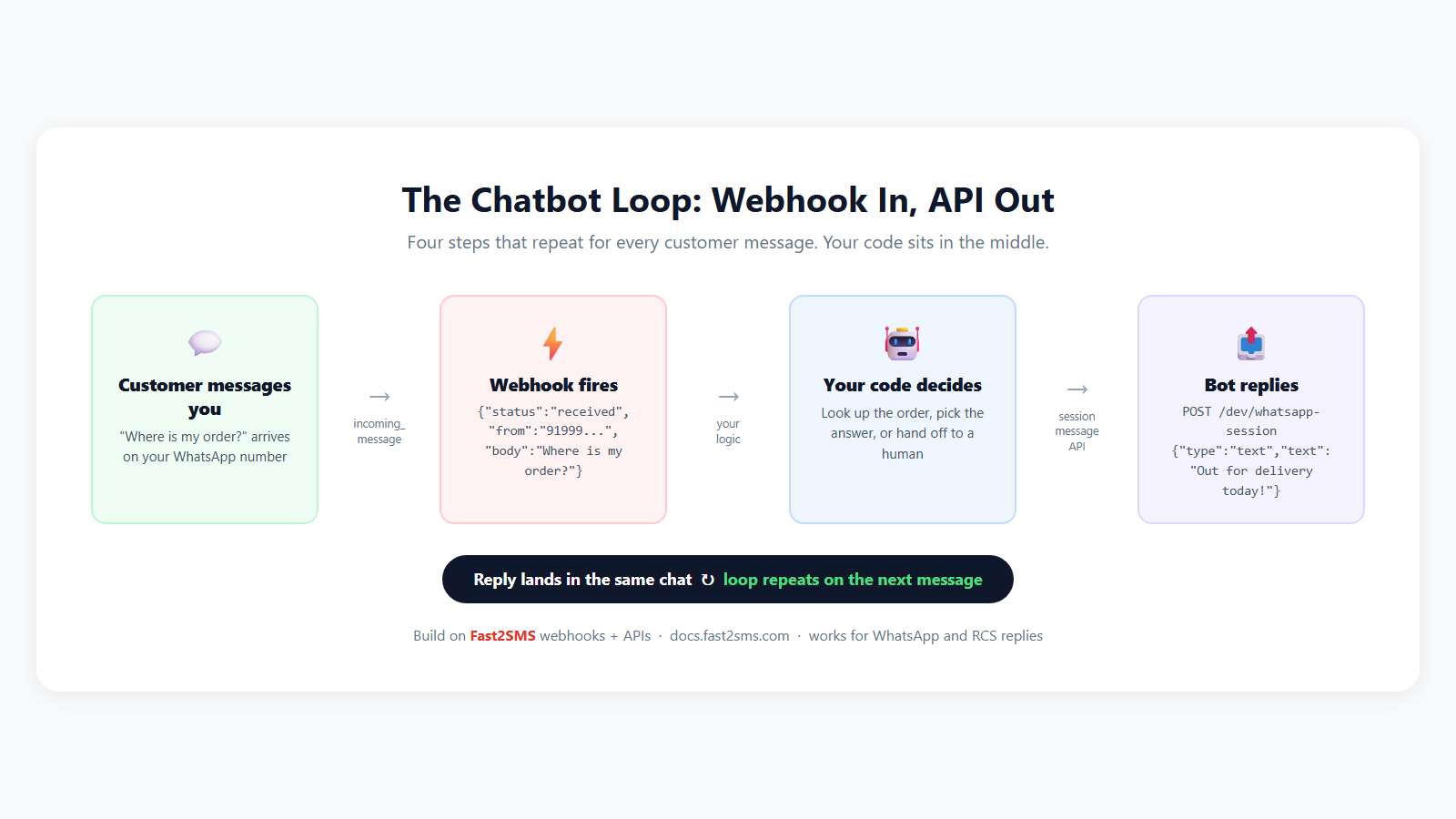
A WhatsApp chatbot is an automated flow that reads what a customer sends, replies with the right message, menu or buttons, and keeps looping until the customer gets their answer or asks for a human. It works inside the 24-hour window, so each reply is a session message. Typical uses are order tracking, store timings, appointment booking and FAQs. See our guide to the free WhatsApp chatbot to build one.
Do I need coding to build a WhatsApp chatbot?
No, you do not need coding, because a visual flow builder lets you drag in steps such as a welcome message, buttons, lists, questions and conditions, then connect them into a flow. Many providers include such a builder free. Start with the three or four questions your staff answer most often, test the flow on your own phone, and add branches later as you learn what customers ask.
Can a WhatsApp chatbot hand over a chat to a human?
Yes, a good WhatsApp chatbot can hand over a chat to a human agent when the customer asks for one, picks a “talk to support” option, or reaches a step the bot cannot handle. The conversation then appears in the Live Chat inbox with the full history, so the agent does not have to ask the same questions again. Handover keeps the bot useful without trapping customers in loops.
What is WhatsApp Live Chat or a shared team inbox?
WhatsApp Live Chat is a web inbox where your team sees and answers all WhatsApp conversations on your business number, with features like assigning chats, adding notes on contacts and seeing past messages. It replaces passing one phone around the office. Replies sent from it are session messages, so they work only inside the 24-hour window.
Can multiple agents use one WhatsApp number at the same time?
Yes, with the WhatsApp API many agents can use one number at the same time through a shared inbox, each logged in with their own account, so customers see a single business number while your team splits the work. This is one of the biggest reasons businesses move off the app. You can assign chats to specific people, for example sales queries to one agent and delivery issues to another.
How do I send WhatsApp messages through the API?
To send a WhatsApp message through the API, your code makes an HTTPS request to your provider’s endpoint with your API key, the phone number ID, the customer’s number, the template name, language and variable values. The response confirms the message was accepted, and delivery status arrives later by webhook. Full request formats and examples are in the API docs and our WhatsApp message API guide.
What is a WhatsApp webhook?
A WhatsApp webhook is a URL on your server that receives an automatic notification every time something happens to your messages, such as sent, delivered, read or failed, or when a customer sends you a reply. Instead of checking status again and again, your system simply waits for these updates. Our guide on how webhooks work explains the setup with examples.
Which WhatsApp delivery statuses can I track?
You can track whether each WhatsApp message was sent, delivered to the customer’s phone, read, or failed, through your dashboard reports and through webhooks sent to your server. Read status appears only if the customer has read receipts turned on. Failed messages come with a reason, which helps you spot numbers that are not on WhatsApp, formatting mistakes or marketing limits.
Can I send WhatsApp OTPs through the API?
Yes, you can send WhatsApp OTPs through the API using an approved authentication template, where your system generates the code and passes it as the variable in each request. Pair it with SMS fallback so users without WhatsApp still get their code. For websites, our guide to WhatsApp OTP on WordPress shows a no-code setup.
Can I send invoices, PDFs and images through the WhatsApp API?
Yes, you can send invoices, PDFs, images and videos through the WhatsApp API, either as the header of an approved template or as a normal attachment inside an open 24-hour window. A utility template with a PDF header is a clean way to send a bill after purchase. Make sure the file link is publicly reachable at send time, or the message will fail to fetch the media.
Can I connect my own backend or AI system to a WhatsApp chatbot?
Yes, you can connect your own backend or AI system by receiving customer messages on your webhook, processing them in your code, and sending replies back through the session API while the 24-hour window is open. This lets you answer from your own database, such as live order status or stock. Our WhatsApp chatbot API guide covers the message flow.
Do I need a server to receive WhatsApp replies?
No, you do not need a server if your team reads and answers replies in the Live Chat inbox, because the provider stores and shows every incoming message for you. You only need a server with a webhook URL if you want replies to flow into your own software, CRM or custom bot. Many small businesses start with Live Chat and add webhooks later when they automate more.
Policies, opt-in and avoiding bans
Meta takes WhatsApp spam seriously, and most bans come from the same few habits: messaging people who never agreed to it, sending too often, and selling things Meta does not allow. The good news is that the rules are simple. Get clear opt-in, send what customers expect, make it easy to stop, and stay inside Meta’s commerce and business policies.
Do I need opt-in before sending WhatsApp messages to customers?
Yes, you need the customer’s opt-in before you send them WhatsApp messages from the API, meaning they have clearly agreed to receive messages from your business on WhatsApp. Opt-in is a Meta requirement, not a provider rule. A customer who only gave their number for a delivery has not necessarily agreed to marketing, so be clear about what they are signing up for.
How do I collect WhatsApp opt-in from customers?
Collect WhatsApp opt-in with a clear checkbox or toggle at checkout, signup or booking that says customers will get updates on WhatsApp, plus a QR code or click-to-chat link where they message you first. Mention your business name and what kind of messages to expect, such as order updates or offers. Keep a record of when and where each customer opted in, in case you ever need to show it.
Can I buy a phone number list and send WhatsApp messages to it?
No, you should never send WhatsApp messages to a bought or scraped number list, because those people have not opted in, and messaging them breaks Meta’s policies and leads to heavy blocking and reporting. The result is usually a red quality rating, a lower messaging limit and possibly a restricted number. Build your own list from customers, website visitors and store walk-ins instead.
Why was my WhatsApp Business account banned or restricted?
WhatsApp accounts are usually banned or restricted for sending to people who did not opt in, receiving many blocks and reports, selling goods or services that Meta’s commerce policy does not allow, or misleading customers about who is messaging them. Using unofficial automation tools on a normal WhatsApp number is another frequent cause. Check the notice in WhatsApp Manager or your dashboard to see which policy was flagged.
How do I avoid getting my WhatsApp number blocked?
Avoid blocks by messaging only opted-in customers, sending content they expect, keeping marketing to a sensible frequency, and always giving an easy way to stop, such as a “Stop offers” quick reply button. Personalise messages with names and relevant products instead of sending the same offer to everyone. Watch your quality rating after each campaign, and slow down if it moves from Green to Yellow.
Which businesses are not allowed on the WhatsApp Business API?
Businesses whose main products are banned under Meta’s Commerce and Business Policies cannot use the WhatsApp Business API, for example sellers of illegal drugs, weapons, adult content and other restricted goods and services. Some categories, such as alcohol, gambling and certain financial or health products, face extra restrictions. Read Meta’s policies for your category before you build campaigns, because a violation can affect your whole Meta business.
How should I handle customers who reply STOP on WhatsApp?
When a customer replies STOP or taps an opt-out button, stop sending them marketing messages right away and mark them as opted out in your contact list, so future campaigns skip them automatically. You can still send utility messages they need, such as an update on an order they already placed. Respecting opt-outs quickly is one of the simplest ways to protect your quality rating.
Can I appeal if my WhatsApp Business account is restricted?
Yes, you can usually request a review of a restriction from WhatsApp Manager or Meta Business Support, explaining what happened and what you have changed, and Meta will decide whether to lift it. Be honest and specific, for example that you removed a bought list and added opt-in at checkout. Your provider can help you read the notice and prepare the request, but only Meta can lift the restriction.
Are WhatsApp bulk sender tools and browser extensions safe?
No, unofficial bulk sender tools, browser extensions and WhatsApp Web automation are not safe for business use, because they break WhatsApp’s terms and often get the number banned without warning. They also give you no templates, no delivery reports and no protection for your customer data. The official API costs a small amount per message but keeps your number and brand safe.
How often can I send marketing messages to the same customer?
There is no single safe number, so send marketing messages only as often as each one is genuinely useful, since Meta applies its own per-user limits and customers block businesses that message too much. For most shops and brands, a few well-timed offers around real events, like a new launch or a festive sale, work better than daily blasts. Let your block and reply rates guide you.
Integrations: WordPress, Shopify, Tally and CleverTap
You do not need to build everything from scratch. Free plugins connect WhatsApp to the tools Indian businesses already use: WordPress and WooCommerce for websites and stores, Shopify for D2C brands, TallyPrime for billing, and CleverTap for app engagement through webhooks. For anything else, the REST API and webhooks work with any software your developer can reach.
How do I connect the WhatsApp Business API with WordPress?
Install the free Fast2SMS plugin from the WordPress plugin directory, add your API key, connect your WhatsApp number and map your approved templates to site events such as new orders or form submissions. No coding is needed for the standard flows. Our step-by-step guide to WhatsApp Business API on WordPress covers the full setup with screenshots.
Can WooCommerce send WhatsApp order notifications automatically?
Yes, WooCommerce can send WhatsApp order notifications automatically through a plugin that triggers an approved utility template when an order is placed, shipped, delivered or cancelled. Each order status can have its own template with variables like the customer name, order number and amount. Customers who reply get an open 24-hour window, so your team can answer delivery questions in Live Chat.
Can I add WhatsApp OTP login to my WordPress site?
Yes, you can add WhatsApp OTP login to a WordPress or WooCommerce site so users sign in or verify their phone with a code sent to WhatsApp, with SMS as a fallback for numbers not on WhatsApp. It cuts fake signups and forgotten-password trouble. See our guides to free OTP login for WordPress and WooCommerce OTP verification.
Is there a Shopify app for WhatsApp notifications?
Yes, Fast2SMS has a free Shopify app on the Shopify App Store that connects your store to WhatsApp and SMS, so order, shipping and OTP messages go out automatically from store events. You install it from your Shopify admin, add your API key and pick your templates. Our guide on how to integrate OTP with Shopify walks through the app setup.
Can I send WhatsApp messages from TallyPrime?
Yes, with the free Fast2SMS plugin for TallyPrime you can send invoices, payment reminders and outstanding balance messages to customers on WhatsApp straight from your billing software. This is popular with distributors, wholesalers and CA firms. The templates still need Meta approval first, and our guide to Tally WhatsApp templates and Meta approval shows formats that pass review.
How do I connect CleverTap to the WhatsApp API?
Connect CleverTap to the WhatsApp API by setting up a webhook in CleverTap that calls your provider’s API when a campaign or journey fires, passing the user’s number and template details in the request. This lets your app team keep segments and journeys in CleverTap while messages go out through WhatsApp. Our CleverTap webhook integration guide has the field mapping.
Can I connect the WhatsApp API with my CRM or custom software?
Yes, any CRM, ERP, hospital or school management system, or custom app can send WhatsApp messages by calling the REST API, and receive replies and delivery statuses through webhooks. Your developer only needs the API key, phone number ID and template names. If your software already has a “webhook on event” feature, you may be able to connect it without writing new code at all.
Can I use WhatsApp and SMS together?
Yes, many businesses use WhatsApp and SMS together, sending on WhatsApp first for richer messages and falling back to SMS when a number is not on WhatsApp or the message fails. This works especially well for OTPs and critical alerts. Remember that the SMS side still needs DLT registration; our bulk SMS API guide explains how to set it up alongside WhatsApp.
Should I also use RCS messaging along with WhatsApp?
RCS is worth adding if you want rich cards, carousels and buttons inside the phone’s default messaging app, mainly on Android phones using Google Messages, without the customer installing anything extra. On Fast2SMS each RCS message costs ₹0.35, charged on delivery, and failed messages are refunded. Support on other phones depends on the device and operator, so treat RCS as an extra channel, not a replacement. Read more in what bulk RCS is and how it is priced.
Choosing a WhatsApp API provider
Every provider sends messages through the same Meta Cloud API, so the differences are in pricing structure, tools and support. Look past the headline per-message rate and check for setup fees, monthly platform charges, per-agent seats, per-number fees and whether failed messages are refunded. Then test the product yourself before committing.
How do I choose a WhatsApp Business API provider in India?
Choose a provider by comparing the full cost, not just the per-message rate, and checking that it includes a template manager, chatbot builder, team inbox, webhooks, plugins for your tools and quick support from people who understand Indian businesses. Ask how billing works and whether failed messages are refunded. Our guide on which WhatsApp API provider offers the best pricing in India lists what to compare.
What hidden charges should I check with a WhatsApp API provider?
Check for setup or onboarding fees, monthly or annual platform fees, per-agent or per-seat charges, per-number fees, chatbot add-on fees, minimum monthly commitments, and whether you are billed for messages that fail. Some plans look cheap per message but add a fixed monthly charge that makes small months expensive. Ask for a written list of every charge before you sign up.
Which WhatsApp API provider is the cheapest in India?
The cheapest provider for you is the one with the lowest total bill for your real message mix, which means adding per-message rates for each category to any setup, monthly, seat or per-number fees. A low marketing rate with a large monthly fee can cost more than a slightly higher rate with no fee. Work out a sample month, like the estimate in the pricing section above, for each option you are considering.
How can I test a WhatsApp API provider before committing?
Test a provider by signing up for its free trial, connecting a number, getting one utility template approved and sending messages to your own team, then checking delivery reports, webhook speed and how easy the dashboard is. Also send a test question to support and see how quickly and clearly they reply. A provider that gives free test credit lets you do all of this before you spend anything.
How important is support when choosing a WhatsApp provider?
Support matters a lot, because template rejections, display name issues, quality drops and restrictions all need quick, clear help from someone who has seen them before. Before you choose, check whether you can reach a real person by phone or email and whether they can help with Meta-side issues, not just billing. A free onboarding call is a good sign that a provider will be there when problems come up.
Is my customer data safe with a WhatsApp API provider?
Your customer data is as safe as the provider’s security practices, so check for security certifications, access controls for your team, and uptime history before you share contact lists or connect your systems. Messages travel through Meta’s Cloud API, but your contacts, templates and reports sit with the provider. Fast2SMS has run for more than 15 years with 99.9% uptime and publishes its security certificates on its website.
Can I become a WhatsApp Business API reseller?
Yes, agencies, software companies and marketing consultants can resell WhatsApp Business API services to their own clients, managing accounts, templates and billing while the provider handles the platform. This works well if you already serve local businesses with websites, ads or billing software. Our guide to becoming a WhatsApp Business API reseller explains how the model works.
Can someone help me set up the WhatsApp Business API?
Yes, you can get free help from the Fast2SMS team to connect your number, draft templates that pass Meta review, plan your chatbot and estimate your monthly cost, by booking a free meeting or calling the sales team. This is useful if you are moving from the WhatsApp Business app or from another provider. Book a free meeting here or email [email protected].
More 100-question guides
- DLT registration A to Z
- SMS not delivered: every DLT and delivery error
- Bulk SMS in India: 100+ questions
- OTP via SMS and WhatsApp
- WhatsApp template rejected? Approval FAQ
- WhatsApp marketing without getting banned
- RCS business messaging in India
Wrap-up
The WhatsApp Business API comes down to a few simple rules. Get opt-in, use approved templates to start conversations, reply freely inside the 24-hour window, and protect your quality rating so your messaging limit keeps growing. Price your plan by counting session, utility, authentication and marketing messages separately. On Fast2SMS that means ₹0.13, ₹0.25, ₹0.25 and ₹0.95 per delivered message, with no setup, monthly or per-number fee, a free chatbot builder, a free Live Chat inbox and automatic refunds for failed messages. Start with the free test credit, send your first template today, and grow from there.
Signup NowSchedule Free Meeting
Sales: +91-6262778811 · [email protected] | Support: [email protected]