
WhatsApp OTP for WordPress: Send Login and Signup OTPs on WhatsApp
SMS OTP works. WhatsApp OTP often works better. It costs less, it lands in an app people check constantly, and delivery is confirmed. If your WordPress site or WooCommerce store uses OTP for login, signup, or COD confirmation, WhatsApp is worth switching on.
This guide shows how to send OTPs on WhatsApp from WordPress using the free Fast2SMS plugin, with SMS as an automatic backup so no OTP ever goes missing.
Why WhatsApp OTP
- Cheaper. A WhatsApp authentication message costs INR 0.25, and failed messages are refunded. See the full SMS vs WhatsApp OTP cost comparison.
- No DLT paperwork for the WhatsApp route. SMS OTPs in India need DLT registration. WhatsApp OTPs need a one-time template approval instead.
- Fast and confirmed. You can see delivered status for every OTP in your panel.
- Automatic fallback. With Smart OTP, if the WhatsApp message fails, the same OTP goes out by SMS instantly. Nobody gets stuck at the login screen.
How it works: Smart OTP
Fast2SMS has a feature called Smart OTP. You create one OTP template and pick a primary channel, WhatsApp or SMS. The other channel becomes the fallback. If the primary fails, the OTP is retried on the fallback automatically.
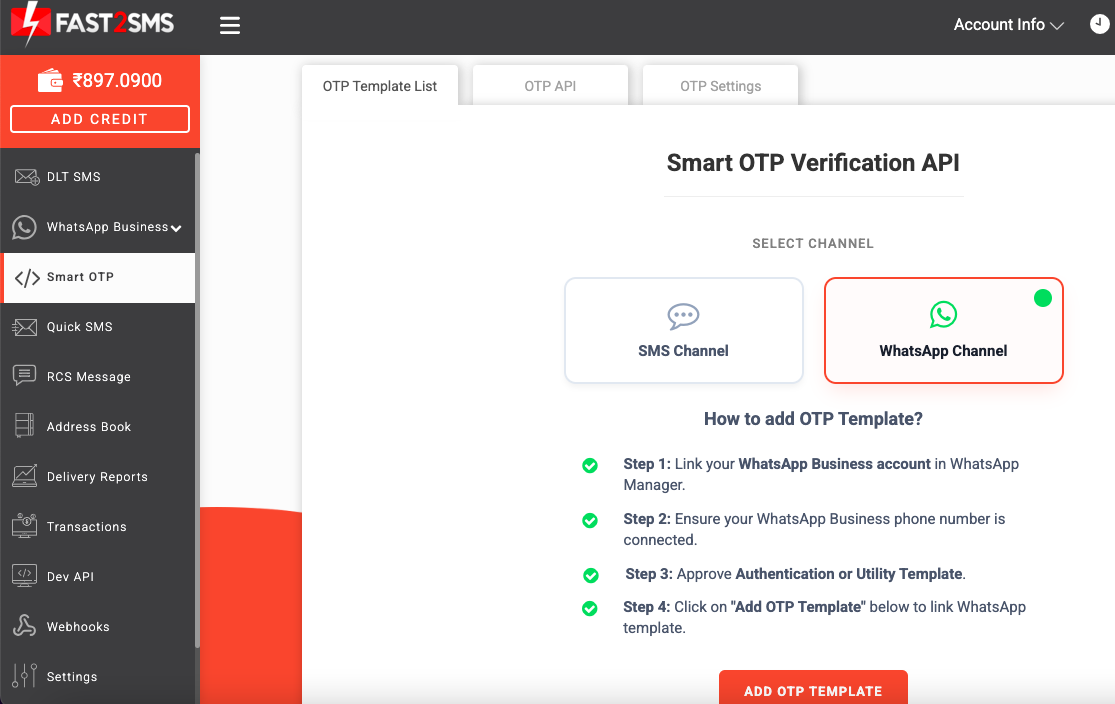
The plugin then uses this OTP ID for every OTP it sends. Change the channel in your panel and the plugin follows, with no changes on your website.
Step 1: Create your WhatsApp OTP template
- Log in to Fast2SMS and connect your WhatsApp Business number (free, no monthly fee). New to that? Follow the WhatsApp Business API for WordPress guide.
- Get an authentication template approved for your number.
- Open the Smart OTP tab, click Add OTP Template, choose WhatsApp as the primary channel, select your business number and template, and pick which variable carries the OTP.
- Optional but recommended: tick Set Fallback Template and select your DLT entity, sender ID, and SMS template, so SMS covers any WhatsApp failure. The WhatsApp OTP verification API guide shows this screen by screen.
- Send yourself a test OTP from the same screen, then note the OTP ID.
Step 2: Connect the plugin on WordPress
Install the free plugin from the official WordPress directory and paste your API key. Then open the OTP & Login tab and enter your OTP ID.
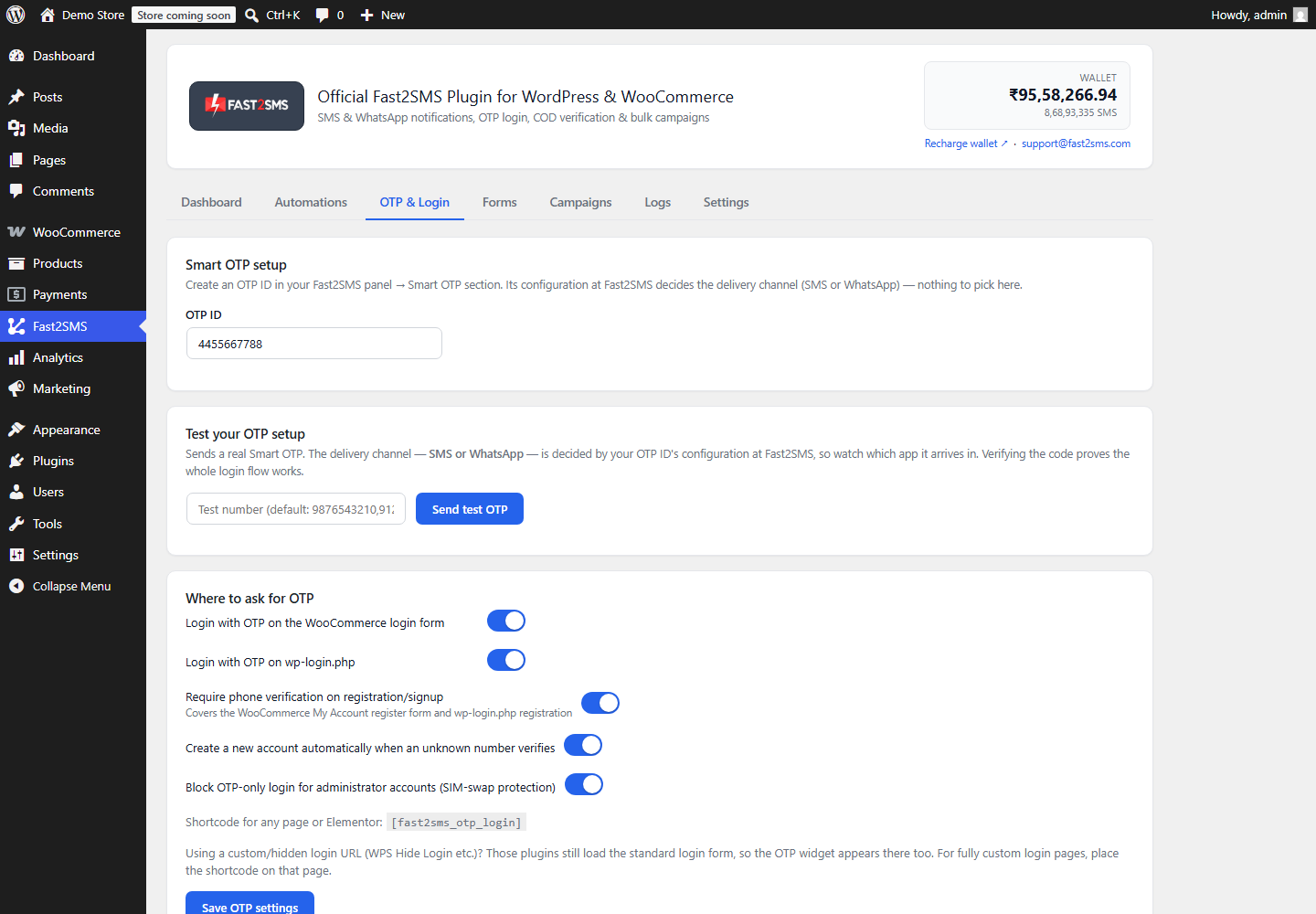
Now switch on where you want OTP:
- Login with OTP on the WordPress login page and the WooCommerce My Account page.
- Signup verification so every new account has a verified mobile number.
- COD confirmation so cash on delivery orders are verified before you ship.
- Any page via the
[fast2sms_otp_login]shortcode.
What your users see
The user types their mobile number, gets the OTP on WhatsApp, and enters it on your site:
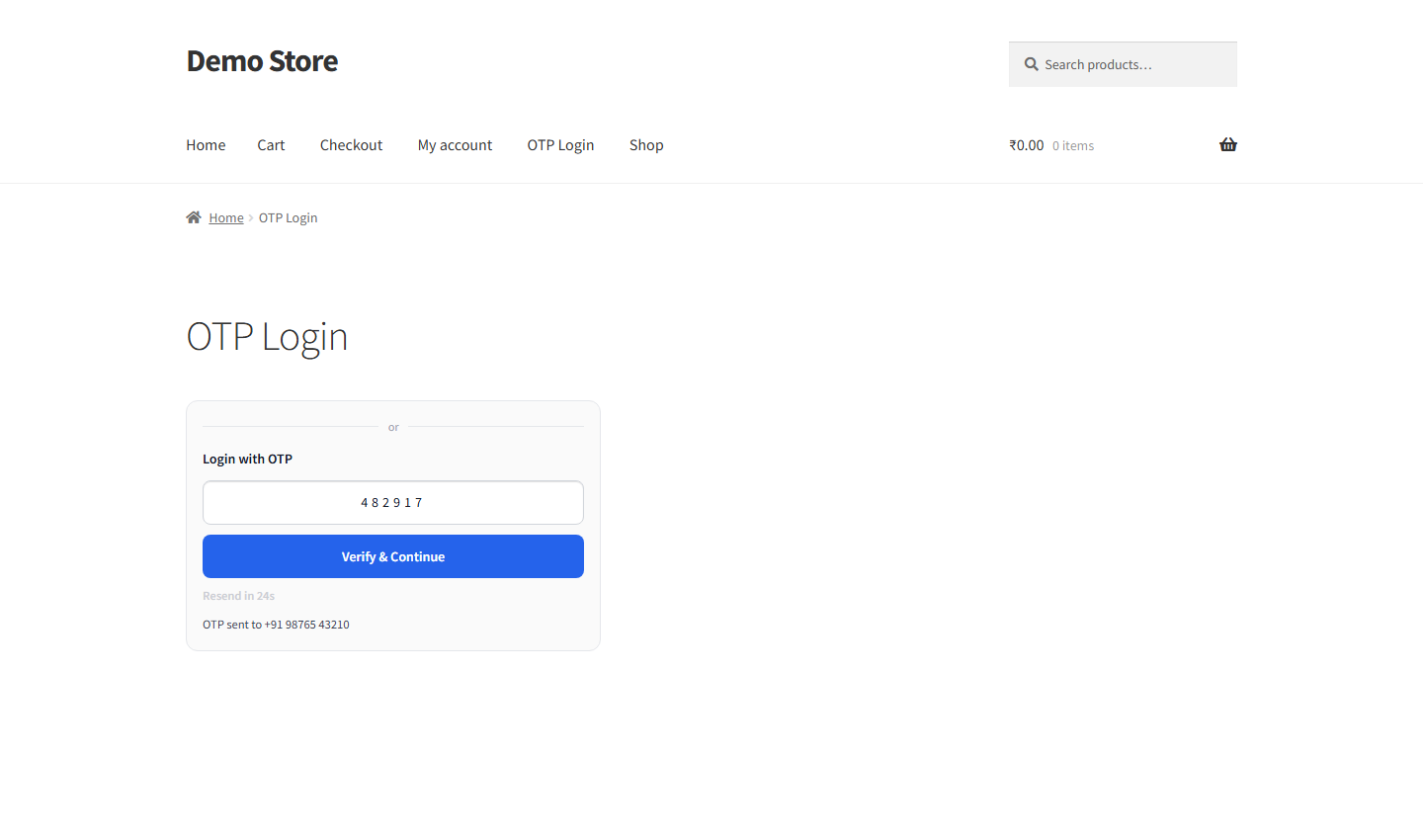
Setup details for the login features are in the free OTP login for WordPress guide and the WooCommerce OTP login guide.
Frequently asked questions
How much does a WhatsApp OTP cost?
INR 0.25 per authentication message on Fast2SMS, and failed messages are refunded automatically. The plugin itself is free.
Do I need DLT registration for WhatsApp OTP?
No. DLT applies to SMS only. If you add the SMS fallback, that fallback route needs your DLT entity, sender ID, and an approved template.
What if the customer does not have WhatsApp?
That is exactly what the Smart OTP fallback is for. If WhatsApp delivery fails, the same OTP goes out by SMS automatically.
Can I use SMS as primary and WhatsApp as backup instead?
Yes. Smart OTP lets you pick either channel as primary. The plugin does not change either way, it just uses your OTP ID.
Does this work for Contact Form 7 and other forms?
Yes. The plugin can require OTP verification on Contact Form 7, WPForms, and Elementor forms, using the same OTP ID.
Which numbers are supported?
Indian 10-digit mobile numbers only. Fast2SMS works with Indian numbers and full DLT compliance on the SMS side.
Get started
Create your free account at fast2sms.com, set up Smart OTP with WhatsApp as primary, and install the free plugin. The setup guide covers everything else. Questions? Write to [email protected].
More WooCommerce OTP, SMS and WhatsApp guides
- WooCommerce OTP plugin: 110 FAQs
- WooCommerce checkout OTP verification
- WooCommerce login with mobile number
- Phone number verification at registration
- WooCommerce WhatsApp OTP login
- WooCommerce COD OTP verification
- WooCommerce OTP not received: fixes
- WooCommerce OTP cost
- Best WooCommerce OTP plugins compared
- Free mobile login plugin alternative
- WooCommerce WhatsApp plugin: 100+ FAQs
- WooCommerce SMS notification plugin: 100+ FAQs
- Order status SMS and WhatsApp
- COD to prepaid and pending payment reminders
- Abandoned cart recovery on WhatsApp and SMS
- Back in stock notifier
- WooCommerce SMS marketing campaigns
- Best WooCommerce SMS and WhatsApp plugins
- Twilio SMS alternative for India
- WooCommerce OTP plugin guide in Hindi
High volume? Rates are negotiable: call sales on +91-6262778811, email [email protected] or book a free meeting with our team.