To send multi channel OTP SMS from Fast2SMS, create one Smart OTP template with SMS as the primary channel and WhatsApp as the fallback. If the OTP SMS fails, Fast2SMS sends the same code on WhatsApp by itself, with no second API call from you. This page shows the panel steps for that setup and how to test it before you go live.
For what Smart OTP is, the API and the full feature list, see the main Smart OTP guide. For the exact fallback rules, see multi-channel OTP explained.
Before you start
- A Fast2SMS account with wallet balance. A test OTP is a real send and is charged.
- For the SMS channel: your DLT Entity ID, an approved Sender ID and an approved OTP content template added in DLT Manager. The template must have at least one variable for the code.
- For the WhatsApp fallback: a connected WhatsApp Business number and an approved Authentication or Utility template.
How multi channel OTP works
| Setting | What it means |
|---|---|
| Primary channel | SMS (your DLT template) or WhatsApp (your approved template). You pick it per OTP template. |
| Fallback channel | The other channel. It is optional. |
| When the fallback is sent | Only when the first attempt is reported as failed, within 120 seconds of the send. |
| How many fallbacks | One per OTP, with the same code. |
| Your code | One OTP ID, one Send OTP call and one Verify OTP call, whichever channel delivers. |
How to set up multi channel OTP in the panel
-
Open Smart OTP
Log in to Fast2SMS and open Smart OTP from the Apps menu. A new account sees the setup steps for SMS OTP and WhatsApp OTP. Click Add OTP Template.
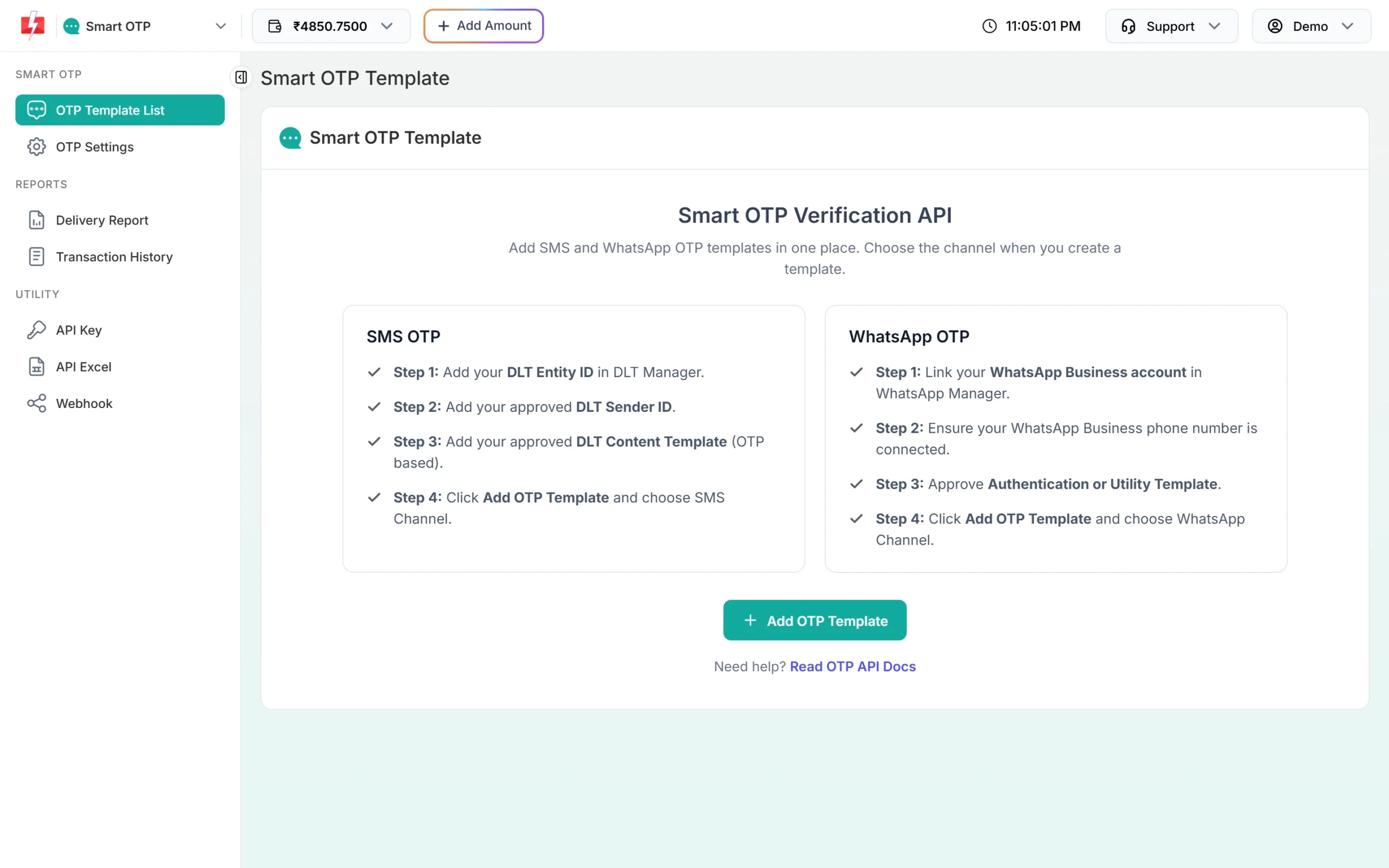
The Smart OTP page with the Add OTP Template button. -
Choose your entity
Stay on the SMS Channel tab. Open Select Entity and pick your DLT entity. Only approved entities appear here.
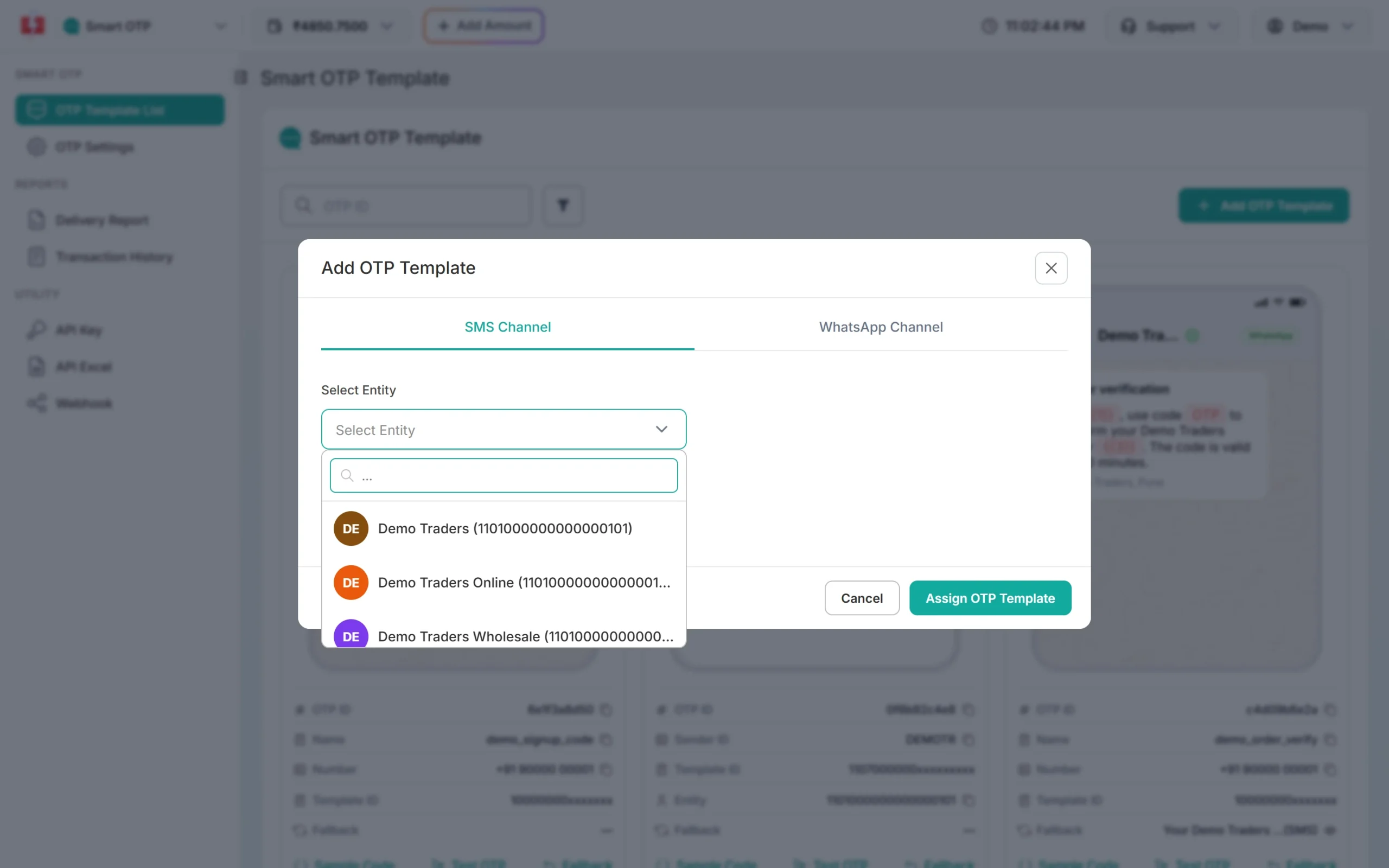
Only approved DLT entities are listed. -
Choose the sender ID
Open Select Sender and pick the approved Sender ID that should send the OTP.
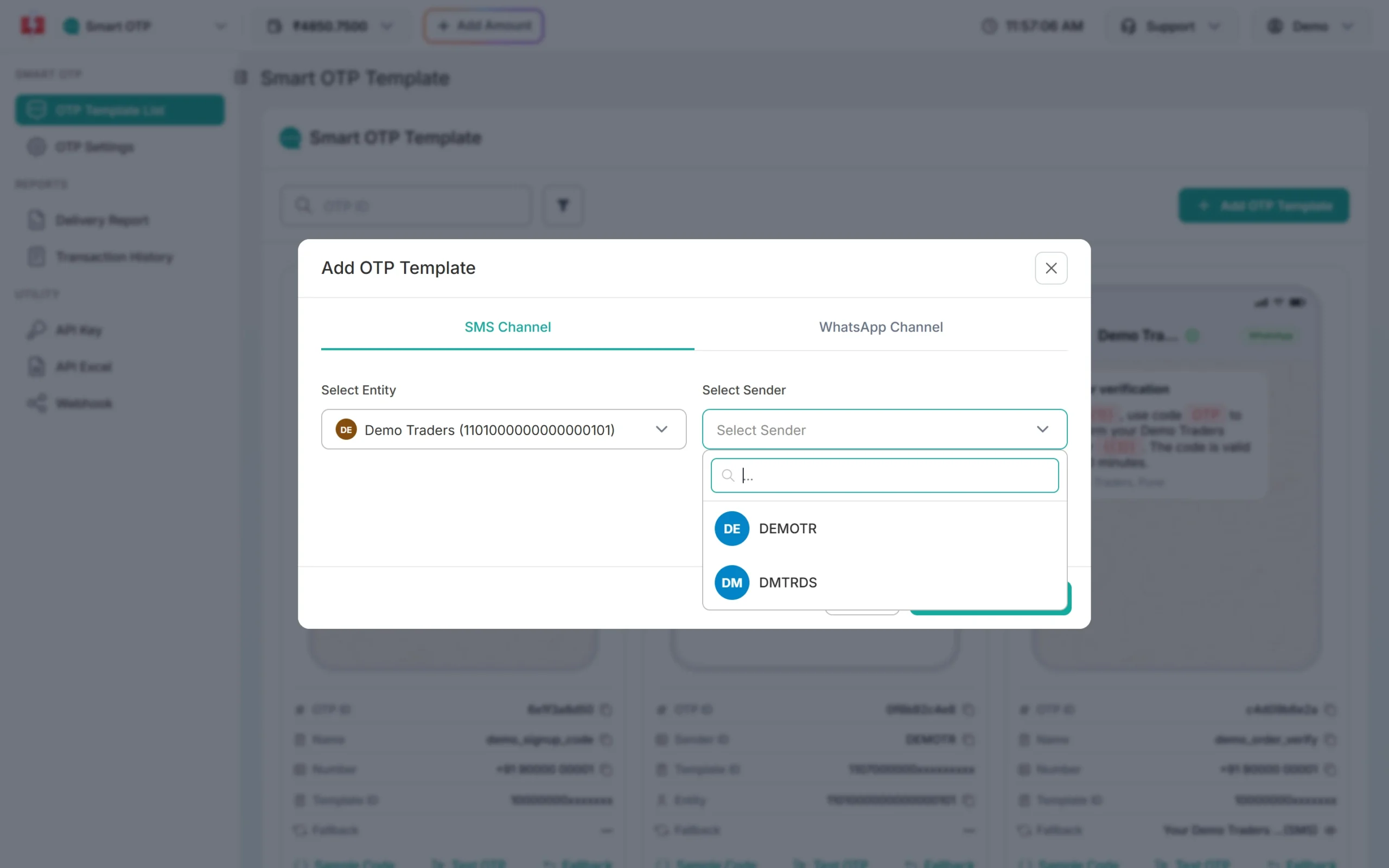
Pick the Sender ID linked to your OTP template. -
Choose the DLT template
Open Select Template. It lists approved templates on that sender that have at least one variable. You can search by text or template ID.
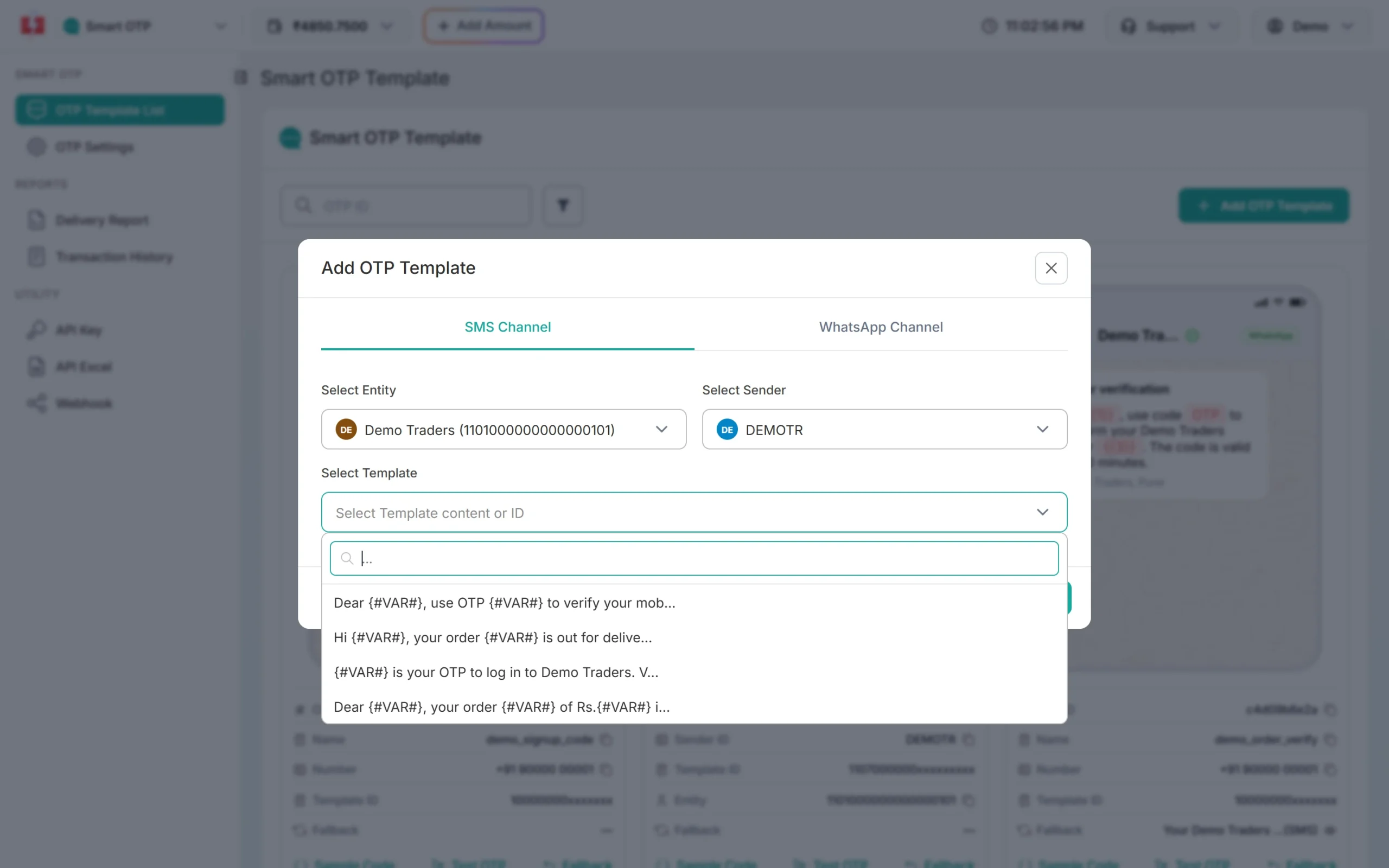
Only DLT templates with a variable can carry an OTP. -
Pick the OTP variable
Check the OTP Content Preview. Then click the variable button (Variable 1, Variable 2 and so on) where the code should go. The first variable is selected by default.
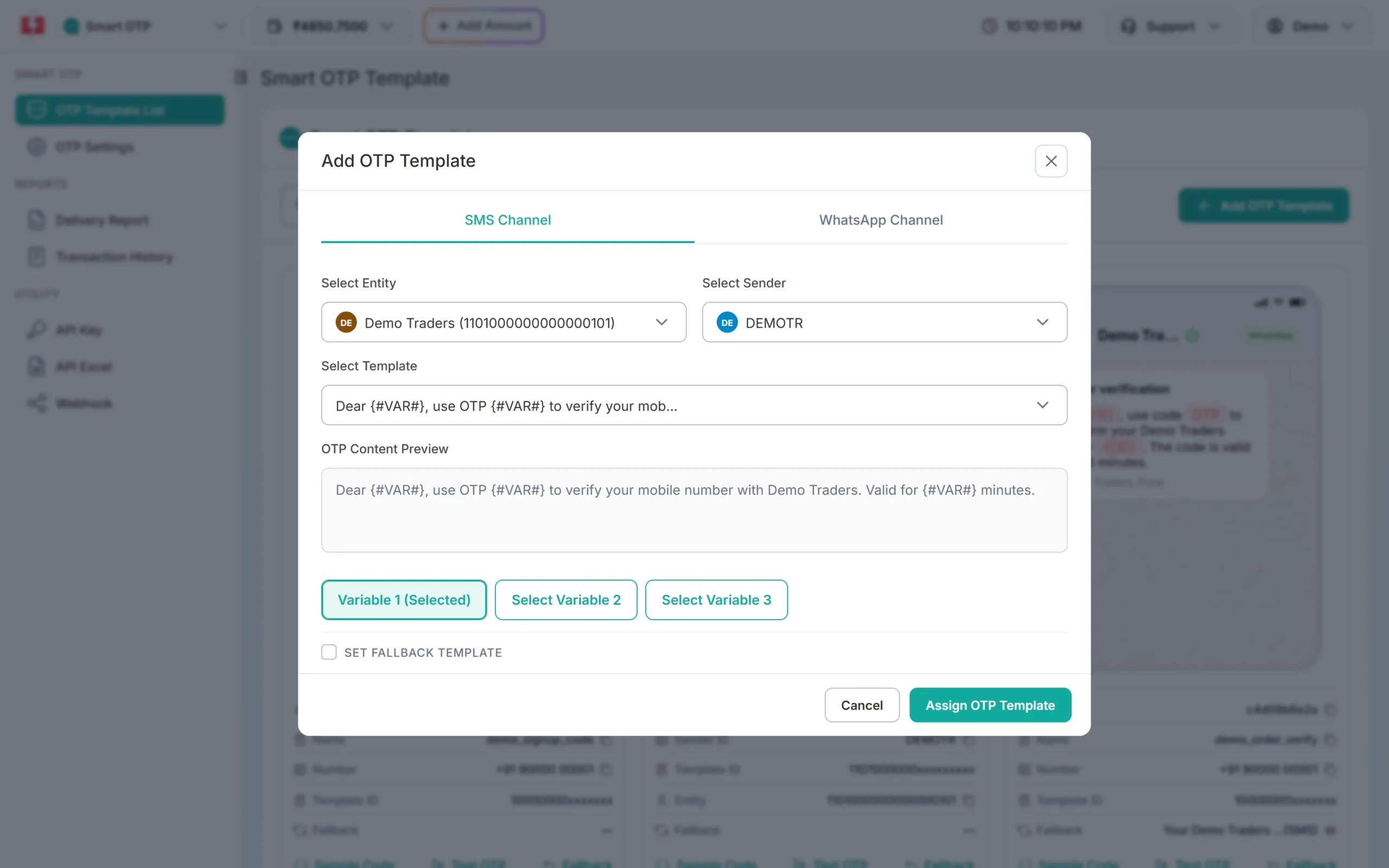
The selected button reads “Variable N (Selected)”. -
Add the WhatsApp fallback
Tick SET FALLBACK TEMPLATE. Choose the fallback WhatsApp Business number and the fallback WhatsApp template. Check the Fallback OTP Content Preview, pick the OTP variable and click Assign OTP Template.
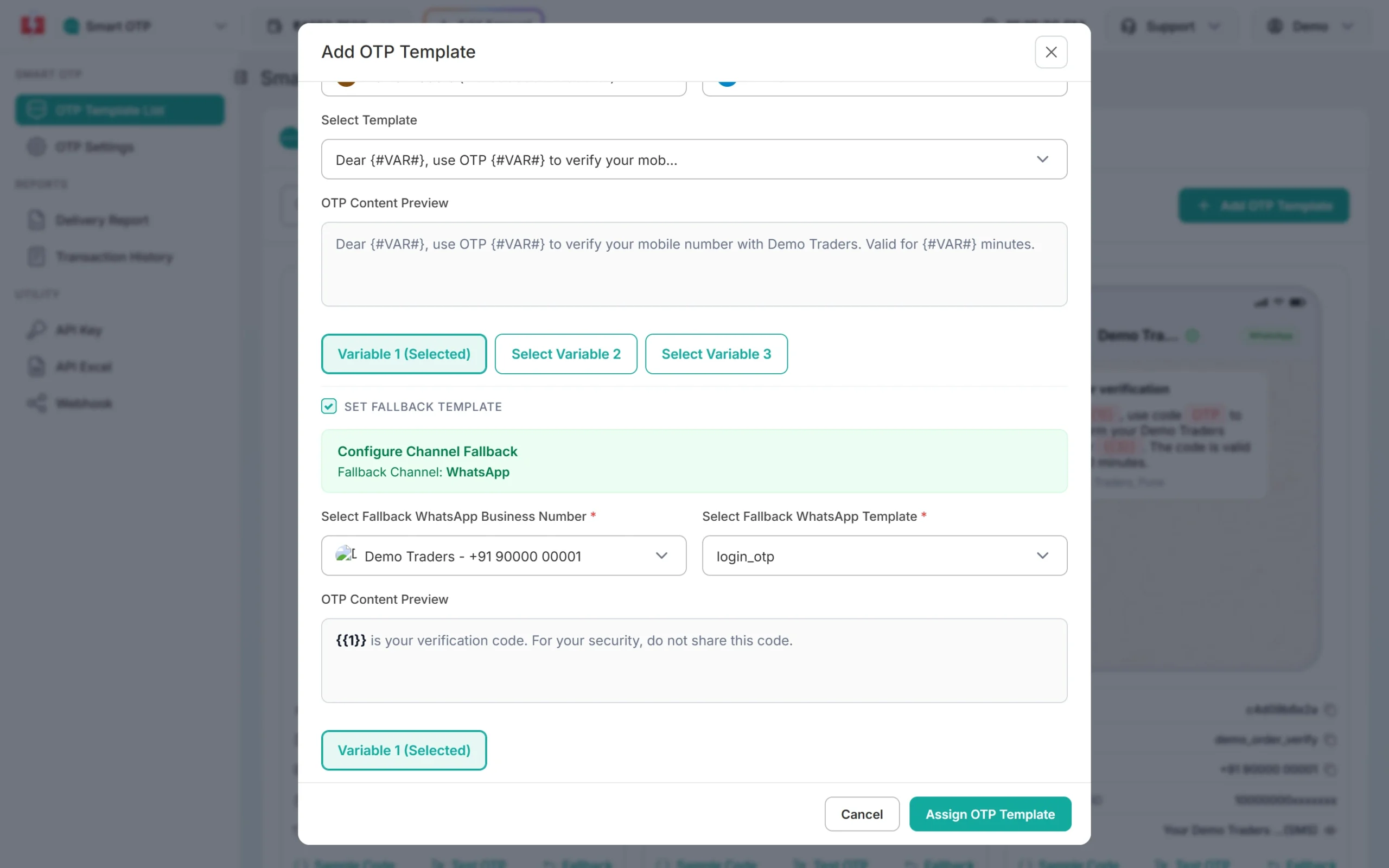
An SMS OTP with a WhatsApp fallback. -
Send a test OTP
Your template now has an OTP ID. On its card, click Test OTP, enter a 10-digit mobile number and click Send Test OTP.
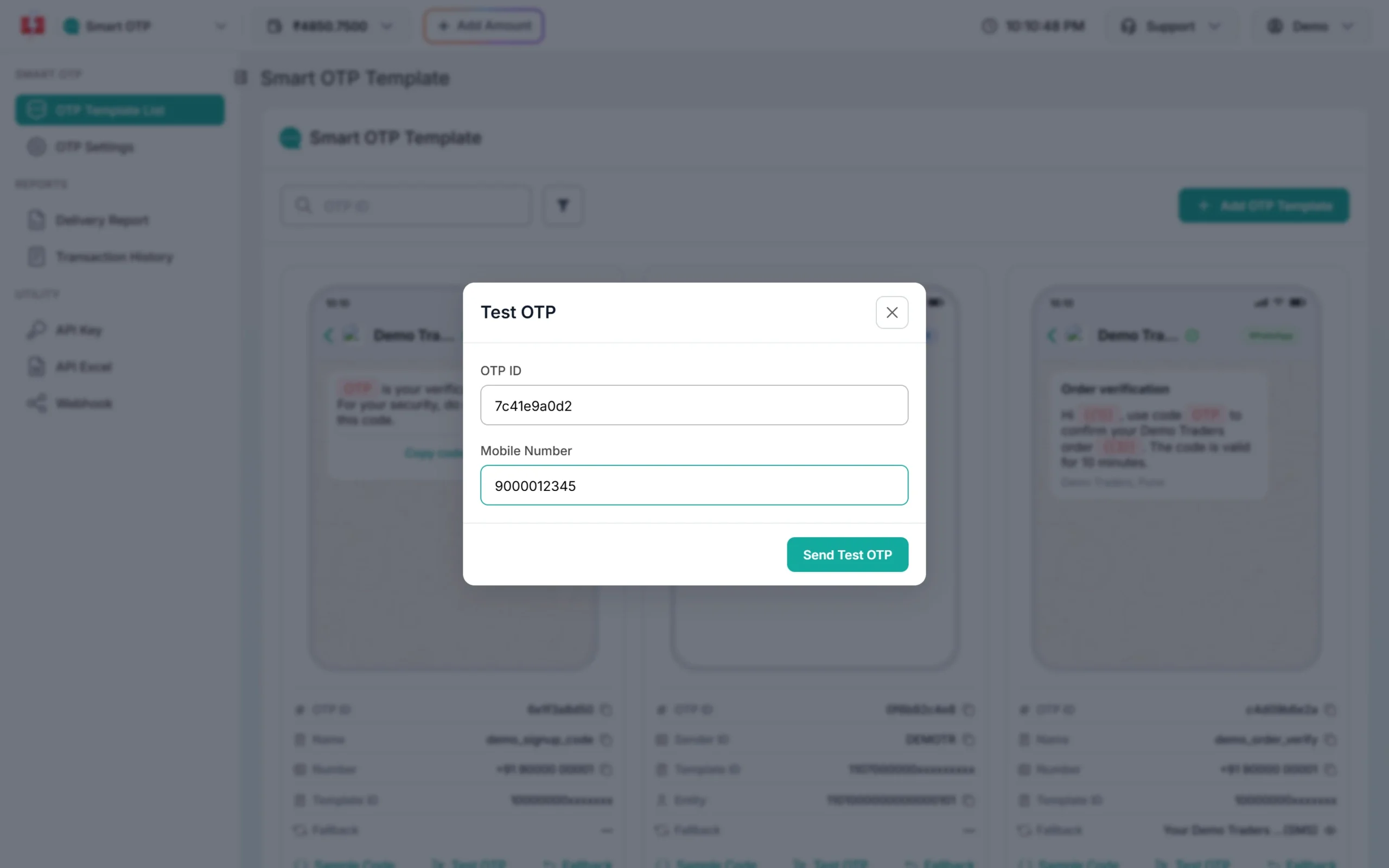
A test is a real send and is charged. -
Wait for the delivery report
The window shows “Message sent. Checking DLR…” while it waits for the operator report.
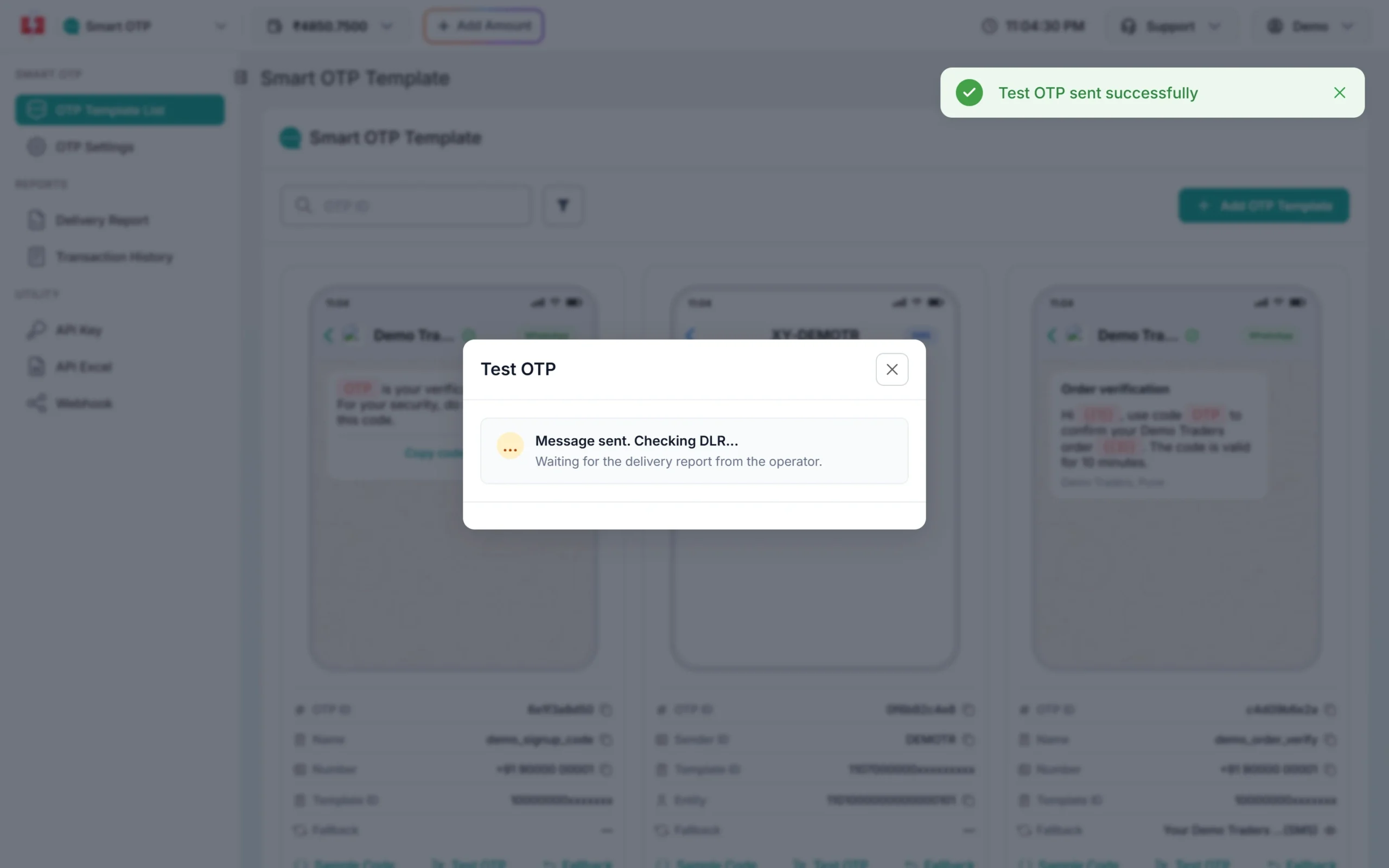
The panel checks the delivery report for you. When the report arrives, you see the result. “Delivered successfully” means you can use this OTP ID in your API. If there is no report after 30 seconds, the window shows “Delivery report pending” with a link to OTP Logs. The OTP is still sent, and you can check its status there later.
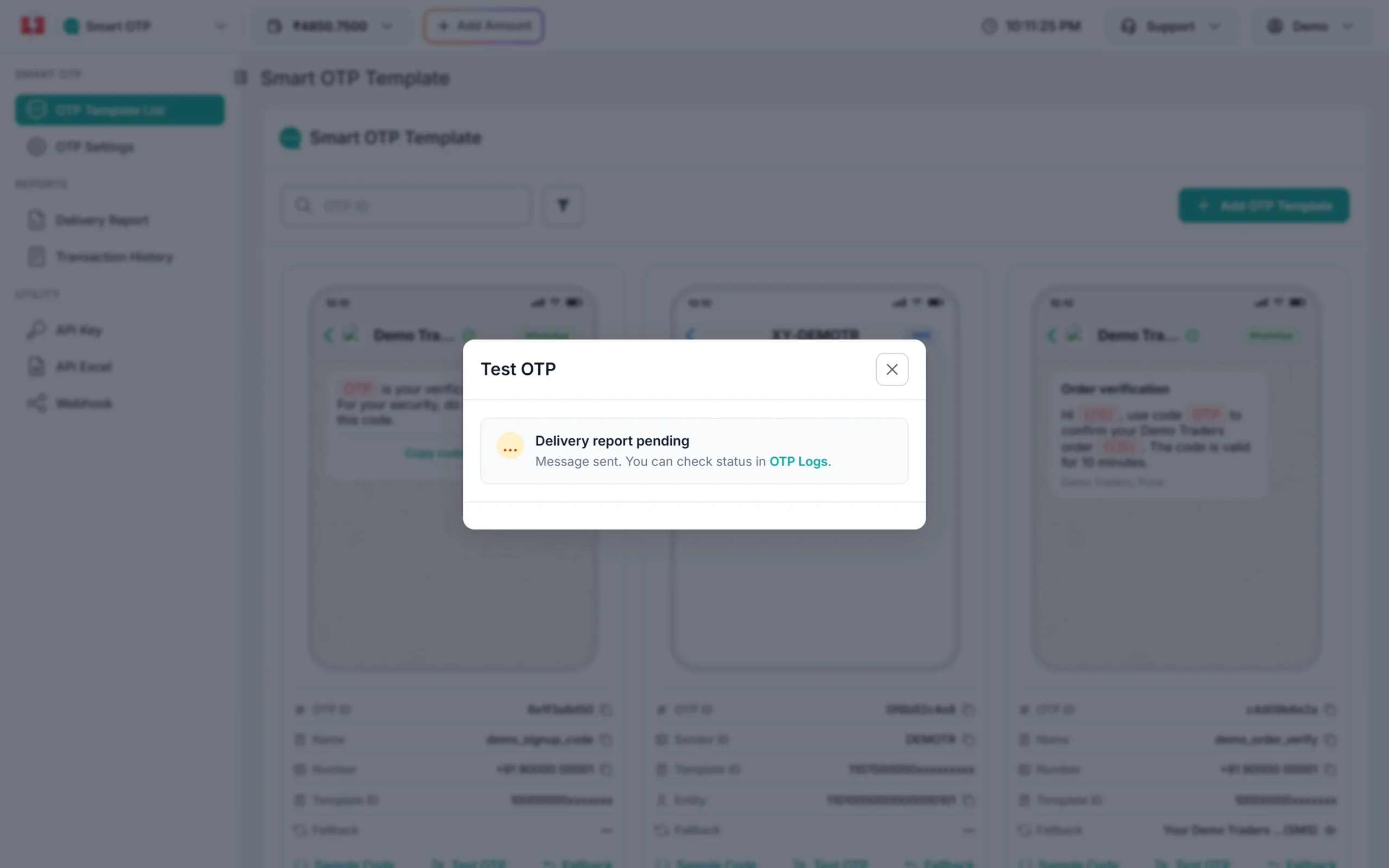
No report yet after 30 seconds: check OTP Logs later.
See the fallback in the OTP report
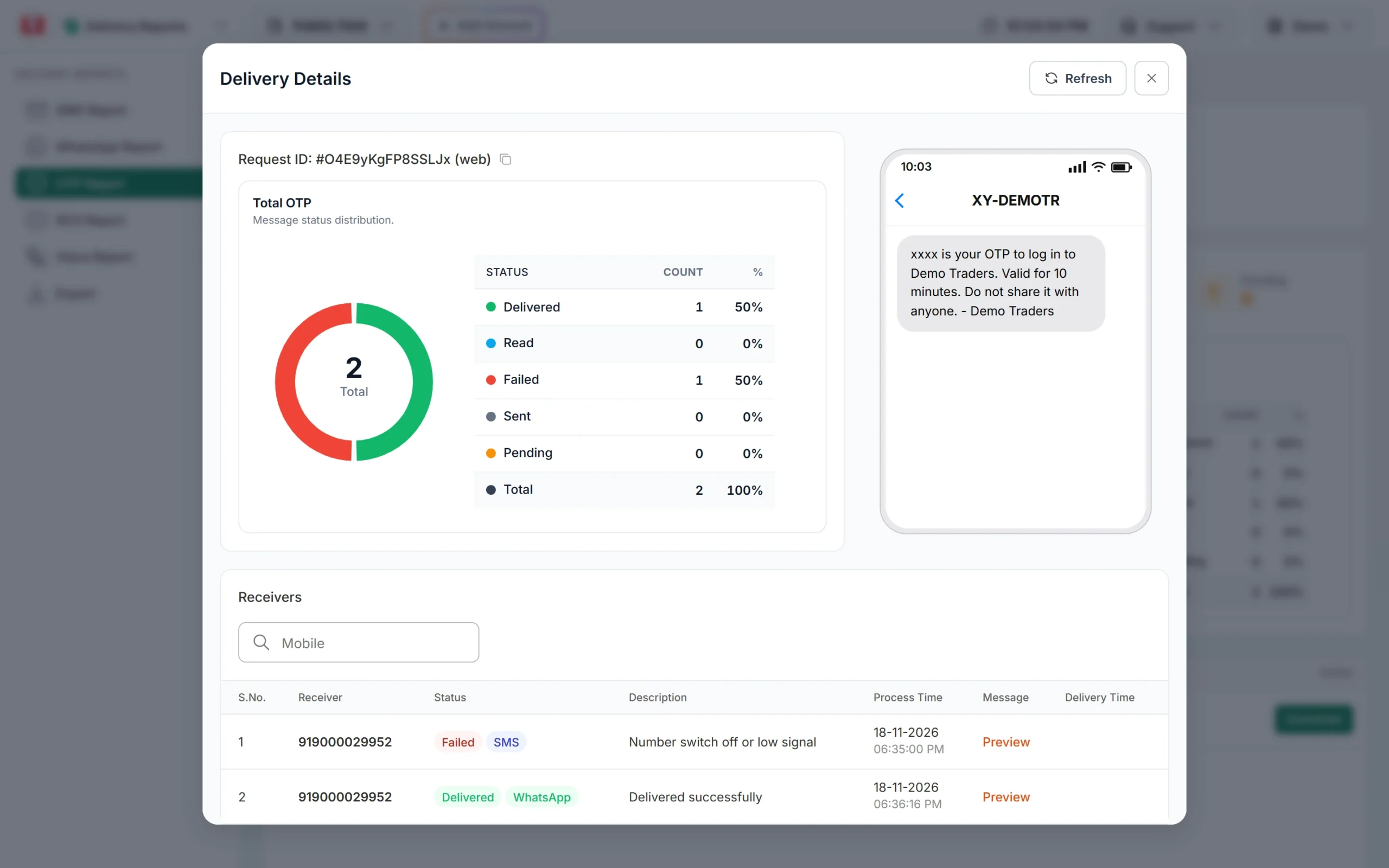
Open Delivery Report for OTP and click a request. When the SMS failed and the WhatsApp fallback went out, you see two receiver rows under the same request ID, each with its own channel badge.
What multi channel OTP costs
Each attempt is charged at the rate of the channel that carried it. An SMS OTP is charged at your DLT SMS rate when it is sent. A WhatsApp authentication message costs ₹0.25 at the time of writing, and failed WhatsApp messages are refunded to your wallet. A fallback is a second message, so it is charged too. If the wallet is too low, the fallback is skipped. See the current rates on the SMS pricing page and the WhatsApp pricing page.
Sending in bulk? For high OTP volumes our team offers discounted rates. Talk to our team or see OTP pricing.
Common problems and fixes
| Problem | Fix |
|---|---|
| “No DLT Entity found” in the SMS tab | Add your Entity ID in DLT Manager and wait for it to be approved. |
| Your template is missing from Select Template | It must be approved, linked to the chosen sender and contain at least one variable. |
| “You have already created an OTP template for this DLT content.” | One DLT template can be used by only one Smart OTP template. Use the existing OTP ID. |
| No WhatsApp number in the fallback list | Connect your WhatsApp Business number in WhatsApp Manager first. |
| Fallback did not go out | It goes only after a failure report within 120 seconds. An SMS still showing Sent does not trigger it. |
Frequently asked questions
What is multi channel OTP?
One OTP request that can reach the user on more than one channel. In Smart OTP, the code goes on SMS or WhatsApp first, and on the other channel if the first one fails.
Can WhatsApp be the primary channel instead?
Yes. Use the WhatsApp Channel tab, pick your WhatsApp template and add an SMS fallback with your entity, sender and DLT template.
Do I need to change my code to use the fallback?
No. You call Send OTP with the same OTP ID. You can add, change or remove the fallback later with the Fallback button on the template card.
Does the user get two different codes?
No. The fallback carries the same code, so the user can type it from either message.
Is the OTP sent on a priority route?
Yes. Smart OTP messages are sent on a priority route for OTPs.
Can I still send OTPs with the DLT SMS API?
Yes, with your own approved OTP template. Then your app creates and checks the code itself, and there is no automatic fallback.