
Free Tally WhatsApp and SMS Plugin: Send Invoices from TallyPrime
You raise an invoice in TallyPrime, then print it, scan it, or export a PDF and forward it on WhatsApp from your phone. Every single day. The free Fast2SMS Tally plugin removes all of that: one button on the voucher screen sends the invoice to your customer on SMS or WhatsApp, PDF included, without leaving Tally. This guide covers everything: installing the plugin, the two ways to start on WhatsApp (ready-made templates in minutes, or your own brand name), SMS setup with DLT, and sending your first invoice, outstanding reminder and ledger report.
What the plugin does
- Send invoices from the voucher screen. Sales, receipts, payments, purchase orders, credit notes, journal and ledger vouchers, all with their own send buttons.
- PDF invoices on WhatsApp. The invoice attaches as a document in an approved Meta template, so your customer opens it right inside the chat.
- PDF links on SMS. SMS cannot carry attachments, so the plugin auto-converts the invoice PDF into a short link inside the SMS. The customer taps it and the PDF opens in their browser.
- Outstanding reminders. Single customer or bulk from Statement of Account, over SMS or WhatsApp.
- Ledger reports and confirmations straight from the customer ledger.
- Bulk sending from the sales register: select invoices, send all.
- Auto-send the moment a voucher is created or altered, per voucher type.
- Wallet inside Tally. Check your Fast2SMS balance and recharge without opening a browser.
What it costs
The plugin is free. There is no licence fee, no monthly charge and no setup cost. You pay only the per-message rate from your own Fast2SMS wallet, for both SMS and WhatsApp. If you send nothing this month, you pay nothing this month.
Step 1: Install the plugin in TallyPrime
- Download the plugin and copy the .TCP file into your TallyPrime folder as a Local TDL, or upload it in your Tally.NET account as an Account TDL.
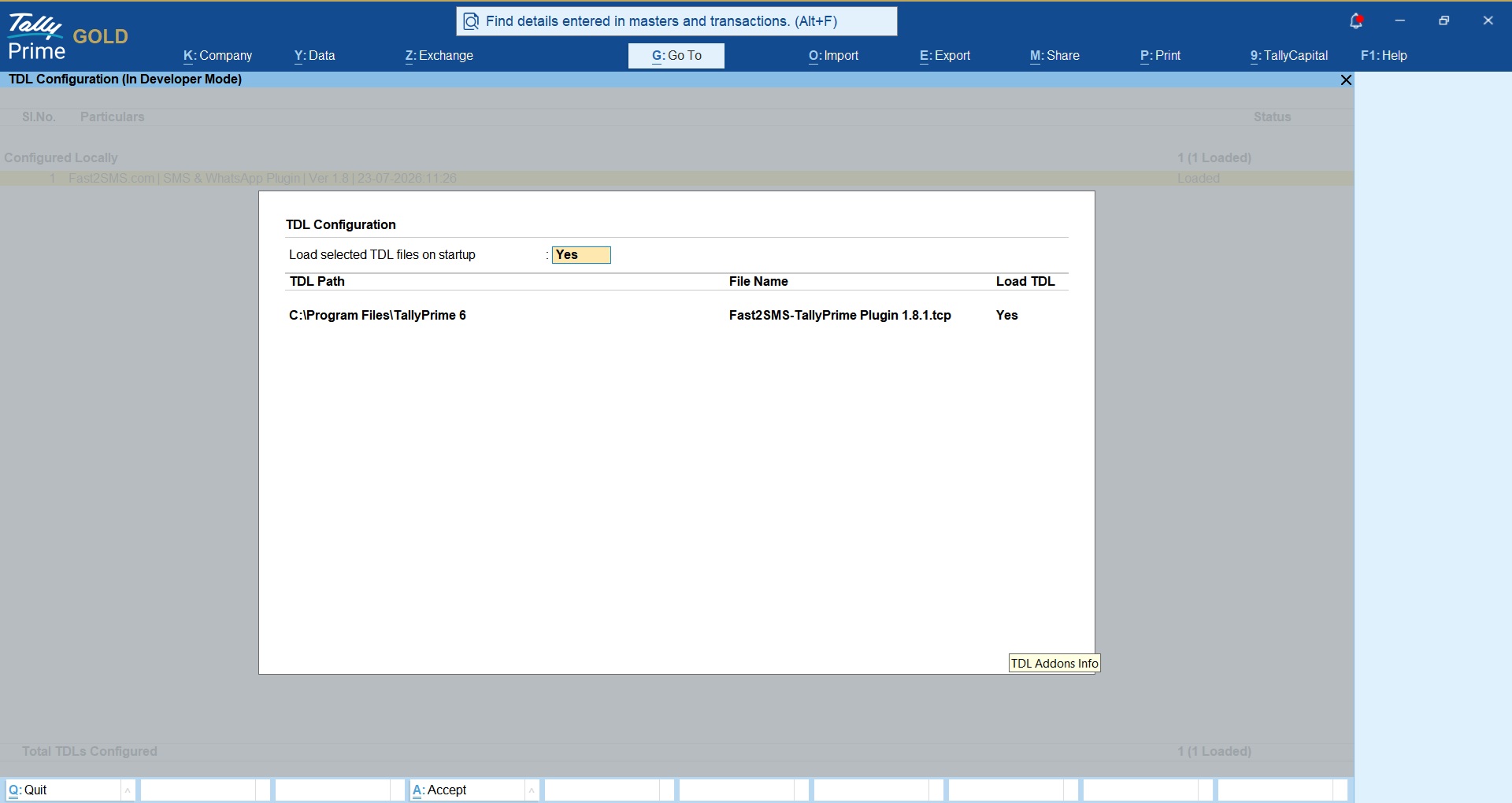
- Open your Tally company and press F1: Help > TDLs & Add-ons. The plugin appears in the list as loaded.
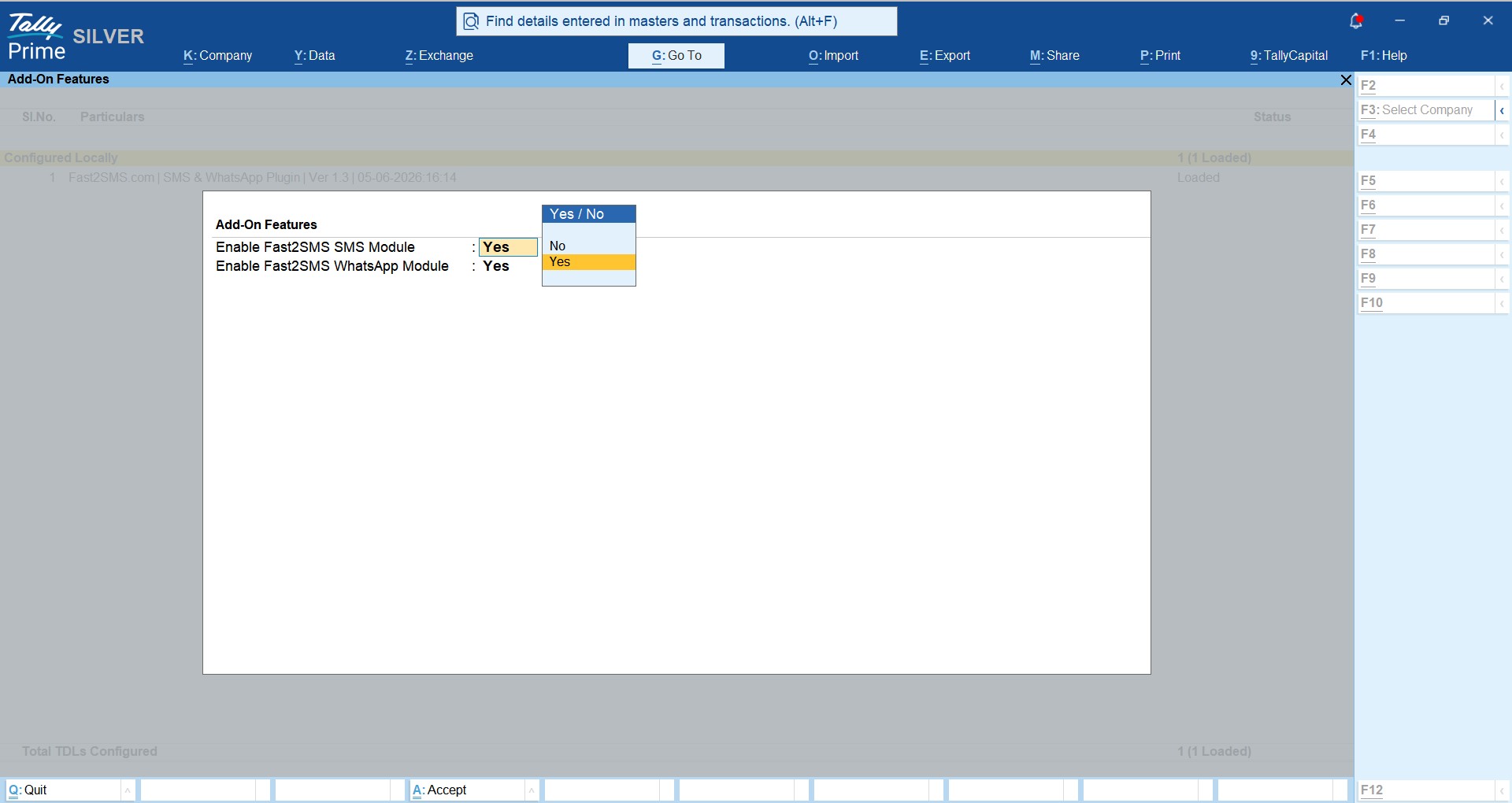
- Press F6: Add-On Features and set Enable Fast2SMS SMS Module and Enable Fast2SMS WhatsApp Module to Yes. This option is visible to the company administrator only, for security.
Step 2: Connect your Fast2SMS account
Create your free account at fast2sms.com, open the Dev API section, copy your API key, and paste it in the plugin’s API Key Update screen inside Tally.
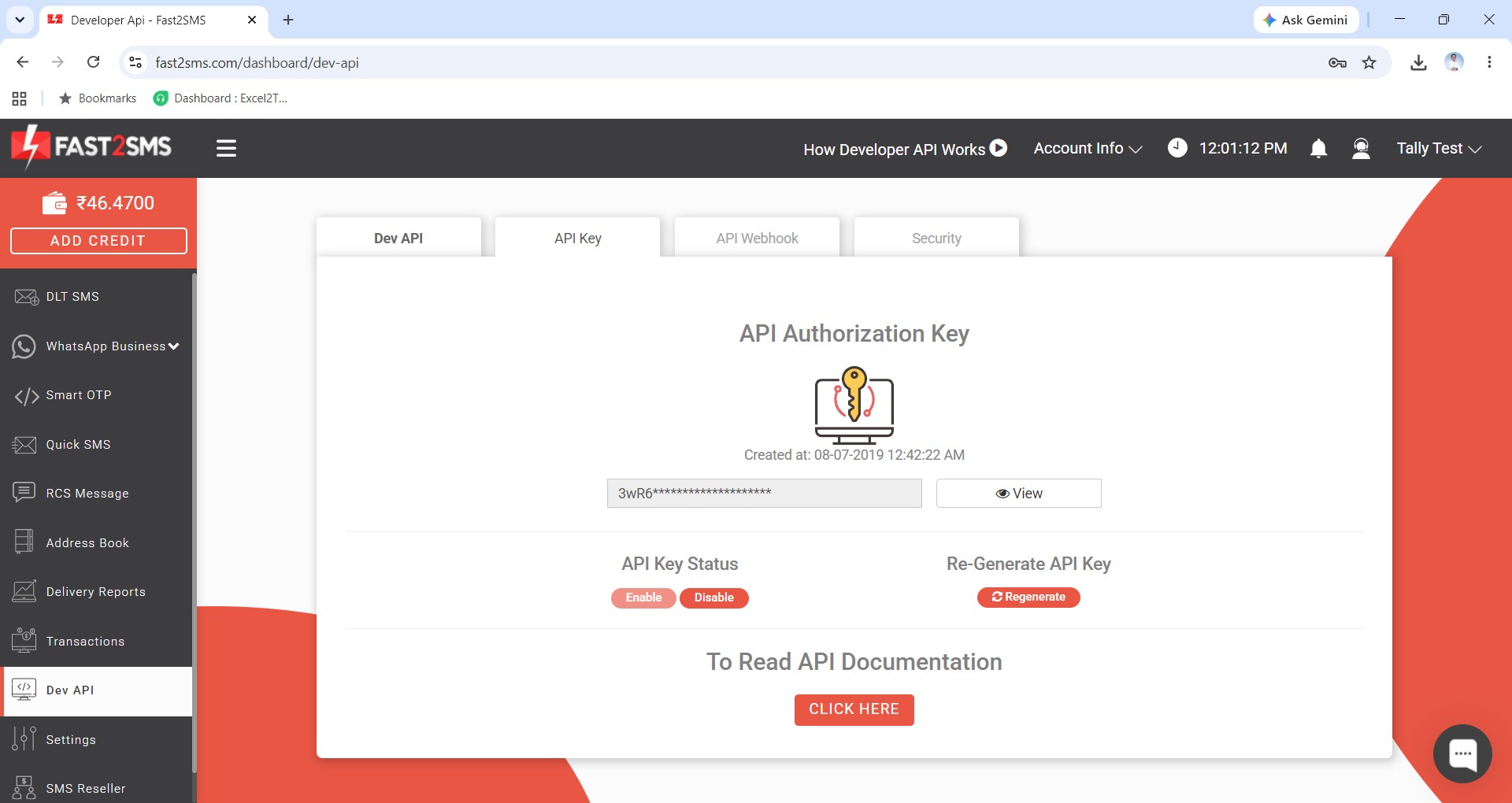
From then on your wallet balance shows inside Tally too, with a recharge option one keypress away.
Know your two menus
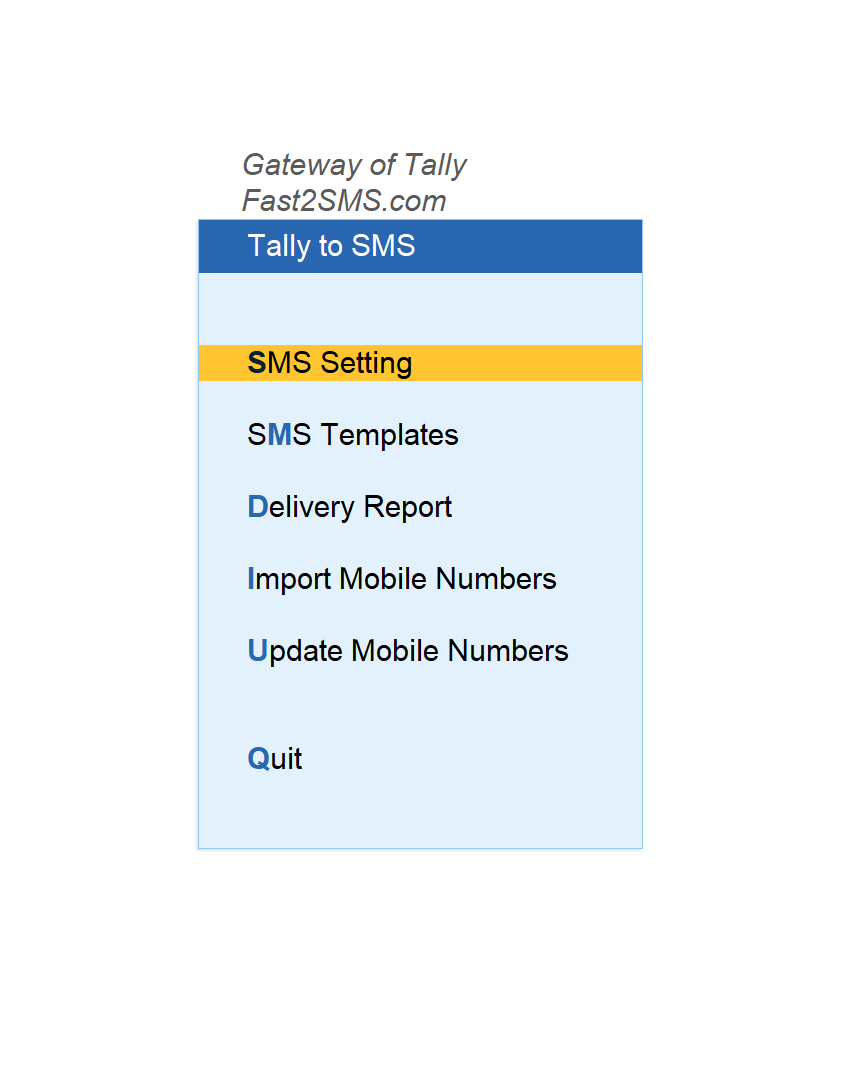
After setup, the Fast2SMS.com menu on the Gateway of Tally opens two modules, and everything in this guide lives inside them:
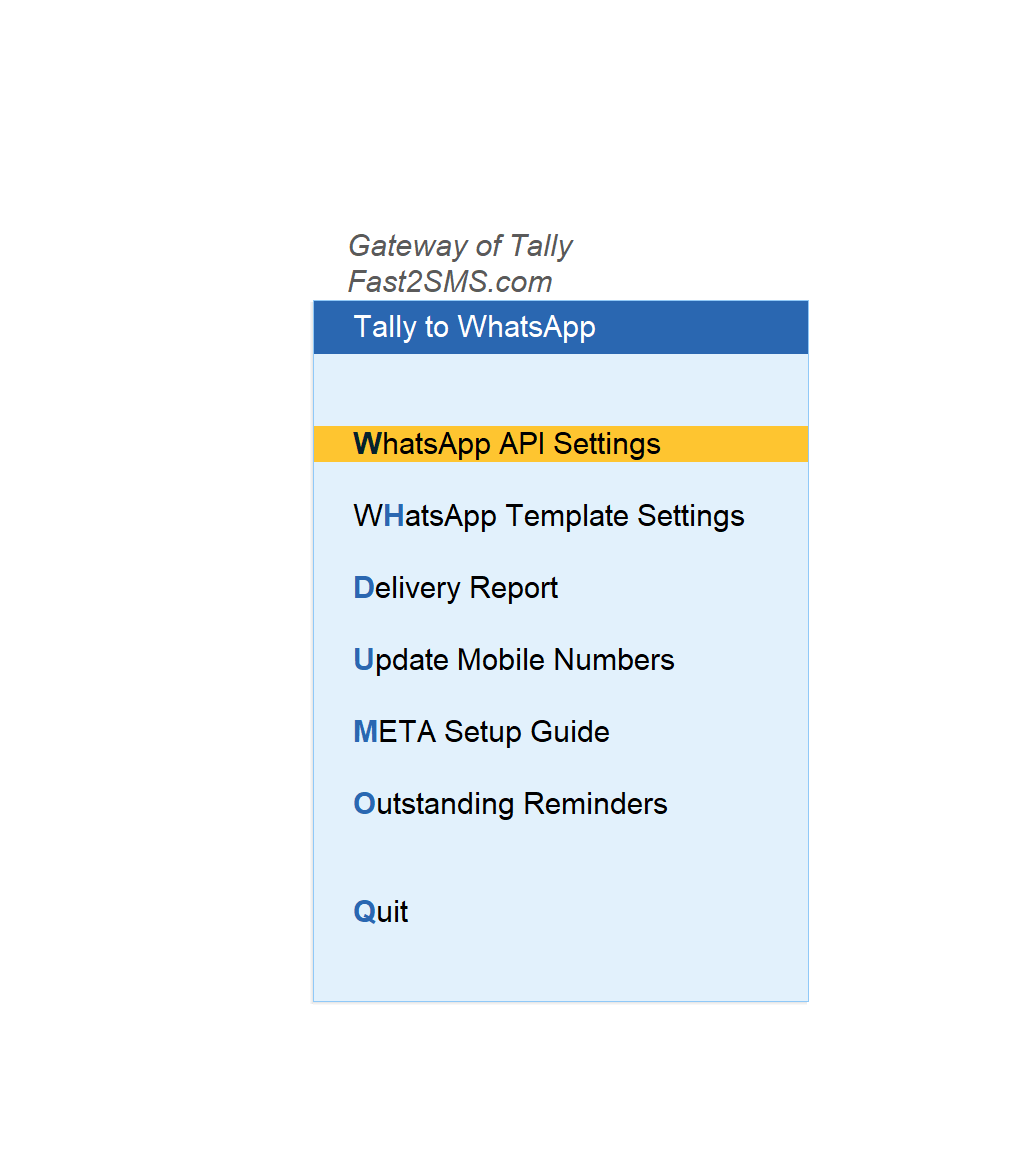
WhatsApp Method 1: Ready-made templates, live in two minutes
This is the fastest start in the whole guide, because there is nothing to approve and no WhatsApp number to connect. Fast2SMS provides 20 pre-approved templates on a ready default number, and the plugin needs exactly two entries:
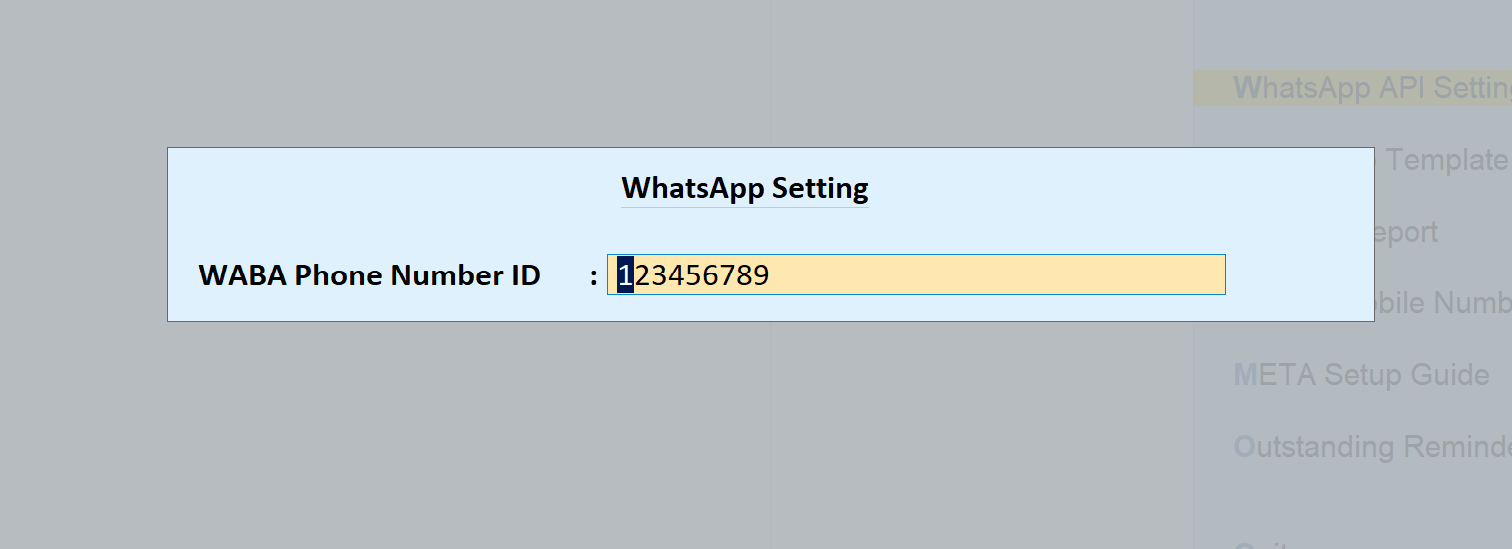
1. Enter the default phone number ID: 123456789
Open Tally to WhatsApp > WhatsApp API Settings and type 123456789 as the WABA Phone Number ID. That is the ready default, exactly as shown:
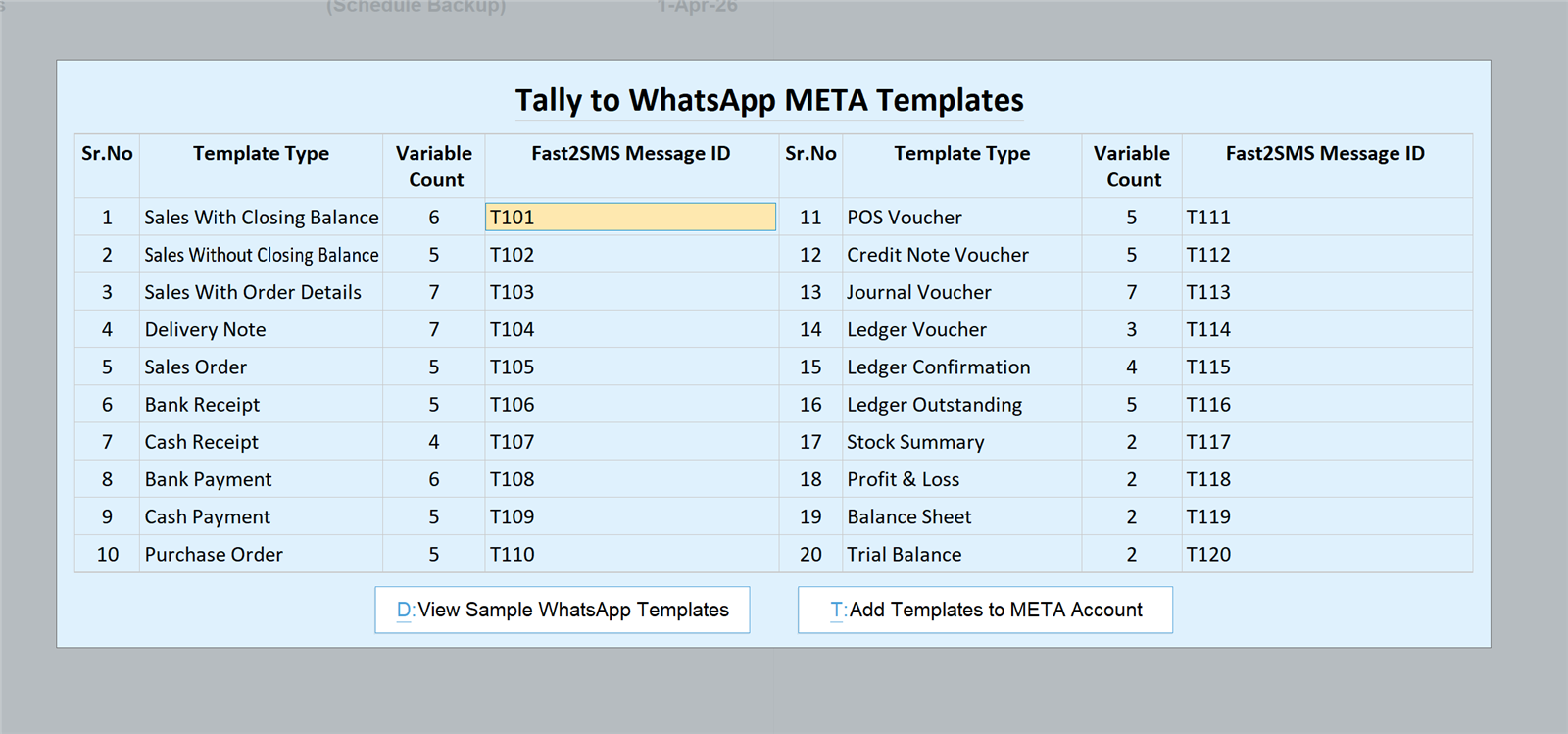
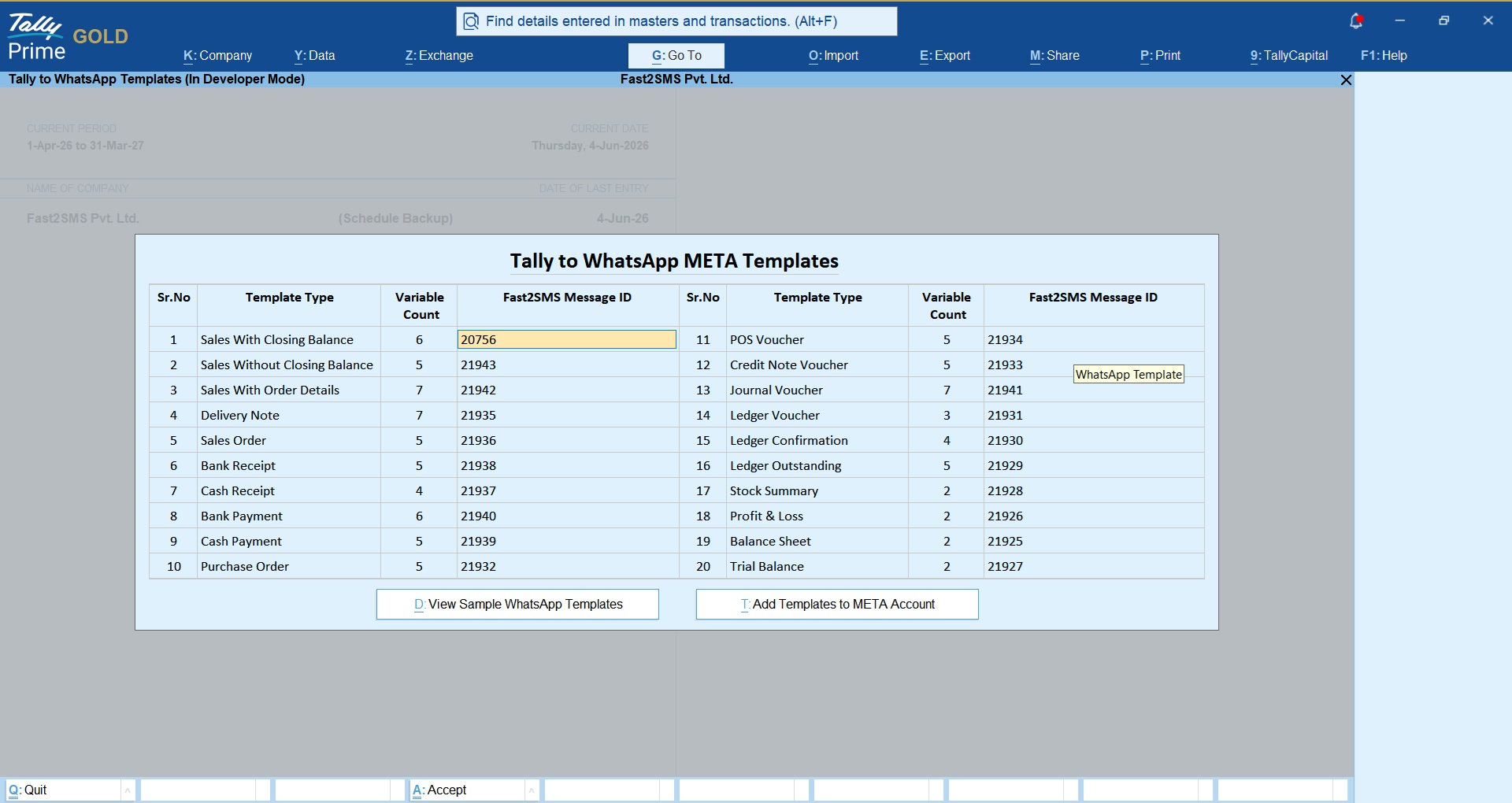
2. Enter message IDs T101 to T120
Open Tally to WhatsApp > WhatsApp Template Settings and fill the 20 template rows with the default message IDs, always in this exact mapping: T101 for Sales With Closing Balance, T102 for Sales Without Closing Balance, and so on through T120 for Trial Balance:
| Template type | Variables | Default message ID | Template type | Variables | Default message ID |
|---|---|---|---|---|---|
| Sales With Closing Balance | 6 | T101 | POS Voucher | 5 | T111 |
| Sales Without Closing Balance | 5 | T102 | Credit Note Voucher | 5 | T112 |
| Sales With Order Details | 7 | T103 | Journal Voucher | 7 | T113 |
| Delivery Note | 7 | T104 | Ledger Voucher | 3 | T114 |
| Sales Order | 5 | T105 | Ledger Confirmation | 4 | T115 |
| Bank Receipt | 5 | T106 | Ledger Outstanding | 5 | T116 |
| Cash Receipt | 4 | T107 | Stock Summary | 2 | T117 |
| Bank Payment | 6 | T108 | Profit & Loss | 2 | T118 |
| Cash Payment | 5 | T109 | Balance Sheet | 2 | T119 |
| Purchase Order | 5 | T110 | Trial Balance | 2 | T120 |
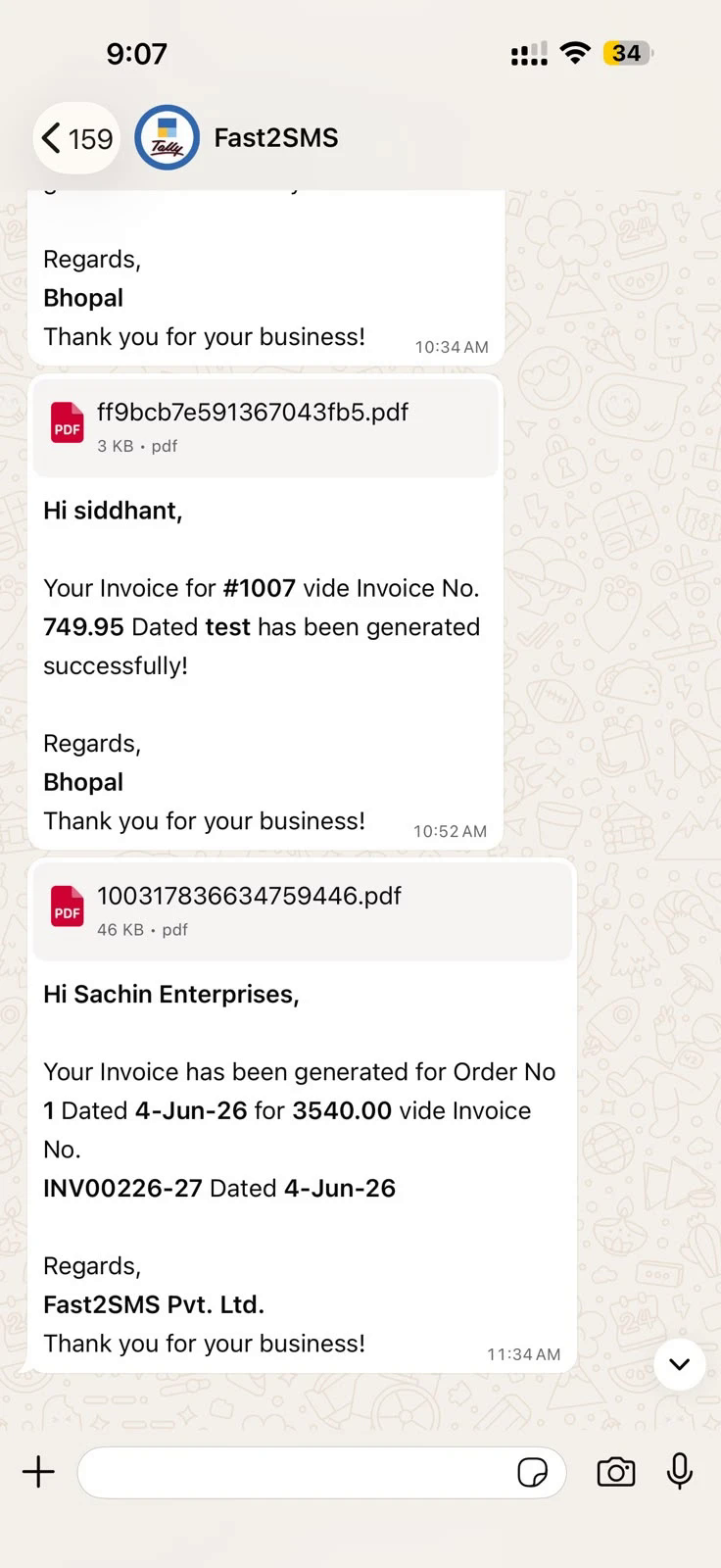
Save, and WhatsApp sending is live. Messages go out from the Fast2SMS default sender, invoices attached as PDF documents, and your only cost is the per-message rate. Nothing to approve, nothing to connect. This is what your customer receives:
WhatsApp Method 2: Your own brand name
Want invoices arriving from your business name with your logo and green-tick eligibility? Switch to your own number whenever ready, in three steps:
- Complete the Meta embedded signup. In your Fast2SMS panel, open WhatsApp Business and connect your number with the guided Facebook login. It is free, has no monthly fee, and you can keep using your existing WhatsApp Business app number. Steps: free WhatsApp Cloud API access. The plugin’s META Setup Guide menu item links the same walkthrough.
- Approve the 20 templates on your own account. In the plugin’s WhatsApp Template Settings, press Add Templates to META Account: it pushes the complete template set to your WABA for approval in one go.
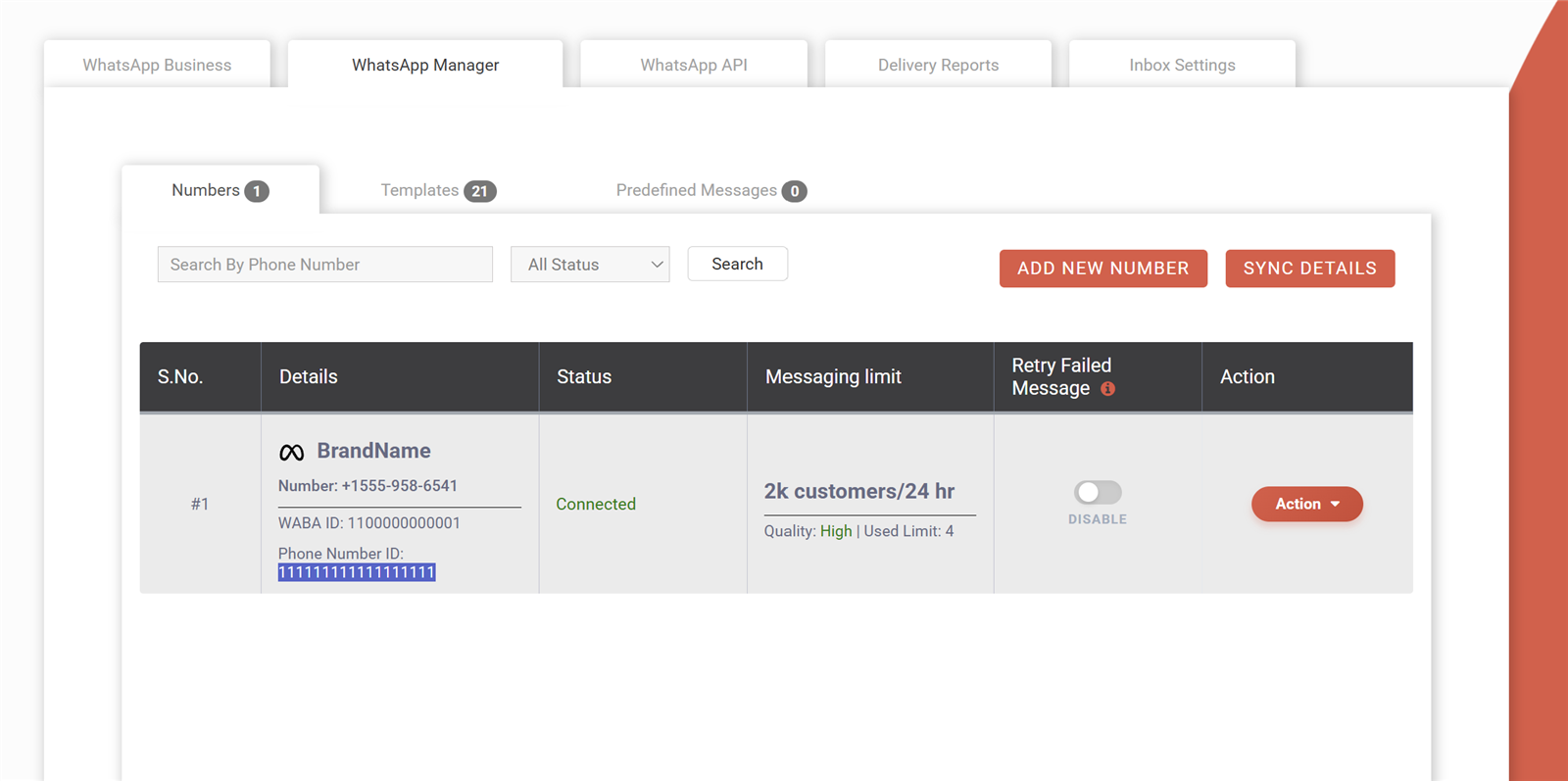
- Replace the two defaults with your own values. Copy your own phone number ID from WhatsApp Manager in the panel, enter it in WhatsApp API Settings in place of 123456789, and swap T101 to T120 for your own approved message IDs in Template Settings. Same screens, your values.
SMS setup (DLT needed)
Business SMS in India requires DLT registration: your sender ID and templates approved once, as TRAI mandates. Fast2SMS provides free DLT support, and the plugin’s SMS template screen has a DLT Registration shortcut built in. New to DLT? Start with the plain-English DLT guide.
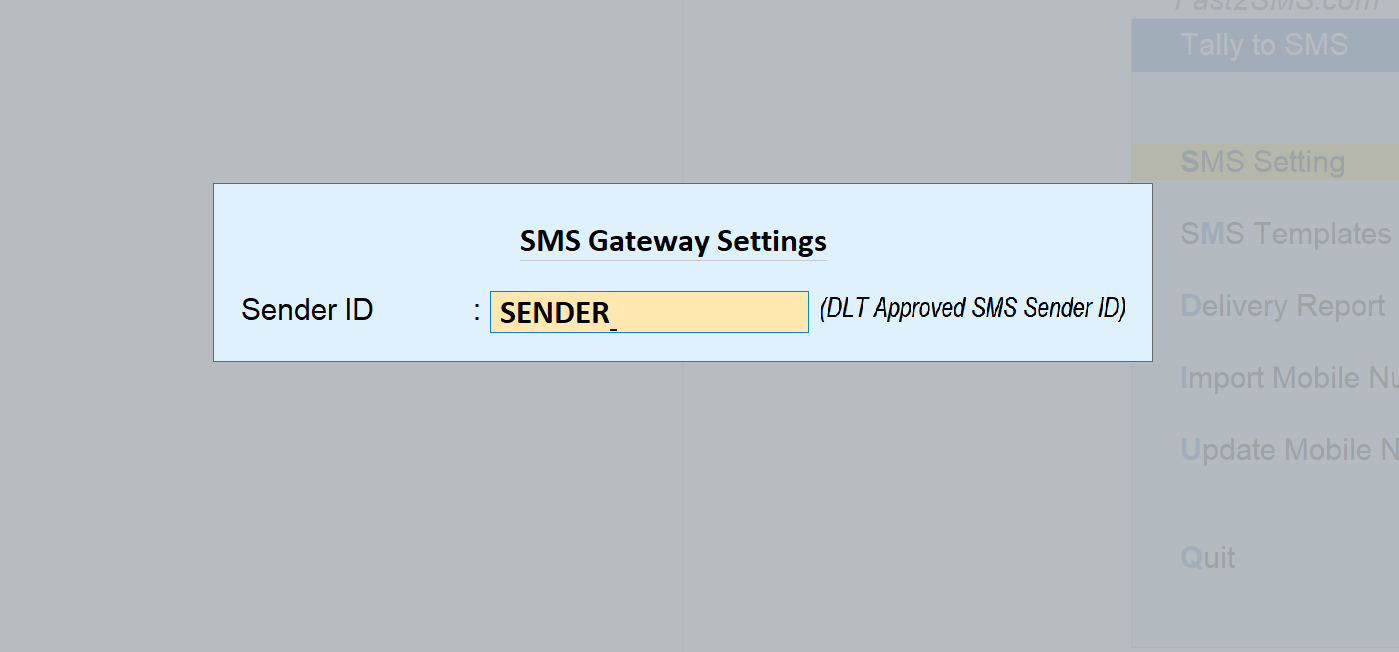
1. Set your DLT sender ID
2. Enter your SMS message IDs
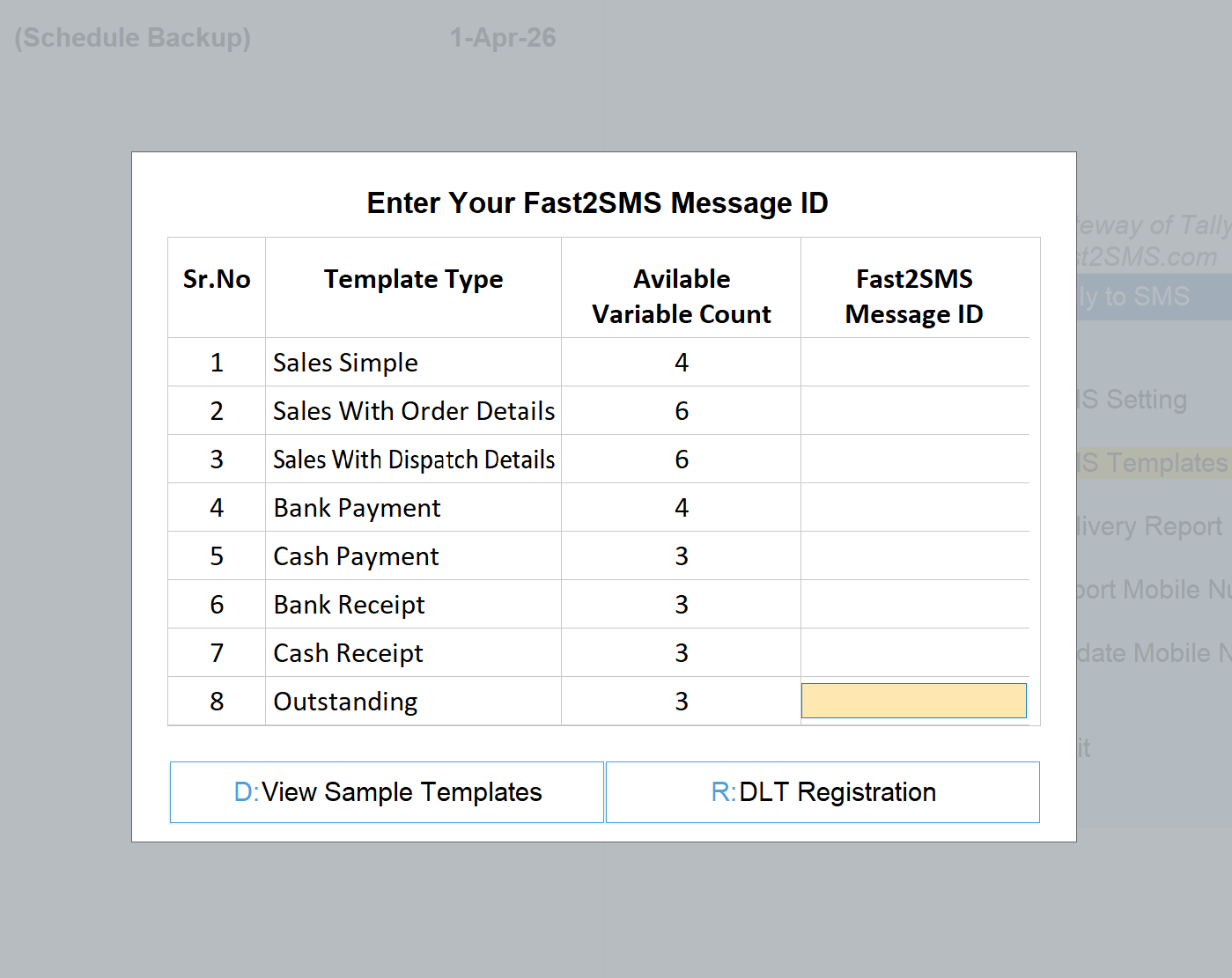
Open Tally to SMS > SMS Templates. Eight template types cover the SMS side: three sales formats, bank and cash payments and receipts, and outstanding. Enter your approved Fast2SMS message ID against each; View Sample Templates shows ready wording you can submit for DLT approval.
Customer numbers: store each customer’s mobile in their ledger master, update in bulk from Update Mobile Numbers, or import from Excel with the ready sample file, so your whole debtor list is reachable in one import.
Sending: what it looks like day to day
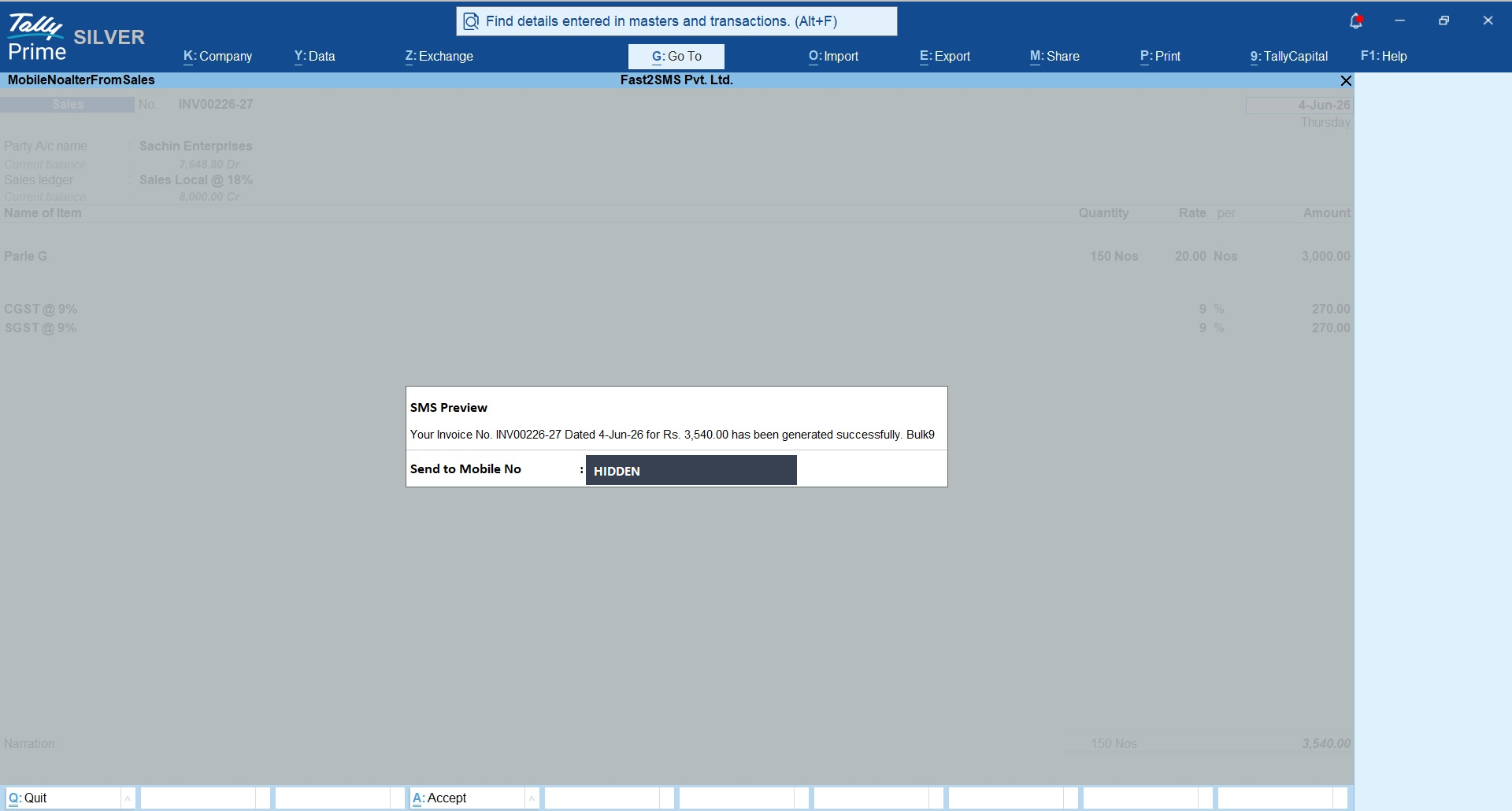
Open any sales voucher and the send buttons are right there. The plugin shows a preview with the message text and the customer’s mobile number before anything goes out.
- Receipts and payments: the same buttons on those vouchers.
- Bulk invoices: from the sales register, select and send, on SMS or WhatsApp.
- Auto-send: per voucher type, fire the WhatsApp the moment a voucher is created or altered.
- Outstanding reminders: single customer from the ledger, or bulk from Statement of Account > Outstanding > Group > Debtors.
- Ledger reports and confirmations: from the customer ledger screen.
- Delivery reports: both menus include a Delivery Report screen, and full logs stay in your Fast2SMS panel.
Frequently asked questions
Is the Tally plugin really free?
Yes. No licence, no monthly fee, no setup cost. You pay only the per-message rate for SMS and WhatsApp from your own Fast2SMS wallet.
Do I need my own WhatsApp Business number to start?
No. Type 123456789 as the phone number ID, fill T101 to T120 as the message IDs, and invoices go out the same day from the Fast2SMS default sender. Your own brand name is optional and can come later.
Which sender do the default messages come from?
The ready Fast2SMS default WhatsApp sender. Once you complete the Meta embedded signup and approve the templates on your own account, messages carry your business name instead.
How do I switch from the defaults to my own brand?
Complete the free Meta embedded signup, press Add Templates to META Account so all 20 templates go for approval on your WABA, then replace 123456789 with your own phone number ID and T101 to T120 with your own approved message IDs.
How does the customer receive the invoice PDF?
On WhatsApp it arrives as a document attachment inside the message. On SMS the PDF becomes an auto-shortened link; one tap opens it in the browser.
Do I need DLT registration?
For SMS, yes, as TRAI requires; free DLT support gets you through it, and the plugin has a DLT registration shortcut built in. WhatsApp needs no DLT at all.
Which vouchers can send messages?
Sales (three formats), delivery notes, sales orders, purchase orders, bank and cash receipts and payments, POS vouchers, credit notes, journal and ledger vouchers, ledger confirmations, outstanding, stock summary, P&L, balance sheet and trial balance.
Can messages go out automatically?
Yes. Per voucher type, enable send on creation or alteration and the WhatsApp goes out the moment the voucher is saved.
How do I add mobile numbers for all my customers at once?
Bulk update from the plugin’s Update Mobile Numbers screen, or import from Excel using the sample file it gives you.
Which Tally version does it support?
TallyPrime, loaded as a standard .TCP add-on, either as a Local TDL or through your Tally.NET account.
Where do I get help?
Email [email protected] or call +91-6262778822.
More Tally WhatsApp guides
- Free WhatsApp plugin for Tally: 100+ FAQs
- TallyPrime built-in WhatsApp vs the free plugin
- Tally WhatsApp plugin not working? 30 fixes
- Bulk WhatsApp from Tally
- Automatic WhatsApp on voucher save
- Tally WhatsApp for distributors
- Tally WhatsApp for retail shops
- Purchase orders and payment advice to suppliers
- What Tally WhatsApp invoices cost
- Tally WhatsApp plugin FAQ in Hindi
Send your first invoice today
Download the plugin, paste your API key, type 123456789 and T101 to T120, and your next sales voucher can reach the customer on WhatsApp before the goods leave the counter.
Download Tally Plugin
Signup Now
Questions? Write to [email protected] or call +91-6262778822.