
Free WhatsApp Plugin for Tally: Download, Setup and 100+ FAQs
If you are looking for a free WhatsApp plugin for Tally, this guide is for you. It is written for shop owners, distributors, traders, manufacturers and CA firms who run TallyPrime every day and are tired of exporting a PDF, saving it on the phone and forwarding it to each customer by hand. You will learn where to download the Tally WhatsApp plugin, how to install it step by step, and how to send your first invoice on WhatsApp in a few minutes.
Below the setup steps you will find more than 100 plain answers to the questions Tally users actually ask us: is the plugin really free, what the API key is, how the ready templates work, how auto-send and bulk sending work, when you need DLT for SMS, how to move to your own brand number, what it costs per message and what to do when something does not send. Read it top to bottom, or jump to the section you need.
Download Tally PluginSignup Now
In this guide
- About the plugin: is it really free?
- Download and install the Tally WhatsApp plugin, step by step
- API key and your Fast2SMS account
- Start in two minutes with the ready default templates
- Sending invoices and vouchers on WhatsApp
- Auto-send and bulk sending
- Sending SMS from Tally with DLT
- Moving to your own brand number
- Cost and billing
- Troubleshooting and support
- Get started today
About the free WhatsApp plugin for Tally: is it really free?
The Fast2SMS Tally plugin is a small add-on file (a .TCP file) that you load into TallyPrime. Once it is switched on, a Fast2SMS.com menu appears on the Gateway of Tally and send buttons appear on your voucher screens. From there you can send invoices, receipts, payments, outstanding reminders, ledger reports and more to your customers on WhatsApp or SMS, without leaving Tally.
The plugin itself costs nothing. There is no licence fee, no renewal and no setup or monthly fee. You only pay for the messages you send, from your own Fast2SMS wallet. This section answers the first questions people ask before they download it.
Is the Tally WhatsApp plugin really free?
Yes, the Fast2SMS Tally WhatsApp plugin is completely free to download and use, with no licence fee, no yearly renewal, no setup charge and no monthly fee. You pay only for the messages you actually send, from your Fast2SMS wallet. If you send nothing in a month, you pay nothing that month.
What exactly is the free WhatsApp plugin for Tally?
It is a TallyPrime add-on in .TCP format that connects your Tally company to Fast2SMS, so you can send invoices and other documents to customers on WhatsApp and SMS from inside Tally. You load it as a Local TDL or as an Account TDL through Tally.NET, switch on the modules, paste your API key and start sending.
What can I send from Tally with this plugin?
You can send sales invoices, delivery notes, sales orders, purchase orders, bank and cash receipts, bank and cash payments, POS vouchers, credit notes, journal and ledger vouchers, ledger confirmations, ledger outstanding, stock summary, profit and loss, balance sheet and trial balance. On WhatsApp the invoice PDF goes as a document inside the message.
Is this a Tally WhatsApp TDL or a separate software?
It is a Tally WhatsApp TDL add-on that runs inside TallyPrime, not a separate software you install on Windows or keep open next to Tally. The .TCP file runs inside TallyPrime, adds its own Fast2SMS.com menu and adds send buttons to your vouchers. There is no extra desktop app to keep open. Our page on TDL for Tally to WhatsApp explains how TDL add-ons work in general.
Which Tally versions does the plugin support?
The plugin is built for TallyPrime and loads as a standard .TCP add-on, either as a Local TDL on your computer or as an Account TDL through your Tally.NET account. If you are unsure whether your TallyPrime setup is ready, share your details with our support team and they will check it with you.
Does the plugin work with Tally ERP 9?
No, the plugin works only in TallyPrime and does not work in Tally ERP 9. If you are still on ERP 9, upgrade to TallyPrime first. All the menus, buttons and steps in this guide are TallyPrime screens.
Why is the plugin free when other Tally WhatsApp TDLs are paid?
Fast2SMS earns only when you send messages, so it gives the plugin away free and charges a small per-message rate from your wallet instead. Many paid third-party Tally WhatsApp TDLs charge a one-time fee, commonly ₹3,000 to ₹6,000 plus GST, and some also charge a yearly panel renewal. See our Tally WhatsApp TDL price comparison.
Is there any hidden charge in the free Tally plugin?
No, there is no hidden charge: the plugin is free, and the only cost is the per-message rate for the WhatsApp or SMS messages you send. A WhatsApp utility message costs ₹0.25 and is charged only when it is delivered. Failed WhatsApp messages are refunded to your wallet automatically within 48 hours.
Does the plugin use the official WhatsApp Business API?
Yes, every message goes through the official WhatsApp Business API using Meta-approved templates, not through WhatsApp Web automation or a browser extension on your computer. That means no QR code scan, no phone that has to stay switched on, and no risk of your number being banned for automation. Read more in Tally to WhatsApp without QR.
Do I need to keep my phone connected to send WhatsApp from Tally?
No, your phone does not need to be connected, switched on or even near the computer, because the plugin sends through the WhatsApp Business API and not through your phone. The plugin sends through the WhatsApp Business API from Fast2SMS, so there is no WhatsApp Web session to keep alive. You can send invoices from Tally even when your mobile is at home.
Can the same plugin send both SMS and WhatsApp?
Yes, one plugin has both an SMS module and a WhatsApp module, and you can switch on either one or both. The WhatsApp module sends the invoice PDF as a document. The SMS module turns the PDF into a short link that opens in the browser. SMS needs DLT registration; WhatsApp does not.
Who is this plugin best suited for?
It suits any business that raises invoices in TallyPrime and wants customers to get them instantly on WhatsApp: retail shops, wholesalers, distributors, traders, manufacturers, service firms and CA or accounting firms handling many clients. If you send more than a handful of invoices, reminders or ledgers a day, it saves real time.
Download and install the Tally WhatsApp plugin, step by step
Installing the plugin takes a few minutes. You download the .TCP file, load it into TallyPrime, then switch on the SMS and WhatsApp modules. Here are the exact steps, using the same screen names you will see in Tally.
Before you start, keep these ready:
- TallyPrime open on your computer, with the company you want to send from.
- Administrator access to that company, because only the administrator can switch on the modules.
- A free Fast2SMS account, so you can copy your API key from the Dev API section.
- Mobile numbers of a few customers saved in their ledgers, or at least your own number in a test ledger, so you can send a test invoice.
That is all you need for WhatsApp. For SMS you also need a DLT approved sender ID and templates, which we cover later in this guide.
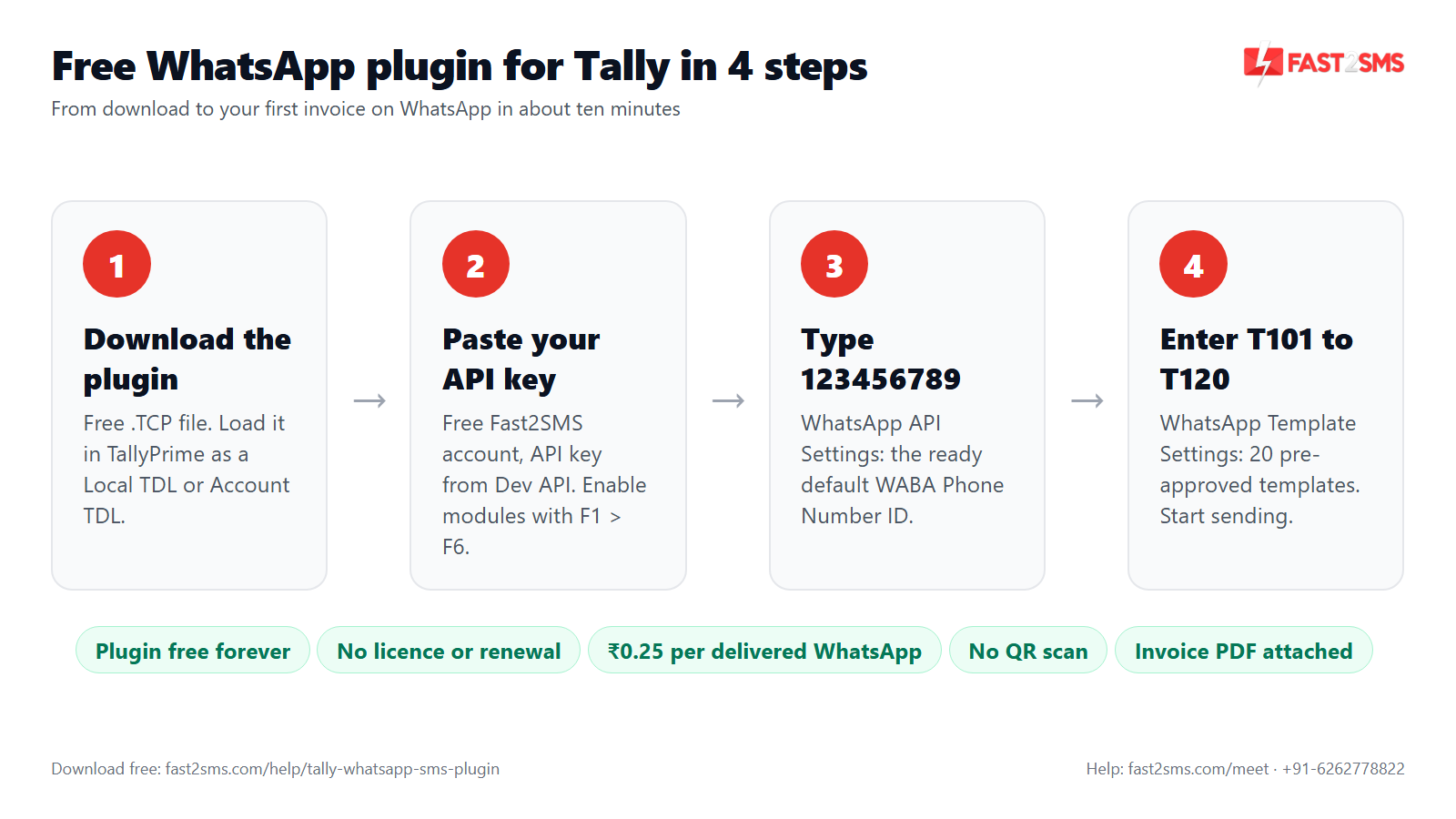
- Download the plugin: open the Fast2SMS Tally plugin download folder and download the .TCP file to your computer.
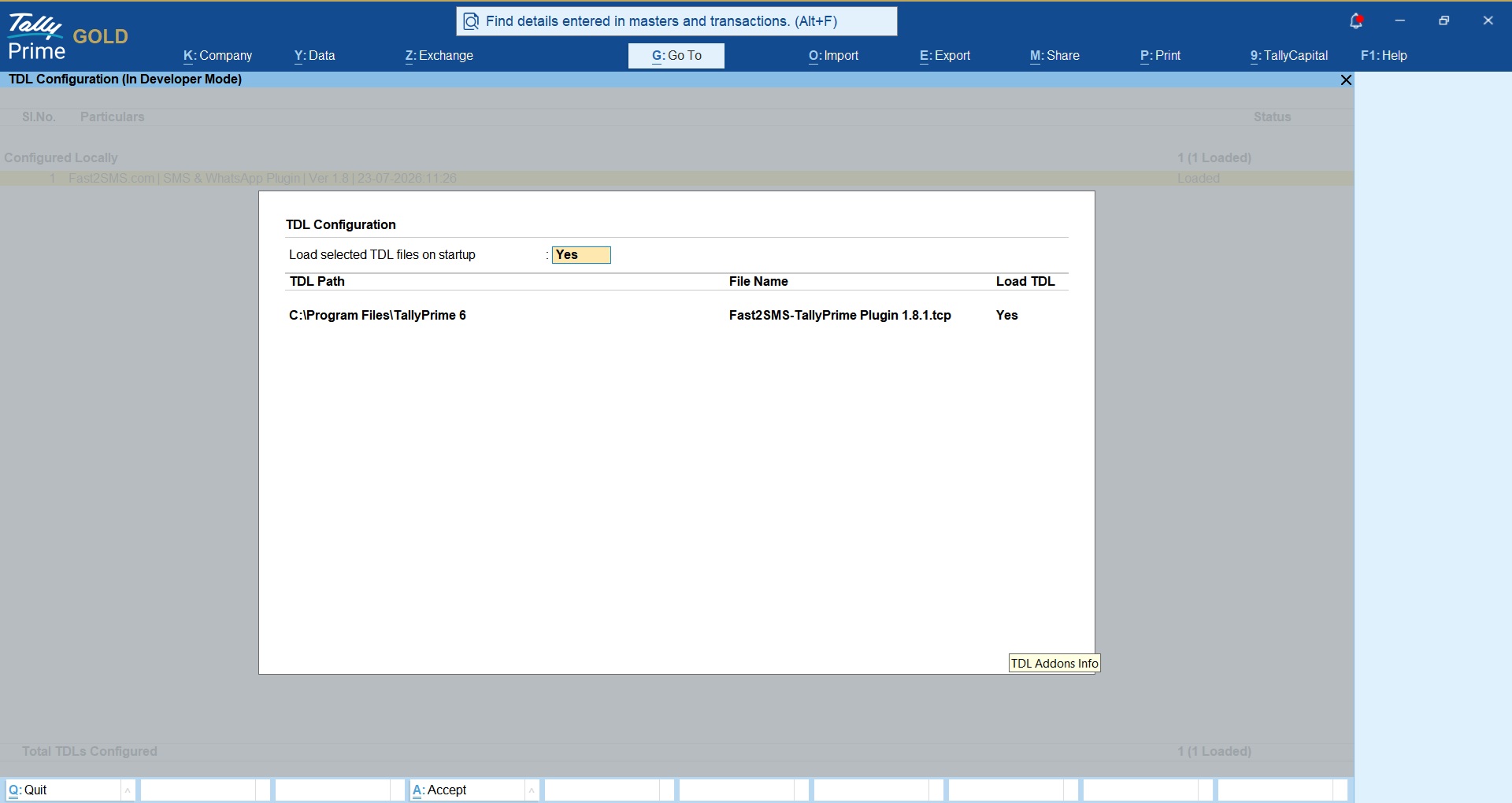
- Load the .TCP file: copy it into your TallyPrime folder as a Local TDL, or upload it in your Tally.NET account as an Account TDL.
- Check that it loaded: open your Tally company and press F1: Help > TDLs & Add-ons. The plugin should appear in the list as loaded.
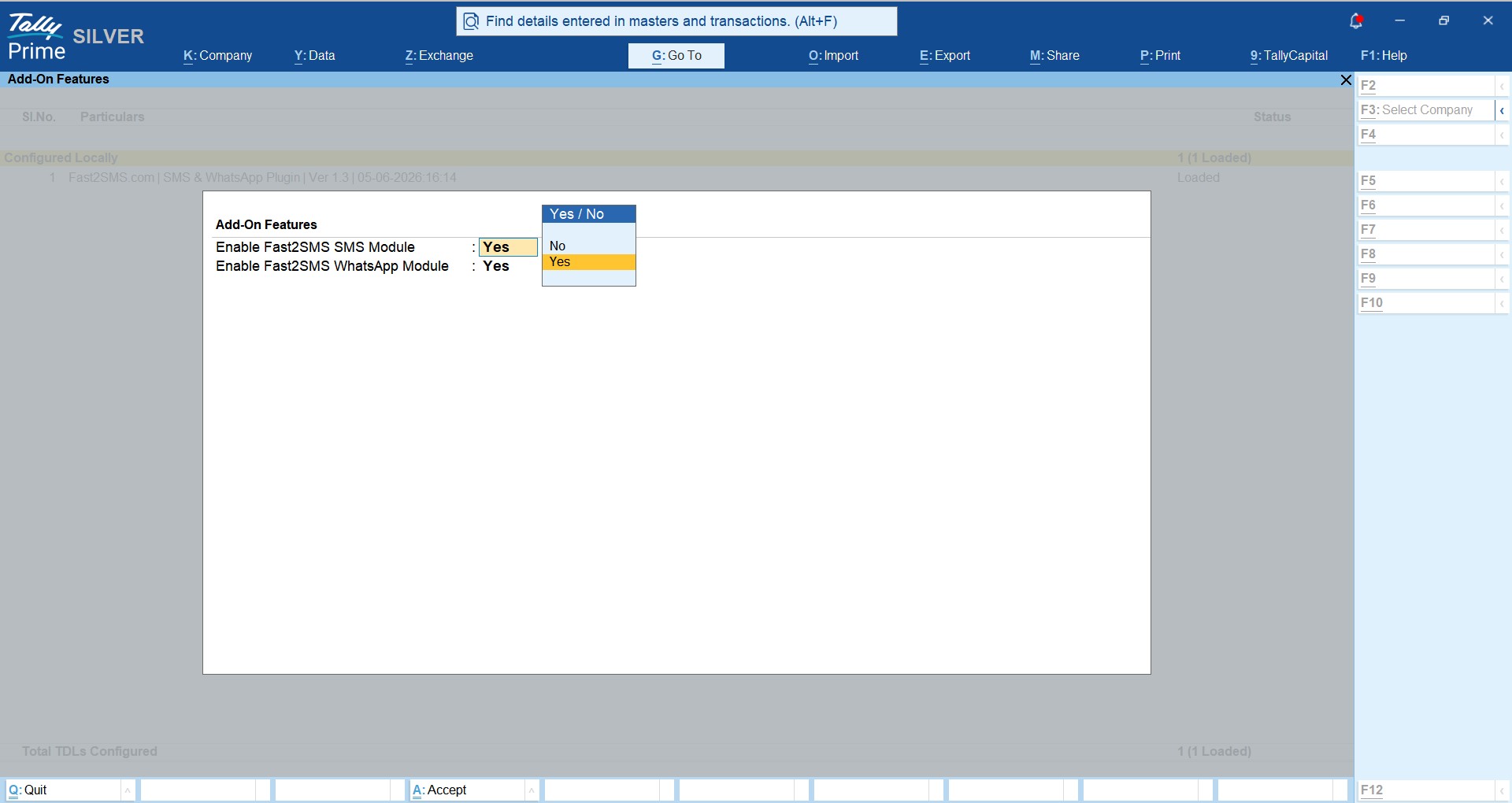
- Switch on the modules: press F6: Add-On Features and set Enable Fast2SMS SMS Module and/or Enable Fast2SMS WhatsApp Module to Yes. Only the company administrator can see this option.
- Find the new menu: go back to the Gateway of Tally. A new Fast2SMS.com menu is now there.
Where do I download the Tally WhatsApp plugin?
You can download the Tally WhatsApp plugin from the official Fast2SMS Google Drive folder linked in the Download Tally Plugin button on this page. The folder holds the plugin .TCP file. Save it to your computer, then load it into TallyPrime as a Local TDL or through Tally.NET as an Account TDL.
Is the Tally WhatsApp plugin free download safe?
Download the plugin only from the official Fast2SMS link on this page or our other help articles, and it is the same file Fast2SMS shares with all its Tally users. Avoid copies from unknown websites or forwarded chats, because you cannot be sure what has been changed in them. If in doubt, ask our support team to confirm the link.
What file format is the Tally plugin?
The plugin is a single .TCP file, which is the compiled TDL format that TallyPrime loads as an add-on, the same way other Tally add-ons are loaded. You do not need to unzip, run or install anything on Windows. You simply place the .TCP file where TallyPrime can load it, as a Local TDL or an Account TDL.
How do I install the Tally WhatsApp plugin in TallyPrime?
Load the .TCP file as a Local TDL or Account TDL, open your company, check it under F1: Help > TDLs & Add-ons, then press F6: Add-On Features and set the SMS and WhatsApp modules to Yes. The numbered steps above show each screen in order.
What is the difference between Local TDL and Account TDL?
A Local TDL is a .TCP file loaded from your own computer, so it works on that machine, while an Account TDL is uploaded to your Tally.NET account instead. With an Account TDL, TallyPrime installations linked to that Tally.NET account can load it. Single-computer businesses usually go with Local TDL; firms with several licences often prefer Account TDL.
Where is F6: Add-On Features in TallyPrime?
You reach it by opening your Tally company, pressing F1: Help, choosing TDLs & Add-ons and then pressing F6: Add-On Features on that screen. That screen shows the switches to enable the Fast2SMS SMS module and the Fast2SMS WhatsApp module. Set the ones you want to Yes and accept the screen.
Why can’t I see the Add-On Features option to enable the modules?
The enable option is visible only to the company administrator, for security, so you need to log in to the company as the administrator. If you are logged in as a normal user, ask the person who manages the Tally company to switch on the modules, or share admin access for the setup.
Do I need to enable both the SMS and WhatsApp modules?
No, you can enable only the module you plan to use, either the SMS module or the WhatsApp module, and switch on the other one later. Most businesses start with the WhatsApp module because it needs no DLT registration and can go live the same day with the default templates. Turn on SMS once your DLT sender ID and templates are approved.
Where does the Fast2SMS menu appear after installation?
After you enable the modules in F6: Add-On Features, a new Fast2SMS.com menu appears on the Gateway of Tally, next to your usual Tally menus. Inside it you will find two modules: Tally to SMS and Tally to WhatsApp. Each has its own settings, templates, delivery report and mobile number screens. The API key and wallet screens are part of the same plugin.
What is inside the Tally to WhatsApp menu?
The Tally to WhatsApp menu holds WhatsApp API Settings, WhatsApp Template Settings, the delivery report, mobile number update and import, the META Setup Guide and outstanding reminders. You will use WhatsApp API Settings and WhatsApp Template Settings first, to enter the default phone number ID and message IDs.
Do I need to install the plugin on every computer?
If you load it as a Local TDL, each computer that runs TallyPrime and needs to send messages must load the .TCP file. If you load it as an Account TDL through Tally.NET, it is managed from your Tally.NET account instead. Pick the method that matches how your office runs Tally.
How long does it take to install and set up the plugin?
Most users install the plugin, enable the modules, paste the API key and enter the default WhatsApp settings in about ten to fifteen minutes. The WhatsApp side can be live the same day with the ready templates. SMS takes longer only because DLT approval for your sender ID and templates comes first.
Can someone install the Tally plugin for me?
Yes, the Fast2SMS team can install and set up the plugin with you for free on a short screen-share meeting, from loading the file to sending your first test invoice. Book a slot at fast2sms.com/meet, keep TallyPrime open on your computer, and we will walk through each step together. A Hindi version of this setup is in our Tally WhatsApp TDL free download guide in Hindi.
API key and your Fast2SMS account
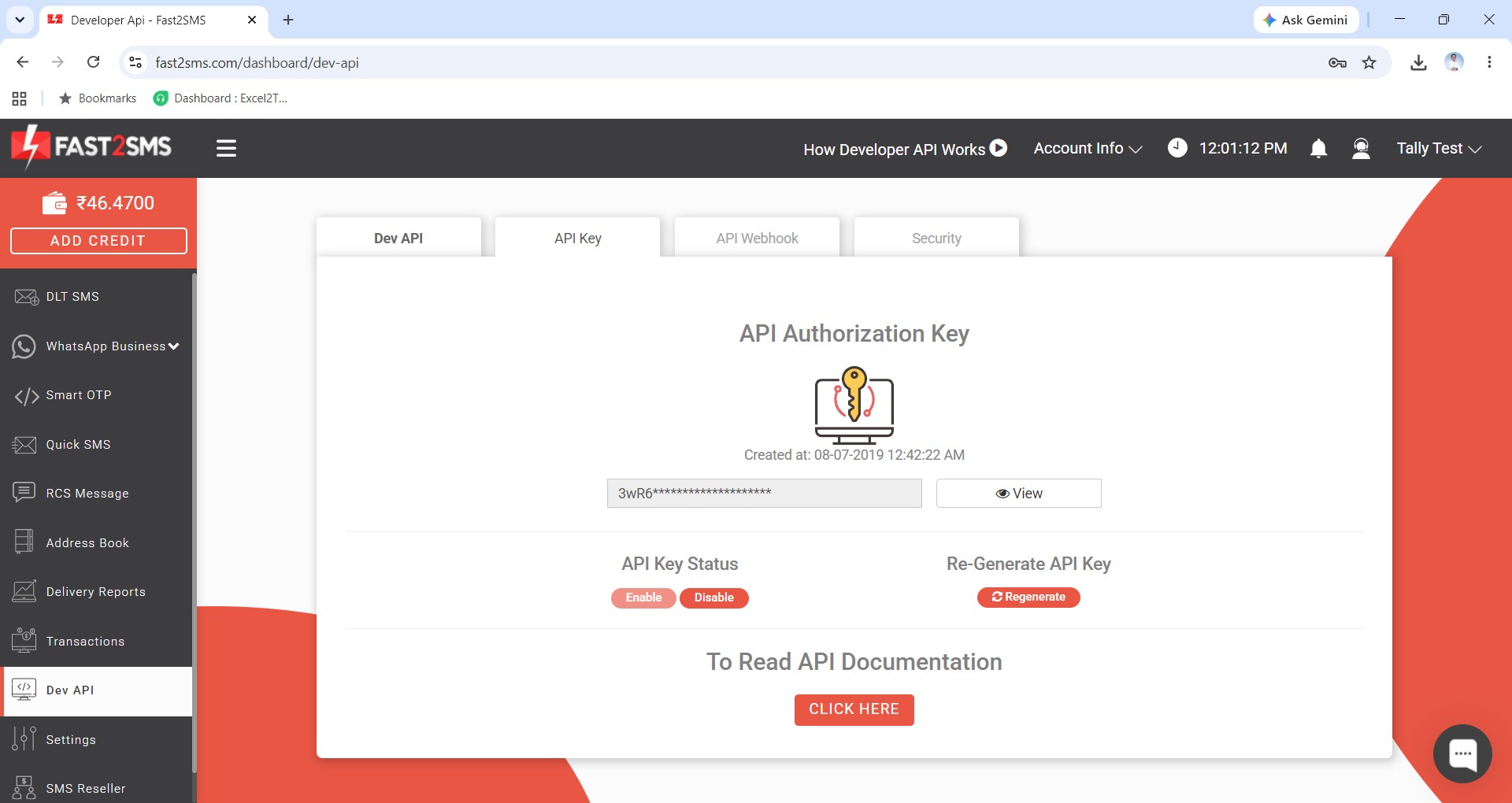
The plugin sends messages through your own Fast2SMS account, so a free Fast2SMS account is required. Once you sign up, you copy your API key from the Dev API section of the panel and paste it into the plugin’s API Key Update screen in Tally. That key links your Tally company to your wallet, templates and delivery reports.
Do I need a Fast2SMS account to use the Tally plugin?
Yes, a free Fast2SMS account is mandatory, because the plugin needs your API key to send messages and to charge them to your wallet. Signing up at fast2sms.com is free, and you get ₹50 free test credit after signup to try sending from Tally.
How do I create a Fast2SMS account?
Go to fast2sms.com, click Signup and register with your details and mobile number; it takes a couple of minutes and costs nothing. The account is free, with no setup fee and no monthly fee. After signup you land in the Fast2SMS panel, where you will find the Dev API section with your API key and the wallet for recharges.
Where do I find my Fast2SMS API key for Tally?
Your API key is in the Dev API section of the Fast2SMS panel, which you see after you log in to your account at fast2sms.com. Copy the full key exactly as shown, without extra spaces at the start or end. Then open the plugin’s API Key Update screen from the Fast2SMS.com menu in Tally and paste it there.
Where do I enter the API key in Tally?
You enter it in the plugin’s API Key Update screen, which you open from the Fast2SMS.com menu on the Gateway of Tally. Paste your Fast2SMS API key in the field and save. From that point the plugin can send messages, show your wallet balance and pull delivery reports for your account.
What does the API key do in the Tally plugin?
The API key tells Fast2SMS which account is sending the message, so each WhatsApp or SMS is charged to your wallet and shows up in your delivery reports. Without the key, the plugin has no account to send from, so nothing goes out. Treat it like a password.
Is it safe to paste my API key in Tally?
Yes, pasting the key in the plugin’s API Key Update screen is the intended setup, and it stays inside your Tally company. Do not share the key on WhatsApp groups, emails or screenshots, because anyone with it could send messages from your wallet. If you think it leaked, contact support to change it.
What happens if I change or regenerate my API key?
If your API key changes, the old key stops working and Tally will not be able to send until you paste the new key. Open API Key Update in the Fast2SMS.com menu, replace the old key with the new one and save. Your templates and wallet stay the same.
Can I check my Fast2SMS wallet balance inside Tally?
Yes, the plugin shows your Fast2SMS wallet balance inside Tally, and there is a Recharge Wallet option right next to it. You do not need to open a browser just to see if you have enough balance before sending a batch of invoices or reminders.
How do I recharge my Fast2SMS wallet from Tally?
Open the Fast2SMS Wallet screen in the plugin and use the Recharge Wallet option to add money to your prepaid Fast2SMS wallet. You can also recharge directly from the Fast2SMS panel in your browser. Either way, the same wallet pays for your WhatsApp and SMS messages.
What do I get with the free Fast2SMS signup?
A free Fast2SMS signup gives you an account with no setup fee and no monthly fee, the API key for Tally, a prepaid wallet, delivery reports, and ₹50 free test credit after signup. You can use that credit to test the plugin before you recharge.
Can I use one Fast2SMS account for several Tally companies?
Usually yes: if you paste the same API key into each Tally company, all their messages are charged to the same wallet. If you want separate billing and separate reports for each company, create a separate Fast2SMS account for each one and use its own API key. Support can help you decide.
Start in two minutes with the ready default templates
This is the part that makes the free WhatsApp plugin for Tally usable on day one: right after you download the Tally WhatsApp plugin and paste your key, the default templates let you send your first invoice without waiting for any approval.
You do not need your own WhatsApp Business number or any Meta approval to start. Fast2SMS gives 20 ready, pre-approved templates on a default sender. After you paste your API key, make two entries:
- Tally to WhatsApp > WhatsApp API Settings: type 123456789 as the WABA Phone Number ID.
- Tally to WhatsApp > WhatsApp Template Settings: enter the message IDs T101 to T120 exactly as in the table below.
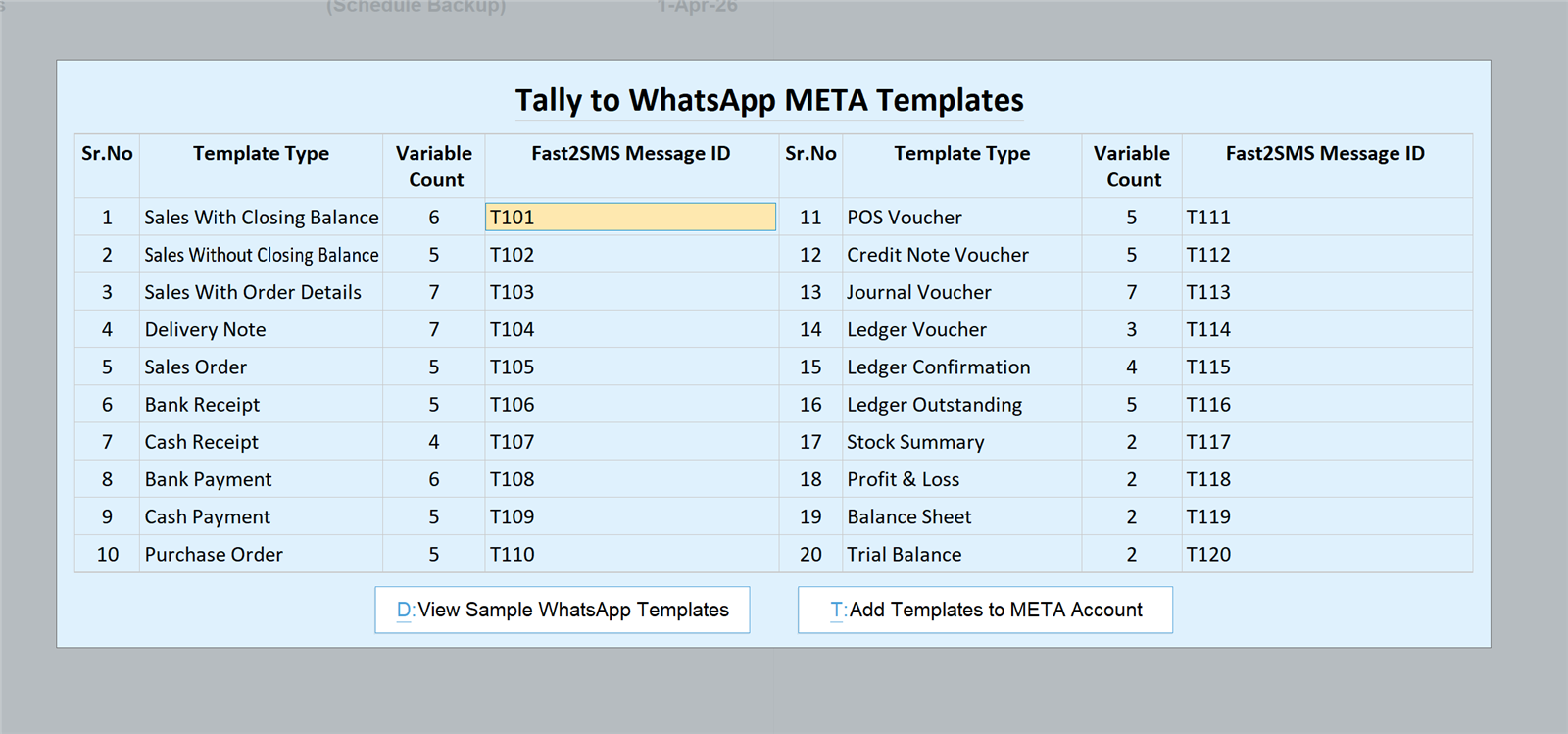
| Message ID | Use it for |
|---|---|
| T101 | Sales with closing balance |
| T102 | Sales without closing balance |
| T103 | Sales with order details |
| T104 | Delivery note |
| T105 | Sales order |
| T106 | Bank receipt |
| T107 | Cash receipt |
| T108 | Bank payment |
| T109 | Cash payment |
| T110 | Purchase order |
| T111 | POS voucher |
| T112 | Credit note |
| T113 | Journal voucher |
| T114 | Ledger voucher |
| T115 | Ledger confirmation |
| T116 | Ledger outstanding |
| T117 | Stock summary |
| T118 | Profit and loss |
| T119 | Balance sheet |
| T120 | Trial balance |
Save, and WhatsApp sending is live from the Fast2SMS default sender. Your business name appears inside every message.
What are the default WhatsApp templates in the Tally plugin?
The default templates are 20 ready, pre-approved WhatsApp templates that Fast2SMS provides on a default sender, one for each type of Tally document, numbered T101 to T120. They let you send invoices, receipts, payments, reminders and reports from Tally on the first day, without creating or approving any template yourself.
What is 123456789 in the Tally WhatsApp settings?
123456789 is the ready default WABA Phone Number ID that tells the plugin to send from the Fast2SMS default WhatsApp sender. You type it in Tally to WhatsApp > WhatsApp API Settings. It is not a real mobile number; it is simply the fixed value for the default setup.
Where do I enter T101 to T120 in Tally?
Enter them in Tally to WhatsApp > WhatsApp Template Settings, one message ID against each template type, in the exact order shown in the table above. T101 goes against Sales with closing balance, T102 against Sales without closing balance, and so on down to T120 for Trial balance. Then save the screen.
Do I need Meta approval to use the default templates?
No, the default templates are already approved, so you do not need any Meta approval, Facebook Business account or WhatsApp Business number to use them. You only type 123456789 and T101 to T120, save, and start sending. Meta approval is needed only when you move to your own brand number later.
What happens if I enter the wrong message ID against a template type?
If a message ID sits against the wrong template type, the customer may get the wrong message, or the send may fail because the variables do not match. Each template expects its own set of details from Tally. Check the table above row by row and correct any mismatched entry in WhatsApp Template Settings.
Which name does the customer see with the default templates?
The message comes from the Fast2SMS default WhatsApp sender, and your business name appears inside the message text itself, along with the invoice details. Customers can see clearly which business the invoice is from. If you want your own business name as the sender, move to your own brand number.
Can I change the wording of the default templates?
No, the default templates are fixed and pre-approved on the Fast2SMS default sender, so their wording cannot be edited from Tally. That fixed wording is exactly why they work instantly. If you need your own sender and your own approved templates, follow the own brand number steps later in this guide.
Do all default templates attach a PDF?
Most default templates carry the Tally document as a PDF attachment, such as the invoice PDF for the sales templates, but a few are text only. The receipt and payment templates (T106 to T109) are text messages that confirm the amount and details. You can see every template and its sample in our Tally WhatsApp templates guide.
Can I use only some of the default templates?
Yes, you can fill only the rows you need, such as T101 for sales and T116 for outstanding, and leave others for later. The send buttons you see on vouchers depend on the templates and message IDs you have added. Filling all 20 simply gives you every button from day one.
Sending invoices and vouchers on WhatsApp
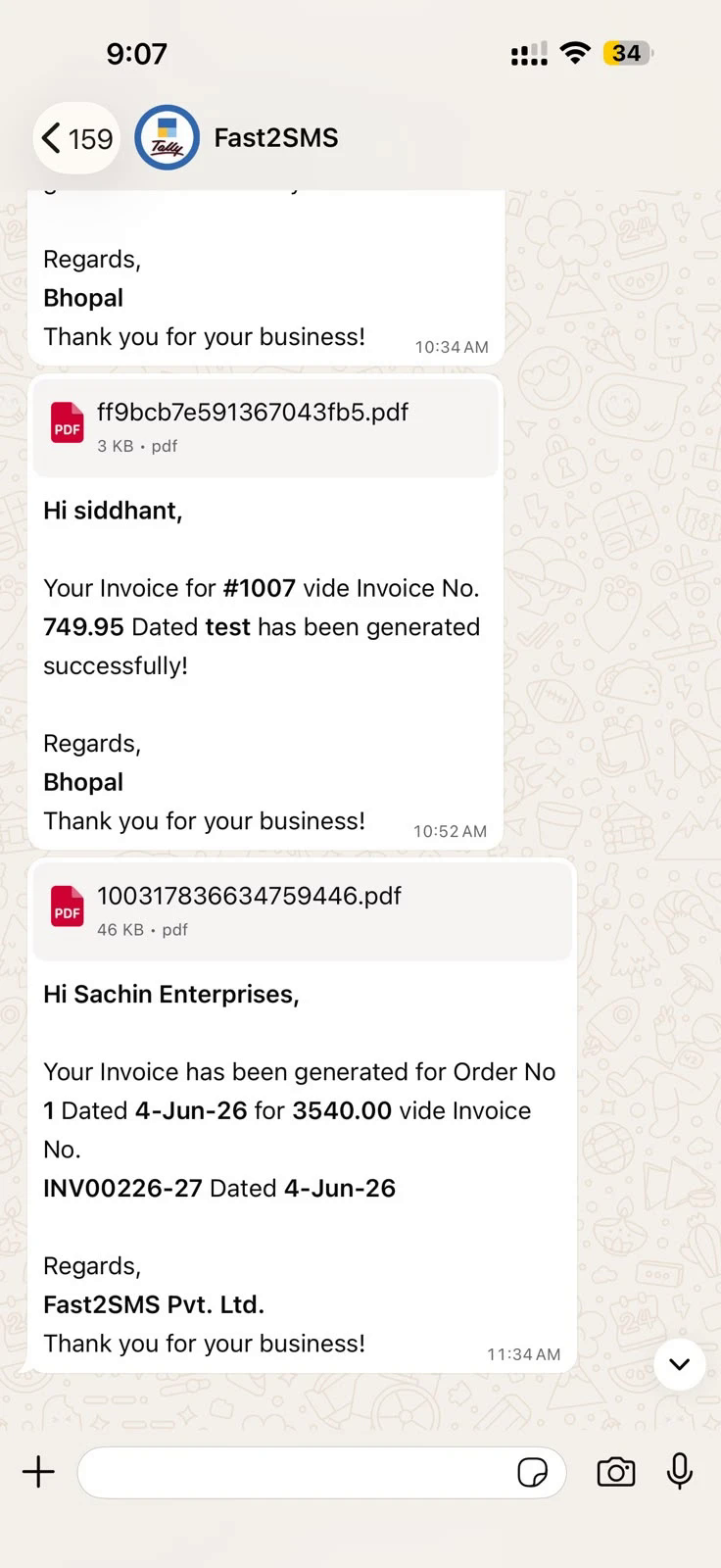
Once the settings are saved, sending is simple. Open any sales voucher and the WhatsApp and SMS buttons are right there. The plugin shows you a preview with the message and the customer’s mobile number before anything goes out, so you can check before you send. Receipts, payments, credit notes and other vouchers work the same way. For a deeper walkthrough, see how to send invoice on WhatsApp from Tally.
How do I send an invoice on WhatsApp from Tally?
Open the sales voucher in TallyPrime, click the WhatsApp send button, check the preview with the message and customer mobile number, and confirm. The plugin sends the invoice PDF as a document inside an approved WhatsApp template, and you see a message sent prompt once it goes out.
Where are the WhatsApp send buttons in Tally?
The send buttons appear on the voucher screen itself, for sales and for other vouchers like receipts and payments, so you send without leaving the voucher. Which buttons you see depends on the templates and message IDs you have entered in WhatsApp Template Settings. If a button is missing, check that its message ID is filled.
Does the customer get the invoice as a PDF on WhatsApp?
Yes, on WhatsApp the invoice goes as a PDF document attached inside the message, so the customer opens it right in the chat. They can save it, forward it to their accountant or print it. Nothing needs to be downloaded from a website first.
Can I see the message before it is sent?
Yes, before sending, the plugin shows a preview with the message text and the customer’s mobile number, and nothing goes out until you confirm it. This helps you catch a wrong number or a missing detail before the invoice reaches the customer. After you confirm, a message sent prompt appears.
Where does the plugin pick the customer’s mobile number from?
The plugin takes the mobile number from the customer’s ledger master in Tally, so each customer needs a correct mobile number saved in their ledger. You can type it in each ledger, update numbers in bulk from the Update Mobile Numbers screen for Sundry Debtors, or import them from Excel using the Import Mobile Numbers screen and its sample file.
How do I add mobile numbers for all customers at once?
Go to Gateway of Tally > Fast2SMS.com, open the WhatsApp or SMS module and use Update Mobile Numbers > Sundry Debtors to fill numbers in one screen. For a large list, use Import Mobile Numbers, download the sample Excel file, fill in your customers’ numbers and import it back.
Can I send receipts and payment vouchers on WhatsApp?
Yes, receipt and payment vouchers have their own send buttons, just like sales, so customers and suppliers get a quick confirmation on WhatsApp. The default templates cover bank receipt (T106), cash receipt (T107), bank payment (T108) and cash payment (T109). Each one confirms the amount received or paid.
Can I send a GST invoice on WhatsApp from Tally?
Yes, if your sales voucher is a GST invoice in Tally, the plugin sends that same invoice PDF on WhatsApp. The plugin does not change how Tally prepares your invoice; it simply delivers it. See Tally GST invoice on WhatsApp for more detail.
Which vouchers can send WhatsApp messages from Tally?
Sales in three formats, delivery notes, sales orders, purchase orders, bank and cash receipts, bank and cash payments, POS vouchers, credit notes, journal vouchers and ledger vouchers can all send WhatsApp messages. Reports like ledger confirmation, ledger outstanding, stock summary, profit and loss, balance sheet and trial balance can go too.
Can I send ledger reports and confirmations to customers?
Yes, open the customer ledger in Tally and use the send options there to share the ledger report or a ledger confirmation on WhatsApp. This is handy at year-end closing or when a customer asks for their account statement. Read more about sending Tally reports on WhatsApp.
Can I send a purchase order to a supplier on WhatsApp?
Yes, purchase orders have their own template (T110 in the default set), so you can send the purchase order to your supplier on WhatsApp from Tally. Make sure the supplier’s ledger has the correct mobile number. The same preview appears before sending.
Can I resend an invoice if the customer did not get it?
Yes, you can resend an invoice anytime by opening the same voucher again in Tally and pressing the send button once more. Before that, check the delivery report to see whether the first message failed or was delivered, and confirm the customer’s mobile number is correct. Failed WhatsApp messages are refunded automatically within 48 hours.
Need help installing the Tally plugin? Our team will do it with you, free.
Keep TallyPrime open, share your screen, and we will load the .TCP file, switch on the modules, paste your API key, enter the default templates and send a test invoice together in one short call. Schedule a free meeting, call +91-6262778822 or email [email protected].
Auto-send and bulk sending
Clicking a button on each voucher is fine for a few invoices. When you raise dozens a day, two features save the most time. Auto-send fires the WhatsApp message the moment a voucher is created or altered, set per voucher type. Bulk sending lets you pick many invoices from the sales register, or many debtors from the outstanding report, and send them all in one go.
Here is how this looks for a typical distributor. Sales invoices are set to auto-send, so every bill reaches the retailer on WhatsApp as soon as it is saved at the counter. Receipts are sent from the button when payment comes in. Every Monday, the accounts person opens the debtors outstanding report, selects all overdue parties and sends reminders in one click. At month-end, ledgers and confirmations go out from the customer ledger. Nobody forwards PDFs from a phone any more.
Can Tally send WhatsApp messages automatically?
Yes, the plugin can send a WhatsApp message automatically the moment a voucher is created or altered, so the customer gets the invoice without you pressing any button. You switch this on per voucher type, under the voucher type’s additional WhatsApp settings. After that, saving a voucher of that type sends the message without any extra click.
How do I turn on auto-send for sales invoices?
Open the voucher type for your sales vouchers in TallyPrime and look for the additional WhatsApp settings added by the plugin. Turn on sending on voucher creation, and on alteration if you want that too, then save. From then on, every new sales voucher of that type goes to the customer on WhatsApp.
Can I use auto-send for some voucher types and not others?
Yes, auto-send is set per voucher type, so you can turn it on for sales and leave it off for journal vouchers or delivery notes. Many businesses auto-send sales invoices and receipts, and send other documents manually from the button when needed.
Will auto-send resend the invoice if I edit the voucher?
It resends only if you have turned on sending on alteration for that voucher type; sending on creation alone sends once, when the voucher is first saved. Editing an existing voucher then does not send a new message. Turn on alteration if you want customers to get the corrected invoice every time you edit it.
How do I send bulk invoices on WhatsApp from Tally?
Open the sales register in Tally, select the invoices you want to send, and use the plugin’s send option to send them all on WhatsApp in one go. Each customer gets their own invoice PDF on their own number. The same bulk option works for SMS too.
How do I send bulk payment reminders from Tally?
Go to Gateway of Tally > Statement of Account > Outstanding > Group > Debtors, select the customers you want (or select all), and click the Send WhatsApp button. Each debtor gets a reminder with their own outstanding amount. Our guide to Tally payment reminders on WhatsApp and SMS covers this in detail.
Can I send an outstanding reminder to a single customer?
Yes, you can open that customer’s ledger in Tally and send their outstanding amount on WhatsApp or SMS directly from that screen. The default template T116 is made for ledger outstanding. This is useful when a customer asks how much they owe, or when you follow up one account at a time.
Is there a limit on how many invoices I can send in bulk?
The plugin does not set a fixed low limit on bulk sends; what matters is your wallet balance and the WhatsApp sending limits on the sender. On your own brand number, Meta’s messaging limits grow as your quality stays good. Keep enough balance in your wallet before a big batch.
Is bulk sending from Tally safe from WhatsApp bans?
Yes, because the plugin uses the official WhatsApp Business API with approved templates, not WhatsApp Web automation that WhatsApp treats as unofficial. Send only to your own customers who expect to hear from you, and keep reminders polite. That keeps your quality good and your messages flowing.
How do I know whether bulk messages were delivered?
Both the Tally to WhatsApp and Tally to SMS menus have a Delivery Report screen inside Tally, and full logs also stay in your Fast2SMS panel. After a bulk send, open the delivery report to see which messages were delivered and which failed, then fix the numbers and resend.
Sending SMS from Tally with DLT
The same plugin also sends SMS, which helps when a customer does not use WhatsApp or when you want a short text alert as well. Business SMS in India needs DLT registration, as TRAI requires: your sender ID and your message templates must be approved before you can send. Once they are, you enter the sender ID in Tally to SMS > SMS Setting and your approved message IDs in Tally to SMS > SMS Templates. SMS cannot carry attachments, so the plugin turns the invoice PDF into a short link inside the SMS. Our Tally SMS plugin guide covers the SMS side in full.
Do I need DLT registration to send SMS from Tally?
Yes, DLT registration is required to send business SMS from Tally in India, because TRAI requires every sender ID and SMS template to be approved on DLT first. WhatsApp needs no DLT at all, which is why many Tally users start with WhatsApp and add SMS once DLT is done.
Where do I enter my DLT sender ID in Tally?
Enter your DLT approved sender ID in Tally to SMS > SMS Setting, inside the Fast2SMS.com menu on the Gateway of Tally. Use the sender ID exactly as it was approved, then save. Every SMS the plugin sends will go out with that sender ID.
Where do I enter SMS message IDs in Tally?
You enter them in Tally to SMS > SMS Templates, typing your approved Fast2SMS message ID against each template type and then saving the screen. There are eight SMS template types: three sales formats, bank and cash receipts, bank and cash payments, and outstanding. Only the rows you fill will show SMS buttons on your vouchers.
What SMS templates do I need for the Tally plugin?
You need DLT approved templates for the SMS types you want to send, such as sales, receipts, payments and outstanding. Press View Sample Templates in the SMS Templates screen to see ready wording you can submit for DLT approval. All eight are also listed in our Tally SMS DLT templates guide.
Is there a DLT registration shortcut in the plugin?
Yes, the SMS Templates screen in the plugin has a DLT Registration shortcut built in, next to View Sample Templates. It helps you reach the registration steps without searching. Fast2SMS also gives free DLT support if you get stuck with your entity, sender ID or template approval.
How does the invoice PDF go on SMS?
On SMS, the plugin turns the invoice PDF into a short link inside the message, because SMS cannot carry attachments the way WhatsApp can. The customer taps it and the PDF opens in their phone’s browser. That link is part of the approved template, so it must be allowed in your DLT template.
Can I send SMS and WhatsApp for the same invoice?
Yes, if both modules are switched on and both templates are set, you will see SMS and WhatsApp buttons on the voucher and can send either or both. Some businesses send WhatsApp with the PDF and a short SMS alert, so the customer sees the invoice on whichever app they check first.
Why is my SMS from Tally not delivering?
Most SMS failures come from a template mismatch: the message must match the DLT approved template exactly, except for the variable parts, and must go with the approved sender ID. Check the sender ID in SMS Setting, check each message ID in SMS Templates, and look at the Delivery Report for the reason.
Do SMS from Tally reach DND numbers?
Transactional and service messages like invoices, receipts and payment confirmations can reach customers whose numbers are on DND, as long as they are sent with a DLT approved template in the right category. Promotional SMS cannot go to DND numbers. Keep your Tally SMS templates purely about the transaction.
Moving to your own brand number
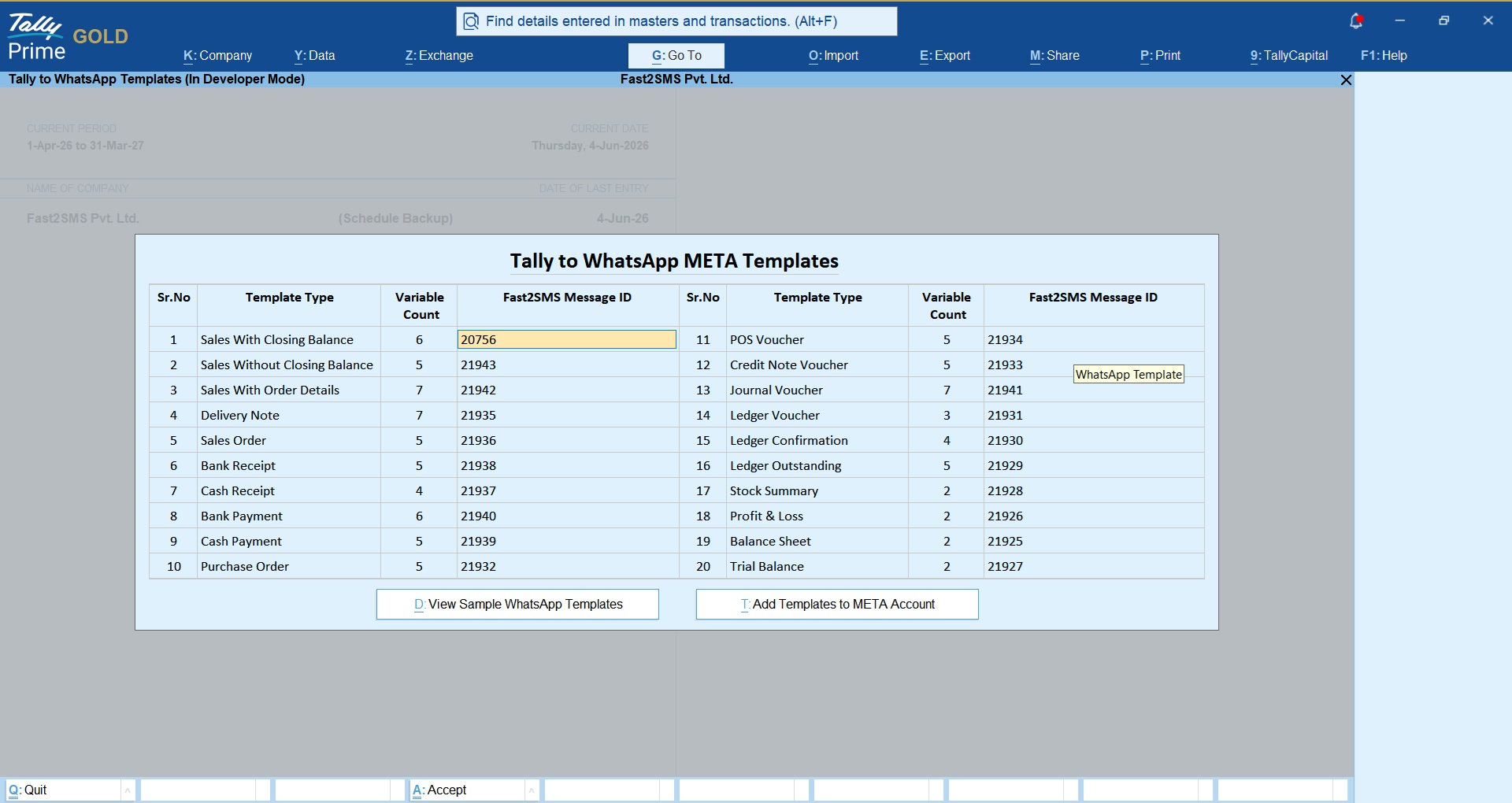
The default sender is perfect to start, but many businesses later want invoices to come from their own business name and number. When you are ready, complete the Meta embedded signup from your Fast2SMS panel, then press Add Templates to META Account in the plugin’s WhatsApp Template Settings to push all 20 templates to your own account for approval. Once they are approved, replace 123456789 with your own phone number ID and T101 to T120 with your own approved message IDs. The full template list and approval steps are in our Tally WhatsApp templates and Meta approval guide.
Can I send WhatsApp from Tally using my own business number?
Yes, you can switch from the Fast2SMS default sender to your own WhatsApp Business number at any time, so invoices arrive from your own business name. Complete the Meta embedded signup in your Fast2SMS panel, get the 20 templates approved on your account, then replace the default phone number ID and message IDs in Tally with your own.
How do I connect my own WhatsApp number to Fast2SMS?
Log in to your Fast2SMS panel, open WhatsApp Business and follow the Meta embedded signup, which is a guided Facebook login that connects your number. It is free and has no monthly fee. The plugin’s META Setup Guide item in the Tally to WhatsApp menu links the same walkthrough.
Can I use my existing WhatsApp Business app number?
Yes, the embedded signup lets you connect a number you already use on the WhatsApp Business app, so your customers keep seeing the same number they know. During signup, follow the on-screen steps carefully. If you are unsure, book a free meeting and the team will do it with you.
What does Add Templates to META Account do?
Add Templates to META Account is a button in the plugin’s WhatsApp Template Settings that pushes the complete set of 20 Tally templates to your own WhatsApp Business account for Meta approval in one go. You do not need to create each template by hand in the panel.
How long does Meta take to approve the Tally templates?
Meta usually reviews WhatsApp templates within a few minutes of submission, and review can sometimes take up to 24 hours before you see the result. Once they are approved, copy each approved message ID from your Fast2SMS panel into WhatsApp Template Settings. Until then, you can keep sending with the default templates.
Where do I find my own phone number ID?
Your own phone number ID is shown in WhatsApp Manager inside your Fast2SMS panel as soon as your own number is connected through the embedded signup. Copy it and paste it in Tally to WhatsApp > WhatsApp API Settings in place of 123456789. Then replace T101 to T120 with your own approved message IDs.
Can I keep using the default templates until my own templates are approved?
Yes, you can keep 123456789 and T101 to T120 in place and send as normal from the default sender until your own templates are approved by Meta. Then switch both settings together: your own phone number ID and your own message IDs. Changing only one of the two will cause sends to fail.
What changes for the customer after I move to my own number?
After the switch, your customers get invoices from your own business number and profile name instead of the Fast2SMS default sender, with everything else the same. The invoice PDF and details work the same way. Customers can also save your number and recognise your messages more easily.
Will I get the green tick with my own number?
The green tick is a separate Official Business Account status that Meta grants based on how well known your business is, so it is not automatic and not guaranteed. Connecting your own number makes you eligible to apply. Our WhatsApp Business API India FAQ explains it.
Does moving to my own number cost extra?
No, the Meta embedded signup through Fast2SMS is free, with no setup fee and no monthly fee for the number. You still pay only per message from your Fast2SMS wallet. The Tally plugin stays free as well.
Cost and billing
This is where the free plugin differs most from paid Tally WhatsApp TDLs. You pay nothing for the plugin and nothing per month. Your only cost is the per-message rate from your prepaid Fast2SMS wallet, charged on delivery for WhatsApp. For context, Tally’s own “TallyPrime with WhatsApp” is a paid subscription service, and paid third-party TDLs usually charge a one-time fee.
| Cost item | Free Fast2SMS Tally plugin | Typical paid Tally WhatsApp TDL |
|---|---|---|
| Plugin or licence fee | Free | Commonly ₹3,000 to ₹6,000 plus GST |
| Yearly renewal | None | Some charge a yearly panel renewal |
| Setup or monthly fee | None | Depends on the vendor |
| WhatsApp invoice message | ₹0.25 per utility message, charged on delivery | Depends on the vendor |
| Failed WhatsApp messages | Auto-refunded within 48 hours | Depends on the vendor |
How much does it cost to send an invoice on WhatsApp from Tally?
Each WhatsApp invoice sent from Tally through Fast2SMS costs ₹0.25, because the Tally templates are utility messages, and you are charged only when the message is delivered. There is no extra charge for the PDF attachment. The plugin itself is free.
How much will 1,000 WhatsApp invoices cost?
At ₹0.25 per delivered utility message, 1,000 delivered WhatsApp invoices cost ₹250 from your Fast2SMS wallet, with no plugin fee or monthly charge added on top. Failed messages are refunded automatically within 48 hours, so you pay only for what reaches the customer. That is the full cost.
Is there a monthly fee for the Tally WhatsApp plugin?
No, there is no monthly fee, no yearly renewal and no setup charge for the plugin or the Fast2SMS account. You recharge your prepaid wallet when you need to, and messages are deducted as you send. A quiet month costs you nothing.
How much does SMS from Tally cost?
SMS from Tally is charged per message from the same Fast2SMS wallet, at the SMS rate shown in your Fast2SMS panel. There is no extra fee for using the plugin to send SMS. You also need DLT registration for your sender ID and templates before sending.
Do I pay for WhatsApp messages that fail?
No, WhatsApp messages are charged on delivery, so if a message fails, the amount is refunded to your Fast2SMS wallet automatically within 48 hours. You do not need to raise a ticket for the refund. Check the Delivery Report to see which messages failed and why.
Why is the Tally WhatsApp rate ₹0.25 and not ₹0.95?
The Tally templates are utility messages about transactions your customer already made, such as invoices, receipts and outstanding, and utility messages cost ₹0.25 each on Fast2SMS. The ₹0.95 rate is for marketing templates like offers, which the Tally templates do not use.
Is the free ₹50 credit enough to test the plugin?
Yes, the free ₹50 test credit you get after signup is meant for testing, so you can send a few invoices to yourself and a colleague and check the full flow. When you are ready to send to customers, recharge your wallet from the panel or from inside Tally.
How do I pay for messages sent from Tally?
You pay through a prepaid Fast2SMS wallet: recharge it from the Fast2SMS panel or from the Recharge Wallet option in the plugin, and each message is deducted from the balance. The same wallet covers WhatsApp and SMS, and you can check the balance inside Tally anytime.
What happens if my wallet balance runs out?
When your wallet balance is too low, new messages from Tally cannot be sent until you recharge, and the send will fail instead of going out. Check the wallet balance screen in the plugin before large bulk sends, such as month-end reminders, and top up in advance so nothing gets stuck.
Is the free plugin cheaper than TallyPrime with WhatsApp?
The two work on different cost models: TallyPrime with WhatsApp is a paid subscription service from Tally Solutions, while the Fast2SMS plugin is free and you pay only per message. For most small and mid-size businesses, per-message pricing works out lower, but compare against Tally’s current plan details for your own volume.
Are there any costs from Meta on top of the Fast2SMS rate?
No, when you send from Tally through Fast2SMS, the per-message rate charged to your Fast2SMS wallet is what you pay for that message. You do not get a separate bill from Meta. If customers reply and you chat with them, see our note on WhatsApp session message pricing.
Troubleshooting and support
Most problems with the Tally plugin come down to one of five things: the modules are not enabled, the API key is wrong, a message ID is missing or in the wrong row, the customer’s mobile number is missing, or the wallet is empty. The answers below walk through each one. If you are still stuck, our team will fix it with you on a free call. You can also read the main Tally WhatsApp and SMS plugin guide for the full setup in one place.
A quick test that solves most doubts: create a test ledger with your own mobile number, raise a small sales voucher against it and press the WhatsApp button. If the invoice reaches your phone, your key, wallet and templates are fine, and any remaining problem is with a customer’s number or ledger. If it does not arrive, open the Delivery Report and start with the checks below.
Why is the Fast2SMS.com menu not showing in Tally?
The Fast2SMS.com menu appears only after the .TCP file is loaded and the modules are enabled in F6: Add-On Features. Press F1: Help > TDLs & Add-ons to confirm the plugin is loaded, then check that the SMS or WhatsApp module is set to Yes while logged in as the administrator.
Why is the plugin not showing as loaded in TDLs and Add-ons?
Usually the .TCP file is not in the place TallyPrime loads it from, or the Account TDL has not been set up in Tally.NET. Check the file location, make sure you downloaded the complete file from the official folder, and restart TallyPrime. If it still does not load, contact support with a screenshot.
Why is WhatsApp not sending from Tally?
WhatsApp usually fails to send from Tally because of a wrong API key, an empty wallet, a missing or wrong message ID, the wrong phone number ID, or no mobile number on the customer ledger. Check each of these in order. The Delivery Report screen shows the status of every message you tried.
Why is the WhatsApp button missing on my voucher?
The send buttons appear only for templates whose message IDs are filled in WhatsApp Template Settings, and only when the WhatsApp module is enabled. Open the settings, check the row for that voucher type, enter the correct message ID and save. The button should then appear on the voucher.
Why does the plugin say my API key is invalid?
An invalid API key usually means it was copied with a missing character or an extra space, or the key has been changed in the Fast2SMS panel. Copy it again from the Dev API section, paste it fresh in API Key Update and save. Then try sending a test invoice to your own number.
My customer says they did not receive the invoice. What should I check?
First open the Delivery Report in Tally or your Fast2SMS panel to see if the message was delivered or failed. Then check the mobile number in the customer’s ledger, and ask whether the customer uses WhatsApp on that number. If it failed, fix the number and resend.
Why did my message go out with the wrong template?
A wrong template usually means a message ID has been entered against the wrong template type in WhatsApp Template Settings. For the default setup, every row must match the T101 to T120 table exactly. For your own brand, each row must hold the approved message ID of that same template.
Messages stopped after I switched to my own number. Why?
This usually happens when only one of the two settings was changed, or your own templates were not yet approved. Your own phone number ID and your own approved message IDs must go in together. Check the template status in your panel, and switch back to 123456789 and T101 to T120 until approval.
How do I update the mobile number format for customers?
Correct the number in the customer’s ledger master, or use Update Mobile Numbers or Import Mobile Numbers in the plugin. Remove spaces, dashes and extra characters, and follow the format in the sample Excel file the plugin gives you. A clean number list removes most failed sends.
How do I remove or turn off the Tally plugin?
To stop sending, set the SMS and WhatsApp modules to No in F1: Help > TDLs & Add-ons > F6: Add-On Features. To remove the plugin fully, unload the .TCP file from the TDL list or your Tally.NET account. Your Tally data is not affected.
How do I get support for the Tally WhatsApp plugin?
You can get support by emailing [email protected] or calling +91-6262778822; share your Fast2SMS registered number and a screenshot of the problem so the team can help faster. For setup help, book a free meeting and the team will work through it on your screen with you.
Is support for the Tally plugin free?
Yes, support for the Tally plugin is free, including a free screen-share meeting to install and set up the plugin with you. For questions about pricing or high-volume sending, you can also talk to sales at +91-6262778811 or [email protected]. Accountants managing many clients can read Tally WhatsApp for accountants.
Get started today
You now have everything you need to download the Tally WhatsApp plugin, set it up and send your first invoice. Sign up free, load the .TCP file, switch on the modules, paste your API key, type 123456789 and T101 to T120, and your next sales voucher can reach the customer on WhatsApp before the goods leave the counter. When you want your own brand name, the switch takes a few steps and costs nothing extra.
Download Tally PluginSignup Now
Help with the Tally plugin: schedule a free meeting · [email protected] · +91-6262778822