
WooCommerce SMS and WhatsApp Plugin With WordPress OTP Login
The free Fast2SMS plugin for WordPress and WooCommerce adds mobile OTP login, signup verification, COD order verification and order notifications on SMS and WhatsApp to your store, with no coding. You install it from WordPress.org, paste your Fast2SMS API key, switch on the features you want and pay only per message from your Fast2SMS wallet. For lead capture, the Fast2SMS popup lead form collects visitor mobile numbers and email IDs, and verifies Indian numbers with OTP.
This guide is for Indian store owners, bloggers and agencies who run WordPress. It explains each feature in plain words, shows the real setup screens, covers the DLT and WhatsApp template rules you must follow in India, lists what each message costs, and ends with message examples and fixes for common problems.
What the free Fast2SMS plugin does
WordPress powers a huge share of Indian small business websites, and WooCommerce turns many of them into stores. Both are excellent at pages and products, but neither sends SMS or WhatsApp messages on its own. Out of the box, a WooCommerce store emails the customer, and in India many shoppers never open those emails. The official Fast2SMS plugin connects your site to the bulk SMS, OTP SMS and WhatsApp Business API services of your Fast2SMS account, so the right message reaches the customer’s phone at the right moment.
The plugin covers these jobs:
- OTP login. Customers log in with their mobile number and a fresh one time password, on the WooCommerce My Account page or on any page where you place the plugin shortcode. No password to remember, no reset emails.
- Signup verification. New users must verify their number with an OTP before the account is created. The verified number is saved to the customer profile.
- COD verification. Cash on Delivery customers receive an OTP confirmation link, and verified orders get a badge in your WooCommerce orders list.
- Order notifications on SMS and WhatsApp. Order confirmations and status updates go out automatically, using your own sender ID and approved templates.
- Bulk campaigns. Send SMS or WhatsApp campaigns to your customers from the WordPress dashboard.
- Form OTP. Verify mobile numbers on Contact Form 7, WPForms and Elementor forms.
- WhatsApp two-factor authentication. Add a WhatsApp code as a second step for WordPress logins.
- Smart OTP channel choice. Codes can go on SMS or WhatsApp, with automatic fallback to the other channel when the first one fails.
Some features work on any WordPress site and some need WooCommerce. OTP login and signup verification work on plain WordPress too. COD verification and order notifications need WooCommerce, because they depend on WooCommerce orders. The help guide on WordPress vs WooCommerce notifications and OTP shows the full split.
Separately, Fast2SMS has a WordPress popup plugin, the F2 Popup Lead Form, for collecting visitor email IDs and mobile numbers through popups, sidebar forms and in-post forms. It is covered in its own section below, because many site owners use it for lead generation even when they do not run a store.
All Fast2SMS plugins are free. You can see every ready-made integration, including Shopify and TallyPrime, on the Fast2SMS integrations page.
Why Indian stores need OTP and SMS or WhatsApp alerts
A wrong mobile number looks harmless when it is typed. It becomes expensive later. Order updates go nowhere, the delivery rider cannot reach the customer, and a COD parcel often comes back after you have paid shipping both ways. India runs on cash on delivery more than most markets, so this problem hits Indian stores harder than stores elsewhere.
- Fake and mistyped numbers. One OTP at signup or on a COD order confirms a real, reachable person before the parcel leaves your warehouse.
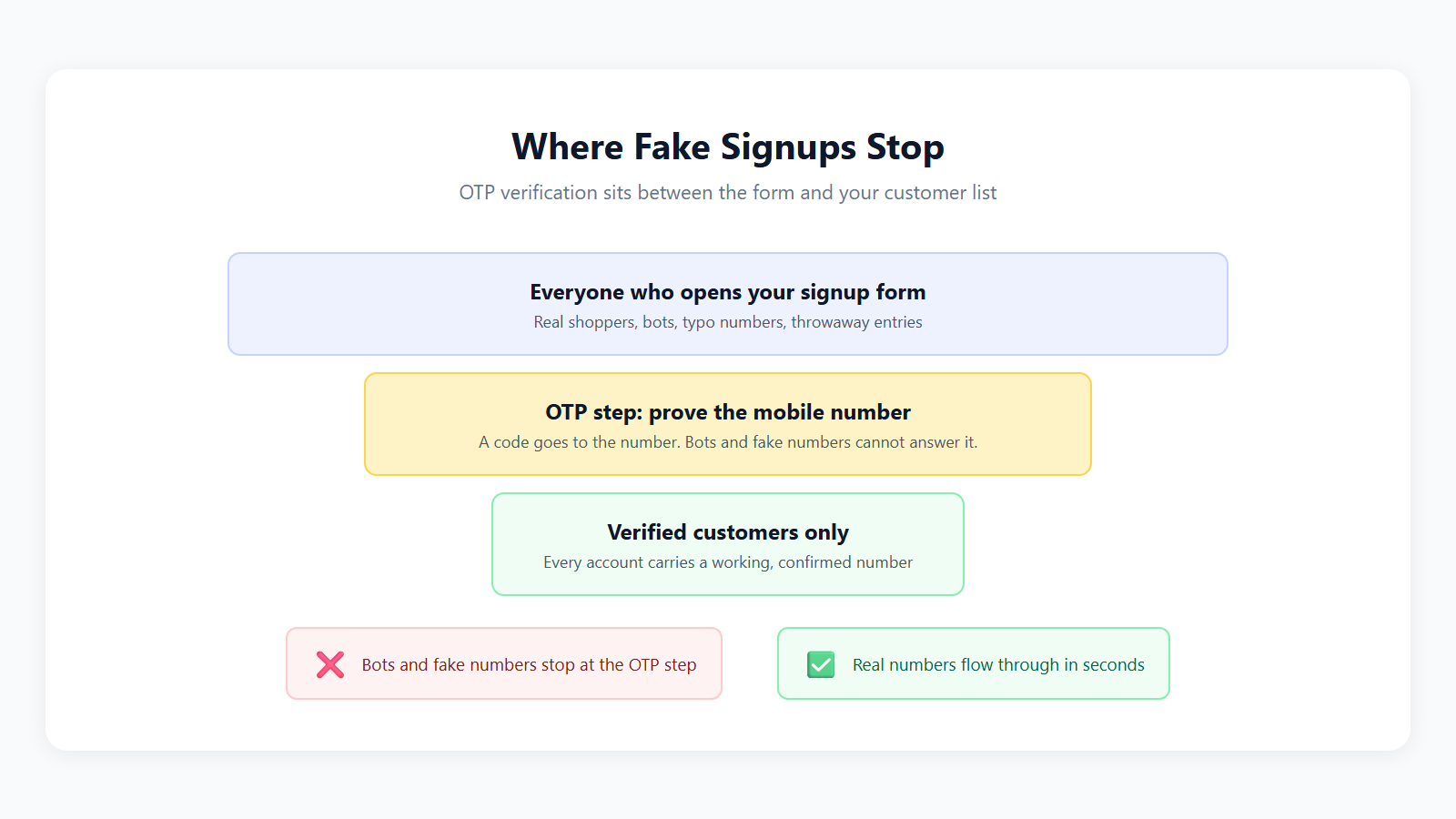
- Bot and coupon abuse. An offer like “first order 50% off” invites one person with ten fake accounts. A bot cannot receive a code on a real Indian mobile number, and every extra account now needs a real SIM.
- Password pain. Customers forget passwords and stop at the login page. With OTP login, the phone becomes the key.
- Silent customers. Shoppers who get no update after paying start calling or writing to you. A confirmation message and a shipping update answer the question before it is asked.
What you need before you start
- A WordPress website. For order features, WooCommerce installed and active.
- Admin access to WordPress so you can install plugins.
- A free Fast2SMS account. Signup at fast2sms.com gives you ₹50 free credit to test, and you can recharge from ₹100 later.
- Your Fast2SMS API key, found in the Dev API section of the panel.
- For SMS: DLT registration with an approved sender ID and approved content templates. This is a TRAI rule for business SMS in India. Fast2SMS helps with DLT registration for free.
- For WhatsApp: a WhatsApp Business number connected to Fast2SMS through the official Meta Cloud API, and templates approved by Meta. Connecting a new number, or your existing WhatsApp Business app number, is free with no monthly fee.
Step 1: Install the plugin and connect your API key
- Install the plugin. In your WordPress admin, go to Plugins > Add New, search for “Fast2SMS”, click Install Now and then Activate. You can also download it from the Fast2SMS plugin page on WordPress.org and upload the zip under Plugins > Add New > Upload Plugin.
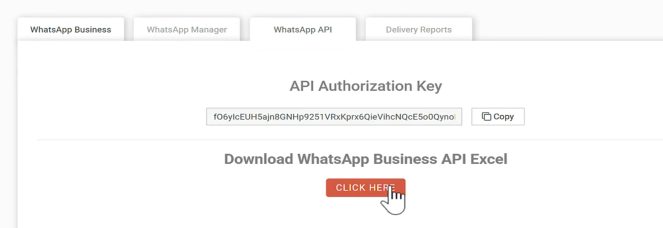
- Copy your API key. Log in to your Fast2SMS panel and open Dev API. Copy the key shown there. The same key works for every Fast2SMS integration and for the REST API.
- Paste and validate. Open the Fast2SMS plugin settings in WordPress, paste the API key and validate it. Once it is accepted, the plugin can send messages from your account.
Step 2: Create your OTP ID in Smart OTP
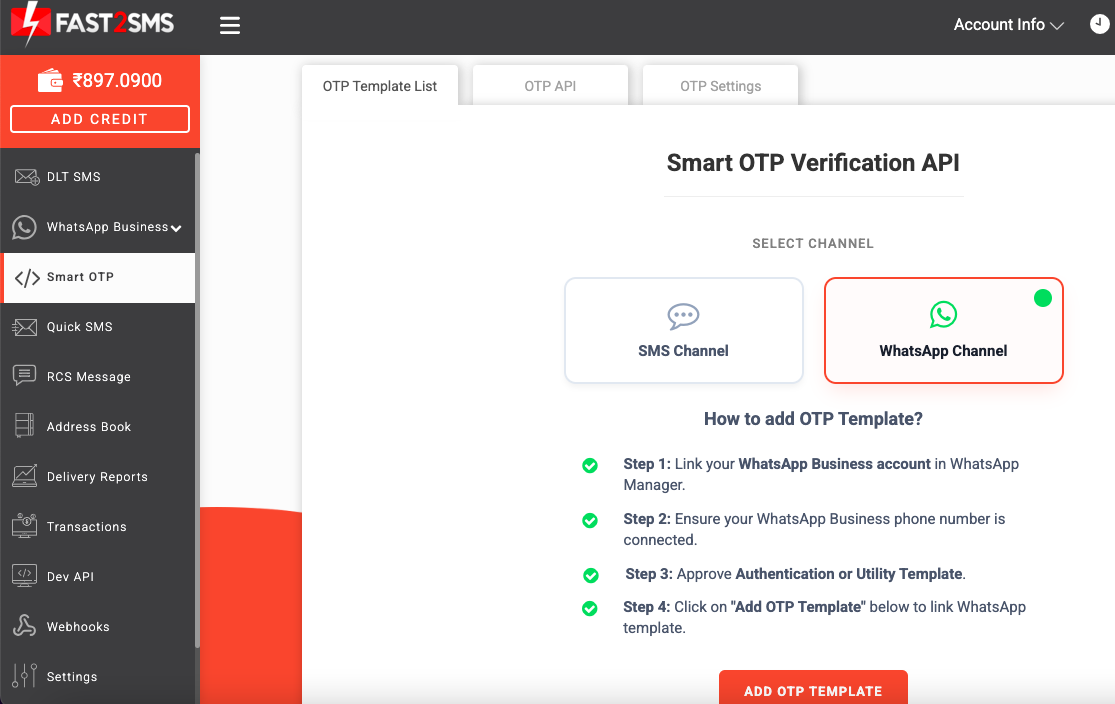
The plugin does not decide by itself whether a code goes on SMS or WhatsApp. That choice lives in your Fast2SMS panel, in the Smart OTP section, as an OTP ID. One OTP ID holds the channel, the template, the sender and the fallback setting.
- In the Fast2SMS panel, open Smart OTP and add an OTP template.
- Pick the primary channel. For WhatsApp, choose your approved authentication template. For SMS, choose your DLT-approved OTP template, sender ID and entity.
- Set up the fallback on the other channel if you want one. If the primary channel fails, the same code goes out on the second channel automatically.
- Copy the OTP ID and paste it into the plugin.
The big advantage of this design: you can change the channel or the fallback later in the panel, and your WordPress site follows instantly, with no plugin change. Fast2SMS generates, sends, expires and checks every code on its own servers, so your WordPress database never stores an OTP. Customers can ask for the code again within a 10 minute resend window. The Smart OTP guide explains the full flow.
Step 3: Turn on OTP at signup, login and COD checkout
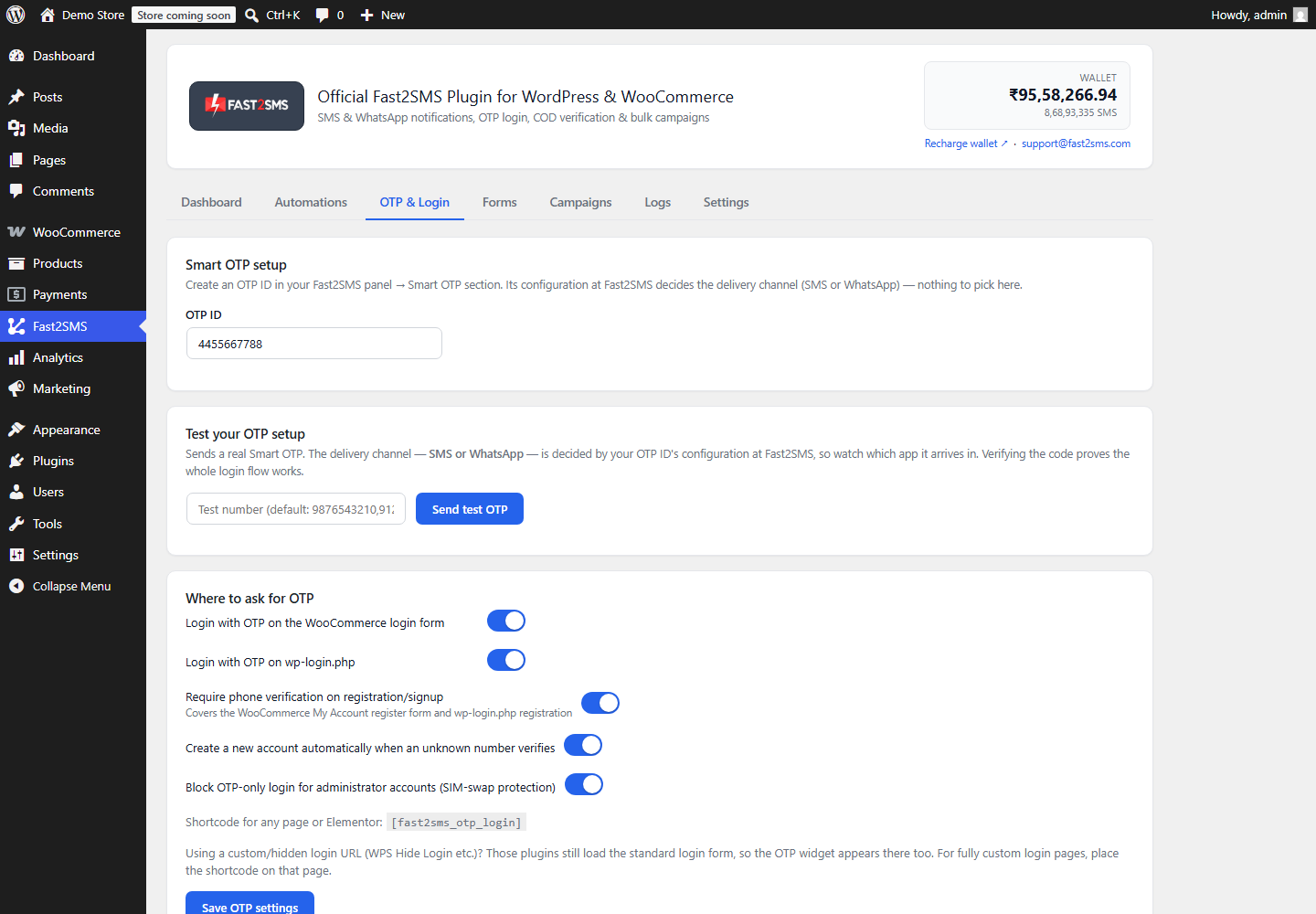
Open the OTP & Login tab of the plugin. Each verification point has its own switch, so you can start with one and add the others later:
- Registration verification. New customers verify their mobile number with an OTP before WordPress creates the account. No verified number, no account, which is where bots stop.
- OTP login. Customers log in with their verified number and a fresh code on the My Account page, or on any page where you add the plugin shortcode.
- COD verification. Every Cash on Delivery customer receives an OTP confirmation link. Details are in the COD section.
- Run the built-in test. The same tab has an end-to-end test, so you can send yourself a real code and check the whole flow before customers see it.
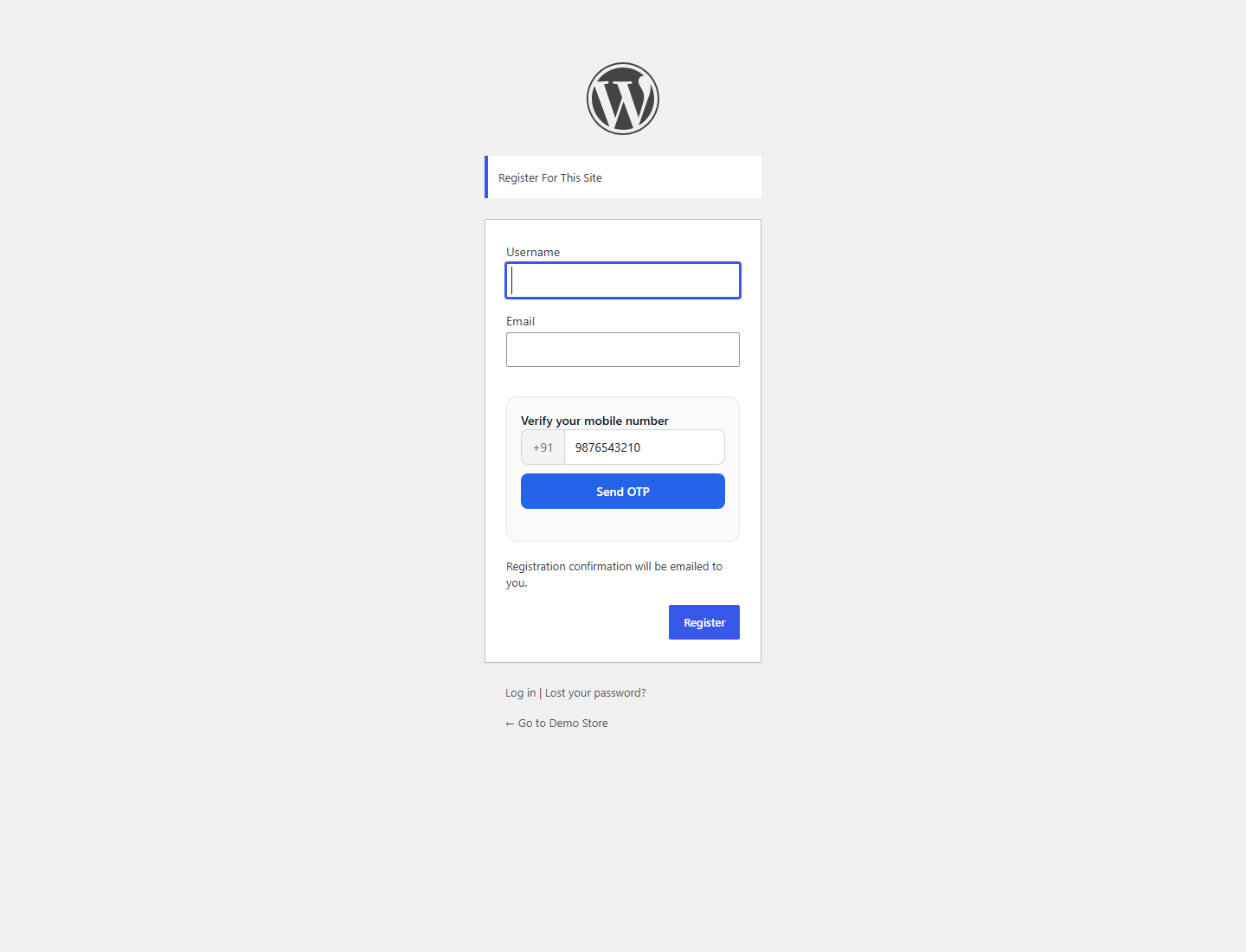
What the customer sees at signup
The registration form asks for the mobile number. The customer taps to get a code, types it in, and only then is the account created. The verified number is saved to the profile, ready for order updates later.
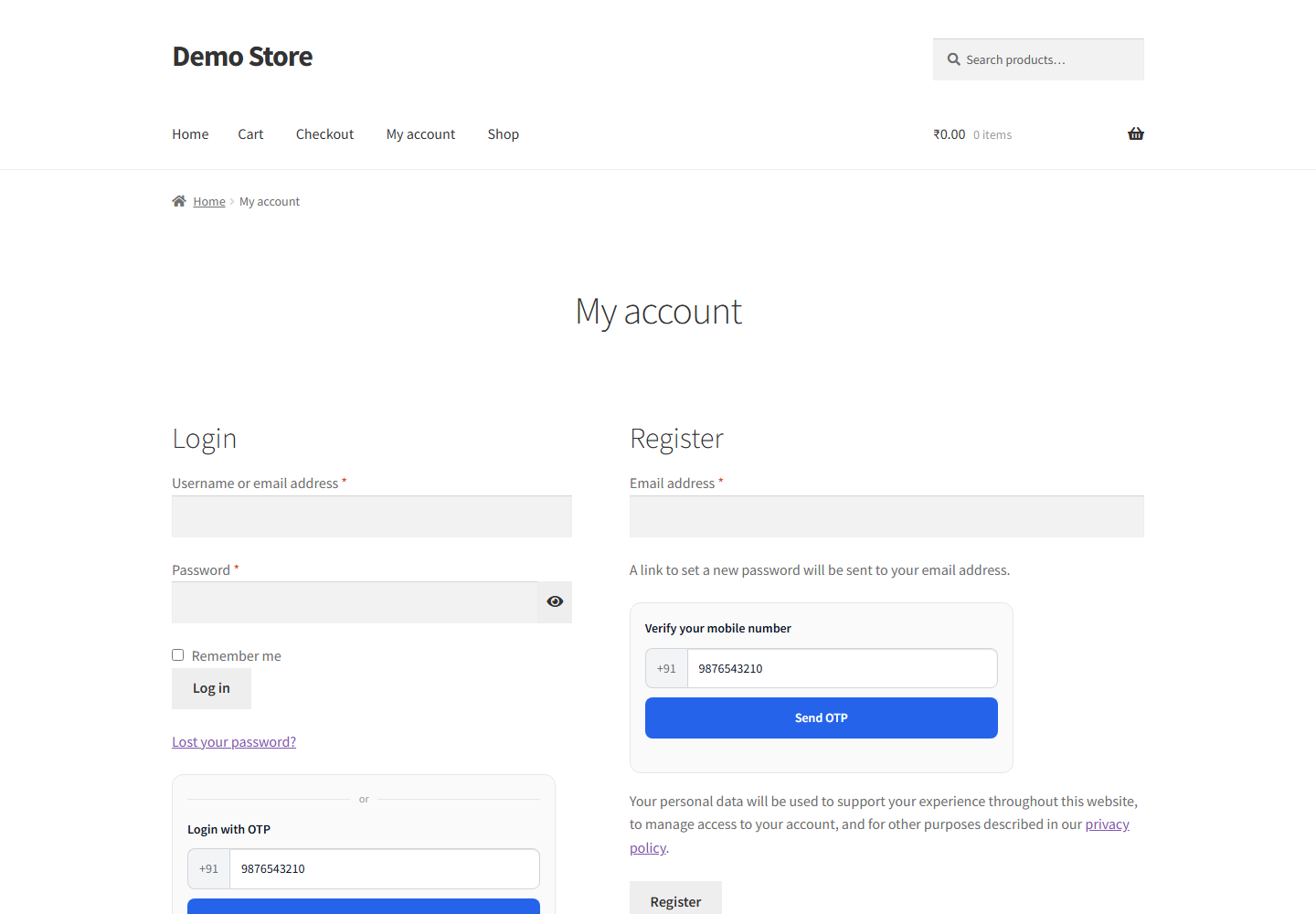
What the customer sees at login
On the WooCommerce My Account page, the customer enters the mobile number, receives the code on SMS or WhatsApp (whichever your OTP ID uses), types it and is logged in. If WhatsApp is the channel, the message shows your verified business name and a Copy code button, which makes entry quick on mobile.
Existing customers and abuse limits
Turning on OTP does not lock out old customers. Customers without a verified number keep logging in as before, and the plugin also matches numbers from their past orders. Verification applies only where you switch it on. To stop people from requesting codes again and again, the plugin has its own per-phone and per-IP limits with a visible cooldown timer.
For a deeper look at each option, see the help guides on WooCommerce OTP verification, WooCommerce OTP login and free OTP login for WordPress.
COD verification and lower RTO
Return to origin (RTO) is the quiet profit killer for Indian stores. A COD order placed with a fake or unreachable number is packed, shipped, refused or never delivered, and shipped back. You pay for both journeys and the stock sits blocked for days.
With COD verification switched on, every COD customer receives an OTP confirmation link right after placing the order. When the customer confirms, the order gets a verified badge in your WooCommerce orders list. The plugin does not cancel unverified orders. It marks them, and you decide what to do: ship, call first or hold.
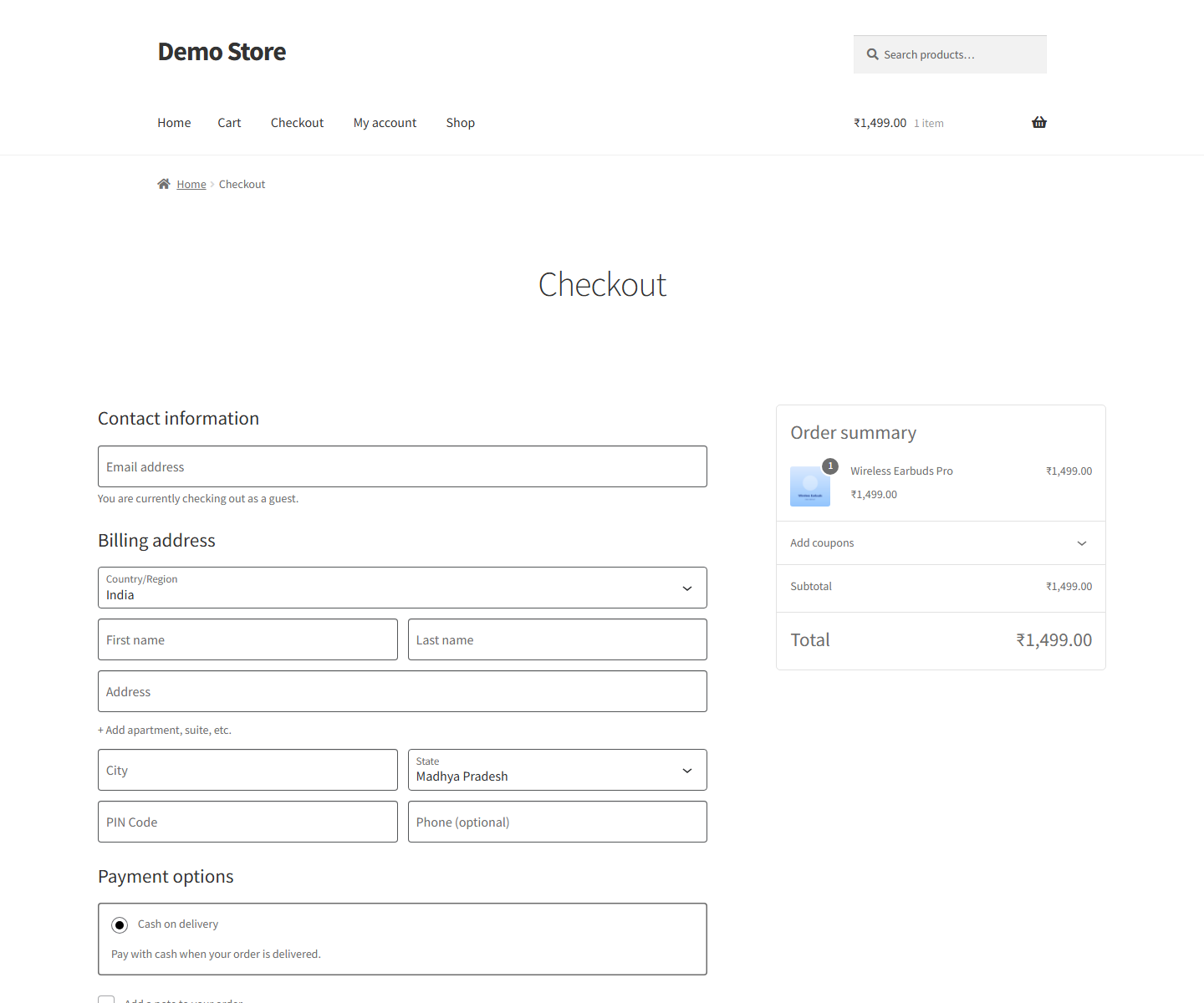
A practical routine many store owners follow: every morning, filter COD orders, pack the verified ones first, and give the unverified ones a quick call. Verified numbers also make every later message, such as shipping updates and delivery calls, more likely to reach the buyer. The help guide on WooCommerce COD OTP verification and the one on COD to prepaid and pending payment reminders go further.
Order notifications on SMS and WhatsApp
Order notifications are the messages customers actually expect: “your order is confirmed”, “your order has shipped”, “your order is delivered”. The Fast2SMS plugin sends order confirmations and status updates from your WooCommerce store automatically. For each message you pick the channel, the sender ID and the approved template you want to use.
SMS or WhatsApp: which one for order updates?
| Point | DLT SMS | WhatsApp Business API |
|---|---|---|
| Reaches | Any mobile number, no app needed | Customers who use WhatsApp |
| Approval needed | DLT sender ID and content template | Meta-approved template |
| Sender shown as | Your six-character sender ID | Your verified business name |
| Rich content | Text and links | Text, buttons, images and PDF documents |
| Price | Your SMS rate, ₹0.25 down to ₹0.11 per SMS by recharge slab | ₹0.25 per utility message, failed messages refunded |
| Best for | Guaranteed reach, OTP fallback | Order updates with branding and invoices |
Most stores use both: WhatsApp as the main channel for order updates because customers read it and see the business name, and SMS where WhatsApp is not available. If you prefer WhatsApp, the WooCommerce WhatsApp notifications guide shows the setup in detail, and the order status SMS and WhatsApp guide explains what to send at each status.
Abandoned carts and back in stock
Order notifications work best on verified numbers, and so do recovery messages. Abandoned cart reminders on WhatsApp and SMS bring back shoppers who left before paying. See the help guides on abandoned cart recovery on WhatsApp and SMS and the back in stock notifier for how stores use them. Offers and discount messages are promotional, so send them only to customers who agreed to hear from you, and use the matching template category.
Form OTP and WhatsApp two-factor login
Not every WordPress site sells products. Coaching institutes, clinics, real estate agents and service companies collect enquiries through forms, and fake numbers in those forms waste sales calls. The Fast2SMS plugin adds OTP verification to forms built with Contact Form 7, WPForms and Elementor, so an enquiry reaches you only with a mobile number that has been verified.
For site security, the plugin also supports WhatsApp two-factor authentication. After the normal username and password, the user confirms a code sent on WhatsApp. It is a simple way to protect admin and editor accounts, which are the accounts attackers usually try first. The guides on WhatsApp two-factor authentication for WordPress and WhatsApp OTP for WordPress walk through both.
Bulk SMS and WhatsApp campaigns from WordPress
Once your customers are verified, your list becomes valuable. The plugin lets you send bulk SMS and WhatsApp campaigns from the WordPress dashboard, so you do not have to export customers to a spreadsheet every time you announce a sale or a new collection. Promotional SMS must use a promotional DLT template, and WhatsApp campaigns use Meta-approved marketing templates.
For bigger campaigns, the Fast2SMS panel itself offers bulk sending with Excel upload, scheduling and delivery reports. See bulk SMS from WordPress, WooCommerce SMS marketing campaigns and our guide to bulk WhatsApp messages.
WordPress popup lead form: collect visitor mobile numbers and emails
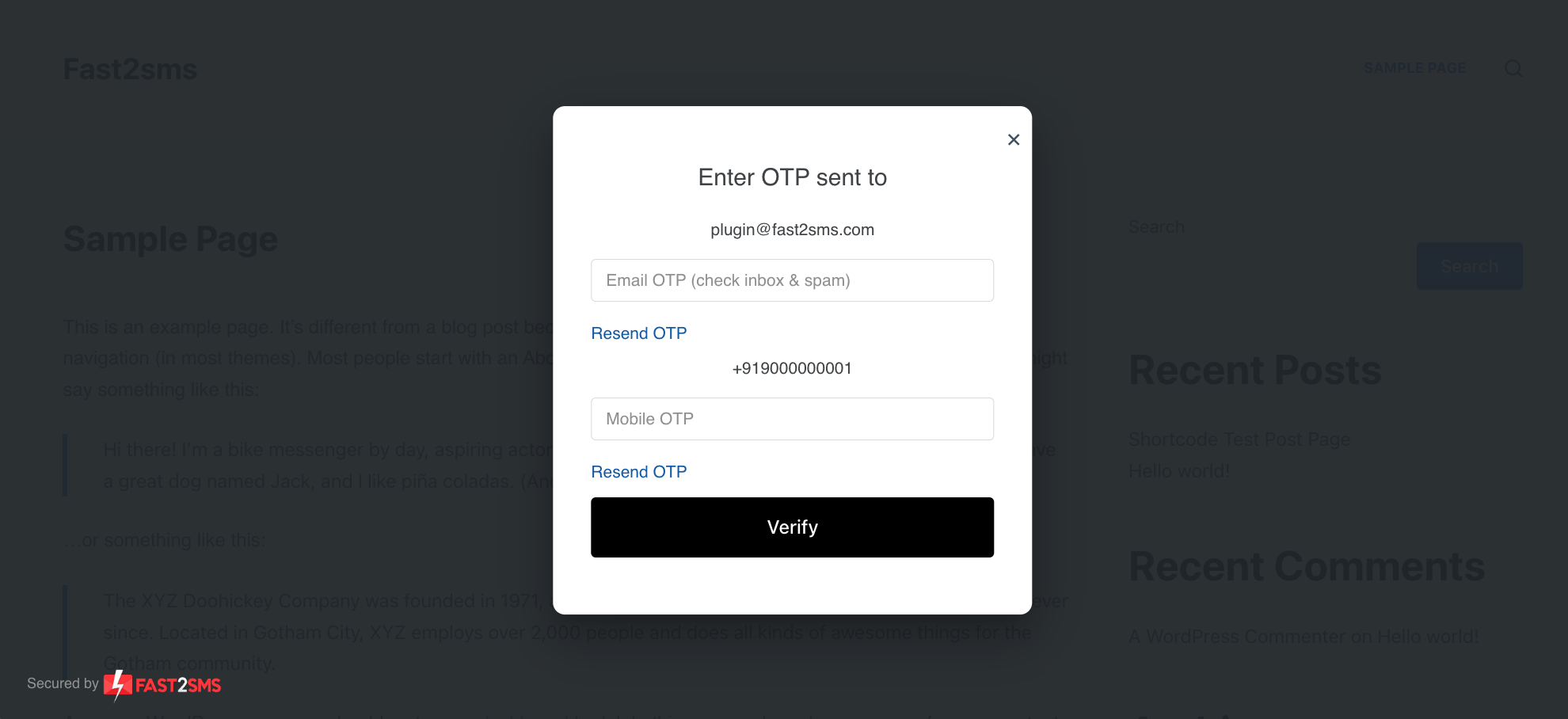
Most visitors leave a website without buying or enquiring. A good popup gives them one easy reason to share a mobile number or email first: a discount, a newsletter, a free guide or a callback. Fast2SMS built the F2 Popup Lead Form plugin for exactly this. It collects visitor email IDs and mobile numbers through popups, sidebar widgets and forms inside posts and pages, and it can verify Indian mobile numbers with OTP so the leads you collect are real. No coding is needed.
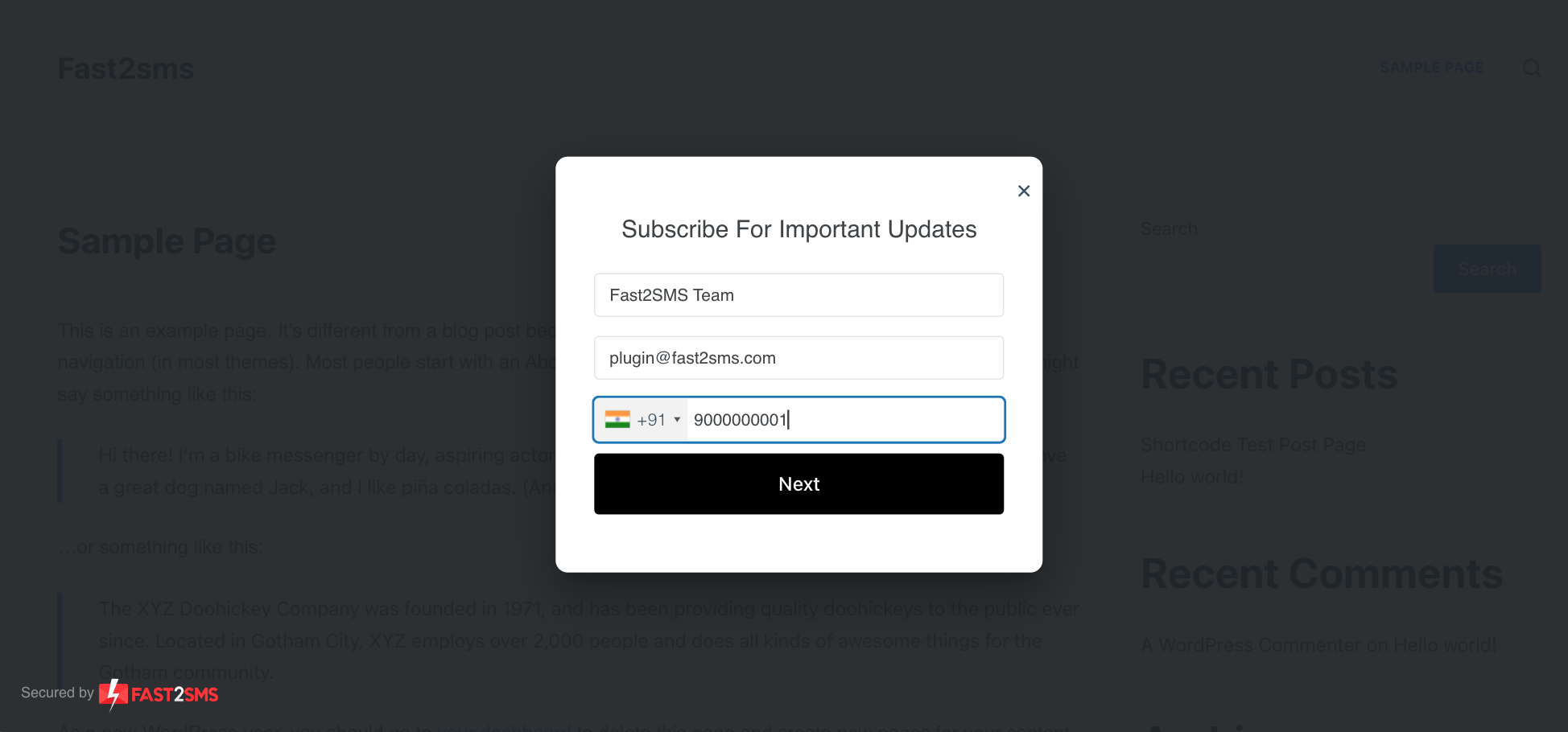
What the popup plugin can do
- Collect email IDs, mobile numbers or both. Choose to collect email only or mobile only if you want a shorter form.
- Verify Indian mobile numbers with OTP, and verify email addresses with OTP for visitors from any country.
- Collect non-Indian mobile numbers without verification. Numbers from 200+ countries are supported.
- Save every lead in your own WordPress database.
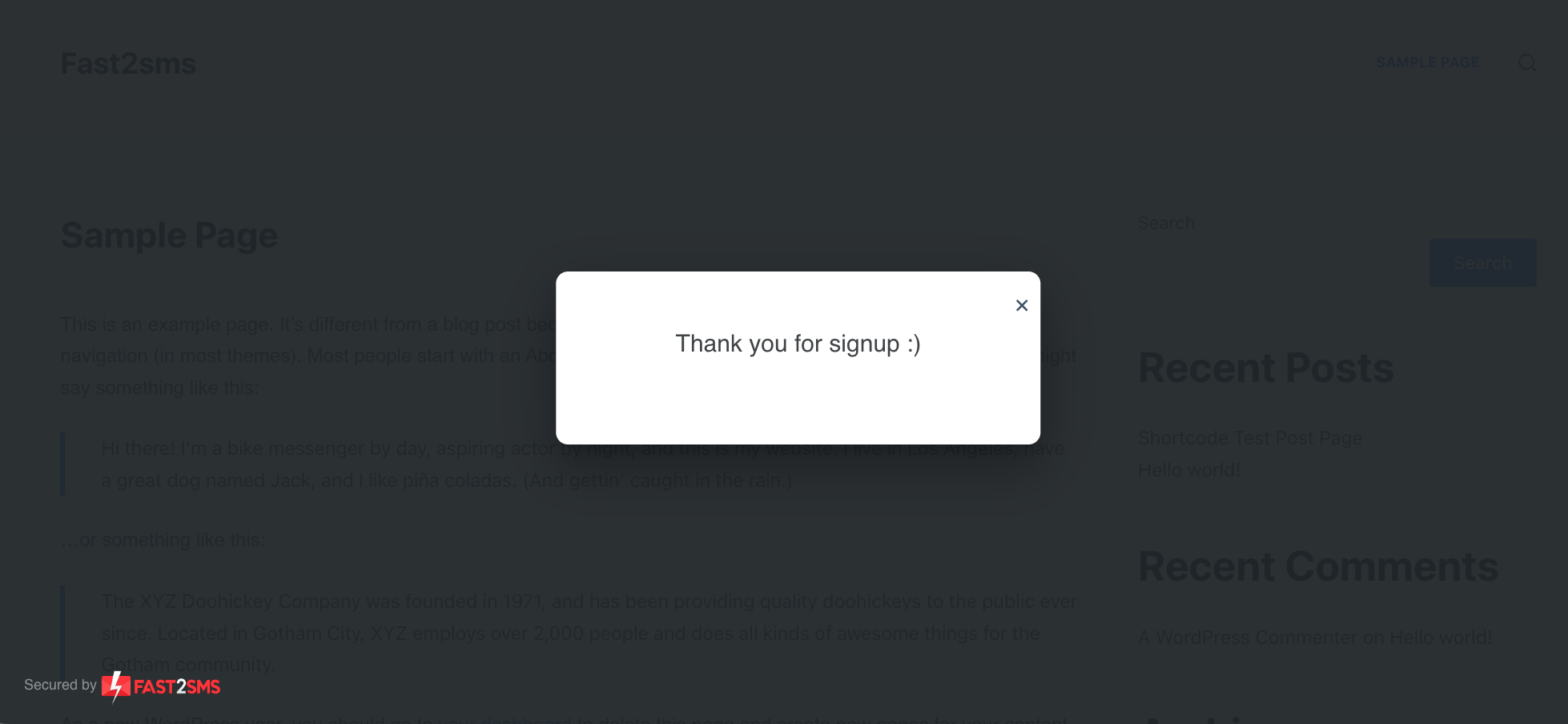
- Change the popup and lead form heading, the thank you message and whether OTP verification is on.
- Premium popup designs that load fast.
Popup types you can build
The same plugin covers many common lead generation formats: email popup forms, mobile number popup forms, newsletter subscribe popups, lead gen popups, contact form popups, WooCommerce upsell popups, discount offer popups, and lead forms placed inside pages and posts.
Four ways to show the form
- Open the popup lead form instantly when the page loads.
- Open it after a two or five second delay, so visitors see your content first.
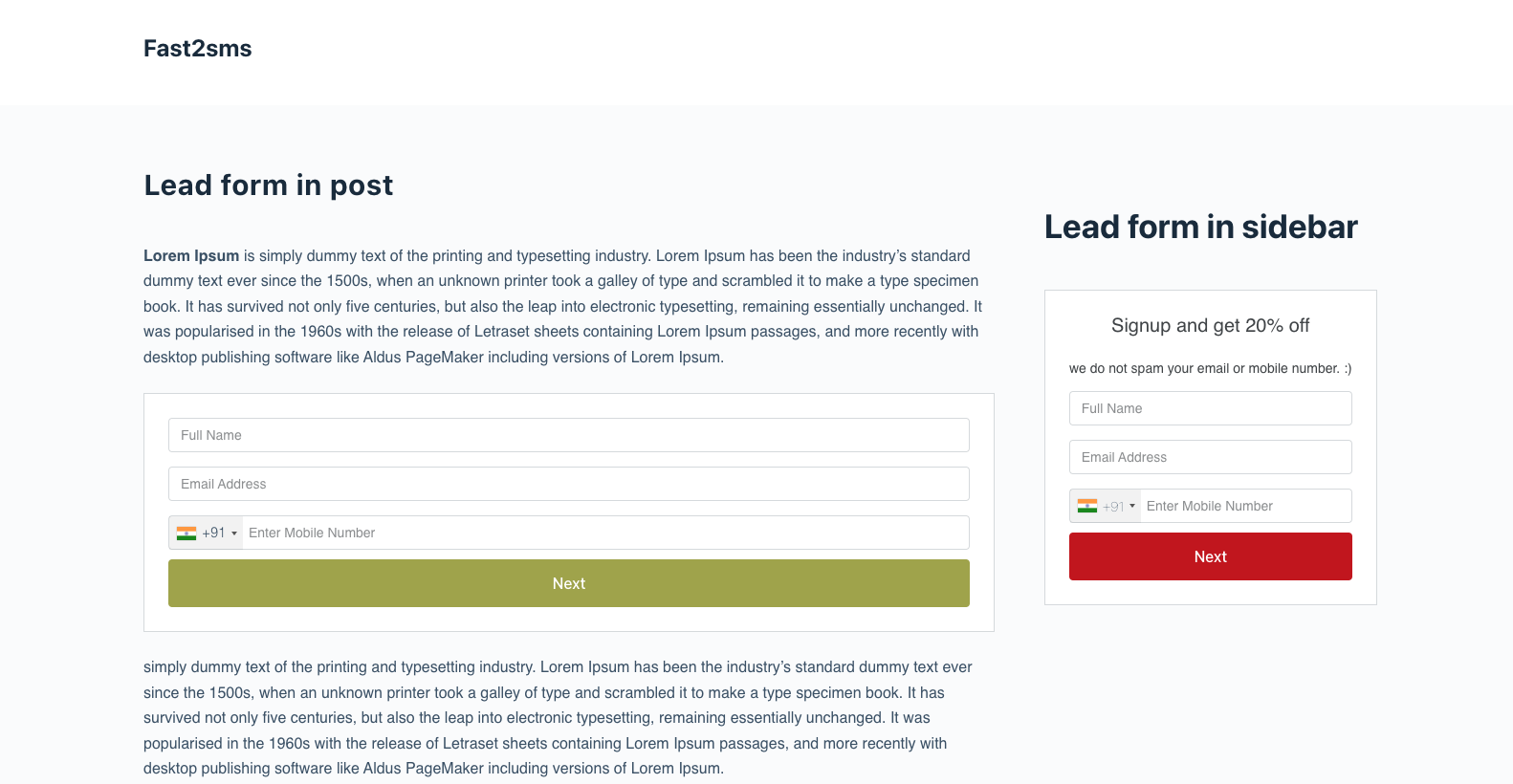
- Create a shortcode and show the lead form on a specific page or post.
- Create a shortcode and add the lead form to a sidebar widget.
How to install and set up the popup lead form
- Log in to your WordPress admin.
- Install “F2 Popup Lead Form” from WordPress.org through Plugins > Add New, or upload the downloaded zip file with Plugins > Add New > Upload Plugin.
- Activate the plugin from the Plugins menu.
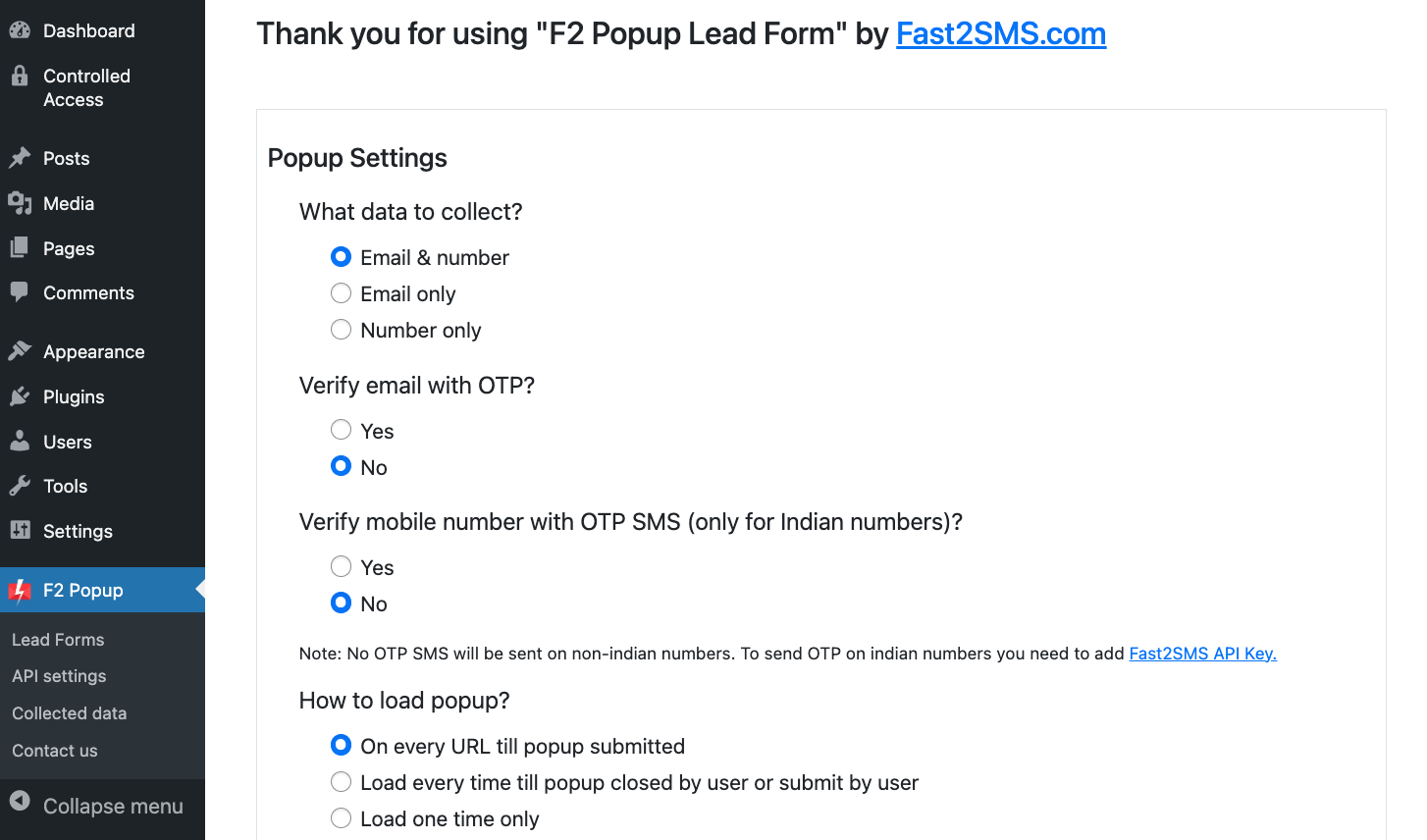
- Open the popup settings and adjust the heading, trigger and fields to your need.
- Choose what to collect: email only, mobile only or both, and whether to verify with OTP.
- To show the form in the sidebar or on specific posts and pages, create a shortcode and paste it where you want the form.
- To verify Indian mobile numbers with OTP, open the API settings page and connect your Fast2SMS API key.
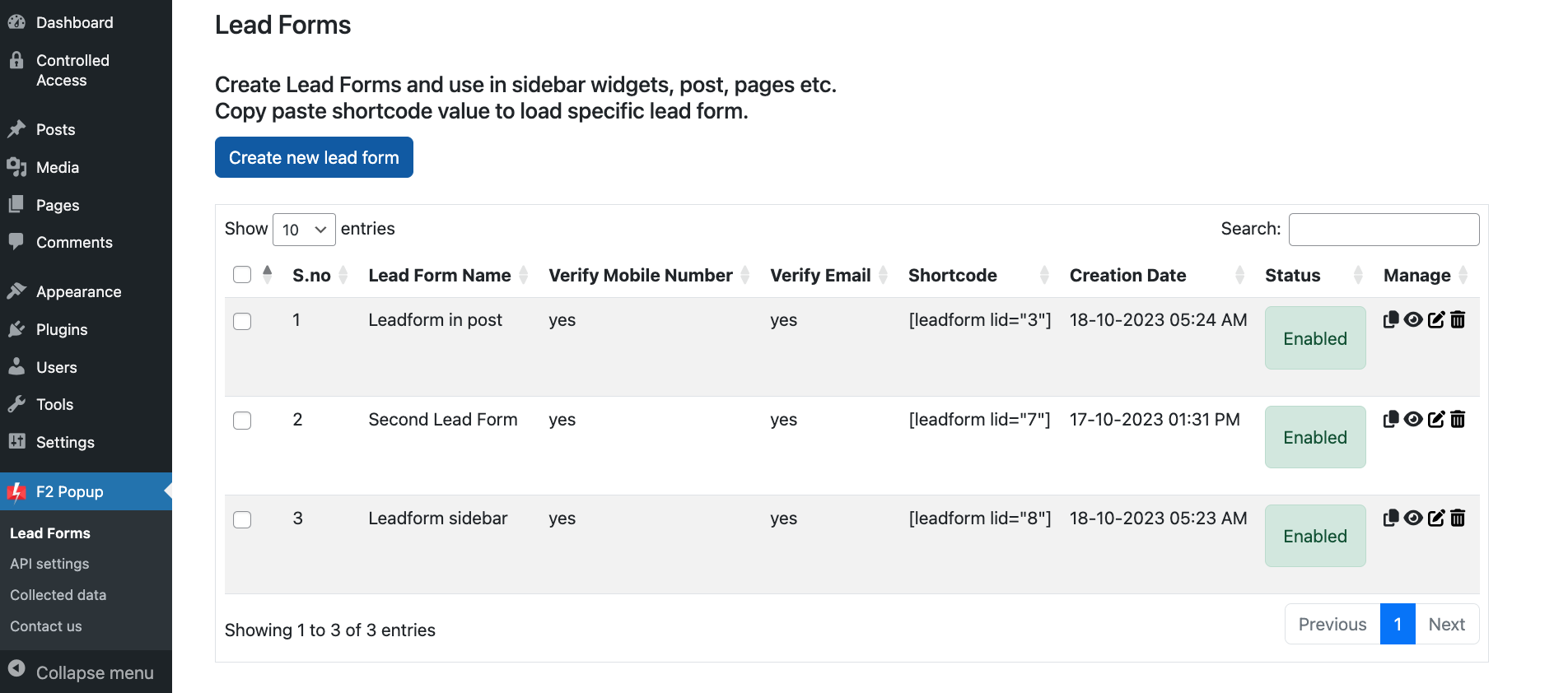

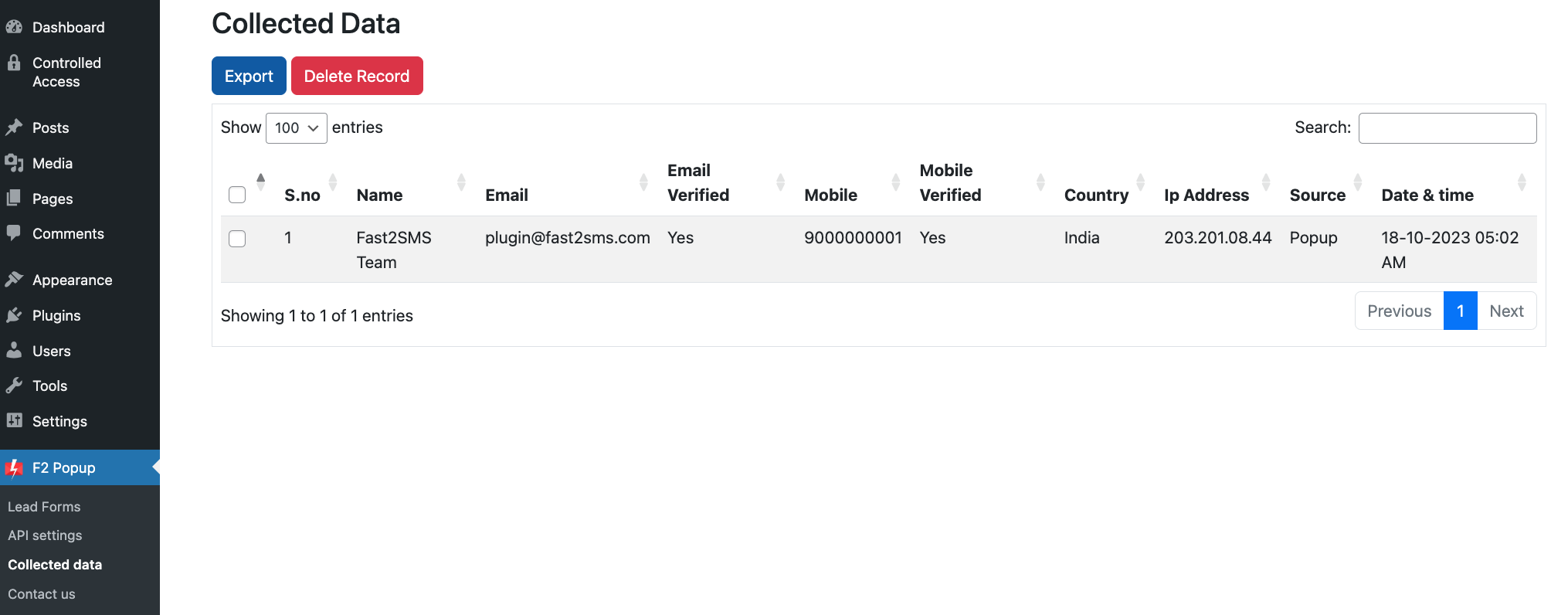
Who uses it: business owners, bloggers, ecommerce sites, designers, developers and marketing agencies who want to grow their lists, leads and sales. Step-by-step help is in the guides on collecting visitor mobile numbers in WordPress, collecting visitor email IDs in WordPress and WordPress mobile OTP verification via the Fast2SMS plugin.
DLT and WhatsApp templates for WooCommerce
DLT basics for SMS
Every business SMS in India must follow DLT, a TRAI regulation. In short, you register three things on any operator’s DLT portal:
- Entity: your business, registered once.
- Header (sender ID): the six-character name your customers see, such as a short form of your brand.
- Content templates: the exact text of each message, with variable slots for the parts that change, like name, order number or amount.
When the plugin sends an SMS, the text must match an approved template, otherwise the message is blocked. Fast2SMS gives free DLT support for entity registration, sender ID approval and template approval, plus ready sample templates. Start at DLT registration and use the ready DLT SMS templates for WooCommerce.
Variable tags in DLT templates
Newer DLT rules use typed variable tags with length limits. Choose the right tag for each slot:
| Tag | Use it for | Limit |
|---|---|---|
| {#numeric#} | OTP codes, amounts, quantities | Numbers, up to 40 digits |
| {#alphanumeric#} | Order IDs, customer names, product codes | 40 characters, must not start with www or http |
| {#url#} | Tracking and order links | 120 characters |
| {#urlott#} | App and OTT style links | As per DLT rules |
| {#cbn#} | Your callback number | As per DLT rules |
| {#email#} | Email addresses | As per DLT rules |
The DLT variable tagging reference and the sample DLT templates show approved examples.
WhatsApp templates
WhatsApp business messages that start a conversation must use a template approved by Meta. Templates have a category: utility for order and delivery updates, authentication for OTPs, and marketing for offers and campaigns. The category decides the price, so write order updates as clean transaction messages without sales lines. Fast2SMS reviews your templates before you submit them to Meta, and connecting your WhatsApp Business number through the panel is free. Read more on the official WhatsApp Business API guide and the WhatsApp OTP API guide.
Message examples you can adapt
Short, specific and useful messages get read. Each example below has a DLT-style SMS version and a WhatsApp version. Replace BRAND with your store name and get each text approved before use.
| Moment | SMS example (DLT template) | WhatsApp example (utility template) |
|---|---|---|
| OTP | {#numeric#} is your OTP to log in to BRAND. Do not share it with anyone. | Authentication template with the code and a Copy code button. |
| Order confirmed | Hi {#alphanumeric#}, your BRAND order {#alphanumeric#} of Rs {#numeric#} is confirmed. Details: {#url#} | Hi Priya, thank you for shopping with BRAND. Your order 1045 of ₹1,299 is confirmed. We will message you when it ships. |
| COD confirmation | Please confirm your BRAND COD order {#alphanumeric#} of Rs {#numeric#}: {#url#} | Your Cash on Delivery order 1046 is ready to pack. Please confirm it with the link so we can ship today. |
| Shipped | Your BRAND order {#alphanumeric#} has shipped. Track it here: {#url#} | Good news, your order 1045 is on its way. Track your parcel with the button below. |
| Delivered | Your BRAND order {#alphanumeric#} is delivered. For help call {#cbn#}. | Your order 1045 has been delivered. Reply here if anything is not right and our team will help. |
Good habits for every message:
- Put the useful fact first: order number, amount or OTP.
- Use one link at most, and make sure it opens on mobile.
- Keep order updates free of sales lines, so they stay in the utility category on WhatsApp and the right DLT category on SMS.
- Never send OTPs in a promotional template, and never ask customers to share a code.
- Remember that a standard SMS has 160 characters (70 for Hindi and other Unicode text). Longer texts are sent in parts, and each part is charged as one SMS.
What it costs
The plugin is free to install and use, with no monthly fee and no setup charge. You pay only for messages, from the prepaid wallet in your Fast2SMS account. The same rates apply whether a message goes from the panel, the API or the plugin.
| Item | Price |
|---|---|
| Fast2SMS WordPress and WooCommerce plugin | Free |
| F2 Popup Lead Form plugin | Free (OTP messages billed per message) |
| WhatsApp utility message (order updates) | ₹0.25 per message |
| WhatsApp authentication message (OTP) | ₹0.25 per message |
| WhatsApp marketing message | ₹0.95 per message |
| WhatsApp service reply inside a 24-hour chat | ₹0.13 per message |
| DLT SMS, recharge ₹100 to ₹3,999 | ₹0.25 per SMS |
| DLT SMS, recharge ₹6,00,000 or more | ₹0.11 per SMS |
Between those two SMS slabs, the rate falls step by step as your recharge grows; the full table is on bulk SMS pricing. WhatsApp rates and what is included free are on WhatsApp pricing. A few points that matter for stores:
- WhatsApp messages are billed on delivery basis, and failed WhatsApp messages are refunded to your wallet automatically within 48 hours.
- Your wallet balance never expires. Only the discounted SMS rate of a bigger recharge has a validity.
- 18% GST applies on the recharge amount, with a GST invoice for every payment.
- New accounts get ₹50 free credit, enough to connect the plugin and send test messages.
- High volume? Rates are negotiable. Call sales on +91-6262778811 or book a free meeting.
A quick way to estimate: if your store gets 1,000 orders a month and sends three WhatsApp utility updates per order, that is 3,000 messages at ₹0.25, or ₹750 plus GST. Add the OTPs you expect at ₹0.25 each on WhatsApp, or at your SMS rate.
How to compare WooCommerce SMS and WhatsApp plugins
There are many SMS and WhatsApp plugins for WooCommerce. Some charge a monthly licence, some sell message credits inside the plugin, and some need a separate SMS provider. Rather than compare names, ask the same questions of every option:
| Question to ask | Fast2SMS answer |
|---|---|
| Is there a licence or monthly fee? | No. The plugin is free; you pay per message only. |
| Who sends the messages? | Fast2SMS itself, through your own account. No third party reselling routes, no platform markup. |
| Does it handle DLT for Indian SMS? | Yes, with free DLT support for entity, sender ID and templates. |
| Is WhatsApp official? | Yes. Official Meta WhatsApp Business API (Cloud API), no unofficial WhatsApp Web automation. |
| What if a code does not arrive? | Smart OTP falls back to the second channel automatically. |
| Do failed messages cost money? | Failed WhatsApp messages are refunded automatically within 48 hours. |
| Where are delivery reports? | In your Fast2SMS panel, with webhooks if your systems need them. |
| Who answers support questions? | Free support by email, phone and free meetings with the team. |
For a wider view, see the help guides on the best WooCommerce SMS and WhatsApp plugins in India and WooCommerce OTP plugins compared.
Troubleshooting common problems
The API key is not accepted
Copy the key again from Dev API in the Fast2SMS panel, with no extra spaces at the start or end. If you regenerated the key recently, the old one stops working, so paste the new one.
The OTP is not received
- Check your wallet balance in the Fast2SMS panel.
- Check that the OTP ID in the plugin is correct and that its template is approved: a DLT OTP template for SMS, or an authentication template for WhatsApp.
- Add a fallback channel to the OTP ID, so a failed WhatsApp code goes on SMS, or the reverse.
- Ask the customer to wait for the cooldown timer before trying again. Repeated requests hit the plugin’s per-phone and per-IP limits.
- Look up the number in the delivery report of your panel to see the exact status.
More fixes are in the WooCommerce OTP not received guide.
SMS is blocked or rejected
Almost always a DLT mismatch. The text sent must match the approved template, including fixed words and spaces, and each variable must fit its tag. Compare the plugin template with the one approved on DLT, and check that the sender ID is linked to that template.
A WhatsApp message failed
The most common reasons are a number that is not on WhatsApp or a template that is not approved. Failed WhatsApp messages are refunded automatically. If the customer is not on WhatsApp, use SMS for that message.
The OTP login form does not show
Make sure the OTP login switch is on in the OTP & Login tab. If you use a page caching plugin, exclude the My Account, cart and checkout pages from the cache, as WooCommerce itself recommends, so visitors always see the live form.
Still stuck? Write to [email protected], call +91-6262778822, use the contact page or schedule a free meeting with the team. Developers can find every endpoint at docs.fast2sms.com.
Why store owners choose Fast2SMS
- Made by the provider. The plugin is built by Fast2SMS, which has run business messaging in India since 2011. No middleman, no markup.
- One account for every channel. SMS, WhatsApp, OTP, RCS and voice calls share one wallet and one API key.
- Pay per message. No monthly fee, no setup fee, no per-number fee.
- Reliable delivery. 99.9% uptime and Smart OTP fallback across two channels.
- Free help with compliance. DLT registration support and WhatsApp template review at no charge.
- Free tools included. WhatsApp live chat inbox, chatbot builder, webhooks and delivery reports come with every account.
If you also sell on Shopify, the Shopify SMS and WhatsApp guide covers the Fast2SMS Shopify app, and the Shopify vs WooCommerce guide compares the two for messaging. The complete plugin setup guide covers every setting in one place.
Frequently asked questions
What is the best WooCommerce SMS plugin for India?
For Indian stores, pick a plugin that handles DLT rules, sends on both SMS and WhatsApp and does not add a monthly fee. The official Fast2SMS plugin does all three: it is free on WordPress.org and you pay only per message.
What does the Fast2SMS WordPress plugin do?
It adds OTP login and signup verification, COD order verification, order notifications on SMS and WhatsApp, bulk campaigns from the dashboard, OTP on Contact Form 7, WPForms and Elementor forms, and WhatsApp two-factor authentication to your WordPress or WooCommerce site.
Is there an official Fast2SMS plugin on WordPress.org?
Yes. The official plugin is listed at wordpress.org/plugins/fast2sms. You can also find it from your dashboard by searching “Fast2SMS” under Plugins > Add New.
Does the plugin work without WooCommerce?
Yes. OTP login, signup verification, form OTP and two-factor login work on any WordPress site. COD verification and order notifications need WooCommerce because they depend on WooCommerce orders.
Can one plugin send both SMS and WhatsApp messages?
Yes. The same Fast2SMS plugin sends on DLT SMS and on the official WhatsApp Business API, using one Fast2SMS account and one API key.
Who makes the Fast2SMS WooCommerce plugin?
Fast2SMS builds and maintains it. Fast2SMS has provided business messaging in India since 2011, so the plugin talks directly to its own SMS, OTP and WhatsApp services with no middleman.
Is the WooCommerce WhatsApp integration official?
Yes. WhatsApp messages go through the official Meta WhatsApp Business API (Cloud API). No unofficial WhatsApp Web automation is used, so your number is not put at risk.
Do I need coding skills to use the plugin?
No. You install it like any other plugin, paste your API key and turn features on with switches. Showing OTP login on a custom page only needs the plugin shortcode pasted into that page.
Can agencies use the plugin on client websites?
Yes. Install the plugin on each client site and connect it to the Fast2SMS account that should pay for the messages, usually the client’s own account so the wallet and reports stay with them.
Can I use Fast2SMS with other WordPress plugins and themes?
The plugin works inside standard WordPress and WooCommerce pages, and it supports form OTP for Contact Form 7, WPForms and Elementor. For anything custom, developers can use the REST API at docs.fast2sms.com.
Is the WooCommerce SMS plugin free?
Yes. Installing and using the Fast2SMS plugin costs nothing and there is no monthly fee. You pay only for the SMS and WhatsApp messages you send, from your prepaid Fast2SMS wallet.
Is there a free WooCommerce WhatsApp order notification plugin?
The Fast2SMS plugin is free and sends WooCommerce order notifications on WhatsApp. WhatsApp itself charges per message, so each utility update costs ₹0.25 from your wallet, with failed messages refunded.
How much does one WooCommerce order SMS cost?
One SMS costs ₹0.25 when you recharge between ₹100 and ₹3,999, and the rate falls with bigger recharges down to ₹0.11 per SMS from ₹6,00,000. The full slab table is on bulk SMS pricing.
How much does a WhatsApp order update cost?
Order updates use utility templates, which cost ₹0.25 per message in India. Marketing messages cost ₹0.95 and replies inside an open 24-hour chat cost ₹0.13. See WhatsApp pricing.
What does each WordPress OTP cost?
A WhatsApp OTP uses an authentication template at ₹0.25. An SMS OTP is charged at your normal DLT SMS rate, which depends on your recharge slab.
What happens to the money for a failed WooCommerce WhatsApp message?
It comes back. WhatsApp is billed on delivery basis, so a message that fails is credited back to your Fast2SMS wallet automatically within 48 hours.
Is there a free trial for the plugin?
The plugin itself is free, so no trial is needed. New Fast2SMS accounts also get ₹50 free credit, which is enough to connect the plugin and send test messages.
What is the minimum recharge for Fast2SMS?
The minimum recharge is ₹100, paid by UPI, card or net banking. Your wallet balance never expires.
Is GST added to the recharge?
Yes, 18% GST applies on the recharge amount and a GST invoice is created for every payment. Add your GSTIN in the panel settings to have it printed on the invoice.
Are there monthly charges for WhatsApp Business API on WooCommerce?
No. Fast2SMS has no monthly fee, no setup fee and no per-number fee for WhatsApp. Connecting your number is free and you pay only per message.
Can I get a lower rate for a high-volume store?
Yes. High-volume rates are negotiable. Call sales on +91-6262778811 or book a free meeting with the team.
How do I estimate my monthly WooCommerce messaging cost?
Multiply orders by the messages you send per order. For example, 1,000 orders with three WhatsApp utility updates each is 3,000 messages at ₹0.25, about ₹750 plus GST, before OTPs.
How do I install the Fast2SMS plugin in WordPress?
Go to Plugins > Add New, search for “Fast2SMS”, click Install Now and then Activate. You can also download it from WordPress.org and upload the zip under Plugins > Add New > Upload Plugin.
Where do I find my Fast2SMS API key?
Log in to the Fast2SMS panel and open the Dev API section. Copy the key shown there and paste it into the plugin settings, then validate it.
How long does WooCommerce SMS setup take?
Installing the plugin and connecting the key takes a few minutes, and switching on OTP takes about ten. SMS also needs approved DLT templates, which can take longer if you are registering on DLT for the first time.
What is an OTP ID and where do I create it?
An OTP ID is a setting in the Smart OTP section of your Fast2SMS panel. It holds the OTP channel, template, sender and fallback. You create it once and paste it into the plugin.
Do I need a separate API key for each website?
No. One Fast2SMS API key works for every integration and for the REST API. Many store owners still use separate accounts for separate businesses so that wallets and reports stay apart.
Can I test the plugin before going live?
Yes. The OTP & Login tab has a built-in end-to-end test that sends a real code to your own number, so you can check the full flow before customers use it.
Is my API key safe in the plugin?
Keep it only in your own WordPress admin and never share it in public pages or chats, because anyone with the key can send messages from your wallet. If you think it leaked, regenerate it in Dev API and paste the new key.
What do I need before installing the plugin?
A WordPress site with admin access, WooCommerce for store features, a free Fast2SMS account and its API key. For SMS you also need DLT approval; for WhatsApp, a connected WhatsApp Business number and approved templates.
Where can I find the complete setup guide?
The Fast2SMS WordPress plugin setup guide covers every setting, and the guide on this page shows the main screens step by step.
How do I add OTP login to WordPress for free?
Install the free Fast2SMS plugin, connect your API key, create an OTP ID in Smart OTP and switch on OTP login in the OTP & Login tab. You pay only for the OTP messages sent.
Which is the best free OTP verification plugin for WordPress?
Look for one that verifies at signup, login and checkout, supports WhatsApp and SMS, and never stores codes on your site. The free Fast2SMS plugin does this, with codes generated and checked on Fast2SMS servers.
How does WooCommerce login with mobile number work?
The customer enters the mobile number on the My Account page, receives a one time password on SMS or WhatsApp and types it in to log in. No password is needed.
Can I show the OTP login form on any page?
Yes. Besides the WooCommerce My Account page, you can place OTP login on any page by adding the plugin shortcode.
How do I verify phone numbers at WooCommerce registration?
Switch on registration verification in the OTP & Login tab. New customers then confirm their mobile number with an OTP before the account is created, and the verified number is saved to their profile.
Does OTP verification stop fake signups and bots?
Yes. A bot cannot receive a code on a real Indian mobile number, so registration stops until a valid code is entered. Each extra fake account would need a real SIM.
What happens to existing customers when I turn on OTP login?
Nothing breaks. Customers without a verified number keep logging in as before, and the plugin also matches numbers from their past orders. Verification applies only where you switch it on.
Does the plugin store OTPs in my WordPress database?
No. Fast2SMS generates, sends, expires and checks each code on its own servers, so no OTP is saved on your site and there is nothing to leak.
Can customers resend the OTP?
Yes. A customer can request the code again within a 10 minute window.
Does the plugin limit repeated OTP requests?
Yes. It has per-phone and per-IP limits with a visible cooldown timer, which protects your wallet from people or bots requesting codes again and again.
Will OTP login annoy my real customers?
Entering one code takes a few seconds, and after that the customer logs in by OTP with no password to remember. Most stores see fewer login complaints, not more.
Can I use email OTP instead of mobile OTP on WordPress?
The Fast2SMS store plugin focuses on mobile OTP on SMS and WhatsApp. For lead forms, the F2 Popup Lead Form can verify visitor email addresses with OTP for visitors from any country.
Does OTP verification work for non-Indian numbers?
The OTP features are built for Indian mobile numbers. The F2 Popup Lead Form can still collect numbers from 200+ countries without verification.
Can I turn on OTP at checkout only for COD orders?
Yes. COD verification has its own switch, separate from signup and login verification, so you can verify only Cash on Delivery orders if that is all you need.
Is there a WordPress WhatsApp OTP plugin?
Yes. With the Fast2SMS plugin, set your OTP ID to WhatsApp and every login, signup and COD code goes on WhatsApp. See WhatsApp OTP for WordPress.
What is Smart OTP?
Smart OTP is the OTP engine in Fast2SMS. You pick a primary channel, SMS or WhatsApp, and if delivery fails the same code goes out on the other channel automatically. Read the Smart OTP guide.
Do WhatsApp OTPs need DLT registration?
No. DLT applies only to SMS in India. WhatsApp OTPs need an approved authentication template on your WhatsApp Business number instead.
What does a WhatsApp OTP look like to the customer?
It arrives from your verified business name and includes a Copy code button, so the customer can paste the code in one tap.
Can I switch the OTP channel later without editing my site?
Yes. Change the channel or fallback on the OTP ID in your Fast2SMS panel and your WordPress site follows instantly, with no plugin change.
Should I use SMS or WhatsApp for WooCommerce OTP?
Many stores use WhatsApp as primary because it needs no DLT and shows the business name, with SMS as fallback for customers not on WhatsApp. Both together give the best delivery.
Can I use the same OTP ID on my WordPress site and my app?
Yes. The same OTP ID works in the WordPress plugin, the Shopify app and your own code through the OTP send and verify API at docs.fast2sms.com.
Is there an OTP API if I build my own login?
Yes. Two REST calls do the job: send OTP with your OTP ID and mobile number, then verify what the customer typed. See the WhatsApp OTP API guide and OTP SMS.
How does WooCommerce COD OTP verification work?
When a customer places a Cash on Delivery order, the plugin sends an OTP confirmation link to the order’s mobile number. Once the customer confirms, the order shows a verified badge in your orders list.
Does COD verification cancel unverified orders?
No. It only marks orders. Verified orders get a badge, and you decide whether to ship, call first or hold the rest.
How does COD verification reduce RTO?
Orders with fake or unreachable numbers are the ones most likely to come back. Confirming the number before packing lets you ship real orders first and check doubtful ones, so fewer parcels return.
Does COD verification need WooCommerce?
Yes. It works on WooCommerce orders, so it needs WooCommerce. Signup and login verification work on plain WordPress too.
Can COD confirmation go on WhatsApp?
Yes. The channel follows your OTP ID, so the confirmation can go on WhatsApp, SMS, or one with the other as fallback.
Do prepaid orders also get verified?
COD verification is for Cash on Delivery orders only. Prepaid orders are already backed by a payment, so most stores leave them as they are.
Where can I learn more about COD verification on WooCommerce?
Read the help guides on WooCommerce COD OTP verification and COD to prepaid and pending payment reminders.
How do I send WooCommerce order notifications on WhatsApp?
Connect a WhatsApp Business number in Fast2SMS, get a utility template approved, then select it for your order messages in the plugin. The WooCommerce WhatsApp notifications guide shows each screen.
How do I send WooCommerce order SMS?
Get your sender ID and order templates approved on DLT, add them to Fast2SMS, then choose the sender ID and template for your order messages in the plugin.
Which WooCommerce order statuses should send a message?
Most stores message the customer when the order is placed, when it ships and when it is completed. Too many messages for one order can feel like spam, so keep it to the updates customers care about.
Do WhatsApp order updates show my business name?
Yes. Messages sent through the official WhatsApp Business API arrive from your verified business name, which builds trust compared with an unknown number.
Can I send the order amount and order number in the message?
Yes. Templates have variable slots for details like customer name, order number, amount and tracking link, which are filled in from the order when the message is sent.
Can I send a tracking link in a WooCommerce SMS?
Yes, if your DLT template has a {#url#} variable for it. URL variables allow up to 120 characters.
Are order notifications sent automatically?
Yes. Once you turn them on and choose the templates, messages go out on their own when the order event happens. You do not need to send anything by hand.
Can I send abandoned cart reminders from WooCommerce?
Yes. Abandoned cart reminders on WhatsApp and SMS bring back shoppers who left before paying. See abandoned cart recovery on WhatsApp and SMS.
Can customers get back in stock alerts on WhatsApp?
The help guide on the back in stock notifier explains how WooCommerce stores send these alerts on SMS and WhatsApp.
Where do I see if an order message was delivered?
Every message appears in the delivery report of your Fast2SMS panel with its status, and webhooks can push delivered or failed events to your own systems.
Can I send order updates in Hindi?
Yes, if the approved template is in Hindi. Note that a Unicode SMS holds 70 characters per part instead of 160, so Hindi SMS often use more parts.
Can I add OTP verification to Contact Form 7?
Yes. The Fast2SMS plugin supports form OTP for Contact Form 7, so enquiries come in only with a verified mobile number.
Does the plugin support WPForms and Elementor forms?
Yes. Form OTP works with WPForms and Elementor forms as well as Contact Form 7.
Why verify mobile numbers on enquiry forms?
Fake or mistyped numbers waste your sales team’s calls. A one time password confirms that the person who filled the form owns the number.
What is WhatsApp two-factor authentication for WordPress?
It adds a second step to WordPress logins: after the password, the user confirms a code sent on WhatsApp. It is a simple way to protect admin and editor accounts. See the 2FA guide.
Should I use two-factor login for my WordPress admin?
It is a good idea, because admin accounts are the ones attackers try first. A WhatsApp code means a stolen password alone is not enough to log in.
Can I send bulk SMS from WordPress?
Yes. The plugin lets you send bulk SMS and WhatsApp campaigns to your customers from the WordPress dashboard. Read bulk SMS from WordPress.
Can I send WhatsApp marketing messages to WooCommerce customers?
Yes, with Meta-approved marketing templates at ₹0.95 per message, sent only to customers who agreed to hear from you. Our bulk WhatsApp guide covers best practice.
Do promotional SMS need a different DLT template?
Yes. Offers and sale messages must use a promotional template and the matching header. Order updates and OTPs use transactional or service templates.
Can I upload an Excel list and send SMS?
Yes, from the Fast2SMS panel. It supports Excel upload, scheduling and delivery reports for larger campaigns, using the same wallet as the plugin.
What is the best time to send WooCommerce marketing messages?
Send when customers are free to shop, avoid late nights, and keep the frequency low. One useful offer beats several small ones, and it keeps opt-outs down.
What is the F2 Popup Lead Form plugin?
It is a free WordPress popup plugin made by Fast2SMS that collects visitor email IDs and mobile numbers through popups, sidebar widgets and forms in posts and pages, with OTP verification for Indian mobile numbers.
How do I collect visitor mobile numbers in WordPress?
Install the F2 Popup Lead Form, add the popup or lead form to your pages, choose to collect mobile numbers and turn on OTP verification. The mobile number collection guide shows the steps.
How do I collect visitor email IDs in WordPress?
Set up the F2 Popup Lead Form, add it to your pages and choose the collect email only option. The email collection guide walks through it.
How do I install the F2 Popup Lead Form?
Install it from WordPress.org through Plugins > Add New, or upload the downloaded zip with Upload Plugin, then activate it and adjust the popup settings.
How do I verify popup leads with OTP?
Open the API settings page of the popup plugin and connect your Fast2SMS API key. Indian mobile numbers are then verified with OTP before the lead is saved.
Can the popup verify email addresses too?
Yes. Email verification works for visitors from all countries, while mobile OTP verification is for Indian numbers.
Can I collect international mobile numbers with the popup?
Yes. Numbers from 200+ countries can be collected. Non-Indian numbers are saved without OTP verification.
When does the popup appear?
You choose: instantly on page load, after a two or five second delay, on a specific page or post through a shortcode, or in a sidebar widget through a shortcode.
What kinds of popups can I build?
Email popups, mobile number popups, newsletter subscribe popups, lead gen popups, contact form popups, WooCommerce upsell popups, discount offer popups, and lead forms inside pages and posts.
Where are the leads from the popup saved?
In your own WordPress database, so you keep full control of the data you collect.
Can I change the popup heading and thank you message?
Yes. From the settings you can change the popup and lead form headings, the thank you message, what to collect, and whether to verify with OTP.
Do I need coding to add a lead form to a blog post?
No. Create a shortcode in the plugin and paste it into the post, page or sidebar widget where you want the form.
Who should use the WordPress popup lead form?
Business owners, bloggers, ecommerce sites, designers, developers and marketing agencies who want to grow email lists, leads and sales.
What happened to the WordPress popup plugin page on Fast2SMS?
The old WordPress popup plugin page now redirects to this guide, which covers the popup lead form along with the Fast2SMS WordPress and WooCommerce plugin.
Do I need DLT registration for WooCommerce SMS?
Yes. Every business SMS in India must use a DLT-registered entity, sender ID and content template, as per TRAI rules. Fast2SMS helps with DLT registration for free.
What is a DLT sender ID?
It is the six-character header customers see as the sender of your SMS, usually a short form of your brand name. It must be approved on DLT before use.
Where can I get DLT templates for WooCommerce?
Use the ready DLT SMS templates for WooCommerce and the sample DLT templates, then submit them for approval on your DLT portal.
Which DLT variable should I use for an order number?
Use {#alphanumeric#}, which allows letters and numbers up to 40 characters. Use {#numeric#} for amounts and OTP codes, and {#url#} for links.
Is DLT registration help free for WooCommerce store owners?
Yes. Fast2SMS helps you register your business entity, get your sender ID approved and get each order and OTP template approved at no cost.
What WhatsApp template category should order updates use?
Utility. Keep order updates free of offers or sales lines so Meta approves them as utility, which costs ₹0.25 instead of the ₹0.95 marketing rate.
Does Fast2SMS help with WhatsApp template approval?
Yes. Fast2SMS reviews your templates before you submit them to Meta, which helps them get approved in the right category.
Can I use my existing WhatsApp Business app number?
Yes. You can connect a new number or keep your existing WhatsApp Business app number with the official Cloud API, free of charge.
Why is my WooCommerce OTP not received?
Check your wallet balance, the OTP ID in the plugin and that its template is approved. Adding a fallback channel fixes most single-channel failures. More fixes are in the OTP not received guide.
Why is my API key not accepted by the plugin?
Copy it again from Dev API without extra spaces. If the key was regenerated, the old one stops working and the new key must be pasted.
Why are my WooCommerce SMS being blocked?
Usually the text does not match the approved DLT template, or the sender ID is not linked to that template. Compare them word for word, and make sure each variable fits its tag.
Why did my WhatsApp order message fail?
The usual reasons are that the number is not on WhatsApp or the template is not approved. Failed WhatsApp messages are refunded automatically, and SMS can reach customers who do not use WhatsApp.
Why does the OTP login form not appear on my site?
Check that OTP login is switched on in the OTP & Login tab. If you use a page caching plugin, exclude the My Account, cart and checkout pages from the cache.
A customer says the OTP button is disabled. Why?
They probably hit the per-phone or per-IP limit after several requests. Ask them to wait for the cooldown timer to finish and try once more.
How do I check the delivery status of a single message?
Search the number in the delivery report of your Fast2SMS panel. It shows the status and the reason if a message failed.
How is Fast2SMS different from paid WooCommerce SMS plugins?
There is no licence or monthly fee, and messages go straight through Fast2SMS with no reseller markup. You also get Smart OTP fallback, free DLT support and automatic refunds of failed WhatsApp messages.
Can I use Fast2SMS on both WooCommerce and Shopify?
Yes. One account and wallet work for both. See the Shopify SMS and WhatsApp guide for the Shopify app.
Which other integrations does Fast2SMS offer?
Besides WordPress and Shopify, there is a free TallyPrime plugin and more. See the full list on the integrations page.
How do I contact Fast2SMS support for the plugin?
Email [email protected], call +91-6262778822 or use the contact page. Support is free.
Can I talk to someone before I set up the plugin?
Yes. Schedule a free meeting with the team for setup help, WhatsApp onboarding or DLT questions.
Can I also send RCS or voice messages to my customers?
Yes, from the same Fast2SMS account. See RCS business messaging and bulk voice call.