
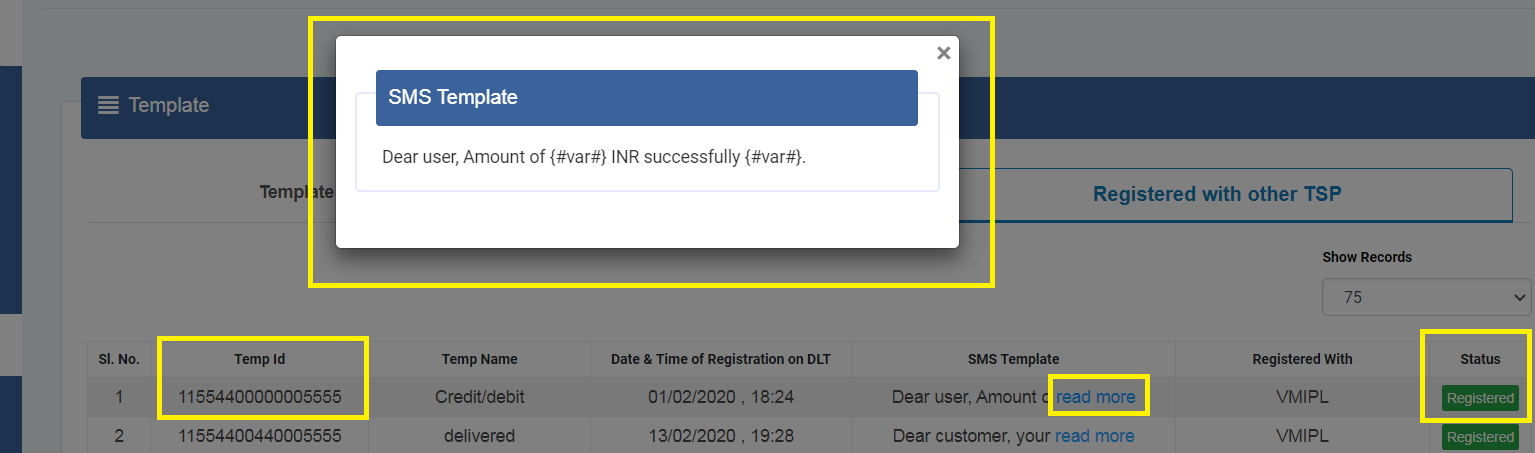
Copy your approved template text from the DLT portal exactly as it was approved, including every variable, and paste it into Fast2SMS. If even one space, comma or variable differs, the SMS fails with a template mismatch.
In older templates the variables look like {#var#}. Templates registered under the new rules use typed tags such as {#numeric#} or {#alphanumeric#}. Copy whichever your portal shows, without changing it. The examples below show where to find and copy the approved text on each DLT portal.
Jio DLT
Move your mouse over the approved text and double-click to select the whole text. Then right-click and choose Copy.
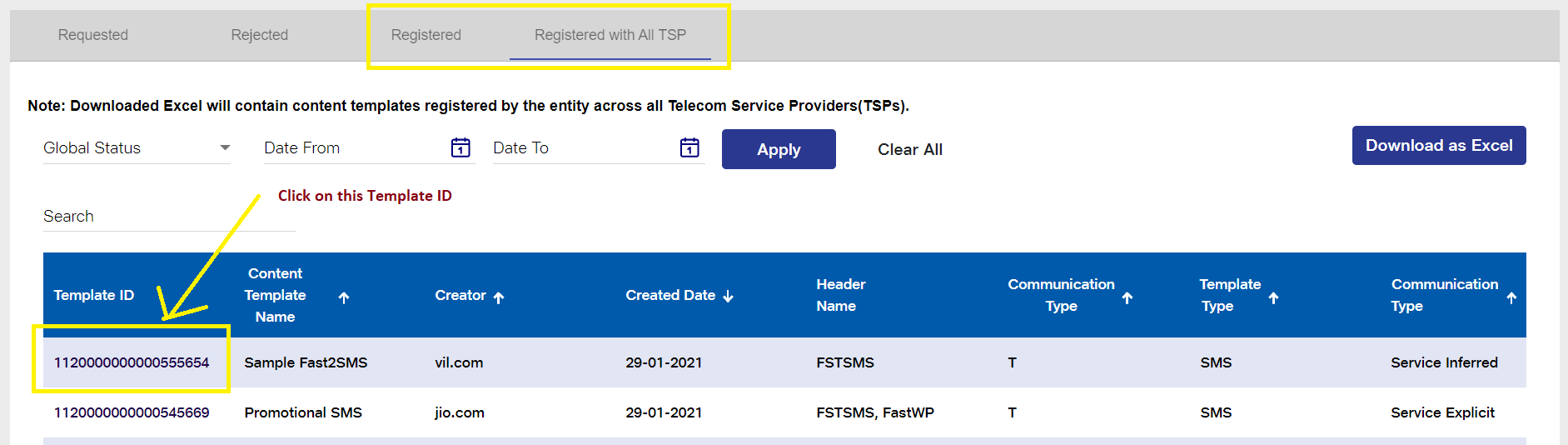
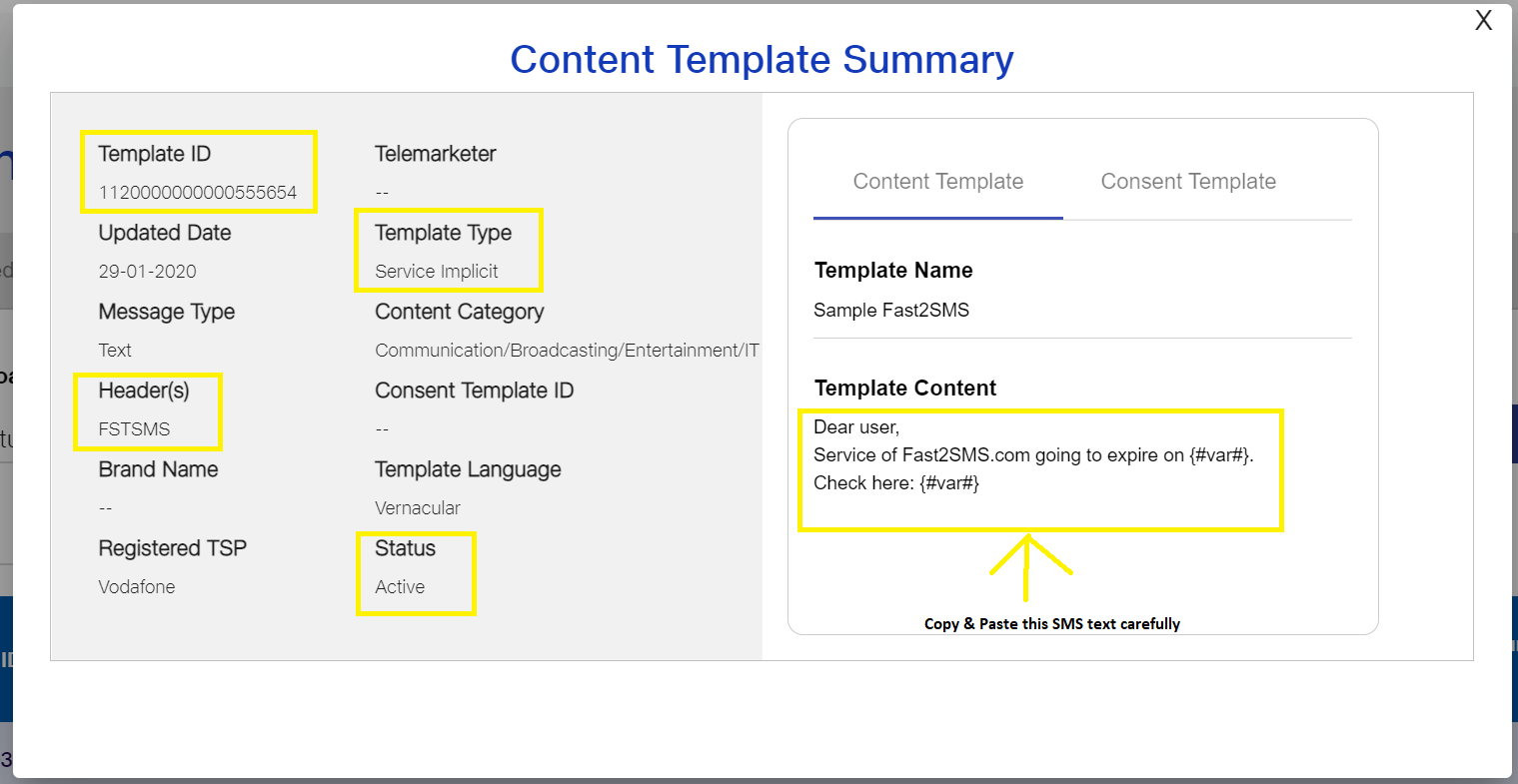
Vi (Vodafone Idea), Airtel and BSNL
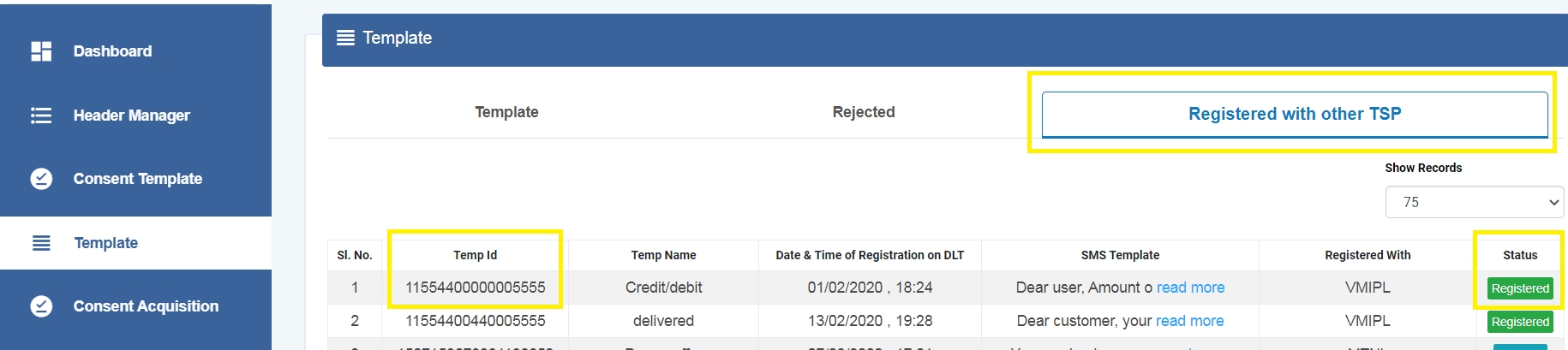
Open the approved template and copy the template message text carefully, as shown below.
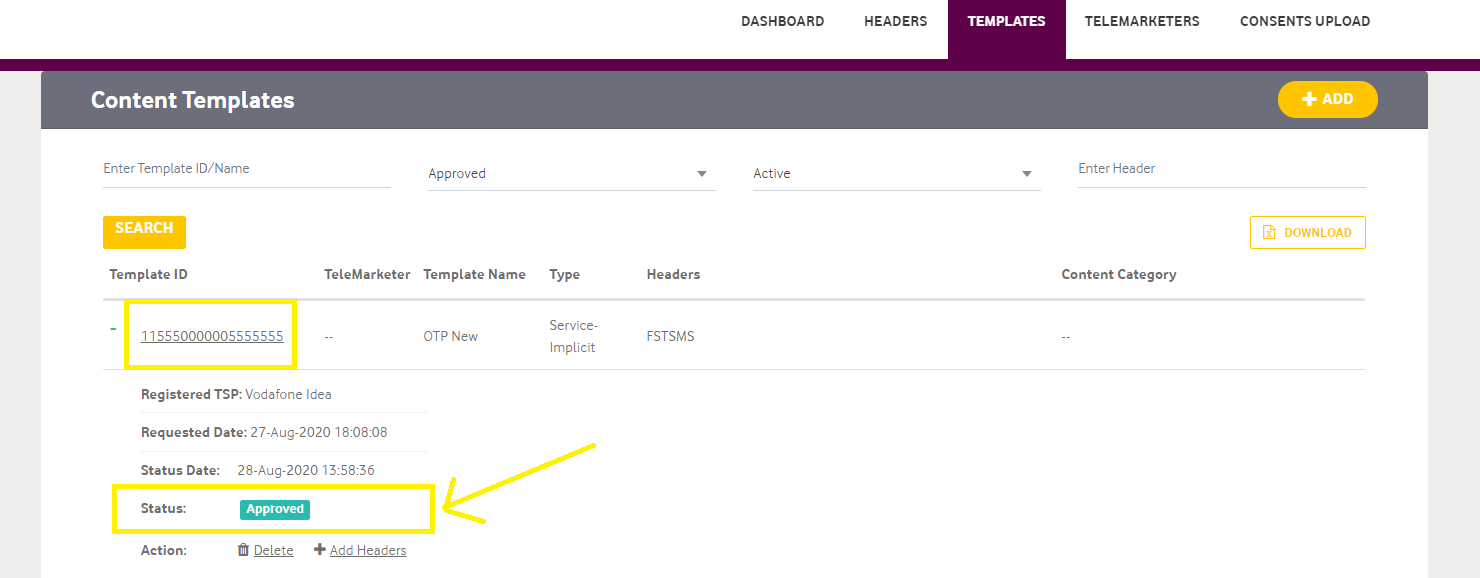
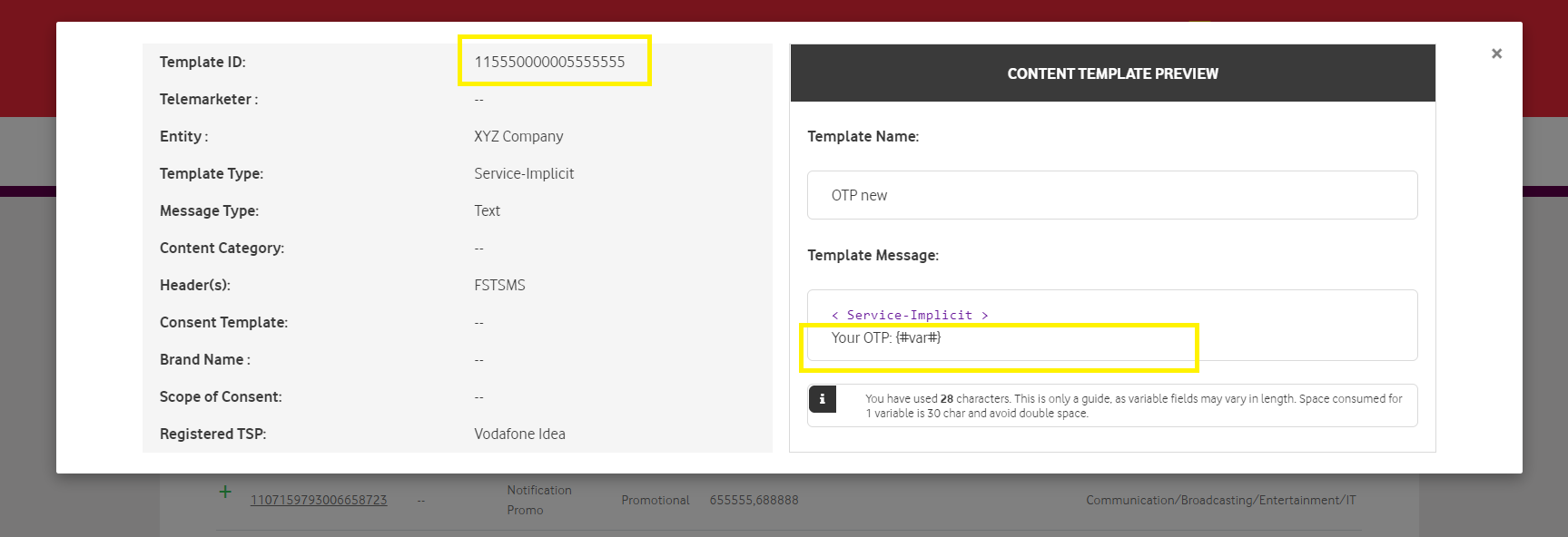
Smartping (earlier Videocon DLT, also called Pingconnect)
The Videocon DLT portal is now run as Smartping. Open the approved template and copy the SMS template text carefully.
Tips to avoid a template mismatch
- Do not retype the text. Copy and paste it from the portal.
- Keep every variable exactly as approved. Do not replace it with a sample value.
- Check line breaks, double spaces and the full stop at the end.
- Use the template that is linked to the sender ID you send from.
See how to fix the DLT template not matched error and the guide to DLT variable tags.