
“Template not matched” means the SMS you sent does not match the DLT template the operator has on record for your Sender ID, so the operator blocks it before it reaches the phone. The cause is almost always a small difference: an extra space, a changed word, a value that is too long, the wrong Sender ID or a wrong template ID. Fix the difference and the same message goes through.
This guide lists the 10 small mismatches that cause the DLT template not matched error, how to spot each one in Fast2SMS, and how to fix it. It also covers the related errors “Sender ID not mapped to template”, “header not registered” and “invalid template ID”.
What does “template not matched” mean?
Every business SMS in India is checked by the operator against the DLT platform before delivery. This check is called scrubbing. The operator looks at four things together:
- your Entity ID (your business),
- the Sender ID (header) the SMS comes from,
- the Template ID, and
- the message text.
The fixed part of your text must be the same as the approved template. Only the variable parts, marked {#var#} in the template, can change. If anything else is different, or the header and template are not linked on DLT, the operator rejects the SMS. In your delivery report the number shows as Failed, usually with a reason such as “Operator rejected”.
The 10 small mismatches that cause it
| # | Mismatch | Example | Fix |
|---|---|---|---|
| 1 | Fixed text changed | “Dear customer” sent as “Hi customer” | Use the exact approved text. Register a new template if you want new wording. |
| 2 | Hidden characters from copy-paste | Curly quotes or a different apostrophe copied from Word or WhatsApp | Copy the text from your DLT portal into a plain text editor first, then into Fast2SMS. |
| 3 | Extra spaces or line breaks | Two spaces after a full stop, or a line break the template does not have | Keep spacing and line breaks exactly as registered. Trim spaces from values. |
| 4 | Variable value too long | A full address in one {#var#} | Keep each value short. Over the API, Fast2SMS cuts each value at 40 characters. |
| 5 | Link in the wrong place | A web link inside a normal text variable, or a link that is not whitelisted on DLT | Put links only where the template has a URL variable, and whitelist the link on your DLT portal. |
| 6 | Language mismatch | Hindi name inside an English template | Use English values in English templates, or register a Unicode template. |
| 7 | Sender ID not linked to the template | Template approved under DEMOTR, sent from DMTRDS | Send from the header the template is linked to, or link the header on DLT and in Fast2SMS. |
| 8 | Wrong Template ID saved | One digit wrong when the template was added | Compare the ID with your DLT portal. Delete and add the template again with the right ID. |
| 9 | Header or entity inactive | Sender ID deactivated on the DLT portal | Reactivate it on the DLT portal, then send again. |
| 10 | Wrong category | An offer sent with a Service Implicit template | Register offers as promotional templates. |
Most failures come from numbers 1 to 4. Check them first.
How to find the mismatch in Fast2SMS
-
Open the template in DLT Manager
Go to DLT Manager > Content Template. Search by template ID or a few words of the message. Each card shows the text with the variables highlighted, the status, the Message ID, the linked Sender ID, the Template ID (partly hidden) and the Entity.
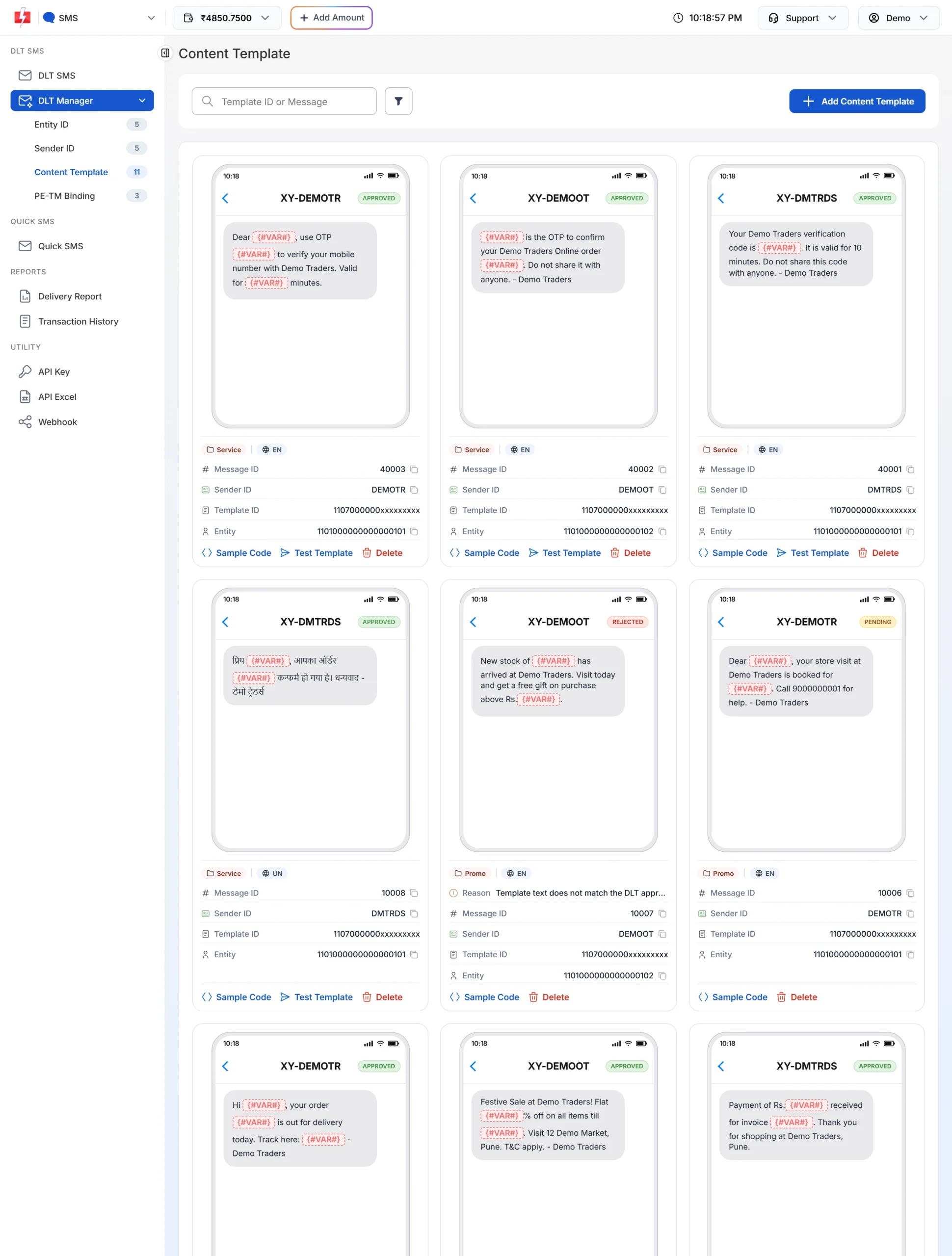
Template cards. A rejected card shows the reason, here a text mismatch. Put the text on the card next to the approved text on your operator’s DLT portal. Compare them word by word: spaces, commas, full stops, capital letters and line breaks. If the text was added wrongly in Fast2SMS, the template is usually rejected during our check with a reason like the one above. Add it again with the exact text.
-
Check that the Sender ID is linked
The Sender ID on the card must be the header the template is linked to on DLT. On the DLT SMS page, the template picker only shows templates linked to the Sender ID you selected. If a template is missing there, it is linked to another sender in Fast2SMS. Also check DLT Manager > Sender ID: the header must be Approved.
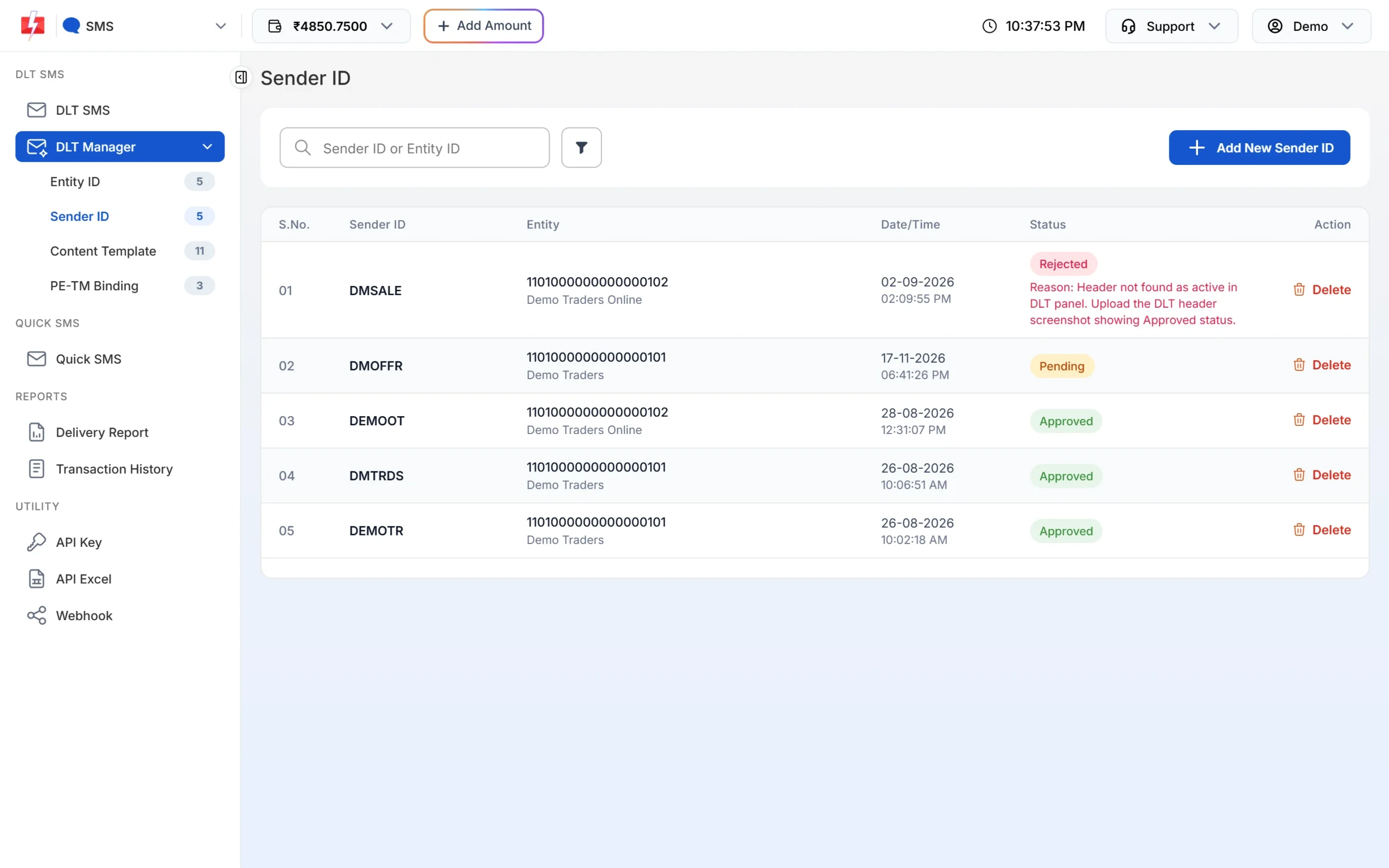
The Sender ID list shows each header’s status and its entity. If the panel says Message is not valid. when you click Send, the template is not approved or not linked to that sender in your Fast2SMS account. Sender ID is not valid. means the sender is not approved, or the case is different (DEMOTR and demotr are not the same).
-
Look at the values you put in the variables
On the DLT SMS page, after you pick a template, the phone preview on the right shows the final message. Read it once before sending. Look for double spaces, line breaks, very long values and links in the wrong place. If you send from a CSV file, the values come from your columns, so check those cells for extra spaces and line breaks too.
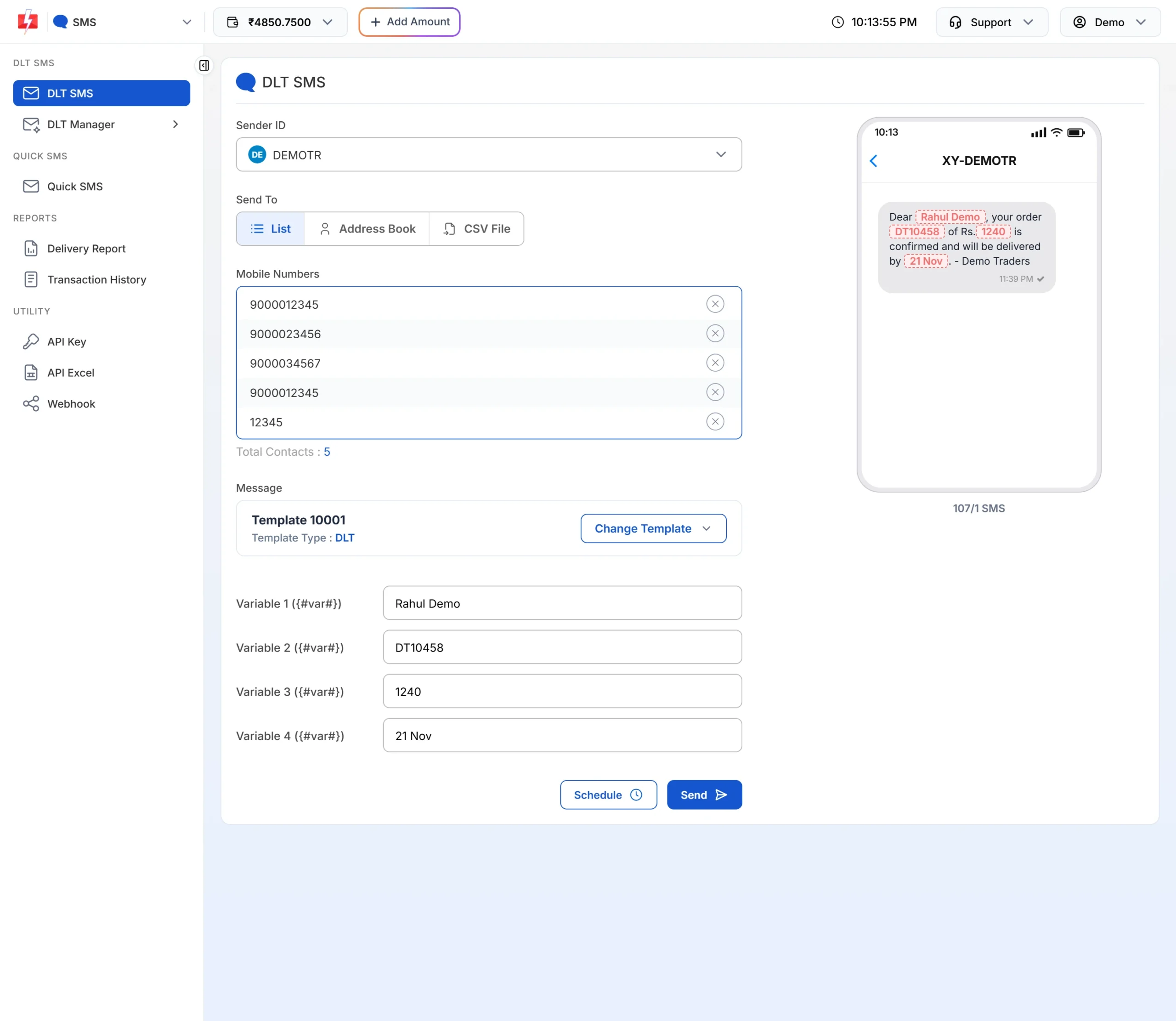
The preview shows exactly what will be sent with your values. -
Send one test SMS to your own phone
On an approved template card, click Test Template. Enter your mobile number, pick the Sender ID, fill the variables with real-looking values and click Send Test SMS. The window then checks the delivery report and tells you if the SMS was delivered.
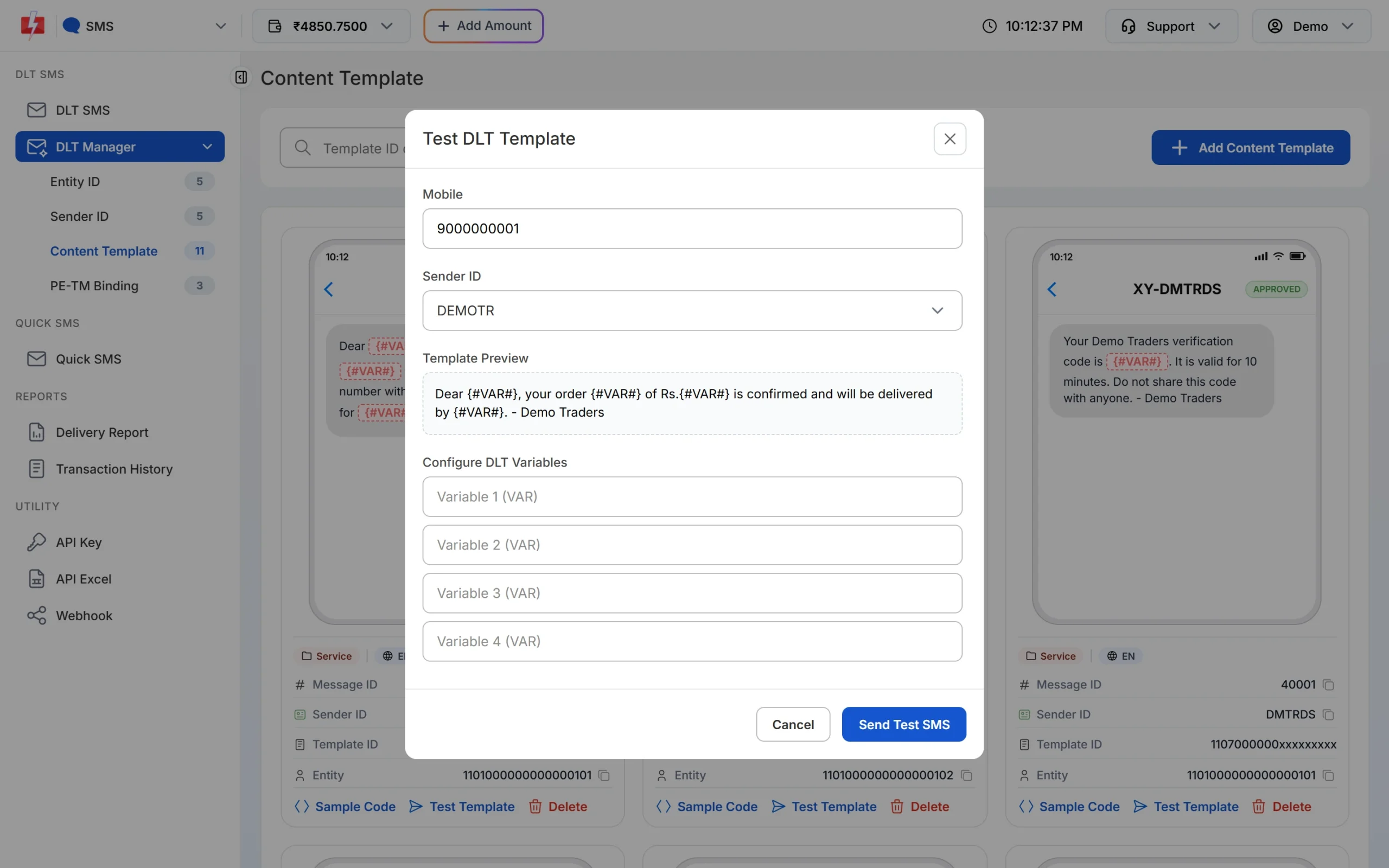
Test a template with your own number before a big campaign. This is a real SMS sent through your account, so normal SMS charges can apply. If your test fails with the same reason as your campaign, the problem is in the setup (text, header, template ID or entity), not in your customers’ numbers.
Related errors and what they mean
“Sender ID not mapped to template”
The header you used is not linked to this template on the DLT portal. A template only works with the header it was registered with. Link the header on your DLT portal, or register the template again under the header you want to use. Then make sure the same sender is ticked for that template in Fast2SMS.
“Header not registered” or “header inactive”
The Sender ID is not registered under your entity, or it has been deactivated. Check its status on your DLT portal. In Fast2SMS, a header that cannot be found as active is rejected in DLT Manager with a reason, as in the screenshot above.
“Invalid template ID” or “template not found”
The Template ID does not exist, is not approved yet, or belongs to another entity. Copy the ID from your DLT portal instead of typing it. If it was saved wrongly in Fast2SMS, delete the template and add it again.
“Entity ID not found” or “PE not registered”
The Entity ID linked to the SMS is wrong or not active on DLT. Check it in DLT Manager > Entity ID and on your DLT portal. Also make sure your PE-TM binding is complete, because a missing chain blocks SMS on that operator.
Sending by API? Read this
- DLT SMS API (route=dlt): you send the template’s Message ID and the variable values. Fast2SMS fills the approved text for you, so the fixed text cannot go wrong. Watch the values: they are separated by | and each one is cut at 40 characters.
- DLT Manual API (route=dlt_manual): your software sends the full text, plus the Entity ID and Template ID. Fast2SMS does not check that this text matches DLT. If the text, entity or template is wrong, the SMS fails at the operator, and such failures are not refunded. Copy the approved text exactly into your code, and keep each template’s text and ID together.
How to avoid template mismatch errors
- Keep a simple sheet with each template’s name, Template ID, Message ID, Sender ID and exact text.
- Do not edit approved text, even to fix a typo. Register a new template and use it once approved.
- Clean your CSV before upload: remove extra spaces and line breaks inside cells.
- Keep variable values short and plain: names, order numbers, amounts, dates.
- Test every new template with Test Template before the first campaign.
Frequently asked questions
Why does my SMS fail with template not matched when the text looks the same?
Usually a hidden difference: a double space, a curly quote, a line break or a full stop. The operator compares characters, not meaning. Paste both texts into a plain text editor and compare them line by line.
Is a template not matched SMS charged?
DLT SMS are charged when the campaign is created, for each valid number and SMS part. Failed DLT SMS are not refunded automatically, so test a new template before a large send.
Can I send a template with a different Sender ID?
No. A DLT template works only with the header it is linked to. Register it under the other header too, or link that header on your DLT portal.
Can I edit an approved DLT template?
Not the text. Register the new wording as a new template on your DLT portal, then add it in DLT Manager. Keep the old one until the new one is approved.
Does Hindi text cause template mismatch?
It can, if the template was registered in English. Fast2SMS stops this before sending with the message “Only English alphabets are allowed in message text or select Unicode SMS.” Register a Unicode template for Hindi messages.
How do I know which number failed and why?
Open Delivery Report, click the message to open Delivery Details, and read the Description column for each number. Share the request ID with support if you need the exact operator reason.
What is the difference between Message ID and Template ID?
The Template ID is the 19-digit ID from your DLT portal. The Message ID is Fast2SMS’s short ID for the same template, used in the API as the message value.