
To send the same SMS every day automatically, schedule a DLT SMS with a date range in Fast2SMS. Pick a start date and an end date in the Schedule drawer, set the time, and the panel sends the same message once a day at that time for every day in the range.
This is useful for daily reminders, daily offers during a sale week, or a daily notice to staff. Here is how to set it up and what it costs.
Before you start
- An approved Sender ID and DLT template in DLT Manager.
- Enough wallet balance for all the days in the range.
- The list of numbers that should get the SMS each day.
How to schedule a daily recurring SMS
-
Prepare the SMS
Open DLT SMS. Choose the Sender ID, add the numbers under Send To, pick the template with Select DLT Template and fill the variables.
-
Choose a date range and time
Click Schedule. In Select Date, pick the first and the last day, for example 1 Dec to 7 Dec. In Enter Time, set the time of day. Click Schedule in the drawer.
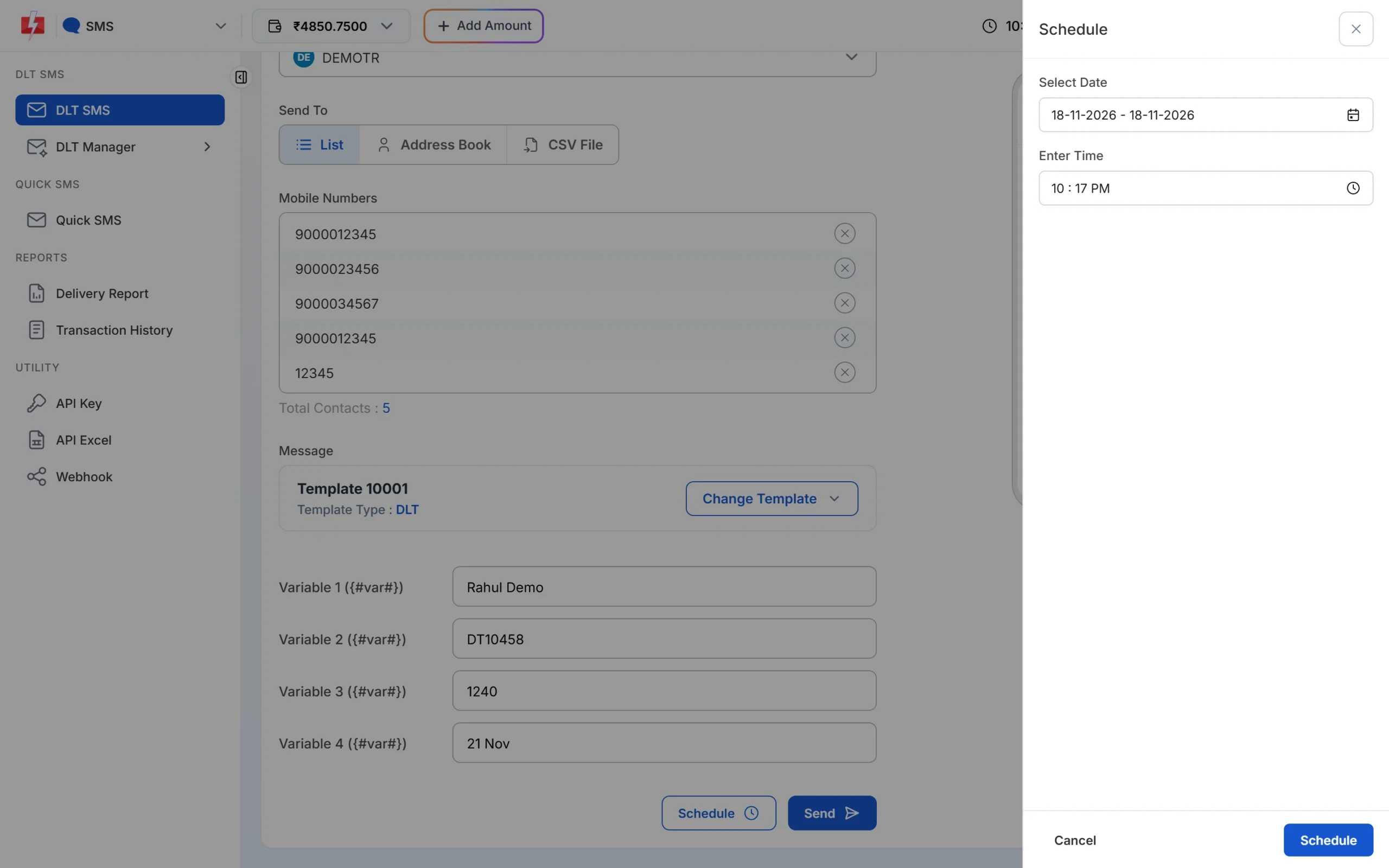
Pick a date range to send the same SMS every day. -
Check the cost for all days and confirm
The confirmation popup shows No. of Schedule Days and the total cost: numbers x rate x SMS parts x days. Click Confirm & Schedule. The full amount is taken from your wallet when you schedule.
-
See or cancel the schedule
Go to Delivery Report > Schedule to see upcoming sends. Click Cancel before the schedule starts sending, and the amount is credited back to your wallet.
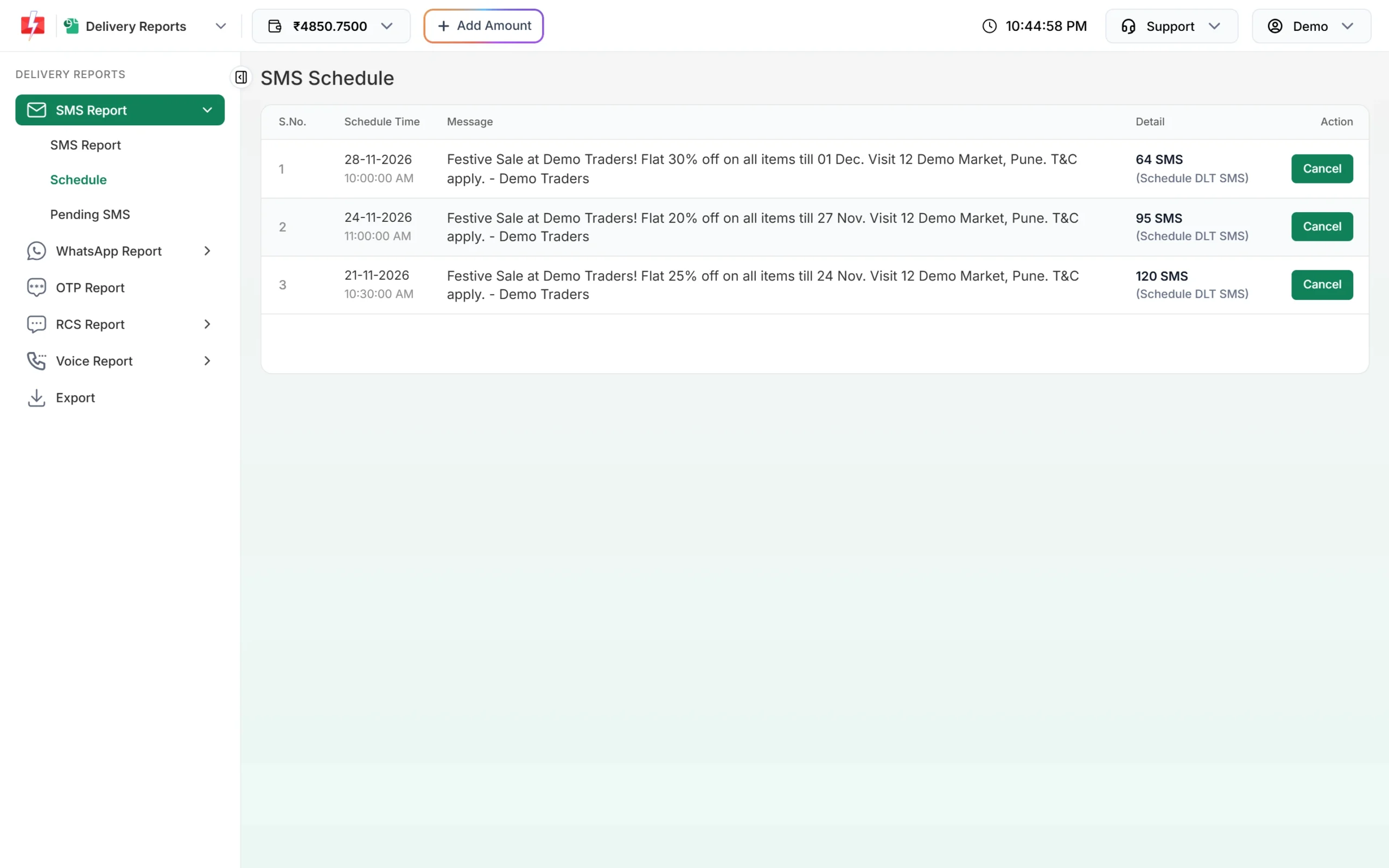
All upcoming scheduled SMS, each with a Cancel button.
What it costs
A daily schedule costs the same per SMS as a normal send, multiplied by the number of days. For example, 500 numbers for 7 days at ₹0.25 per SMS is 500 x 0.25 x 7 = ₹875. At the time of writing, DLT SMS rates go from ₹0.25 down to ₹0.11 by recharge amount; see the bulk SMS pricing page.
Sending in bulk? For high SMS volumes our team offers discounted rates. Talk to our team or see SMS pricing.
Good to know
- Each day gets the same text and the same variable values. For a different message each day, make a separate schedule for each day.
- There is no weekly or monthly repeat option. For a weekly SMS, schedule each date separately.
- Promotional SMS scheduled at night are moved to about 10 AM. Pick a daytime hour for offers.
- The schedule time must be at least 1 minute in the future.
Frequently asked questions
Can I send an automatic SMS every day without logging in?
Yes. Once the date range is scheduled, the SMS goes out each day at the set time on its own.
When is the money deducted for a multi-day schedule?
When you confirm the schedule. The cost covers every day in the range.
Can I stop a daily schedule in the middle?
You can cancel a schedule in Delivery Report > Schedule while it has not started sending. If the panel says it cannot be cancelled, contact support with the schedule details.
Can I schedule SMS from the API every day?
Yes. Your own software can call the SMS API at the same time each day, which also lets you change the message daily.