
On the Apps dashboard, open SMS. If you have not added any DLT entity yet, the DLT SMS page shows two options.
- Registered in DLT?
- Not registered in DLT?
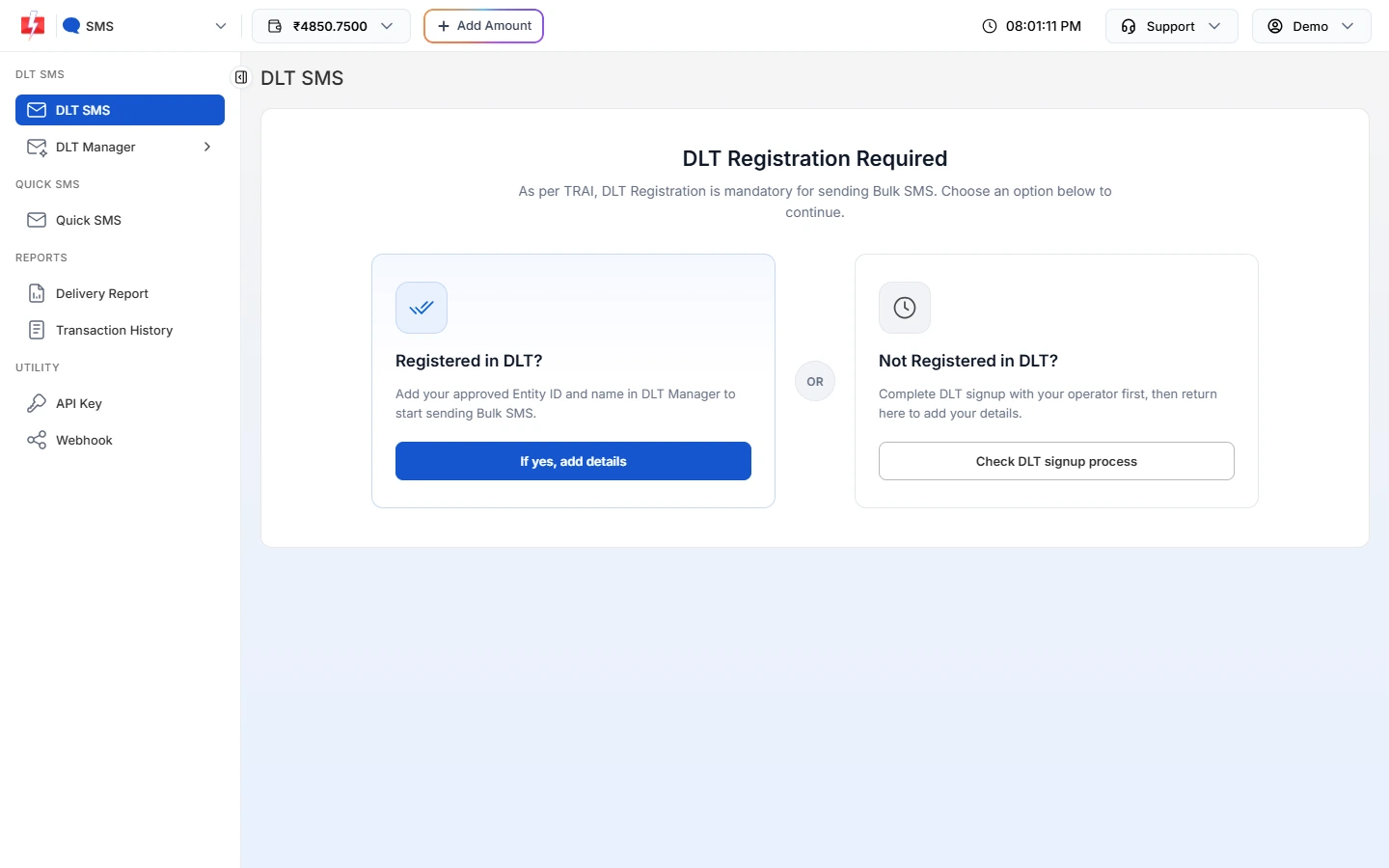
If you are already registered in DLT click on If yes, add details, else you need to first register on the DLT operator for further procedure. If you want to know the DLT registration complete process, click on ‘Check DLT signup process‘.
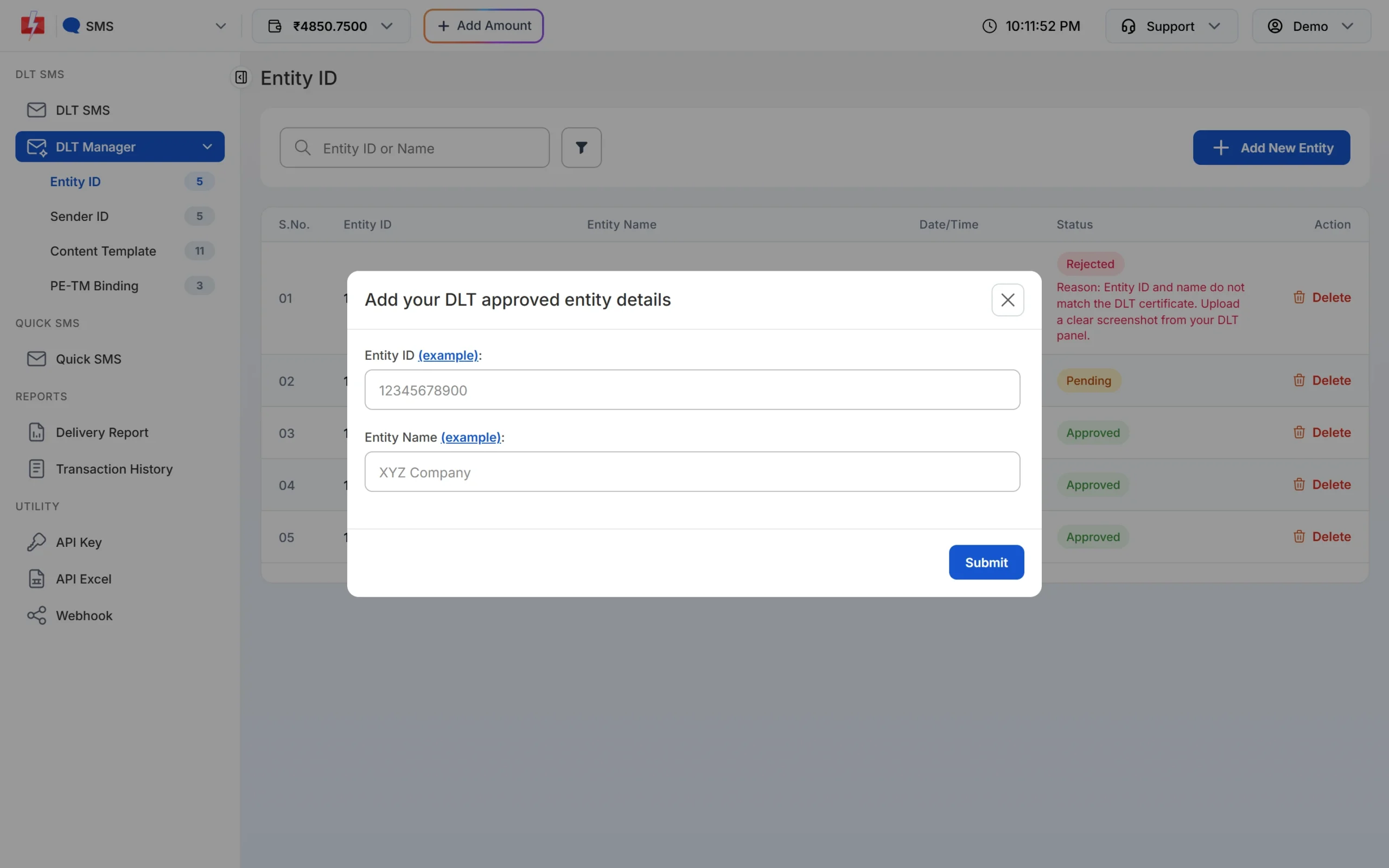
Add your approved DLT entity details (company name, Entity ID) in the form. If the Entity ID is verified with the DLT platform, it is approved straight away. If it cannot be verified, attach the Principal Entity ID screenshot (JPG, PNG or PDF) and the status will show as Pending until your Entity Details are approved by our team.
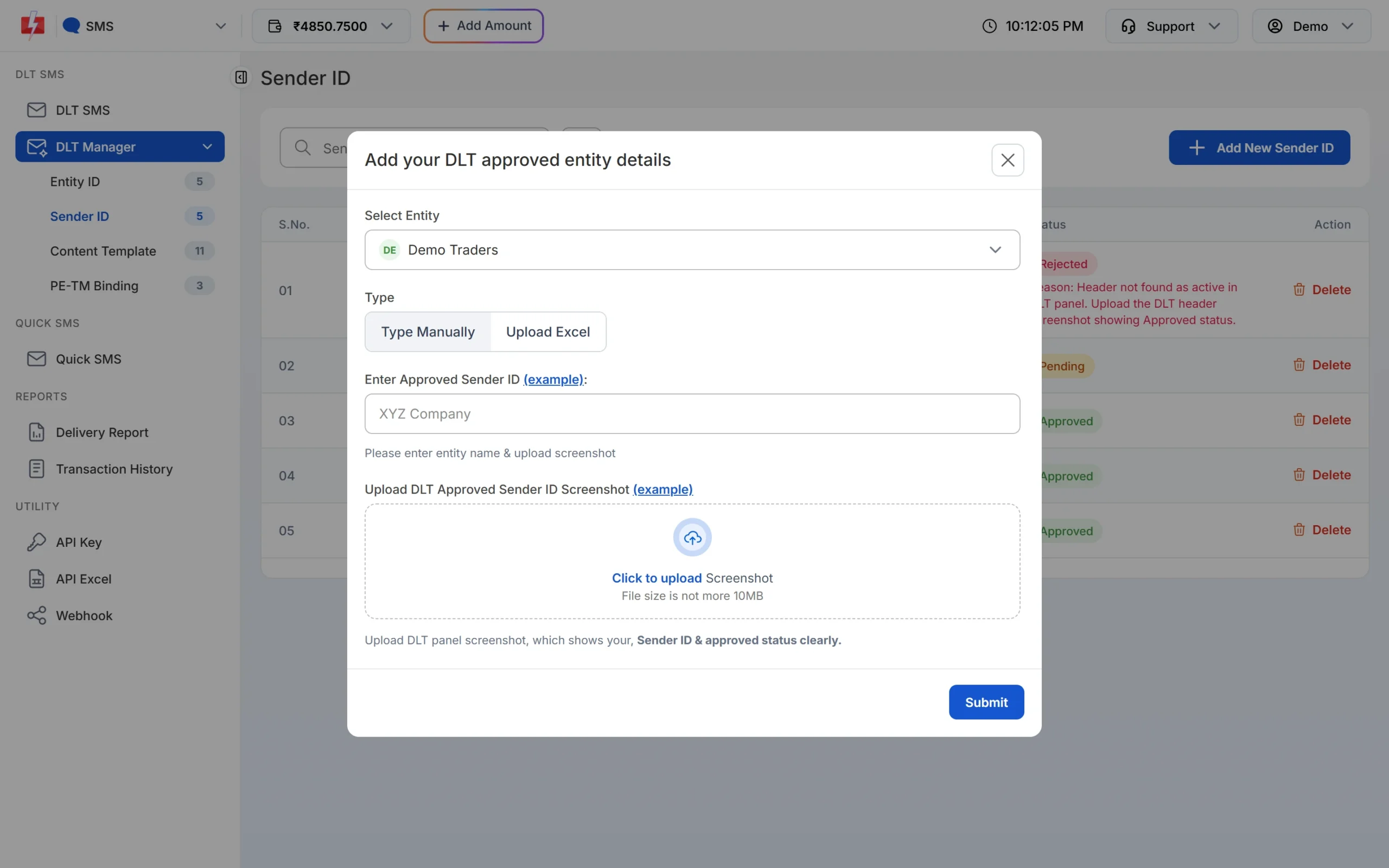
Once your Entity details are approved in Fast2SMS, you can now add a HEADER that is approved in provided Entity ID. Go to DLT Manager > Sender ID and click on Add New Sender ID to add a HEADER. You can upload header details manually with screenshots of approved HEADER or upload an excel sheet of the header (Downloaded from the DLT panel). HEADER details will be verified and approved by our team.
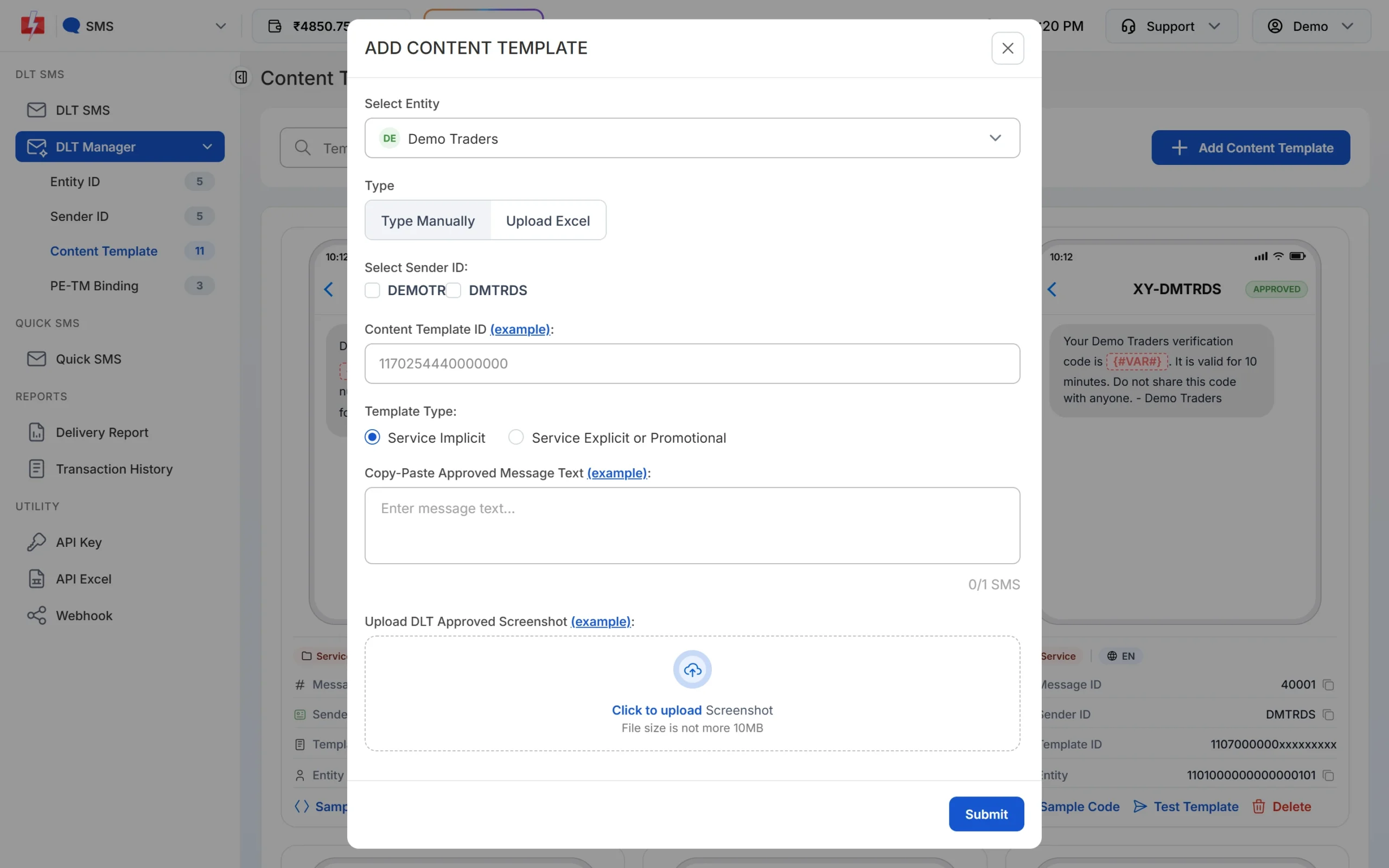
After adding approved Header, you can now proceed to add the Content template. Go to DLT Manager > Content Template and click on Add Content Template to add template details. You can upload template details manually with screenshots of approved templates or upload an excel sheet (Downloaded from the DLT panel).
You can upload EXCEL for approved Header and Content templates at Once. All the details must be approved at DLT operator.
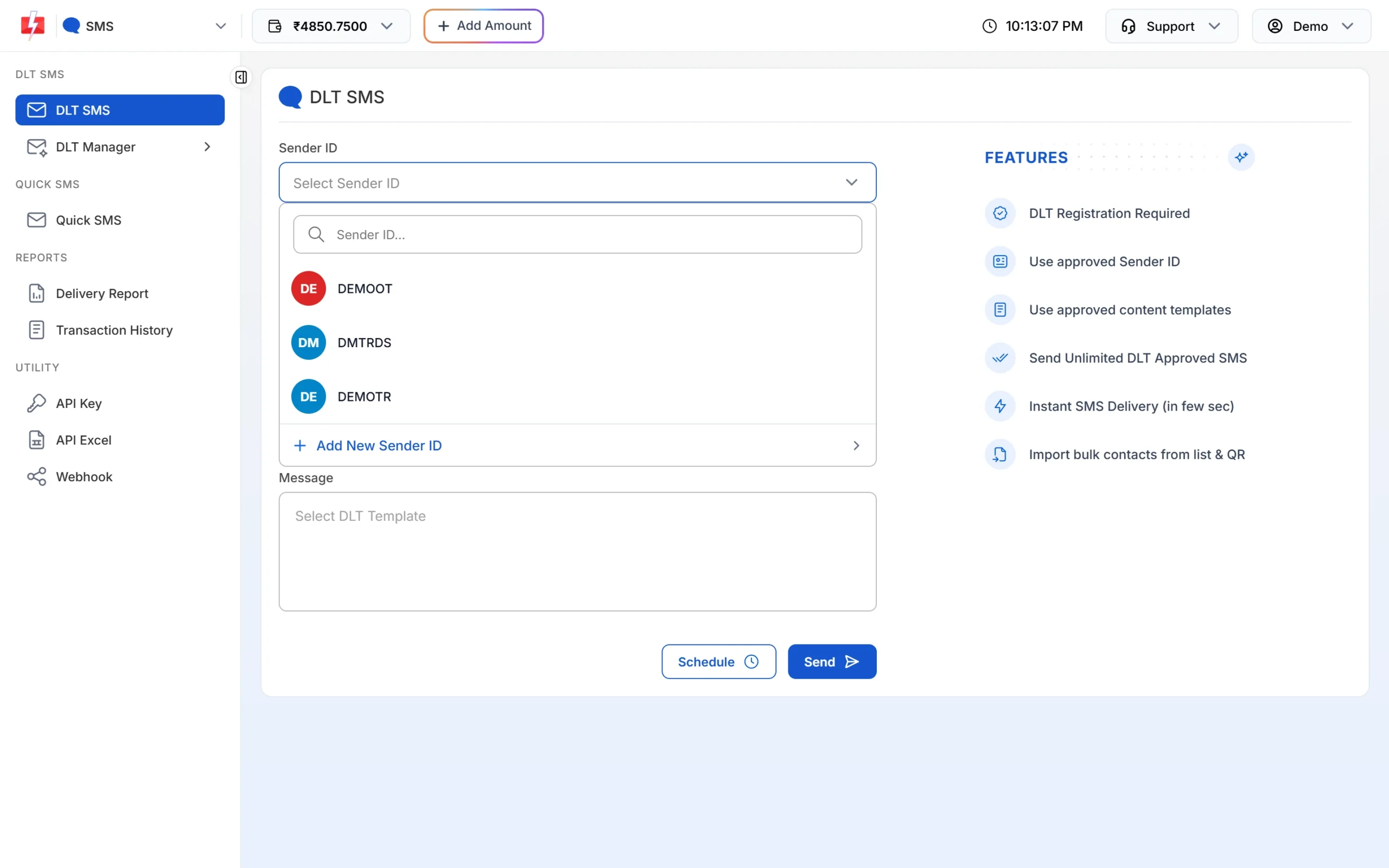
NOTE: In case, you have already added headers and templates, they are listed under Sender ID and Content Template in DLT Manager, and your approved Sender IDs show in the Sender ID drop-down on the DLT SMS page. You can add a new header or template from those pages.
Frequently asked questions
Why is my entity Pending in Fast2SMS?
The Entity ID could not be confirmed on the DLT platform automatically, so our team checks your screenshot by hand. Entity IDs found on the DLT platform are approved straight away.
Why does it say Invalid Entity ID?
The Entity ID must be the full number from your DLT portal, longer than 11 digits and with no letters or spaces. Copy it from your portal profile or approval email and paste it again.
Which Excel file can I upload for sender IDs and templates?
Upload the file exported from your DLT portal in .csv or .xlsx format. If it is not accepted, open it in Excel and save it again as .xlsx. See the DLT content template Excel file.
Can I add a sender ID that is still pending on DLT?
No. Add only headers and templates that are already approved on your DLT portal. A pending header added early will not be approved in your SMS panel.
Why don’t I see my template on the DLT SMS page?
Only approved templates linked to the sender ID you picked appear in the list. Check that both the sender ID and the template show Approved in DLT Manager. Read template not showing for a sender ID.
What happens if I delete an entity in DLT Manager?
All sender IDs and templates mapped to that entity are removed too, along with linked OTP templates. You need your account password to confirm, so delete only when you are sure.