
A DLT template shows on the Fast2SMS DLT SMS page only when it is Approved and linked to the sender ID you selected. If your template is missing from Select DLT Template, it is usually still Pending or Rejected, or it was added under a different sender ID (header).
The same link matters on the DLT portal. If a template is not linked to the header there, the operator rejects the SMS during scrubbing, which some providers call “header not associated with template”.
How to check and fix it
-
See which templates the sender has
On DLT SMS, choose the Sender ID and click Select DLT Template. The picker lists only the approved templates of that sender, with tabs for Service Implicit and Service Explicit. You can change the sender at the top of the picker and search by message text or template ID.
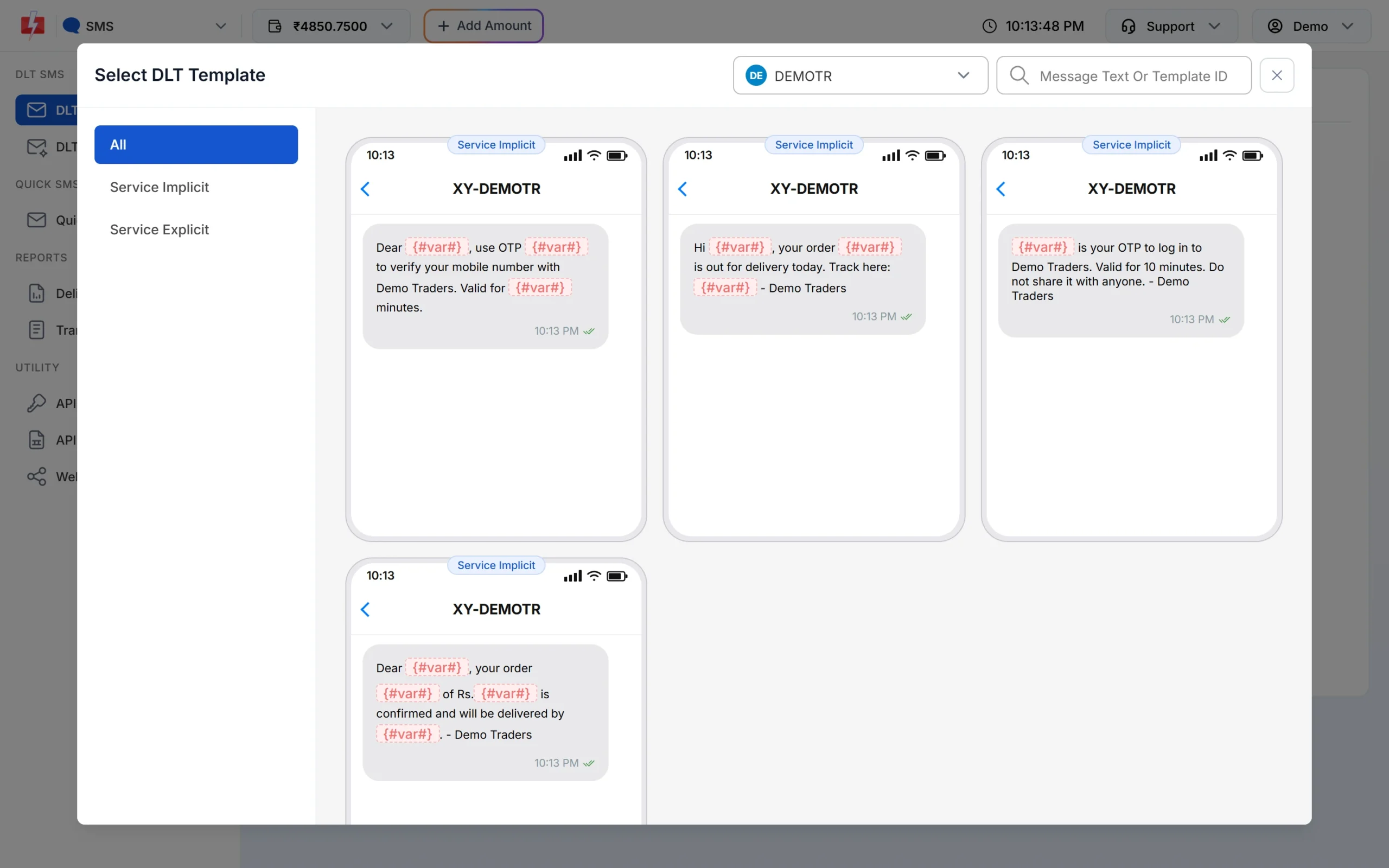
The picker shows only templates linked to the chosen sender. -
Check the template card in DLT Manager
Go to DLT Manager > Content Template and search for the template ID or a few words of the text. On the card, check the status badge and the Sender ID line. If it shows PENDING, wait for approval. If it shows REJECTED, read the reason on the card. If the sender is a different one, that explains why the template is missing.
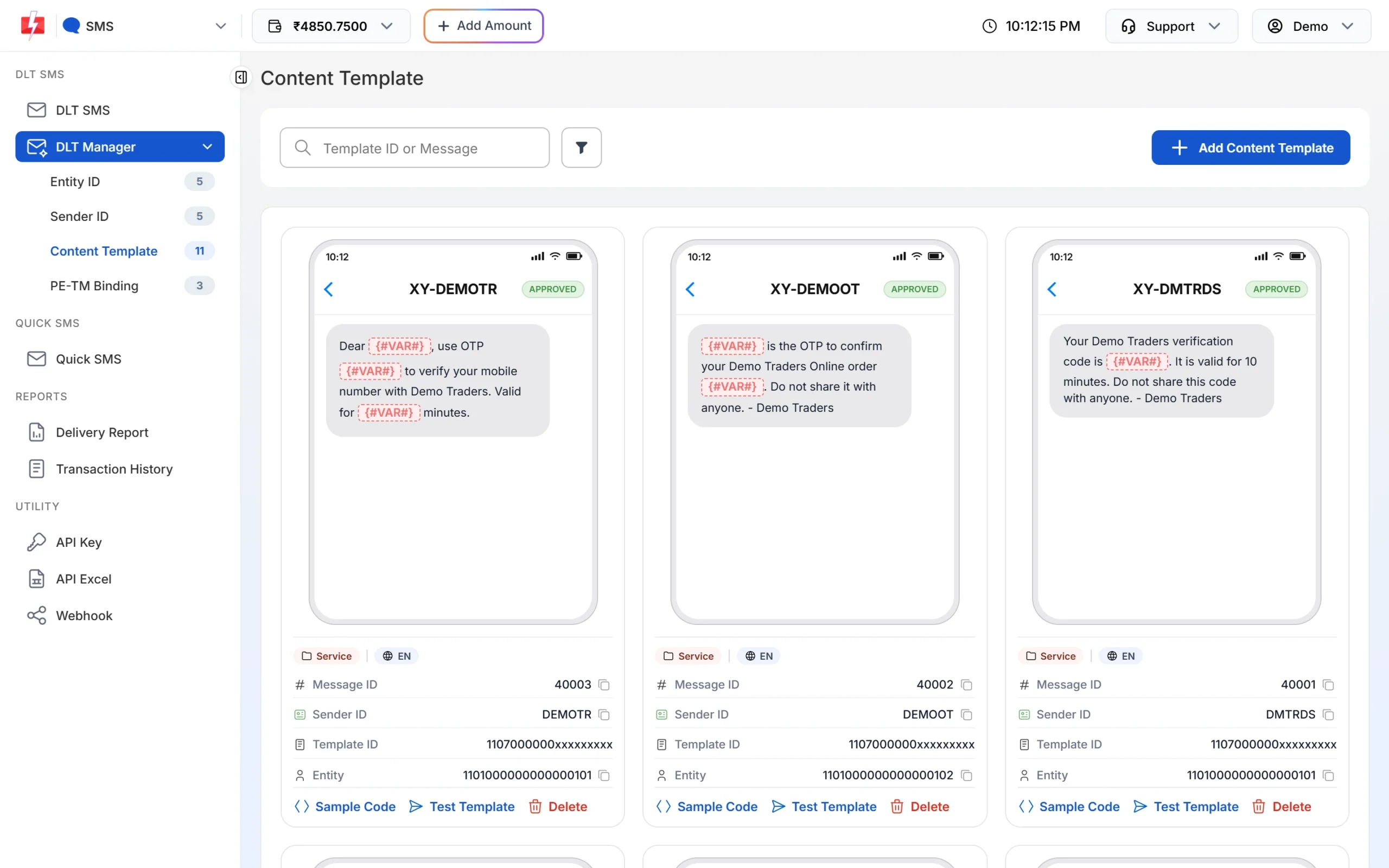
Each card shows the sender ID the template is linked to. -
Check the sender ID itself
The Sender ID dropdown lists only approved senders. If your header is missing there, open DLT Manager > Sender ID and check its status first.
-
Link the template to the right header
First make sure the template is linked to that header on your DLT portal. Then, in Fast2SMS, add the template with every header it uses: in Add Content Template, tick each sender under Select Sender ID. If the template is already in your account under another sender, write to support with the template ID and the header so we can link it, or delete the card and add it again with all senders ticked.
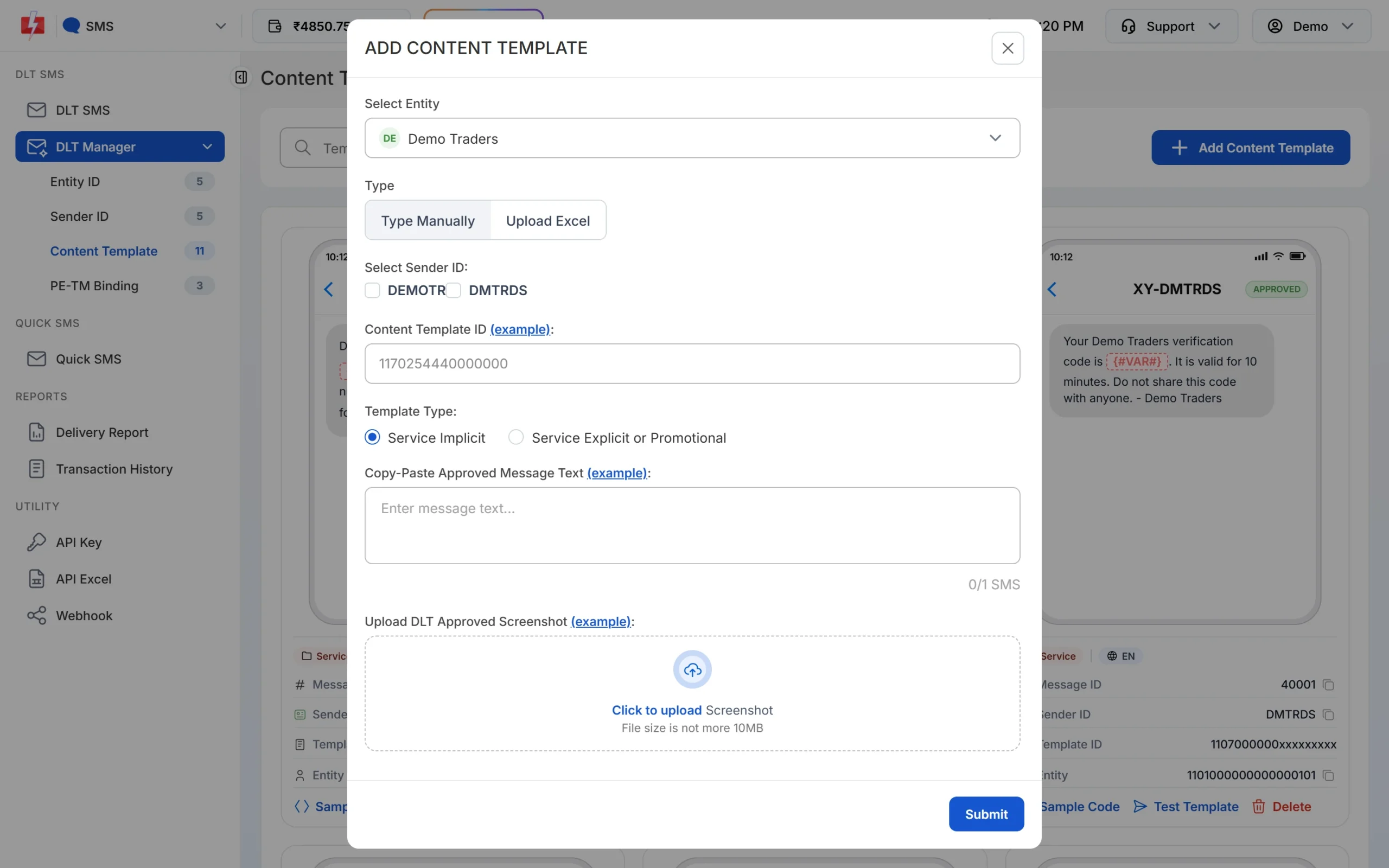
Tick every header the template is registered with.
Related errors
- “Message is not valid.” on the DLT SMS page: the template is not approved or not linked to the chosen sender.
- “Sender ID is not valid.”: the sender is not approved in your account, or the case does not match (DEMOTR is not demotr).
- API error 424 Invalid Message ID: the Message ID you passed does not belong to an approved template of that sender.
Frequently asked questions
Can one DLT template be used with two sender IDs?
Yes, if the template is linked to both headers on the DLT portal. In Fast2SMS, tick both senders when you add the template.
Why does a new template not appear right after adding it?
New templates are Pending until our team checks them. They appear in the picker once they are Approved.
My template is Approved but still missing. Why?
It is linked to another sender ID. Switch the sender at the top of the picker, or check the Sender ID line on the template card.