
WooCommerce Login with Mobile Number: Phone Number Login with OTP (Free)
Most Indian shoppers remember their mobile number. Very few remember the password they made on your store three months ago. WooCommerce login with mobile number solves this. The customer types a 10-digit number, gets a one-time password on WhatsApp or SMS, enters it and is logged in. No password to remember, and no “forgot password” email lost in the spam folder.
This guide shows you how to set up WooCommerce phone number login with OTP using the free Fast2SMS plugin. We cover the My Account page, wp-login.php, the [fast2sms_otp_login] shortcode, auto account creation for new numbers, blocking OTP-only login for administrators, the look of the login box, the resend countdown and the security limits that run on your server. The plugin is free on WordPress.org. You pay only for the messages you send.
What WooCommerce mobile OTP login actually does
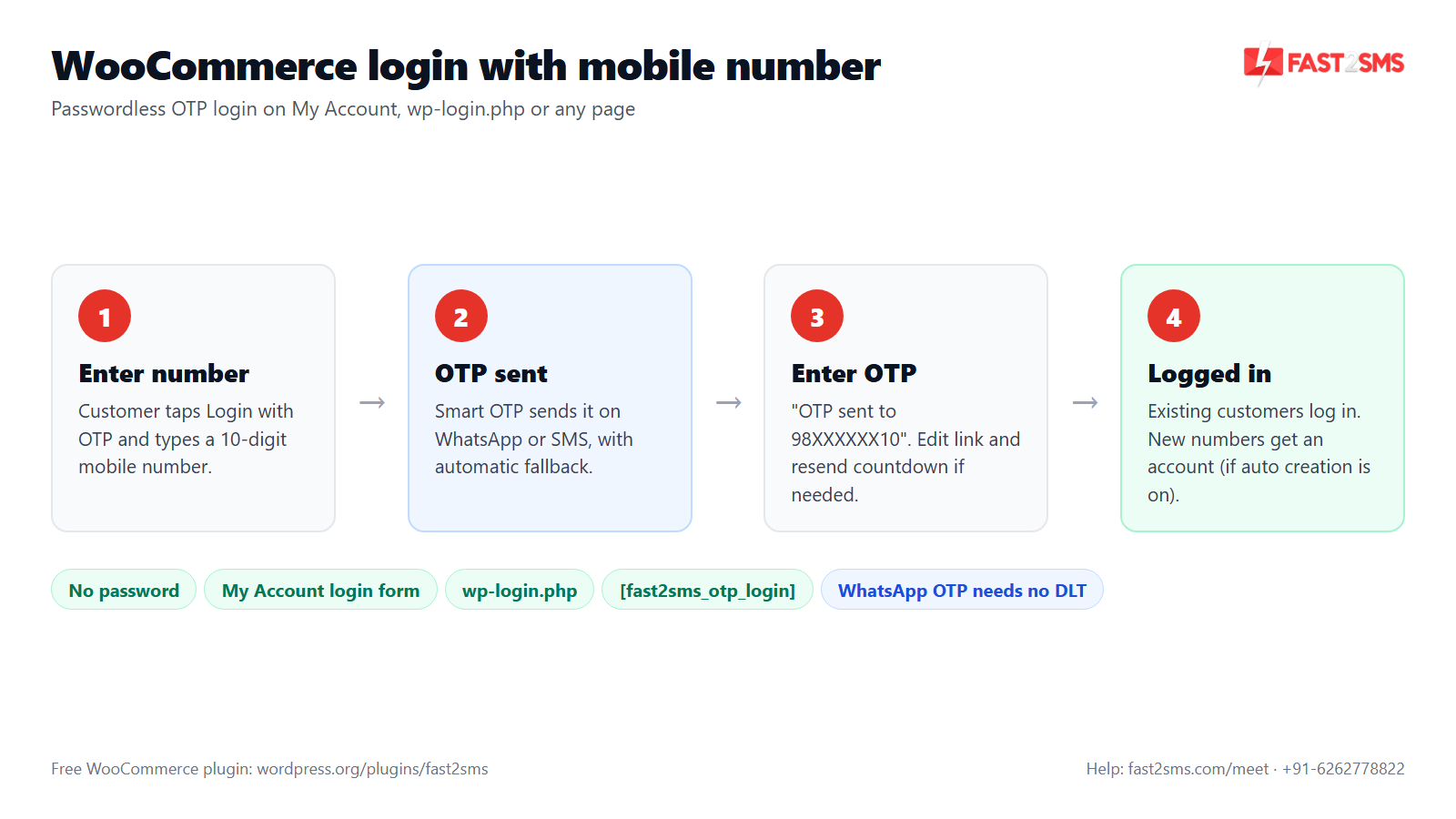
WooCommerce, out of the box, logs people in with a username or email address and a password. The Fast2SMS plugin adds a “Login with OTP” option to the WooCommerce login form. Here is what your customer sees:
- They tap Login with OTP and type their 10-digit mobile number.
- The plugin sends a one-time password through Fast2SMS Smart OTP, on WhatsApp or SMS.
- The box shows “OTP sent to 98XXXXXX10” with an Edit link, in case they typed the number wrong.
- They enter the OTP. If it is correct, they are logged in to their account.
- If the number is new and you have switched on auto account creation, an account is created for them after the OTP is verified.
There is no password in this flow. Customers who like their password can still use it, because OTP login is added next to the normal form, not in place of it.
Why phone number login suits Indian WooCommerce stores
If you run a D2C brand or a COD-heavy store in India, your customers think in phone numbers. They give it at checkout, get order updates on it, and the courier calls them on it. A password for one store is one more thing to forget.
- Fewer password resets. The OTP is the password, every time.
- A real, verified number on the account. The customer has just proved they own it, so your order updates go to a number that works.
- Faster repeat orders. A returning buyer logs in with the phone already in their hand.
If you want the bigger picture of all OTP options on WooCommerce, read our WooCommerce OTP login guide. This article sticks to one job: letting customers log in with a mobile number. Comparing a paid mobile login extension with a free OTP plugin for WooCommerce? Read our free alternative guide first.
How to set up WooCommerce login with mobile number, step by step
You need the free plugin, a Fast2SMS account and a Smart OTP set up at Fast2SMS. Here is the order that works on most stores we have set up:
- Install the plugin. In WordPress, go to Plugins > Add New, search “Fast2SMS”, then install and activate “Fast2SMS – OTP Login & SMS Notifications”. You can also get it from the WordPress.org plugin page.
- Add your API key. Sign up at Fast2SMS (you get ₹50 test credit), copy your API key and paste it in WP Admin > Fast2SMS > Dashboard. The key is checked live and stored encrypted. Your wallet balance shows in the header.
- Create a Smart OTP and copy its OTP ID. At Fast2SMS, choose WhatsApp first with automatic SMS fallback, or SMS first with WhatsApp fallback. Our Smart OTP guide walks through it.
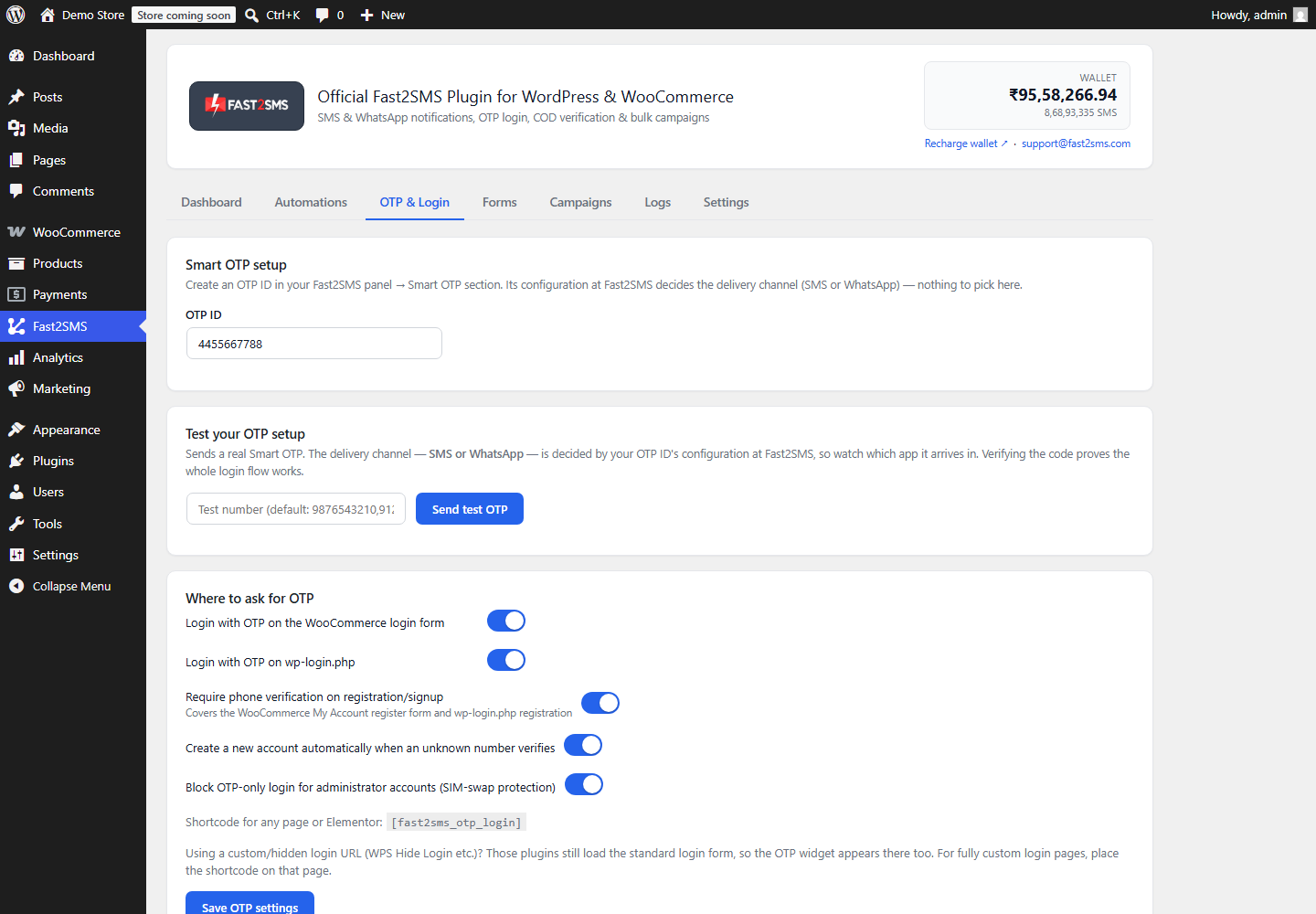
- Paste the OTP ID. Open the OTP & Login tab and enter the OTP ID.
- Send a test OTP. The OTP & Login tab lets you send a real OTP to your own phone and verify it, before any customer sees the feature.
- Turn on Login with OTP. Switch it on for the WooCommerce login form, and on wp-login.php if you want it there too.
- Choose your options. Auto account creation, the admin block, the resend countdown and the login box look.
- Try it as a customer. Log out, open My Account on your phone and log in with your number.
Setting up the WhatsApp side in detail? See WooCommerce WhatsApp OTP login. For full plugin documentation, visit docs.fast2sms.com.
WooCommerce My Account login with phone number
The My Account page is where most WooCommerce customers log in, so start here. Once Login with OTP is on, the WooCommerce login form on My Account shows the OTP option. The customer enters their number, gets the code, and lands on their account dashboard with orders, addresses and downloads, just like a password login.
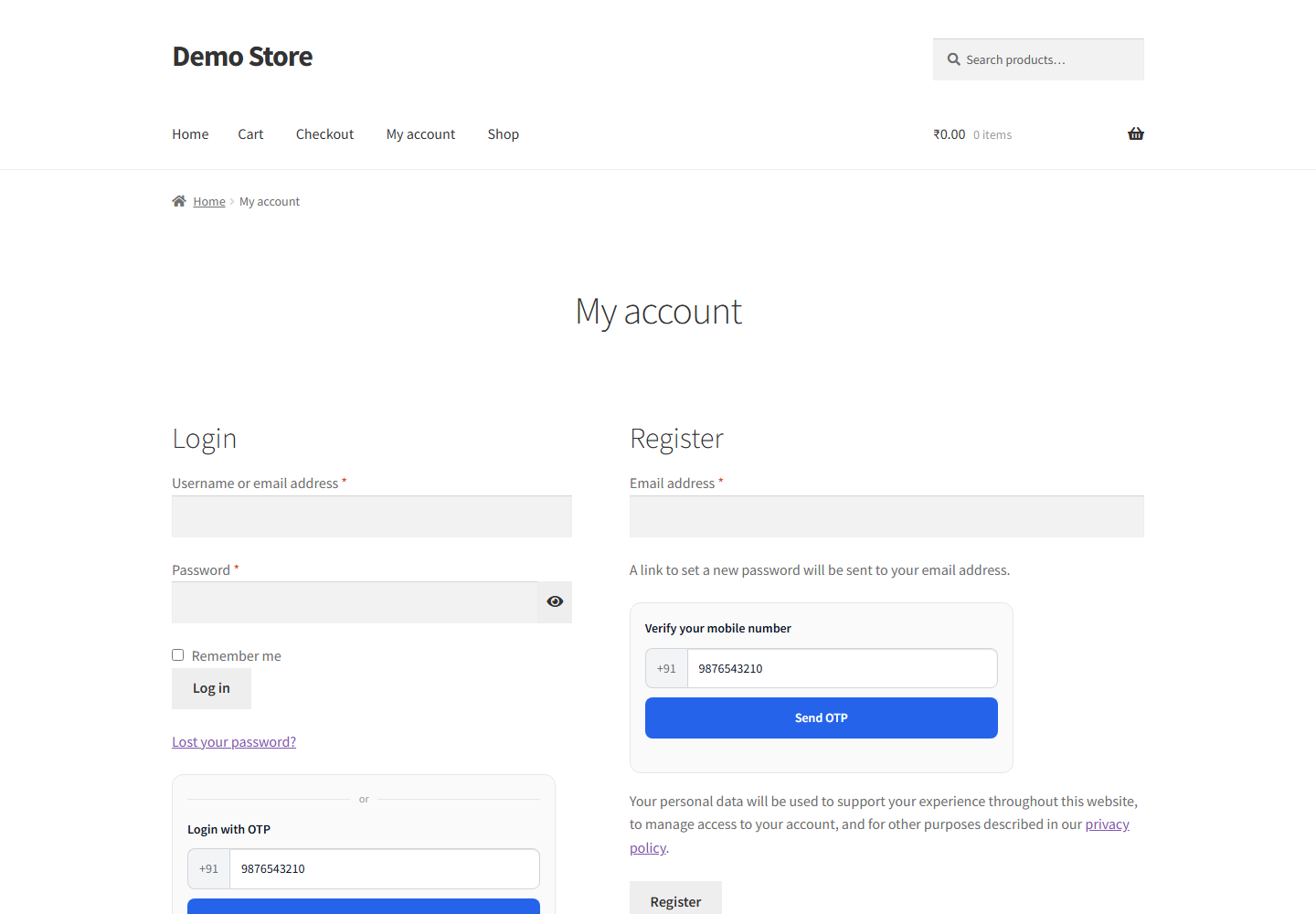
Two small things make this flow feel friendly on a phone:
- The Edit link. After the OTP is sent, the box shows the masked number with an Edit link next to it. If the customer typed one digit wrong, they fix it without reloading the page.
- The resend countdown. The Resend button becomes active after a countdown you choose, between 10 and 300 seconds. This stops impatient double taps from burning OTPs.
OTP login on wp-login.php
Some stores send customers to the default WordPress login page, and many plain WordPress sites (blogs, membership sites, course sites) only have wp-login.php. The plugin can add Login with OTP there too. The flow is the same: number, OTP, logged in.
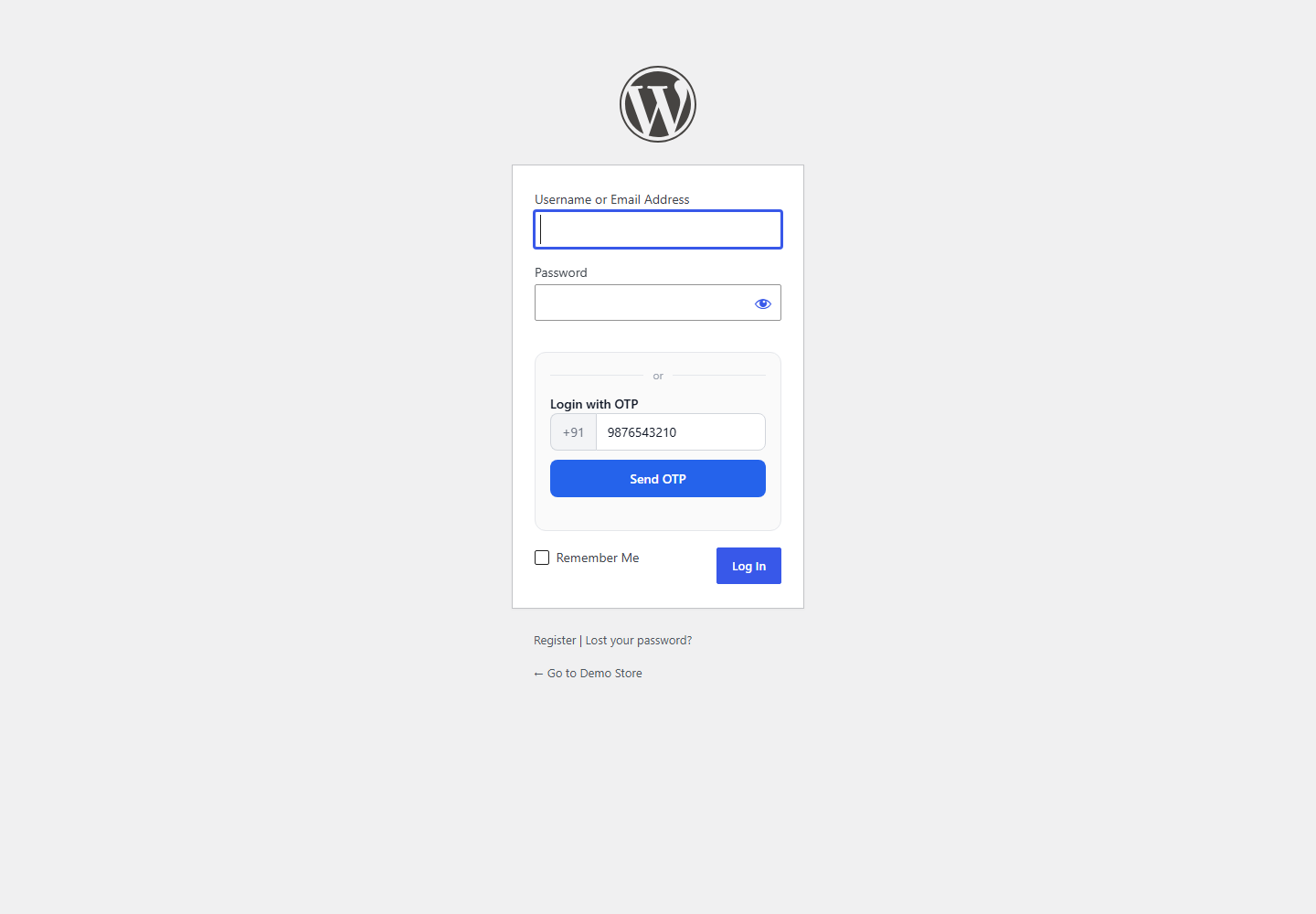
The plugin works on plain WordPress too. WooCommerce features switch on automatically when WooCommerce is installed. For a site without a store, read free OTP login for WordPress.
Put the phone login box on any page with [fast2sms_otp_login]
Want a clean “Login with mobile number” page of your own? Use the shortcode:
[fast2sms_otp_login]
- Create a new page, for example “Login”.
- Add a shortcode block (or your page builder’s shortcode widget) and paste
[fast2sms_otp_login]. - Publish the page and add it to your header menu as “Login with mobile”.
Stores use this for a mobile-first login page or a landing page after a WhatsApp campaign. The box uses the same look you set in the OTP & Login tab. The shortcode works wherever your theme or page builder renders WordPress shortcodes.
Auto account creation for new mobile numbers
What happens when someone enters a number that has no account on your store? With auto account creation switched on, the plugin creates an account for that number once the OTP is verified. The first-time buyer never sees a registration form. They verify their number and they are in.
This suits stores where most buyers are new and on mobile. Keep it off if you want OTP login only for people who already have an account, for example a B2B store where you approve accounts by hand.
If you prefer a normal registration form, the plugin can also verify the phone number on registration with an OTP. That setup is covered in WooCommerce phone number verification on registration.
Block OTP-only login for administrators (SIM swap protection)
An OTP login is only as safe as the SIM card that receives it. In a SIM swap, someone gets a duplicate SIM for your number and starts receiving your messages. On a customer account that is bad. On an administrator account it can mean someone controls your whole store.
So the plugin has a setting to block OTP-only login for administrators. With it on, admin accounts cannot log in with just an OTP. They log in with their password as usual. We switch this on for every store we set up, and we suggest you do the same. If you also want an extra check for staff, see WhatsApp two-factor authentication for WordPress.
Change how the WooCommerce OTP login box looks
The login box should look like part of your store. The OTP & Login tab gives you these options, with a live preview:
- Theme: light or dark, to match your site background.
- Accent colour: use your brand colour for the button and highlights.
- Corner style: sharp, rounded, soft or pill.
- Custom title: for example “Login with mobile number” or “Login with WhatsApp OTP”.
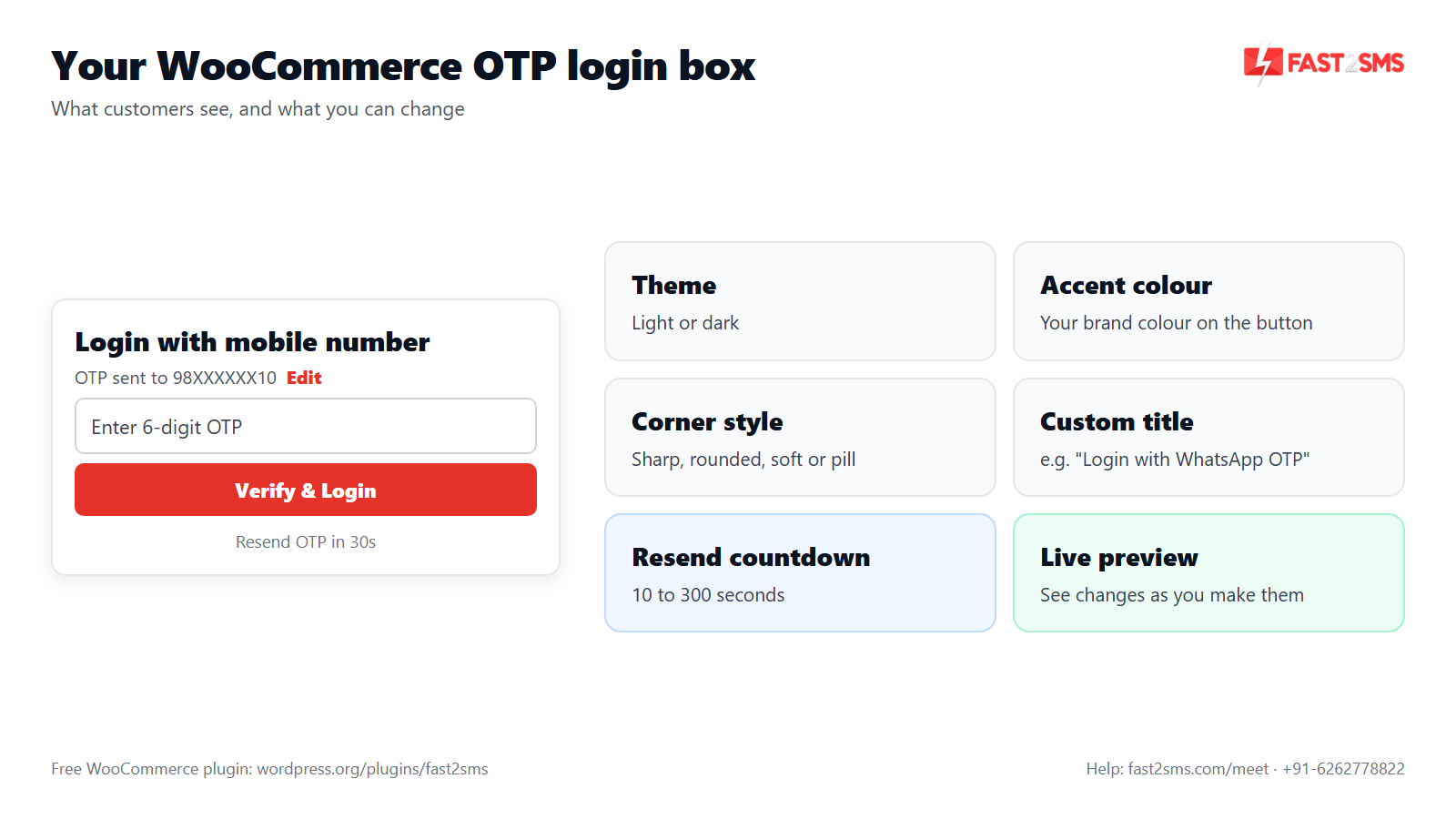
A tip from real stores: say the channel in the title. If your Smart OTP goes to WhatsApp first, a title like “Get your login code on WhatsApp” tells the customer where to look.
Security limits built into WooCommerce phone number login
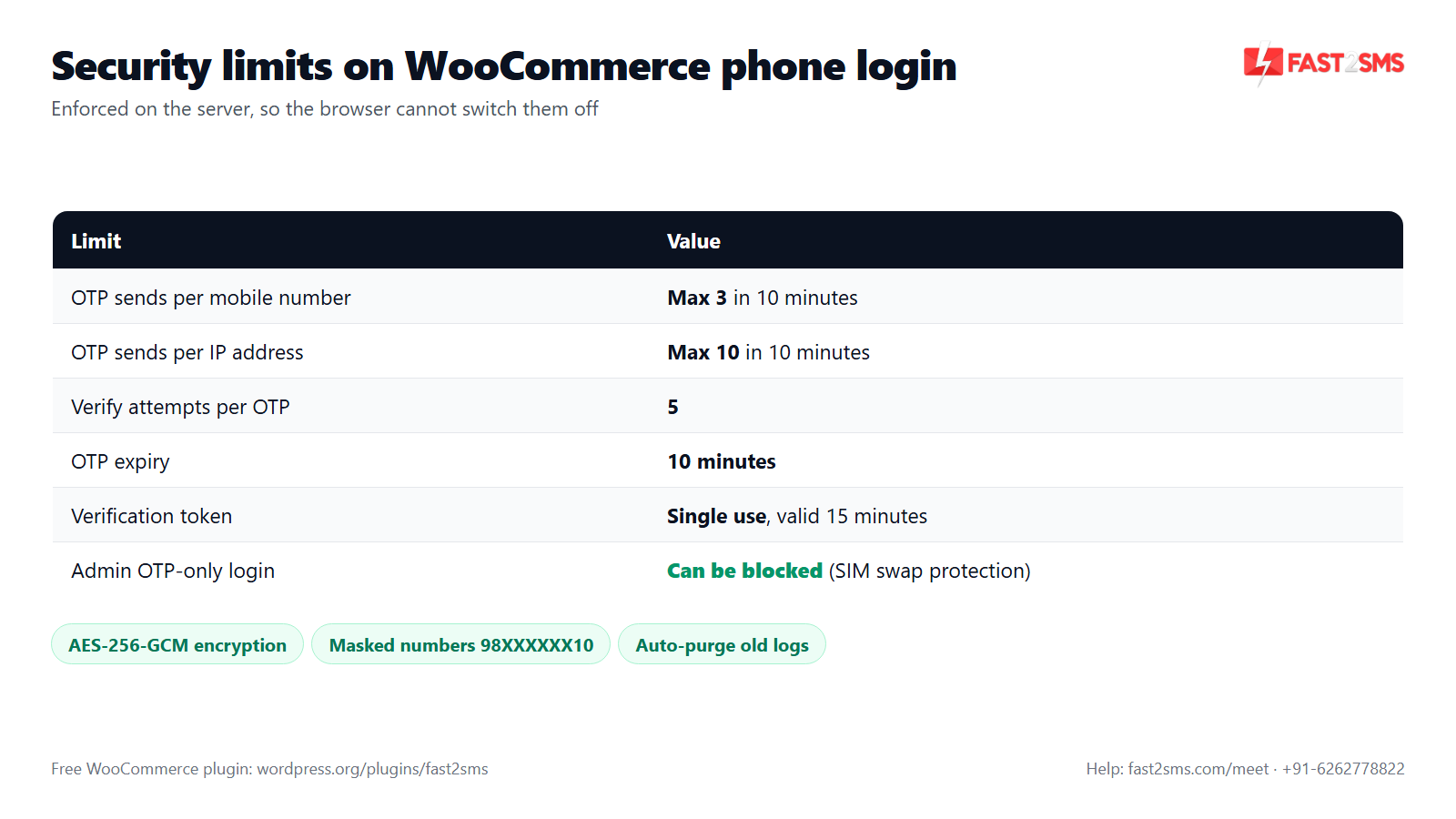
OTP login needs limits, or bots can use your login page to send messages from your wallet. These limits run on the server, so a customer cannot switch them off from the browser:
| Limit | Value | What it stops |
|---|---|---|
| OTP sends per number | Max 3 in 10 minutes | Someone flooding one phone with codes |
| OTP sends per IP address | Max 10 in 10 minutes | One visitor sending codes to many numbers |
| Verify attempts per OTP | 5 | Guessing the code |
| OTP validity | 10 minutes | Old codes being reused later |
| Verification token | Single use, valid 15 minutes | Replaying a verified session |
| Resend countdown | 10 to 300 seconds (you choose) | Rapid resend taps |
| Admin OTP-only login | Can be blocked | Store takeover after a SIM swap |
Customer data is handled with care too. Phone numbers, message variables and your API key are encrypted with AES-256-GCM. Numbers are masked in the admin (98XXXXXX10). Old logs and OTP sessions can be purged automatically after the number of days you set, and the plugin supports WordPress privacy export and erase.
WhatsApp OTP or SMS OTP for WooCommerce mobile login?
Both work with the same plugin. Smart OTP picks the order, and falls back to the other channel automatically. Here is how they differ for an Indian store:
| Point | WhatsApp OTP | SMS OTP |
|---|---|---|
| DLT registration | Not needed | Needed: registered entity, 6-letter header, approved OTP template, PE-TM chain bound to a registered TMD |
| Cost per OTP | ₹0.25, billed on delivery | Your DLT SMS rate |
| If it fails | Failed WhatsApp refunded within 48 hours; Smart OTP can fall back to SMS | Smart OTP can fall back to WhatsApp |
| Best for | Starting quickly, stores without DLT yet | Customers who do not use WhatsApp |
For SMS, your OTP template should be approved under the Transactional category, which now covers OTPs for any business. From 30th September, messages with a mismatched PE-TM chain are blocked, so check your chain is bound to a registered TMD. Fast2SMS is registered as a TMD (SID GROUPS PRIVATE LIMITED) with direct connectivity to Airtel, Jio, BSNL, Tata, Vi and Smartping. Template help is in our DLT SMS templates for WooCommerce guide.
If your approved OTP template has extra variable slots, the plugin can fill them with the OTP again, the phone number, site name, site URL, date, time or static text.
Pricing: free WooCommerce plugin, pay only per message
- The plugin is free: no licence, no monthly fee, no setup fee.
- WhatsApp OTP and order updates: ₹0.25 per delivered message; failed WhatsApp messages are refunded within 48 hours.
- SMS: your DLT SMS rate per message.
- High volume? Rates are negotiable: call +91-6262778811, email [email protected] or book a free meeting.
- Free signup with ₹50 test credit.
Beyond login: checkout OTP and COD confirmation
Once your customers log in with a mobile number, the same free WooCommerce OTP plugin can do more with that number. It is also a WooCommerce SMS plugin and a WooCommerce WhatsApp plugin in one:
- Checkout OTP verification: verifies the billing mobile before the order is placed, and works with every payment gateway. It works with the classic (shortcode) checkout only, not the block checkout. See WooCommerce checkout OTP verification.
- COD order verification: after a COD order, the customer gets a one-tap link to confirm with OTP. The order is marked verified with an order note, which helps cut RTO.
- Order updates on SMS and WhatsApp: order placed, shipped, delivered and more, from the Automations tab.
Want mobile number login live on your WooCommerce store? Our team will set it up with you, free.
We will help you create the Smart OTP, test it on your phone and switch on login with OTP on My Account. Schedule a free meeting, call +91-6262778822 or email [email protected].
Quick checks when a login OTP does not arrive
- Wallet balance: check the balance in the plugin header. No balance, no messages.
- Test OTP: send one from the OTP & Login tab to your own phone. If that fails, the problem is in the Smart OTP setup, not the login form.
- Logs tab: each message shows its status and error, with the number masked.
- Send limit: a number can get at most 3 OTPs in 10 minutes. A customer who keeps tapping Resend will hit it.
- Number format: OTP login is for Indian 10-digit mobile numbers.
Delivery is never guaranteed on any channel, which is why Smart OTP fallback matters. More fixes are in WooCommerce OTP not received.
Frequently asked questions
How do I add login with mobile number in WooCommerce?
Install the free Fast2SMS plugin, add your Fast2SMS API key, paste your Smart OTP ID in the OTP & Login tab and switch on Login with OTP for the WooCommerce login form. Send a test OTP to your own phone first, then log out and try it from the My Account page.
Is there a free WooCommerce login with phone number plugin?
Yes, “Fast2SMS – OTP Login & SMS Notifications” is free on WordPress.org and adds phone number login with OTP to WooCommerce without any licence or monthly fee. You only pay Fast2SMS per message sent, from your own wallet. Install it from WordPress.org.
Can WooCommerce customers log in without a password?
Yes, with Login with OTP switched on, customers enter their mobile number, receive a one-time password on WhatsApp or SMS and log in with that code, so they never need to type a password. The normal password login stays available for customers who prefer it.
Does WooCommerce support phone number login by default?
No, the standard WooCommerce login form asks for a username or email address and a password, so you need a plugin like Fast2SMS to add login with a mobile number and OTP. The plugin adds the option to the existing form.
How does WooCommerce mobile OTP login work?
The customer types a 10-digit mobile number, the plugin sends an OTP through Fast2SMS Smart OTP, the customer enters it and, if the code is correct, they are logged in. The box shows the masked number, an Edit link and a resend countdown while they wait.
Can I send the WooCommerce login OTP on WhatsApp instead of SMS?
Yes, Fast2SMS Smart OTP can send the login OTP on WhatsApp first and fall back to SMS automatically, or the other way round, and you set this at Fast2SMS on your OTP ID. WhatsApp OTP does not need DLT registration, so it is often the quickest way to start.
Do I need DLT registration for WooCommerce OTP login?
You need DLT only for SMS OTP, which requires a registered entity, a 6-letter header, an approved OTP template and a PE-TM chain bound to a registered TMD, while WhatsApp OTP needs no DLT at all. Our DLT templates guide helps with the SMS side.
What happens if the WhatsApp OTP is not delivered?
If you set Smart OTP to WhatsApp first with SMS fallback, Fast2SMS tries SMS automatically when WhatsApp does not deliver, and failed WhatsApp messages are refunded within 48 hours. No channel can guarantee delivery, but a fallback gives the customer a second chance to receive the code.
How much does WooCommerce OTP login cost?
The plugin is free, and you pay Fast2SMS only per message: ₹0.25 per delivered WhatsApp authentication OTP, or your DLT SMS rate for SMS OTP. There is no plugin licence, setup fee or monthly fee, and high-volume stores can ask sales for negotiated rates on +91-6262778811.
Can new customers sign up with just their mobile number?
Yes, if you switch on auto account creation, a new number that has no account gets one automatically after the customer verifies the OTP, so first-time buyers skip the registration form. Leave it off if you only want existing customers to use OTP login.
Does OTP login work on the WooCommerce My Account page?
Yes, the plugin adds Login with OTP to the WooCommerce login form, which is the form shown on the My Account page, so customers can log in there with their mobile number. After verifying, they land on their normal account dashboard with orders and addresses.
Can I add mobile OTP login to wp-login.php?
Yes, the plugin has a separate option to add Login with OTP to the default WordPress login page at wp-login.php, which is useful for plain WordPress sites, membership sites and stores that send users there. The flow is the same number, OTP and login steps.
How do I show the WooCommerce phone login form on a custom page?
Add the shortcode [fast2sms_otp_login] to any page using a shortcode block, publish it and link it from your menu, and the OTP login box will appear there with the look you set in the plugin. Many stores make a simple “Login with mobile” page this way.
Can administrators log in with OTP only?
You can stop that, because the plugin has a setting to block OTP-only login for administrators, so admin accounts must log in with their password even when OTP login is on for customers. We recommend switching this on for every WooCommerce store.
What is SIM swap and why does it matter for OTP login?
A SIM swap is when someone gets a duplicate SIM for your mobile number and starts receiving your messages, including OTPs, which could let them into any account that trusts an OTP alone. Blocking OTP-only login for administrators keeps your store’s admin accounts behind a password.
Can I change the colour of the WooCommerce OTP login box?
Yes, the OTP & Login tab lets you choose a light or dark theme, an accent colour, a corner style (sharp, rounded, soft or pill) and a custom title, with a live preview. Use your brand colour so the box looks like part of your store.
How long is the WooCommerce login OTP valid?
Each login OTP expires 10 minutes after it is sent, and after a successful check the plugin issues a single-use verification token that is valid for 15 minutes. If the code expires, the customer simply requests a new one once the resend countdown ends.
How many times can a customer request a login OTP?
A single mobile number can receive at most 3 OTPs in 10 minutes, and a single IP address can request at most 10 OTPs in 10 minutes, enforced on the server. These limits protect your wallet from bots and stop anyone flooding a phone with codes.
How many wrong OTP attempts are allowed?
Each OTP allows 5 verify attempts, after which the customer needs a new code, and this check runs on the server so it cannot be bypassed from the browser. It makes guessing an OTP impractical while still giving a real customer room for a typo or two.
What is the resend OTP countdown and can I change it?
The resend countdown is the wait before the Resend button becomes active, and you can set it anywhere from 10 to 300 seconds in the OTP & Login tab. A short wait feels friendly on mobile, while a longer one cuts repeat taps and wasted messages.
What if the customer enters the wrong mobile number?
After the OTP is sent, the login box shows the masked number with an Edit link next to it, so the customer can correct the number and request a new code without reloading the page. The per-number and per-IP send limits still apply.
Does WooCommerce phone number login work with international numbers?
No, the Fast2SMS plugin is built for India only and works with 10-digit Indian mobile numbers for OTP login, SMS and WhatsApp. Customers with foreign numbers can still use the normal WooCommerce password login on the same form.
Can customers still use their password after I enable OTP login?
Yes, Login with OTP is added to the WooCommerce login form as an extra option, so customers who already use a password can keep logging in that way. Administrators can be required to use their password by blocking OTP-only admin login.
Is the customer’s phone number stored securely?
Yes, the plugin encrypts phone numbers, message variables and your API key with AES-256-GCM, shows numbers masked in the admin area and can auto-purge logs and OTP sessions after a set number of days. It also supports WordPress privacy export and erase requests.
How do I test WooCommerce OTP login before going live?
Use the Test OTP option in the OTP & Login tab to send a real OTP to your own phone and verify it inside the admin, then log out and try the full login from the My Account page on a mobile. This confirms both your Smart OTP and the form.
Why is my WooCommerce login OTP not received?
The usual causes are a low wallet balance, a Smart OTP or DLT template issue, the 3-per-number limit being hit, or a non-Indian number, so start by sending a test OTP from the admin and reading the Logs tab. Our OTP not received guide has more fixes.
Does mobile OTP login work with the WooCommerce block checkout?
Login with OTP lives on the WooCommerce login form, wp-login.php and the shortcode page, while the separate checkout OTP verification feature works with the classic (shortcode) checkout only, not the block checkout. Plan your checkout page with that in mind.
Can I verify the phone number at WooCommerce registration too?
Yes, the plugin can verify the phone number with an OTP on the registration form, so every new account starts with a real, working mobile number, separate from auto account creation during OTP login. See our registration verification guide.
Can I see how many login OTPs were sent and verified?
Yes, the plugin shows OTP stats for the last 30 days, including OTPs sent and OTPs verified on the Dashboard, and the Logs tab lists every message with status, error and a masked number. A wide gap between sent and verified is worth checking.
Does the plugin need WooCommerce to offer OTP login?
No, the plugin works on plain WordPress too, with OTP login on wp-login.php and the shortcode, and its WooCommerce features switch on automatically once WooCommerce is installed. So you can use it on a blog or course site and a store alike.
Is the Fast2SMS plugin compatible with WooCommerce HPOS?
Yes, the Fast2SMS plugin is compatible with WooCommerce High-Performance Order Storage (HPOS), so you can use mobile OTP login and order notifications on stores that have HPOS switched on. It installs from WordPress.org like any other plugin.
Can Fast2SMS help me set up WooCommerce mobile login?
Yes, the Fast2SMS team can set up Smart OTP and mobile number login on your WooCommerce store with you in a free call, and you can also reach support on +91-6262778822 or [email protected]. Book a free meeting to start.
Start WooCommerce login with mobile number on your store
Your customers already carry the key to their account in their pocket. Install the free plugin, set up Smart OTP, switch on Login with OTP, block OTP-only admin login and match the box to your brand. Test it on your phone, then tell your customers.
Need help? Schedule a free meeting · [email protected] · +91-6262778822 · Sales and volume pricing: +91-6262778811