
WooCommerce SMS Notification Plugin for India: 100+ FAQs on DLT, Order SMS and Alerts
If you run a WooCommerce store in India, a WooCommerce SMS notification plugin is the simplest way to tell customers their order is placed, paid, shipped or delivered without anyone on your team typing a message. The catch is DLT. Every business SMS in India has to match a registered header and an approved template, so a WooCommerce SMS plugin built for other countries often needs extra work before it sends a single WooCommerce order SMS notification here.
This hub answers the questions Indian store owners ask us most about WooCommerce SMS: DLT setup, which order and shipping events to switch on, admin alerts for new orders and low stock, templates and variables, delivery and logs, SMS versus WhatsApp, costs, and what to do when a message does not arrive. The answers are based on the free Fast2SMS plugin, which works as your WooCommerce SMS gateway for India and also sends WhatsApp updates and OTPs from the same screen.
Quick answers
- The Fast2SMS WooCommerce SMS plugin is free on WordPress.org. You pay only per message from your Fast2SMS wallet.
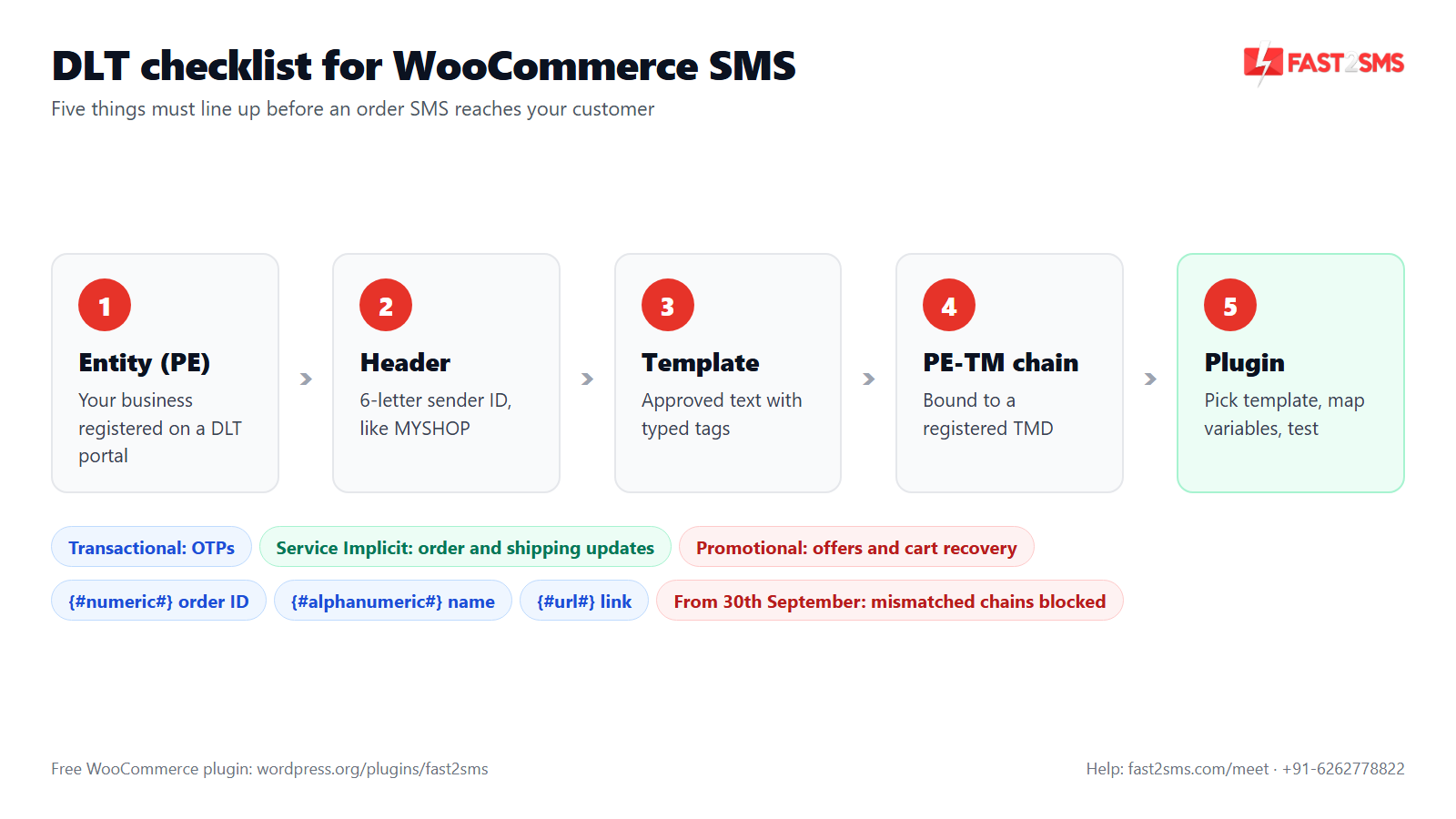
- Every SMS to an Indian number needs DLT: a registered entity, a 6-letter header, an approved template and a PE-TM chain bound to a registered TMD.
- Order and shipping updates usually go under Service Implicit, OTPs under Transactional, and offers or cart recovery under Promotional.
- From 30th September, SMS whose PE-TM chain does not match your DLT records are blocked.
- WhatsApp needs no DLT. Utility messages such as order updates cost ₹0.25 per delivered message.
- Set up the server cron or the WP-CLI worker so messages leave the queue on time.
- India only: messages go to 10-digit Indian mobile numbers.
In this guide:
- What the free WooCommerce SMS plugin does
- WooCommerce SMS events and DLT categories at a glance
- How to set up WooCommerce order SMS notifications
- WooCommerce SMS basics for Indian stores
- DLT for WooCommerce: entity, header, categories, tags and PE-TM
- Plugin setup questions
- Order and shipping SMS events
- Admin alerts: new order, low stock and out of stock
- Templates and variables
- Delivery, cron and WP-CLI worker, and logs
- SMS vs WhatsApp for WooCommerce
- Costs and volume pricing
- Troubleshooting WooCommerce SMS
- Wrap-up
What the free WooCommerce SMS plugin does
The plugin is called “Fast2SMS – OTP Login & SMS Notifications”. Once installed, it adds a Fast2SMS menu to wp-admin with seven tabs: Dashboard, Automations, OTP & Login, Forms, Campaigns, Logs and Settings. The WooCommerce features switch on by themselves when WooCommerce is active, and the plugin is HPOS compatible.
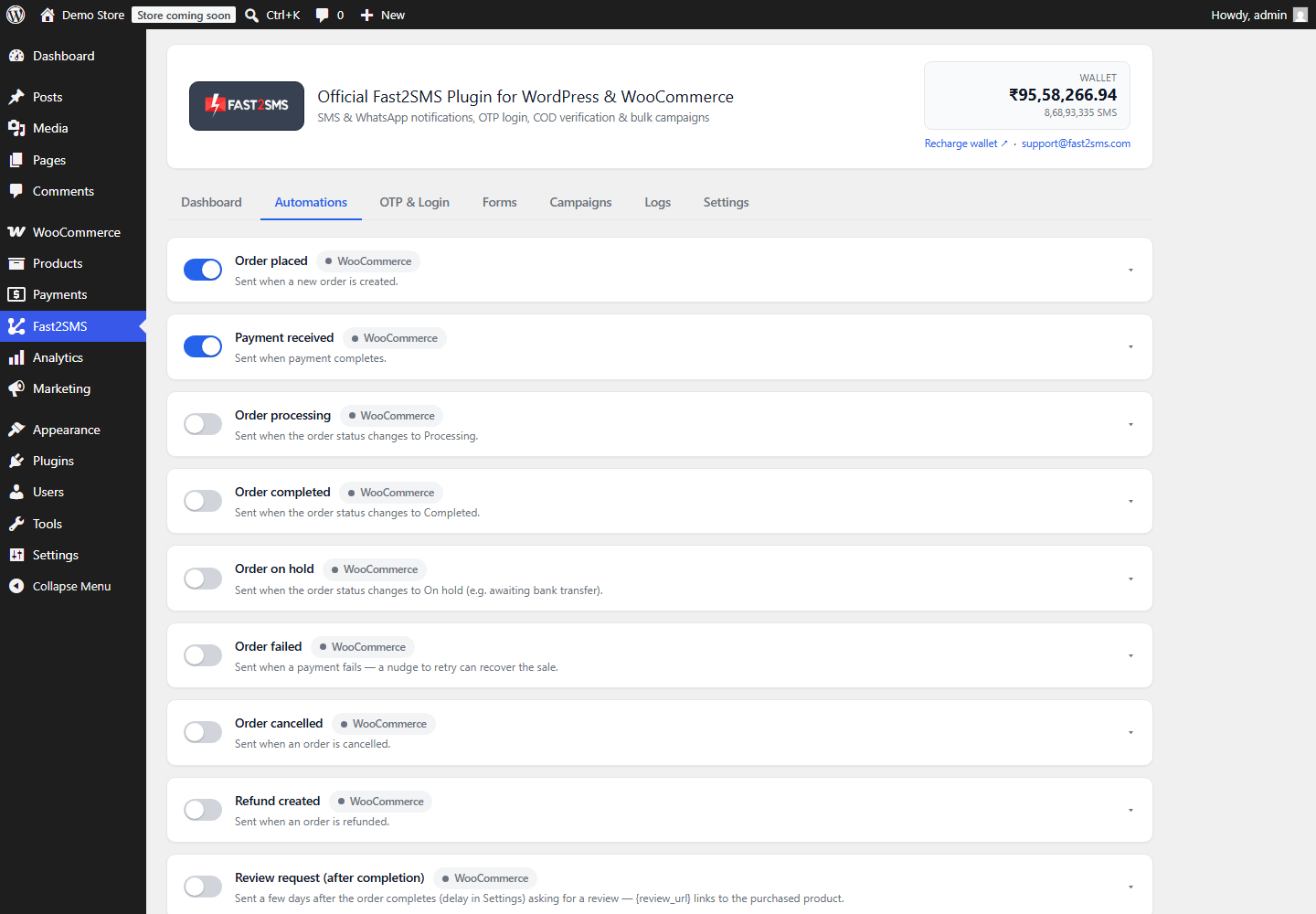
For order notifications, the Automations tab is where you work. Each WooCommerce event has its own card. On a card you switch the event on, choose SMS, WhatsApp or both, tick “Also alert admin” if you want a copy, pick an approved DLT or WhatsApp template from a searchable list, map each variable from a dropdown, check the live phone preview and click Send test. That is the whole flow, and it is the same for a payment update, a shipping message or a low stock alert.
WooCommerce SMS events and DLT categories at a glance
Before you register templates, it helps to know which events you will use and which DLT category each one usually falls under. The DLT portal has the final say on category, but this is how most WooCommerce order SMS notification setups end up.
| Event group | Examples in the plugin | Who receives it | Usual DLT category |
|---|---|---|---|
| Order updates | Order placed, Order processing, Order completed, Order cancelled, Refund created | Customer | Service Implicit |
| Payment | Order pending payment, Payment received | Customer | Service Implicit |
| Shipping | Order shipped, Order delivered, custom statuses like Out for Delivery | Customer | Service Implicit |
| OTP | Login, registration, checkout OTP, COD confirmation | Customer | Transactional |
| Marketing | Abandoned cart, review request, welcome, campaigns | Customer | Promotional |
| Admin alerts | New order, Low stock, Out of stock, Form submitted | You and your team | Service Implicit |
How to set up WooCommerce order SMS notifications
Here is the short version. The FAQs below explain each step in more detail.
- Install the plugin from Plugins > Add New by searching “Fast2SMS”, then activate it.
- Sign up at Fast2SMS, copy your API key and paste it on the Dashboard tab. The key is checked live and stored encrypted.
- Get your DLT templates approved and added to your Fast2SMS account. Skip this if you start with WhatsApp only.
- Open Automations, switch on Order placed, pick a template, map the variables and click Send test.
- Add up to 10 admin numbers in Settings and turn on the New order alert.
- Add the ready cron URL from the Dashboard to your hosting panel, or run the WP-CLI worker, so messages go out on time.
Pricing: free WooCommerce plugin, pay only per message
- The plugin is free: no licence, no monthly fee, no setup fee.
- WhatsApp OTP and order updates: ₹0.25 per delivered message; failed WhatsApp messages are refunded within 48 hours.
- SMS: your DLT SMS rate per message.
- High volume? Rates are negotiable: call +91-6262778811, email [email protected] or book a free meeting.
- Free signup with ₹50 test credit.
WooCommerce SMS basics for Indian stores
Start here if you are new to SMS for your store. These answers cover what a WooCommerce SMS plugin does, what a gateway is and what Indian stores should expect.
What is a WooCommerce SMS notification plugin?
A WooCommerce SMS notification plugin sends automatic text messages to your customers and your team when something happens in your store, such as a new order, a payment, a shipment or a refund. You set it up once, choose which events should send a message, and the plugin does the rest. The Fast2SMS plugin can also send the same updates on WhatsApp.
Do Indian customers still read order SMS?
Yes, plenty of Indian customers still look for an SMS after they order, especially on cash on delivery orders and in places where buyers use basic phones or have patchy mobile data. SMS reaches any Indian mobile number without an app or internet. That makes it a sensible channel to keep, even if WhatsApp becomes your main one.
Is there a free WooCommerce SMS plugin for India?
Yes, the Fast2SMS plugin “Fast2SMS – OTP Login & SMS Notifications” is free on WordPress.org, with no licence, no monthly fee and no setup fee for Indian WooCommerce stores. You connect your own Fast2SMS API key and pay only for the messages you send from your Fast2SMS wallet. Install it from Plugins > Add New by searching “Fast2SMS”, or from the WordPress.org plugin page.
What is a WooCommerce SMS gateway?
A WooCommerce SMS gateway is the service that actually delivers your store’s text messages to the telecom operators, while the plugin inside WooCommerce decides when to send them and what they say. In India the gateway must send through the DLT system. With the free Fast2SMS plugin, Fast2SMS is both the plugin and the gateway, so you do not need a separate SMS account elsewhere.
What should I look for in a WooCommerce SMS gateway in India?
Look for a gateway that sends on a domestic DLT route under your own 6-letter header, lets you pick approved DLT templates inside WooCommerce, and is a registered telemarketer you can bind in your PE-TM chain. Also check that it shows clear logs and offers WhatsApp in the same plugin. If you are weighing an international gateway, read our guide to Twilio and YITH SMS for WooCommerce in India first.
Can the plugin send SMS to international numbers?
No, the Fast2SMS plugin is built for India only, so it sends SMS and WhatsApp messages to 10-digit Indian mobile numbers and not to numbers in other countries. If a large share of your buyers live abroad, you would need a separate tool for those orders. For Indian stores this keeps things simple, because customers type the 10-digit number they already know.
Does the WooCommerce SMS plugin work with the block checkout?
Order SMS notifications run on WooCommerce order events such as placed, processing and shipped, so they are tied to the order itself rather than to the checkout page layout. Checkout OTP verification is a different feature: it works with the classic (shortcode) checkout only, not the block checkout. If you want checkout OTP, keep the classic checkout on your checkout page.
Is the plugin compatible with WooCommerce HPOS?
Yes, the Fast2SMS plugin is compatible with WooCommerce High-Performance Order Storage (HPOS), so you can keep HPOS switched on and still send order SMS and WhatsApp notifications. You do not need to switch back to the older posts-based order storage to use it.
Can I use the plugin on a WordPress site without WooCommerce?
Yes, the plugin works on a plain WordPress site for OTP login, registration verification, form OTP and form alerts, and the WooCommerce features switch on automatically once WooCommerce is installed. So you can start with login OTP on a service website and add WooCommerce order notifications later when you open a store.
What kinds of SMS can a WooCommerce store send?
A WooCommerce store can send order updates, payment and refund messages, shipping updates, COD confirmations, OTPs, cart recovery reminders, review requests, back-in-stock alerts and admin alerts by SMS, as long as each message matches an approved DLT template. In the Fast2SMS plugin each of these is an event card in the Automations tab that you switch on one at a time.
Do I need customer consent to send WooCommerce order SMS?
Order updates about a purchase the customer just made are service messages tied to that order, while offers, reminders and review requests are marketing and should only go to people who agreed to hear from you. The plugin can add a consent checkbox at checkout (“Send me order updates on SMS/WhatsApp”) and keeps a do-not-send list. Marketing messages are never sent to numbers on that list.
DLT for WooCommerce: entity, header, categories, tags and PE-TM
DLT is where most Indian stores get stuck. The good news is that you do it once, and the same entity, header and templates keep working for years of order SMS. This section covers every piece, in the order you set them up.
Do I need DLT registration to send WooCommerce SMS in India?
Yes, every business SMS sent to Indian numbers needs DLT registration, whichever plugin or gateway you use, because operators check each message against your registered entity, header and template before delivering it. WhatsApp messages do not need DLT, so you can start on WhatsApp while your approvals are pending. Our DLT registration A to Z FAQ covers the portal steps.
What is a DLT entity (PE) for a WooCommerce store?
Your DLT entity, also called the Principal Entity or PE, is your business registered on one of the operator DLT portals, and it owns all your headers and templates. You register once with your business documents and receive an entity ID. Every header and template you create sits under that entity, and your SMS provider needs the ID to send on your behalf.
What is a DLT header for WooCommerce SMS?
A DLT header is your sender ID, the short name customers see at the top of the SMS, and for order updates and OTPs it is 6 letters, such as MYSHOP for a store called My Shop. Operators add a short prefix in front of it on the customer’s phone. Pick something close to your brand name so customers recognise and trust the message.
Can I use a numeric header for order SMS?
No, order updates, OTPs and admin alerts need a 6-letter alphabetic header, while promotional SMS go out under a 6-digit numeric header meant for promotions. So a store that sends both service and marketing SMS usually ends up with two headers. Keep offers and cart recovery on the numeric one and order updates on the 6-letter one.
Which DLT category should I choose for WooCommerce order SMS?
Choose Service Implicit for order updates such as order placed, payment received, shipped, delivered and refunded, because they relate to a purchase the customer has already made. Use Transactional for OTPs, which now covers OTPs for any business, and Promotional for offers and cart recovery. The category decides who can receive the SMS and at what times.
What happened to the Service Explicit category?
Service Explicit has been merged into Promotional, so the DLT categories you can pick for WooCommerce SMS templates now are Transactional, Service Implicit and Promotional. If you created Service Explicit templates earlier for things like cart reminders, check how they show on your DLT portal now and register Promotional versions where needed. Your order update templates under Service Implicit are not affected by this change.
Can I send promotional SMS from WooCommerce at any time?
No, promotional SMS in India can only be delivered between 10 AM and 9 PM and do not reach numbers registered on DND, so plan abandoned cart and campaign timing around that window. Order updates, shipping messages and OTPs follow the Service Implicit and Transactional rules instead. That is one more reason to keep marketing and order updates on separate templates.
What are typed DLT tags like {#numeric#}?
Typed tags tell the DLT system what kind of value goes into each variable slot of your template: {#numeric#} for numbers, {#alphanumeric#} for text that may mix letters and numbers, and {#url#} for links. They replace the old catch-all {#var#} tag. In a WooCommerce template, the order ID fits {#numeric#}, the customer name fits {#alphanumeric#} and a tracking link fits {#url#}. Read our DLT variable tagging guide for more examples.
Why must variable types match what WooCommerce sends?
Operators compare every outgoing SMS with your approved template, so if a {#numeric#} slot receives text or a {#url#} slot receives a plain word, the message can be rejected as a template mismatch. That is why the plugin gives you a variable dropdown for each slot. Map the order ID to a numeric slot, the customer name to an alphanumeric slot and the order-status link to a URL slot.
What is the PE-TM chain?
The PE-TM chain is the registered link between your business, the Principal Entity, and the telemarketer that delivers your SMS, and operators now check that every message travels through a chain you have declared on DLT. You set up this binding on your DLT portal. If you send through Fast2SMS, the chain must include its registered TMD: SID GROUPS PRIVATE LIMITED, TMD ID 1702178720558766591.
What happens from 30th September if my PE-TM chain does not match?
From 30th September, SMS whose PE-TM chain does not match what is registered on DLT are blocked, and that includes OTPs and order updates from your WooCommerce store. Check your binding now, before customers stop getting messages. Our guide to the PE-TM chain mismatch error walks through the fix step by step.
Does Fast2SMS connect directly to Indian operators?
Yes, Fast2SMS is a registered TMD with direct connectivity to Airtel, Jio, BSNL, Tata, Vi and Smartping, so your WooCommerce SMS are handed straight to the operator networks. A short, declared chain is exactly what the PE-TM rules ask for. It also makes a failed message easier to trace, because there are fewer hands between your store and the phone.
Do I need a separate DLT template for each order status?
In most cases yes, each different message text needs its own approved template, so order placed, shipped, delivered and refunded usually mean four templates. You can reuse one template for two events if the same wording fits both. Our DLT SMS templates for WooCommerce guide has sample texts you can adapt and submit.
Can I send WooCommerce order SMS in Hindi?
Yes, DLT lets you register templates in Hindi and other Indian languages, but a Unicode SMS holds 70 characters per part instead of 160 for plain English, so long Hindi messages split into more billable parts. Keep regional-language templates short and to the point. The plugin sends whichever approved template you pick for each event.
WooCommerce SMS plugin setup questions
These are the questions we get while helping stores install the plugin and send their first WooCommerce order SMS notification. Most setups take one sitting once your templates are approved.
How do I install the Fast2SMS WooCommerce SMS plugin?
In your WordPress admin go to Plugins > Add New, search for “Fast2SMS”, then install and activate “Fast2SMS – OTP Login & SMS Notifications”, and a new Fast2SMS menu appears with seven tabs. Next, open the Dashboard tab and paste your API key. Our plugin setup guide shows each screen with screenshots.
Where do I get my Fast2SMS API key?
Create a free account at Fast2SMS and copy the API key from your Fast2SMS panel, then paste it into the Dashboard tab of the plugin, where it is checked live and stored encrypted. New accounts get ₹50 test credit, which is enough to send test notifications before your first recharge. You can change or remove the key from the same screen later.
What are the seven tabs in the plugin?
The plugin has seven tabs under WP Admin > Fast2SMS: Dashboard, Automations, OTP & Login, Forms, Campaigns, Logs and Settings, and most settings save automatically as you change them. For order SMS you will spend most of your time in Automations, Logs and Settings. OTP & Login handles OTP features, Forms covers contact forms and Campaigns handles bulk sends.
What is the setup checklist on the Dashboard?
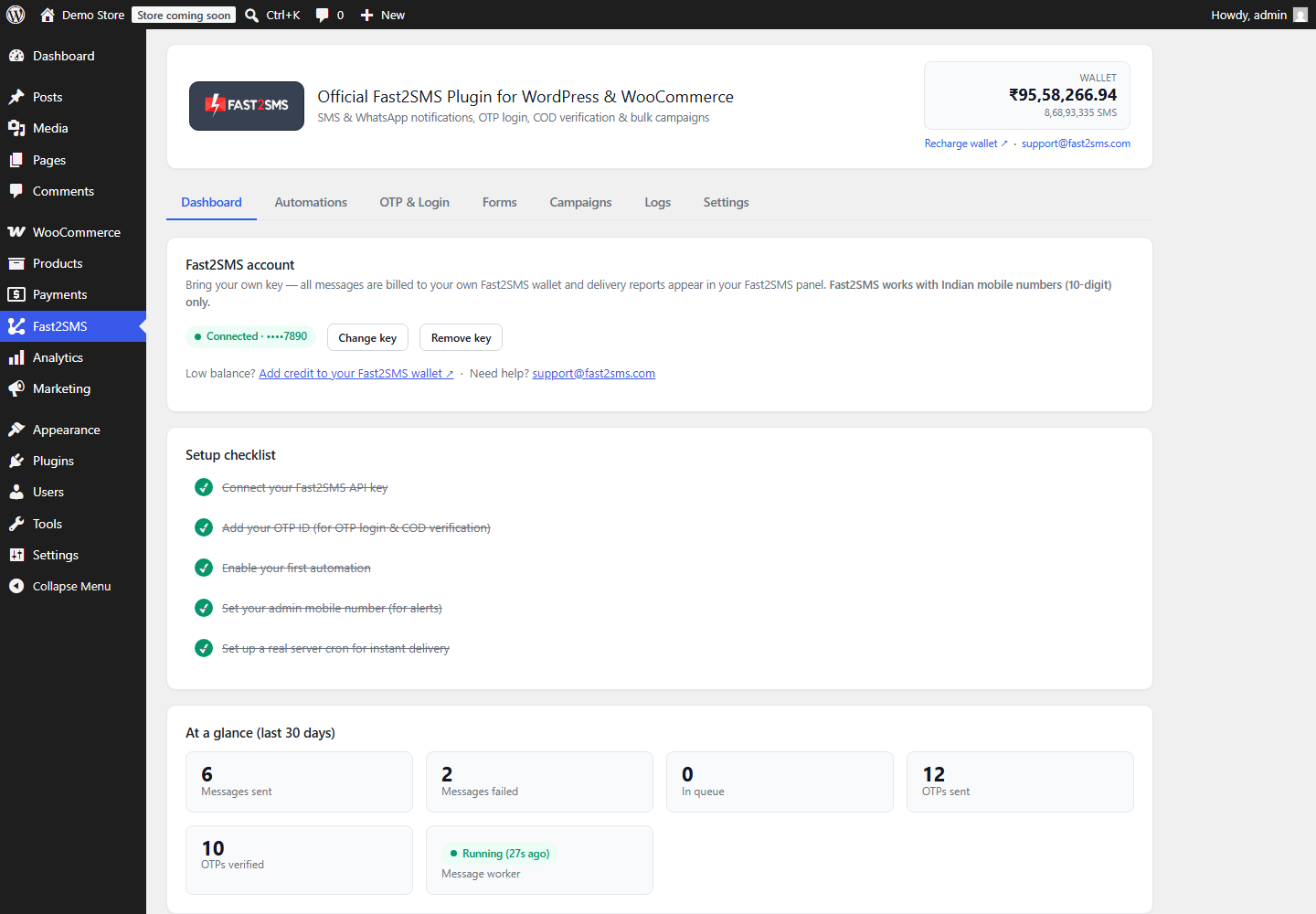
The Dashboard shows a five-step setup checklist: add your API key, add your OTP ID, turn on your first automation, add an admin number and set up the server cron. Each step is marked done as you finish it, so you can see at a glance what is still missing. The same screen shows your wallet balance and the last 30 days of message stats.
Do I need an OTP ID if I only want order SMS?
No, the OTP ID is used by the OTP features, such as login with OTP, registration verification and checkout OTP, so you can skip it if you only want order and admin notifications for now. Add it later when you want OTP. The OTP ID comes from Smart OTP at Fast2SMS, where you set SMS, WhatsApp or both with automatic fallback.
How do I turn on my first WooCommerce order SMS notification?
Open the Automations tab, find the Order placed card, switch it on, choose SMS, WhatsApp or both, pick your approved template from the searchable list and map each variable from the dropdown. Check the live phone preview, then click Send test. The test shows a request_id that you can match in your Fast2SMS reports if you need to trace the message.
Why doesn’t my DLT template show in the template picker?
The template picker lists approved DLT templates and approved WhatsApp templates from your Fast2SMS account, so a template that is still pending on the DLT portal, or not yet added to Fast2SMS, will not appear. Check its status on your DLT portal first. Once it is approved and added to your Fast2SMS account, search for it again in the picker.
Can I send SMS and WhatsApp for the same WooCommerce event?
Yes, each event card in Automations has a channel choice of SMS, WhatsApp or both, so one order can trigger an SMS and a WhatsApp message at the same time. You pick a DLT template for the SMS side and a WhatsApp template for the WhatsApp side. Stores often use WhatsApp for rich updates and keep SMS for customers who may not use WhatsApp.
How do I test a WooCommerce SMS notification before going live?
Every event card has a Send test button that sends a real message using the template and variable mapping on that card, and it shows a request_id so you can trace that exact message. Check the header, the text and the variables on your phone before switching the card on. A test message is charged like any normal message.
Do I need to set up a server cron for WooCommerce SMS?
We strongly recommend it, because the plugin queues messages, and a real server cron or the WP-CLI worker processes that queue on time even when nobody is browsing your site. Without it the plugin falls back to WP-Cron, which only runs when someone visits a page. The Dashboard gives you a ready cron URL to add in your hosting panel.
Where do I add admin phone numbers?
Admin numbers go in the Settings tab under Admin notifications, where you can add up to 10 numbers that receive new order, stock and form alerts. Add your own number, your warehouse or packing lead and whoever answers customer calls. Then switch on each admin alert you want in the Automations tab.
Can I use the plugin on more than one WooCommerce store?
Yes, the plugin is free with no licence, so you can install it on as many WooCommerce stores as you run, and each store connects with a Fast2SMS API key and pays per message. If the stores are different brands, you may want a separate DLT header and templates for each, so customers see the right store name.
Order and shipping SMS events
This is the heart of any WooCommerce order SMS notification setup. The plugin gives you a card for every order status, shipping status and custom status, so you only switch on what your customers need. For status-by-status message ideas, see our guide to WooCommerce order status SMS and WhatsApp.
Which WooCommerce order events can send SMS?
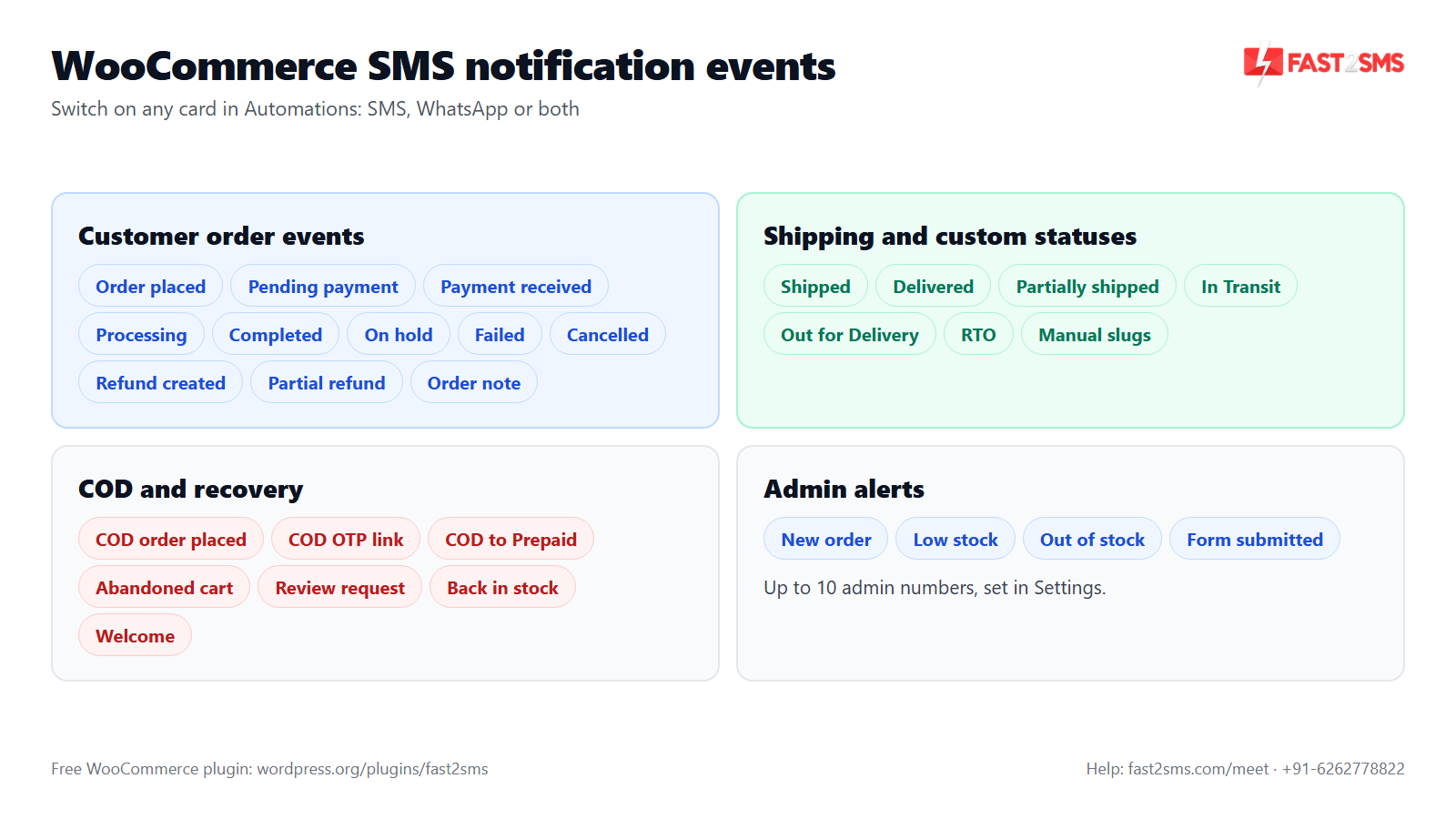
The plugin can send SMS on Order placed, Order pending payment, Payment received, Order processing, Order completed, Order on hold, Order failed, Order cancelled, Refund created, Order partially refunded and Note added to order. Each one has its own card in Automations. Switch on only the ones your customers actually need, so they are not flooded with messages.
Which order SMS should a new WooCommerce store switch on first?
Start with Order placed, Order shipped and Order delivered, because these three answer the questions customers ask most often: did my order go through, when is it coming and has it arrived. Add Order cancelled and Refund created next. For stores with a lot of cash on delivery orders, COD order placed with the confirmation link is worth adding early.
How do shipping SMS work in WooCommerce?
WooCommerce has no shipped or delivered status of its own, so the Order shipped, Order delivered and Order partially shipped events use statuses set by your shipment-tracking plugin. Once that plugin marks the order, the matching Fast2SMS card sends the message. If your courier plugin adds other statuses, the plugin detects them and gives each one its own card.
Can I send SMS for custom order statuses like Out for Delivery or RTO?
Yes, the plugin auto-detects custom order statuses added by courier or workflow plugins, such as In Transit, Out for Delivery or RTO, and gives each one its own event card in Automations. If a status is not picked up automatically, use the “Custom order status (manual slugs)” card and type in the status slug yourself.
Can I add a tracking link or number to shipping SMS?
Yes, if your shipment-tracking plugin saves the tracking number or link in the order meta, you can add that meta key as a custom variable and map it into a {#url#} or {#alphanumeric#} slot of your shipping template. You can also use the built-in order-status link variable, which sends customers to their order page on your store.
What is the Order pending payment reminder?
It is a one-time SMS or WhatsApp message sent when an order stays in pending payment, reminding the customer to finish paying, and it cancels itself if the payment comes through before the reminder is due. You set the delay in hours in the Settings tab. Map the pay link variable into the template so the customer can pay with one tap.
What does the COD order placed SMS do?
The COD order placed event confirms a cash on delivery order by SMS or WhatsApp and can include an optional one-tap link where the customer confirms the order with an OTP. A confirmed order is marked verified and gets an order note, so your team can see which COD orders are genuine before shipping. This helps cut fake orders and RTO.
What is the COD to Prepaid nudge?
The COD to Prepaid nudge is a message sent a set number of minutes after a COD order, inviting the customer to pay online instead, and it cancels itself once the order is paid. You set the delay in minutes in Settings. It counts as a marketing message, so numbers on your do-not-send list never receive it.
Can I send an SMS when I add a note to an order?
Yes, the Note added to order event sends the customer a message when a note is added to their order, which suits short updates like a delay or a replacement being arranged. Because DLT needs a fixed template, register one general update template and keep your notes short. Send yourself a test with a real note before you rely on it.
Can I send a review request SMS after the order is completed?
Yes, the Review request after completion event sends a message a set number of days after an order is marked completed, asking the customer for a review. You choose the delay in days in Settings. It counts as marketing, so it skips numbers on the do-not-send list and usually needs a Promotional DLT template if you send it by SMS.
Can the WooCommerce SMS plugin send abandoned cart reminders?
Yes, the Abandoned cart recovery event messages shoppers who left items in their cart after a delay you set in Settings, and it can go by SMS, WhatsApp or both. For SMS it needs a Promotional DLT template and follows the promotional timing and DND rules. Our abandoned cart SMS and WhatsApp guide has message ideas.
Can customers get a back-in-stock SMS?
Yes, customers can click “Notify me when back in stock” on an out-of-stock product, and the Back in stock event messages them when you restock it. Only customers who subscribed get it, and numbers on the do-not-send list are skipped. Our back-in-stock notifier guide shows the full flow.
Can I send a welcome SMS to new WooCommerce customers?
Yes, the Welcome new customer event sends a message when a new customer joins your store, which is a friendly place to share your support number or how to track orders. It counts as marketing, so it respects the do-not-send list. Keep it short and useful rather than salesy.
Admin alerts: new order, low stock and out of stock
Admin alerts are the part store owners end up loving most. You do not need to keep wp-admin open all day to know when an order lands or a bestseller is about to run out.
Can the WooCommerce store owner get an SMS for every new order?
Yes, turn on the New order admin alert in the Automations tab and the plugin sends an SMS or WhatsApp message to your admin numbers every time an order is placed. It is handy when you are away from your laptop. You can also switch on “Also alert admin” on customer event cards to hear about other events.
How many admin numbers can receive WooCommerce alerts?
You can add up to 10 admin numbers in Settings under Admin notifications, and all of them receive the new order, stock and form alerts you have switched on. Use it for owners, warehouse staff and the person who packs orders. When someone leaves the team, remove their number from the same list.
How do low stock SMS alerts work in WooCommerce?
The Low stock admin alert messages your admin numbers when WooCommerce marks a product as low on stock, based on the low stock threshold in your WooCommerce inventory settings. Stock management needs to be on for that product. The alert gives you time to reorder before the item sells out.
Can I get an SMS when a product goes out of stock?
Yes, the Out of stock admin alert tells your admin numbers when WooCommerce marks a product as out of stock, so you can restock it, hide it or pause ads for it. Pair it with the customer-side Back in stock event, so shoppers who asked to be told hear from you as soon as it returns.
What does the “Also alert admin” option do?
“Also alert admin” is a switch on each customer event card that also notifies your admin numbers when that event happens, such as when an order is cancelled or a refund is created. It saves you checking wp-admin all day. Turn it on only for events you actually act on, or your own phone gets noisy.
Can I get an SMS when a contact form is submitted?
Yes, the Form submitted admin alert sends the form name and the person’s name, phone, email and message to your admin numbers by SMS or WhatsApp. It works with Contact Form 7, WPForms and Elementor Pro Forms. That way a bulk order enquiry does not sit unread in your inbox.
Will I be warned when my Fast2SMS wallet balance is low?
Yes, in Settings you can set an amount, and the plugin sends you an email alert when your Fast2SMS wallet balance falls below it. Your balance and SMS count also show in the plugin header with a recharge link. Set the amount high enough to cover a busy sale day.
Do WooCommerce admin alerts need DLT templates too?
Yes, admin alerts sent by SMS are business messages like any other, so each one needs an approved DLT template under your header, usually in the Service Implicit category. If you would rather skip that paperwork, send admin alerts on WhatsApp instead, which needs a Meta-approved WhatsApp template but no DLT.
Can admin alerts go to WhatsApp instead of SMS?
Yes, admin alerts have the same channel choice as other events, so you can get new order, stock and form alerts on WhatsApp, SMS or both. WhatsApp suits alerts that carry more detail, like the items in a large order. SMS is a good backup if you often travel through areas with weak mobile data.
Want help setting up WooCommerce SMS notifications? Our team will do it with you, free.
We can check your DLT templates and PE-TM binding, set up your first event cards and admin alerts, and add the server cron with you on a short call. Schedule a free meeting, call +91-6262778822 or email [email protected].
WooCommerce SMS templates and variables
Your templates decide what customers read and whether the operator lets the message through. Here are two order SMS templates in the style we recommend, with typed tags and the variable you would map to each slot. For more ready-to-submit texts, see our DLT SMS templates for WooCommerce.
Order placed · Service Implicit
Hi {#alphanumeric#}, thank you for shopping with MYSHOP. Your order {#numeric#} is confirmed. Track it here: {#url#}
Map: {#alphanumeric#} to customer name · {#numeric#} to order ID · {#url#} to order-status link
Order shipped · Service Implicit
Your MYSHOP order {#numeric#} has been shipped via {#alphanumeric#}. Track your parcel here: {#url#}
Map: {#numeric#} to order ID · {#alphanumeric#} to shipping method or a courier meta key · {#url#} to a tracking link meta key or order-status link
What variables can I use in WooCommerce SMS templates?
The plugin offers 25+ order variables, including customer name, order ID, amount, items, city, pincode, discount, coupon, shipping method, order-status link and pay link, plus event extras such as refund amount and the COD link. You map each one to a slot in your template using the variable dropdown on the event card.
How do I map variables to my DLT template?
After you pick an approved template on an event card, the plugin shows one dropdown per variable slot, and you choose which order value fills each slot, such as the order ID for {#numeric#} and the customer name for {#alphanumeric#}. The live phone preview shows the result straight away. Send a test to confirm the final text on a real phone.
Can I use custom order fields in WooCommerce SMS?
Yes, any order meta key can be used as a custom variable, and you can save up to 20 of them in the Settings tab under Custom variables. This is how stores pull in tracking numbers, delivery slots or fields added by other plugins. Once saved, they appear in the variable dropdown on every event card.
What does a good WooCommerce order SMS template look like?
A good order SMS is short, names your store, gives the order ID and one clear next step, and fits within 160 characters so it goes out as a single message. The order placed card above is a good pattern. Avoid adding variables you do not really need, because each one is another thing that can break a template match.
How many characters can one WooCommerce SMS have?
One SMS holds 160 characters in plain English or 70 characters in Unicode, which covers Hindi and other regional scripts, and longer messages are split into parts. Remember that variables expand: a long product name or address can push a short template over the limit. Test with the longest real values your store has.
Can I include product names in the order SMS?
Yes, the items variable adds the products in the order to your message, but long product names can make the SMS run into two or three parts. For most stores the order ID and amount are enough in an SMS. If you want the full item list, send it on WhatsApp, where message length matters much less.
Can I send a PDF invoice with WooCommerce order notifications?
Not by SMS, but on WhatsApp yes: WhatsApp templates can carry an image, video or PDF header, and the plugin can attach an auto-generated PDF invoice through the {invoice_url} variable. For SMS, share a link instead, such as the order-status link. It keeps the invoice in the same chat as the order update.
What is the live phone preview on an event card?
The live phone preview on each event card shows how the message will look on a customer’s phone with your template and variable mapping filled in, and for WhatsApp it also shows media headers and buttons. Use it to catch a wrong mapping before you send a test. The preview itself sends nothing and costs nothing.
Can I add a pay-now link to the pending payment SMS?
Yes, the pay link variable gives the customer a direct link to pay for their pending order, and you can map it into the {#url#} slot of your pending payment template. On WhatsApp you can also use it in a dynamic URL button through the Button variable row. The reminder stops if the order gets paid first.
What are WhatsApp button variables?
WhatsApp button variables fill the dynamic part of a URL button in your approved WhatsApp template, such as a tracking or payment link, using the “Button variable” row on the event card. The preview shows the button so you can check it before sending. SMS has no buttons, so there you place the link inside the text.
Can I change the SMS text without new DLT approval?
No, the SMS text must match your approved DLT template, so any change to the fixed words needs a new or edited template approved on the DLT portal. Only the variable slots change from message to message. WhatsApp templates work the same way, except the approval comes from Meta instead of DLT.
Delivery, cron and WP-CLI worker, and logs
Sending is only half the job. You also need messages to leave your site on time and a clear record of what happened to each one. The plugin handles this with a message queue, a background worker and the Logs tab.
How does the plugin send WooCommerce messages in the background?
The plugin puts each notification in a queue, and a background worker sends it, so the customer’s order does not have to wait on the SMS gateway before WooCommerce finishes processing it. The worker runs from your server cron, the WP-CLI command or WP-Cron as a fallback. The Dashboard shows the worker status and how many messages are in queue.
What is the ready cron URL?
The ready cron URL is a link shown on the plugin Dashboard that you add as a cron job in your hosting panel, so your server calls it on a regular schedule and the message queue is processed on time. Most hosting panels, including cPanel, have a Cron Jobs section for this. It works whether or not anyone is visiting your store.
How do I use the wp fast2sms worker command?
If you have SSH access, you can process the message queue by running the WP-CLI command wp fast2sms worker from a server cron job instead of calling the cron URL. The exact command is wp fast2sms worker. This suits VPS and cloud servers where you manage cron jobs yourself.
Why is WP-Cron not enough for WooCommerce order SMS?
WP-Cron only runs when someone loads a page on your site, so on a quiet night an order SMS can sit in the queue until the next visitor arrives. A real server cron or the WP-CLI worker runs on a fixed schedule instead. The plugin still uses WP-Cron as a fallback, so messages are not lost, only slower.
What do the WooCommerce SMS logs show?
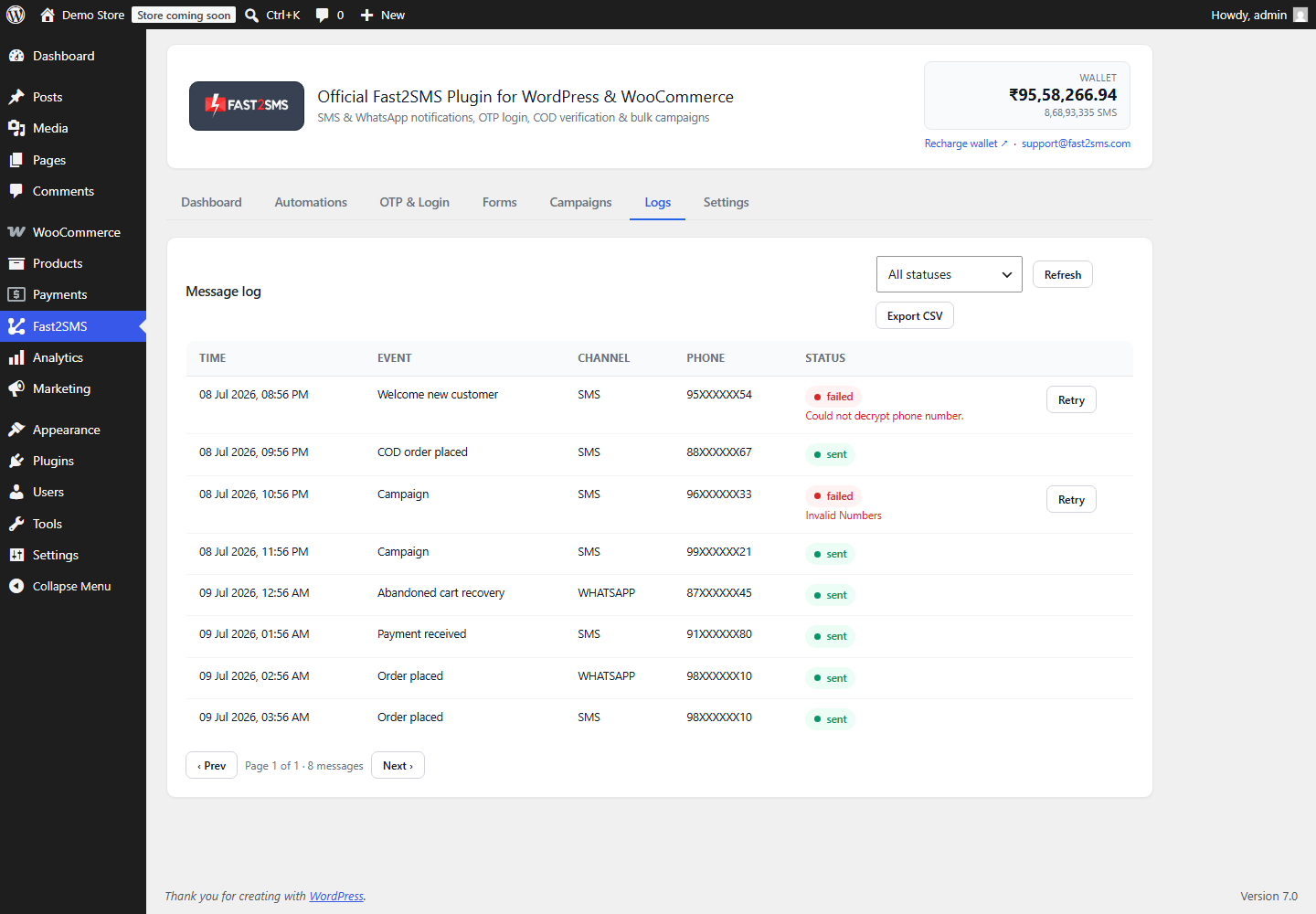
The Logs tab lists every WooCommerce SMS and WhatsApp message with its event, channel, masked number such as 98XXXXXX10, status, error and the time it was sent. You can retry one message, retry all failed messages or export everything to CSV with one click. It is the first place to look when a customer says they did not get an SMS.
Why are phone numbers masked in the logs?
Numbers are masked in wp-admin, for example 98XXXXXX10, so staff who can see the logs do not see full customer numbers, and the plugin also encrypts phone numbers, message variables and the API key with AES-256-GCM. It supports WordPress privacy export and erase requests too, which helps when a customer asks for their data.
How do I retry failed WooCommerce SMS?
Open the Logs tab and click retry on a single failed message, or use retry all failed to resend every failed message in one go once you have fixed the cause. Fix first, then retry: if a template mismatch caused the failure, retrying without changing the mapping will simply fail again.
Can I export SMS logs from WooCommerce?
Yes, the Logs tab has a one-click CSV export, which is handy for checking a courier dispute, sharing a report with your team or keeping your own records. If you need logs for a long period, export them before your data retention setting purges older entries.
How long does the plugin keep logs?
You decide: the Data retention setting auto-purges logs, OTP sessions and COD records after the number of days you choose, and the Data & storage section lets you see usage, clean up or purge logs by hand. A shorter retention period keeps your database light and holds less personal data.
What do the Dashboard delivery stats mean?
The Dashboard shows the last 30 days of sent, failed and in-queue messages, OTPs sent and OTPs verified, plus the worker status. A growing in-queue number usually means the worker is not running, so check your cron. A rising failed count points to template, chain or balance problems that you can read in the Logs.
Does the plugin guarantee SMS delivery?
No plugin or gateway can guarantee that every SMS is delivered, because phones can be switched off or out of coverage, promotional SMS skip DND numbers, and operators reject messages that break DLT rules. What the plugin gives you is a queue, clear logs with errors and one-click retries. For OTPs, Smart OTP can also fall back from WhatsApp to SMS.
SMS vs WhatsApp for WooCommerce
You do not have to choose one channel for the whole store. The same plugin works as a WooCommerce SMS plugin, a WooCommerce WhatsApp plugin and a free WooCommerce OTP plugin, and each event card can use SMS, WhatsApp or both. For WhatsApp-only questions, see our WooCommerce WhatsApp plugin FAQ.
Should my WooCommerce store send order updates by SMS or WhatsApp?
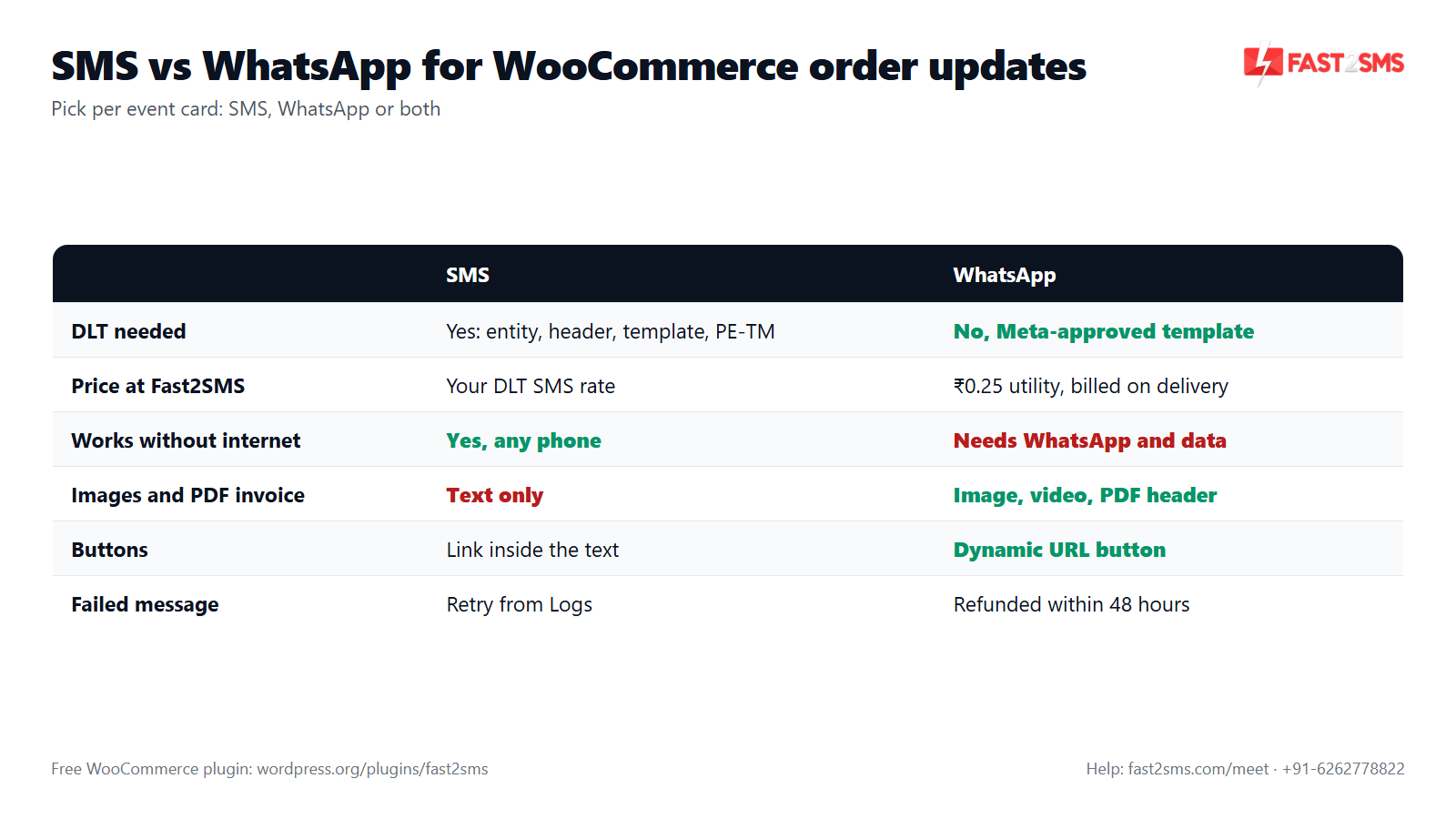
Use WhatsApp for rich order updates with images, invoices and buttons, and keep SMS for customers without WhatsApp, for OTP fallback and for short alerts that must reach any phone. Plenty of Indian stores use both on the same event. The plugin lets you choose SMS, WhatsApp or both on each event card.
Does WhatsApp need DLT registration?
No, WhatsApp messages do not need DLT, so you do not need a header, a DLT template or a PE-TM chain for them. Instead, each business-initiated WhatsApp message uses a template approved by Meta. That is why some stores go live on WhatsApp first while their DLT approvals are still pending.
What does a WhatsApp order update cost compared with SMS?
A WhatsApp utility message such as an order update costs ₹0.25 per delivered message through Fast2SMS, while an SMS costs your DLT SMS rate per message. WhatsApp is billed only on delivery, and failed WhatsApp messages are refunded within 48 hours. WhatsApp marketing messages, such as cart recovery offers, cost ₹0.95 each.
Can a customer without WhatsApp still get order updates?
Yes, set the event card to both channels and every customer gets the SMS, which works on any phone, while customers who use WhatsApp also get the richer WhatsApp version. You can also keep a card on SMS only. For OTPs, Smart OTP can try WhatsApp first and fall back to SMS automatically.
What is Smart OTP?
Smart OTP is how Fast2SMS sends an OTP on WhatsApp first with automatic SMS fallback, or the reverse, and you set that order at Fast2SMS against your OTP ID. The plugin simply uses the OTP ID you enter. WhatsApp OTP needs no DLT, while the SMS side needs an approved Transactional OTP template and a correct PE-TM chain.
Can I send images or PDFs in WooCommerce notifications?
Yes on WhatsApp, where templates can have an image, video or PDF header, including the auto-generated PDF invoice through {invoice_url}, but SMS is text only. So use WhatsApp for product photos in cart recovery or for invoices after payment, and keep SMS short with a link.
Do I need a separate WhatsApp plugin for WooCommerce?
No, the same free Fast2SMS plugin sends WhatsApp order updates, WhatsApp OTP and WhatsApp campaigns alongside SMS, so you do not need a second plugin or a second set of order events. Your approved WhatsApp templates appear in the same template picker as your DLT templates.
Which channel is better for COD order confirmation?
Either works: the COD order placed event can go by SMS, WhatsApp or both, and the optional one-tap link lets the customer confirm the order with an OTP. WhatsApp gives a friendlier message with room for more detail, while SMS reaches customers on basic phones. Many COD-heavy stores send both.
Can I switch an event from SMS to WhatsApp later?
Yes, change the channel on the event card from SMS to WhatsApp or both, then pick an approved WhatsApp template for it. Nothing else in your store changes. Check the preview and send a test right after the switch, because WhatsApp templates have their own variable slots to map.
Costs and volume pricing
The plugin is free, so your only running cost is the messages you send. Here is how that works for SMS and WhatsApp, and when it makes sense to ask for volume rates.
How much does a WooCommerce SMS notification plugin cost?
The Fast2SMS WooCommerce SMS notification plugin itself costs nothing, with no plugin fee, no licence, no monthly fee and no setup fee. You pay only for the messages you send, from your prepaid Fast2SMS wallet. SMS go at your DLT SMS rate, and WhatsApp utility messages cost ₹0.25 per delivered message.
What is the price of one WooCommerce order SMS in India?
An order SMS through Fast2SMS is charged at your DLT SMS rate per message, and the exact rate for your account is shown in your Fast2SMS panel or quoted by the sales team. Long messages that split into parts count as more than one SMS. High-volume stores can negotiate their rate.
How is WhatsApp billed for WooCommerce notifications?
WhatsApp messages through Fast2SMS are billed only when delivered: ₹0.25 for authentication OTPs and utility messages such as order updates, ₹0.95 for marketing messages and ₹0.13 for session replies. Failed WhatsApp messages are refunded within 48 hours. For OTP-specific costs, see our WooCommerce OTP cost guide.
Is there free credit to test WooCommerce SMS?
Yes, a free Fast2SMS signup comes with ₹50 test credit, which is enough to connect the plugin, send test notifications and try an OTP before you recharge. Use the Send test button on each event card to check every template on your own phone first.
Can I get a lower SMS rate for high volume?
Yes, rates are negotiable for high volume, so if your store sends a large number of order SMS, WhatsApp updates or OTPs every month, talk to the Fast2SMS sales team. Call +91-6262778811, email [email protected] or book a free meeting to discuss your volumes.
How do I estimate my monthly WooCommerce SMS cost?
Count your monthly orders, multiply by the number of SMS events you have switched on per order, add OTPs and admin alerts, then multiply the total by your DLT SMS rate. For example, 3 SMS per order on 1,000 orders is 3,000 SMS a month. For WhatsApp, multiply delivered messages by ₹0.25 for utility updates.
Do admin alerts cost money?
Yes, admin alerts are real messages, so each SMS or WhatsApp alert sent to an admin number is charged from your wallet like any other message. With 10 admin numbers, one new order alert becomes 10 messages. Keep the admin list to people who actually act on the alerts. The low balance warning is an email, not a message.
What happens if my Fast2SMS wallet runs out?
When your Fast2SMS wallet has no balance left, new messages cannot be sent, so order SMS and OTPs stop until you recharge. That is why the low balance email alert in Settings matters. After recharging from the link next to your wallet balance, retry any failed messages from the Logs tab.
Do I pay extra for bulk SMS campaigns from WooCommerce?
No, campaigns from the Campaigns tab carry no extra plugin fee, and you pay per message as usual: promotional SMS at your DLT SMS rate and WhatsApp marketing messages at ₹0.95 each. Campaigns can go to all WooCommerce customers, all WordPress users or a pasted or CSV list, and they skip your do-not-send list.
Troubleshooting WooCommerce SMS
When something goes wrong, start with the Logs tab. Most problems show up there with an error you can act on. For DLT error codes in detail, see our guide to SMS not delivered and DLT errors.
Why is my WooCommerce order SMS not being sent?
The usual causes are an event card that is switched off, a template that is not approved or not mapped, an empty wallet, or a worker that is not running, so start by looking for the message in the Logs tab. No log entry means the event never fired or the card is off. A log entry with an error tells you what to fix.
Why does the log show a DLT template mismatch?
A template mismatch means the final SMS text did not match your approved DLT template, usually because a variable slot received the wrong kind of value or the fixed text differs from what was approved. Check the mapping on the event card, especially numeric slots. Then send a test and compare it word for word with the approved template.
Why are WooCommerce messages stuck in queue?
Messages stay in queue when the background worker is not running, usually because the server cron was never added or has stopped, leaving only WP-Cron, which waits for site visits. Check the worker status on the Dashboard, then add the ready cron URL or the wp fast2sms worker command as a cron job.
Why did my WooCommerce SMS stop around 30th September?
If your SMS stopped around 30th September, check your PE-TM chain first, because from that date operators block SMS whose chain does not match what is registered on DLT. Make sure your headers and templates are bound to the registered TMD you send through. Our PE-TM mismatch guide shows the fix.
Why is the admin not getting new order SMS?
Check that the New order admin alert is switched on in Automations, that the admin number is saved correctly in Settings under Admin notifications, and that an approved template is picked for the alert. Then look for the alert in the Logs. If it shows an error there, fix that cause and retry.
What if a customer entered the wrong phone number at checkout?
Messages go to the phone number on the order, so if the customer typed it wrong, correct the number in the order so that later updates reach the right phone. To prevent wrong numbers at the source, use checkout OTP verification, which works with the classic (shortcode) checkout only, not the block checkout.
Why did a customer get the same order SMS twice?
Usually two events fired for the same order with similar texts, such as Order placed and Order processing, or another SMS plugin on the site is also sending. Check the Logs for two entries with different event names. Keep one message per step of the order journey and remove any older SMS plugin.
Why does my test SMS work but real orders fail?
A test and a real order can carry different values, so a long product name, an empty coupon field or special characters in a name can break a template match on real orders even when the test passed. Compare the failed entry in the Logs with your template. Then map a shorter or safer variable into that slot.
What should I check if the API key shows as invalid?
If the key was revoked or changed in your Fast2SMS account, the plugin shows a warning across wp-admin, and you need to paste the current key on the Dashboard tab. The key is checked live when you save it. Until you fix it, notifications and OTPs cannot be sent.
Who can help me set up WooCommerce SMS notifications?
The Fast2SMS team can help you set up DLT templates, event cards, the server cron and your first tests on a free call, and you can book a slot through the meeting page. You can also email [email protected] or call +91-6262778822. For volume pricing, call sales on +91-6262778811.
Wrap-up: send WooCommerce order SMS the DLT-ready way
A good WooCommerce SMS setup in India comes down to a few things: an approved DLT entity, header and templates, a PE-TM chain bound to a registered TMD, variables mapped to the right typed tags, and a server cron so messages leave on time. Add WhatsApp where it helps, keep admin alerts for the events you act on, and check the Logs when anything looks off. The Fast2SMS plugin is free, so the only cost is the messages you send.
Need help? Schedule a free meeting · [email protected] · +91-6262778822 · Sales and volume pricing: +91-6262778811