
Airtel DLT variable pre-tagging means giving every {#var#} in your old Airtel templates a type, such as numeric or url, and a sample value. Airtel has emailed businesses to do this for all their legacy templates (old templates that are already approved). There are two ways to do it on the Airtel DLT portal: tag many templates at once with an Excel file, or tag one template at a time with the Tag Variable link. This guide shows both, step by step.
What Airtel is asking you to do
Airtel’s email asks for four things:
- Download your legacy templates and review them.
- Give each variable the right type for the data it carries, and a sample value.
- Keep to 3 variables per template. More than 3 needs a business justification that Airtel approves. Airtel DLT support can tell you how to submit it.
- Upload the updated templates back on the DLT portal.
Airtel says templates that are not updated will not be eligible for migration and may not stay usable under the new rules. The email gives no date. It asks for it at the earliest. For a line-by-line reading of the email, see the Airtel legacy template migration email explained.
Why Airtel DLT templates need variable tagging now
On 18 November 2025, TRAI directed all operators to make sure every variable in every SMS template is pre-tagged with its type. A plain {#var#} could carry anything, even a scam link. Operators first check messages in “logger mode”: the SMS is still delivered and a mismatch is only recorded. Once that period ends, a message whose variables do not match their tags is rejected and not delivered.
Before you start
- Whitelist your links and numbers first. A CTA (call to action) is a link, app link, callback number or email address you have registered on DLT. For url, urlott, cbn and email variables, the sample value is picked from your approved CTAs. So add them in MANAGE CTA on the Airtel DLT portal before you begin. See what CTA whitelisting is and how to whitelist URLs and callback numbers.
- Tag carefully. Airtel allows migration only once per template. You cannot change the type later.
Method 1: tag many templates with the Airtel DLT Excel upload
Use this when you have many templates. The portal gives you a ready Excel file. You fill a few columns and upload it back.
-
Open MANAGE TEMPLATES and click Download
Log in to the Airtel DLT portal. In the left menu, click MANAGE TEMPLATES. On the SMS page, click Download at the top right.
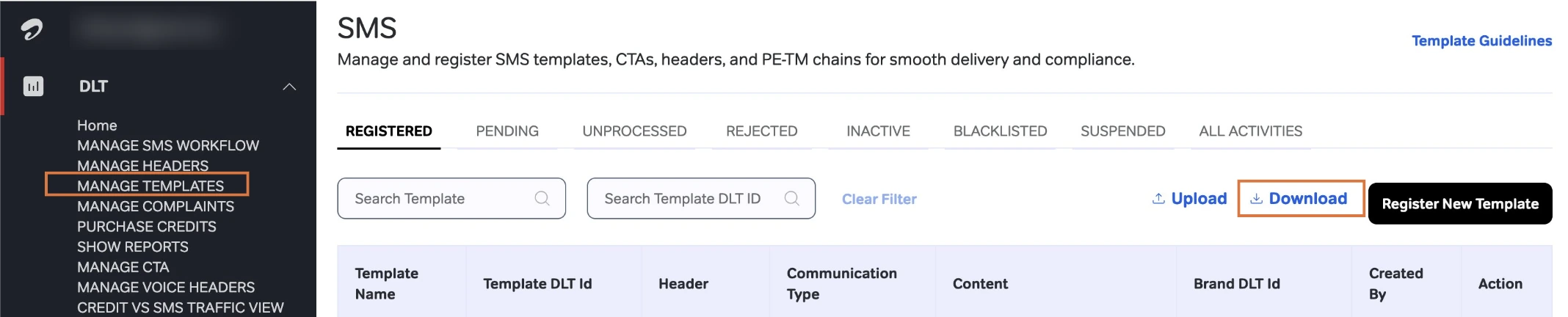
Airtel DLT portal: MANAGE TEMPLATES and the Download button (screenshot from Airtel’s SOP). -
Choose Download with no variable tagged
The Download Templates pop-up has three options. Pick Download with no variable tagged. You can also choose a date range. Click Download.
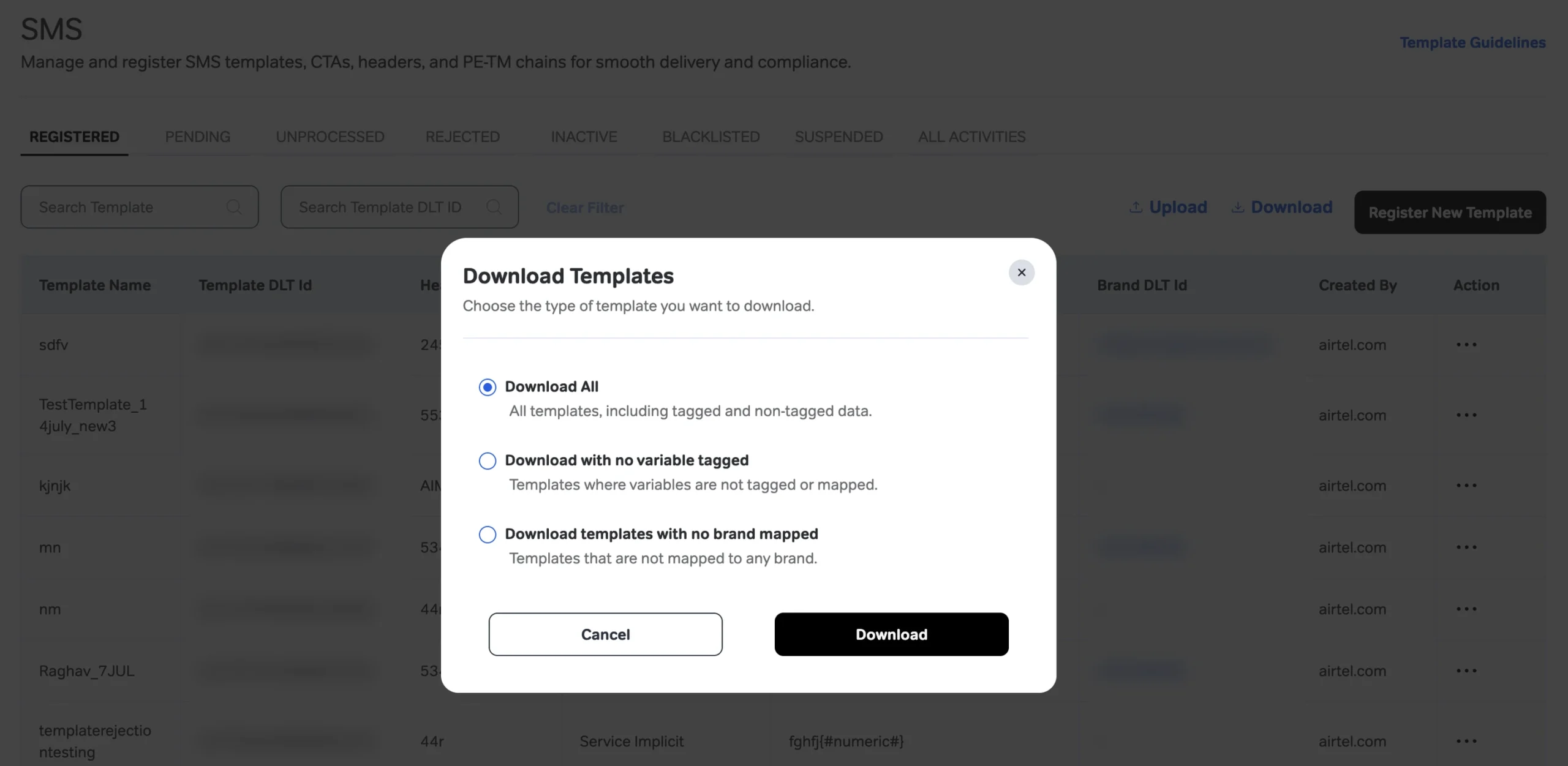
Pick the second option, Download with no variable tagged. -
Get the file from ALL ACTIVITIES
The portal prepares a pre-filled Excel file inside a zip. Open the ALL ACTIVITIES tab. When your request shows Activity Type Download and Status Completed, click Download in the Action column.
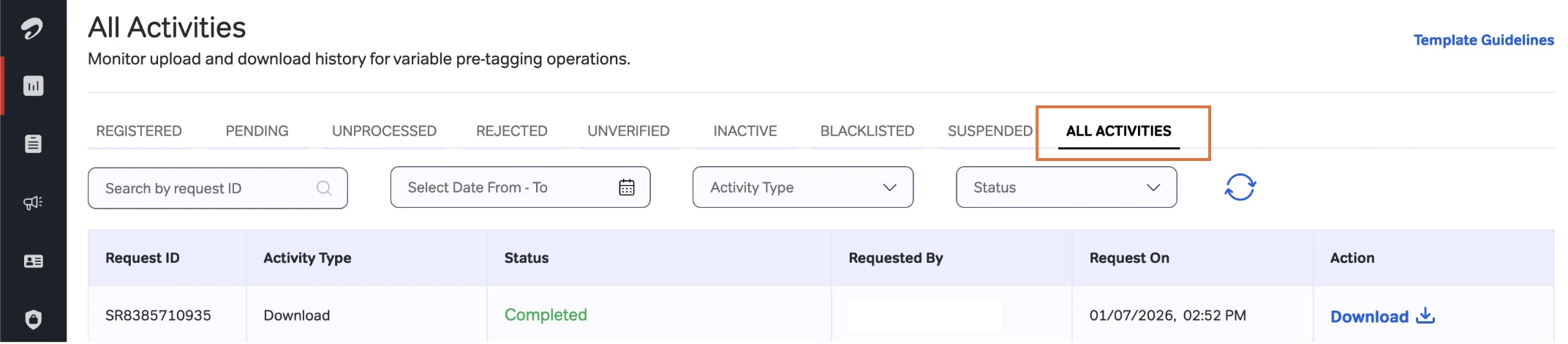
The file is ready when the request shows Completed. Only eligible templates are in the file: status Registered, at least one {#var#}, and not migrated yet. If a template is missing, it failed one of these. Do not add rows yourself.
-
Fill the type and value columns
Open the Excel. Template Dlt Id, PE ID (your business entity ID on DLT), SMS Header, Old Content Type, Template Content and the Var1, Var2 columns are already filled. Do not change them. You fill only these:
- New Content Type: pick from the dropdown.
- Var1 Type, Var2 Type and so on: pick email, numeric, alphanumeric, cbn, url or urlott.
- Var1 Value, Var2 Value and so on: a sample value. Type it for numeric and alphanumeric. For cbn, url, urlott and email, pick one of your approved CTAs from the dropdown.
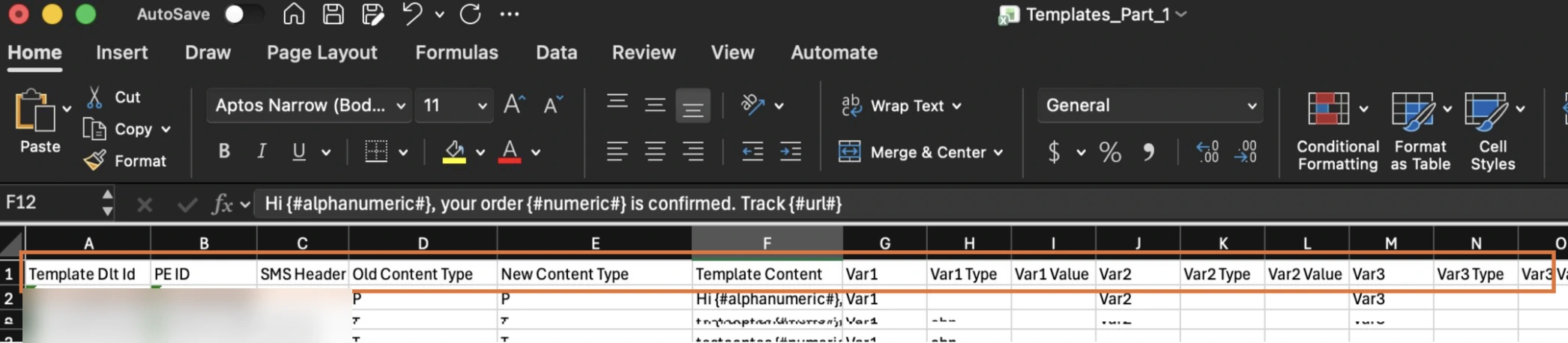
The pre-tagging Excel. You fill New Content Type and the Type and Value column for each variable. -
Upload the file
Go back to the templates page and click Upload. Click Choose file or drag and drop your file, then click Upload. The file must be .xlsx (CSV is rejected) and 5 MB or less, with the headers exactly as downloaded and each Template ID only once.
-
Check the results and fix failed rows
Open ALL ACTIVITIES again. Your upload shows a status such as Completed or Partially Complete, with counts like “Success: 2, Failed: 498, Pending: 0”. Click Download to get the error file. It has a Status and a Rejected Reason for each row. Fix and upload only the failed rows again. Small files are processed quickly. Big files can take a few minutes.
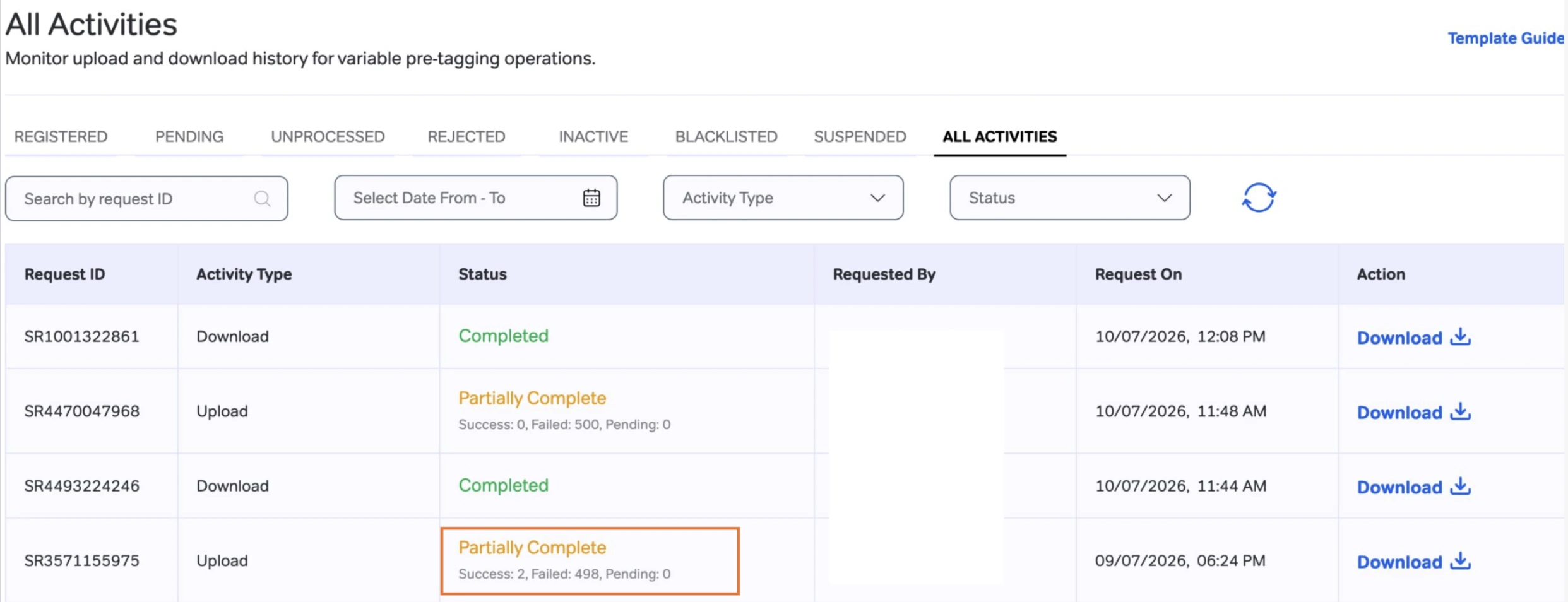
An upload that partly failed. Download the error file to see why each row failed.
Example: how filled rows look
The first template is Airtel’s own example. The other two belong to a sample shop, Demo Traders.
| Template Content | Variable | Type | Value |
|---|---|---|---|
| Hi {#var#}, your OTP is {#var#}. | Var1 | alphanumeric | Aman |
| Var2 | numeric | 123456 | |
| {#var#} is your Demo Traders login OTP. Do not share it with anyone. | Var1 | numeric | 482910 |
| Hi {#var#}, your Demo Traders order {#var#} is confirmed. Track it here: {#var#} | Var1 | alphanumeric | Priya |
| Var2 | alphanumeric | ORD4821 | |
| Var3 | url | Your tracking link, picked from the CTA dropdown |
For these rows, New Content Type stays the same as Old Content Type: T (Transactional) for the OTPs and SI (Service Implicit) for the order update. After a successful upload, the order template reads:
Hi {#alphanumeric#}, your Demo Traders order {#alphanumeric#} is confirmed. Track it here: {#url#}Method 2: tag one template with Tag Variable
Use this when you have only a few templates.
-
Find the Tag Variable link
Open MANAGE TEMPLATES and stay on the REGISTERED tab. A template with untagged variables shows a Tag Variable link under its content. Click it.
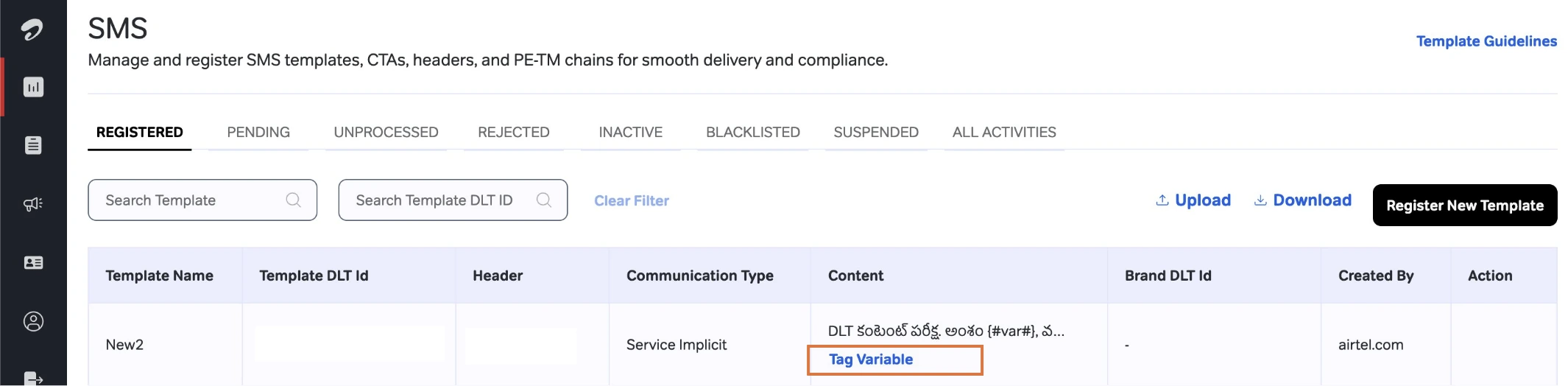
The Tag Variable link appears under templates that still use {#var#}. -
Check the Choose Type step
The first step, Choose Type, shows Selected Header/CLI, Type Of Communication, Category and Website Domain. Click Next.
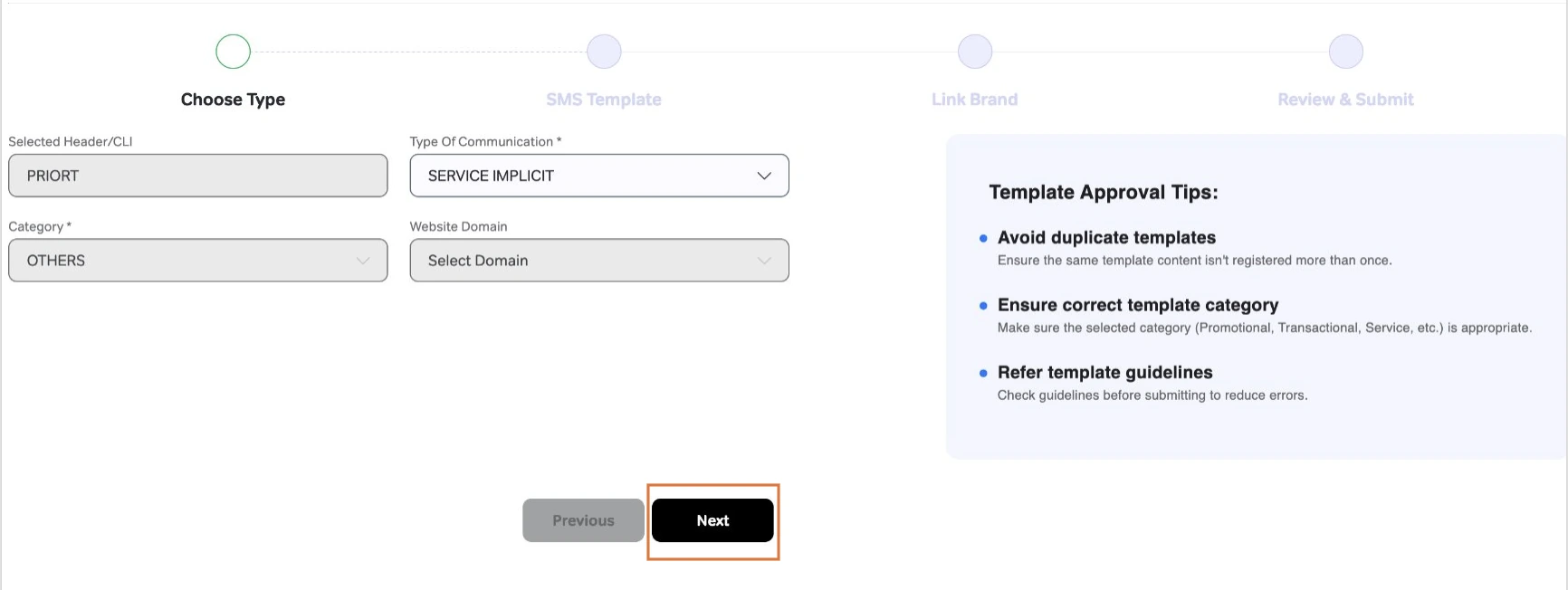
Choose Type: check the details and click Next. -
Give each variable a type, value and description
You see one box for each variable: Variable 1, Variable 2, Variable 3. For each one, pick the Type, enter a Value and write a short Description of up to 200 characters, such as “customer name” or “order number”.
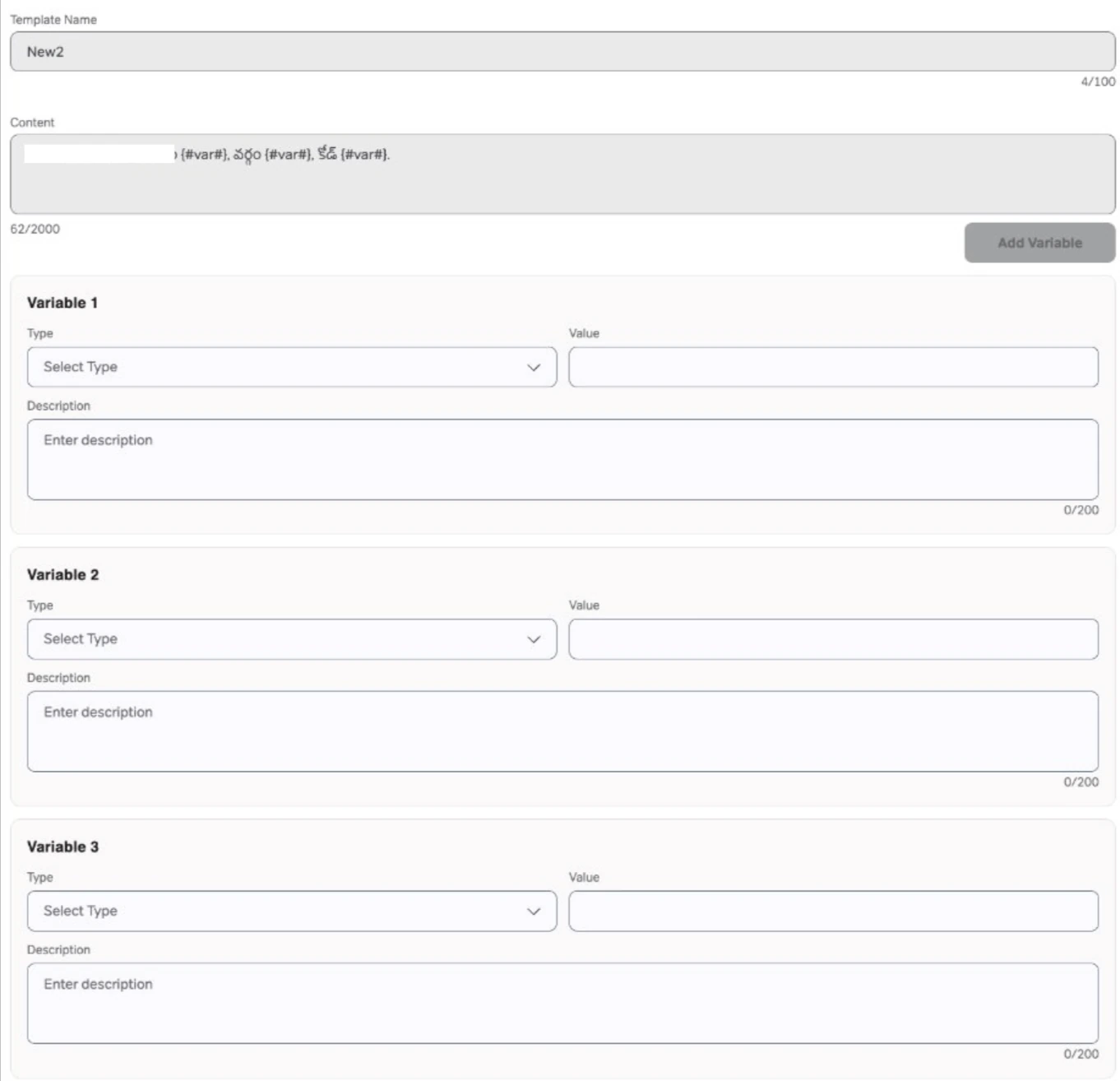
One box per {#var#} in the template. -
Click Next to save
The portal shows its rules under the boxes: back-to-back variables are allowed only for Alphanumeric, and more than 3 back-to-back Alphanumeric variables may need a justification. When all variables are filled, click Next. The template is saved with tagged variables and stays Registered.
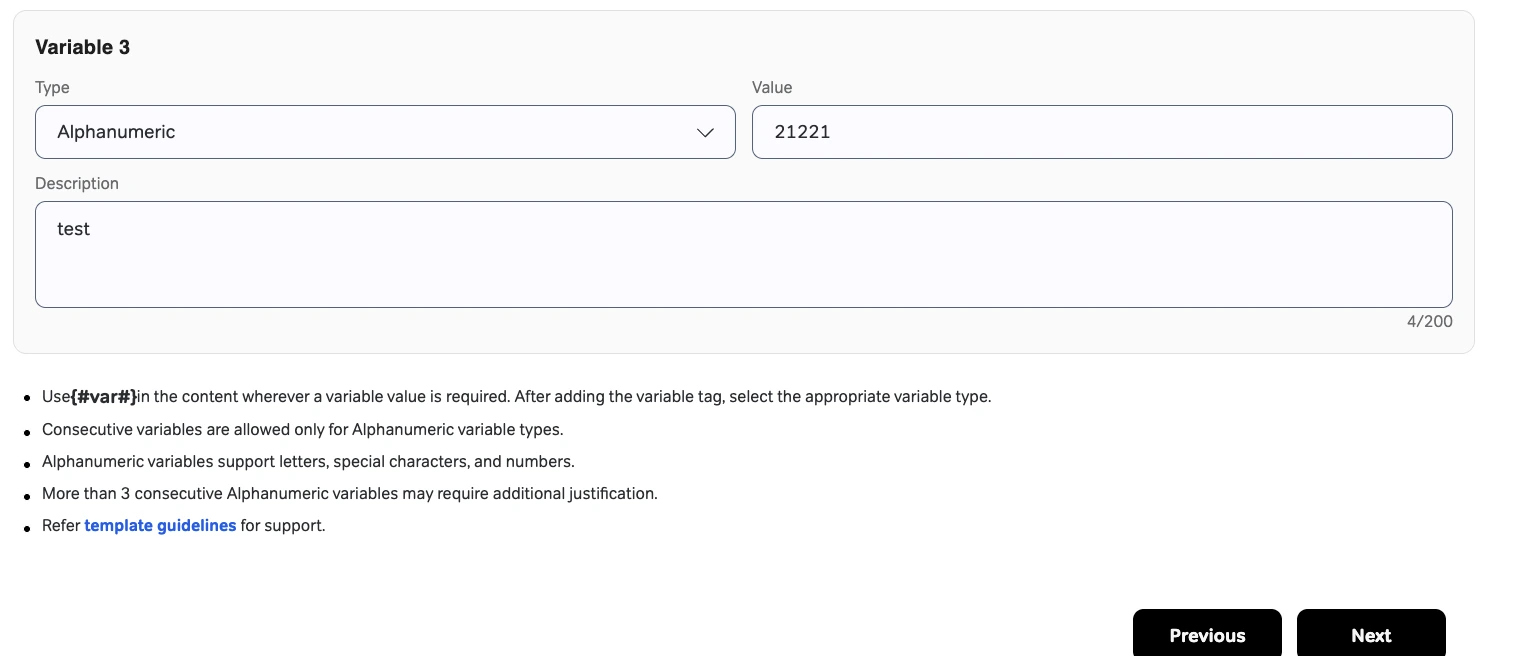
A filled variable, with the portal’s rules below it (screenshot from Airtel’s SOP).
The 6 variable types
| Type | Max length | Use it for | Rule |
|---|---|---|---|
| alphanumeric | 40 | Names, order or booking IDs | Letters, numbers and special characters. Cannot start with www, http or https. The only type allowed back to back. |
| numeric | 40 | OTP, amount | Digits only. |
| url | 120 | Website link | Must match a CTA registered as a Static, Dynamic or Short URL. |
| urlott | 120 | App or OTT link | Must match a CTA registered under OTT or APK. |
| cbn | 3 to 14 | Callback number | Must match a CTA under Number (mobile, landline or toll free). |
| 40 | Email address | Valid email format and a validated CTA. |
In the template, each type becomes a tag such as {#numeric#} or {#url#}. For sample templates with each tag, see DLT variable tagging explained.
Rules that make rows fail
- Changing any fixed text, even one space or one full stop.
- Adding or removing a variable, or leaving a type or value empty.
- A sample value that does not fit its type, such as letters in a numeric variable.
- Two variables side by side with no space or punctuation, unless both are alphanumeric.
- Adding template rows yourself, or the same Template ID twice.
- A file that is not .xlsx, is over 5 MB or has changed headers. Then the whole file is rejected.
For each error message and its fix, see Airtel DLT pre-tagging upload errors.
Content type changes during migration
The New Content Type column also sets the template category. Service Explicit (SE) is no longer a valid type, so SE templates move to Promotional (P). Service Implicit (SI) can change to Transactional (T), and T can change to SI. If the type is already right, pick the same type again. For what this means for old SE templates, read Service Explicit removed on Airtel DLT.
After migration
- Migrated templates are auto approved. There is no separate approval, and they show in the Registered tab.
- Migration works only once per template, so the tags cannot be changed later.
- Your Template ID stays the same. Only the variable format in the message changes.
- In Fast2SMS, open DLT Manager > Content Template and check the template text. If it still shows the old version, add the new text with Add Content Template or Upload Excel using your portal export. See the DLT Manager guide.
- Fast2SMS reads typed tags like {#numeric#} as normal variables, so you send with variables_values the same way as before.
- Each value you send must fit its tag, and links and numbers must be your whitelisted CTAs. Otherwise, once logger mode ends, the operator rejects the SMS and the delivery report shows the error. See Airtel SMS error codes.
Stuck on a step? Book a free meeting with our team.
Frequently asked questions
What is Airtel DLT variable pre-tagging?
It is the migration of your old Airtel DLT templates from plain {#var#} to typed variables. Each variable gets a type, such as numeric or url, and a sample value.
Is there a deadline for Airtel DLT template migration?
Airtel’s email gives no date and asks you to do it at the earliest. Once the logger period ends, messages that fail variable checks are rejected, so do not wait.
Can I change a variable type after migration?
No. Airtel allows migration only once per template, so check every type first.
Why is my template not in the downloaded file?
Only templates that are Registered, have at least one {#var#} and are not migrated yet are included. If one is missing, it does not meet one of these conditions.
Do migrated templates need approval again?
No. Templates migrated by Excel or by Tag Variable are auto approved and show in the Registered tab.
Does my Template ID change after migration?
No. The Template ID stays the same. Only the message text changes to the new tags.