
An Airtel DLT template upload fails in one of two ways. Either the whole file is rejected, because it is not an .xlsx file, is over 5 MB or has changed column headers. Or single rows fail, because the template text was changed or a variable is not tagged the right way. The ALL ACTIVITIES tab on the Airtel DLT portal shows how many rows passed and failed, and an error file gives the reason for each failed row. Below is every common error with its cause and fix.
If you have not started the migration yet, read the main guide first: Airtel DLT variable pre-tagging.
Where to see your upload result
-
Open ALL ACTIVITIES
On the SMS templates page of the Airtel DLT portal, click the ALL ACTIVITIES tab. Every upload and download has a row with its Request ID, Activity Type (Upload or Download), Status and date. Small files finish quickly. For a big file, wait a few minutes and click the refresh icon.
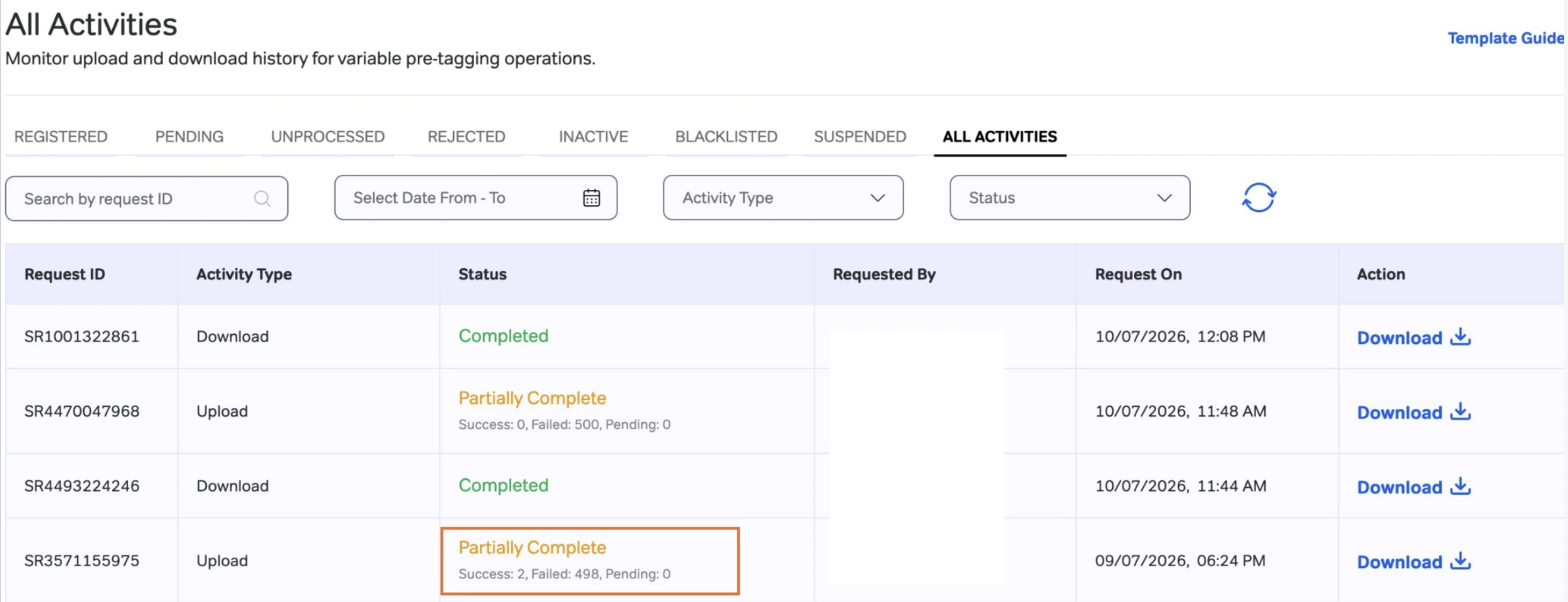
Partially Complete with Success: 2 and Failed: 498 means 2 templates migrated and 498 need fixing (screenshot from Airtel’s SOP). -
Read the counts
Under the status you see Success, Failed and Pending. Partially Complete means some rows failed. Rows counted as Success are done: they are approved automatically and show in the Registered tab.
-
Download the error file
Click Download in the Action column of that upload. The error file lists each failed row with its Template ID, PE ID, SMS Header, Old Content type, New Content Type, Template Content, Template content variable edited, Template Sample Content Updated, Status and Rejected Reason. The Rejected Reason tells you what to fix.
Whole file rejected
When nothing in the file is processed, the problem is the file itself.
| Cause | Fix |
|---|---|
| A column header was changed: a typo, an extra space, or a renamed or deleted column | Download a fresh file from the portal to get the correct headers, and fill it again. |
| The file is not .xlsx, for example it was saved as CSV | Save it as an Excel workbook (.xlsx). CSV and other formats are not accepted. |
| The file is bigger than 5 MB | Make the file smaller, for example by uploading the rows in two files that both keep the original headers. |
Row errors: the Rejected Reason and the fix
The first four reasons below are the exact texts from Airtel’s SOP. For the others, the Rejected Reason names the problem in its own words.
| Rejected Reason or problem | Why it happens | How to fix it |
|---|---|---|
| Template ID does not exist | You added a template row yourself, or edited the Template DLT ID. | Delete that row. Only eligible templates come in the downloaded file. |
| Template content does not match | The Template Content was changed. Even one space, full stop or letter counts. | Put back the original text from a fresh download. Change only the type and value columns. |
| Pre tagging of all variables is mandatory | The variables you tagged do not match the {#var#} placeholders in the template. One is missing, or there is an extra one. | Count the {#var#} in Template Content. Fill exactly that many VarN Type and VarN Value pairs. |
| Variable tagged incorrectly | The sample value does not fit the type, for example letters in a numeric variable. | Follow the type rules in the table further down. |
| Empty type or value | A VarN Type or VarN Value cell was left blank. | Every variable needs both a type and a sample value. |
| Duplicate Template ID | The same Template ID is in the file more than once. | Keep one row per Template ID. |
| Template no longer eligible | The template’s status changed after you downloaded the file, for example it was Blacklisted. | Download a fresh file and process only the templates in it. |
| Back-to-back variables not alphanumeric | Two variables sit next to each other with no space or punctuation between them, and one is tagged as another type. | Tag both as alphanumeric. It is the only type allowed back to back. |
| Content type missing or not allowed | New Content Type is empty, or a Service Explicit template was kept as Service Explicit. | Fill New Content Type in every row. Service Explicit moves to Promotional. Service Implicit and Transactional can be swapped with each other. |
For more on the Service Explicit change, see Service Explicit removed on Airtel DLT.
Variable types at a glance
| Type | Max length | Sample value must be |
|---|---|---|
| numeric | 40 | Digits only, such as an OTP or amount |
| alphanumeric | 40 | Letters, numbers and special characters. Cannot start with www, http or https. |
| url | 120 | A link registered as a CTA under Static, Dynamic or Short URL |
| urlott | 120 | An app or OTT link registered as a CTA under OTT or APK |
| cbn | 3 to 14 | A call-back number registered as a CTA under Number (Mobile, Landline or Toll Free) |
| 40 | A valid email address that is a validated CTA |
A CTA is a link, number or email you whitelisted on DLT. On Airtel, you add them under MANAGE CTA. For links, numbers and emails, the Excel lets you pick from a dropdown of your approved CTAs. If yours is not in the list, whitelist it first: see how to whitelist URLs and call-back numbers on DLT.
Before you upload: checklist
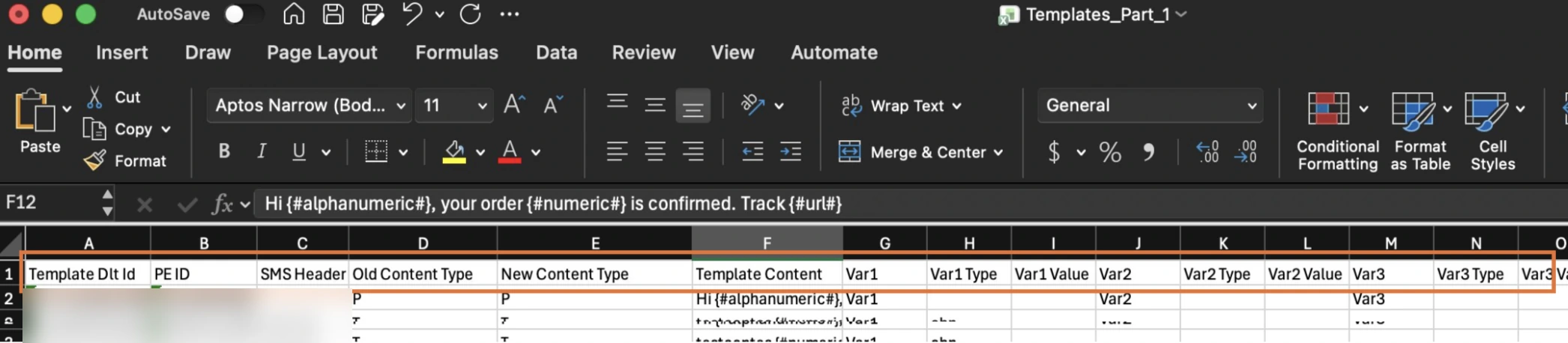
- It is the file downloaded from the portal, saved as .xlsx and under 5 MB.
- The header row is untouched.
- No rows added, each Template ID appears once, and the prefilled columns are unchanged.
- New Content Type is filled in every row.
- Every variable has a type and a sample value.
- Numeric values are digits only. Alphanumeric values do not start with www, http or https.
- Links, numbers and emails are picked from your approved CTAs.
- Back-to-back variables are tagged alphanumeric.
- You checked each row twice. Migration is allowed only once per template.
How to re-upload only the failed rows
-
Fix the failed rows
Open the error file next to your filled Excel. For each failed Template ID, read the Rejected Reason and correct that row in your Excel.
-
Remove the rows that passed
Rows counted as Success are already migrated. Keep only the corrected rows in the file you upload next.
-
Get a fresh file when needed
If the reason is a header problem or a template that is no longer eligible, download a fresh file. Use Download on the templates page, choose Download with no variable tagged, and collect it from ALL ACTIVITIES when the status shows Completed. Templates that already migrated will not be in it.
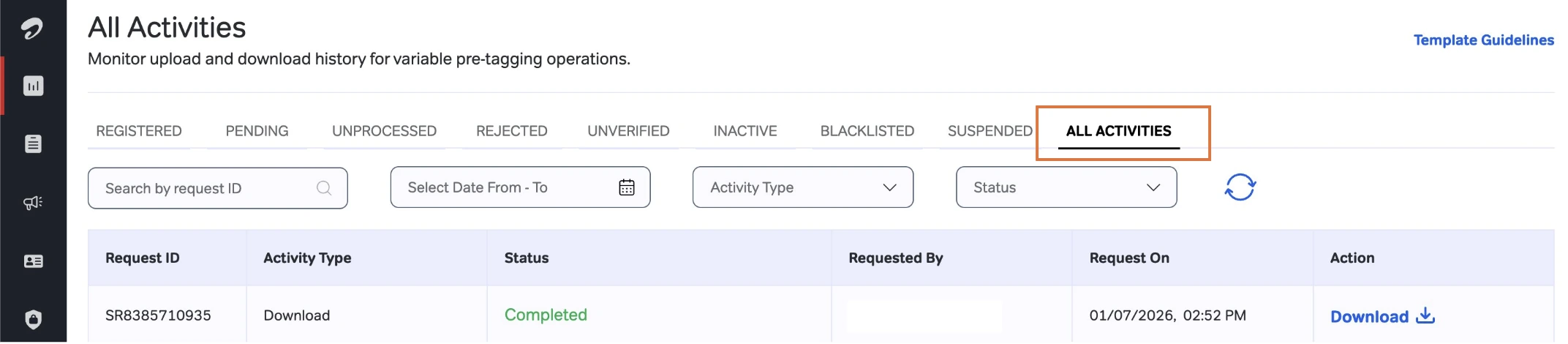
A finished download request in ALL ACTIVITIES (screenshot from Airtel’s SOP). -
Upload again
Click Upload, choose the file and click Upload. A new row appears in ALL ACTIVITIES. Repeat until the Failed count is 0.
SMS failing after migration
A template that migrated fine can still have SMS rejected later. From now on, each SMS is checked against the tags. In the logger period, messages that fail are still delivered and the problem is only recorded. Once the logger period ends, they are rejected.
Common reasons:
- The value does not fit its tag. Letters in a numeric variable, a link inside an alphanumeric variable, or a value longer than the tag allows.
- The link, number or email is not a whitelisted CTA. On Airtel, error 701 means the link does not match your whitelisted links. See DLT error code 701.
- The text does not match the template. The fixed text you send must be the same as the registered template.
In Fast2SMS, open your delivery report to see the operator’s reason for each failed number. Look the code up in Airtel SMS error codes, and read DLT scrubbing failed for the general failure texts. Need help reading a report? Book a free meeting with our team.
Frequently asked questions
Why does it say “Template content does not match” when I did not edit the text?
Something small changed, such as a space, a full stop or a single letter. Copy the Template Content from a fresh download and change only the type and value columns.
Can I upload a CSV file?
No. The Airtel DLT portal accepts only Excel .xlsx files for pre-tagging, up to 5 MB.
Why is my template not in the downloaded file?
Only Registered templates with at least one {#var#} that are not yet migrated appear. Do not add a missing template by hand, the row will fail.
I tagged a variable with the wrong type and it migrated. Can I change it?
No. Migration is allowed only once per template. Contact Airtel support about your case.
Do I need to upload the successful rows again?
No. They are already migrated and approved. Upload only the corrected failed rows.