
The Airtel DLT legacy template migration email asks you to give every variable in your old Airtel DLT templates a type and a sample value, and then upload the templates again on the Airtel DLT portal. “Legacy” templates are the ones registered with the plain {#var#} placeholder. If you do nothing, these templates may stop working once the new variable checks are fully on. This page explains the email point by point, what to do first, and what changes for you on Fast2SMS.
For the full method with every screen, read our main guide: Airtel DLT variable pre-tagging: how to tag variables in old templates.
Why Airtel sent this email
On 18 November 2025, TRAI (the telecom regulator) told all operators that every variable in an SMS template must be pre-tagged. Pre-tagging means each variable says what kind of data it carries: a number, a name or code, a web link, an app link, a call-back number or an email. The operator can then check each SMS against these tags before it is delivered.
New templates already follow this rule. Airtel is now moving the older templates on its DLT platform to the same format, and needs you to fill in the missing details.
The email, point by point
Here is what each part of the email asks, in plain words.
| What the email asks | What it means for you |
|---|---|
| Download all legacy templates and review them | On the Airtel DLT portal, download the list of your templates that still have untagged {#var#} placeholders. See which ones you still use. |
| Tag each variable with the right type | For every {#var#}, pick what it holds: numeric, alphanumeric, url, urlott, cbn or email. An OTP is numeric. A customer name is alphanumeric. |
| Give a sample value for each variable | Type an example, such as 123456 for an OTP. For a link, phone number or email, you pick one of your approved CTAs. A CTA is a link, number or email that you whitelisted on DLT. |
| Keep to 3 variables per template | Normally a template can have up to 3 variables. More than 3 is allowed only with a business justification, which goes for approval. |
| Upload the updated templates | Upload the filled file on the Airtel DLT portal, or tag templates one at a time. |
| Do it at the earliest | The email gives no date. Treat it as urgent anyway. |
Airtel attached its SOP (the step-by-step guide) to the email, and the guidelines are also on the portal under Template Guidelines. For questions about your own account, the email points you to Airtel support.
What happens if you ignore the Airtel DLT email
The email is clear about this. Legacy templates that are not updated and submitted again “shall not be eligible for migration”, and they may not stay available for use under the new rules.
TRAI’s direction explains how the checks come in. When an operator starts checking tagged variables, the first 60 days are a logger period. Messages are still delivered and problems are only recorded. After the logger period, an SMS that fails the variable check is rejected and not delivered. TRAI also gave operators a limited window to get old templates changed.
The email does not say when Airtel’s logger period ends, and we do not know that date either. The safe plan is to finish now, while a mistake only gets logged and not blocked.
Airtel allows the migration only once per template. You cannot change a variable type after it is done, so check each row before you upload.
Your 10-minute action checklist
In 10 minutes you can get the file, see how much work there is, and start with your most used templates, such as OTPs.
-
Download your untagged templates
Log in to the Airtel DLT portal. Open MANAGE TEMPLATES, click Download at the top right, choose Download with no variable tagged and click Download.
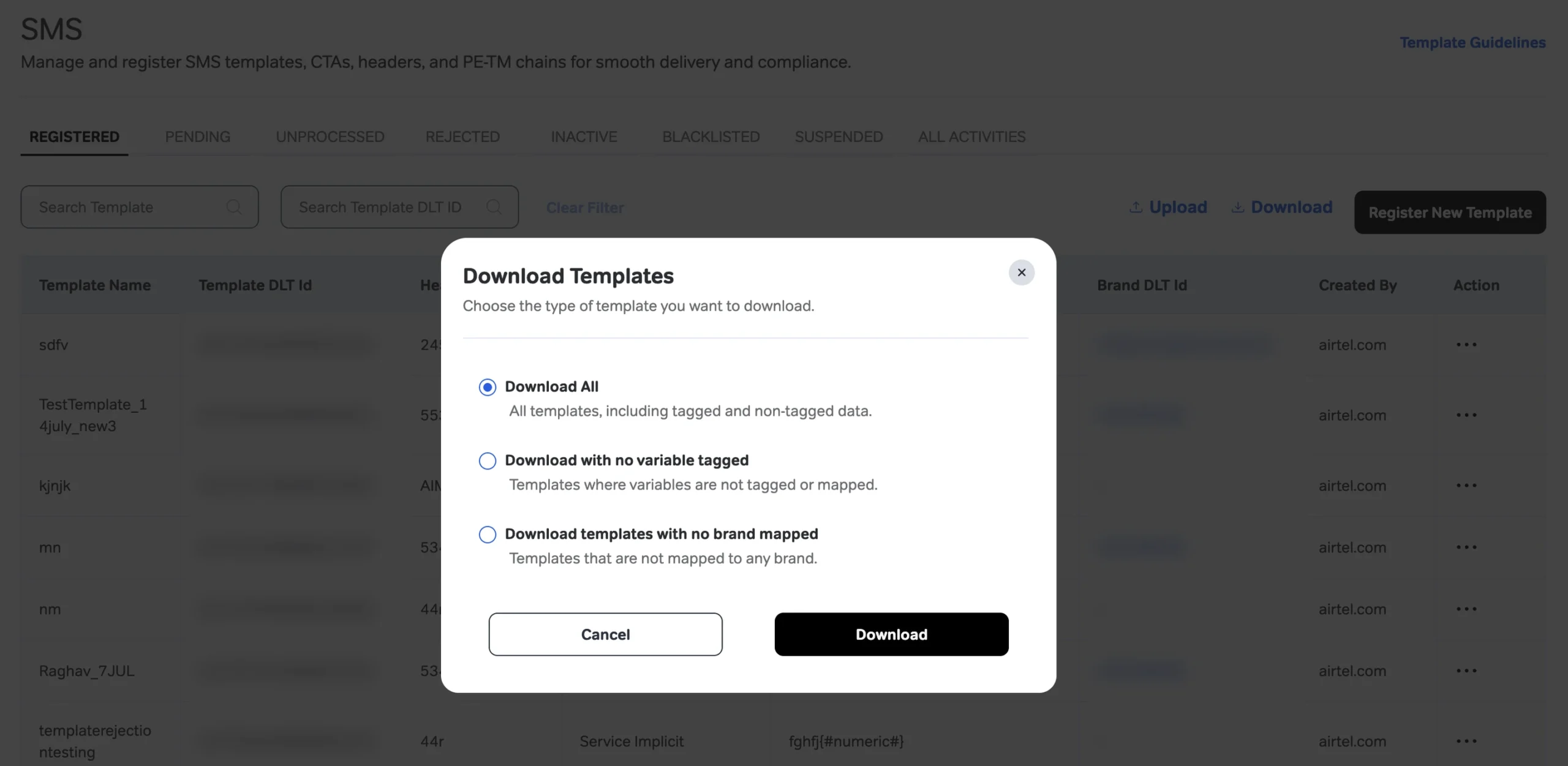
Airtel DLT portal: the Download Templates pop-up (screenshot from Airtel’s SOP). -
Collect the file from ALL ACTIVITIES
The portal prepares an Excel file inside a zip. Open the ALL ACTIVITIES tab. When your request shows Completed, click Download in that row.
-
See how many templates need work
Open the Excel. Each row is one template to tag. Only templates that are Registered, have at least one {#var#} and are not yet migrated are in the file. If a template is missing, it is not eligible. Do not add a row for it yourself.
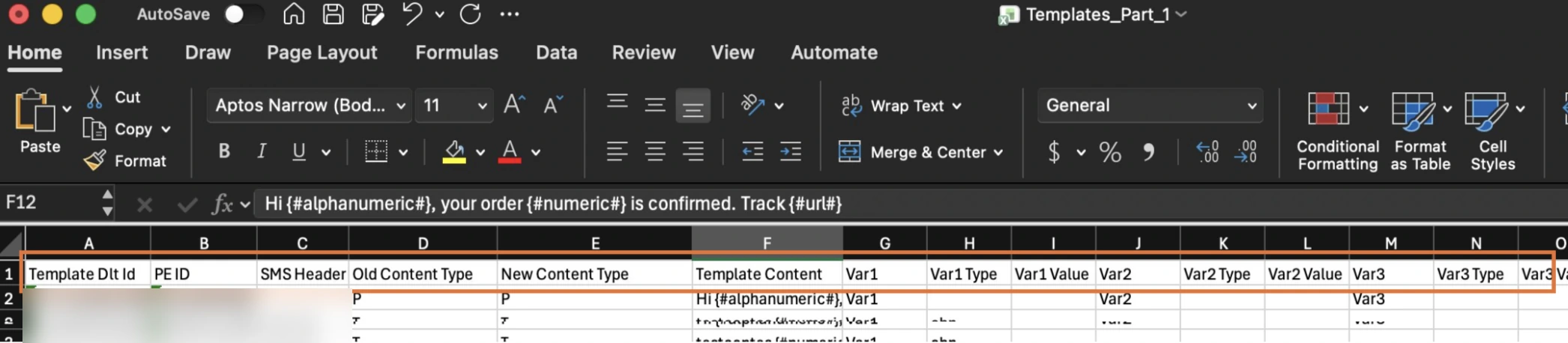
The downloaded Excel. You fill only New Content Type and the VarN Type and VarN Value columns (screenshot from Airtel’s SOP). -
Check your CTAs
Note every link, phone number and email used in your templates. Each one must be whitelisted under MANAGE CTA on the portal, or you will not be able to pick it as a sample value. See what CTA whitelisting is.
-
Fill the type, value and content type
Fill New Content Type, then Var1 Type, Var1 Value and so on for each variable. Do not change the template text or any other column. Even one extra space makes that row fail.
-
Upload and check the result
Click Upload on the templates page, choose your .xlsx file (5 MB at most) and click Upload. Then check ALL ACTIVITIES for the Success and Failed counts, and fix only the failed rows. If rows fail, see Airtel DLT pre-tagging upload errors.
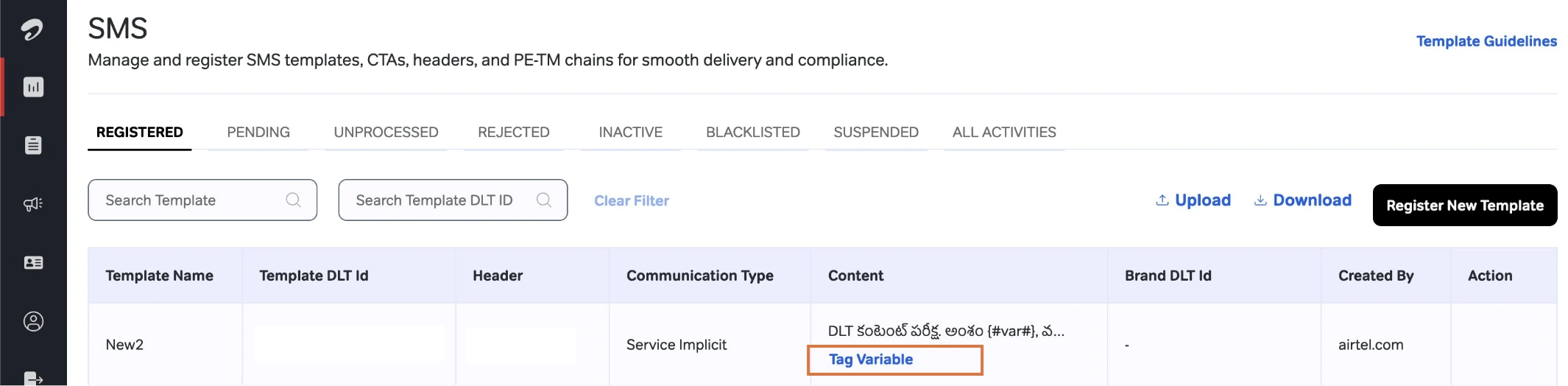
Only a few templates to fix? In the Registered tab, templates with untagged variables show a Tag Variable link under the content. Click it to tag that one template on screen, without Excel.
Templates that migrate successfully are approved automatically and stay in the Registered tab. There is no new approval wait.
Who has to do this
The business that owns the DLT account on Airtel. In DLT words this is the Principal Entity (PE), which simply means your business as registered on DLT. The work is done in your own Airtel DLT portal login. If a developer or agency manages that login for you, forward the email to them. For other DLT words, see the DLT glossary.
If your templates are registered on another DLT portal, such as Jio, Vi, BSNL, SmartPing or Tata, this Airtel email is not about them. That portal runs its own migration with its own steps and file format. See DLT template migration for how one such flow works.
What changes for you on Fast2SMS
- Your Template ID stays the same. Airtel updates the template text to the tagged format under the same ID.
- Fast2SMS reads the new tags. In DLT Manager, typed tags such as {#numeric#}, {#alphanumeric#} or {#url#} are read as {#VAR#}, just like the old placeholder.
- You send the same way. Keep passing your values in variables_values in the API, the same as today.
- Each value must fit its tag. A numeric variable can carry only digits. A url variable must carry one of your whitelisted links. Once the logger period ends, the operator rejects an SMS whose values do not match. Failed numbers show the operator’s reason in your delivery report. See Airtel SMS error codes.
- Check the text in DLT Manager. After the migration, open DLT Manager > Content Template. If the text there still shows the old version, update it with Add Content Template or Upload Excel using your portal export.
For how many variables a template can have and how long each value can be, see DLT template variable limits. If you still have questions, book a free meeting with our team.
Frequently asked questions
Is there a deadline for Airtel DLT legacy template migration?
The email gives no date. Under TRAI’s rules, messages that fail the variable check are rejected once the logger period ends, so finish the migration as soon as you can.
Will my Template ID change after migration?
No. Airtel updates the template text to the new format and the Template ID stays the same.
Do migrated templates need approval again?
No. Templates that migrate successfully are approved automatically and show in the Registered tab.
Can I change a variable type after migration?
No. Airtel allows the migration only once per template, so check the type and sample value before you upload.
My template has more than 3 variables. What now?
The email says more than 3 variables need a business justification, which goes for approval. Ask Airtel support how to submit it for your account.
What happens to my Service Explicit templates?
Service Explicit no longer exists as a content type. These templates move to Promotional. See Service Explicit removed on Airtel DLT.