
You do not need separate call recording software. Fast2SMS Cloud Telephony records your business calls and keeps a full call history, with no per-minute charge. Recording is on by default for every new number. Open Call History to see every incoming and outgoing call with its status, duration and agent, play or download the recording, filter by date or number, and export the list to a CSV file.
This guide shows where recording is switched on or off, how to read the call reports, what each call status means, and how long recordings are kept.
Turn call recording on or off
A new number records calls from day one. You can change this in three places:
-
The Recording switch on My Numbers
Open Cloud Telephony > My Numbers. Each number has a Recording switch. Turn it off to stop recording calls on that number, or on to start again. You see “Call recording enabled successfully” or “Call recording disabled successfully”.
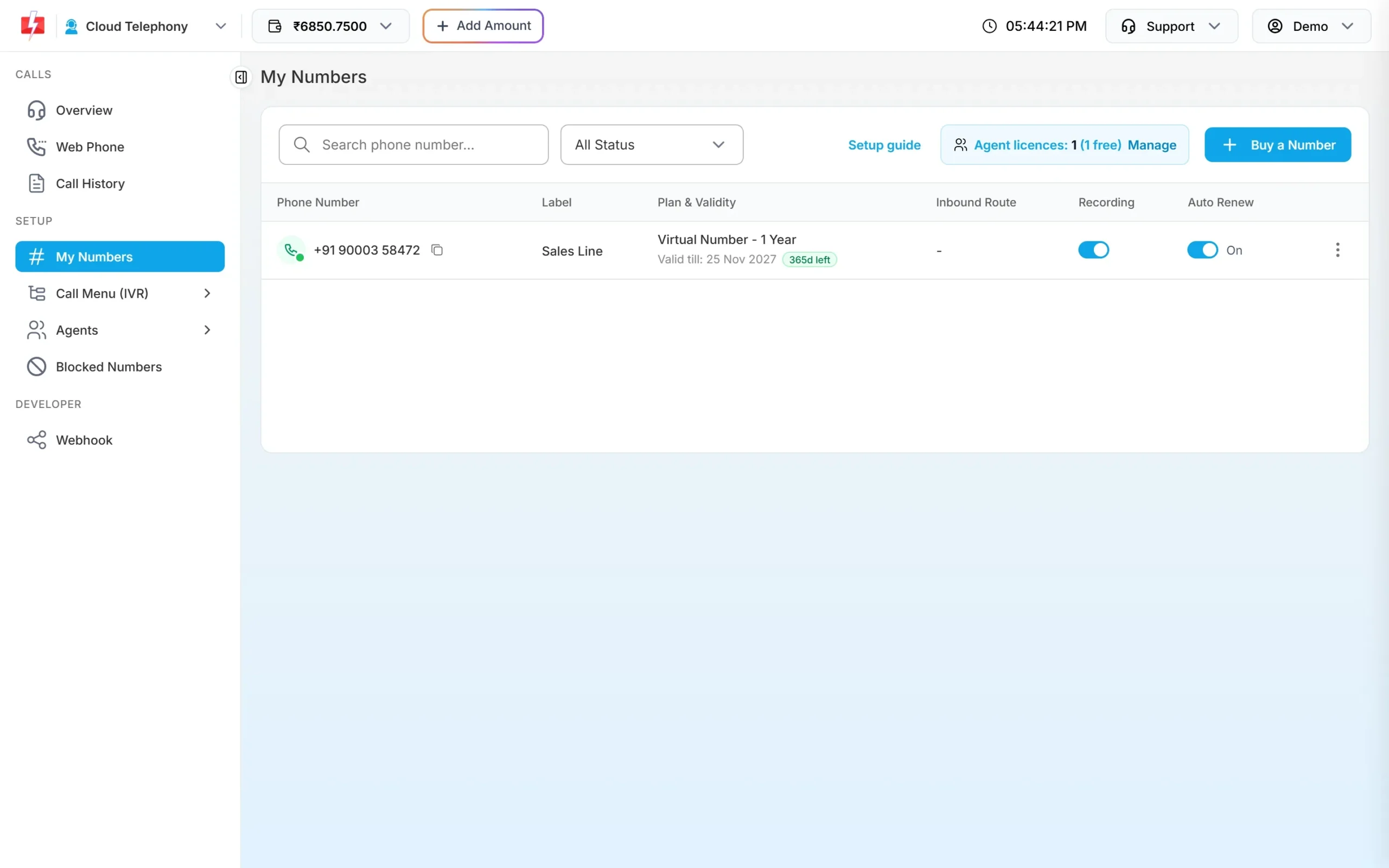
Recording switch for each number. -
The routing settings of a number
Click the three dots on a number and choose Configure Route. At the bottom of Configure Inbound Routing is the box Record all incoming/outgoing calls. It is the same setting as the switch. Click Save Changes after you change it.
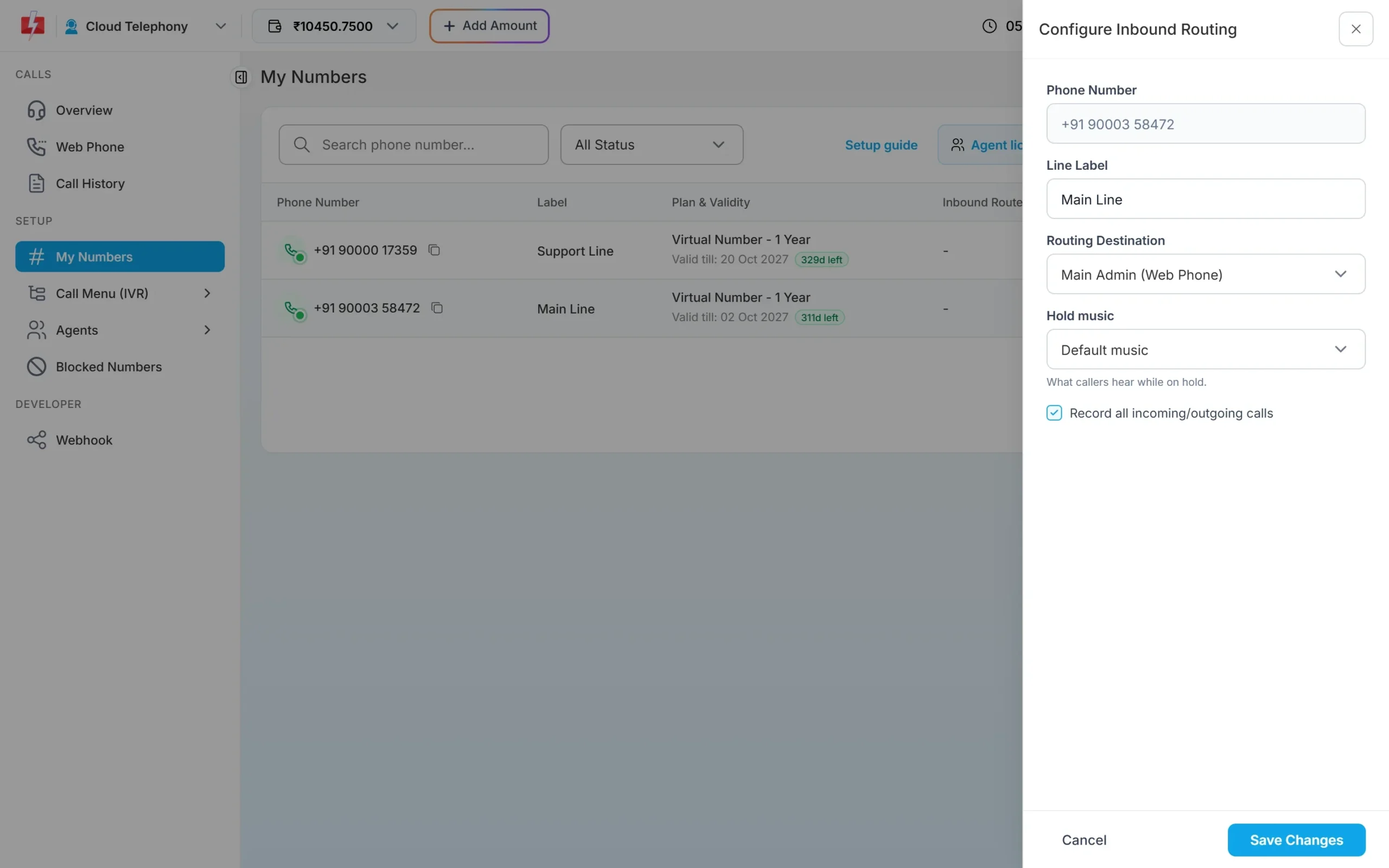
Recording can also be set while you change a number’s route. -
Each team member’s settings
When you assign an agent licence, or edit a team member, there is a Record calls box. Untick it for a person whose calls should not be recorded. See add agents and agent licences.
Open Call History
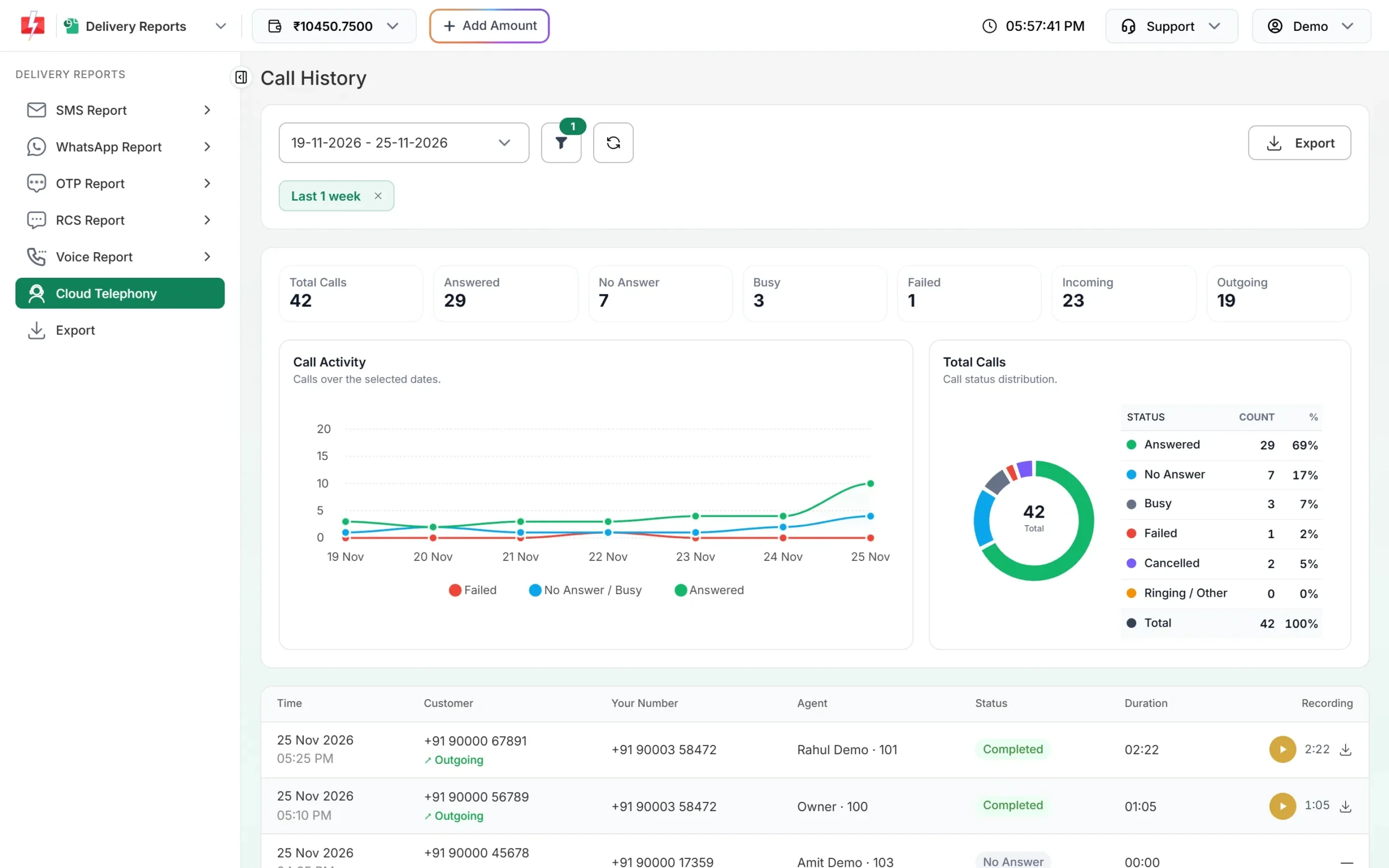
Click Call History in the Cloud Telephony sidebar. The same report is under Delivery Reports > Cloud Telephony. It opens on the last 2 days. Change the dates with the date box at the top left.
The top of the page gives you totals for the dates you picked: Total Calls, Answered, No Answer, Busy, Failed, Incoming and Outgoing. The Call Activity chart shows answered, missed and failed calls per day, and the Total Calls chart shows the share of each status.
Read the call list and play recordings
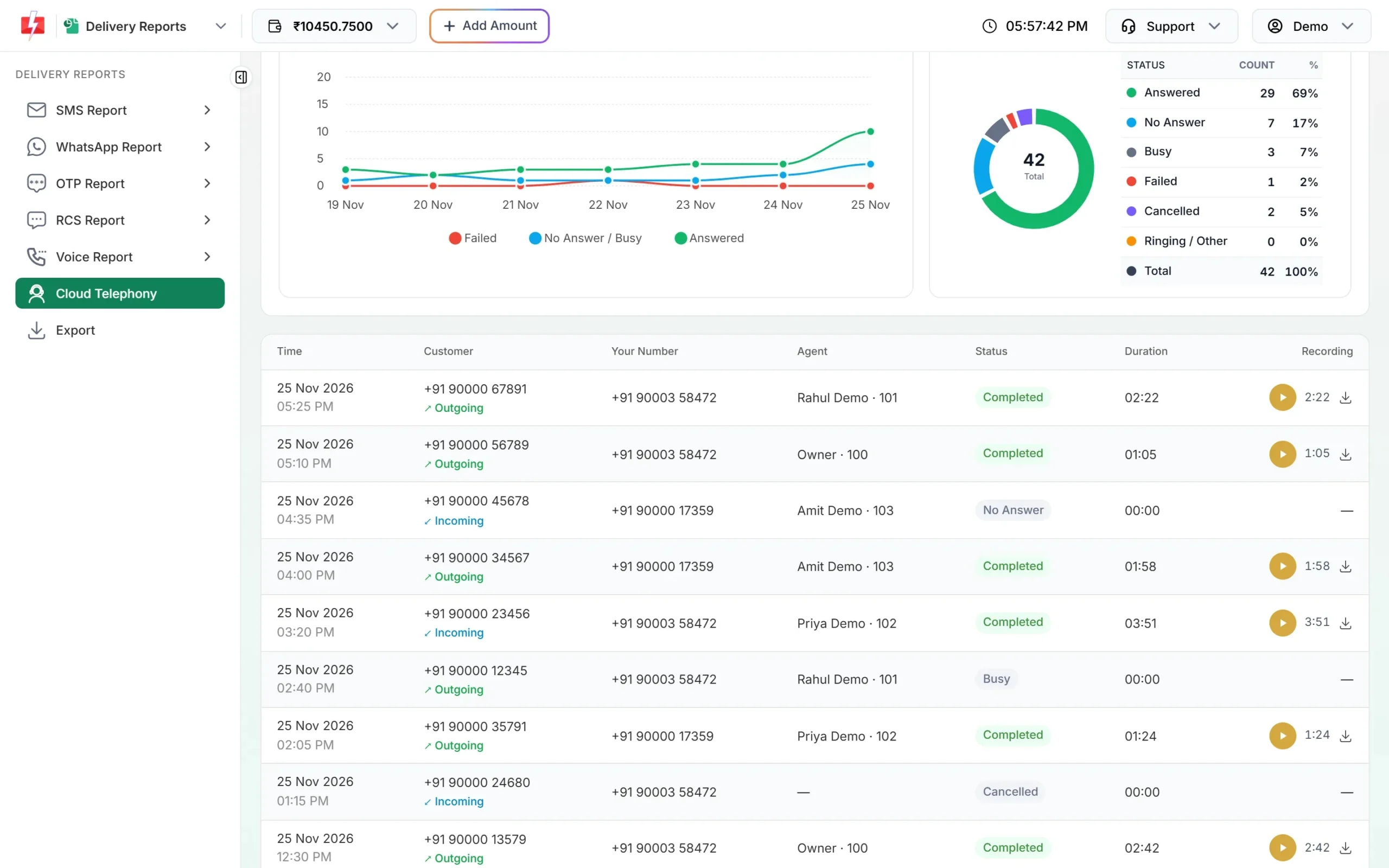
Scroll down to the list. Each row is one call:
- Time: date and time of the call.
- Customer: the customer’s number, marked Incoming or Outgoing. Transferred calls and calls added during a call are marked too.
- Your Number: which of your business numbers was used.
- Agent: who handled the call, with their extension, for example “Rahul Demo · 101” or “Owner · 100”.
- Status and Duration.
- Recording: click the play button to listen in the browser, or the download arrow to save the file.
Find a call with filters
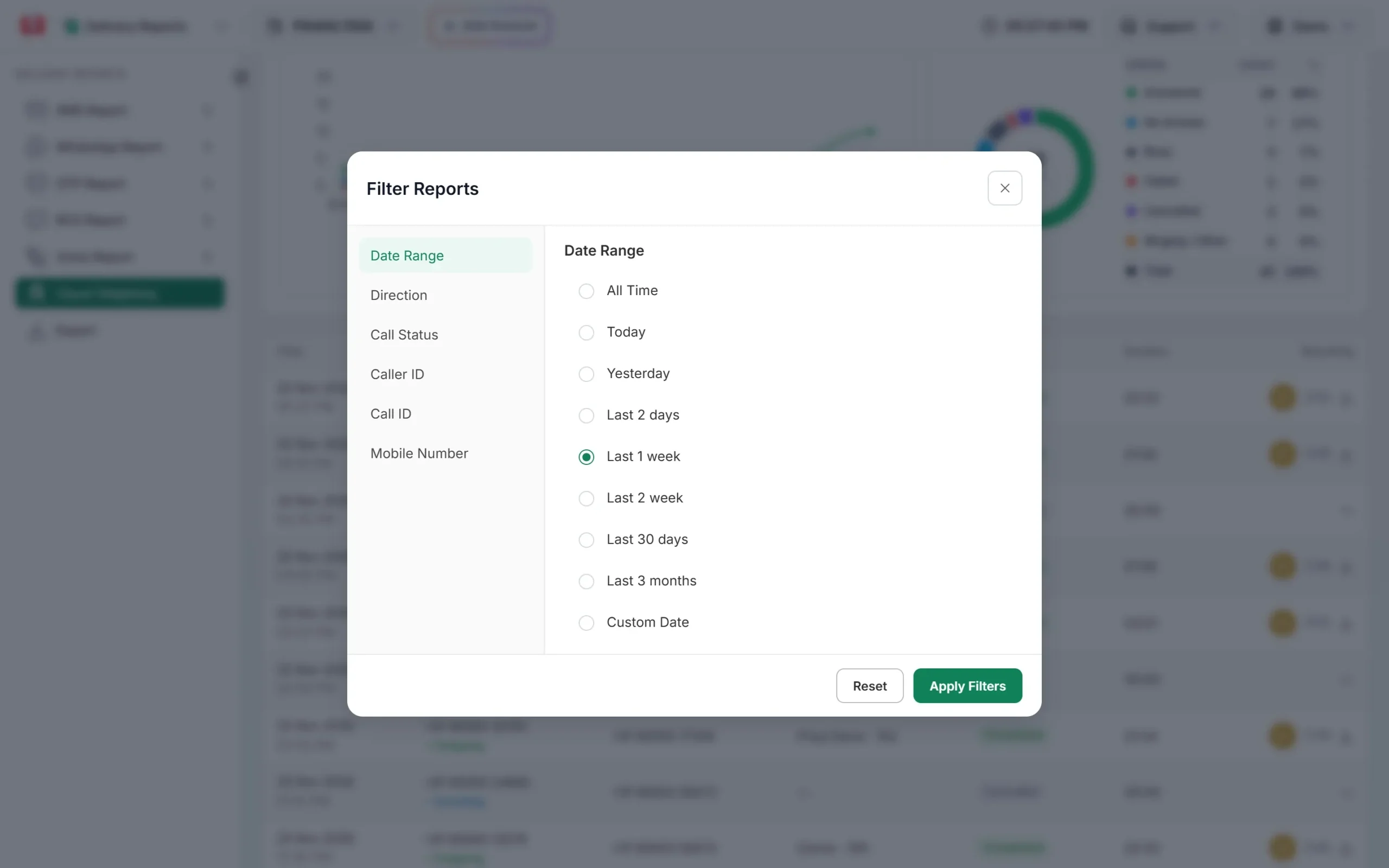
Click the filter button next to the date box. Filter Reports lets you narrow the list by:
- Date Range: All Time, Today, Yesterday, Last 2 days, Last 1 week, Last 2 week, Last 30 days, Last 3 months or Custom Date.
- Direction: incoming or outgoing.
- Call Status: for example only missed calls.
- Caller ID: one of your numbers.
- Call ID: the ID of one call.
- Mobile Number: the customer’s number (type at least 4 digits).
Click Apply Filters. Reset clears them.
See the full details of one call
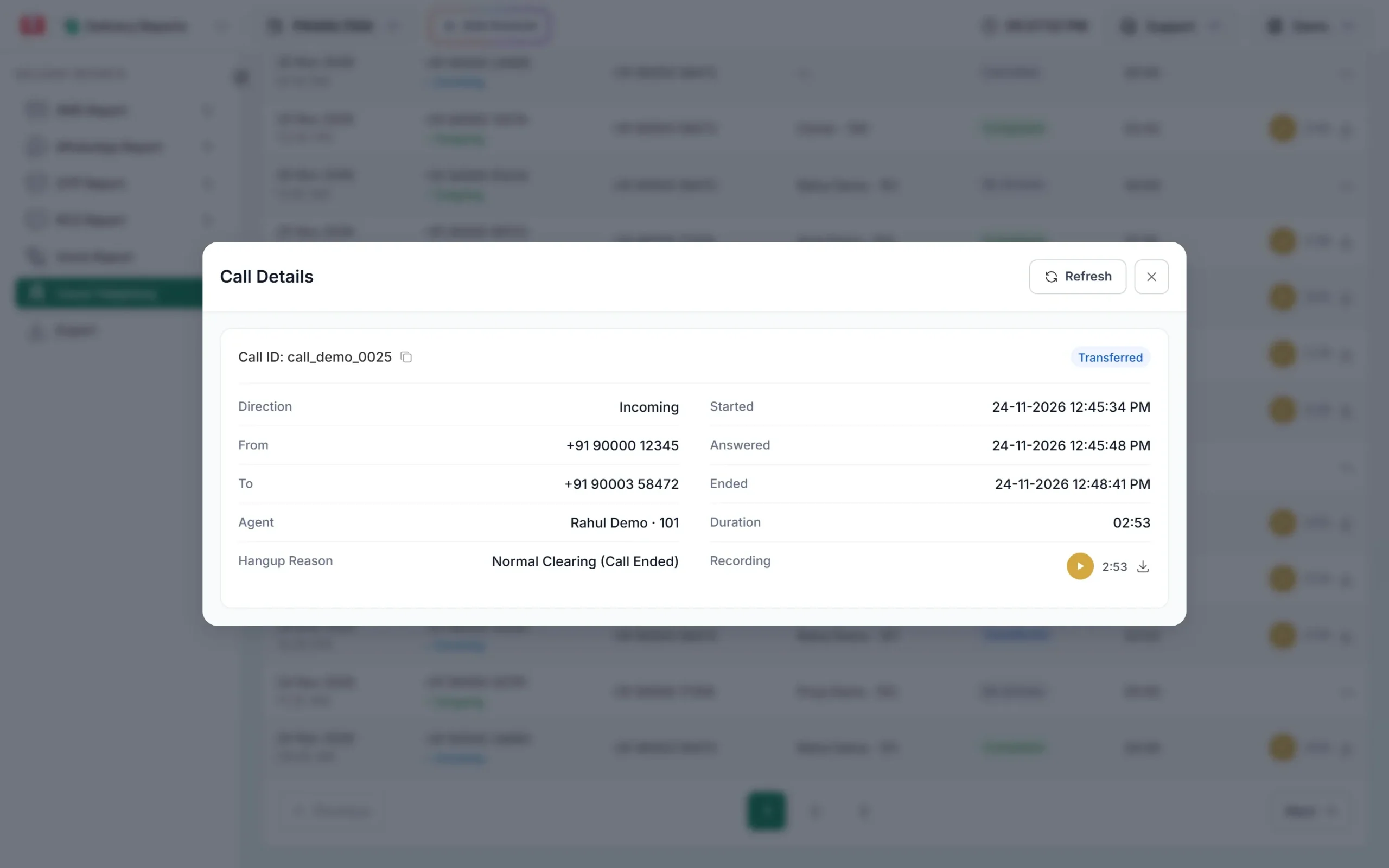
Click a row to open Call Details. You see the Call ID (with a copy button), the status, Direction, From, To, Agent, Hangup Reason, the times the call Started, was Answered and Ended, the Duration and the Recording. Hangup reasons include Normal Clearing (Call Ended), User Busy, No Answer (Timed Out) and Call Rejected.
What each call status means
| Status | Meaning |
|---|---|
| Completed / Answered | The call was picked up and talked through. Both count as answered in the totals. |
| Transferred | The call was answered and handed to another person or number. |
| No Answer | Nobody picked up before the call timed out. For incoming calls, this is a missed call. |
| Busy | The other side was busy or rejected the call. |
| Cancelled | The call ended before anyone answered, for example the caller hung up while it was ringing. |
| Failed | The call could not be connected. |
| Blocked | The number is in your Blocked Numbers list. |
| Plan Expired | The number’s plan had expired, so the call was not connected. Renew the number. |
| Ringing / Dialing | The call is still going on. |
Export your call logs
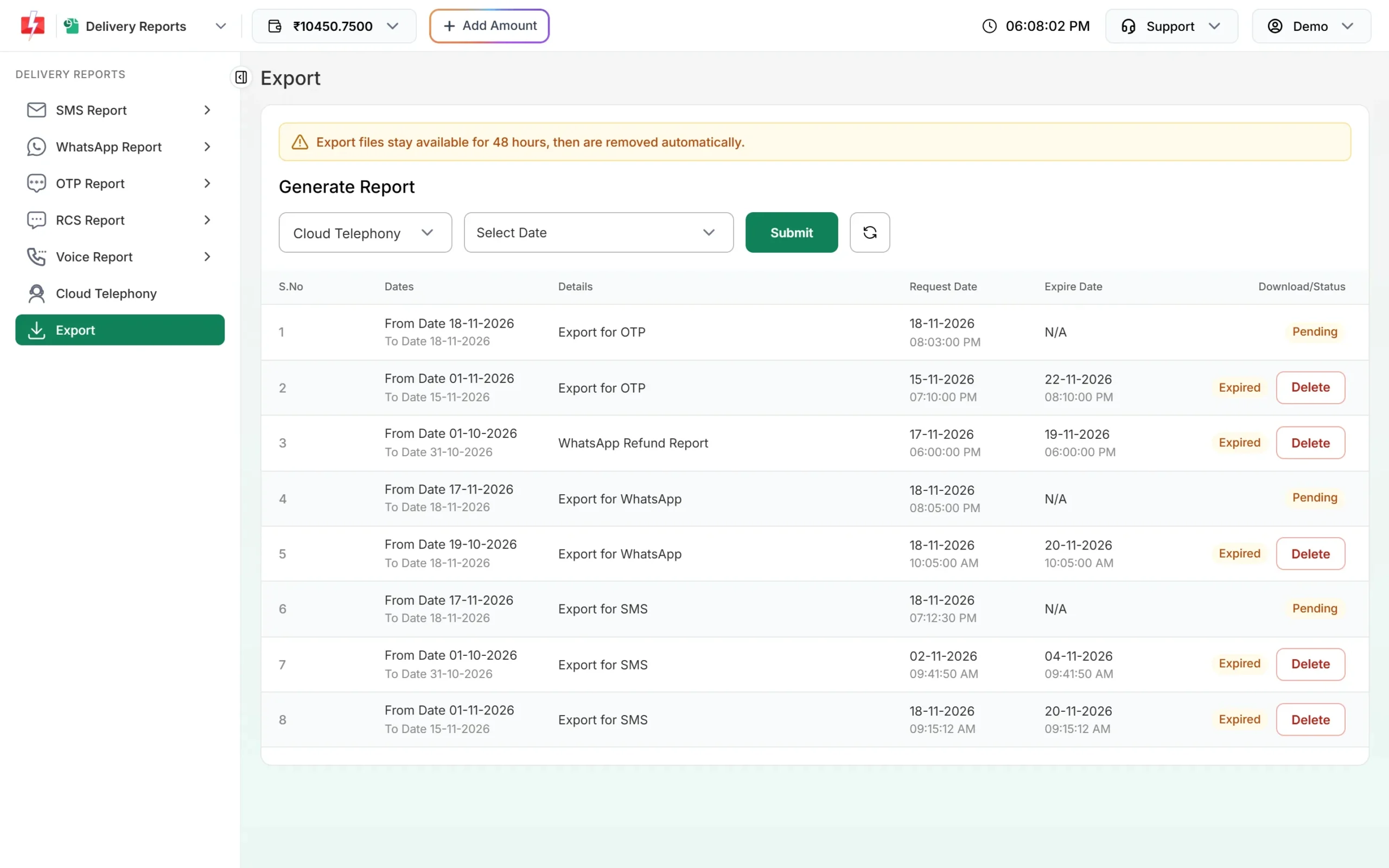
Click Export on the Call History page, or go to Delivery Reports > Export. Choose Cloud Telephony, pick the dates and click Submit. When the file is ready, download it from the list. The CSV has these columns: S.No., Call ID, Direction, Contact Name, From, To, Caller ID, Agent, Status, Duration (sec), Start Time, Answered Time, End Time and Recording (Yes/No).
Check calls on your phone
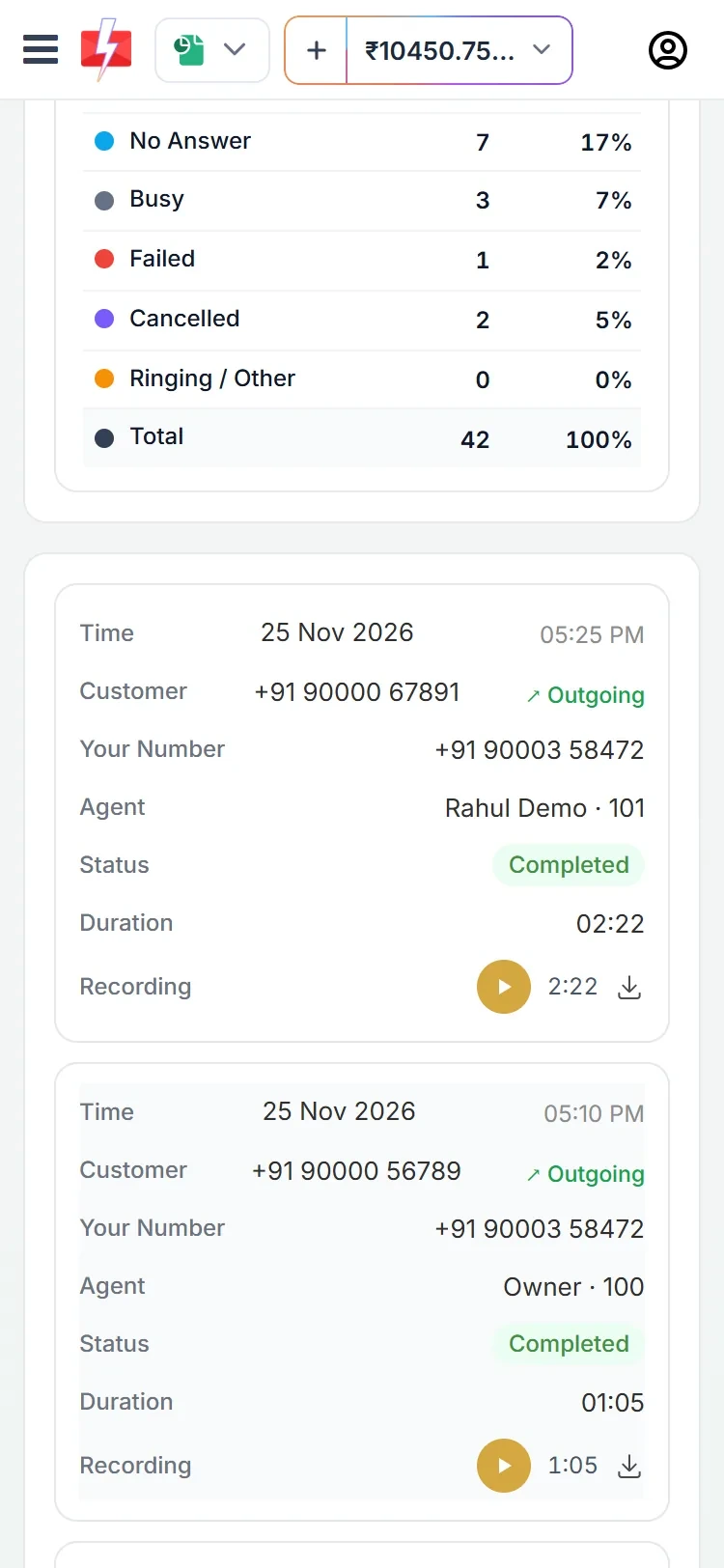
Call History works in a phone browser too. Each call shows as a card with the same details and a play button for the recording.
A quick summary on Overview
For a daily check, open Overview in the Cloud Telephony sidebar. For the dates you pick it shows the Answer rate, Avg talk time, Busiest hour and Missed incoming calls, with a “Call them back” reminder. Click through to Call History for the full list.
Who can see calls and recordings
- Account owner: sees all calls, plays and downloads recordings, and exports logs.
- Team members: see only their own calls under Call Logs. They cannot play or download recordings.
How long recordings are kept
Recordings are kept for 3 months. After that, the recording is deleted and the panel says “Recordings are kept 3 months; this one has been deleted.” The call row itself stays in your history. If you need a recording for longer, for example for a dispute or training, download it before 3 months.
Frequently asked questions
Is call recording free?
Yes. Calls, IVR and call recording have no per-minute charge in Fast2SMS Cloud Telephony. You pay only for the number and any extra agent licences.
Are both incoming and outgoing calls recorded?
Yes, when recording is on for the number. You can turn it off per number, or per team member with Record calls.
Why does a call have no recording?
Calls that were not answered (No Answer, Busy, Cancelled, Failed) have nothing to record. Recording may also be off for that number or person, or the call is older than 3 months.
How do I see only missed calls?
Open the filter, choose Direction = incoming and Call Status = No Answer, then click Apply Filters. Overview also shows the Missed incoming count.
Can I get call details in my CRM automatically?
Yes. Add a Cloud Telephony webhook and your system receives each call event, including a link to open the recording in your Fast2SMS panel. See Cloud Telephony webhooks.
Can my team members listen to recordings?
No. Only the account owner can play and download recordings.