
To add agents in Fast2SMS Cloud Telephony, give each team member an agent licence. Every number you buy includes 1 licence, and extra licences cost ₹600 a month, billed yearly (₹7,200 a year, at the time of writing). You buy them in Agents > Licences, assign each one to a team member, and that person can make and take business calls from the Web Phone in their browser.
This guide is for business owners who want two or more people answering the same business number. It covers how licences work, what they cost, how to buy and assign them, and what to do when someone leaves.
How agent licences work
The rule is printed on the Licences page itself: 1 licence = 1 team member. A few more points that help you plan:
- Each number includes 1 licence. It has the same validity as the number and renews with it. In the list its Auto Renew column says “With the number”.
- You, the account owner, do not need a licence. Your own Web Phone works without one. Your extension is always 100.
- A licence belongs to your account, not to the person. If someone leaves, remove the licence from them and give it to the next person. You do not buy a new one.
- Extra licences are yearly. They are paid from your Fast2SMS wallet, the same wallet you use for SMS and WhatsApp. There is no setup fee and no per-minute charge for calls.
| Item | Price (at the time of writing) | Notes |
|---|---|---|
| Virtual number | ₹1,500 a month, billed yearly (₹18,000 a year) | Includes 1 agent licence |
| Extra agent licence | ₹600 a month, billed yearly (₹7,200 a year) | One per extra team member |
| Calls, IVR, call recording | No per-minute charge | Unlimited calling with no per-minute charges |
Example: you have one number and want three staff to take calls, plus yourself. The number’s included licence covers one person, so you buy 2 extra licences. That is ₹18,000 for the number and ₹14,400 for the 2 licences, ₹32,400 a year in total. Current rates are always on the Cloud Telephony pricing page.
Before you start
- Log in as the account owner. Team members cannot buy or assign licences.
- Buy at least one Cloud Telephony number first. Licences can be bought only after you have a number. The Cloud Telephony setup guide covers KYC and buying a number.
- Keep enough balance in your wallet for the licences.
- For each team member: name, a 10-digit Indian mobile number and an email address.
- Each person needs a laptop, desktop or phone with a browser, microphone permission and ideally a headset.
How to buy and assign agent licences
-
Open Agents > Licences
Open Cloud Telephony from the app menu and click Agents > Licences in the sidebar. The four cards show Total Licences, Assigned, Free and Expired. Below them you see one row per licence. Here the account has two numbers, so it already has two included licences, both Free.
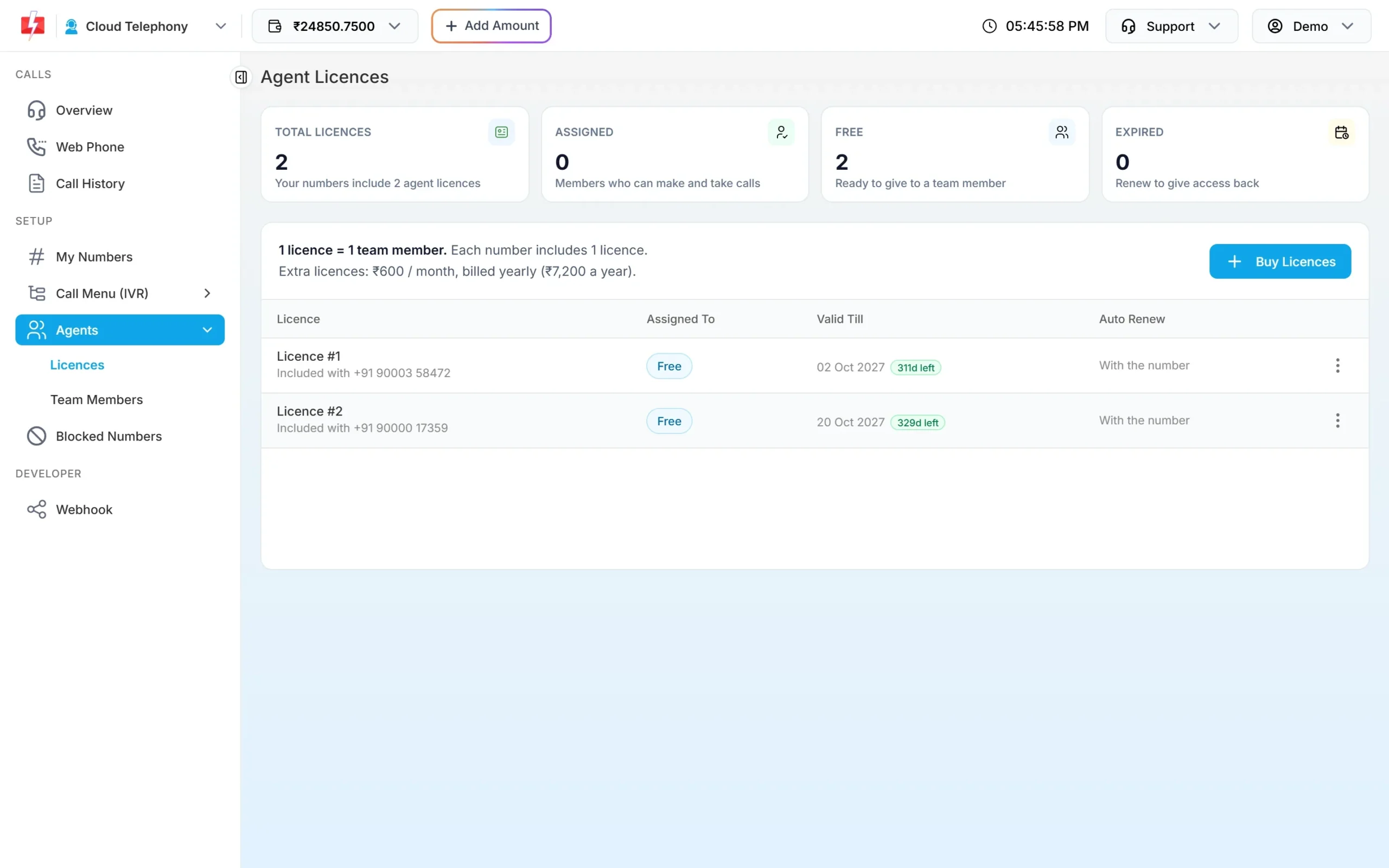
Each number comes with one licence. -
Buy extra licences
Click Buy Licences. The Buy Agent Licences popup shows your wallet balance, the 1 Year plan at ₹7,200, and a Number of licences box. Set how many you need. Keep Auto renew from wallet on expiry ticked if you do not want anyone to lose access on the renewal date. Check Total Payable and click Buy & Pay. If your balance is low, click + Top Up first.
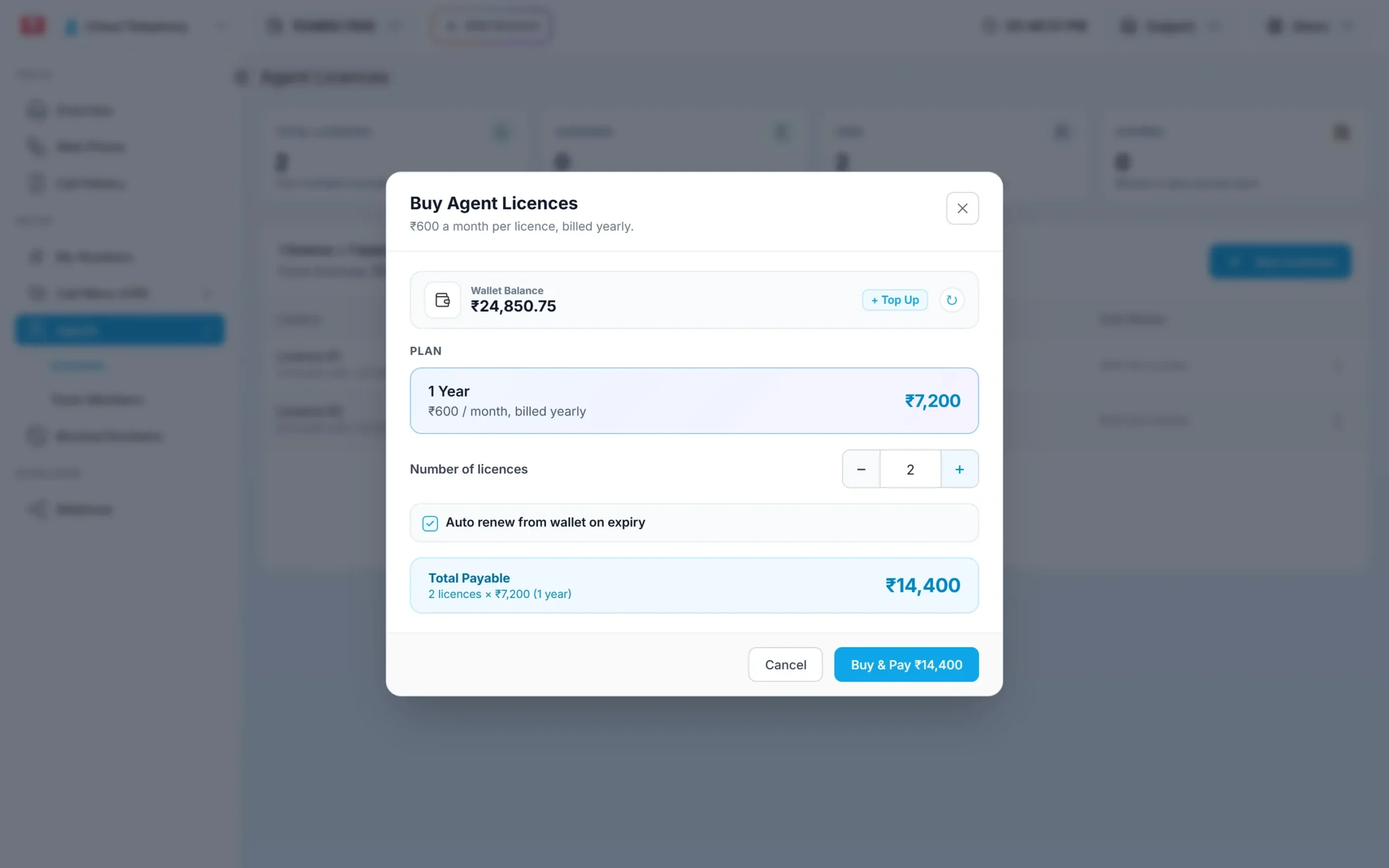
Buying two extra licences for one year. -
Check the new licences
You see the message “2 agent licences added. Assign them to team members below or in Settings > Team Members.” The new licences appear as Agent Licence – 1 Year, valid for one year from today, with their own Auto Renew switch.
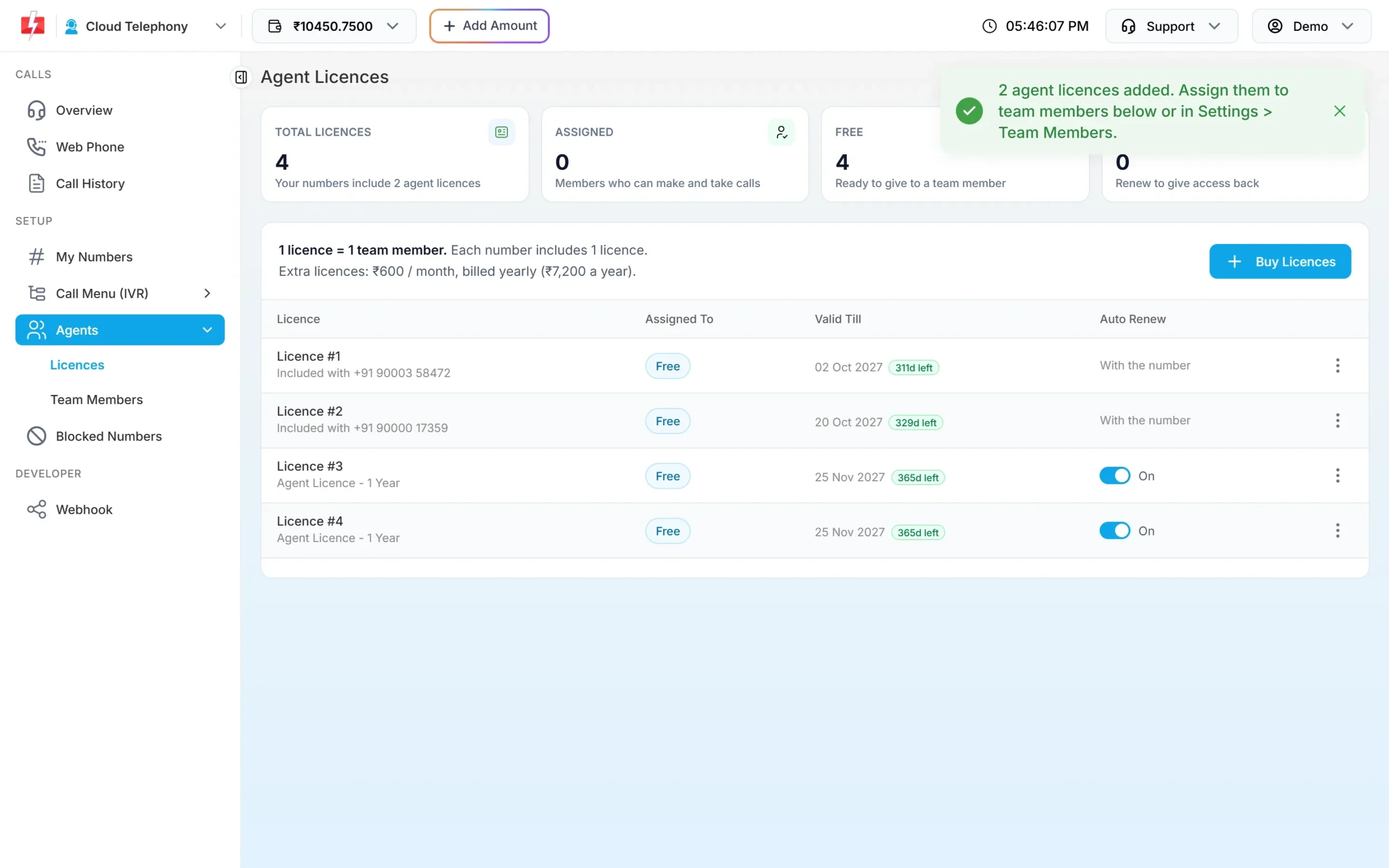
Two bought licences added to the list. -
Assign a licence to a team member
Click the three dots at the end of a free licence and choose Assign to Member.
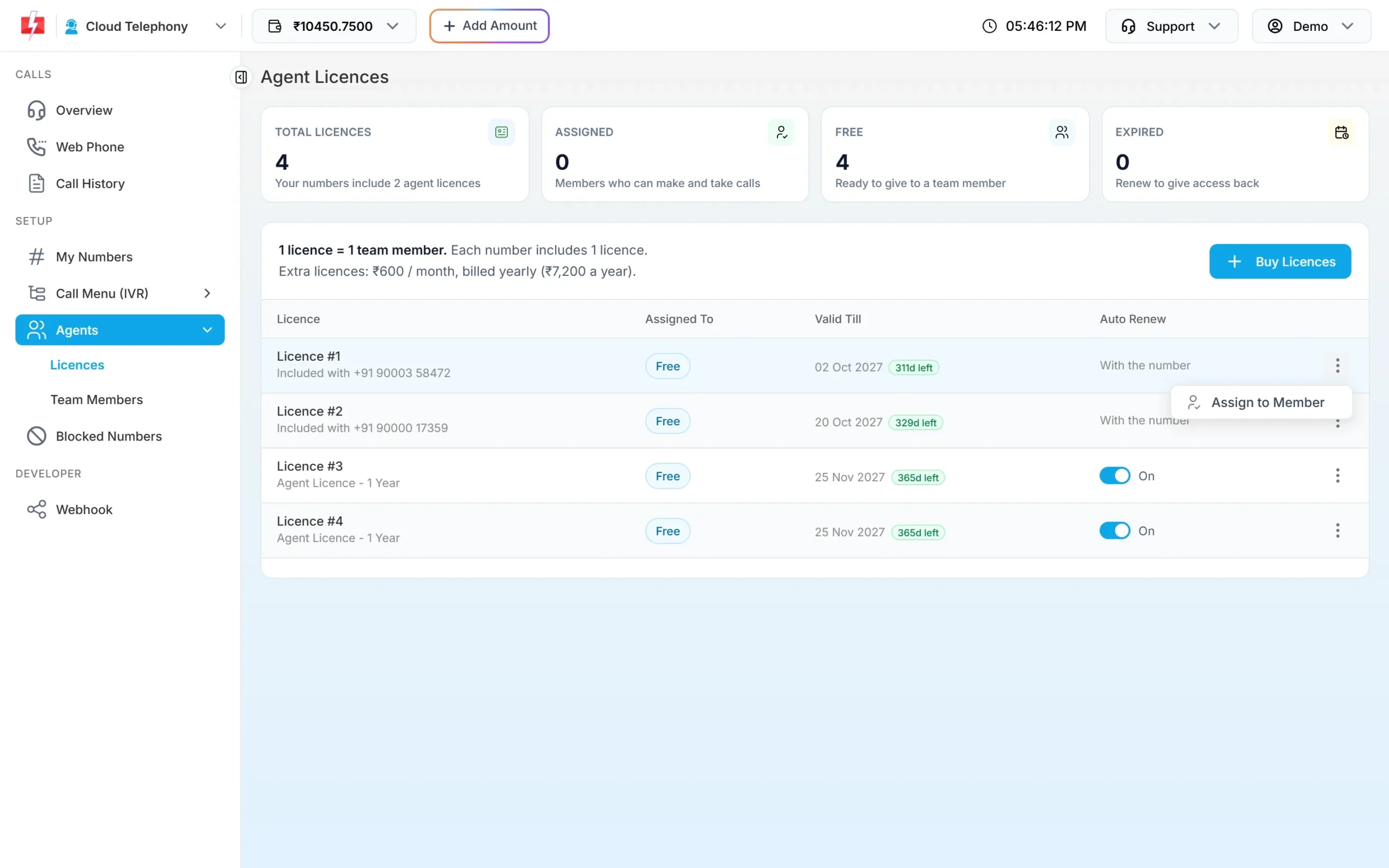
Every free licence can be assigned from its row menu. -
Choose the person and their calling settings
In Assign Licence, pick the Team member. If they are not in the list yet, click + Add new member. Then set:
- Numbers: the business numbers this person works on. None ticked means all numbers.
- Outgoing calls from: the number customers see when this person calls. “Account default number” uses your default.
- Call waiting: a new call can come in during a call.
- Record calls: record this person’s calls.
- Not online? Ring their mobile number: if they are not on the Web Phone, the call rings their mobile instead.
Click Assign. You see “Licence assigned to Rahul Demo.”
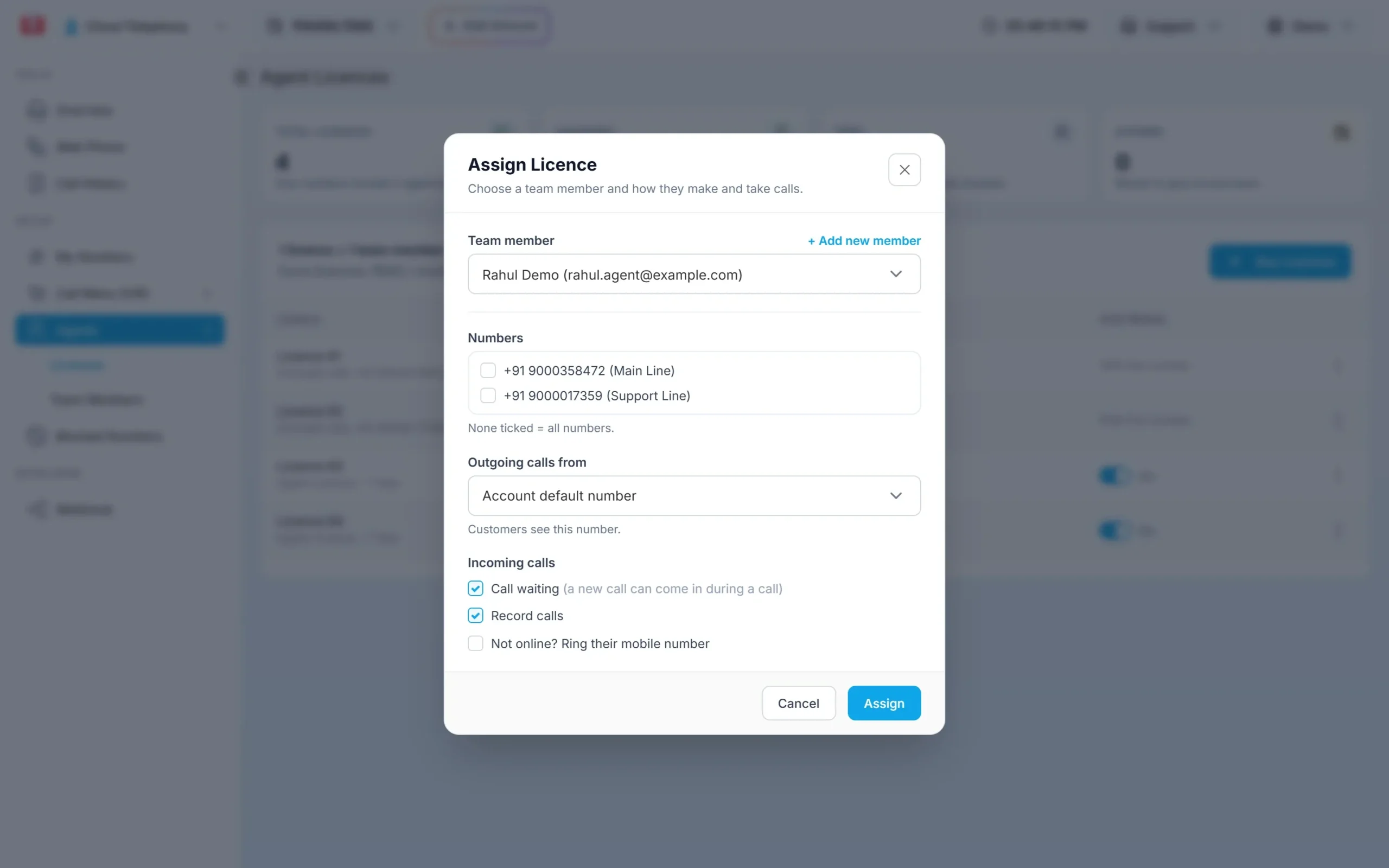
Pick who gets the licence and how they make and take calls. -
See who has which licence
Assigned licences show the person’s name with their short extension, for example “Rahul Demo · 101”, and their email. The Assigned card counts members who can make and take calls. Any licence still marked Free is ready for the next person.
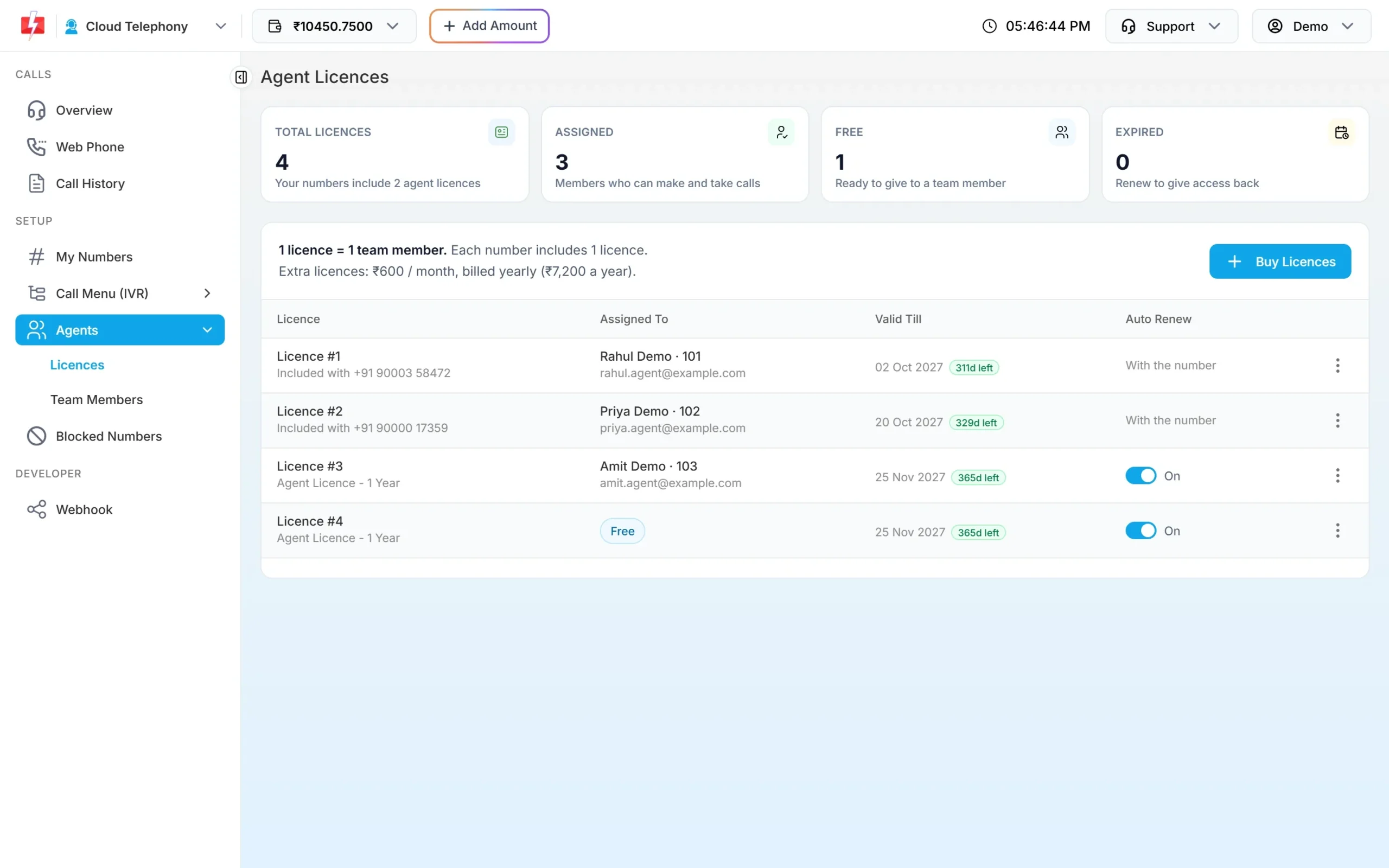
Three team members with licences and one free licence. -
Share the login with your team member
Your team member logs in on the agent login page with the email and password you set for them. With a licence they see Web Phone and Call Logs. They make calls from the same browser Web Phone you use and answer incoming calls there. How to share the agent login link is explained in adding team members in Fast2SMS.
Another way: give calling access from Team Members
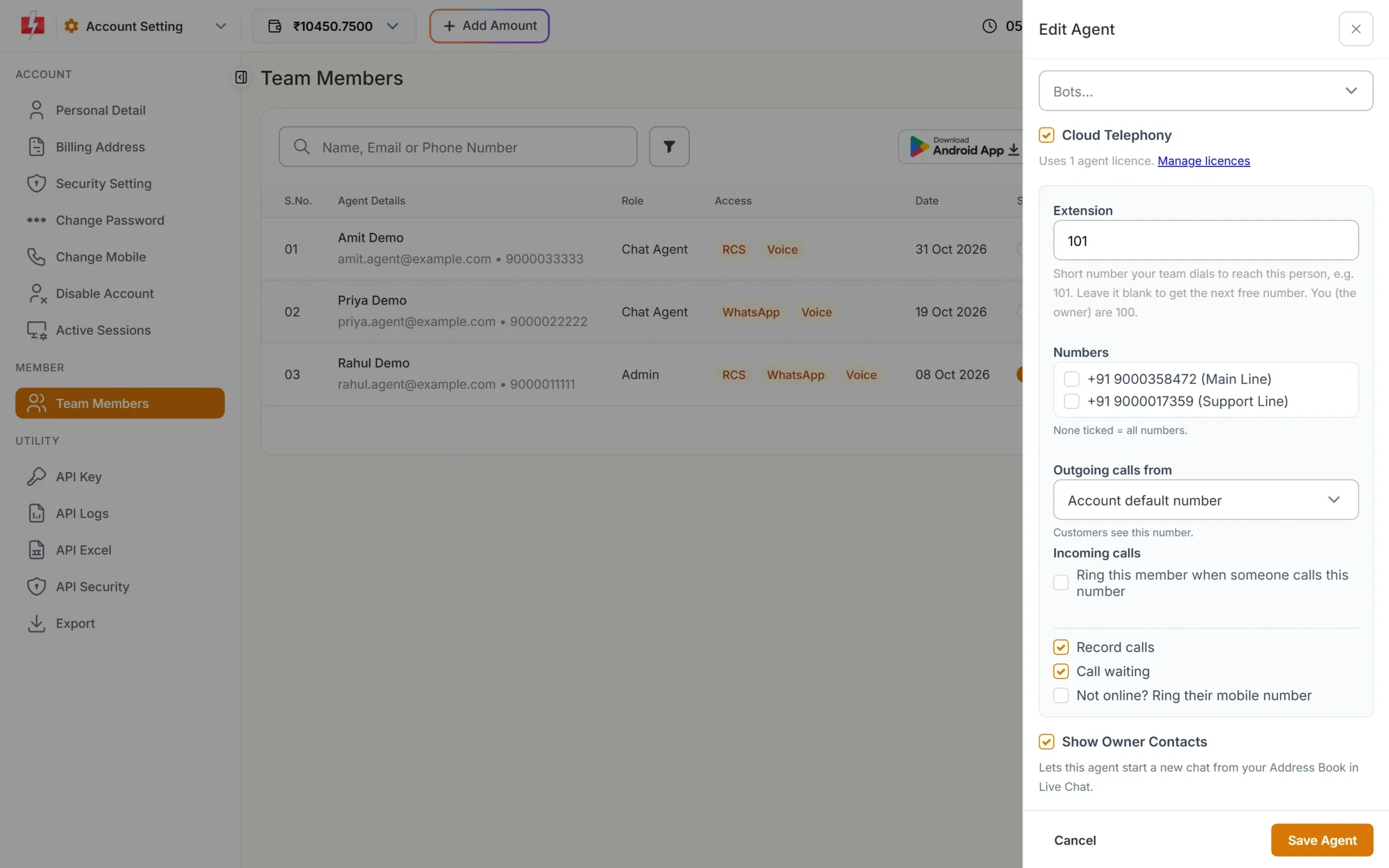
You can also start from Account Setting > Team Members (or Agents > Team Members in Cloud Telephony). Click Add Agent for a new person, or Edit on an existing one. Fill in Agent Name, Mobile Number, Email, role and password, then tick Cloud Telephony (“Uses 1 agent licence”). You can type a short Extension or leave it blank to get the next free one. Click Create Agent or Save Agent. A free licence is used automatically.
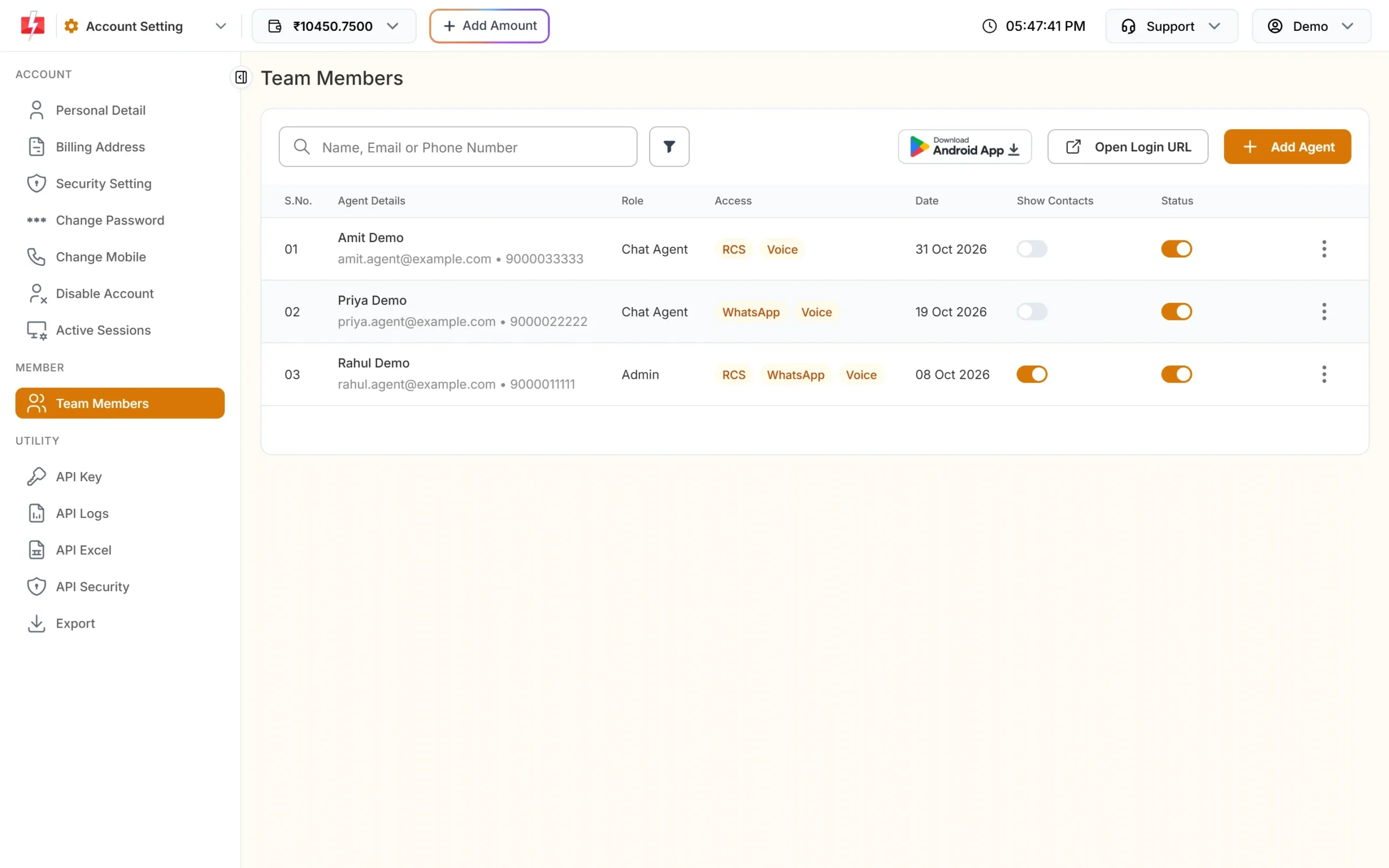
People with calling access show a Voice badge in the Team Members list. The same person can also have WhatsApp or RCS chat access.
Change, remove or move a licence
- Edit Settings (row menu): change the person’s numbers, outgoing number or incoming call options.
- Remove from Member: the person is logged out of the Web Phone and cannot make or take calls. The licence stays yours and becomes Free.
- Give it to someone else: remove it from one person, then use Assign to Member for the new person.
Team members see only their own calls in Call Logs. Call recordings can be played only by the account owner.
Renewing licences
A bought licence renews automatically from your wallet on its expiry date when its Auto Renew switch is on. To renew early, open the row menu and click Renew / Extend. The Renew Licence popup shows the new expiry date and the amount. Click Renew & Pay ₹7,200 to add one year. A licence that came with a number renews with that number, so you cannot renew it on its own.
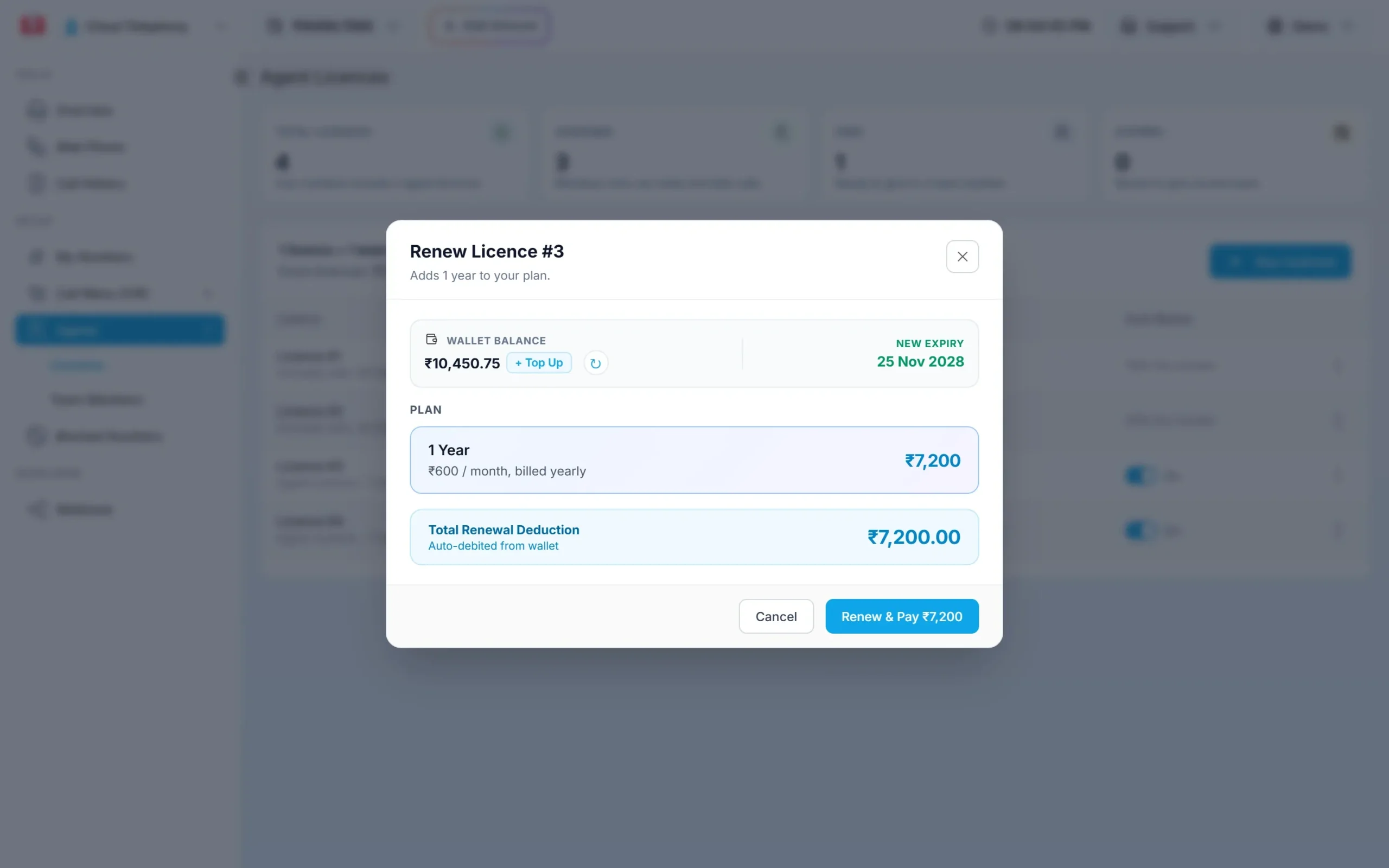
If a licence expires, it moves to the Expired card (“Renew to give access back”) and the person cannot make or take calls until you renew it.
Common problems and fixes
| What you see | What to do |
|---|---|
| “No free agent licence” when you tick Cloud Telephony for a member | All licences are in use. Buy one more in Agents > Licences, or remove a licence from someone who no longer takes calls. |
| Buy & Pay does not go through | Check the wallet balance in the popup and use + Top Up. |
| You cannot buy licences at all | Buy a number first. Licences need at least one Cloud Telephony number. |
| A team member cannot make calls | Check that the licence is assigned to them and not expired, that their Status is on in Team Members, and that the browser has microphone permission. |
| A team member cannot play recordings | This is by design. Only the account owner can play and download recordings. |
Frequently asked questions
Do I need an agent licence for myself?
No. The account owner’s Web Phone works without a licence. Licences are for team members only.
Can two people share one licence?
No. One licence is for one team member. You can move a licence from one person to another at any time.
How much does an extra agent cost?
₹600 a month, billed yearly, which is ₹7,200 a year at the time of writing. Each number you buy already includes one licence.
Can I buy a licence for one month?
No. Licences are sold as a yearly plan only, paid from your wallet.
What happens to the licence when an employee leaves?
Click Remove from Member. The person is logged out of calling at once and the licence becomes free for the next person.
Can my agents take calls on their mobile?
Yes, in two ways. Tick Not online? Ring their mobile number so calls go to their mobile when they are not on the Web Phone, or use Move to my mobile during a call to continue it on their own phone.