
In Fast2SMS Cloud Telephony every team member who can make calls gets a short extension number, such as 101, 102 or 103. The account owner is always 100. To call a colleague, type their extension in the Web Phone and click Call. The same extensions are used to transfer calls, pick up parked calls and see who handled each call.
This guide explains how extension numbers work, how to set or change them, and how your team can call each other inside the office or from home, all from the browser.
What is an extension number?
In an old office phone system (an EPABX or intercom), each desk phone had a short number. You pressed 204 to reach accounts or 101 to reach the manager. Fast2SMS gives you the same thing without any phone box or wiring. The extension belongs to the person, not to a desk, so it works wherever they log in: at the office, at home or on a phone browser. If you are moving from an old EPABX, read cloud telephony vs EPABX for the full comparison.
Extension rules in Fast2SMS
| Rule | Details |
|---|---|
| Account owner | Always 100. It cannot be changed or given to anyone else. |
| Automatic numbers | Leave the Extension box blank and the panel gives the next free number, starting at 101. |
| Length | 2 to 5 digits. It cannot start with 0. |
| Kept aside | 70 to 79 are used for parked calls, so you cannot give them to a person. |
| Unique | Two people in the same account cannot have the same extension. |
| Who gets one | Team members with Cloud Telephony access, which uses one agent licence each. |
Before you start
- A Cloud Telephony number on your account (see the Cloud Telephony setup guide).
- Team members with an agent licence each. How to buy and assign them is in add agents and agent licences.
- Each person logged in to the Web Phone in a browser with microphone permission.
How to set or change a team member’s extension
-
Open the team member
Go to Account Setting > Team Members (or Agents > Team Members in Cloud Telephony). Click the three dots on the person’s row and choose Edit. For a new person, click Add Agent.
-
Type the extension
In the Cloud Telephony section, find Extension. The hint says: “Short number your team dials to reach this person, e.g. 101. Leave it blank to get the next free number. You (the owner) are 100.” Type the number you want, or leave it blank. Click Save Agent.
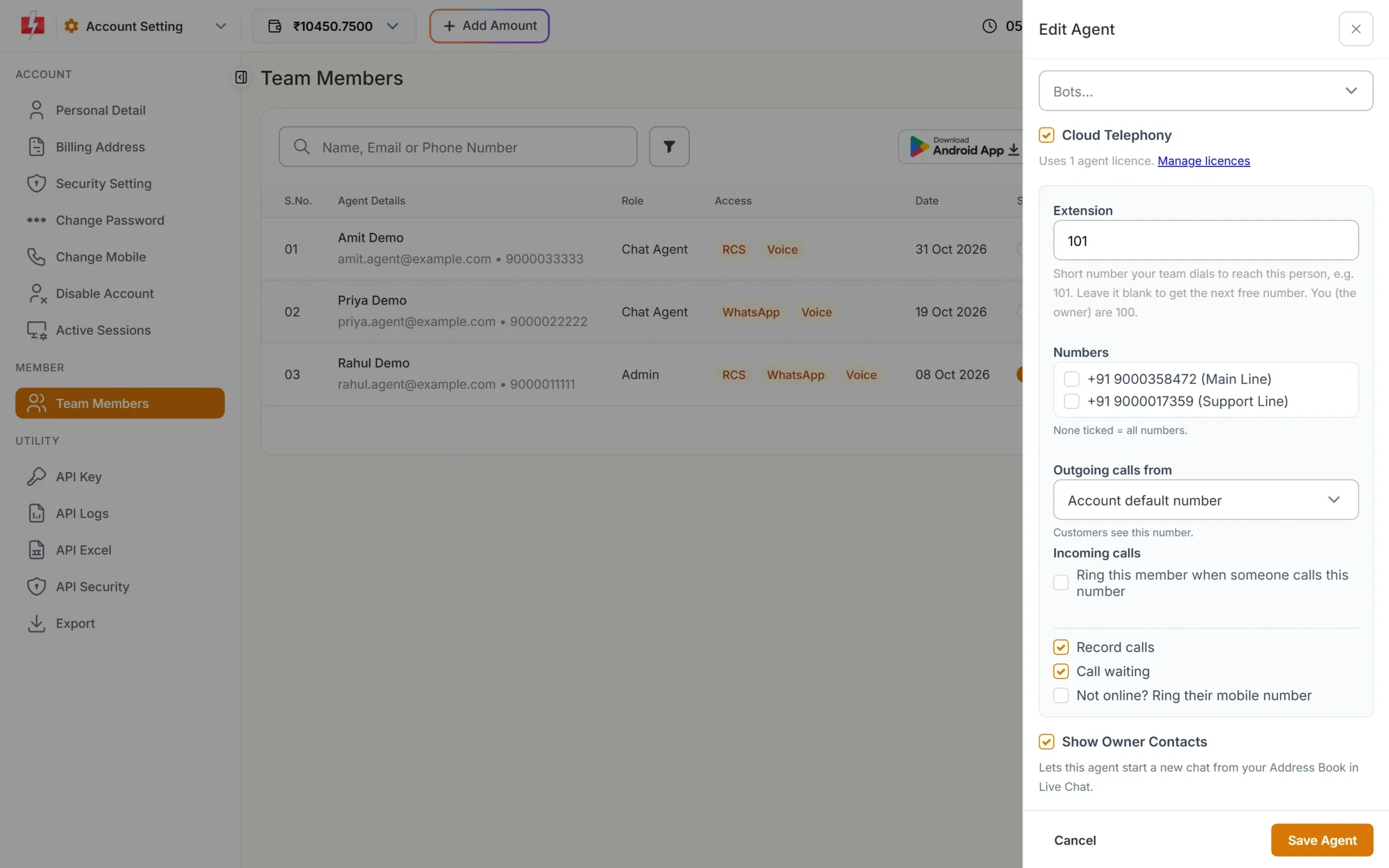
Setting the short extension for a team member. -
Check the extension list
Open Agents > Licences. Every assigned licence shows the person as “Name · extension”, for example “Rahul Demo · 101”, “Priya Demo · 102” and “Amit Demo · 103”. This is the quickest place to see your whole extension list.
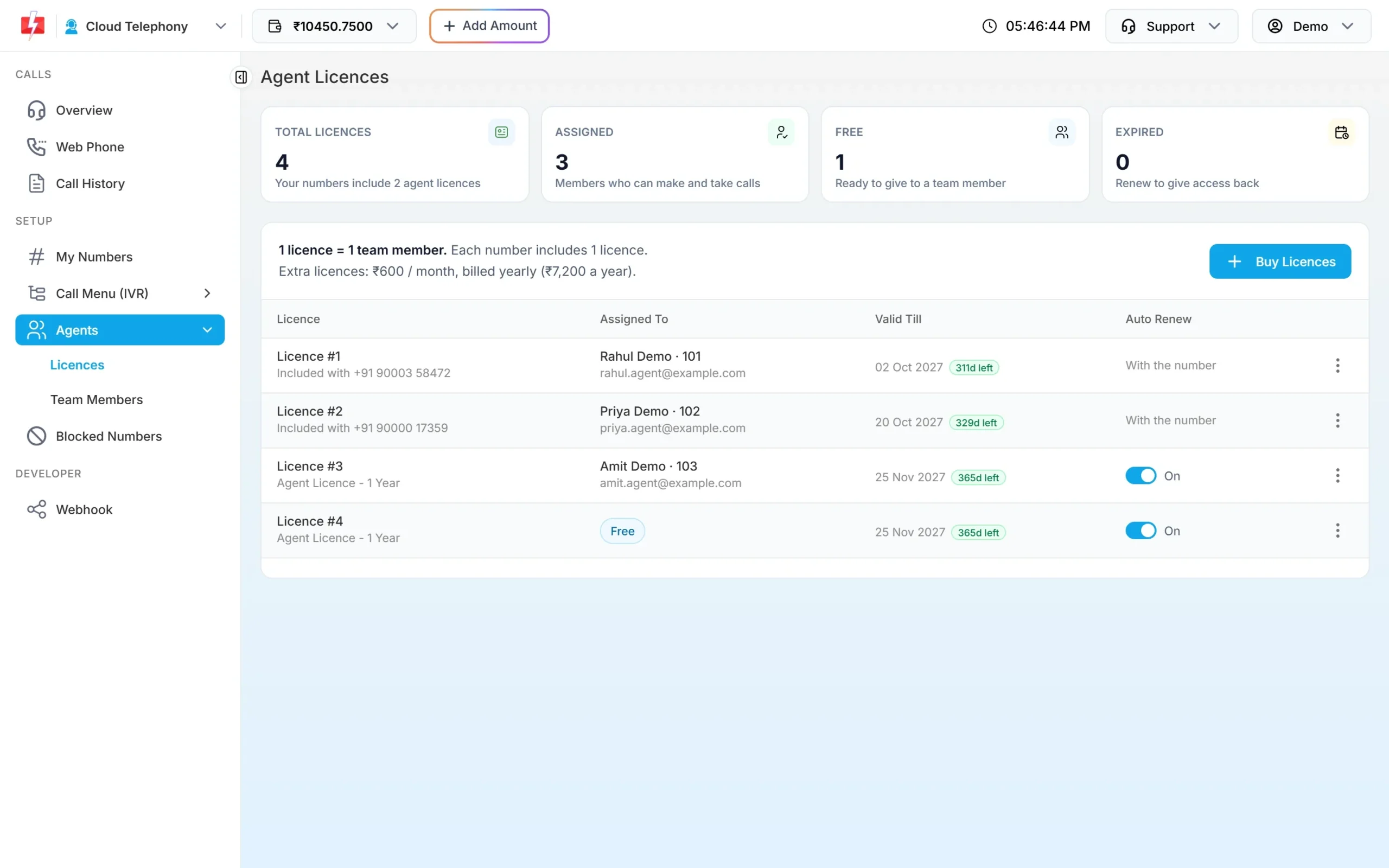
Names and extensions on the Licences page.
How to call a colleague by extension
-
Open the Web Phone
Click Web Phone in the Cloud Telephony sidebar. Wait for the status Web Phone Ready. The Number to call box accepts a “10-digit number or extension”.
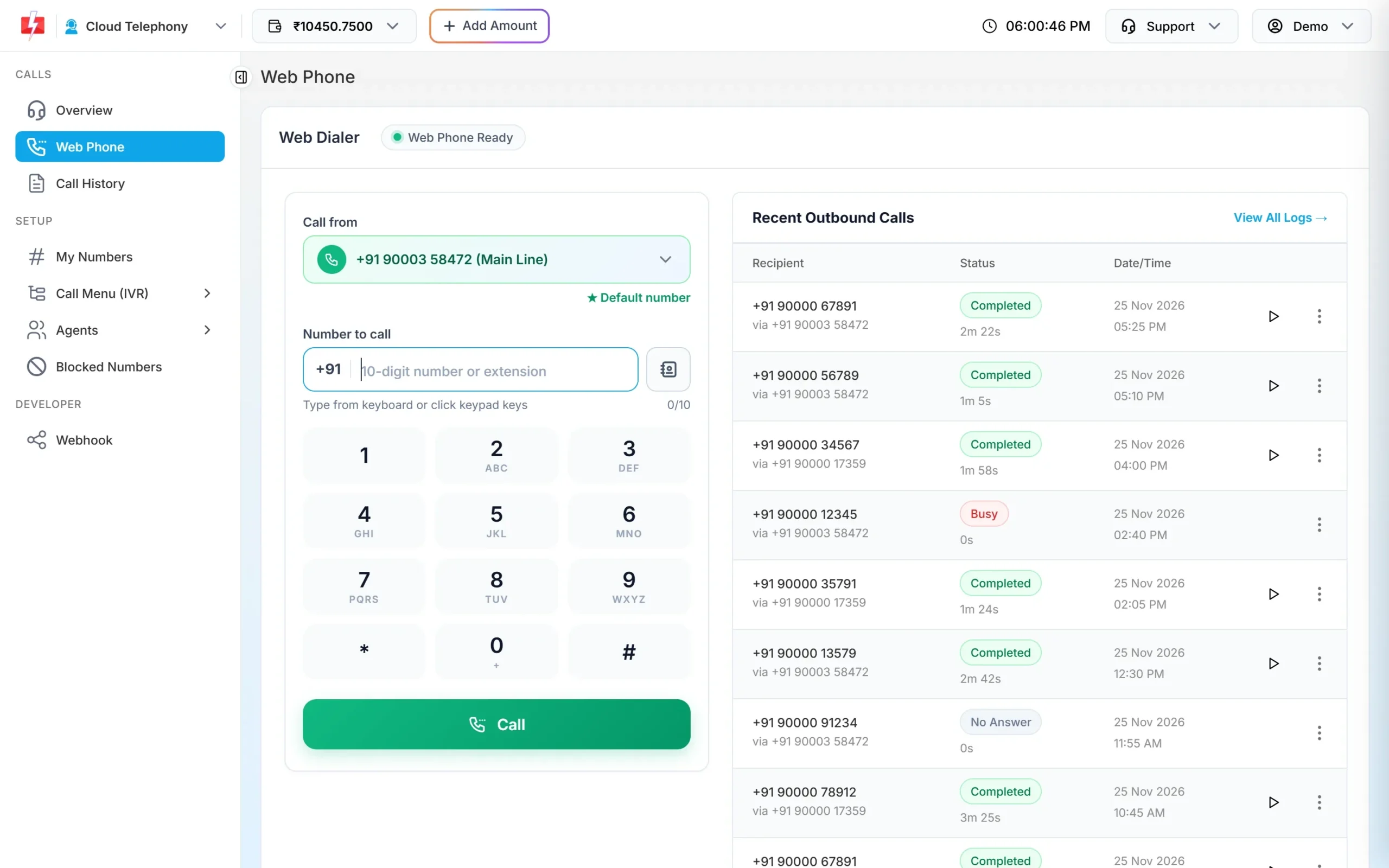
The same box takes a customer’s mobile number or a team extension. -
Type the extension and click Call
Type 102 (or use the keypad) and click Call. Priya’s Web Phone rings in her browser, wherever she is logged in. Type 100 to reach the owner. Internal calls stay inside your account, so customers never see them and there is no per-minute charge.
Transfer and park calls using extensions
Extensions are most useful in the middle of a customer call. Click Transfer on the call screen and choose one of these:
- Transfer now: send the call straight to a team member or another number.
- Talk first, then transfer: speak to your colleague before you hand the caller over.
- Move to my mobile: continue the call on your own mobile and close the browser.
- Park: put the call on hold so anyone in your team can pick it up. You see a spot number such as “Call parked at spot 71”. Your colleague types 71 on their Web Phone and clicks Call to take the caller.
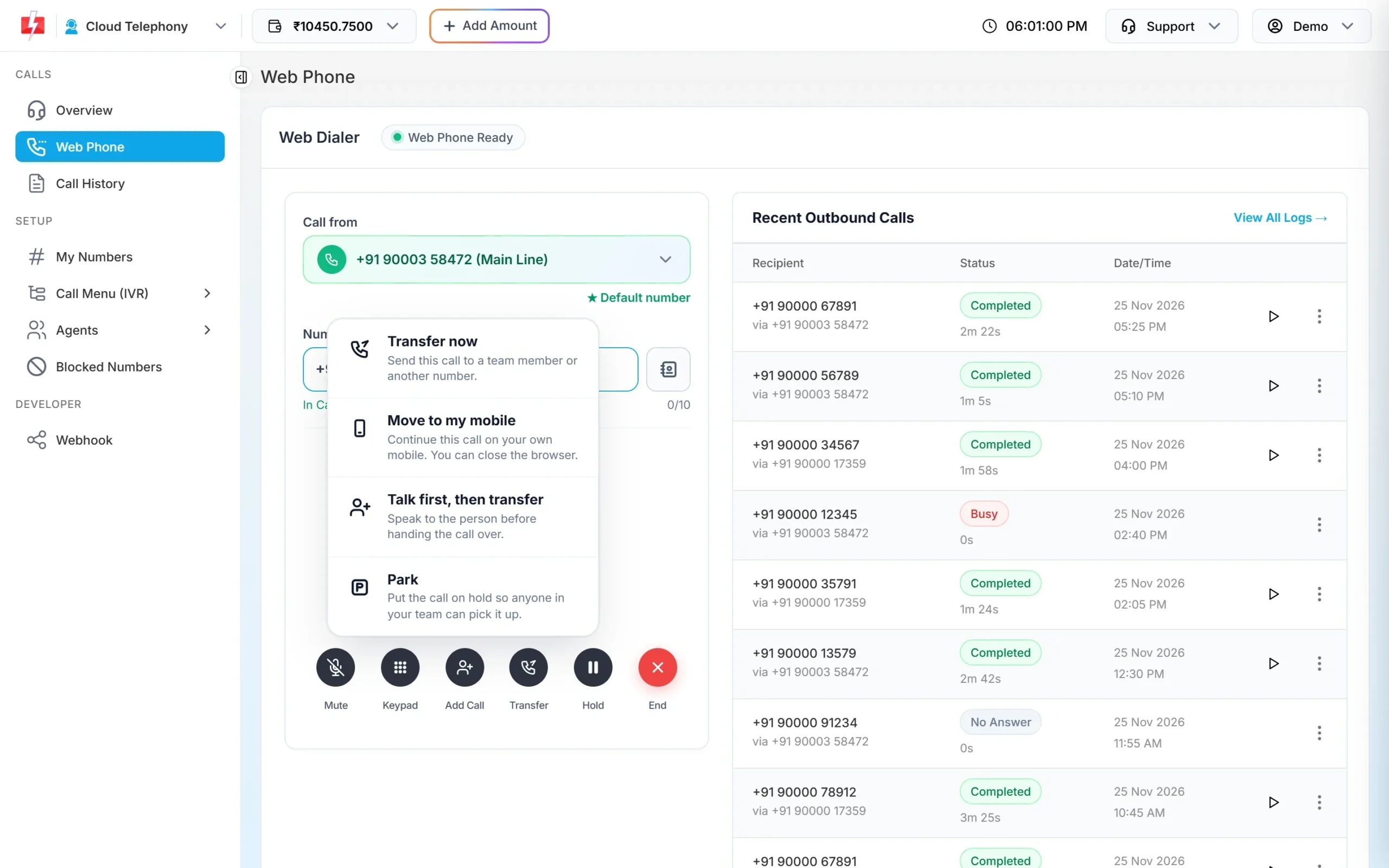
More on transfers and the music callers hear while waiting is in hold music and call transfer.
Where extensions show up in the panel
Once your team has extensions, you see “Name · extension” across Cloud Telephony:
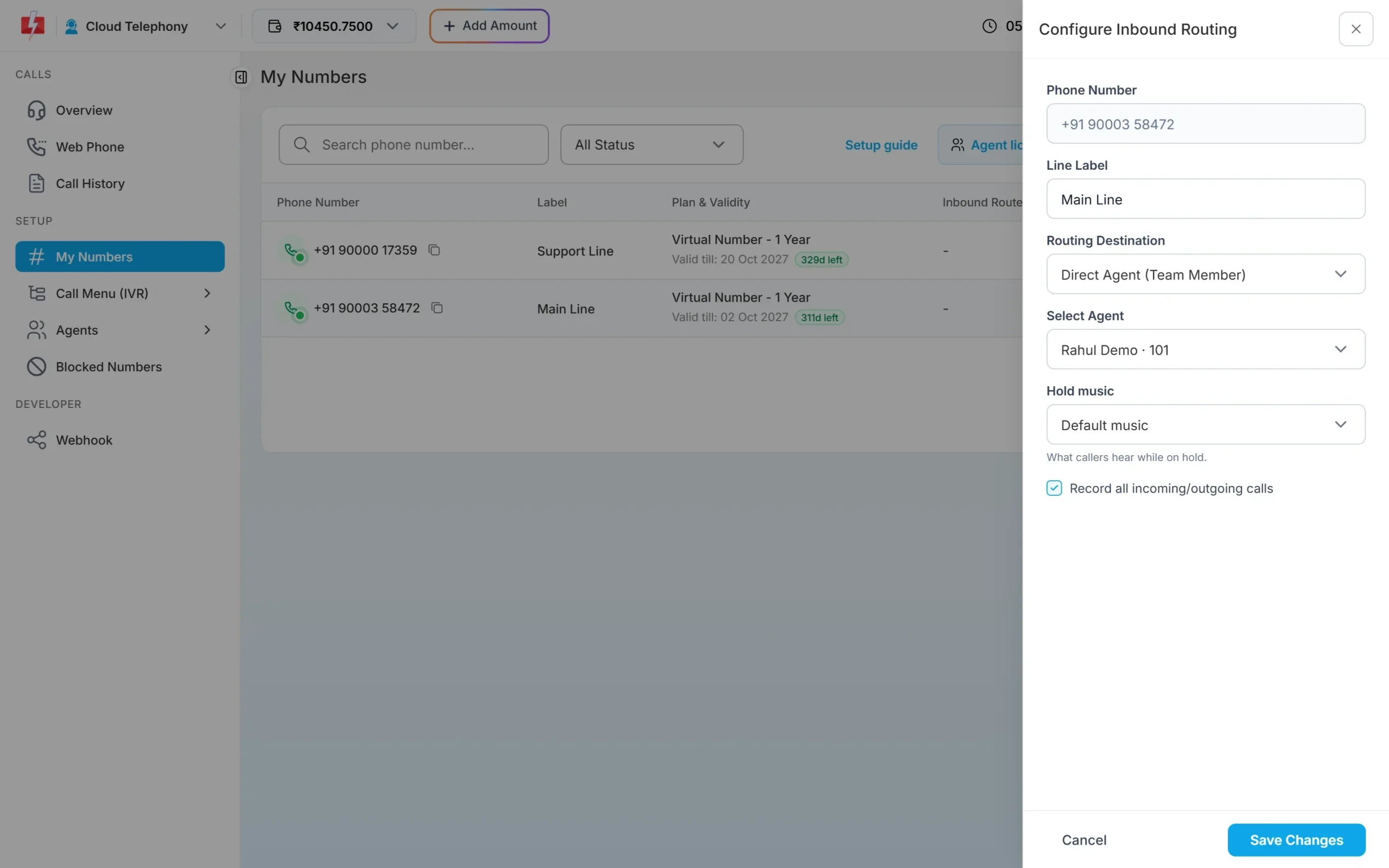
- Configure Inbound Routing: when you send a number’s calls to one person, you pick them as “Rahul Demo · 101”.
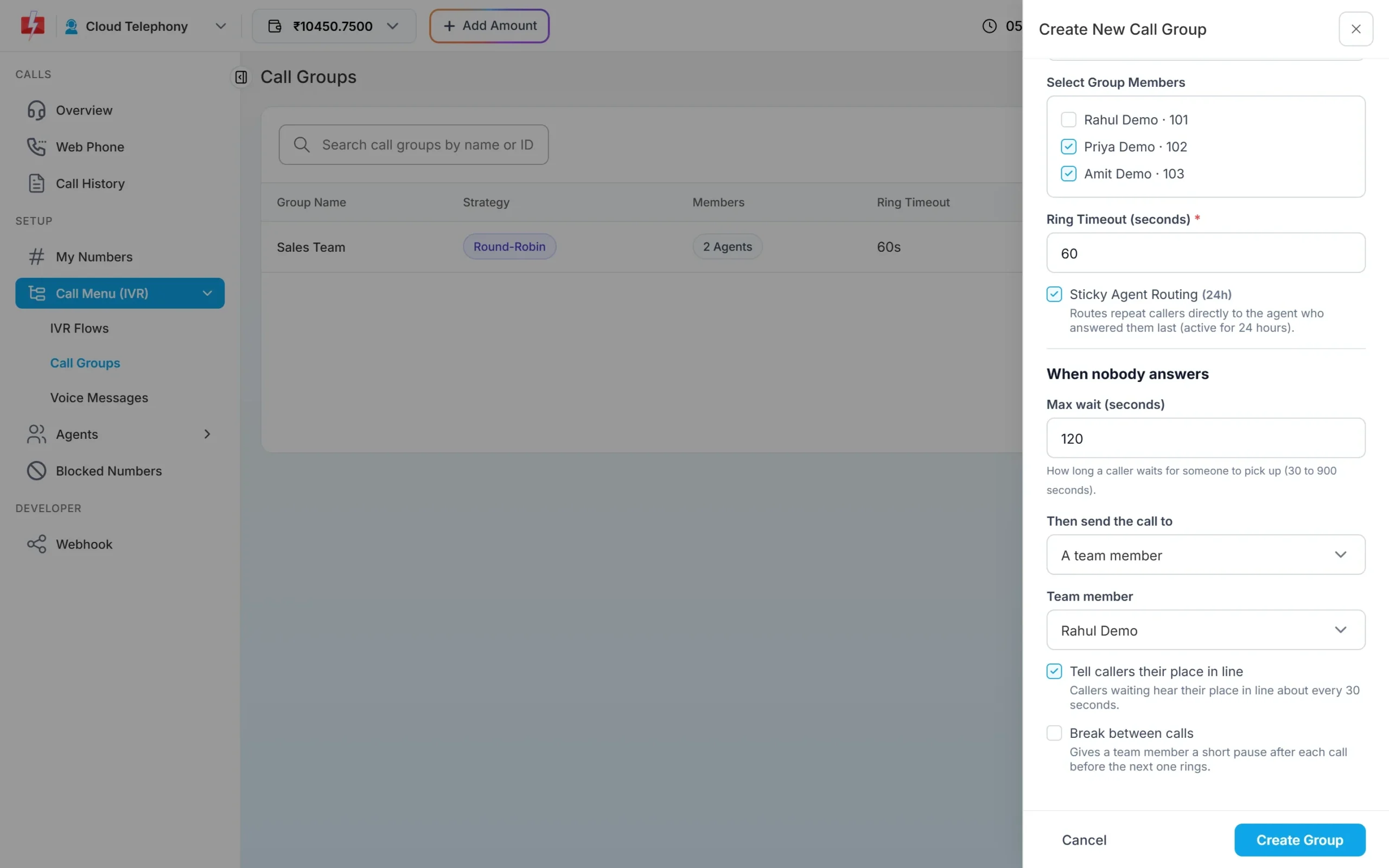
- Call Groups: group members are listed with their extensions.
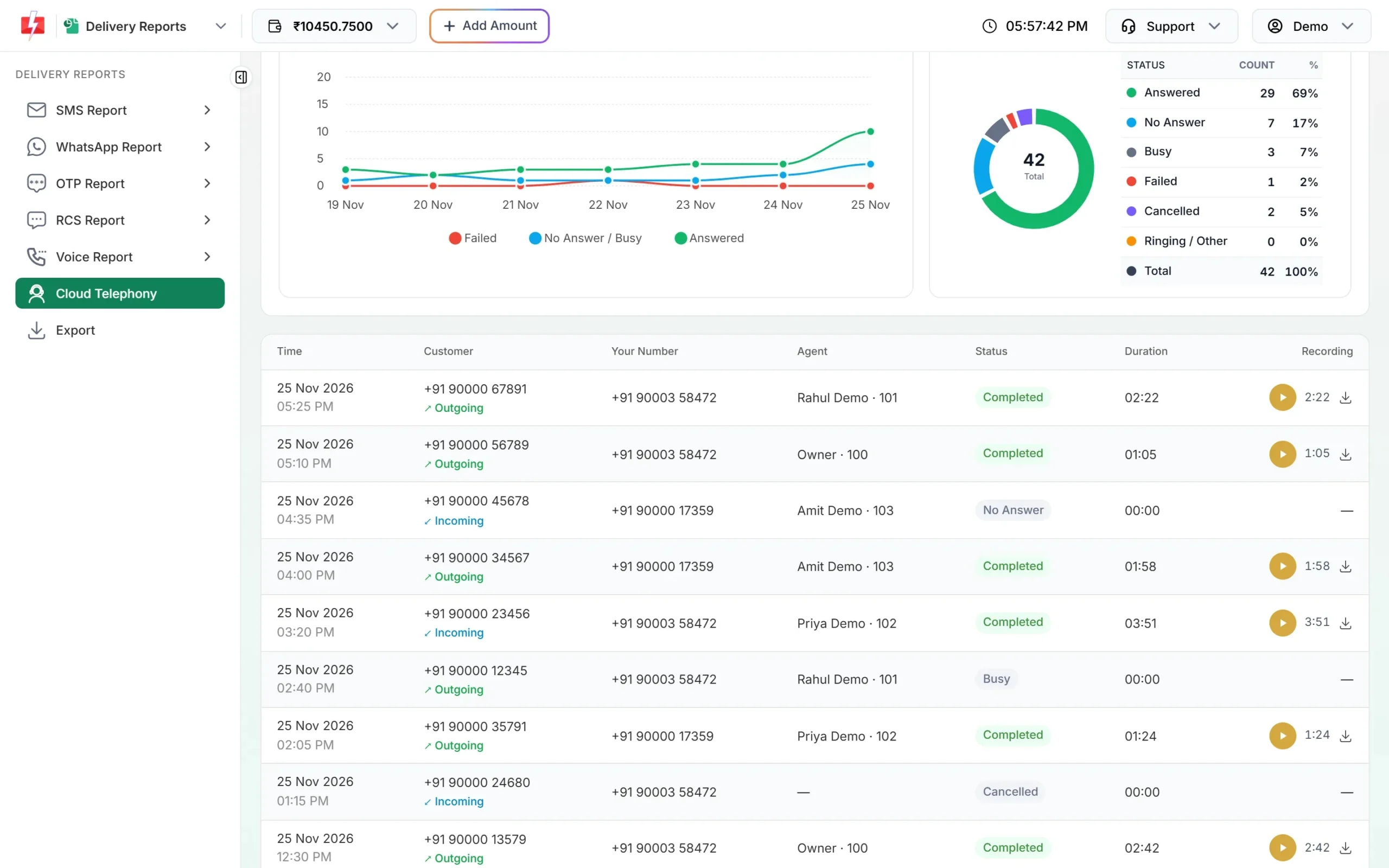
- Call History: the Agent column shows who handled each call, for example “Amit Demo · 103” or “Owner · 100”.
Tips for planning your extensions
- Group by team. Use 101 to 119 for sales and 201 to 219 for support. Staff then know who they are calling from the number alone.
- Keep the extension when people change desks. It follows the person, so you do not need to renumber when someone works from home.
- Re-use numbers carefully. When someone leaves, wait a few days before giving their extension to a new person, so colleagues do not ring the wrong person by habit.
- Stay away from 70 to 79. They are kept for parked calls.
Common problems and fixes
| Message | What it means |
|---|---|
| “Extension must be 2 to 5 digits and cannot start with 0.” | Use a number like 101 or 2001. |
| “100 is the account owner’s extension. Please pick another number.” | 100 is reserved for the owner. |
| “Numbers 70 to 79 are used for parked calls. Please pick another number.” | Pick a number outside 70 to 79. |
| “Extension 102 is already used by Priya Demo. Please pick another number.” | Each extension can belong to one person only. |
| “Enter a 10-digit mobile number, or an extension of your team.” | The number you dialled is not a valid mobile number or one of your extensions. Check the list on the Licences page. |
| The colleague’s phone does not ring | They need to be logged in with the Web Phone showing Ready. If they ticked “Not online? Ring their mobile number”, calls from customers can go to their mobile instead. |
Frequently asked questions
Can a customer dial an extension directly?
Not today. Callers choose with a 1-key IVR menu (“Press 1 for sales”), and each key can ring a team member or a call group. See the IVR setup guide.
Do internal calls between team members cost anything?
No. Cloud Telephony has no per-minute charge, and an internal call between extensions does not go out to the phone network.
Can I change my own extension from 100?
No. The account owner is always 100.
Can a team member call a colleague from a phone browser?
Yes. The Web Phone works in a laptop, desktop or phone browser. Type the extension and click Call.
Can I change an extension later?
Yes. Edit the team member, type a new extension and click Save Agent. Tell your team the new number.