
You can create your IVR greeting, menu, office closed message and hold music in Fast2SMS without a recording studio. Open Call Menu (IVR) > Voice Messages, click Add Message, type your text and click Listen. Text to speech turns it into a natural Indian English voice, and Hindi text written in Devanagari gets a Hindi voice. You can also upload an MP3 or WAV file, or record one with your laptop microphone.
This guide shows the three ways to add a voice message, gives ready scripts you can copy, and explains where each message is used: the IVR greeting, the office closed message and the music callers hear on hold.
Before you start
- A Cloud Telephony number on your account. Voice messages can be added once you have a number. See the Cloud Telephony setup guide.
- Your script written down. Keep each message short, ideally under 20 seconds.
- For uploads: an MP3 or WAV file up to 10 MB. For browser recording: a microphone and a quiet room.
Start with the sample messages
Every account gets a set of ready sample messages: Welcome, Main Menu and Office Closed in English and Hindi, plus All Agents Busy, Please Hold, Wrong Key and Thank You. They are marked Sample and are ready to use, so you can test your IVR before you write your own. Sample messages cannot be deleted.
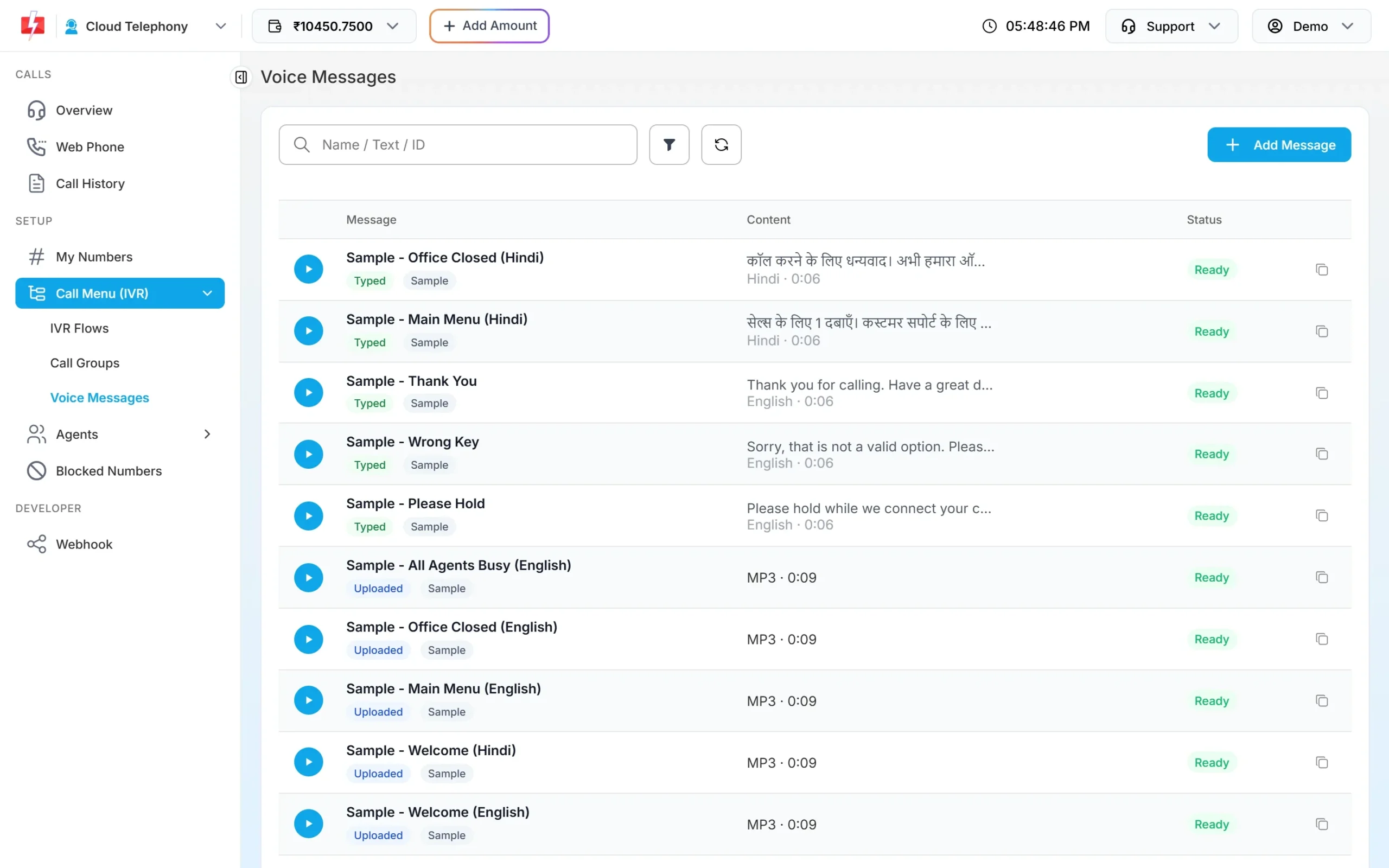
Each row shows the message name, a Typed or Uploaded tag, the text or file type with its length, and the status. Use the play button to listen and the copy button to copy the message ID.
Method 1: type a message (text to speech)
-
Open Add Message and stay on Type
Click Add Message. The Add Voice Message popup opens on the Type tab. Enter a Name that tells you what the message is for, for example “Welcome message” or “Office closed”.
-
Type the message and listen to it
Type your text in Message (up to 500 characters). Click Listen to hear it before saving. The hint under the box says “Hear it before saving. Hindi text gets a Hindi voice.” English text is read in an Indian English female voice. If a word sounds wrong, change the spelling or add a comma for a short pause, then listen again.
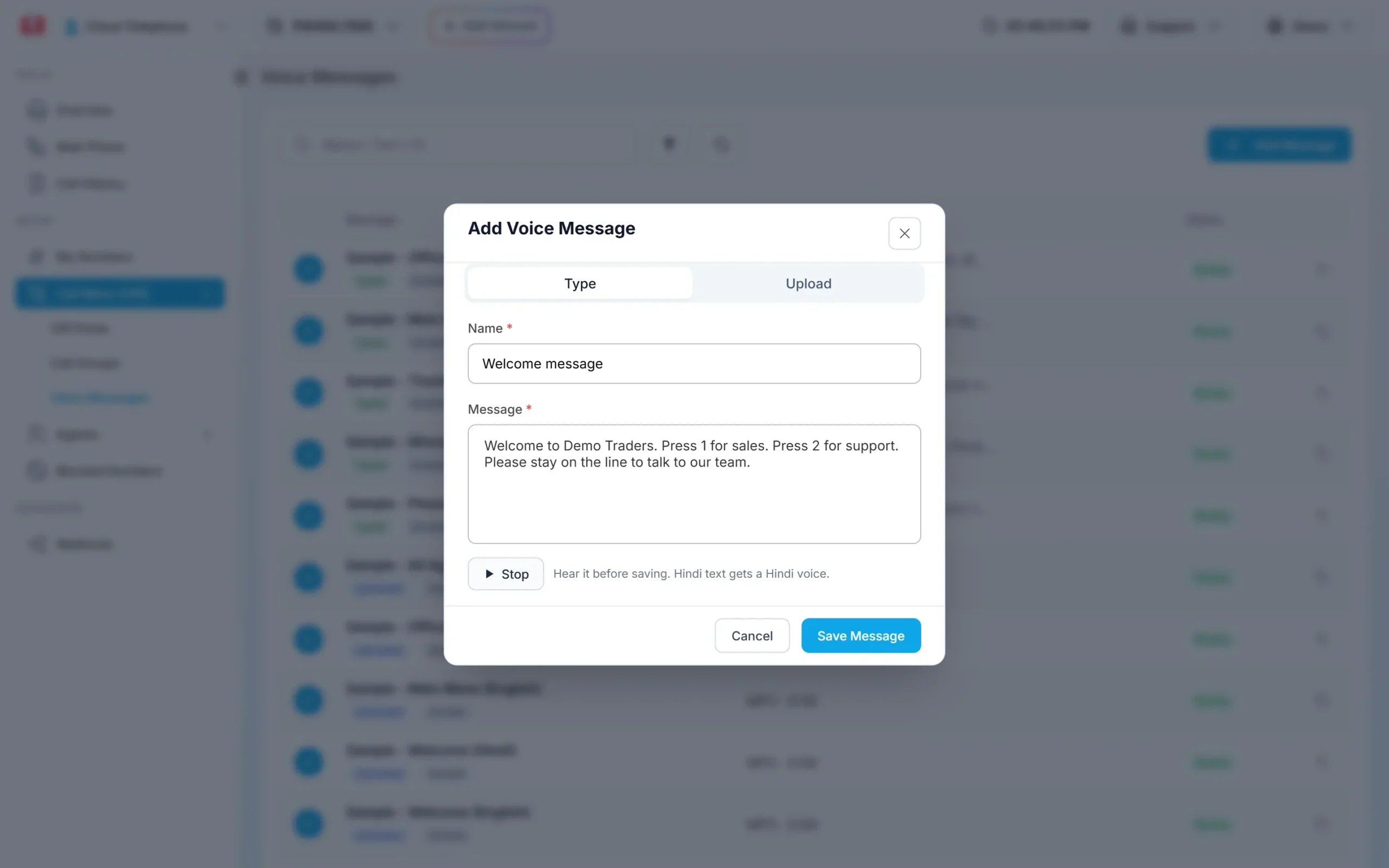
Typing a welcome message and listening to it. -
Save the message
Click Save Message. The message appears at the top of the list with the status Preparing while its audio is made. This takes about a minute. When it shows Ready, you can use it.
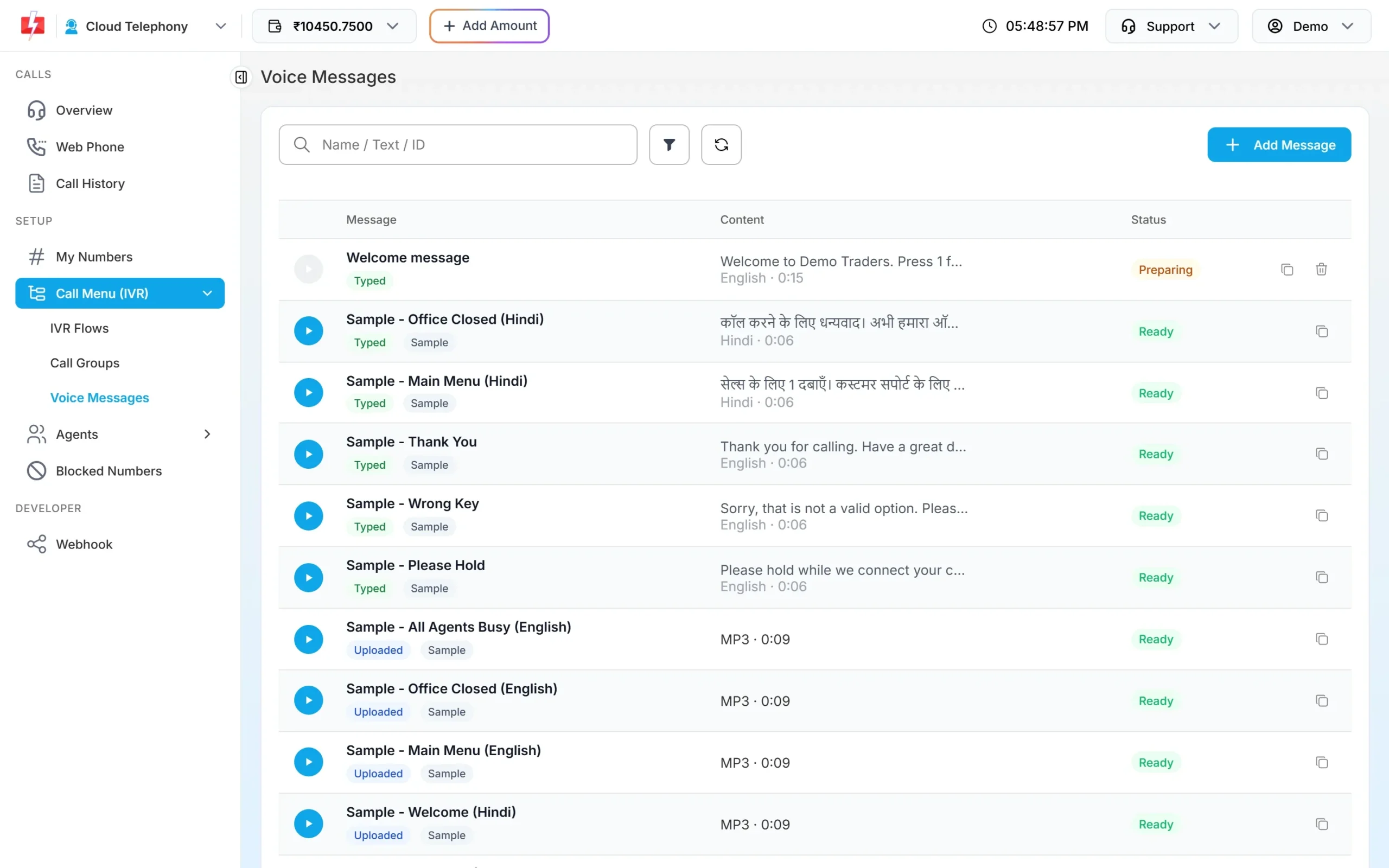
A new typed message being prepared.
Method 2: upload an MP3 or WAV file
Use this when you already have a recording, for example a greeting voiced by a staff member or a music file for hold.
-
Choose the Upload tab
Click Add Message and switch to Upload. Enter a Name.
-
Add the file
Click the upload area (“Click to upload MP3 or WAV”) and pick your file. It must be no more than 10 MB. Click Upload. A WAV file is ready at once. An MP3 file takes about a minute.
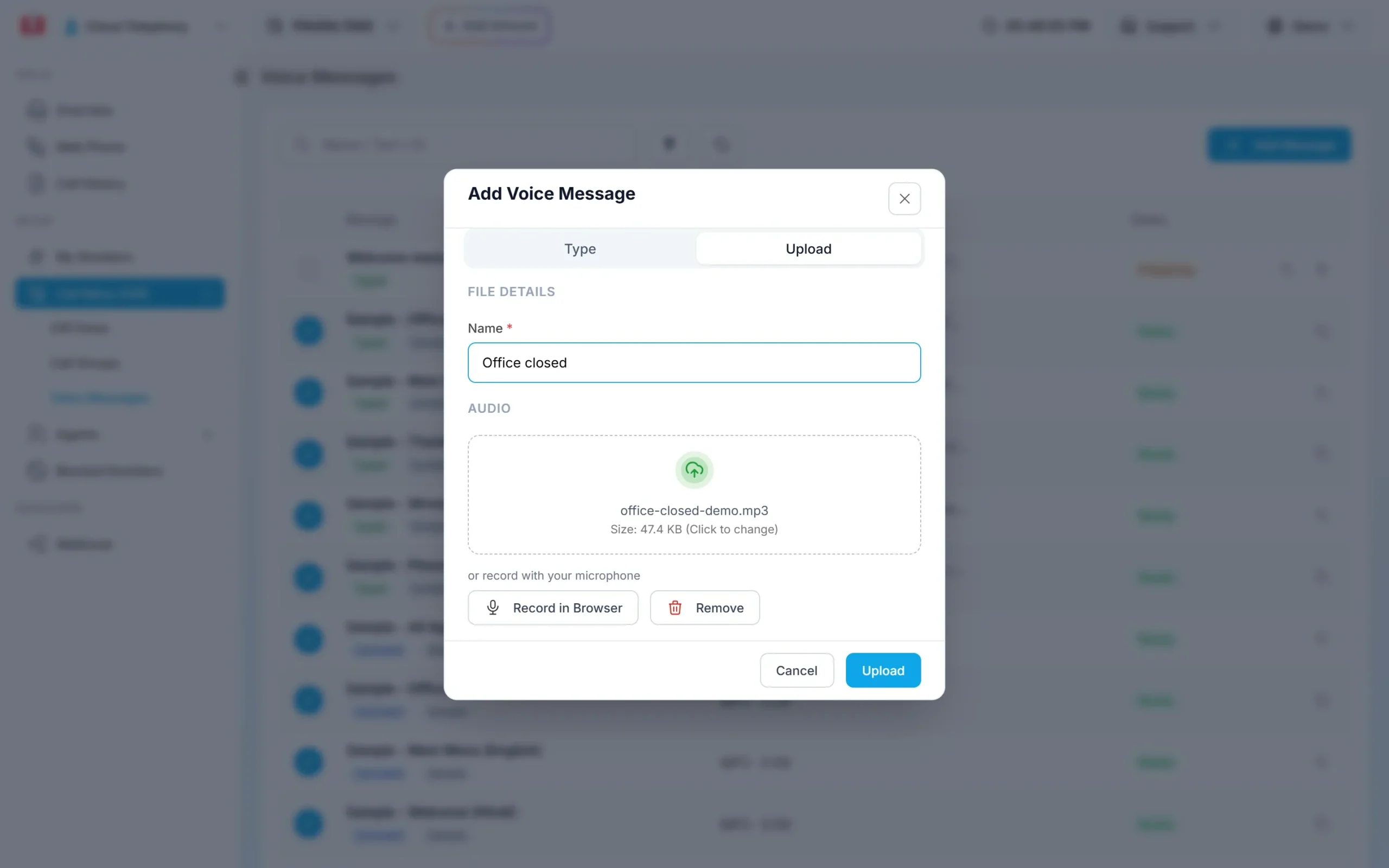
Uploading an office closed message as MP3.
Method 3: record in the browser
On the Upload tab, under “or record with your microphone”, click Record in Browser. Allow microphone access, speak your message and click Stop. Click Remove to try again, or Upload to save it. Use a headset microphone in a quiet room for the clearest sound.
Ready scripts you can copy
Replace “Demo Traders” with your business name and adjust the hours. For full menu ideas by industry, see IVR menu examples and scripts.
| Message | Script |
|---|---|
| Welcome and menu | Welcome to Demo Traders. Press 1 for sales. Press 2 for support. This call may be recorded for quality and training. |
| Office closed | Thank you for calling Demo Traders. Our office is closed now. We are open Monday to Saturday, 9 AM to 7 PM. Please call us back during these hours. |
| Office closed (Hindi) | डेमो ट्रेडर्स को कॉल करने के लिए धन्यवाद। अभी हमारा ऑफिस बंद है। कृपया सोमवार से शनिवार, सुबह 9 से शाम 7 बजे के बीच कॉल करें। |
| All agents busy | All our team members are busy right now. Please stay on the line, your call is important to us. |
| Holiday | Our office is closed today for a holiday. We will be back tomorrow at 9 AM. |
Where to use your voice messages
IVR greeting and menu
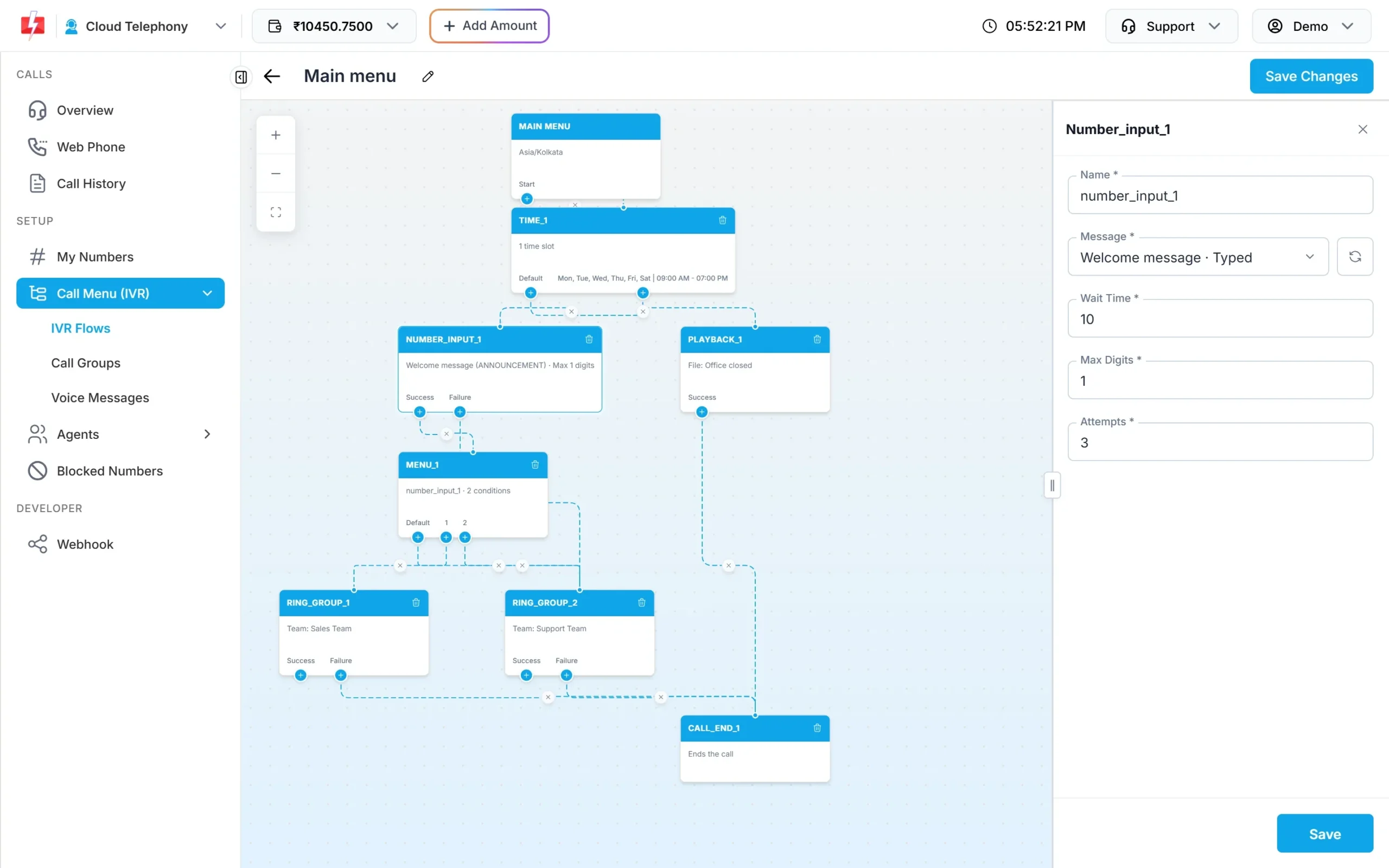
In the IVR builder, the Number Input box plays a message and waits for the caller to press a key. Pick your message in its Message list, shown as “Welcome message · Typed”. The Playback box plays a message without waiting for a key. The full menu setup is in the IVR setup guide.
Office closed message
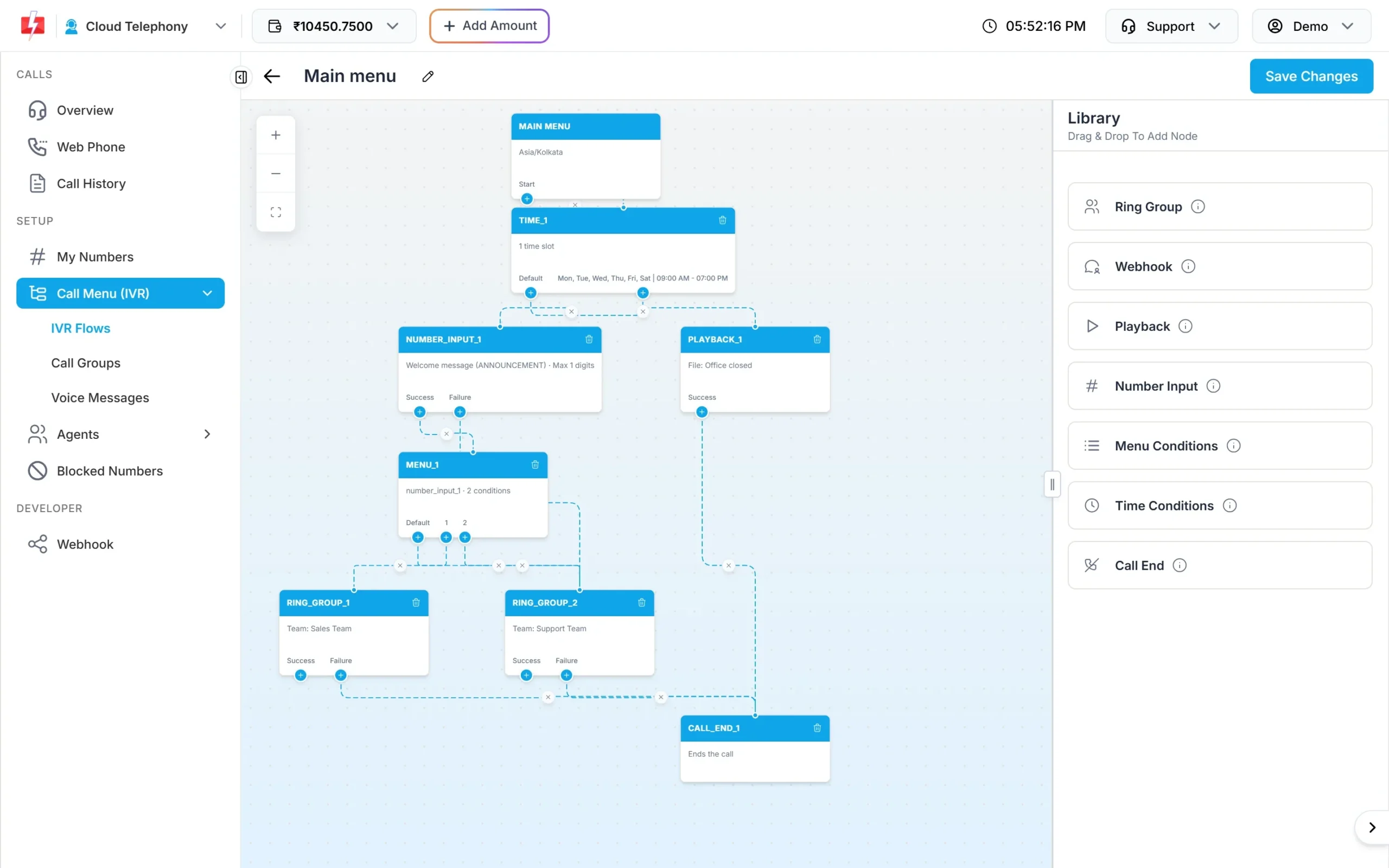
Add a Time Conditions box at the start of your IVR with your working days and hours. Calls inside those hours go to the menu. Calls outside them go to a Playback box with your “Office closed” message, then Call End.
Hold music
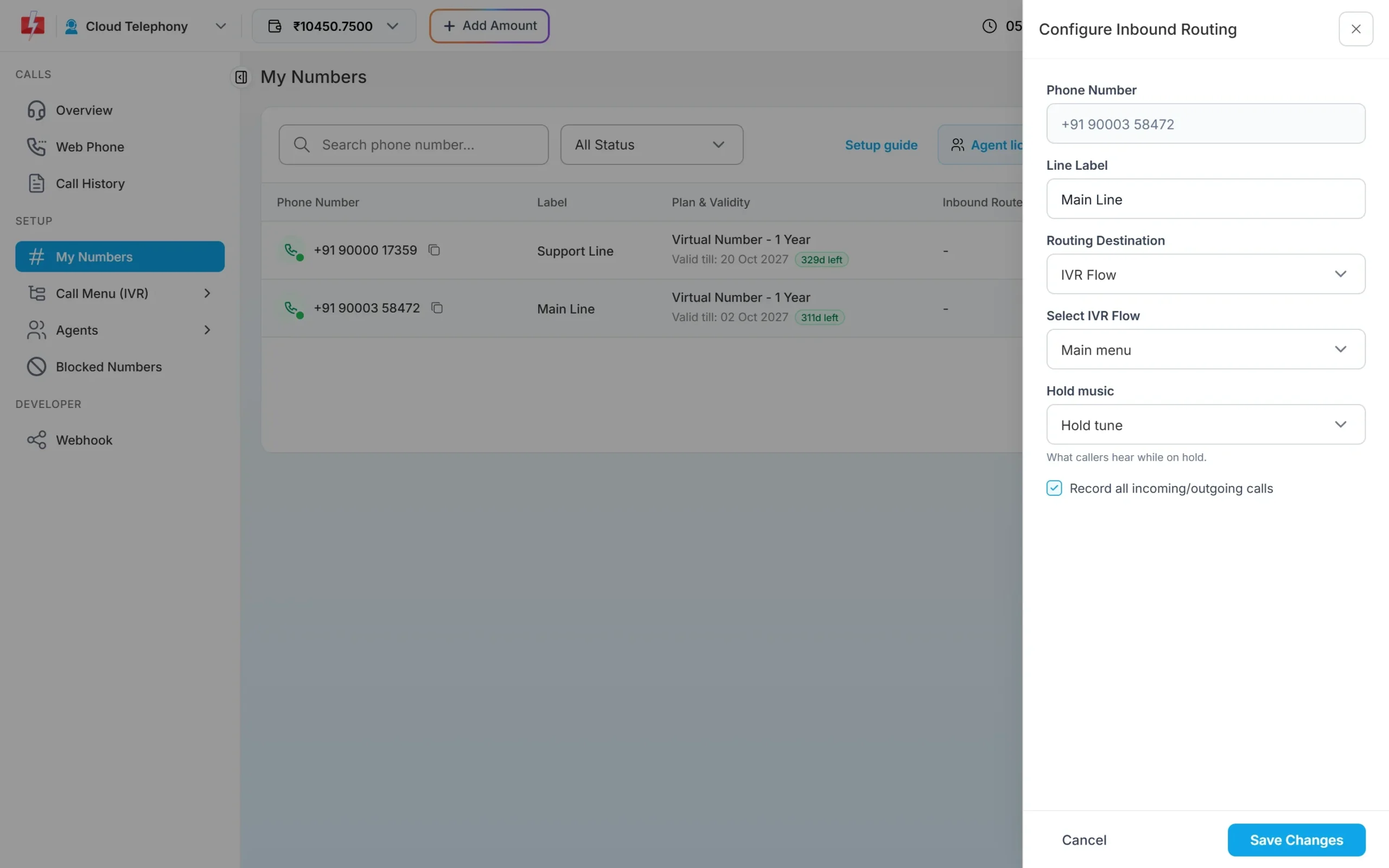
Open My Numbers, click the three dots on a number and choose Configure Route. Under Hold music (“What callers hear while on hold”) keep Default music or pick any ready voice message, for example an uploaded tune or a typed “Please hold” message. Click Save Changes. More on this in hold music and call transfer.
Manage your messages
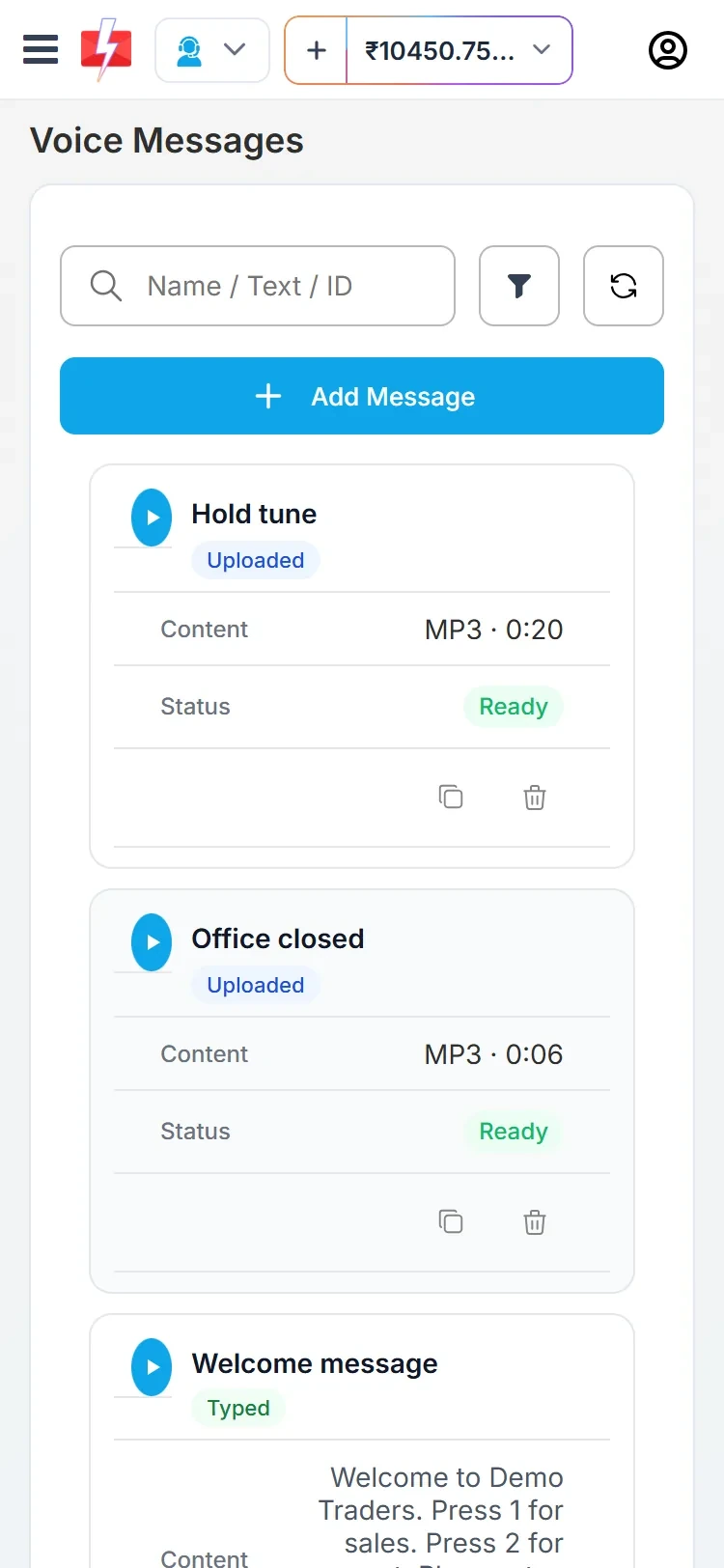
- Search by Name / Text / ID, or filter by status and type.
- To change a typed message, add a new one with the new text, switch your IVR or number to it, then delete the old one.
- A message that is used by a number or an IVR cannot be deleted. Remove it there first.
- The page works in a phone browser too, so you can check or play messages on the go.
Common problems and fixes
| Problem | Fix |
|---|---|
| The message stays on Preparing | Typed and MP3 messages take about a minute. Click the refresh button next to the filter. If it shows Failed, add the message again. |
| Hindi text is read in an English voice | Write it in Devanagari script, not in English letters. |
| The file will not upload | Use MP3 or WAV, no more than 10 MB. |
| The message is not in the IVR list | Wait until the message shows Ready, then click the refresh button next to the Message list in the IVR box. |
| You cannot delete a message | It is a sample message, or it is still used by a number or an IVR. |
Frequently asked questions
Is text to speech free?
Yes. Typed voice messages, uploads and IVR are included with your Cloud Telephony number. There is no per-minute charge for calls.
Which languages does text to speech support?
English, read in an Indian English voice, and Hindi when the text is written in Devanagari. For other languages, upload a recording as MP3 or WAV.
How long can a voice message be?
A typed message can have up to 500 characters. An uploaded file can be up to 10 MB. Short messages work best for callers.
Can I use my own voice?
Yes. Record it in the browser with Record in Browser, or upload an MP3 or WAV recording.
How do I play an office closed message?
Add a Time Conditions box with your working hours in your IVR and connect the outside-hours path to a Playback box with your office closed message.
Can I edit a typed message?
Add a new message with the corrected text, switch your IVR or number to it, and then delete the old one.