Fast2SMS Cloud Telephony can send every call event to your own URL as a webhook: incoming call, answered, completed, missed, busy, failed, IVR key pressed and recording ready. Your CRM, Google Sheet or automation tool receives the caller’s number, your number, the agent, the status, times and duration within moments of the event. Set it up in Webhook > Cloud Telephony > Add Webhook. This is the simplest way to log calls in your CRM and to get missed call alerts.
This guide is for business owners and developers. It covers the events, the fields you receive, a sample payload, a missed call alert setup and how to check that webhooks are reaching your server.
What you can do with call webhooks
- Log every call in your CRM: create or update a lead with the caller’s number, the agent who spoke and the call duration.
- Missed call alerts: when nobody picks up, create a call-back task or send a message to your sales manager.
- IVR choices: store which key the caller pressed (1 for sales, 2 for support) against the lead.
- Recordings: save the recording link with the call so your team can find it later.
- Reports: send calls to a Google Sheet or your own database for custom reports.
Before you start
- A Cloud Telephony number on your account. See the Cloud Telephony setup guide.
- A URL that accepts POST or GET requests over https: your CRM’s webhook URL, an automation tool such as Zapier, Pabbly Connect or Make, or your own server.
- Log in as the account owner.
How to add a Cloud Telephony webhook
-
Open Webhook > Cloud Telephony
Click Webhook in the Cloud Telephony sidebar (under DEVELOPER), or open the Webhook app from the header menu and choose Cloud Telephony. Click Add Webhook.
-
Fill in the webhook form
The CREATE WEBHOOK (CLOUD TELEPHONY) popup has these fields:
- Webhook Name: any name you will recognise, for example “CRM call log”.
- Select Service: Cloud Telephony (already chosen). Select Format: Standard Webhook.
- Select Event: Default All Events, or one event such as On Missed.
- Number: Default All for every number, or one of your numbers.
- Method (POST or GET), URL and Content-Type (JSON).
- Body: the payload. Fields are written as
@{{field}}and filled in for each call. You can remove fields you do not need or rename the keys to match your CRM. - Headers: add a header such as an API key or secret your server checks. See webhook secret header.
Keep Webhook Status (Active) on and click CREATE.
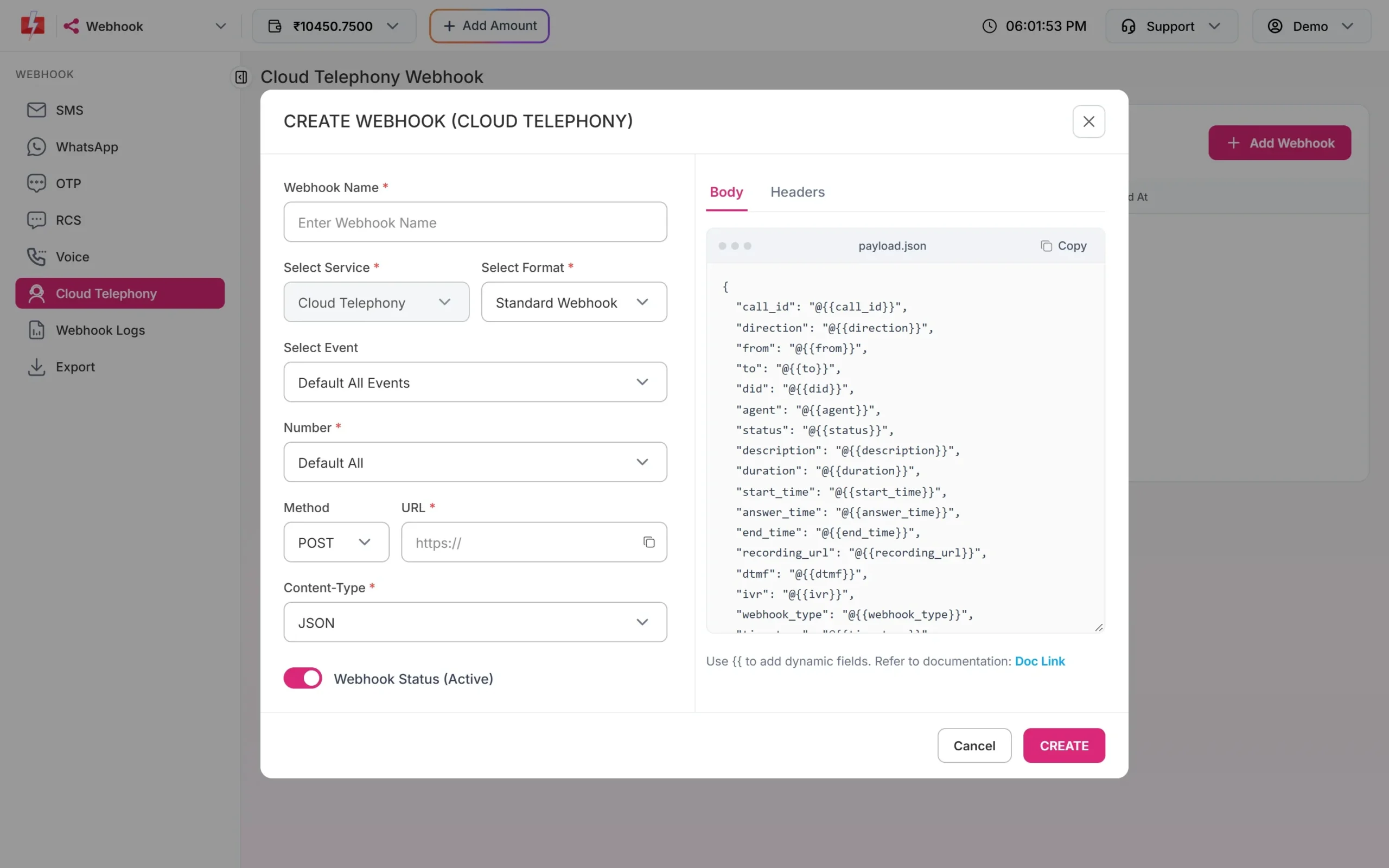
Creating a Cloud Telephony webhook. -
Make a test call
Call your business number from a mobile, or make a call from the Web Phone. Your URL should receive the events within moments. If nothing arrives, see the troubleshooting section below.
Call events you can choose
| Event in the panel | status / webhook_type |
When it is sent |
|---|---|---|
| On Incoming Call | incoming | A customer calls your number. |
| On Answered | answered | The call is picked up. |
| On Completed | completed | An answered call ends, including transferred calls. |
| On Missed | missed | Nobody picked up, or the caller hung up while it was ringing. |
| On Busy | busy | The line was busy or the call was rejected. |
| On Failed | failed | The call could not be connected. |
| On IVR Key Pressed | ivr_option | The caller pressed a key in your IVR menu. The key is in dtmf. |
| On Recording Ready | recording_ready | The call recording is saved. |
With Default All Events, one call usually sends several webhooks (for example incoming, answered, completed and recording_ready). Use call_id to group them. You can also add more than one webhook, for example one for all events to your CRM and one only for On Missed to your alert tool.
Fields in the payload
| Field | What it holds |
|---|---|
| call_id | Unique ID of the call. The same ID is shown in Call History. |
| direction | Incoming or outgoing call. Values start with “in” for incoming and “out” for outgoing. |
| from, to | The calling and the called number. |
| did | Your business number used for the call. |
| agent | The name of the team member who handled the call (empty if no one did). |
| status, description | The event, for example “missed” and “Call missed”. |
| duration | Talk time in seconds. |
| start_time, answer_time, end_time | Date and time in Indian time (YYYY-MM-DD HH:MM:SS). |
| recording_url | Link to the recording in your Fast2SMS panel, when there is one. |
| dtmf, ivr | The key pressed and the IVR it was pressed in (IVR events). |
| webhook_type, timestamp | The event name and the Unix time it was sent. |
A missed call sent with the default body looks like this (demo data):
{
  "call_id": "call_demo_0031",
  "direction": "inbound",
  "from": "919000045678",
  "to": "919000017359",
  "did": "919000017359",
  "agent": "Amit Demo",
  "status": "missed",
  "description": "Call missed",
  "duration": "0",
  "start_time": "2026-11-25 16:35:02",
  "answer_time": "",
  "end_time": "2026-11-25 16:35:44",
  "recording_url": "",
  "dtmf": "",
  "ivr": "",
  "webhook_type": "missed",
  "timestamp": "1795437944"
}
Phone numbers can arrive with or without the 91 country code. To find the lead in your CRM, keep only the digits and match on the last 10.
recording_url opens the recording inside your Fast2SMS panel, so it plays only for someone logged in as the account owner. Store it with the call so your team can find the right recording, and download recordings you want to keep. Recordings are kept for 3 months.Set up missed call alerts
A missed call is often a lost lead. Here is a simple setup that works with most CRMs and automation tools:
-
Create a webhook only for missed calls
Add a new Cloud Telephony webhook with Select Event = On Missed. Choose one number or Default All.
-
Point it to your tool
Use the webhook (catch hook) URL from your CRM, Zapier, Pabbly Connect or Make as the URL.
-
Decide what happens next
In your tool, create a call-back task for the sales team with the
fromnumber, or send an alert to the manager. You can also send the caller a WhatsApp template message such as “Sorry we missed your call, we will call you back shortly” through the Fast2SMS WhatsApp API. -
Call back from Call History
In Call History, filter Direction = incoming and Call Status = No Answer to see every missed call, then call back from the Web Phone.
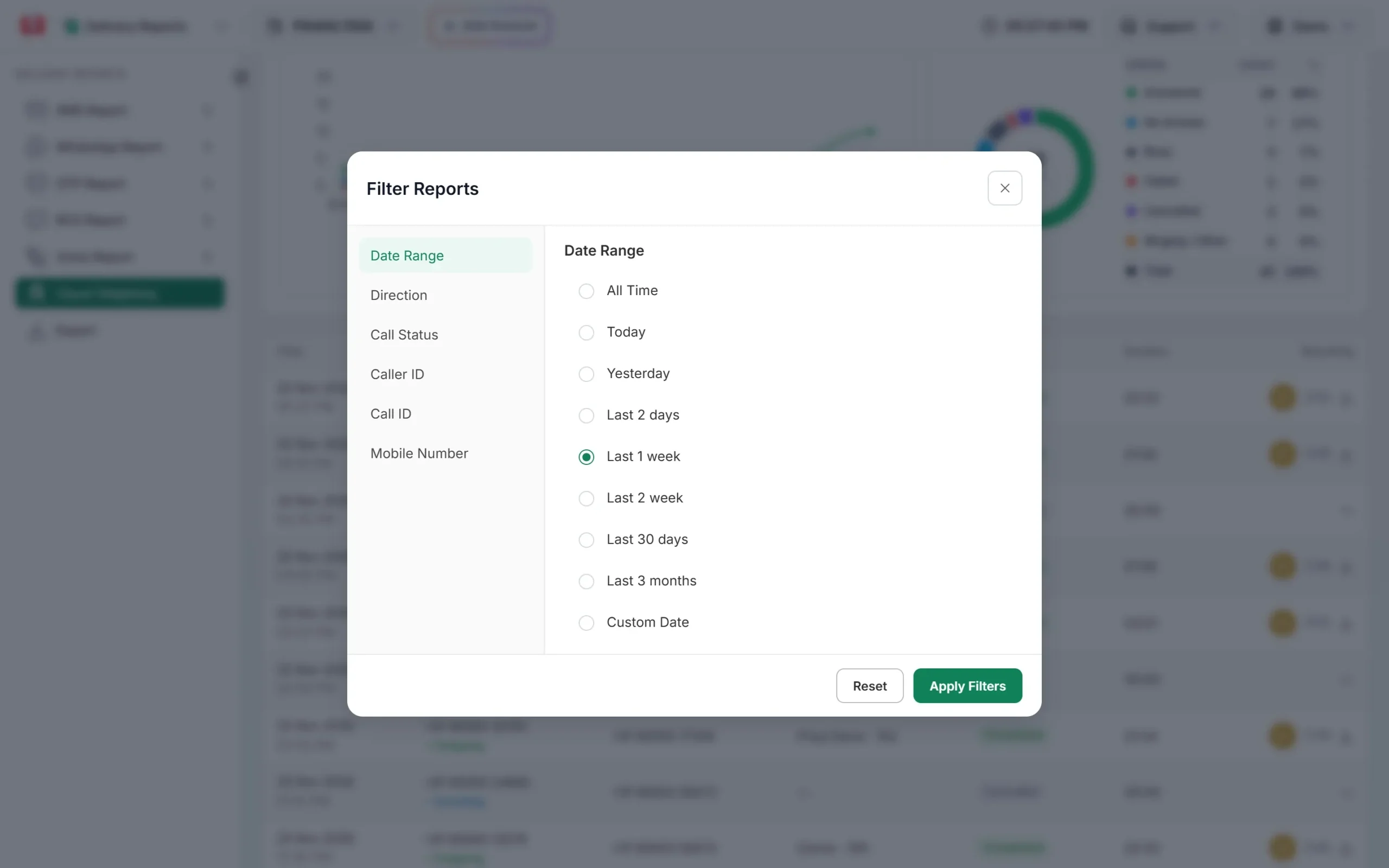
Filter Call History to see missed calls.
Log IVR choices in your CRM
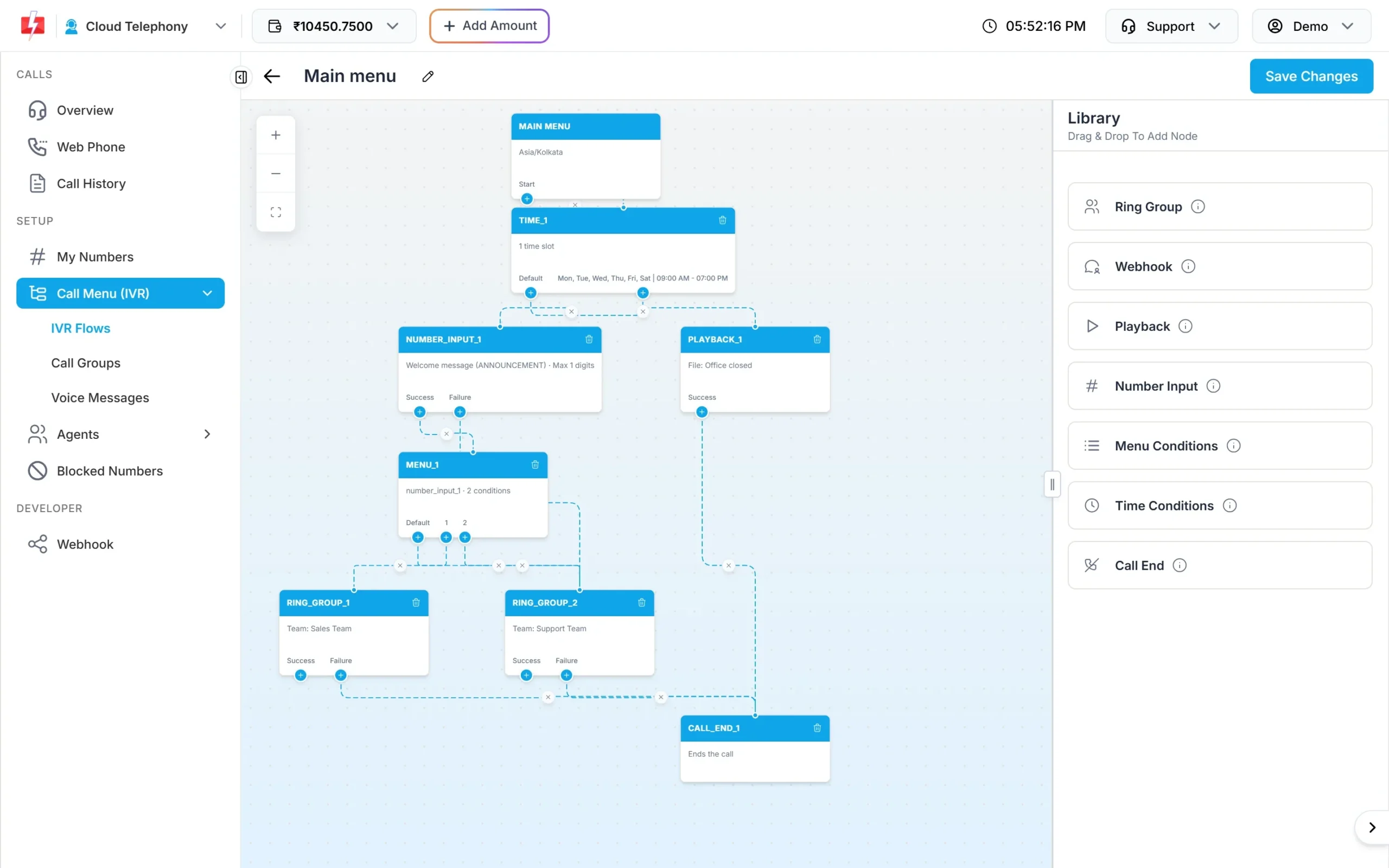
If your number goes to an IVR (“Press 1 for sales, press 2 for support”), choose On IVR Key Pressed. The dtmf field tells you the key, so your CRM can tag the lead as Sales or Support before anyone answers. How to build the menu is in the IVR setup guide.
Match webhook data with Call History
Every field in the webhook is also visible in the panel. The call_id is the Call ID in Call Details, and agent, from, to, times and duration match the same call. This helps when you check a call in your CRM against the panel.
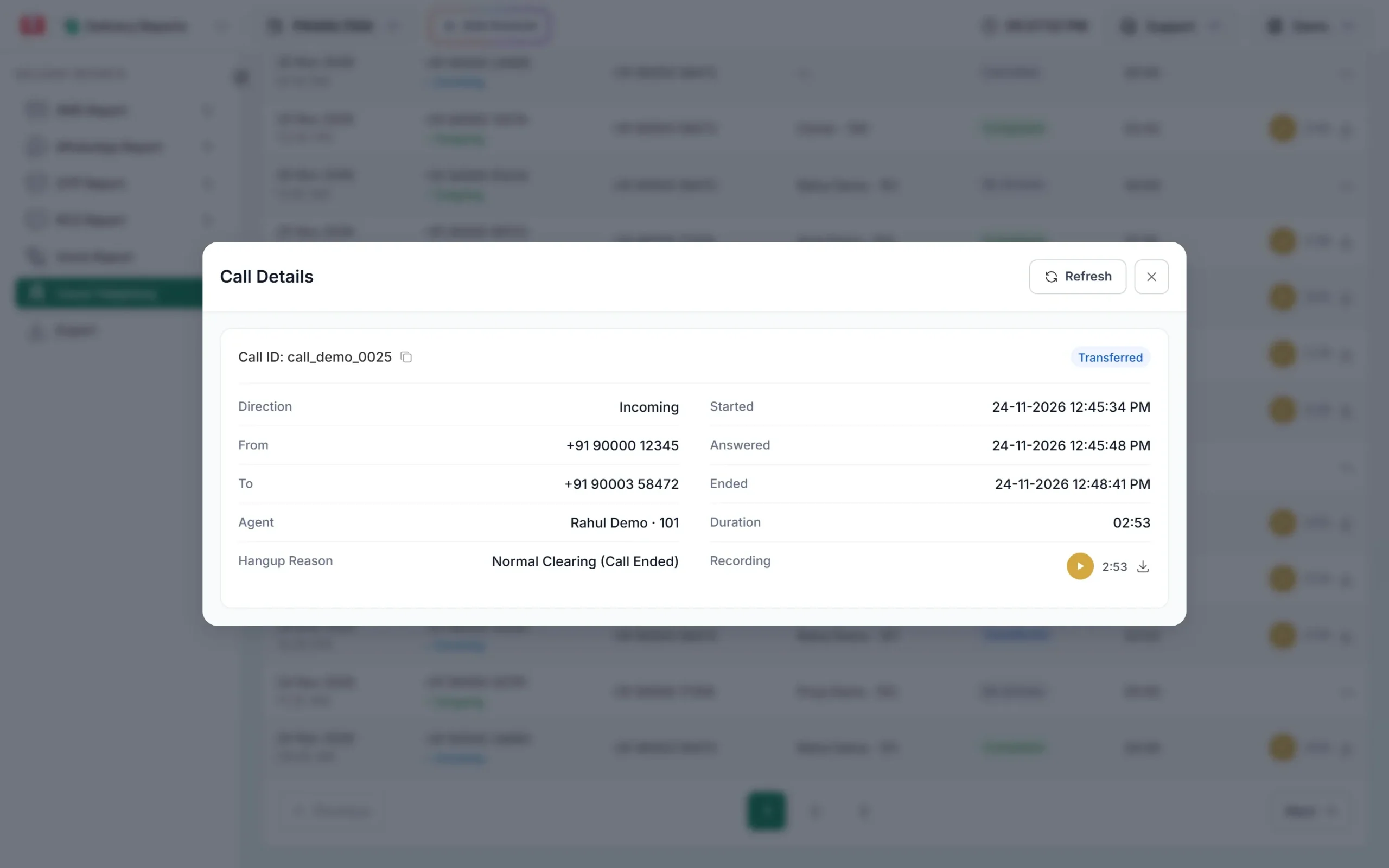
Check that webhooks are working
- Open Webhook > Webhook Logs to see each webhook that was sent and to resend one.
- Your server should reply with a 2xx status quickly. Do slow work (CRM updates, emails) after you reply.
- Check that the webhook is Active, the Number and Select Event match the calls you expect, and the URL starts with https.
- To test on your own computer first, see test a Fast2SMS webhook locally. More fixes are in webhook not firing.
Frequently asked questions
Is there an extra charge for call webhooks?
No. Webhooks are part of Cloud Telephony. You pay for the number and any extra agent licences, with no per-minute charges for calls.
Which CRMs can I connect?
Any CRM or tool that accepts a webhook URL. If your CRM has no webhook option, use Zapier, Pabbly Connect or Make between Fast2SMS and the CRM.
Can I send webhooks for only one number?
Yes. Choose that number in the Number field. Create another webhook for your other numbers if they should go elsewhere.
Will I get the agent’s name?
Yes. The agent field has the team member’s name when a team member handled the call. It is empty when nobody answered.
Can I change the field names in the payload?
Yes. Edit the Body. Keep the @{{field}} values and change the keys to the names your system expects.