
An SMS is plain text, so you cannot attach a link to a word. You write the full web address, and the customer’s messaging app decides whether to turn it into a link they can tap. Most links in SMS are not clickable because the address is incomplete or broken, because the phone screens messages from unknown senders, or because the app filed the message as spam. In India there is one more rule first: every link in a business SMS must be whitelisted on your DLT portal, or the SMS is not delivered at all.
This guide explains each case, how link previews work on Android and iPhone, and how to check a link before a campaign.
Can I add a clickable word or hyperlink text in an SMS?
No. SMS has no formatting, so text like “Click here” cannot carry a hidden link. Write the address itself, for example https://yourshop.in/offer. If you want buttons and clickable cards, that is what RCS and WhatsApp templates offer.
Why a link in SMS is not clickable
| Cause | What you see | Fix |
|---|---|---|
| Incomplete address | The text shows, but some phones do not underline it | Write the full link with https:// in front. That is the form apps recognise most reliably. |
| Link broken by a space, line break or punctuation | Only part of the link is tappable, or it opens the wrong page | Keep the link on its own, with a space before it. Do not put a full stop or bracket right after it. |
| Link cut short in a variable | The link opens an error page | Check the length. The Fast2SMS DLT SMS API keeps up to 40 characters per variable value, and DLT link variables have their own limit. See the note below. |
| iPhone screening of unknown senders | The link is shown but cannot be opened | Apple says that with unknown-sender screening on, links from an unknown sender open only after the customer marks the sender as known or adds it to contacts. |
| Message filed as spam | The customer never sees the SMS in the main inbox | Google Messages hides suspected spam in Spam & blocked and checks links for safety. Send from your own brand header, with your brand name and a link on your own domain. |
Link previews in SMS
A link preview is the small card with a title and picture that some phones show under a link. It is made by the phone’s messaging app, not by the SMS, so you cannot switch it on for your customers.
- Android (Google Messages): the customer controls previews under Messages settings, Automatic previews. Google says that when previews are on, links are sent to Google to build the preview card.
- iPhone (Messages): Apple’s developer guidance says Messages builds rich previews from the Open Graph tags on your page (such as og:title and og:image), follows server redirects, but does not follow JavaScript or meta-refresh redirects.
So if previews matter to you, add Open Graph tags to the landing page and use a normal server redirect if your link redirects. Some customers will still see a plain link, and that is fine: the link works either way.
DLT rule: every link must be whitelisted
TRAI directed operators not to allow business SMS that contain links, APK links, OTT links or call-back numbers that are not whitelisted. So before a link can be clickable, the SMS has to be delivered, and that needs:
- The link or its domain whitelisted under your entity on your DLT portal (CTA whitelisting).
- A link that changes per SMS placed in a link-type variable such as {#url#} or {#urlott#}, not in a plain text variable.
- A domain you own. Public link shorteners usually fail, because the operator sees the shortener’s domain. See URL shorteners, APK and app links in DLT SMS.
Link length: on DLT, link variables allow up to 120 characters at the time of writing. When you send with the Fast2SMS DLT SMS API, each variable value is cut to 40 characters, so a long link in a variable breaks. Use a short link on your own domain, or put the full link in the fixed text of the template.
How to check a link before you send
-
Read the phone preview
On the DLT SMS page, pick your sender ID and template and fill the variables with real values. The phone preview on the right shows the final SMS. Check that the link is complete and has nothing stuck to its end.
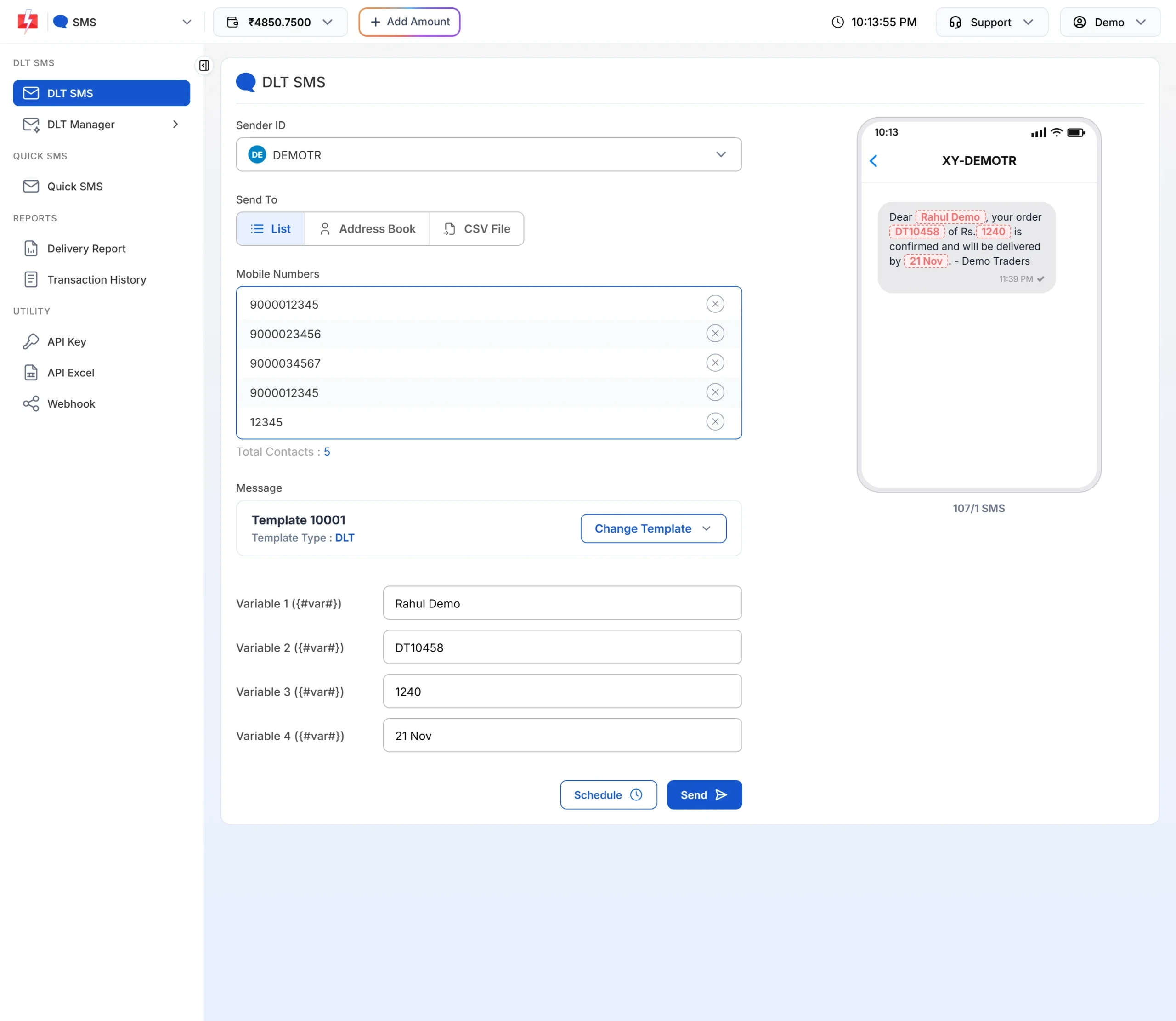
The preview shows the SMS exactly as it will be sent. -
Send a test to your own phones
Open DLT Manager > Content Template, click Test Template on the approved template, enter your number, put the real link in the variable at full length and click Send Test SMS. If you can, test on one Android phone and one iPhone, with a number that has not saved your header as a contact.
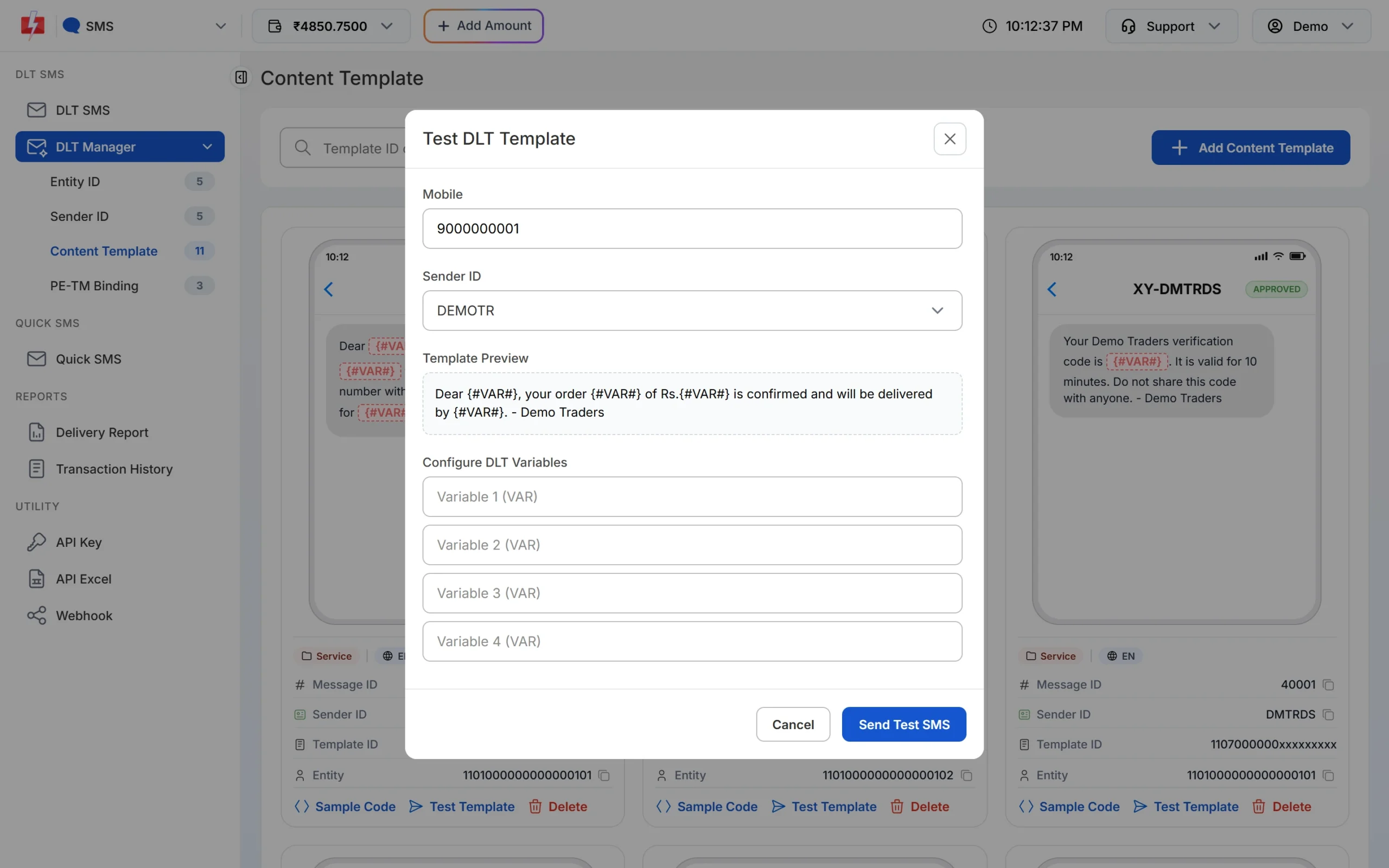
Test the exact link you will use in the campaign. -
Tap the link
Check that it opens the right page, on mobile data as well as Wi-Fi. If the test SMS fails, open Delivery Report and read the reason. A link that does not match your whitelisted data fails at the operator, for example with error 701.
Frequently asked questions
Why is the link in my SMS not clickable?
Usually the link is incomplete (no https://), broken by a space or punctuation, or cut short. On iPhone, links from unknown senders may not open until the customer marks the sender as known.
How do I send a clickable link in SMS?
Write the full address starting with https:// in your DLT template or in a {#url#} variable, whitelist it on your DLT portal, and test it on your own phone.
Can I make text like “Click here” a link in SMS?
No. SMS is plain text. Show the full link, or use RCS or WhatsApp if you need buttons.
Why does my SMS with a link not get delivered?
The link or its domain is probably not whitelisted under your entity on DLT, or a different form of it is whitelisted. See DLT error code 701.
Can I control the link preview customers see?
Only partly. Previews are built by the phone app and the customer can turn them off. Open Graph tags on your page help the preview show the right title and image.
Does a link preview change the SMS I send?
No. The preview is made on the customer’s phone. Your SMS stays the same text.