
If your customers say your SMS went to spam, the operator did deliver it. The phone’s messaging app then filed it away. Google Messages on Android hides suspected spam from unknown senders in its “Spam & blocked” folder, and iPhone sorts texts from unknown senders into Transactions and Promotions. You cannot switch these filters off for your customers, but you can make your SMS look like what it is: a genuine message from a business they know. This page explains how the filters work and what to change.
How phone spam filters treat business SMS
| Phone | What the filter does | What the customer can do |
|---|---|---|
| Android with Google Messages | On-device checks look for known spam patterns in messages from unknown senders. Suspected spam is hidden in Spam & blocked. Links in messages from unknown senders are checked to see if they are safe. | Tap Report not spam on the warning. Google says this tells Google and carriers the message is not spam. |
| iPhone | The Text Message Filter sorts SMS from unknown senders into Transactions and Promotions. Apple says it is on by default. Unknown Senders screening can also move them out of the main list. | Open Filters to see the folders, or open the chat in Unknown Senders and choose Mark as Known. |
On iPhone, Transactions and Promotions are not spam folders. OTPs and order updates usually land in Transactions, which is normal. The problem is a message filed as junk or hidden as spam.
The delivery report still shows Delivered when the phone files a message in a spam folder, because the operator did deliver it. See SMS shows Delivered but the customer did not receive it.
Why business SMS get marked as spam
- Unknown or random sender. A message from a random number looks like a stranger. Your own DLT header with your brand name does not.
- No brand name in the text. “Your code is 4521” from an unknown header gives the customer nothing to trust.
- Suspicious links. Public link shorteners, long tracking links, or a domain that does not match your brand. These are also common in scam SMS.
- Customers report you. Messages to people who never asked for them get reported, and those reports feed the filters. In India, they can also lead to complaints under TRAI’s rules.
- Offer language everywhere. Offers inside service messages, all-caps text and lots of symbols look like marketing even when the message is an alert.
How to keep your SMS out of the spam folder
-
Send from your own brand header
Register a header on DLT that customers can link to your brand, such as a short form of your business name, and send every message from it. Use one header for alerts and OTPs so customers learn to recognise it. In Fast2SMS, pick it in Sender ID on the DLT SMS page.
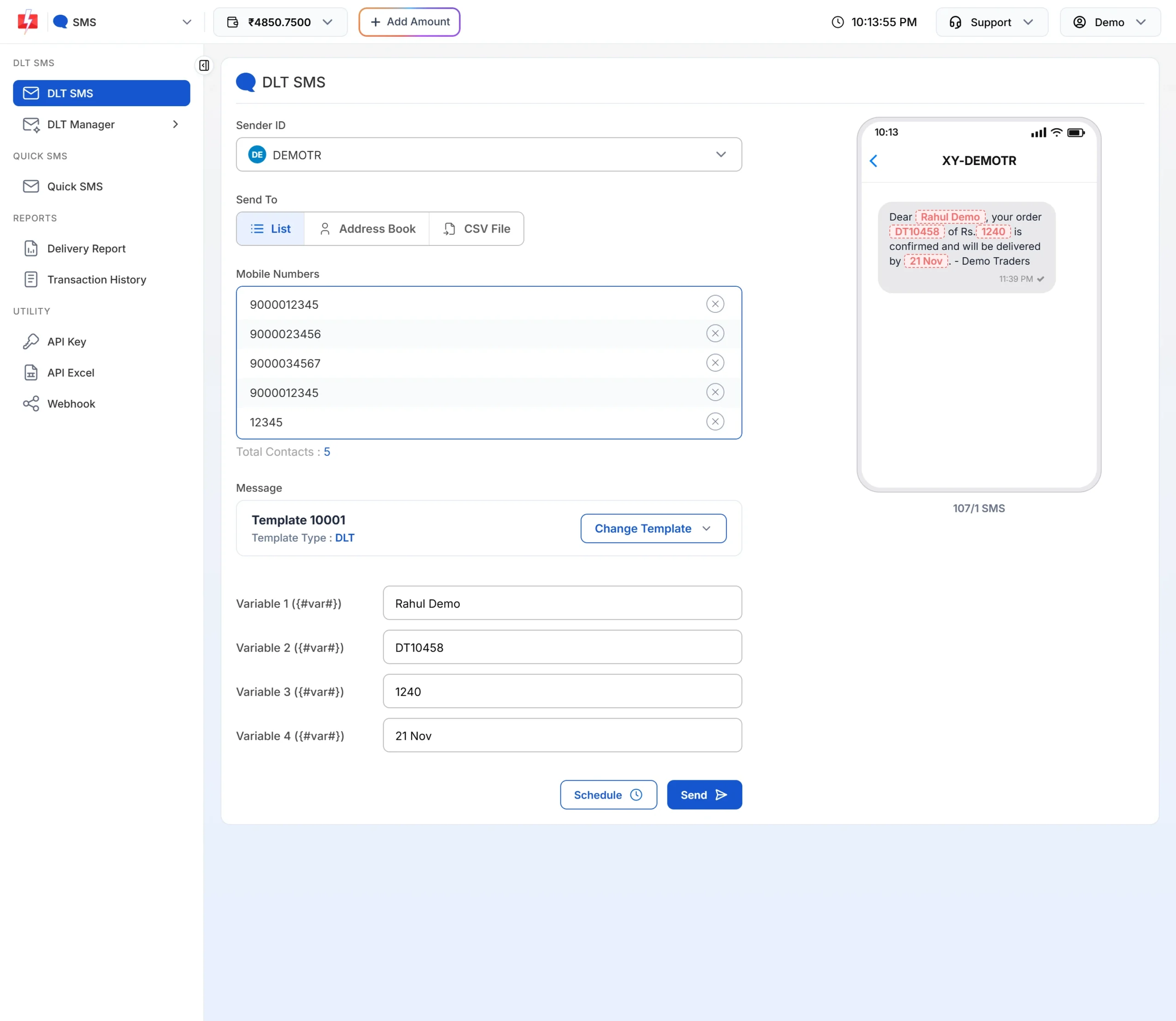
The phone preview shows the header and brand name your customer will see. -
Put your brand name in every template
Start or end each message with your business name, for example “Your Demo Traders verification code is 4521”. DLT also expects your brand name in templates, so this helps approval too.
-
Use your own domain for links
Send links on a domain that carries your brand and whitelist it on your DLT portal. Avoid public link shorteners, which are often blocked and often used by scammers. See links, URL shorteners and APK links in DLT SMS.
-
Message only people who expect it
Send service updates to your own customers and promotions only to people who agreed to get them, inside 10 AM to 9 PM. Fewer reports means fewer messages flagged.
-
Keep alerts and offers apart
Send OTPs and order updates on Service Implicit templates with plain, short text. Send offers on promotional or Service Explicit templates. Mixing offers into alerts can also get a template blocked.
-
Ask customers to mark you as safe
On your website or app, add a line such as “Not getting our SMS? Check the Spam folder and tap Report not spam.” On iPhone, ask them to choose Mark as Known.
For OTPs: add a second channel
When a login depends on one SMS, a spam filter can cost you a sign-up. Fast2SMS Smart OTP sends OTPs on a priority route by SMS or WhatsApp and can fall back to the other channel if the first message fails. It does not pull a message out of a spam folder, so the brand header and clear text above still matter.
Frequently asked questions
Why is my business SMS going to spam on Android?
Google Messages checks messages from unknown senders and hides suspected spam. Unclear senders, missing brand names, risky links and customer reports make that more likely.
Can I stop Google Messages from filtering my SMS?
No. The filter runs on the customer’s phone. You can lower the chances with a brand header, your name in the text and safe links.
Why do my SMS appear under Promotions on iPhone?
iPhone sorts texts from unknown senders into Transactions and Promotions. Offers land in Promotions. Alerts written plainly usually land in Transactions.
Does the delivery report show if an SMS went to spam?
No. It shows Delivered, because the operator delivered it. The spam folder is on the phone.
Do link shorteners cause spam filtering?
They can. Public shorteners hide where a link goes and are common in scam SMS. Use your own whitelisted domain.
Will Quick SMS go to spam more often?
Quick SMS goes out from a random sender, so customers cannot recognise you. For regular alerts and OTPs, use DLT SMS from your own header.