
What is WhatsApp Coexistence? How to use WhatsApp Business App number with official Cloud API?
WhatsApp has rapidly evolved into a cornerstone of modern business communication, helping brands connect with customers quickly and effectively. As businesses increasingly rely on it to connect with customers in real time, the platform continues to introduce innovations to enhance usability. One such recent development is the WhatsApp Coexistence feature, designed to offer greater flexibility and efficiency in managing business communications.
In this blog post, we will understand What is Whatsapp Coexistence and How to use Whatsapp Business App number with official Cloud API.

What is Whatsapp Coexistence?
Whatsapp Coexistence is a new update from Meta that enables businesses to use the same number for both Whatsapp Business app and Whatsapp API simultaneously.
As per latest update from Meta, you can use the existing number of the Whatsapp business app with Meta Cloud API, you do not need to use a different number for sending messages from API.
Benefits of Whatsapp Coexistence
There are numerous benefits of using Whatsapp Coexistence:
- You get to use the same number on both apps
- Send bulk messages in an easy and effortless way
- You can access API without disconnecting from the app
- Hassle free messaging expeience
- Continue managing manual chats and whatsapp updates like before
- Save time and expand outreach
How to use Whatsapp Business App number with official Cloud API?
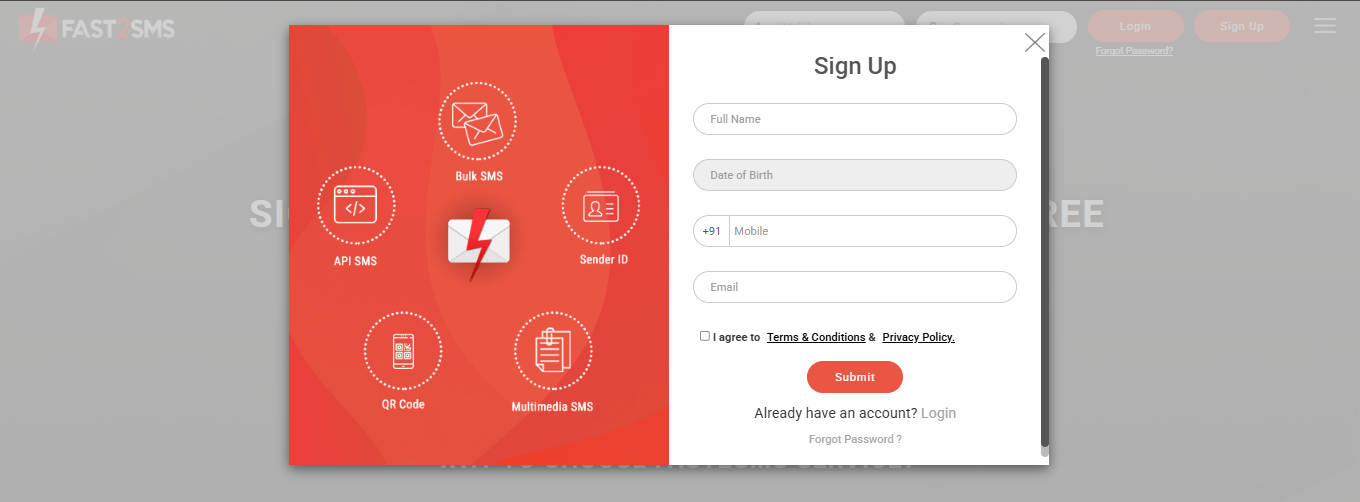
1. Create account in Fast2SMS. The signup page will be opened as shown in the image below. Create a free account and login. If you already have a Fast2SMS account, simply login with your registered mobile number.
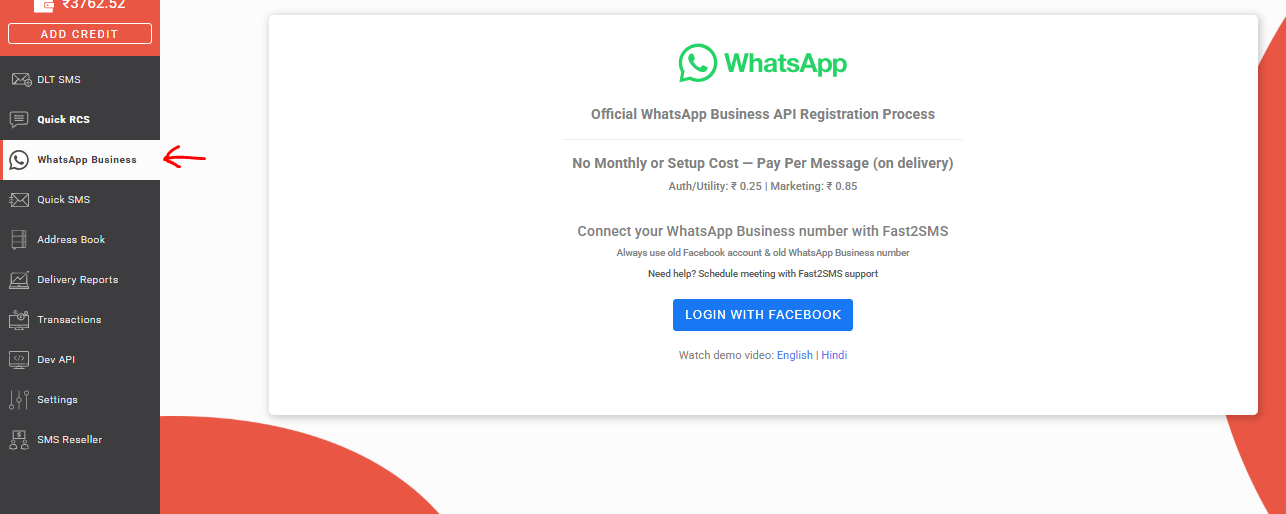
2. As you login into Fast2SMS and select Whatsapp Business tab on the left side panel, you will get the option to login with Facebook. This is necessary as your whatsapp number will be first connected with facebook and then it will get connected to Fast2SMS.
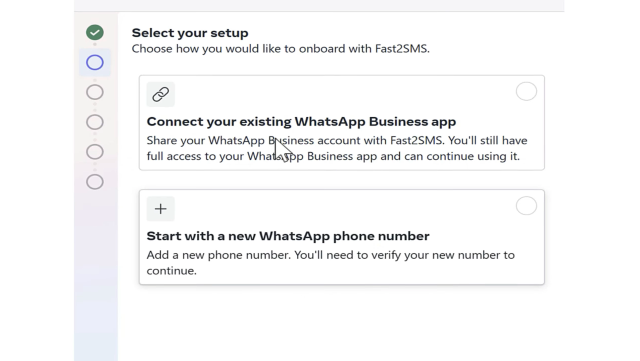
3. As you login into Facebook, the following two options will be shown. You can either connect using your existing number or start with a new phone number. If you are using a new number, it will be managed only with Fast2SMS, and cannot be managed with your mobile app.
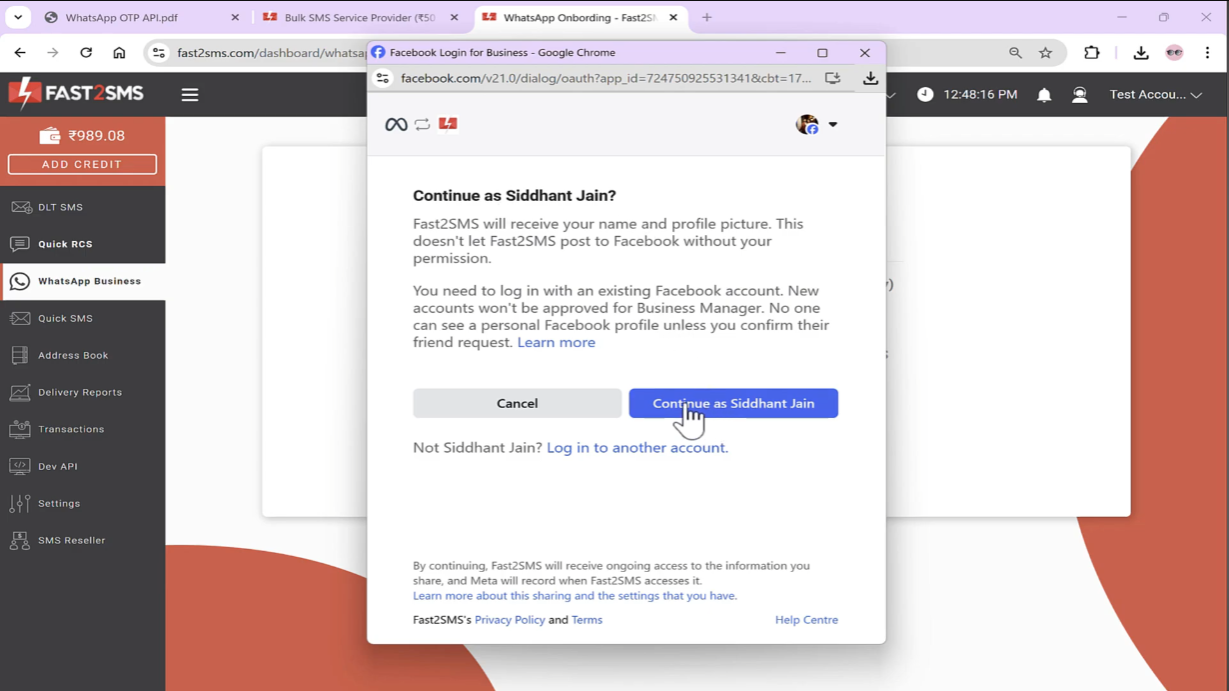
4. Once your Facebook account has been logged in, your name will get displayed as shown below. You need to click on Continue tab to proceed further.
5. Next screen will be visible as shown below. You need to again select Continue to proceed.
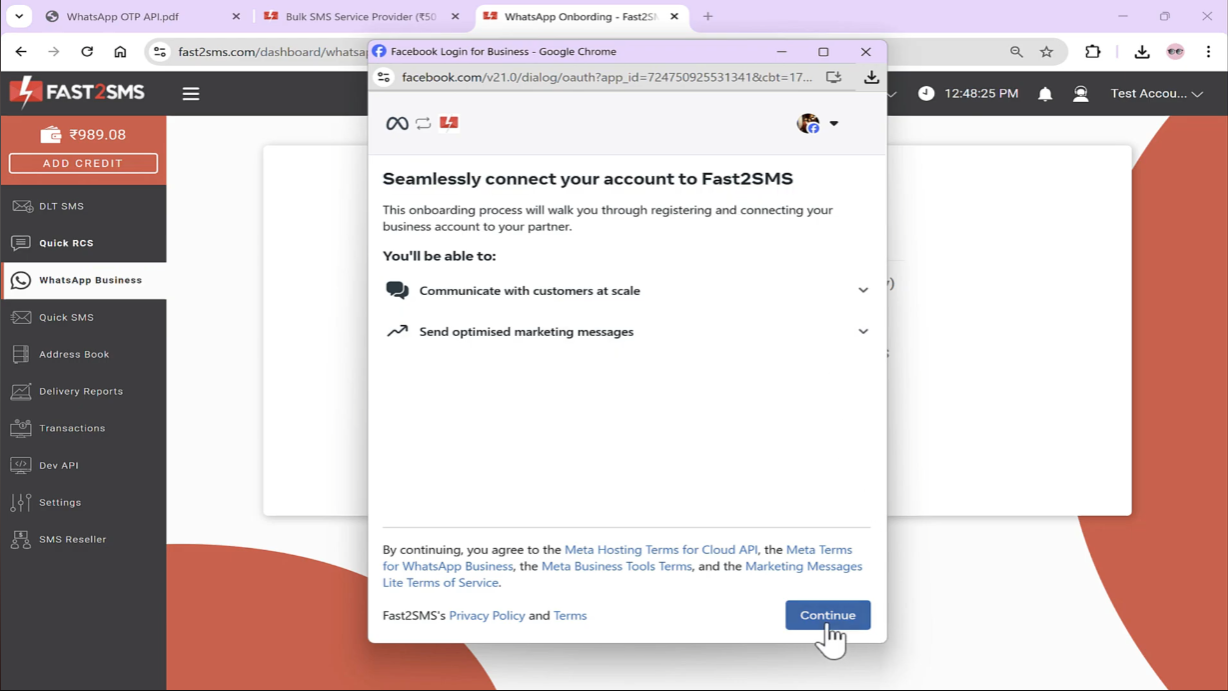
6. Next, your business portfolio has to be created. If you already have an existing business portfolio, enter that. If you don’t have a business portfolio, you get the option to create the same in the Business portfolio field.
Note: Make sure you have mentioned your working website in the form, else Meta might ban or suspend your account. Hence, it is recommended to first complete your brand website with its logo so that when Meta manually reviews your site, it is in working condition.
You can also mention your website name in the Business name tab. Once you have entered all the business details ,click on Next tab.
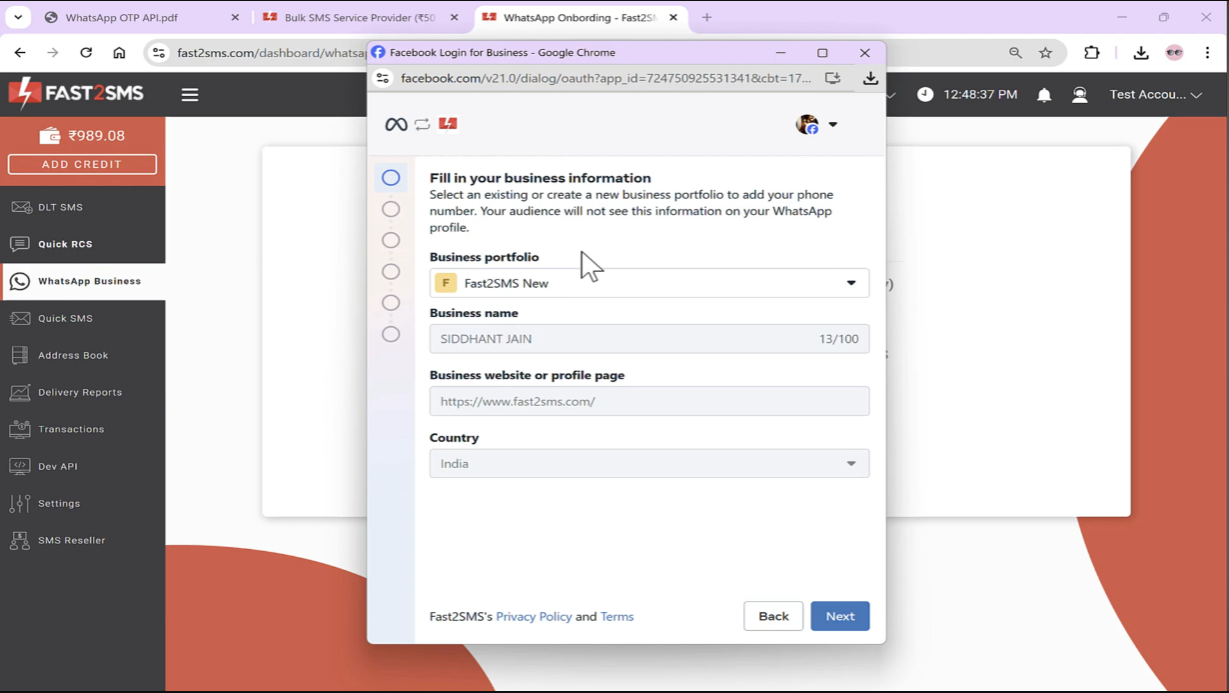
7. In the next step, two options will be shown as in the image below. If you select the first option – Connect your existing Whatsapp Business app, your existing whatsapp business app number will get linked to your account.
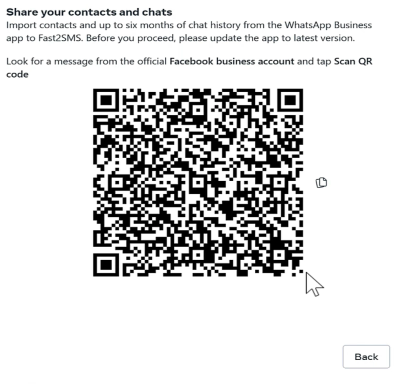
To use this feature, you need to visit your mobile app, scan the QR code shown, then a new session gets opened similar to web whatsapp that will be linked to your Fast2SMS account. It is known as ‘business platform session’.
You can then use the existing number on the mobile app, web whatsapp app and the same number will also get linked to your Fast2SMS account.
If you want to complete the onboarding process using a new number, you can choose the second option – Start with a new Whatsapp phone number.
Now we have chosen the first option – Connect your existing Whatsapp Business app. Click on Next tab to continue the process further.
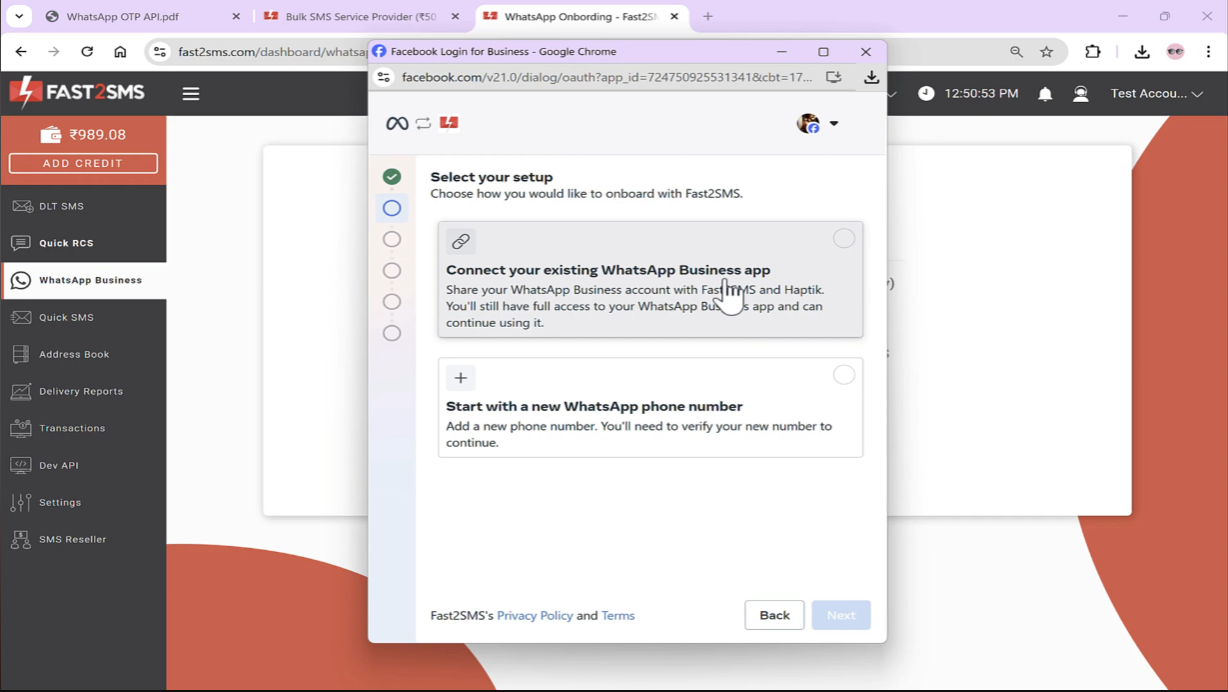
8. Now you will need to enter your Whatsapp Business phone number. Enter the number, select India, click Next.
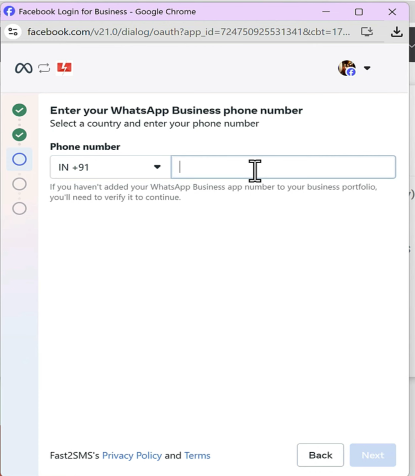
9. An OTP will get sent to your number, once it is verified, your business name that you have set in your whatsapp will automatically appear as shown below. If the correct time zone is not appearing, select it from the drop down menu and then click on Next.
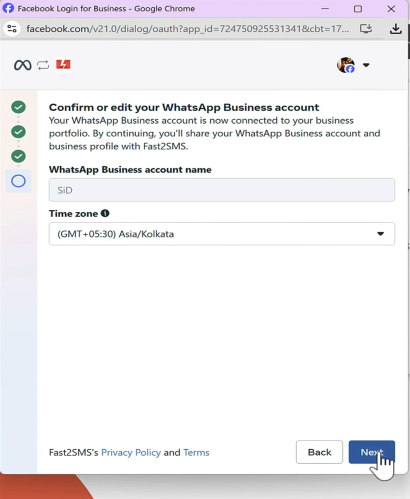
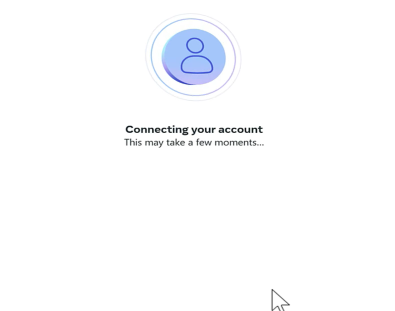
As soon as you click Next, Connecting your account message will appear on your screen.
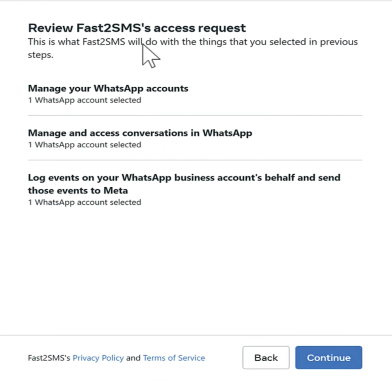
You will then need to review the details and then click on Continue tab.
You will then receive a QR code. A message will appear in your whatsapp from Facebook that you will have to scan the QR code.
When you scan the QR code, the following message will appear in your mobile screen.
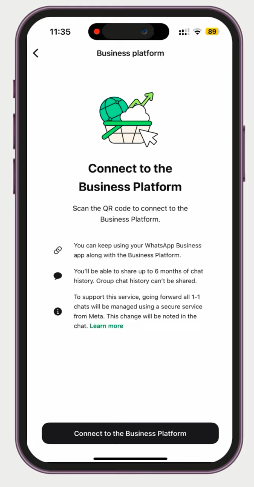
When you select the option ;Connect to the Business Platform’, you will get two options to choose from as shown in the image below. If you want to share chat history, select the first option, else choose second one.
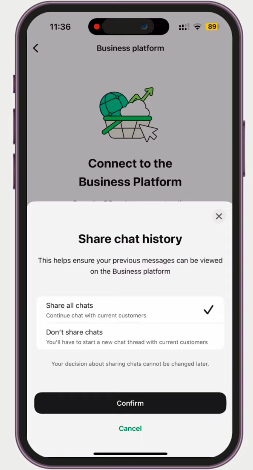
When you click on Confirm tab, you will get the option to Scan QR. Once you scan the QR code, you will get the option ‘You are connected to Fast2SMS’ as shown in the image below.
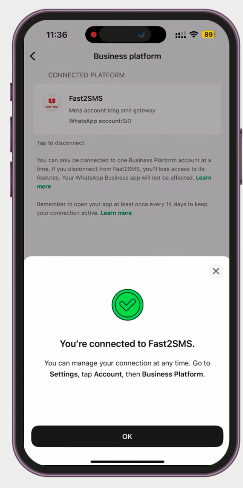
You have to click on OK tab. When you click on it, you account will be connected to Fast2SMS. You can use this account in business platform, Fast2SMS, or web whatsapp. It will be synced in all the three places.
Your daily message limit is 250. If you want it to increase, you can contact Fast2SMS team, they will help you in submitting documents to Meta. Once you documents are verified, the message sending limit will increase.
Note: Make sure to click on the Finish tab. If you close the browser without clicking on the Finish button, your account will not be created and you will need to repeat the complete process from the scratch.
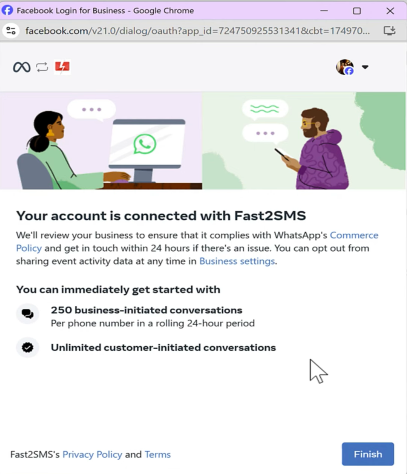
Once you click on Finish, you account will get linked to Fast2SMS.
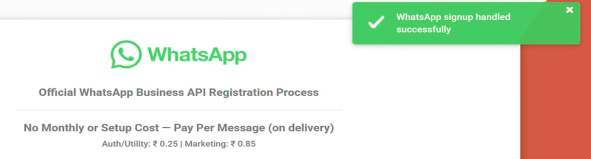
Now when you click on Select Number, your number will appear on the right side of the panel as shown below.
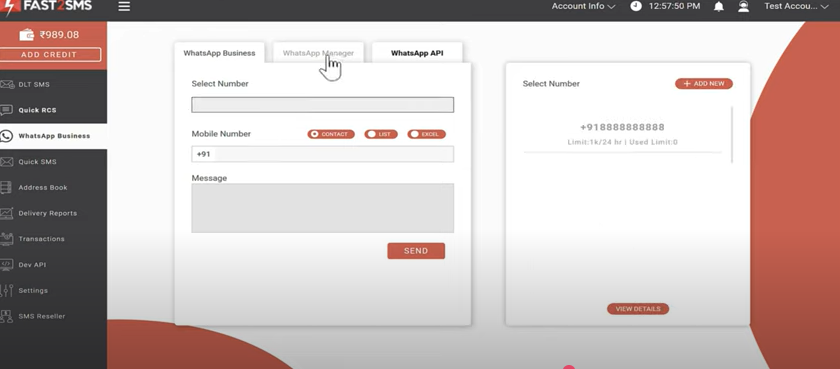
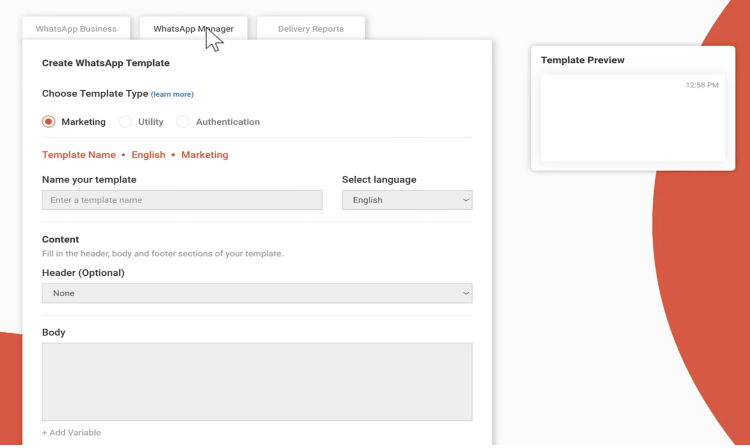
Once you click on Whatsapp Manager, your number, business name, status, quality rating will be visible.
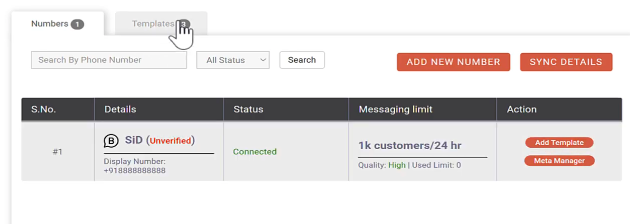
When you select the Template tab, template details of every category – marketing, utility, authentication, will appear as shown below which you can use for testing purposes.
According to whatsapp terms, when you send messages from your mobile app, you can send any message without approval and without any cost. But, to send messages via Fast2SM, you will have to get a template approved and once it gets approved, you can send it via panel or API.
To create new templates, select the Add Template tab.
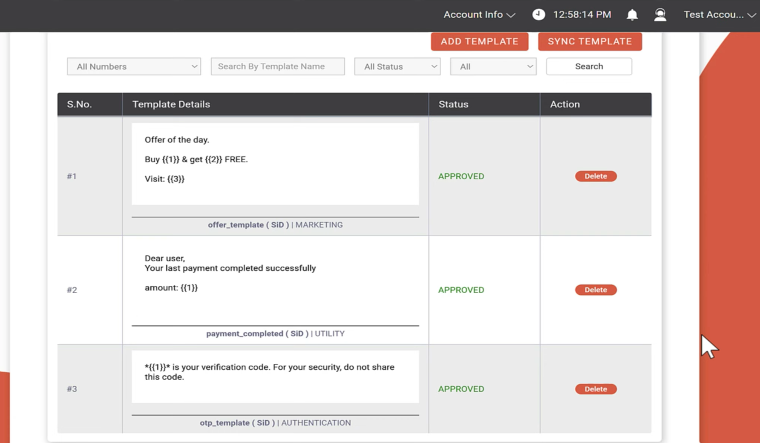
You can create template among any of the three categories.
- Marketing
- Utility
- Authentication
Marketing template consists of messages sent for promotional and marketing purposes. Utility template includes OTP messages, Whereas Authentication templates include all transactional and informative messages except OTP.
By default, Fast2SMS provides three categories of message templates.
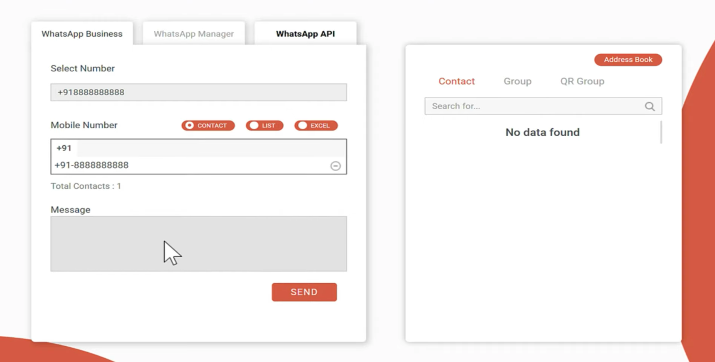
To send message, select number, add the contact detail.
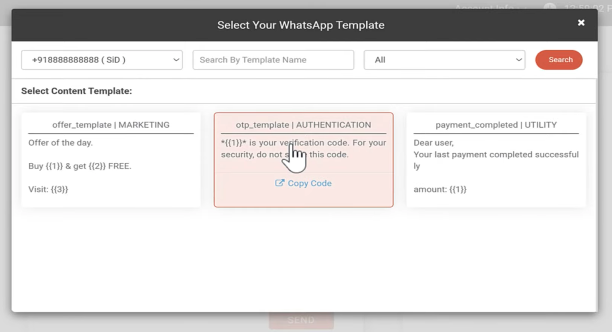
Once you click on the message field, all your approved templates will be shown as pop up. You need to select that template which you want to send.
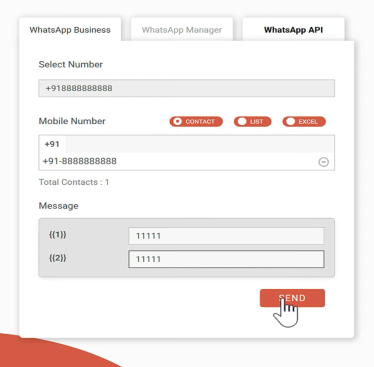
Next, you will be asked the variable values, fill in those fields and click on Send button.
Once you click on Send, a popup will appear will the message details.
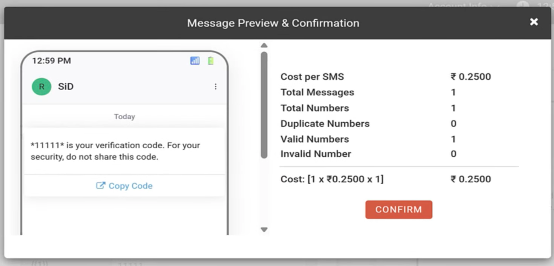
Click on Confirm to send the message.
if you want to send this message via API, click on Whatsapp API
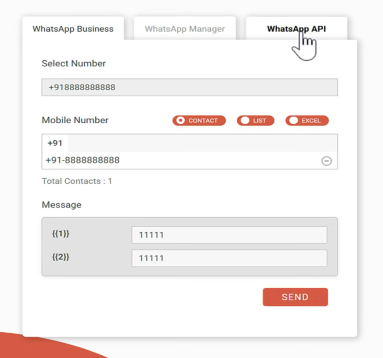
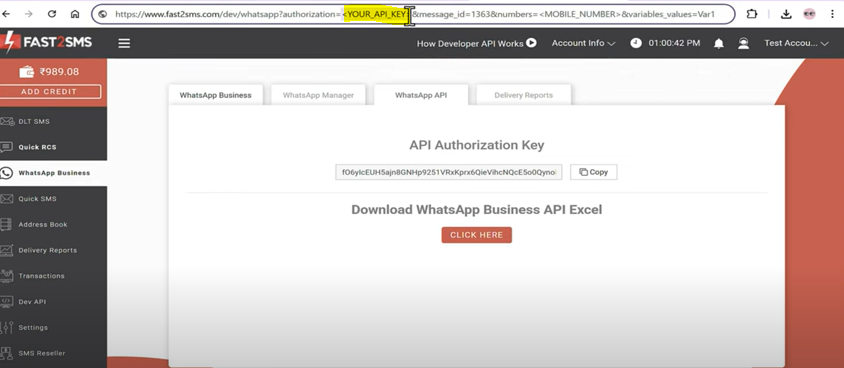
Your API authorization key will be displayed. Click on Click here tab.
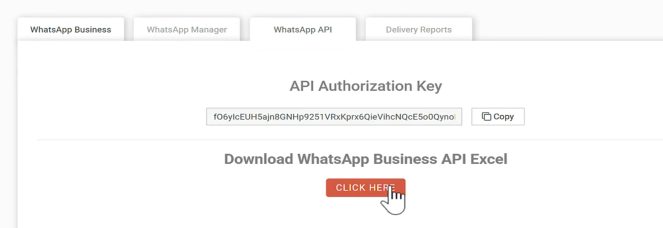
An excel file will get downloaded with all your approved whatsapp templates. You can directly integrate these APIs into your mobile app or website. As displayed in the image, unique ID of each template is created that you need to hit from your API. We have made API of each and every message in which you just need to add the variable values.
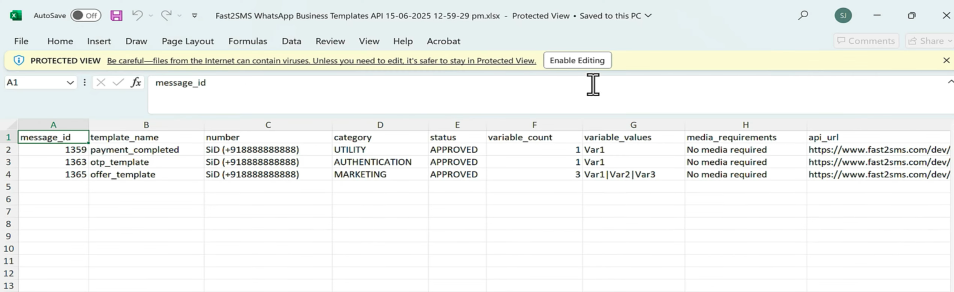
Message id will remain same as it is. Enter your API key, and the mobile number to which we have to send message. Next enter the variable values and press enter. A message will appear stating that “Whatsapp message sent successfully”.
You can check the sent status of the messages in the Delivery Reports section.
Note: Amount of all the failed messages will be auto refunded into your Fast2SMS wallet within 48 hours. You can view the refunded amount status in the Transaction History tab.
In conclusion, the WhatsApp Coexistence feature opens up new possibilities for businesses to communicate with their audience in a more streamlined and efficient way. Get started with Fast2SMS and enjoy whatsapp messaging without worrying about monthly fees or setup costs. Sign up at Fast2SMS and test our services for free!