
The Fast2SMS app is a bulk WhatsApp sender app for Android that sends through the official WhatsApp Business Platform (Meta’s Cloud API). You pick your connected business number, add customer numbers, choose a Meta-approved template and tap Send. Messages do not go out from the WhatsApp app on your phone, so it is not one of the unofficial sender tools that get numbers banned. Meta’s quality rating and daily messaging limits still apply, and your customers should have opted in to hear from you.
This guide shows how to send bulk WhatsApp from your mobile, step by step, with screenshots of the app.
Official API vs unofficial bulk WhatsApp sender tools
Many Android apps for sending bulk WhatsApp messages work by automating the normal WhatsApp or WhatsApp Business app on your phone. WhatsApp’s terms do not allow that kind of automated bulk messaging, and numbers used this way often get banned. The Fast2SMS app works differently.
| Unofficial sender tools | Fast2SMS app | |
|---|---|---|
| How messages are sent | By automating the WhatsApp app on your phone | Through the official WhatsApp Business Platform (Meta Cloud API) |
| Message content | Anything you type | Templates approved by Meta |
| Phone needs to stay on | Usually yes | No, the campaign runs on Fast2SMS |
| Delivery and read report | Rarely | Yes, per campaign |
| Ban risk | High | Low when you follow Meta’s rules and message opted-in customers |
Read more in bulk WhatsApp sender software and the ban-safe way and is bulk WhatsApp legal in India.
Before you start
- The Fast2SMS app from Fast2SMS on Google Play, signed in to your account. See the Fast2SMS app guide.
- A connected WhatsApp Business number. You do this once. It opens a Meta sign-in window, which many people find easier on a computer. See how to get WhatsApp Business API.
- At least one approved template. See create a WhatsApp template.
- Opted-in customers. People who agreed to get WhatsApp messages from your business.
- Wallet balance for the campaign.
How to send bulk WhatsApp from mobile
-
Open WhatsApp in the app
On the home screen, tap WhatsApp (Business Chats) and open Bulk WhatsApp. If no number is connected yet, the app takes you to the connect page first.
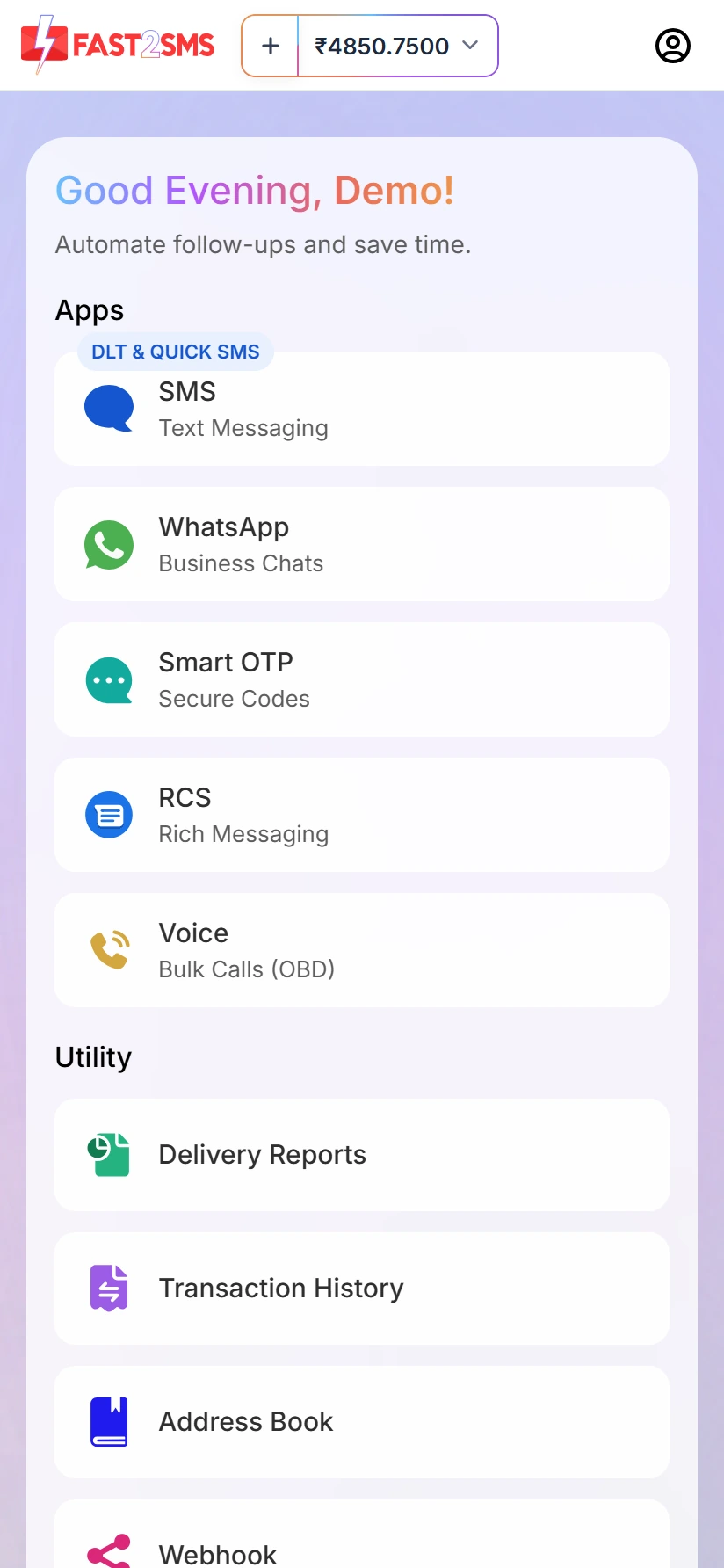
Tap WhatsApp on the home screen (test account). -
Pick the sender number
Tap Select Sender Number. Only numbers that are connected appear here. A number that is still pending does not show.
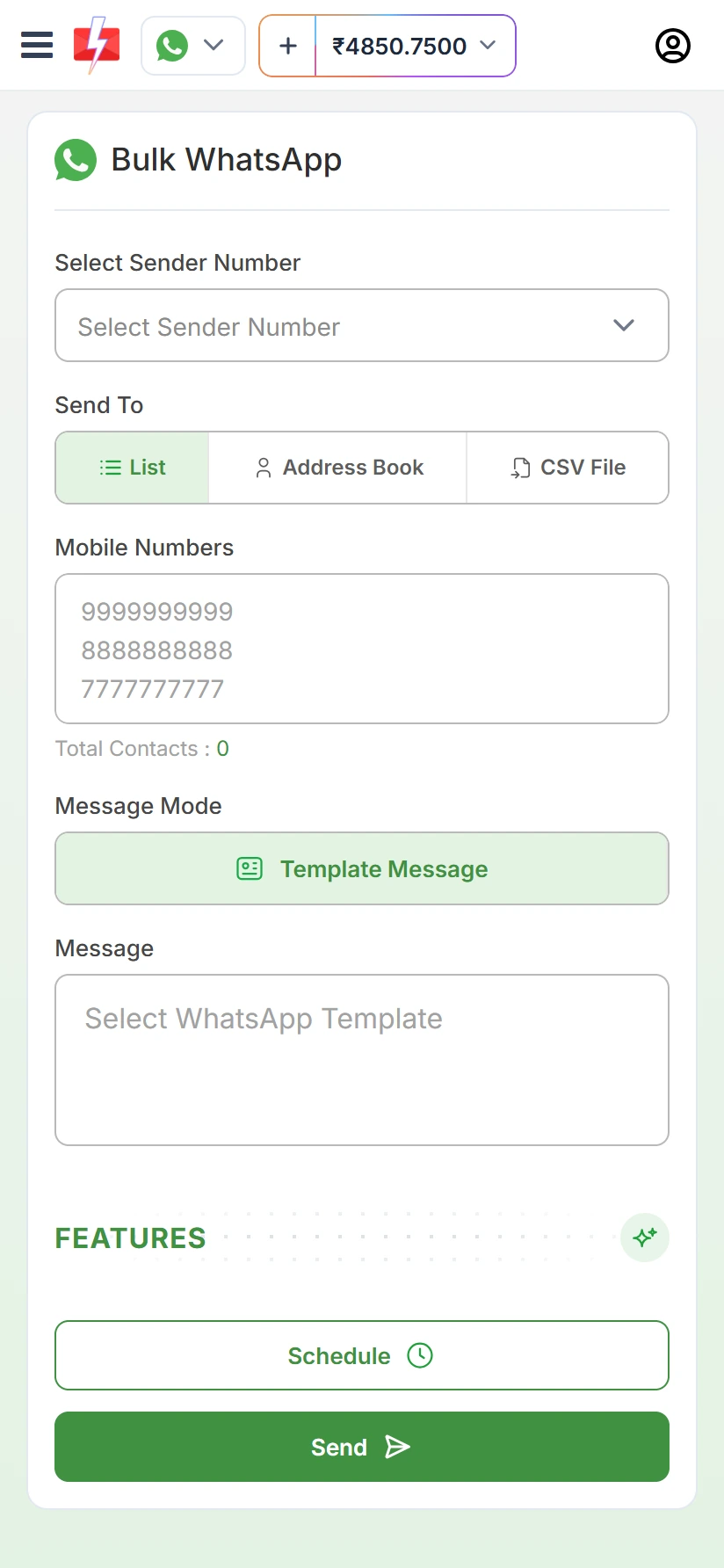
The Bulk WhatsApp screen on a phone (test account). -
Add the numbers
Under Send To, choose one:
- List: paste 10-digit mobile numbers, one per line. Total Contacts counts them.
- Address Book: tick saved contacts or whole groups.
- CSV File: pick an Excel or CSV file from your phone, then choose the column that has the mobile numbers. You can also match template variables to columns.
Numbers do not need to be saved in your phone. Keeping regular customers in the Address Book saves typing on a small screen.
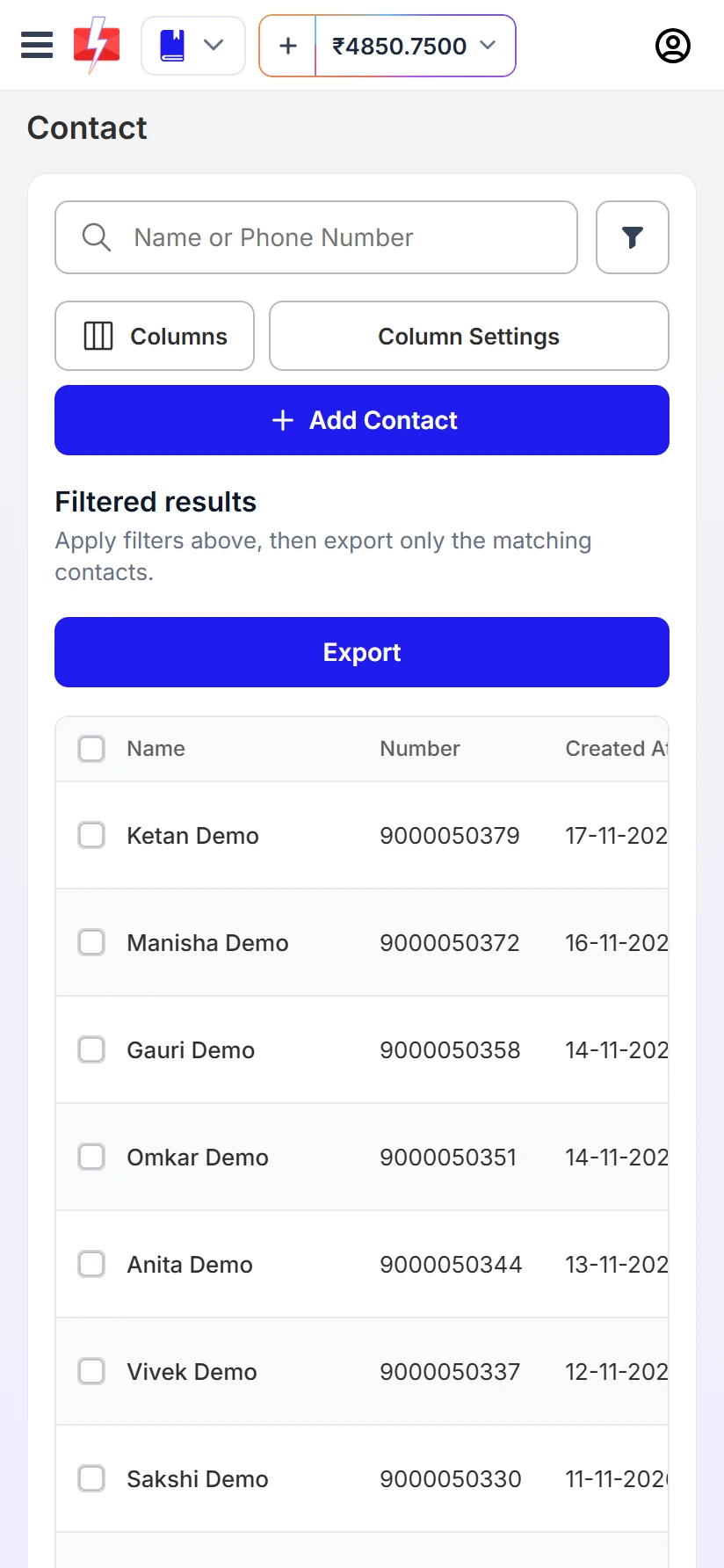
Saved contacts in the Address Book (test account, dummy names). -
Choose the template
Message Mode is Template Message. Tap Select WhatsApp Template. Only approved templates are listed, with tabs for Authentication, Marketing and Utility. After you pick one, fill any variables. If the template has an image or document header, upload the file.
-
Send now or schedule
Tap Send, or Schedule to choose a date and time. A Message Preview & Confirmation box shows the cost per message, total numbers, duplicates, valid and invalid numbers, and the total cost. Check it and tap Confirm & Send.
-
Check the WhatsApp report
Go to Delivery Reports and open WhatsApp Reports. The cards show Total, Delivered, Read, Failed, Sent and Pending for the dates you pick, and a chart shows activity over time.
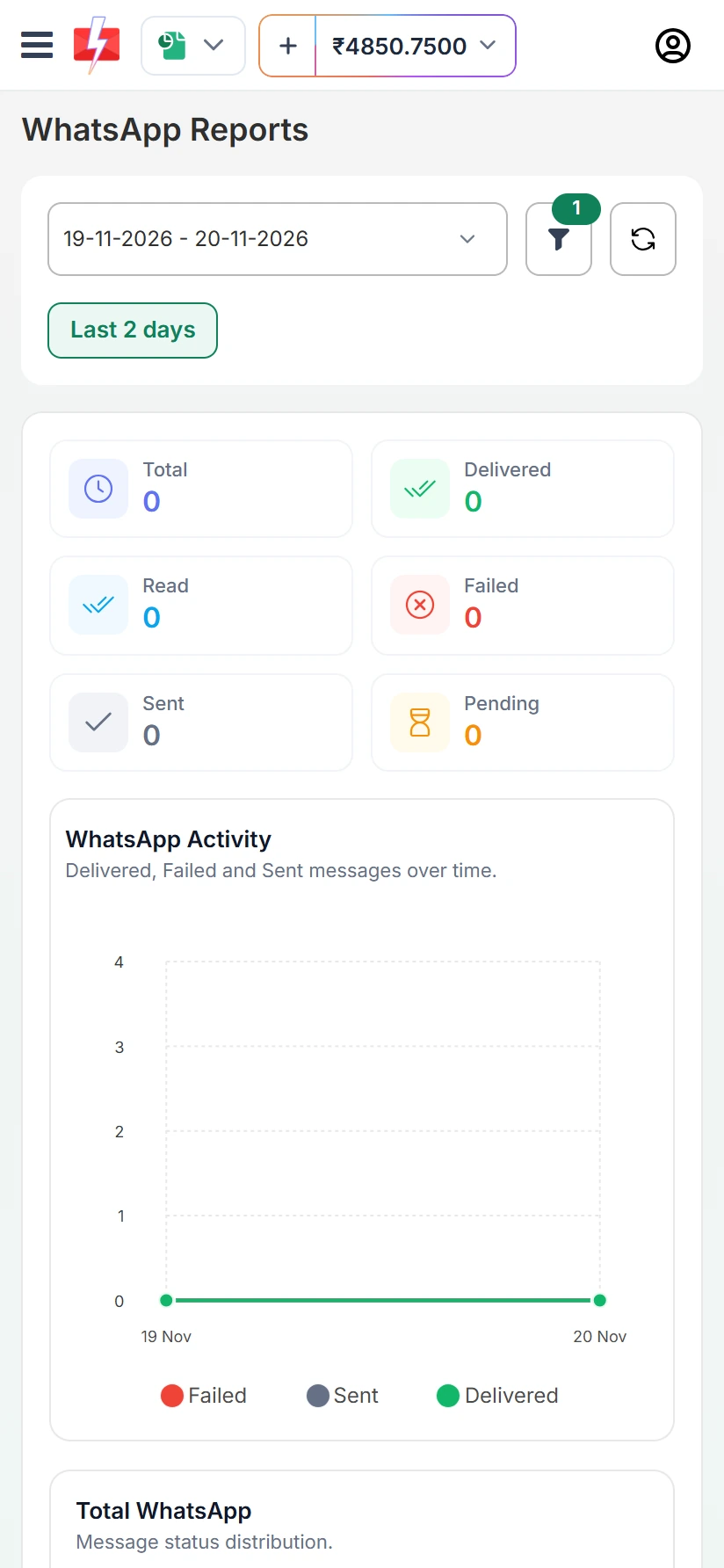
WhatsApp Reports on the phone (test account).
Charges and refunds
WhatsApp messages are charged per message, by template category (marketing, utility or authentication). The full campaign amount is taken from your wallet when the campaign is queued. Failed and pending messages are refunded to your wallet automatically. You see each refund in Transaction History. Current rates are on the WhatsApp pricing page. See also failed WhatsApp message charges and refunds.
Sending in bulk? For high WhatsApp volumes our team offers discounted rates. Talk to our team or see WhatsApp pricing.
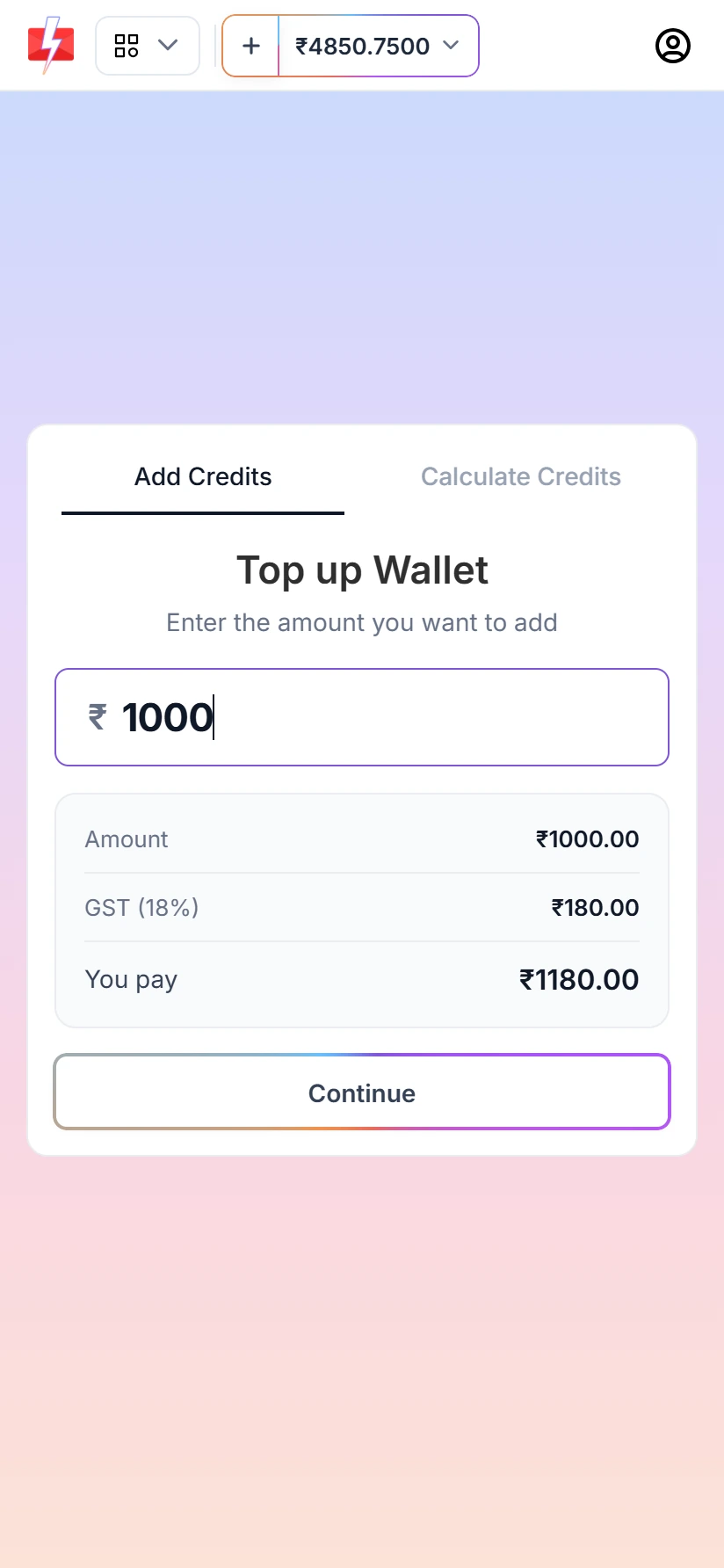
To add money from the phone, tap the + next to your balance. The Top up Wallet screen shows GST and the total before you pay.
Messaging limits and quality rating still apply
The official API protects you from the bans that unofficial tools cause, but Meta still controls how many people you can message. Each number has a daily limit of unique customers in 24 hours. Meta’s tiers are 250, 2K, 10K, 100K and Unlimited. At the time of writing, limits start at Meta’s tier for the number, often 250 for a new unverified business and 2K after business verification. The limit grows as you send good-quality messages. See WhatsApp messaging limits explained.
Meta also gives each number a quality rating: High, Medium or Low. If many people block or report your messages, the rating drops and Meta can restrict the number. Send only to opted-in customers, keep messages useful, and do not send too often. See WhatsApp quality rating and number status.
Using it as a WhatsApp marketing app
- Use the right category. Offers and promotions are marketing templates. Order updates and reminders are utility.
- Personalise. Add the customer’s name or order number with variables from your CSV file.
- Schedule it. Use Schedule to send at a time when your customers usually read messages, not late at night.
- Answer replies. Customers’ replies come to Live Chat, which also works on the phone. You can reply freely within 24 hours of the customer’s last message.
Frequently asked questions
Is this Android app for sending bulk WhatsApp messages safe for my number?
It sends through the official WhatsApp Business Platform, which is the approved way for businesses to send in bulk. Your number can still be limited if people block or report you, so message only opted-in customers.
Does it use the WhatsApp app on my phone?
No. Messages go from your connected business number through the official API. Your phone does not need to stay on while the campaign runs.
Can I type any message, or only templates?
Bulk campaigns use Meta-approved templates. Free-text replies are for Live Chat, inside the 24-hour window after a customer writes to you.
Do I need to save numbers in my phone first?
No. Paste numbers, pick Address Book contacts or upload a CSV.
How many WhatsApp messages can I send in a day?
It depends on your number’s Meta tier: 250, 2K, 10K, 100K or Unlimited unique customers in 24 hours.
What happens to failed messages?
Failed and pending messages are refunded to your wallet automatically.