
WhatsApp error 2593107 and error 2593108 happen when your WhatsApp Business app number is connected to the API (coexistence) and the copy of your contacts or chat history is asked for a second time, or too late. 2593107 means the sync was already used for that number. 2593108 means more than 24 hours have passed since onboarding. Meta’s only fix for both is to disconnect the number from the API and connect it again.
How the sync works
When you connect a number that is already on the WhatsApp Business app, the provider can ask Meta to copy two things from the app, at the time of writing:
- Contacts from the app.
- Chat history from about the last 180 days, without group chats. You choose during sign-up whether to share it.
Each of these can be asked for only once per number, and only within 24 hours of onboarding.
What the two codes mean
| Code | Meta’s meaning | Fix |
|---|---|---|
| 2593107 | The sync call limit for this phone number has been used up | Offboard and onboard the number again |
| 2593108 | A sync can only be requested within 24 hours of onboarding | Offboard and onboard the number again |
A related code, 2593109, means you chose not to share chat history during sign-up.
Why it happens
- The sync already ran once, and something asked for it again.
- The connection was finished, but the sync was not asked for within 24 hours.
- The number was disconnected and connected again, and an old sync request was repeated.
How to fix it
-
Decide if you really need the old data
New messages still flow between the app and the API after onboarding. The error only affects the one-time copy of older contacts and chats. If you can work without that history, you do not need to do anything.
-
Check the number in Fast2SMS
Open WhatsApp Manager > Numbers. A number connected from the WhatsApp Business app shows the WhatsApp Business logo next to its name, and its status should be Connected.
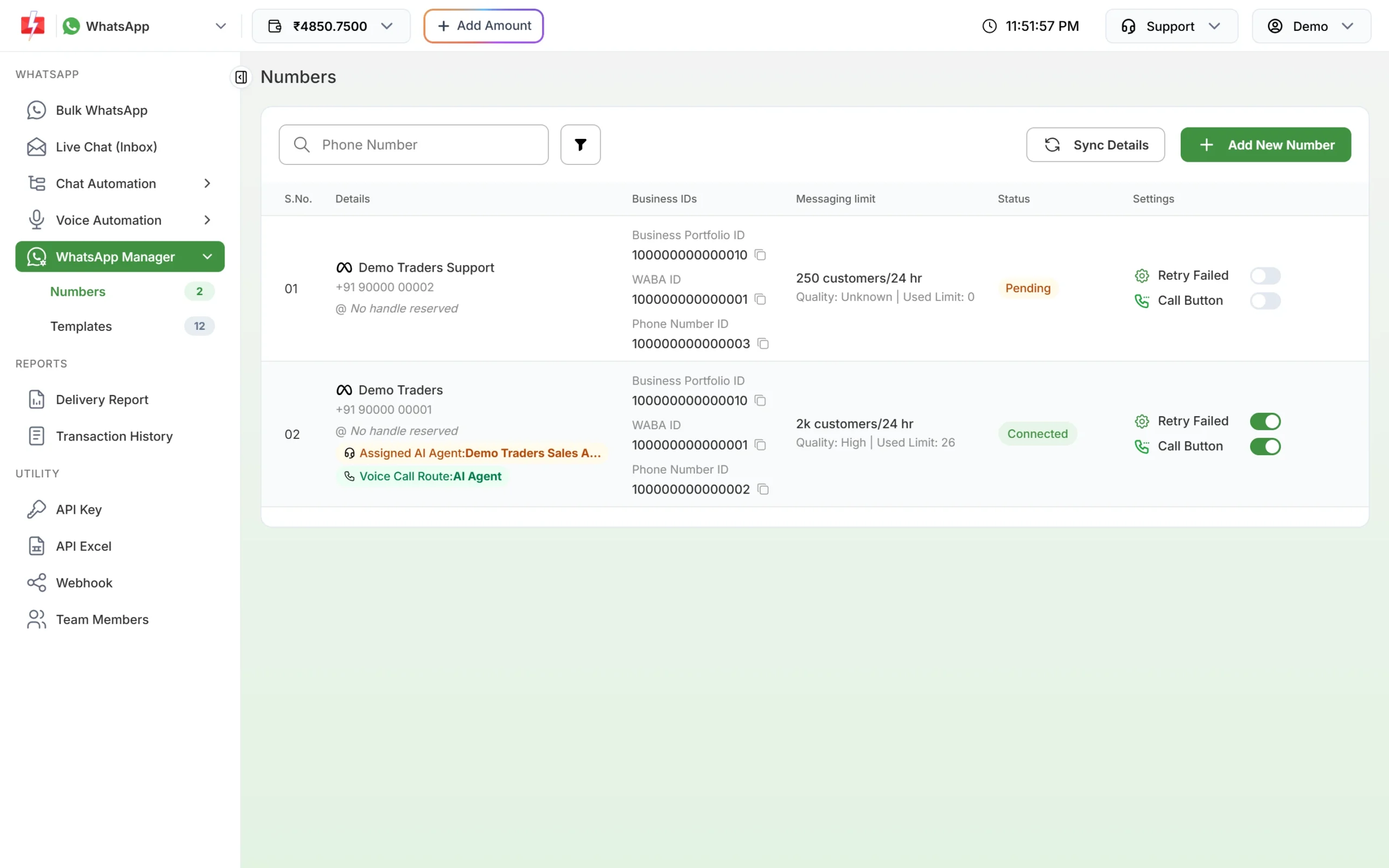
Numbers tab with each number’s status. -
Talk to support before you disconnect
Disconnecting stops API sending on that number until you connect it again. Book a call with Fast2SMS support first, so the reconnection and sync are done together inside the 24-hour window.
-
Offboard and connect again
To offboard, open the WhatsApp Business app on your phone, go to Settings > Account > Business Platform and tap Disconnect Account. Then connect again in Fast2SMS with Add New Number and Login with Facebook, choose to share chat history, and finish the flow.
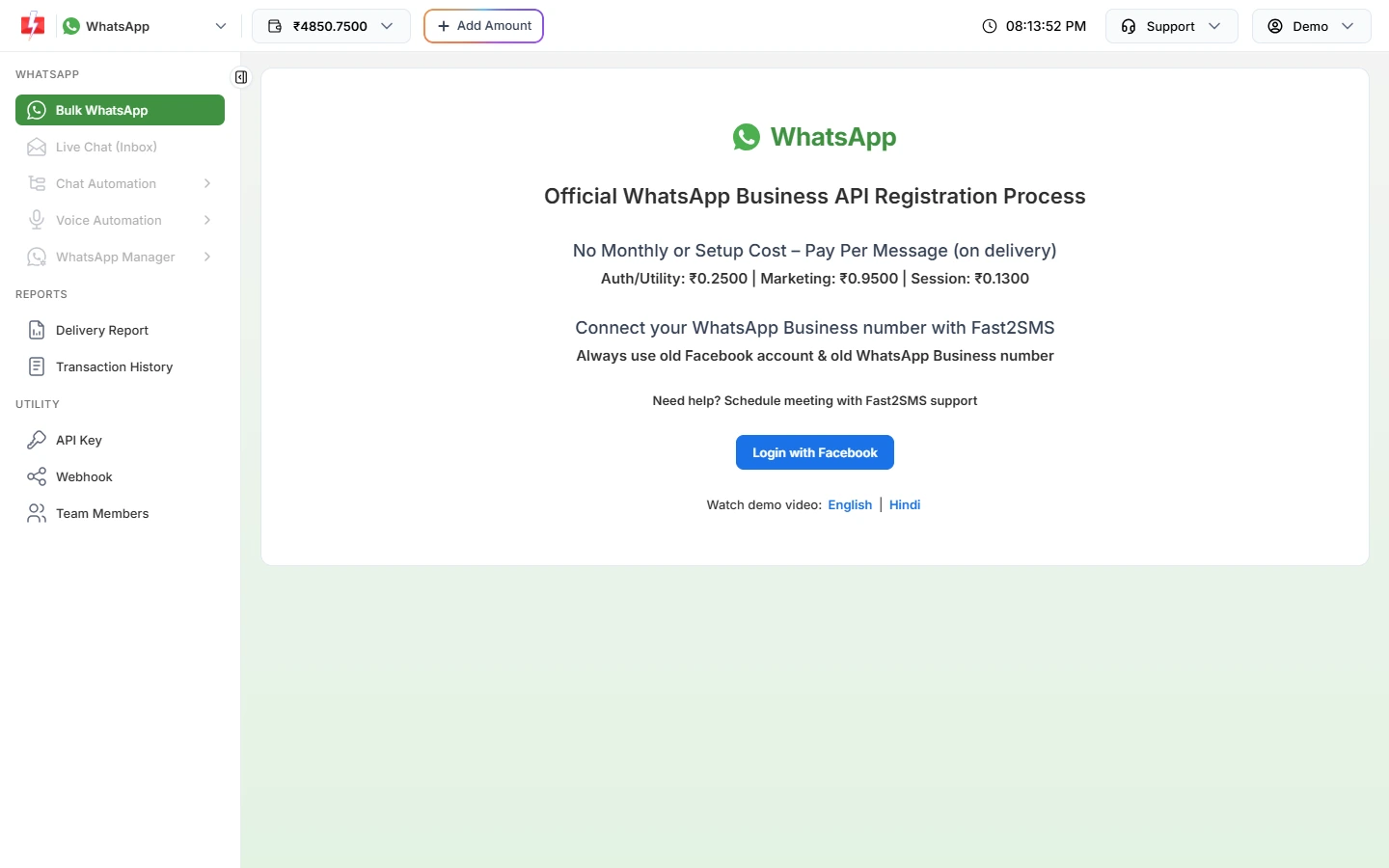
Connect the number again with Login with Facebook.
How to avoid it
- Finish the Facebook pop-up in one go when you connect a WhatsApp Business app number.
- Say yes to sharing chat history during sign-up if you want old chats.
- Avoid disconnecting and reconnecting the number without a reason.
Frequently asked questions
What is WhatsApp coexistence?
It lets you use the same number on the WhatsApp Business app and the WhatsApp Business API together.
How much chat history is copied?
At the time of writing, about the last 180 days of one-to-one chats. Group chats are not included.
Can I sync my history again later?
Only by offboarding and connecting the number again. Each sync can run once per onboarding, within 24 hours.
Does error 2593107 stop my messages?
No. New messages still work. Only the one-time copy of old contacts or chats is affected.
How do I disconnect my number from the API?
In the WhatsApp Business app, go to Settings, Account, Business Platform and tap Disconnect Account.