
The Fast2SMS WhatsApp OTP widget is a ready-made mobile verification box that sends the code to your visitor’s WhatsApp. You pick a WhatsApp OTP template in Smart OTP, list your websites and paste two lines of code on your page. There is no server to run and no API key on the website. The widget itself is free: you pay only for each OTP sent, at your normal Smart OTP rate.
This guide is for site owners who want “login with WhatsApp OTP” or WhatsApp OTP verification on a signup, enquiry or cash on delivery page. For the general setup with SMS codes, see the free OTP widget for website guide.
Before you start
- A Fast2SMS account with wallet balance. Every OTP the widget sends is a real, charged message, including your tests.
- A WhatsApp Business number connected in Fast2SMS, with an approved authentication or utility template that carries the code. See how to create a WhatsApp template.
- Visitors with Indian mobile numbers. The widget accepts 10-digit numbers starting with 6 to 9, with +91 shown in front.
How to add a WhatsApp OTP widget to your website
-
Make a WhatsApp OTP template in Smart OTP
In the panel, open Smart OTP > OTP Template List and click Add OTP Template. Choose the WhatsApp channel, your number and your approved template. If you also have an approved DLT OTP template, add it as an SMS fallback, so the code still reaches people when WhatsApp delivery fails. Save it and the template gets an OTP ID. The full steps are in send OTP on WhatsApp with Smart OTP. The same OTP ID also works with the WhatsApp OTP verification API, so your app and your website can share one template.
-
Open New Widget and pick the WhatsApp OTP ID
In the Smart OTP sidebar, under OTP WIDGET, click New Widget. Type a Widget name, for example “WhatsApp login”. Then click Select OTP ID. The Select OTP Template pop-up shows a phone preview of each of your templates. Click the WhatsApp filter on the left to see only WhatsApp templates, and click the one you want.
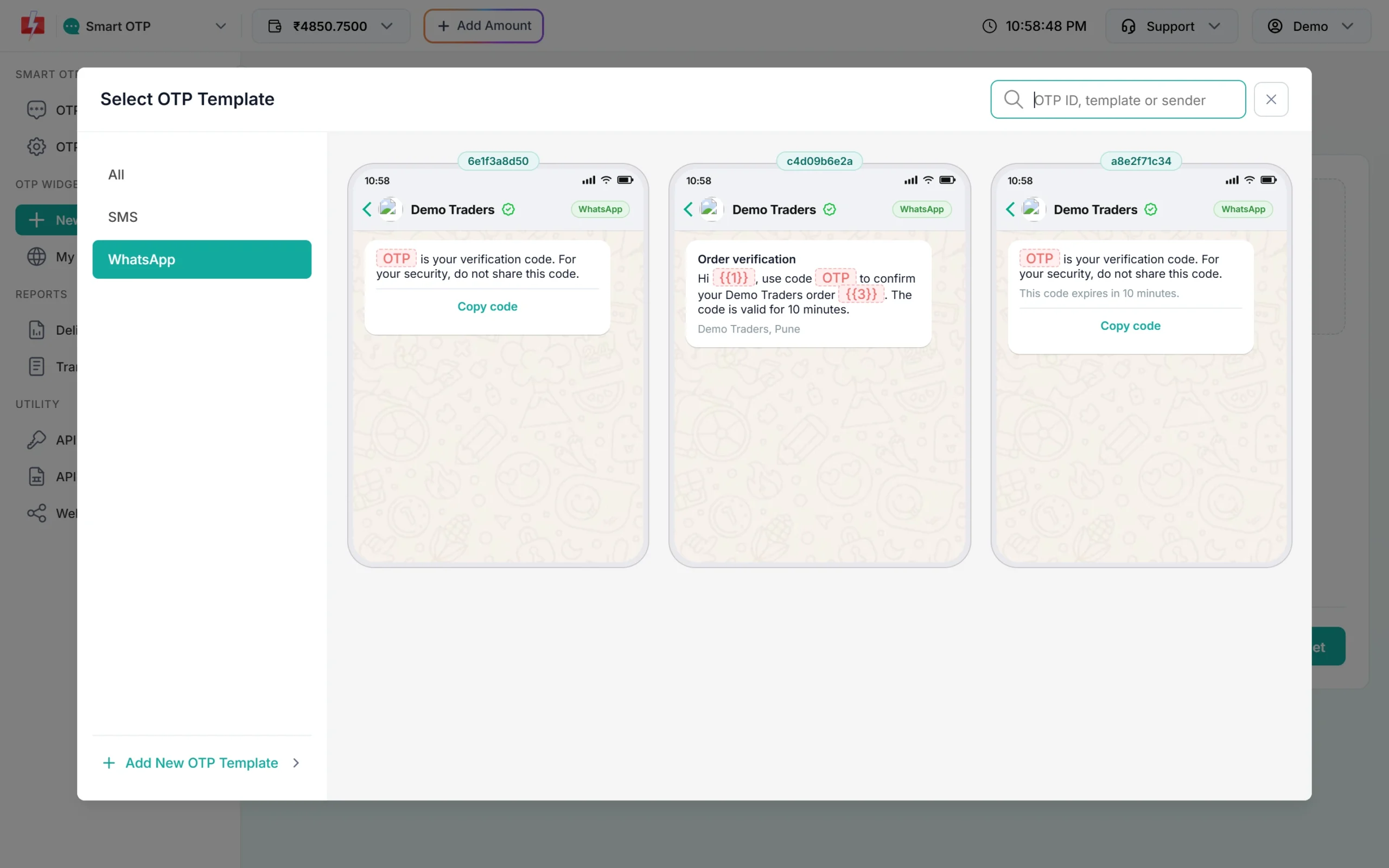
The WhatsApp filter shows only your WhatsApp OTP templates (test account). -
Add your websites and create the widget
The template you picked becomes a card with a WA badge, the template name and a Change OTP ID button. The right side shows the WhatsApp message your visitors will get. In Websites, add each domain where the widget will show, one per line, for example demotraders.in and www.demotraders.in. Use *.example.com to cover all subdomains. On any other site the widget only shows “Mobile verification is not available on this page right now.”
If your template has other variables besides the code, such as a name or an order number, turn on Template variables and give fixed values separated by |, the same way as the variables_values field of the API. Then click Create widget.
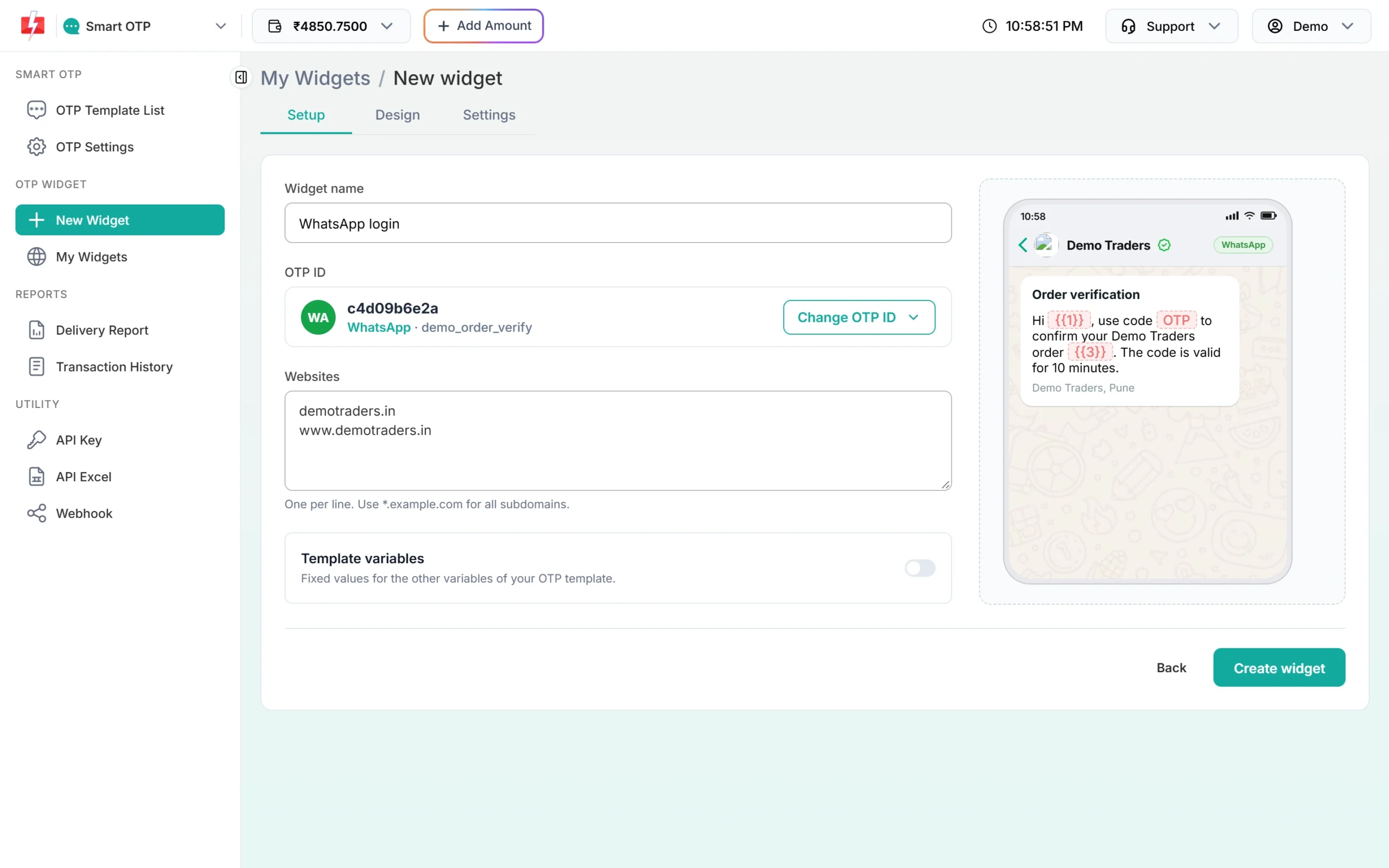
Name, WhatsApp OTP ID and websites filled in. The preview shows the WhatsApp message. -
Set the design and the limits
On the Design tab, set the Button colour, the Button text (default “Send OTP”) and, with Title and logo on, a title such as “Verify your mobile number” and a logo URL. The preview on the right changes as you type.
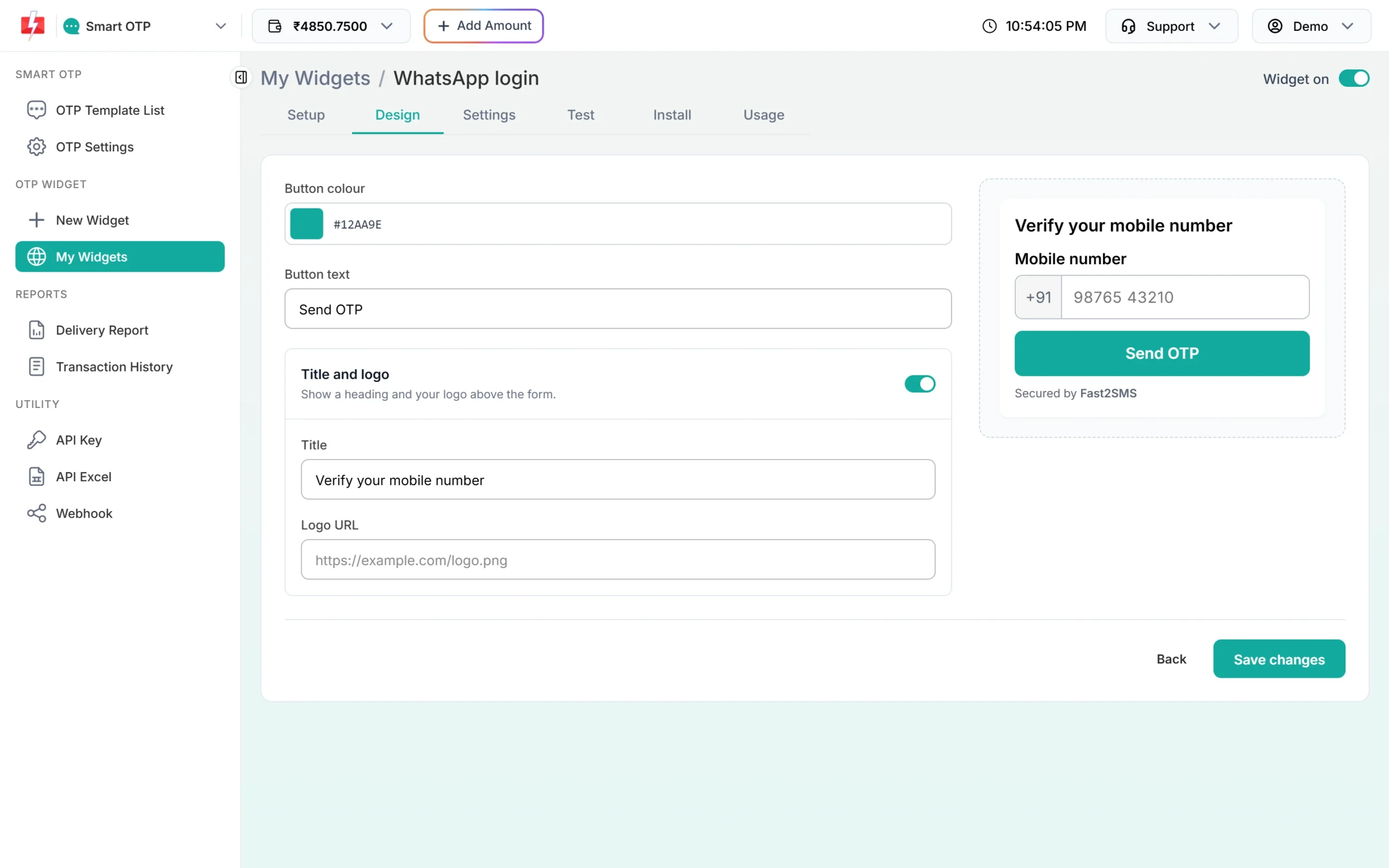
Colour, button text and title, with a live preview. On the Settings tab, Limits protect your wallet from bots: max spend per day and per month, max codes per day, per number per hour and per visitor per hour. A limit you leave off uses a safe default. The same tab can open a thank-you page after verification or send verified numbers to your webhook. See verify token and webhook.
-
Test with your own number
After saving, the widget has six tabs: Setup, Design, Settings, Test, Install and Usage, plus a Widget on switch at the top right. Open Test. It runs the real widget and says “Try it with your own number. A real OTP is sent and charged.” Type your number, click Send OTP and check your WhatsApp. Click Reload to start again.
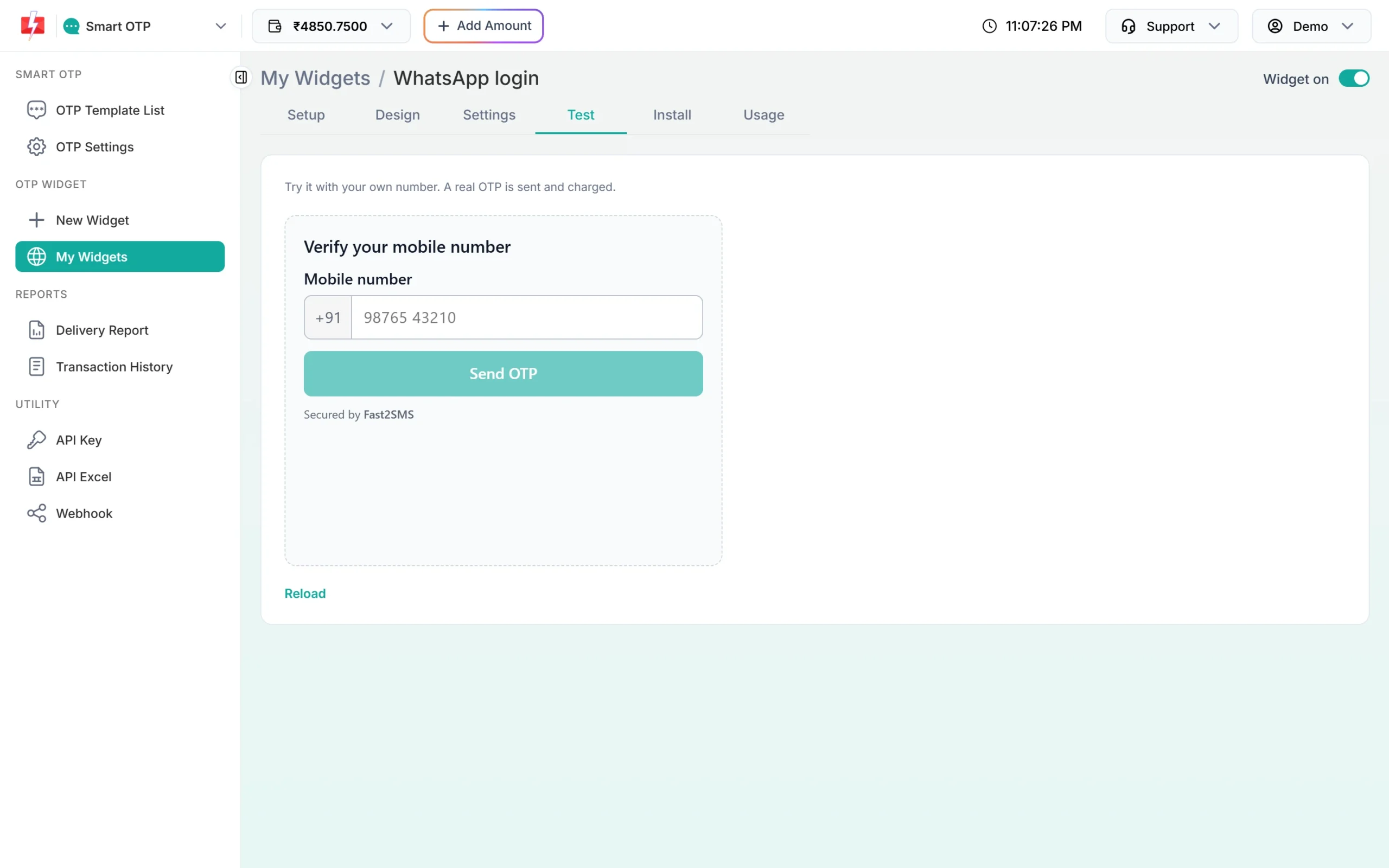
The Test tab sends a real WhatsApp OTP to your number. -
Install it on your page
Open Install > Widget and click Copy. Paste the two lines on your page where the box should appear:
<script src="https://www.fast2sms.com/widget/otp-js?v=1.0.5" defer></script>
<div data-f2s-otp-widget="YOUR_WIDGET_KEY"></div>
The copied code already has your own widget key. The same tab has other ways to place it: Popup, Mobile field, Form and Server. See OTP widget popup button and mobile field.
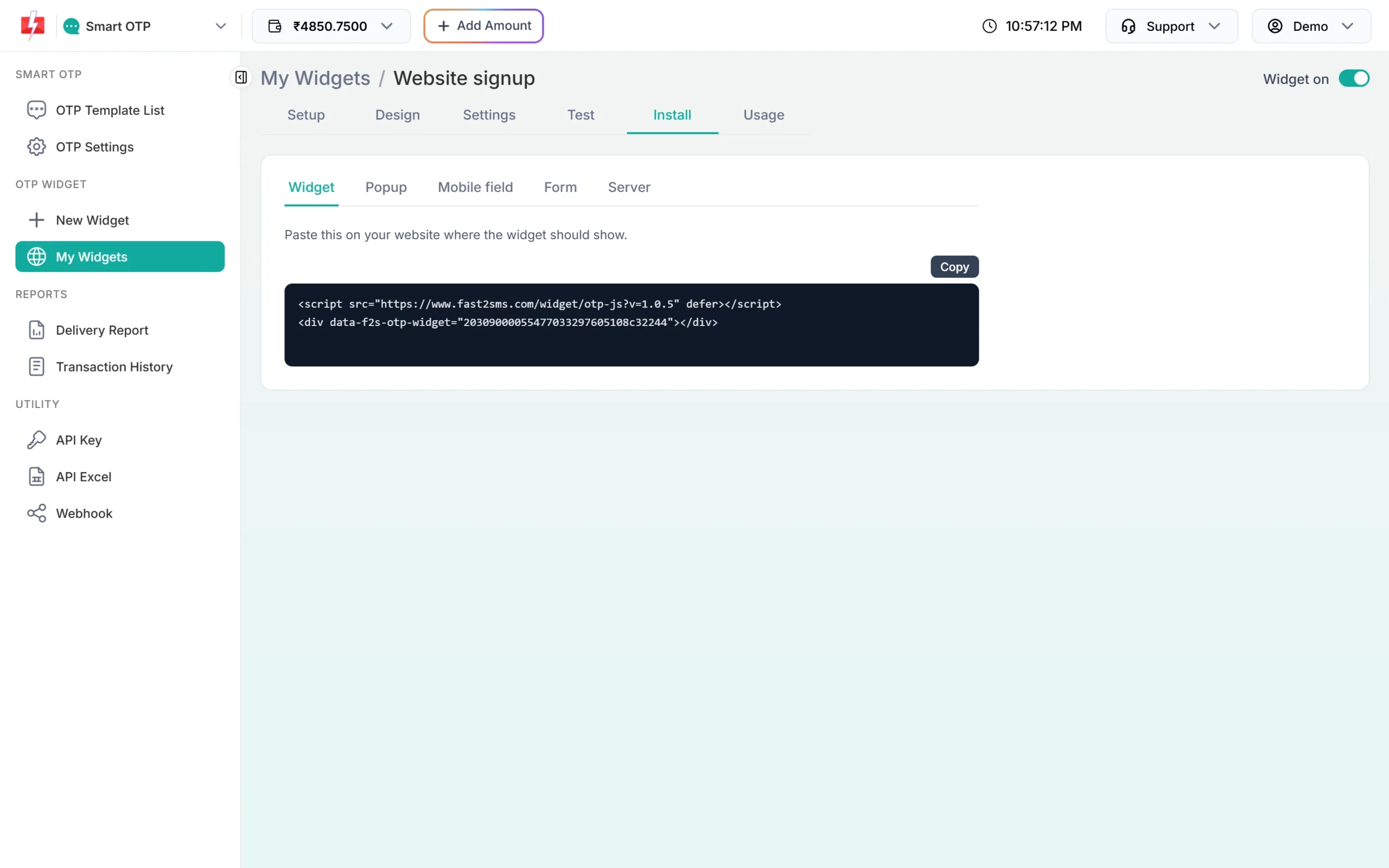
Copy the two lines from Install. The code is the same for SMS and WhatsApp widgets.
What the visitor sees
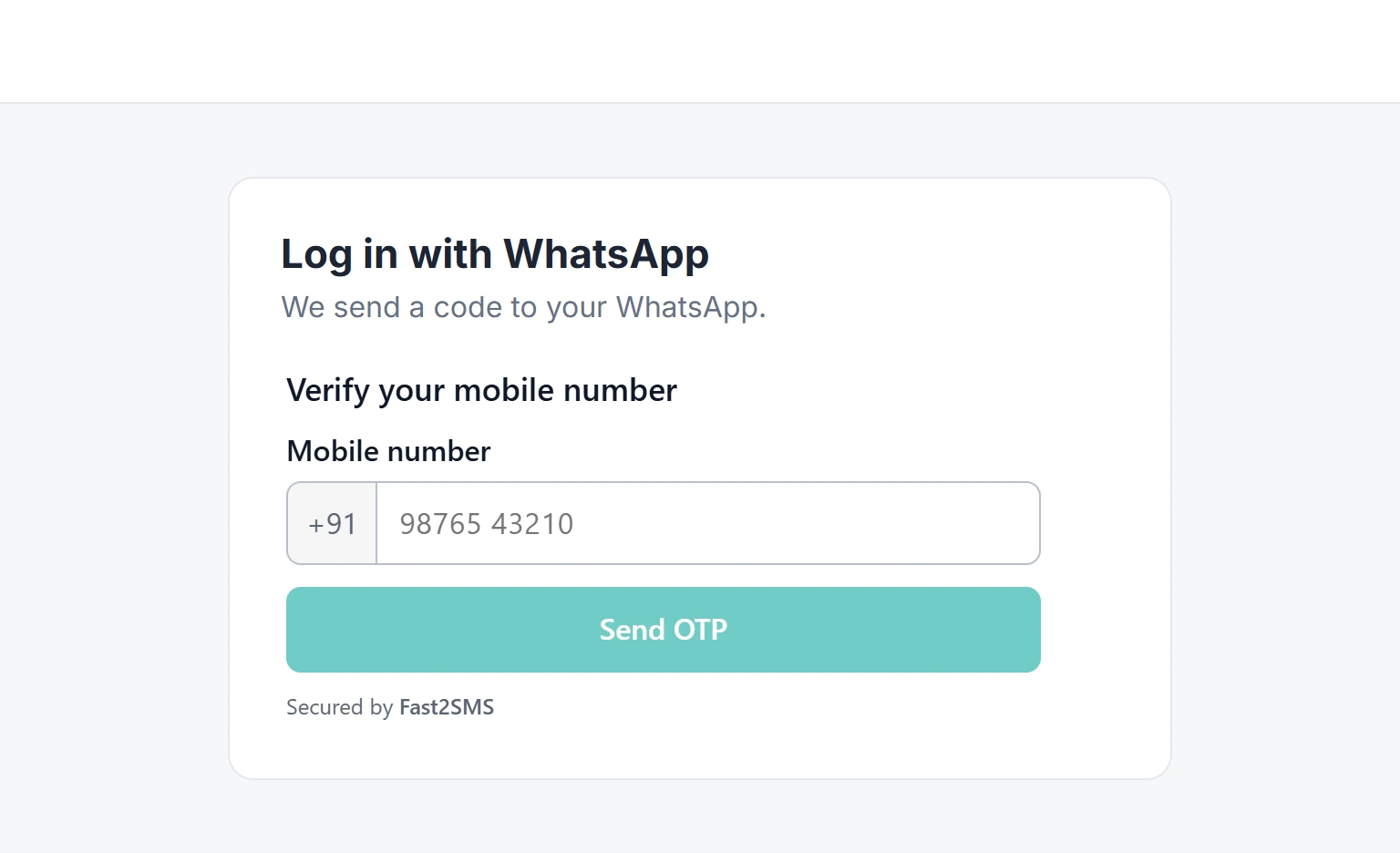
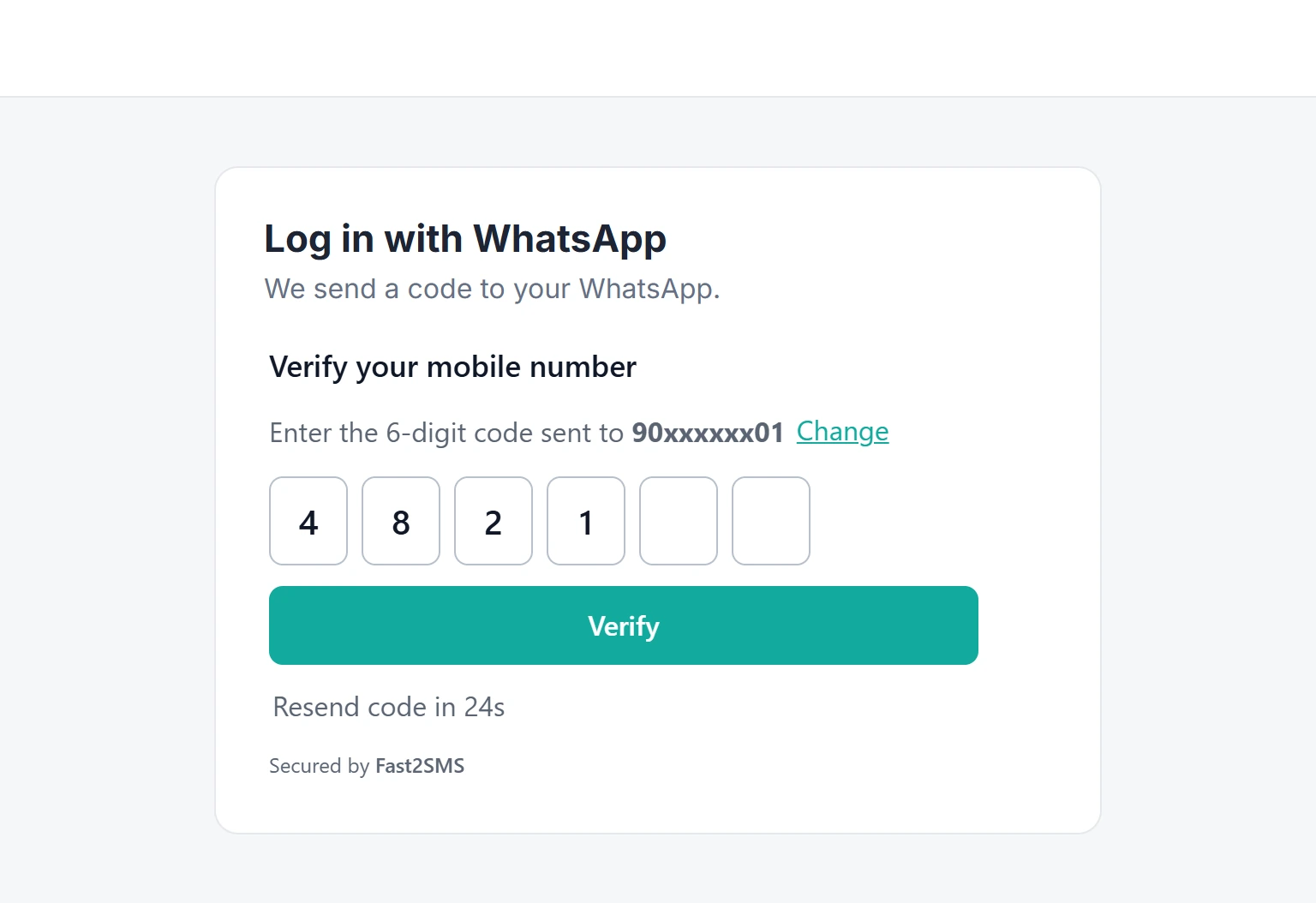
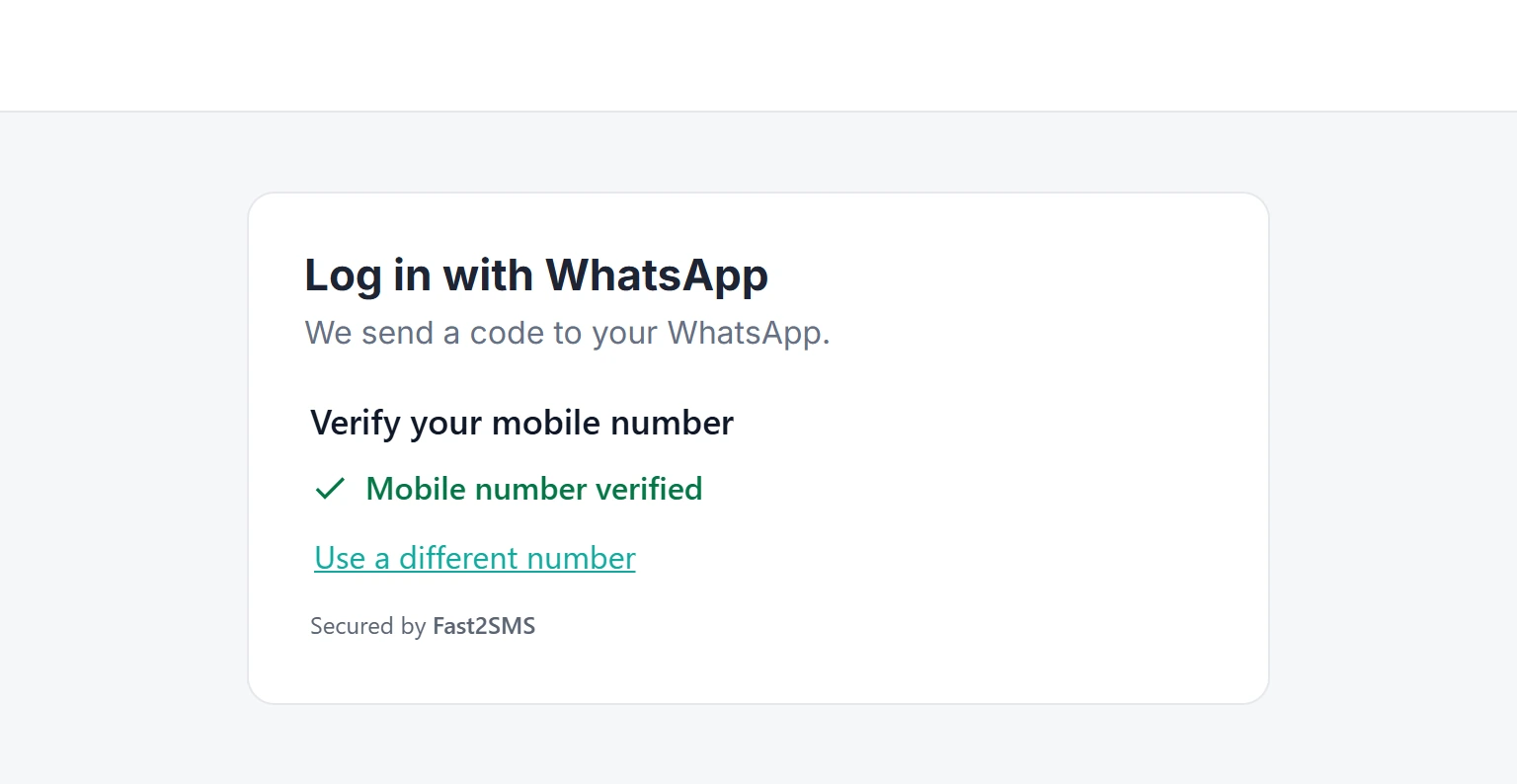
On your page the visitor types the mobile number and clicks Send OTP. A short “I am human” check runs inside the widget, then the code goes to WhatsApp. The widget asks to “Enter the 6-digit code sent to” a masked number such as 90xxxxxx01, with a Change link, six code boxes, a Verify button and a “Resend code” timer. After the right code it shows “Mobile number verified” and a “Use a different number” link.
WhatsApp OTP or SMS OTP for your website
| Point | WhatsApp OTP | SMS OTP |
|---|---|---|
| What you need first | A connected WhatsApp Business number and an approved authentication or utility template | DLT registration, a sender ID and an approved DLT OTP template |
| What the visitor needs | WhatsApp on that mobile number | Any phone that gets SMS |
| How it looks | A chat from your business name, often with a Copy code button | An SMS from your DLT sender ID |
| Filling the code | Visitor copies it from the chat | Phone SMS autofill can fill the boxes |
| Backup | SMS fallback, if set in the template | WhatsApp fallback, if set in the template |
Pick WhatsApp when most of your customers use WhatsApp and you want the code in a chat that shows your business name. Pick SMS when you want to reach every phone, including people without WhatsApp. For most sites the safest choice is one template that tries one channel first and falls back to the other. Read WhatsApp OTP vs SMS OTP for cost and reach, and multi-channel OTP for how fallback works. You can also make two widgets, one with each OTP ID.
What it costs
The widget has no widget fee, setup fee or monthly fee. Each code is charged from your Fast2SMS wallet at your normal Smart OTP rate for that channel, the same as the API. Test sends, resends and fallback messages are real messages too, so each one is charged. See the current rates on the Smart OTP page.
Sending in bulk? For high OTP volumes our team offers discounted rates. Talk to our team or see OTP pricing.
Common problems and fixes
| What you see | What to do |
|---|---|
| “Mobile verification is not available on this page right now.” | Add the exact domain to Websites, with and without www. Check that the Widget on switch is on. Some site builders run custom code in their own frame on another domain; use their site-wide custom code option instead. |
| The code does not arrive on WhatsApp | The number may not use WhatsApp. Add an SMS fallback to the template and check the Delivery Report. More tips: OTP not received checklist. |
| The widget stopped sending for the day | A daily or monthly spend cap was reached. My Widgets shows “Stopped today” and sending starts again after midnight IST, or raise the cap in Settings. |
| The box does not load on a site with strict security headers | If your site has a Content Security Policy, allow https://www.fast2sms.com in script-src and frame-src. |
Frequently asked questions
Is the WhatsApp OTP widget free?
Yes. Creating and using the widget is free. You pay only for each OTP sent, at your Smart OTP rate.
Can I add login with WhatsApp OTP to my website without coding?
Yes, you paste two lines of code. If a login or an account depends on the number, your server should also confirm the one-time f2s_token, or you can receive verified numbers on your webhook.
Can I show the WhatsApp OTP in a popup?
Yes. Use the Popup install option: your own button opens the widget in a popup, at the centre, top, bottom, a side or a corner of the page.
What if the visitor does not use WhatsApp?
Without a fallback the code will not reach them. Add an SMS fallback to the Smart OTP template so the same code goes by SMS.
Can I use a utility template instead of an authentication template?
Yes. Smart OTP accepts an approved WhatsApp authentication or utility template for OTPs.
How long is the code valid?
The code has 6 digits and is valid for 10 minutes. The visitor can ask for a new code after a 30-second wait.
Does my API key go into the website code?
No. The page only has your widget key. The widget runs in a frame from www.fast2sms.com and your page gets a one-time token and the masked number.
Related guides
If you prefer to host the code yourself, see the OTP widget kits.