
WooCommerce Checkout OTP Verification: Verify the Mobile Number Before the Order
Most wrong-number and fake orders on an Indian WooCommerce store have one thing in common: nobody checked the mobile number. The customer types nine digits, or a friend’s number, or a random one, and you find out only when the courier calls and nobody answers. WooCommerce checkout OTP verification fixes this at the source. The customer gets a one-time code on WhatsApp or SMS and must enter it before the order is placed.
This guide shows how OTP verification on checkout works in WooCommerce with the free Fast2SMS plugin, where the OTP box can sit, how to style it, and what to do if your store runs the newer block checkout. The short version: the checkout OTP box works on the classic (shortcode) checkout only, and block checkout stores can use COD OTP confirmation after the order instead.
Why verify the mobile number at WooCommerce checkout
The phone number on an order is what everything after the sale runs on. The courier calls it. Your order updates on WhatsApp and SMS go to it. Your team calls it to confirm a COD order. If the number is wrong, all of that breaks at once.
These are the problems we see again and again on Indian stores, especially COD-heavy ones:
- Typos. One digit off, or a digit missing. The customer is real, but nobody can reach them.
- Fake orders. Someone places an order with a made-up number just to see what happens, or to waste your stock.
- COD orders with no intent to pay. The parcel ships, nobody answers, and it comes back as RTO.
- Silent customers. Your “Order shipped” and “Out for delivery” messages go to a number that belongs to someone else.
Checkout is the last cheap moment to fix this. Before the order exists, a wrong number costs you nothing. After it is placed, a wrong number means failed calls, held shipments and returns. A WooCommerce checkout OTP step makes the customer prove they own the number while they are still on your site and still want the product.
How WooCommerce checkout OTP works
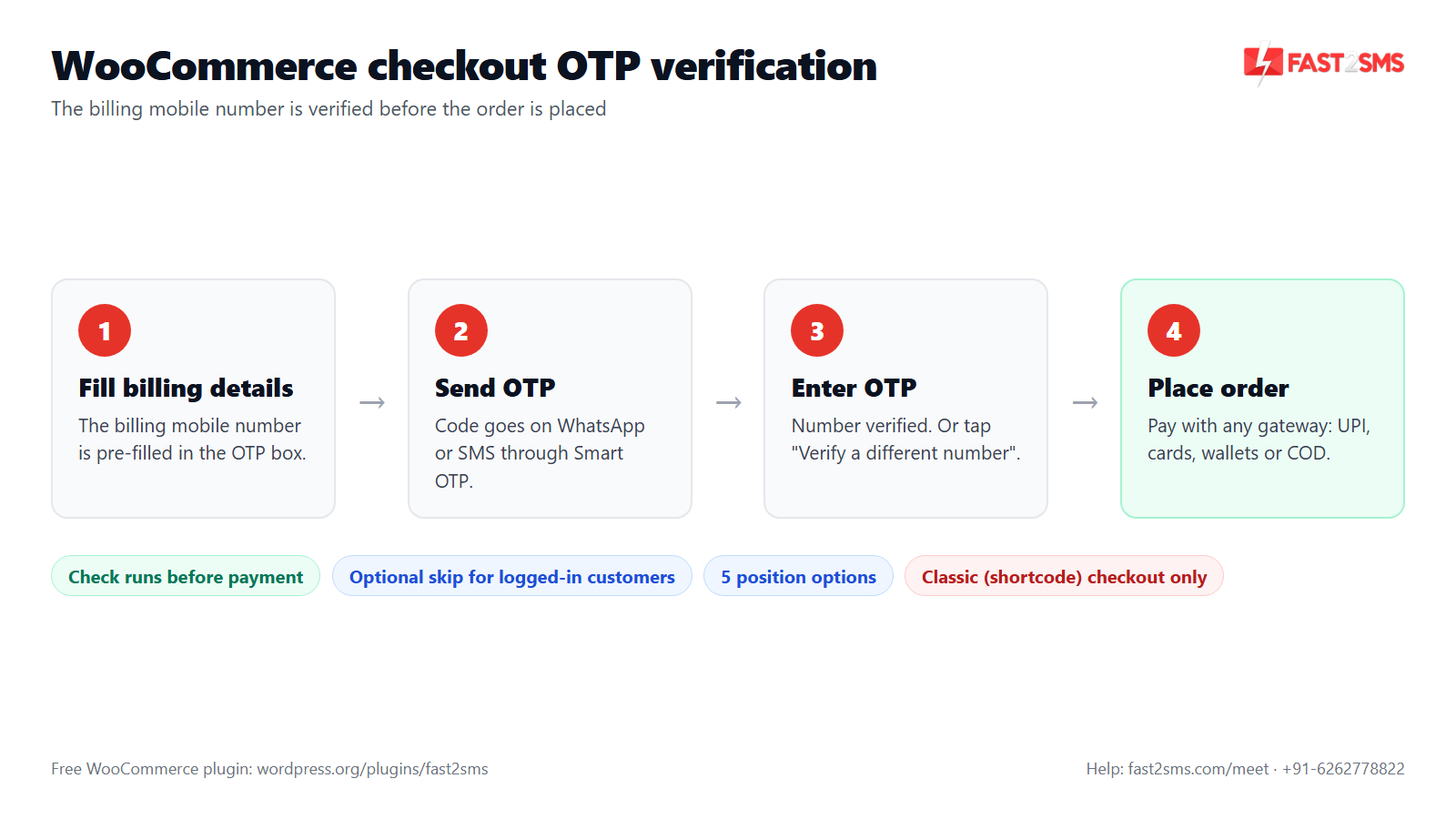
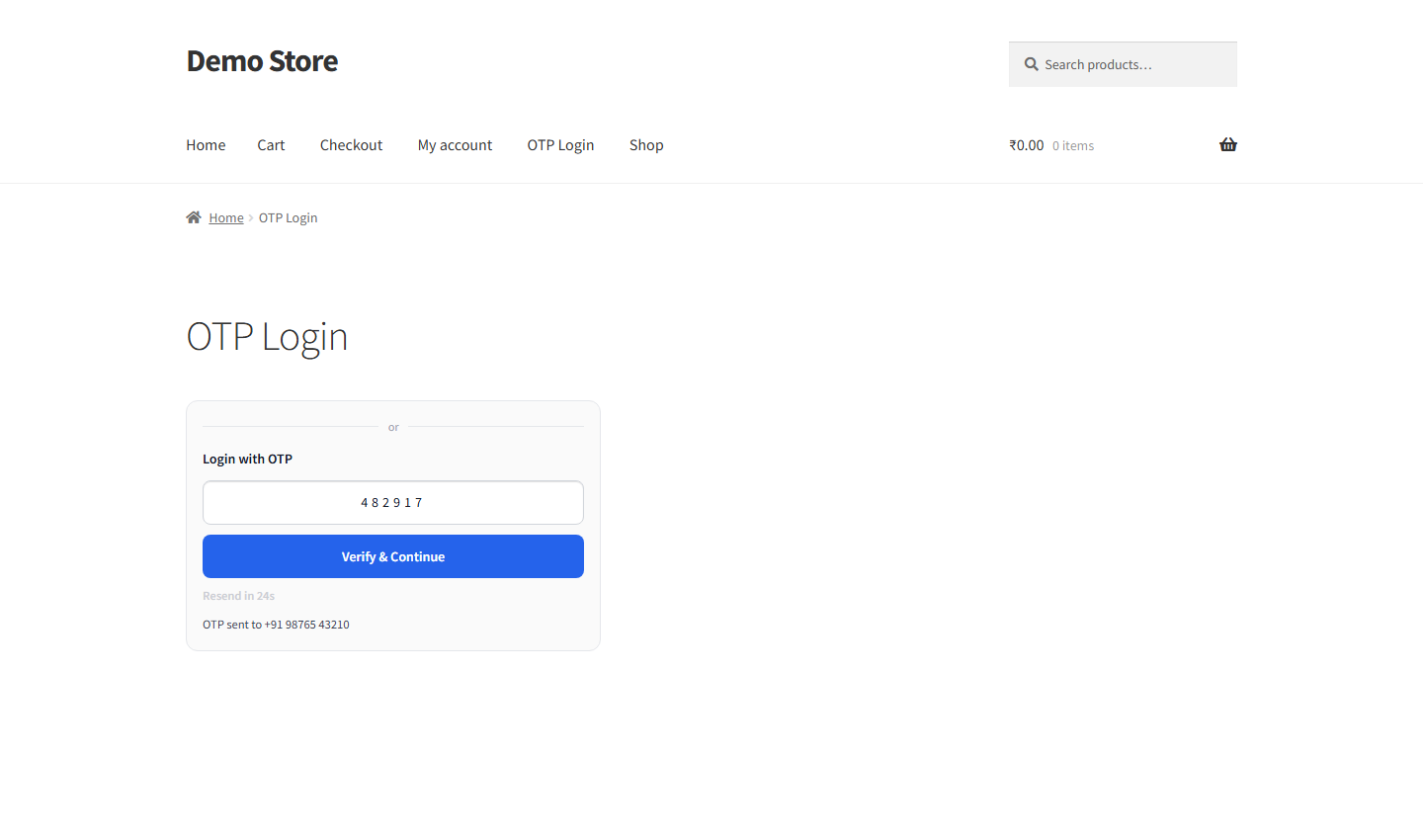
The checkout OTP verification feature in the free Fast2SMS plugin adds a small OTP box to your classic checkout page. Here is what the customer sees:
- They fill in billing details as usual. The OTP box picks up the billing mobile number, so it is already pre-filled. No typing the number twice.
- They tap to send the OTP. The code goes out through Smart OTP: WhatsApp first with SMS as the fallback, or the reverse, depending on how your OTP ID is set up at Fast2SMS.
- They enter the code. Once it matches, the number is verified.
- They place the order. The order goes through only after the number is verified.
If the customer wants the code on another number, for example because the billing number belongs to a family member, they tap “Verify a different number”, type the new number and verify that one instead.
It works with every payment gateway
The check runs before payment. That is why it does not matter which gateway you use. UPI, cards, net banking, wallets, pay later, cash on delivery: the customer verifies the number first, then moves on to pay the way they always do. Your payment gateway never sees an order with an unverified number, and you do not need any gateway-specific setup.
Optional skip for logged-in customers
You can choose to skip checkout OTP for customers who are already logged in. This is useful if many of your repeat buyers log in with WooCommerce OTP login, because their number was already proven when they signed in. Guest checkouts, where most fake and wrong numbers come from, still get the OTP step.
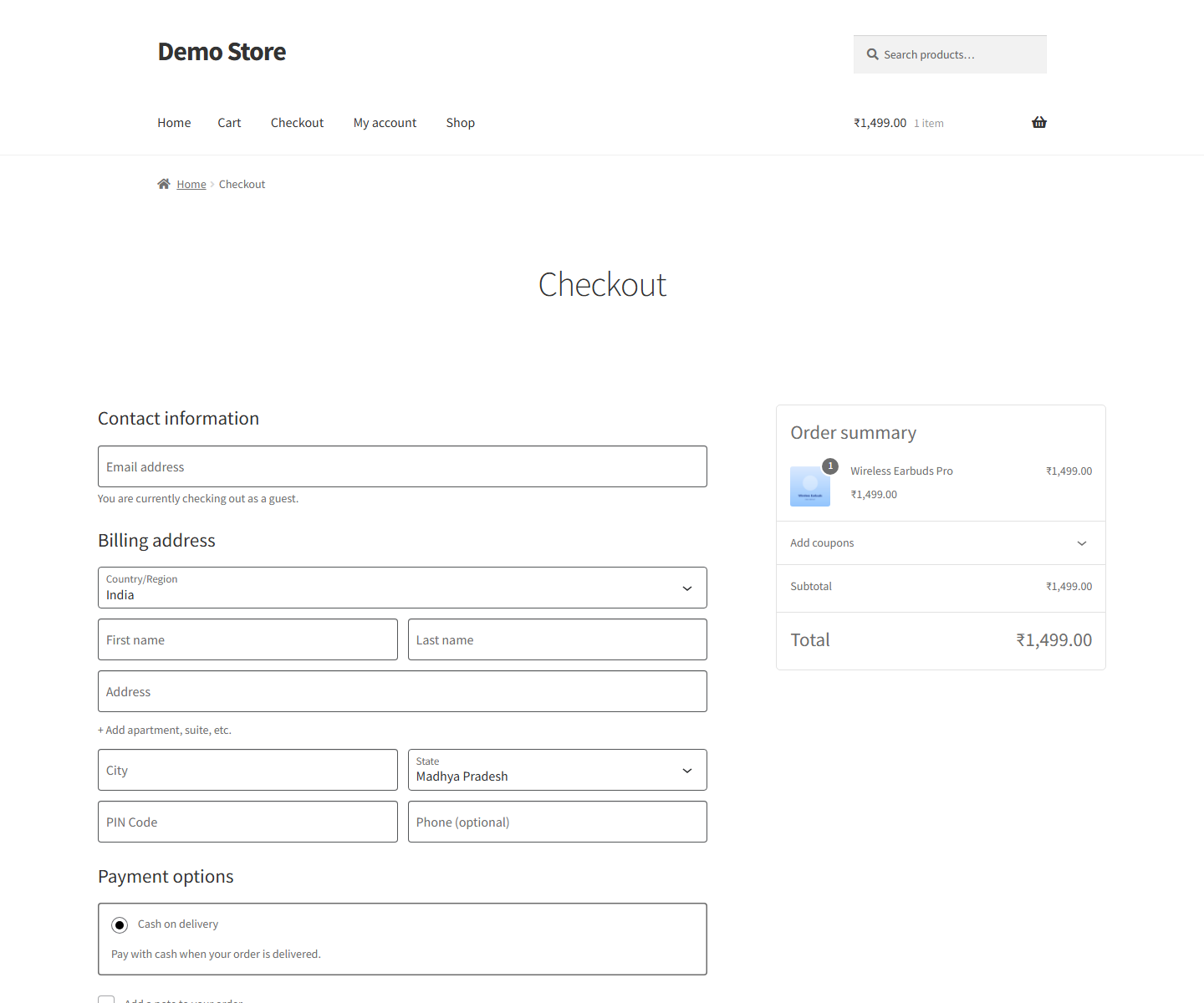
How to set up OTP verification on checkout in WooCommerce
Setup takes a few minutes if your Fast2SMS account is ready. The full walkthrough is in our Fast2SMS WordPress plugin setup guide. The short path:
- Install the plugin. In WP Admin go to Plugins > Add New, search “Fast2SMS” and install “Fast2SMS – OTP Login & SMS Notifications”. It is free.
- Connect your API key. Open WP Admin > Fast2SMS > Dashboard and paste your Fast2SMS API key. The plugin checks it live and stores it encrypted.
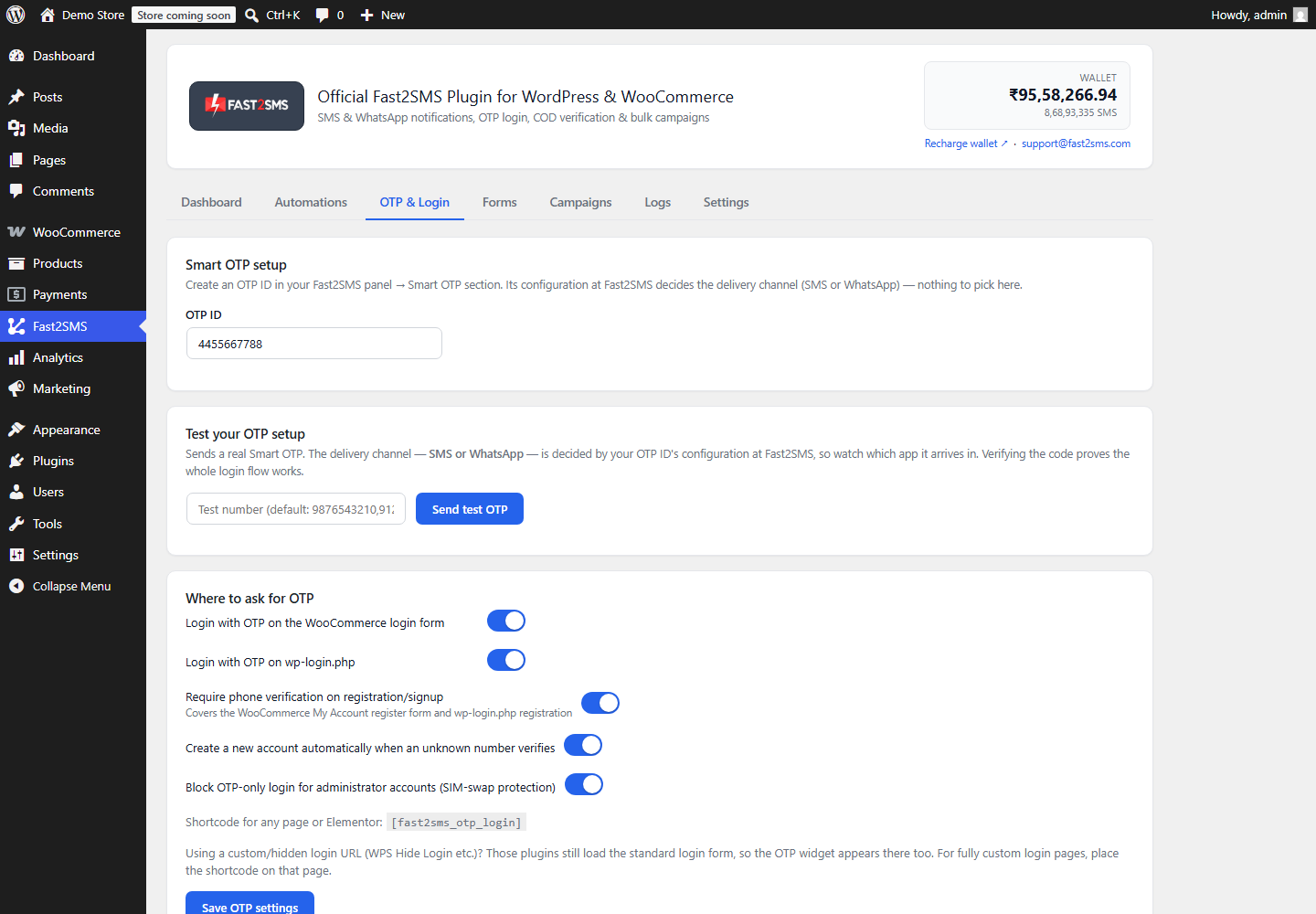
- Add your OTP ID. In the OTP & Login tab, enter the Smart OTP ID from your Fast2SMS account. This decides whether codes go on WhatsApp, SMS or both with fallback. Our Smart OTP guide explains the options.
- Send a test OTP. Use the test OTP option in the same tab to send and verify a real code to your own phone.
- Turn on checkout OTP verification. Pick the position, set the title and, if you want, the checkout-only look.
- Decide on logged-in customers. Switch on the skip if you do not want to ask them again.
- Place a test order as a guest from your phone, with a real payment method or COD.
Checkout OTP box positions and the [fast2sms_checkout_otp] shortcode
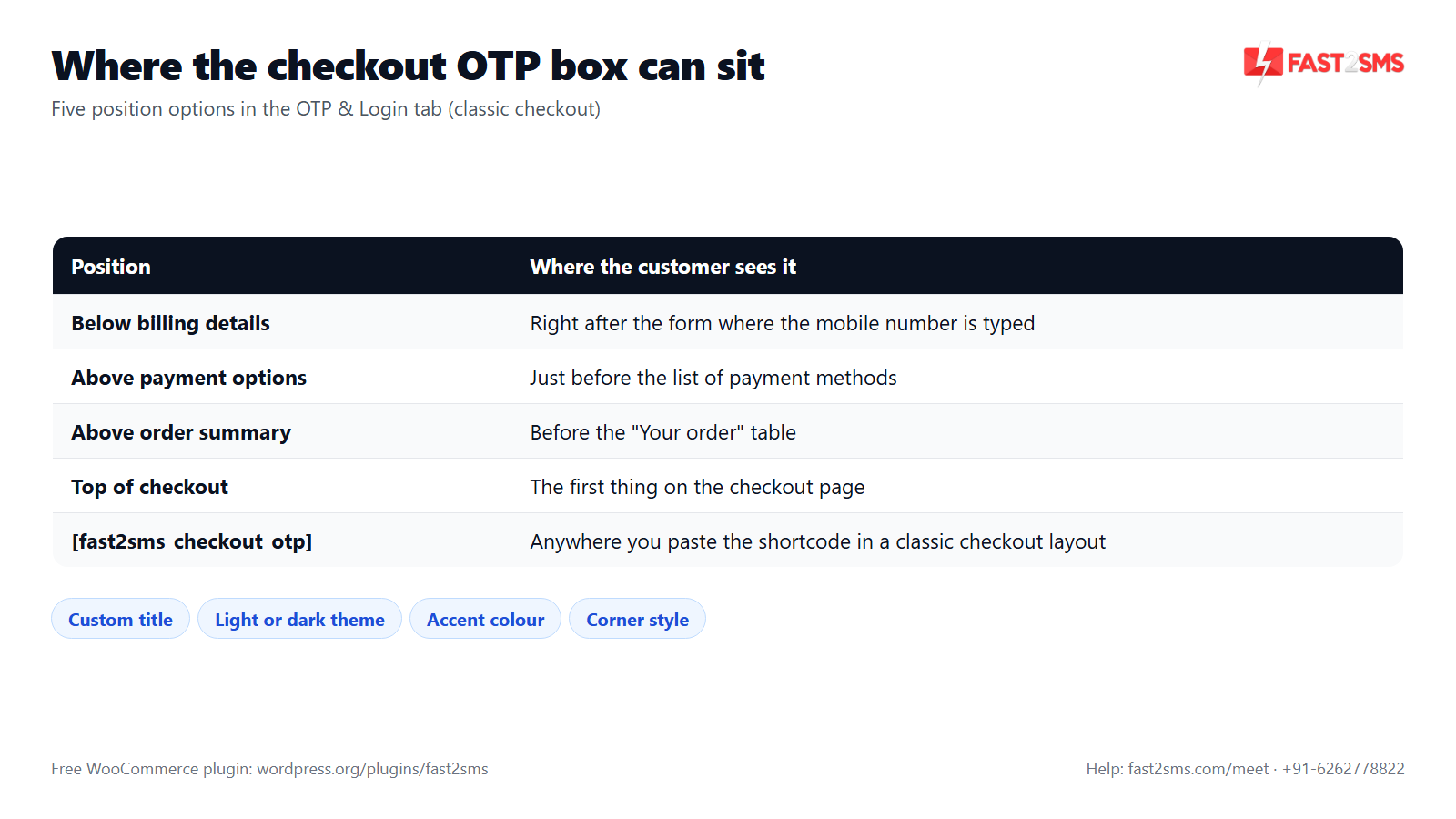
Every theme lays out the checkout a little differently, so the plugin gives you five places to put the OTP box. You pick one in the OTP & Login tab.
| Position option | Where the customer sees it | When to pick it |
|---|---|---|
| Below billing details | Right after the billing form | The customer has just typed the number, so verifying it next feels natural |
| Above payment options | Just before the list of payment methods | You want verification to be the last step before paying |
| Above order summary | Before the “Your order” table | Two-column themes where the summary column is what customers look at |
| Top of checkout | The first thing on the checkout page | You want the number verified before anything else is filled in |
[fast2sms_checkout_otp] shortcode |
Wherever you paste the shortcode | Custom classic checkout layouts where none of the four spots fits |
Our advice after doing this on many stores: start with “Below billing details” or “Above payment options”. Open the checkout on a phone, because most Indian shoppers check out on mobile, and see whether the box is easy to spot without scrolling back up. If your theme moves things around, try the next option. It is a single setting, so testing all five takes a few minutes.
The [fast2sms_checkout_otp] shortcode is for stores with a customised classic checkout layout. Put it where you want the box and choose the shortcode option in settings. It still needs the classic checkout underneath.
Custom title, theme, colour and corner style
An OTP box that looks out of place makes customers nervous at the exact moment they are about to pay. So you can make it match your store:
- Custom title. Write something clear, like “Verify your mobile number to place the order” or “We will send a code to confirm your number”. Plain words work better than “Security check”.
- Checkout-only theme. Light or dark, separate from your login form if you want.
- Accent colour. Use your brand colour for the button.
- Corner style. Sharp, rounded, soft or pill, to match the buttons your theme already uses.
The checkout look is optional. The OTP & Login tab already has appearance settings for the login form with a live preview. If those already match your store, you do not need to set anything extra for checkout.
WooCommerce checkout OTP works on the classic checkout only
WooCommerce has two kinds of checkout page. The classic checkout is built with the [woocommerce_checkout] shortcode. The block checkout is built with the Checkout block in the WordPress editor, and newer WooCommerce installs often start with it.
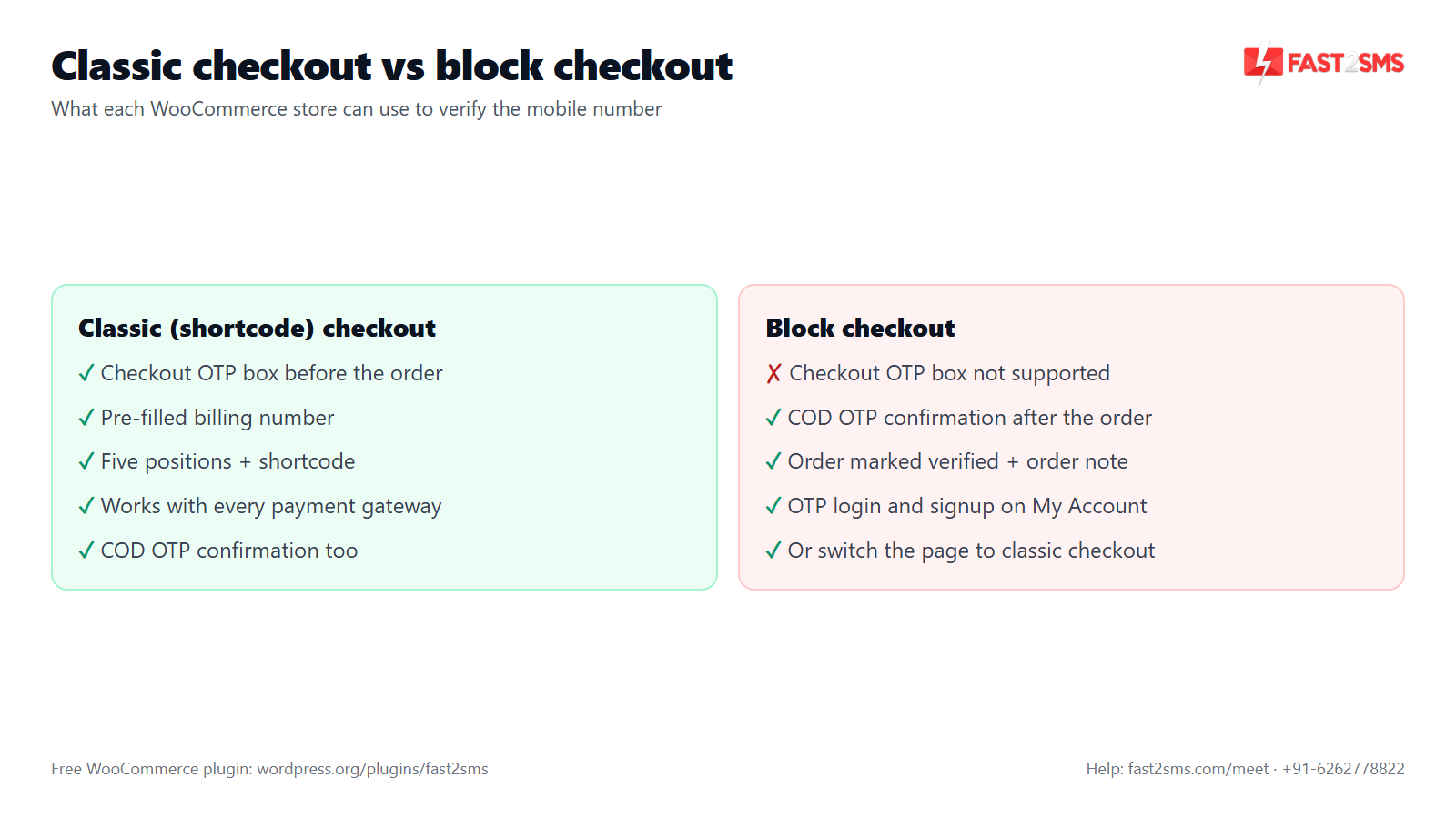
Checkout OTP verification works with the classic (shortcode) checkout only. It does not work on the block checkout. Please check this before you promise it to your team.
How to check which checkout your store uses
Go to Pages, open your Checkout page in the editor and look at the content. If you see the [woocommerce_checkout] shortcode, you are on the classic checkout. If you see the Checkout block with its own sections, such as contact information, shipping address and payment options that you can click and edit, you are on the block checkout.
What block checkout stores can do instead
- Use COD OTP confirmation after the order. When a COD order is placed, the customer gets a one-tap link to confirm the order with an OTP. The order is marked verified and an order note is added, so your team ships confirmed orders first. This works whatever checkout you use. See our WooCommerce COD OTP verification guide.
- Verify numbers at login and signup. OTP login and phone verification on registration work on the WooCommerce My Account page. Read WooCommerce mobile number verification at registration.
- Nudge COD buyers to prepay. The COD to Prepaid nudge sends a pay link after a COD order and cancels itself once the customer pays. More in COD to prepaid and pending payment reminders.
- Switch the checkout page to classic. Replace the Checkout block with the
[woocommerce_checkout]shortcode. Test your theme and payment gateways on a staging copy first.
WooCommerce checkout OTP vs COD OTP confirmation
Many store owners ask which one to use. They solve slightly different problems, and a lot of COD-heavy stores run both.
| Checkout OTP verification | COD OTP confirmation | |
|---|---|---|
| When it runs | Before the order is placed | After a COD order is placed |
| Which orders | All orders, any payment gateway | COD orders |
| Checkout type | Classic (shortcode) checkout only | Not tied to the checkout page |
| What the customer does | Enters the OTP in a box on the checkout page | Taps a link in the message and confirms with an OTP |
| What you get | No order with an unverified number | COD order marked verified, plus an order note |
If your checkout is classic and wrong numbers are your main headache, start with checkout OTP. If you are on block checkout, or you worry that an extra checkout step will cost you orders, start with COD OTP confirmation and watch how many COD orders get confirmed.
What WooCommerce checkout OTP costs
Fast2SMS is a free OTP plugin for WooCommerce, and the same install is also your WooCommerce SMS plugin and WooCommerce WhatsApp plugin for order updates. The plugin itself costs nothing. You connect your own Fast2SMS account and pay only for the messages you send from your wallet. For a store, that means one OTP message per checkout that asks for one, plus a resend when a customer asks for it. Our WooCommerce OTP cost guide works through the numbers.
Pricing: free WooCommerce plugin, pay only per message
- The plugin is free: no licence, no monthly fee, no setup fee.
- WhatsApp OTP and order updates: ₹0.25 per delivered message; failed WhatsApp messages are refunded within 48 hours.
- SMS: your DLT SMS rate per message.
- High volume? Rates are negotiable: call +91-6262778811, email [email protected] or book a free meeting.
- Free signup with ₹50 test credit.
WhatsApp OTP vs SMS OTP and DLT
WhatsApp OTP needs no DLT registration, which is why many stores start there. SMS OTP needs DLT: a registered entity, a 6-letter header, an approved OTP template (the Transactional category now covers OTPs for any business), and a PE-TM chain bound to a registered telemarketer. From 30th September, messages with a mismatched chain are blocked, so check yours. Our guides on DLT SMS templates for WooCommerce and PE-TM chain mismatch cover both. Fast2SMS connects directly with Airtel, Jio, BSNL, Tata, Vi and Smartping.
Tips from setting up checkout OTP on Indian stores
- Turn on Smart OTP fallback. If WhatsApp does not reach a customer, SMS can. This cuts the “I did not get the OTP” drop-offs at checkout.
- Keep the resend countdown short. You set it between 10 and 300 seconds. A customer staring at a long timer at checkout may give up.
- Test on a phone, as a guest. Logged-in admin views can hide what guests see, especially with the logged-in skip on.
- Watch the numbers. The Dashboard shows OTPs sent and OTPs verified for the last 30 days. A big gap between the two tells you customers are not getting or not entering the code. The Logs tab shows each message with its status and error.
- Know the security limits. The server allows at most 3 OTP sends per number and 10 per IP address in 10 minutes, 5 verify attempts per OTP, and each OTP expires in 10 minutes. This stops people from spamming your OTP box and burning your wallet.
- If customers report missing codes, go through our WooCommerce OTP not received checklist.
Want help setting up checkout OTP on your WooCommerce store? Our team will do it with you, free.
We can check whether your checkout is classic or block, set up Smart OTP with WhatsApp and SMS fallback, and place a test order with you. Schedule a free meeting, call +91-6262778822 or email [email protected].
Frequently asked questions
What is WooCommerce checkout OTP verification?
WooCommerce checkout OTP verification asks the customer to confirm their billing mobile number with a one-time code on WhatsApp or SMS, and the order goes through only after the number is verified.
How do I add OTP verification on checkout in WooCommerce?
Install the free Fast2SMS plugin, connect your Fast2SMS API key, add your Smart OTP ID in the OTP & Login tab and switch on checkout OTP verification on your classic checkout. Then pick a position and place a test order from your phone.
Is there a free WooCommerce checkout OTP plugin?
Yes, “Fast2SMS – OTP Login & SMS Notifications” is a free WooCommerce checkout OTP plugin on WordPress.org with no licence or monthly fee, and you pay only for the OTP messages you send. Install it from wordpress.org/plugins/fast2sms.
Does WooCommerce checkout OTP work with the block checkout?
No, WooCommerce checkout OTP verification works only with the classic (shortcode) checkout page and not with the newer block checkout that many fresh WooCommerce installs start with. Block checkout stores can use COD OTP confirmation after the order, or switch the checkout page to the classic shortcode.
How do I know if my WooCommerce store uses classic or block checkout?
Open your Checkout page in the WordPress editor: if the content is the [woocommerce_checkout] shortcode you are on classic checkout, and if you see the Checkout block with editable sections like payment options you are on block checkout.
How do I switch WooCommerce to the classic checkout?
Edit your Checkout page, remove the Checkout block and add the [woocommerce_checkout] shortcode in its place, then save and place a test order with each payment method you offer. Do this on a staging copy first, because themes and gateways can behave differently.
What can block checkout stores use instead of checkout OTP?
Block checkout stores can use COD OTP confirmation, which sends a one-tap link after a COD order so the customer confirms with an OTP and the order is marked verified. OTP login and phone verification at signup also work on the My Account page.
Does checkout OTP work with Razorpay, PhonePe, Cashfree and other gateways?
Yes, WooCommerce checkout OTP works with every payment gateway because the check runs before payment, whether the customer pays by UPI, card, net banking, wallet or cash on delivery. No gateway-specific setup is needed.
Does WooCommerce checkout OTP work for cash on delivery orders?
Yes, COD is treated like any other payment method, so the billing number is verified before the COD order is placed. Many COD-heavy stores also add COD OTP confirmation after the order to check that the customer really wants the parcel.
Is the billing phone number pre-filled in the checkout OTP box?
Yes, the checkout OTP box picks up the billing mobile number the customer already typed, so they do not enter it twice and only need to tap to get the code and then type it in.
Can a customer verify a different number at checkout?
Yes, the checkout OTP box has a “Verify a different number” option, so the customer can type another 10-digit Indian mobile number and verify that one instead. This helps when the billing number belongs to a family member or an office.
Can I skip checkout OTP for logged-in customers?
Yes, there is an optional setting to skip checkout OTP for logged-in customers while guests still get the OTP step. Turn it on if many of your repeat buyers already log in with OTP and have proven their number.
Where does the OTP box appear on the WooCommerce checkout page?
You choose from five positions: below billing details, above payment options, above order summary, top of checkout, or wherever you place the [fast2sms_checkout_otp] shortcode. All five work on the classic checkout only.
How do I use the [fast2sms_checkout_otp] shortcode?
Choose the shortcode as the position in the OTP & Login tab, then paste [fast2sms_checkout_otp] where you want the box in your classic checkout layout. Use it when none of the four built-in positions suits your theme; it does not work on the block checkout.
Can I change the title of the checkout OTP box?
Yes, you can set a custom title for the checkout OTP box, such as “Verify your mobile number to place the order”, so customers understand why they are being asked for a code right before they pay.
Can the checkout OTP box match my theme colours?
Yes, you can give the checkout OTP box its own light or dark theme, accent colour and corner style (sharp, rounded, soft or pill). This is optional; if your login form appearance already fits your store, you can leave it as it is.
Is the WooCommerce checkout OTP sent on WhatsApp or SMS?
The checkout OTP goes on WhatsApp or SMS depending on your Smart OTP setup at Fast2SMS, either WhatsApp first with automatic SMS fallback or the reverse. Many Indian stores start with WhatsApp because it needs no DLT registration.
Do I need DLT registration for checkout OTP?
You need DLT registration only if you send the checkout OTP by SMS, because WhatsApp OTP needs no DLT registration, header or template approval at all. For SMS you need a registered entity, a 6-letter header, an approved Transactional OTP template and a PE-TM chain bound to a registered telemarketer. See our DLT template guide.
How much does WooCommerce checkout OTP cost?
The plugin is free, a WhatsApp OTP costs ₹0.25 per delivered message with failed WhatsApp messages refunded within 48 hours, and an SMS OTP costs your DLT SMS rate. High-volume stores can call sales on +91-6262778811 for negotiable rates.
Does the Fast2SMS WooCommerce OTP plugin have a monthly fee?
No, there is no plugin fee, licence or monthly subscription, because you use your own Fast2SMS API key and pay only per message from your wallet. New accounts get ₹50 test credit at fast2sms.com.
How long is the checkout OTP valid?
Each checkout OTP expires 10 minutes after it is sent, and after a successful check the single-use verification token stays valid for 15 minutes. If the customer takes longer, they can ask for a new code once the resend countdown ends.
How many times can a customer resend the checkout OTP?
The server allows at most 3 OTP sends per number and 10 per IP address in any 10 minutes, and between sends the customer waits for the resend countdown, which you set between 10 and 300 seconds.
What happens if the customer enters the wrong OTP at checkout?
The customer can simply type the code again, because each checkout OTP allows 5 verify attempts before the customer needs to request a fresh code. This limit stops anyone from guessing codes to get past the checkout check.
Can a customer place the order without verifying the OTP?
No, when WooCommerce checkout OTP verification is switched on, the billing mobile number must be verified with the code before the order can be placed. The only exception is logged-in customers, and only if you switch on the optional skip for them.
Does checkout OTP stop fake COD orders in WooCommerce?
Checkout OTP stops orders placed with numbers the buyer cannot receive a code on, which is where many fake COD orders come from. It cannot tell whether a real person will accept the parcel, so pair it with COD OTP confirmation.
Does checkout OTP work for international phone numbers?
No, the plugin works in India only with 10-digit Indian mobile numbers, so customers with foreign numbers cannot receive the checkout OTP through it. Keep this in mind if you also ship abroad.
Should I use checkout OTP or COD OTP confirmation?
Use checkout OTP to block wrong numbers on every order if your checkout is classic, and use COD OTP confirmation to confirm intent on COD orders on any checkout. Many COD-heavy stores run both. Read our COD OTP guide to compare.
Will checkout OTP reduce my WooCommerce conversion rate?
Checkout OTP adds one short step, so test it with a clear title, a position that is easy to see on mobile, WhatsApp with SMS fallback and the skip for logged-in customers. Then compare orders with OTPs verified on the Dashboard.
Does checkout OTP work with guest checkout?
Yes, checkout OTP works with guest checkout, and that is where it helps most, because guests have not proven their number anywhere else on your store. Logged-in customers also get the OTP unless you turn on the skip.
Does checkout OTP work with Elementor or a custom checkout page?
Checkout OTP works on a custom or page-builder checkout only if the page still uses the classic WooCommerce checkout underneath. Place the box with the [fast2sms_checkout_otp] shortcode if the built-in positions do not show where you expect, and test on staging.
Why is my customer not receiving the checkout OTP?
Start with the Logs tab, which shows each message with its status and error, because the usual causes are a low wallet balance, an unapproved SMS template, a DLT chain issue or a wrong number. Our OTP not received guide covers each fix.
Is the customer’s phone number stored securely?
Yes, the plugin encrypts phone numbers, message variables and your API key with AES-256-GCM, shows masked numbers such as 98XXXXXX10 in admin, and can auto-purge OTP sessions and logs after the number of days you set.
Is the Fast2SMS checkout OTP plugin compatible with HPOS?
Yes, the plugin is compatible with WooCommerce High-Performance Order Storage (HPOS), but checkout OTP still needs the classic checkout page, which is a separate matter from how your orders are stored.
Can I test WooCommerce checkout OTP before going live?
Yes, use the test OTP option in the OTP & Login tab to send and verify a real code, then place a guest order from your phone to see the full checkout flow. New Fast2SMS accounts get ₹50 test credit for this.
Start verifying numbers at your WooCommerce checkout
If your checkout is classic, switch on checkout OTP, pick a position that is easy to see on mobile and place a test order today. If it is block checkout, set up COD OTP confirmation instead. Either way, every order you ship will have a number that someone actually answered. More answers are in our WooCommerce OTP plugin FAQ.
Need help? Schedule a free meeting · [email protected] · +91-6262778822 · Sales and volume pricing: +91-6262778811