
To add another WhatsApp number in Fast2SMS, open WhatsApp Manager > Numbers, click Add New Number and connect it with Login with Facebook. To remove a number, use Delete Number in its three-dot menu. Deleting removes the number and its templates from Fast2SMS only. It stays on Meta’s WhatsApp platform until you delete it there too. This guide covers both, plus how to use the number on the WhatsApp app again.
How many WhatsApp numbers can I connect?
Fast2SMS does not set a number limit. Meta does. At the time of writing, a new Meta business portfolio can register 2 phone numbers. Meta raises this to 20 when your business is verified or when your messaging limit reaches 2,000. Meta also shares one messaging limit across all numbers in the same business portfolio, so adding numbers does not multiply how many new customers you can message in 24 hours.
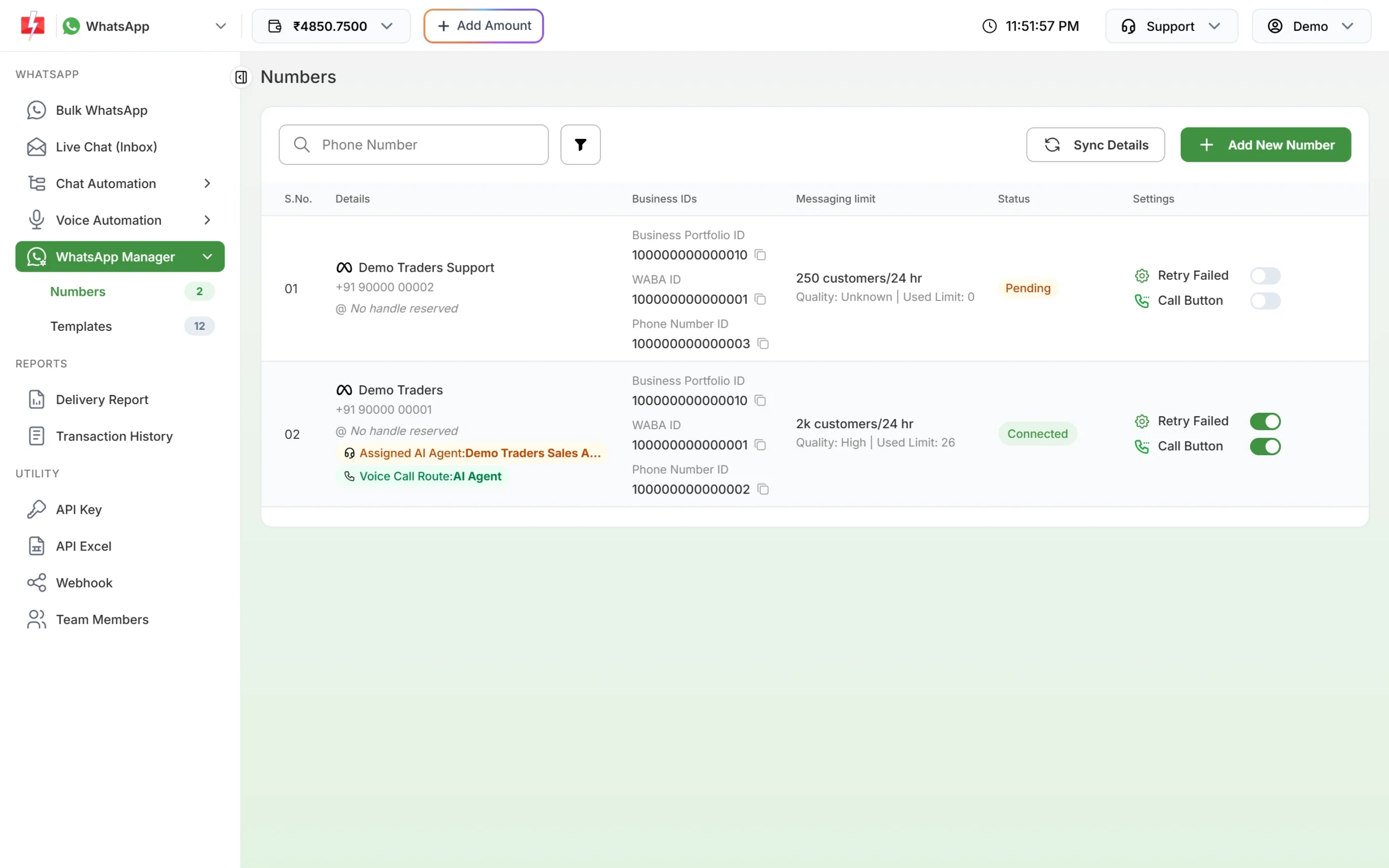
Every number in Fast2SMS has its own row with its business IDs, messaging limit, quality and status.
How to add another WhatsApp number
-
Click Add New Number
Go to WhatsApp Manager > Numbers and click Add New Number. You can also open Bulk WhatsApp, click Select Sender Number and choose Add New Sender Number. Both open the WhatsApp connect page.
-
Log in with Facebook
Click Login with Facebook. In Meta’s pop-up, choose the same business portfolio (or another one), add the new phone number, enter its display name and verify it with the code Meta sends by SMS or call. Turn off ad-blockers for fast2sms.com if the pop-up does not open.
-
Check the new row
When the connection is saved you see “WhatsApp signup handled successfully”. Back in Numbers, click Sync Details. The new number shows Pending while Meta finishes the setup and Connected when it is ready. Sending is possible about 10 minutes after onboarding.
-
Create templates for the new number
Templates are created for a sender number. Open the new number’s three-dot menu and choose Add Template, so the template is linked to that number. When a number is added to your account for the first time, Fast2SMS also submits a simple utility template called payment_completed for it.
-
Send from the number you want
Only Connected numbers appear in Select Sender Number on Bulk WhatsApp. Each one shows its limit and how many messages it has sent today.
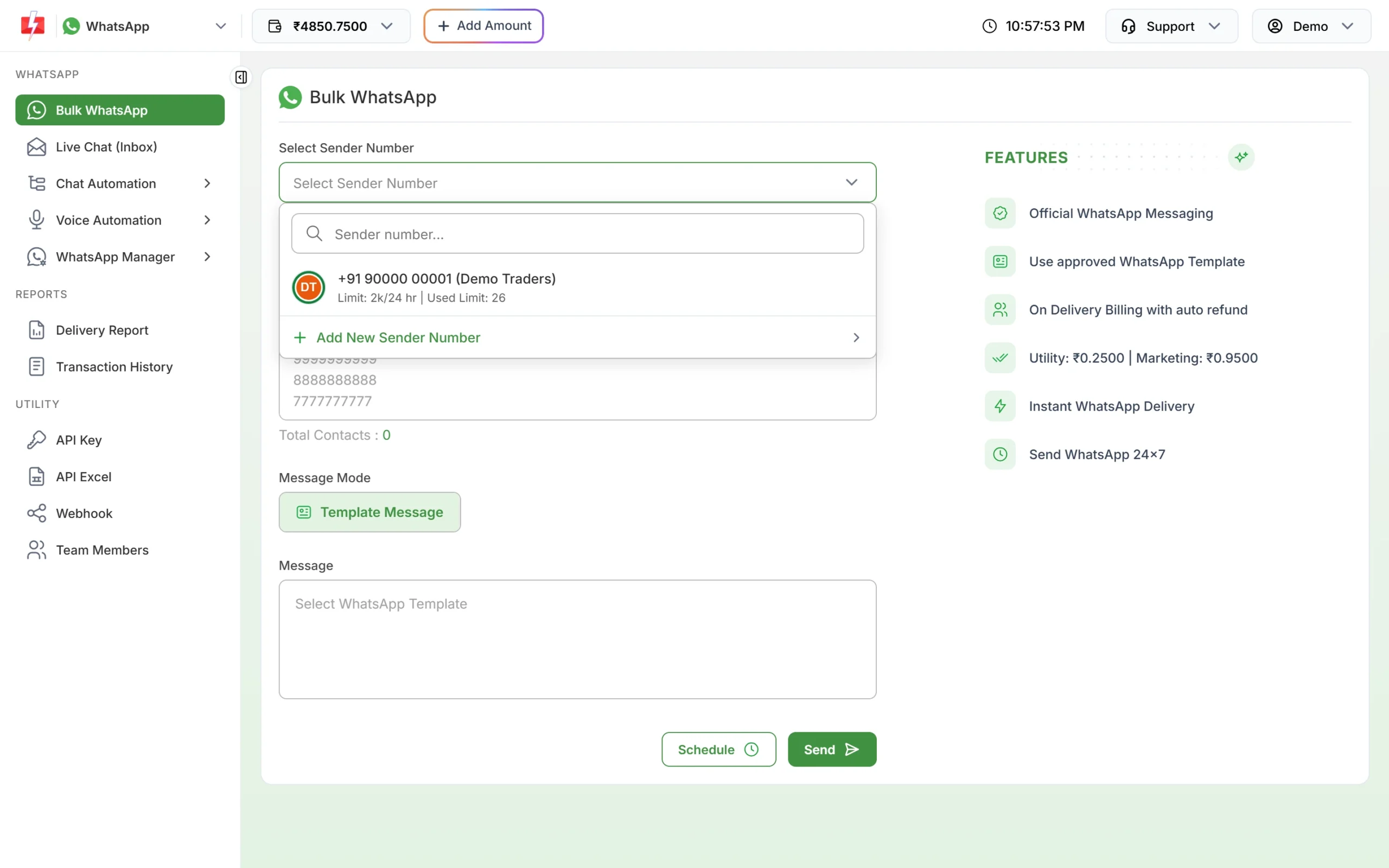
Pick the sender for each campaign. Add New Sender Number opens the connect page.
How to remove a WhatsApp number from Fast2SMS
-
Open the number menu
In WhatsApp Manager > Numbers, click the three-dot menu at the end of the number’s row and choose Delete Number (in red, at the bottom).
-
Confirm with your password
The “Confirm Deletion” window asks “Are you sure you want to delete this WhatsApp number?” and warns that this will also delete all related templates. Enter your Fast2SMS account password and click Delete.
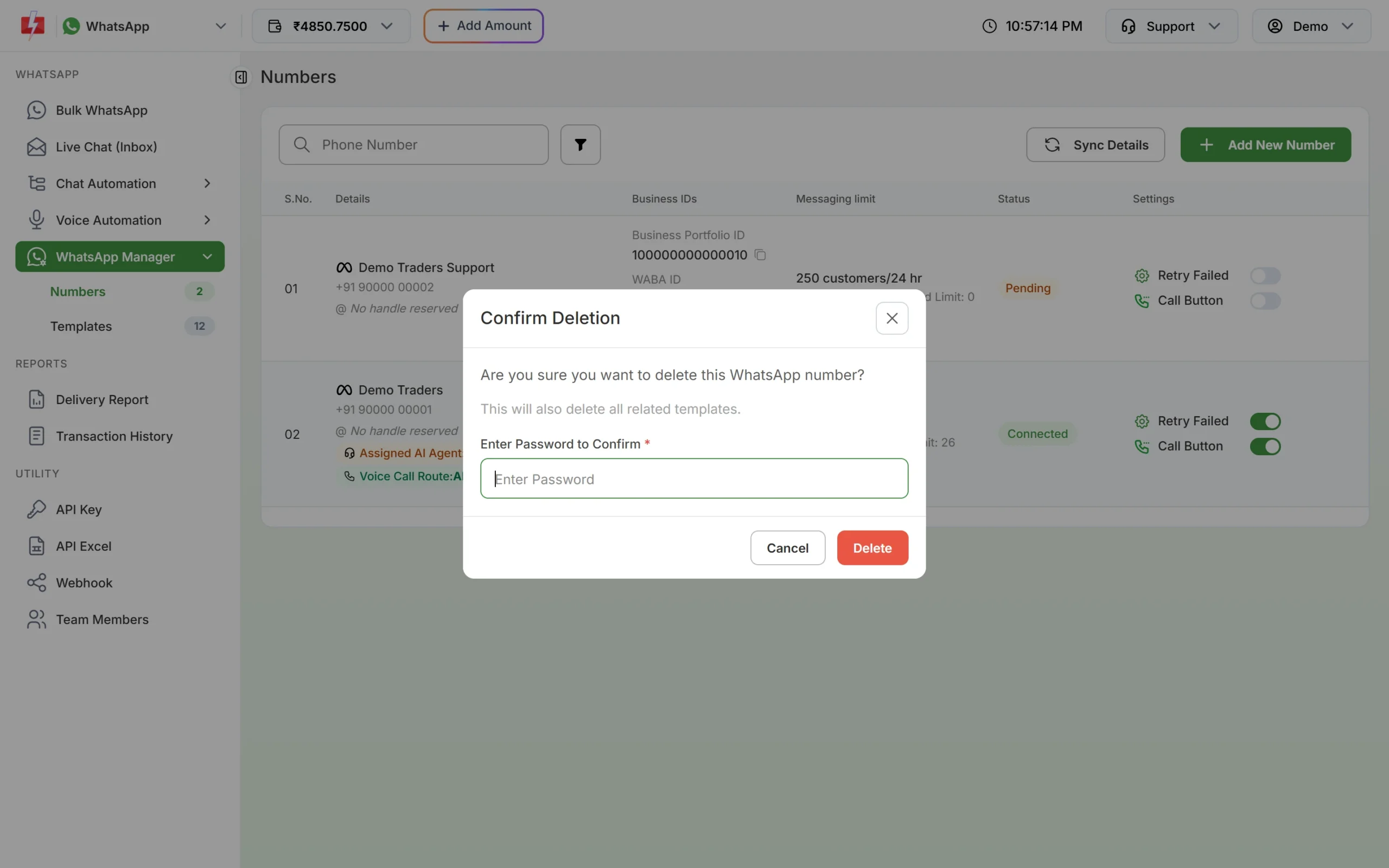
Deleting a number needs your account password. -
See the result
You see “WhatsApp number and related templates deleted successfully”. The number disappears from Numbers and from Select Sender Number on Bulk WhatsApp.
What deleting a number does and does not do
| Deleted in Fast2SMS | Not changed |
|---|---|
| The number from your Fast2SMS account | The number on Meta’s WhatsApp Business Platform |
| All templates of that number in Fast2SMS | Your Meta business portfolio and WhatsApp Business account |
| Smart OTP templates that used those WhatsApp templates | Your wallet balance |
After deletion, the number is free to be connected to another Fast2SMS account. If you use any of the number’s templates in Smart OTP or in your API code, update them before you delete.
How to use the number on the WhatsApp app again
Deleting in Fast2SMS is not enough for this, because the number is still registered on Meta’s platform. You also have to delete it in Meta’s WhatsApp Manager:
- Open the number’s menu in Fast2SMS and click Meta Manager, or log in to Meta Business Suite.
- In Meta’s WhatsApp Manager, open Phone numbers, select the number and delete it.
- If the number is Connected, Meta asks for its two-step verification PIN. If you do not have the PIN, contact our support team first.
- After Meta has removed it, you can register the number on the WhatsApp or WhatsApp Business app.
If your number is connected through coexistence (it was already on the WhatsApp Business app when you connected it), it still works on the app. Talk to our team before you delete anything in Meta, so you do not lose your chats.
Frequently asked questions
Can I connect more than one WhatsApp number to Fast2SMS?
Yes. Click Add New Number and repeat the Facebook login. Meta’s portfolio limit starts at 2 numbers and goes up to 20.
Do all my numbers share one messaging limit?
At the time of writing, Meta sets the messaging limit for the whole business portfolio, so numbers in the same portfolio share it.
Can I move a template from one number to another?
No. The sender number of a template cannot be changed. Create the template again for the other number.
Will deleting a number refund my wallet?
Your wallet is not affected. Failed messages are refunded automatically as usual, whether or not you delete the number.
Can I add the number back later?
Yes. Connect it again with Add New Number. A number you deleted before is restored to your account.
Why is my new number not shown as a sender?
It is probably still Pending. Only Connected numbers can send. Click Sync Details after some time.
Does deleting the number remove it from Meta?
No. Fast2SMS removes it only from your Fast2SMS account. Delete it in Meta’s WhatsApp Manager if you want it off the platform.