
This guide covers three parts of the Fast2SMS WhatsApp chatbot that people often get stuck on in Flow Builder: attributes (global and user), the API Request node, and the fallback that runs when a customer stops replying. It also lists the limits and the exact messages you may see while building a flow.
Before you start
- A connected WhatsApp Business number. Flow Builder is greyed out until a number is connected.
- Open it from WhatsApp > Chat Automation > Flow Builder (Chatbot). The page has three tabs: Flow Builder, Global Attributes and User Attributes.
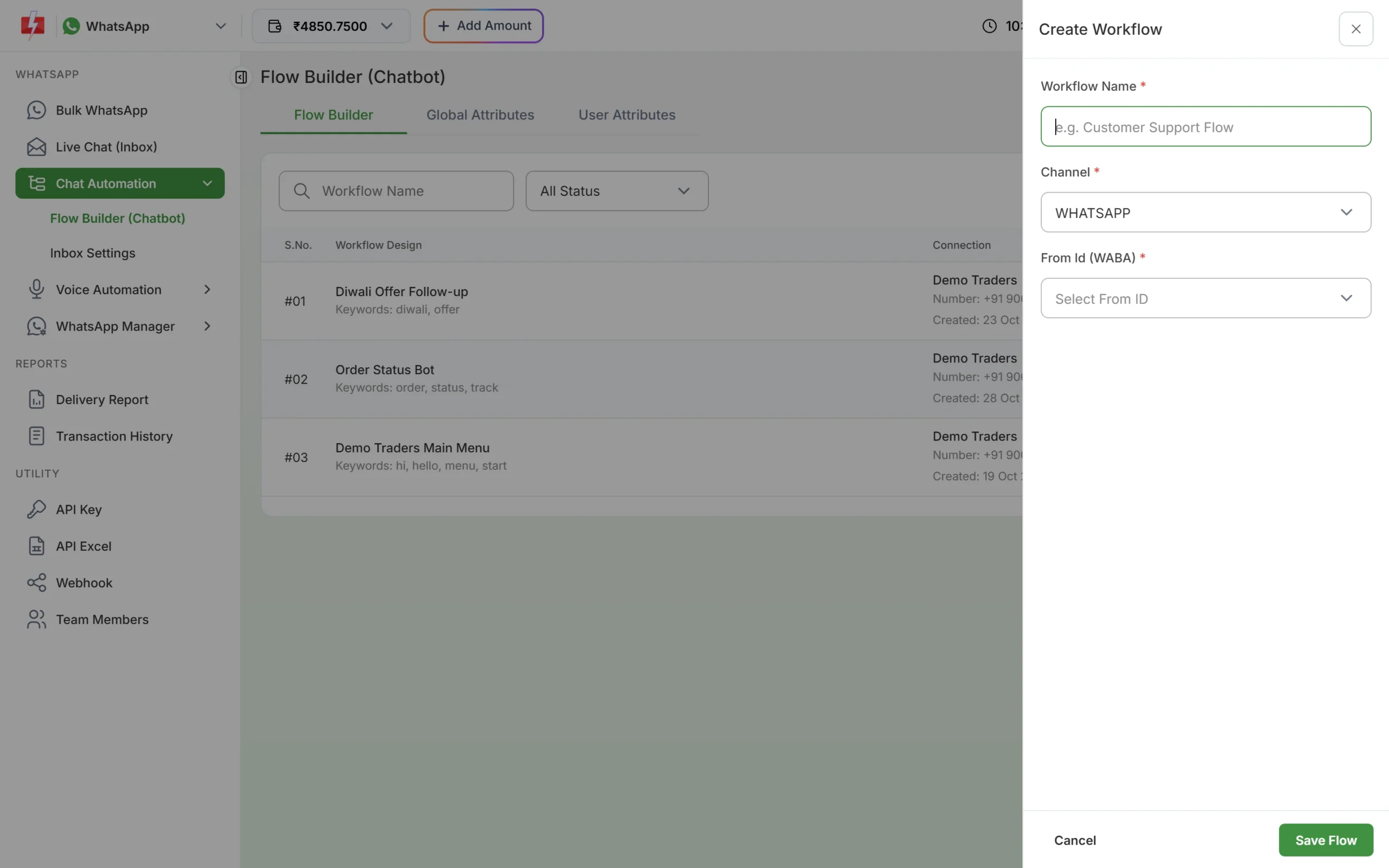
- At least one workflow. Click Create Workflow, enter a Workflow Name, keep Channel as WHATSAPP, choose your number in From Id (WABA) and click Save Flow.
Global attributes vs user attributes
| Global Attributes | User Attributes | |
|---|---|---|
| What it is | A fixed value shared by all your flows, like a store phone number or address | A named field for each customer, like order_id or city |
| Limit | 5 | 50, plus the default attributes |
| Value | You type it once; it is hidden by default | Differs per customer |
| Use in messages | {{attribute_name}} |
{{attribute_name}} |
How to set up attributes
-
Add global attributes
Open the Global Attributes tab. The guide on the page says “Configure Global attributes to build dynamic chatbots or hide sensitive information.” Click Add more attributes, type the ATTRIBUTE NAME (for example store_phone) and its value, then click SAVE. Both the name and the value are required, and you can have up to 5.
Two things to know:
- Values are masked with dots. Use the eye button to show a value and the copy button to copy it.
- SAVE replaces the whole list with what is on screen. A row you delete with the bin icon is gone once you save.
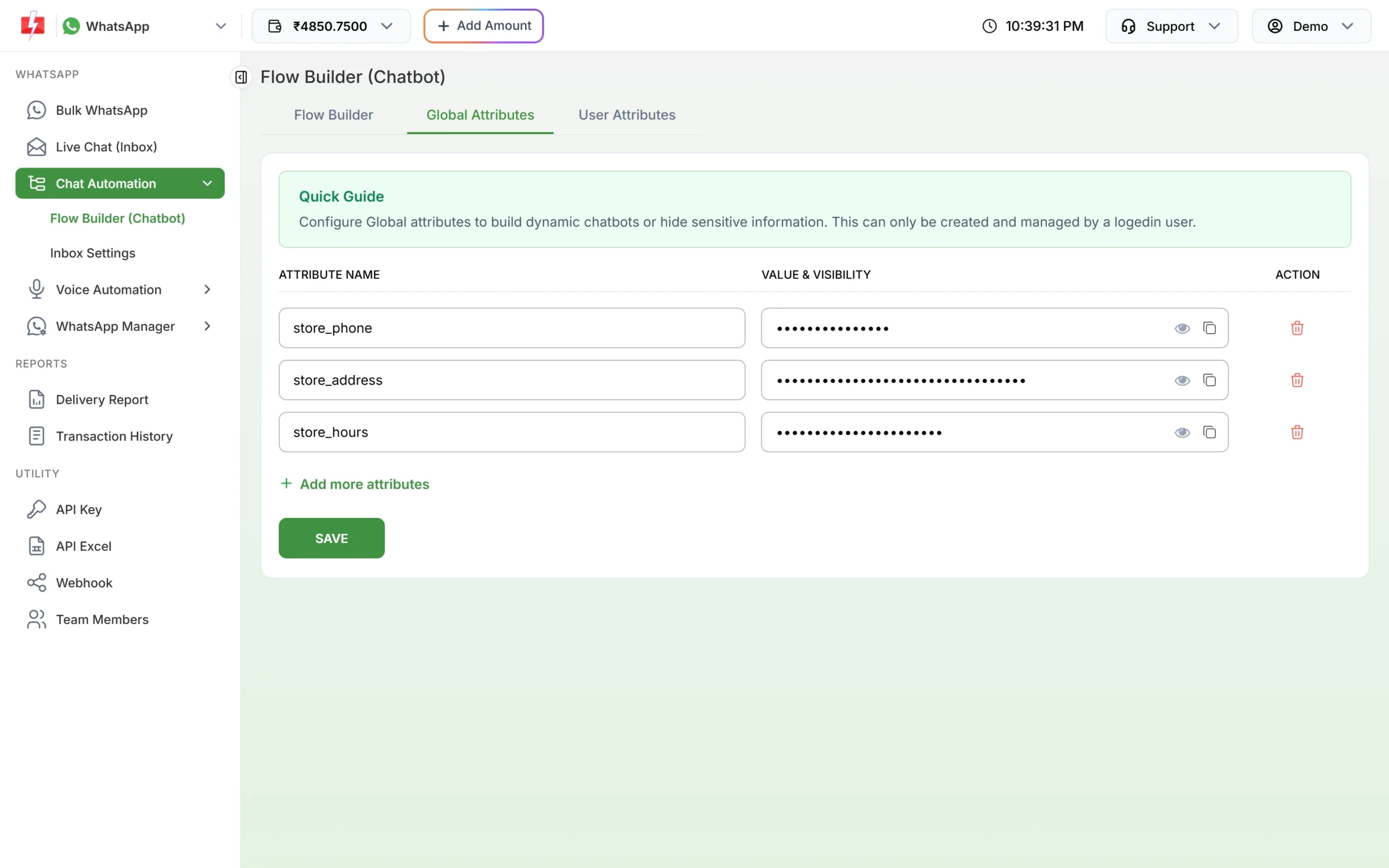
Global attributes with masked values, and the SAVE button. -
Use a global attribute in a message
Type the name in double curly brackets in any message node, for example “Call us on {{store_phone}}”. If a customer or session value has the same name, that value is used instead of the global one, so give global attributes clear, unique names.
-
Add user attributes
Open the User Attributes tab. The guide says you can create up to 50 user attributes, in addition to the default attributes customer_name, customer_mobile, customer_email and Catalog. Click Add Attribute, fill in the Name (required) and, if needed, the Action (Optional) field, and click SAVE ATTRIBUTE. When you edit an attribute later you also get a Status switch.
The list shows each attribute with its Action Trigger, Attribute ID and created date, and a status switch. If you already have 50, you see “You can only create a maximum of 50 attributes.”
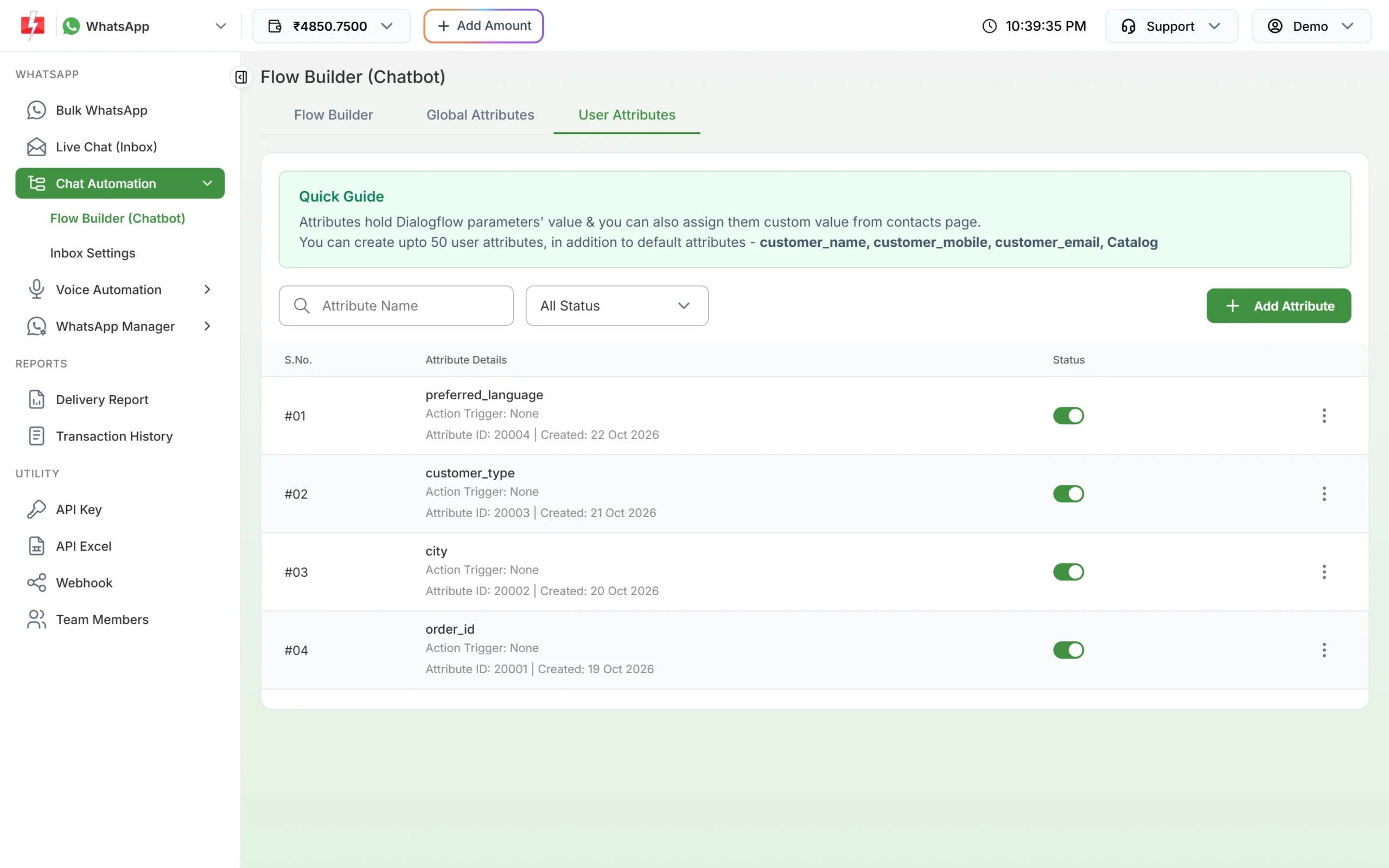
User attributes with their status switches and the Add Attribute button. -
Use the built-in customer fields
Without creating anything, you can use these placeholders in messages:
{{customer_name}}(or{{name}}),{{customer_mobile}}(or{{phone}}/{{mobile}}),{{customer_email}}(or{{email}}),{{catalog}},{{date}}and{{time}}. In Live Chat (Inbox), the Contact info panel of a chat shows an Attributes section with the values saved for that chat and its bot session.
How the API Request node works
The API Request node, under Connections in the editor’s right-hand list, lets the bot call a web address on your server, for example to look up an order.
- Methods: GET, POST, PUT, PATCH or DELETE.
- Tabs: Headers, Request Body and Query Params.
- Variables: you can put
{{variables}}in the URL, for examplehttps://shop.example.com/api/orders/{{order_id}}. - Test: you can test the request from the node. The test waits up to 10 seconds and shows the response (up to about 100 KB).
“This URL is not allowed. Use a public http(s) address.”
The URL must be a public http or https address that anyone on the internet can reach. Addresses such as localhost, 127.0.0.1 or a private office IP are refused. Put your endpoint on a public domain, preferably with https. If the test times out, make your server answer within 10 seconds.
How to set the fallback (when the customer does not reply)
-
Click Fallback in the editor
Open your workflow with Edit. At the top right, next to Save Changes, click Fallback. The Fallback Message window opens: “What if the contact didn’t respond to the bot’s questions”.
-
Set the wait time, the message and the action
- How long the bot can wait for reply? in minutes. The maximum is 24 hours (1440 minutes).
- What should the bot say to contact after the designated wait time? up to 1,024 characters.
- What should the bot do after the designated wait time? choose Assign to Agent and/or End Flow.
Click Save, then Save Changes on the flow. If you never set a fallback, the bot waits 60 minutes by default.
The window also shows this note: “This setting will be applied only to the testing bot. For inbox sessions, the bot timing can be configured in Inbox > Bot Settings.” If your live chats behave differently from your tests, check that setting too.
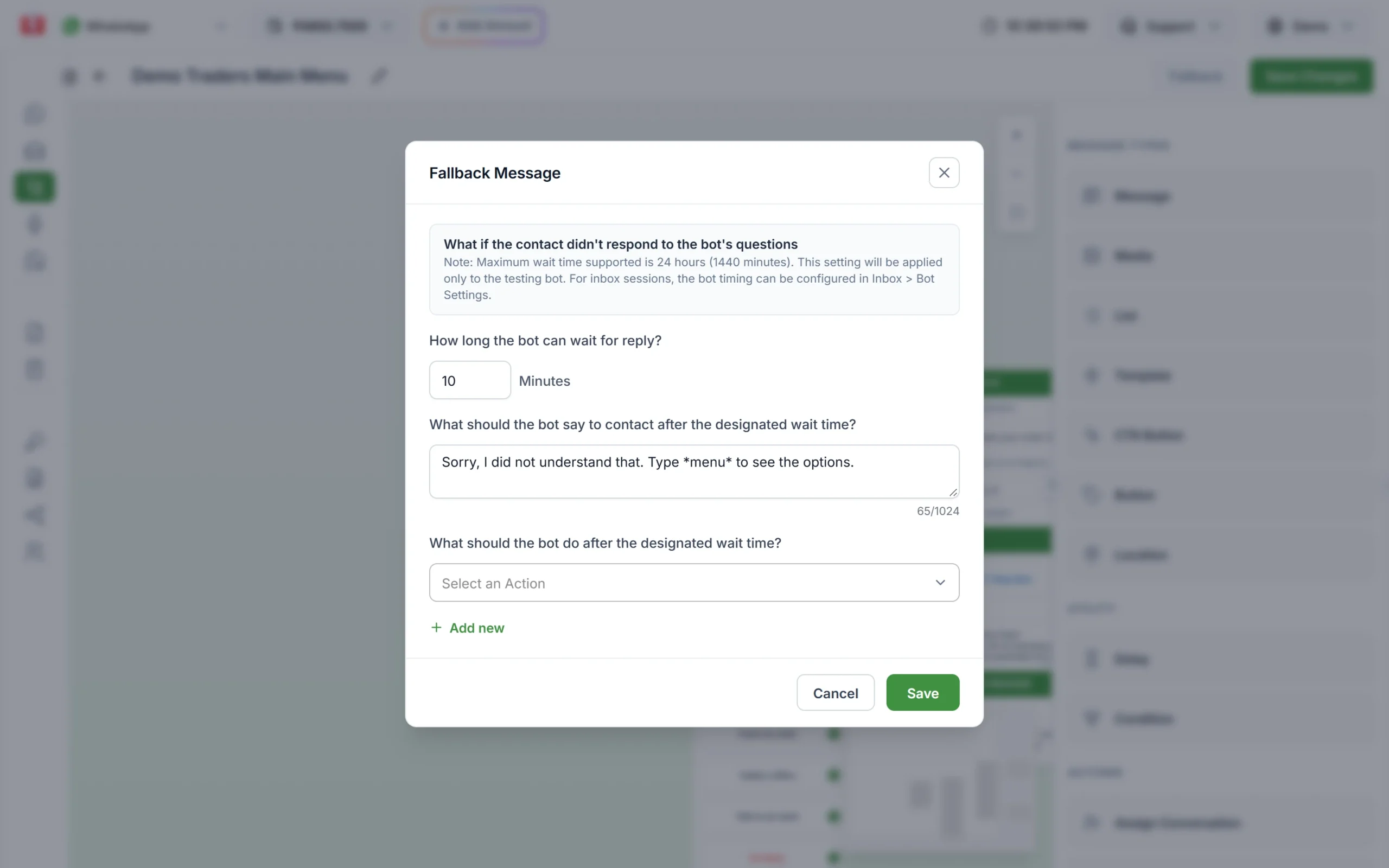
The fallback: wait time, message and what the bot does next.
Flow Builder limits and messages
| Item | Limit or rule | Message you may see |
|---|---|---|
| Workflows | 20 per WhatsApp number. Duplicated flows count too. | “You can create a maximum of 20 workflows for this WABA ID.” |
| Flow Start trigger | At least one keyword or a regex. Keywords up to 32 characters; matching ignores capital letters and is exact. | “Please add at least one keyword or regex to the Flow Start” |
| Global attributes | 5, name and value both required | |
| User attributes | 50, plus defaults | “You can only create a maximum of 50 attributes.” |
| Fallback wait | Up to 1440 minutes; default 60 | |
| API Request test | Public http(s) URL, 10-second timeout | “This URL is not allowed. Use a public http(s) address.” |
| Message node | Body 1,024 characters; header and footer 60; button label 20 | |
| Button / List nodes | Up to 3 buttons; up to 10 list options | |
| Bot session | Ends 24 hours after the last activity | |
| Number removed or reconnected | The flow stops replying | “Number disconnected” / “Bot won’t reply. Change number” |
Common problems and fixes
- The bot does not start. Check the flow’s status switch in the list is on, because only active flows reply. Then check the keyword: “hi” will not match “hi there”, so add a regex such as
^hiif you need a looser match. - A global value disappeared. SAVE replaces the whole list, so a row removed before saving is deleted. Add it again and save.
- The API Request test fails. Use a public https URL and make sure your server replies within 10 seconds.
- Another automatic reply answered instead of the bot. Check the order in Inbox Settings. See WhatsApp auto reply not working.
Frequently asked questions
What is a global attribute in a WhatsApp chatbot?
It is a fixed value, like your store phone or address, that every flow can use by typing its name in double curly brackets, like {{store_phone}}. You can save up to 5, and their values stay hidden on screen.
How many user attributes can I create in Fast2SMS Flow Builder?
Up to 50, in addition to the defaults customer_name, customer_mobile, customer_email and Catalog.
Can my chatbot call my own API?
Yes, with the API Request node. It supports GET, POST, PUT, PATCH and DELETE, headers, a request body and query parameters, and the URL must be public http or https.
Why does the API Request node say the URL is not allowed?
The address is not a public http(s) URL, for example localhost or a private IP. Host the endpoint on a public domain.
How long does the bot wait for a reply?
As long as you set in Fallback, up to 1440 minutes (24 hours). If no fallback is set, it waits 60 minutes.
How many chatbot flows can I make?
Up to 20 workflows per WhatsApp number. Copies made with Duplicate also count.
Is keyword matching case sensitive?
No. “Hi” and “hi” both match, but the whole message must equal the keyword unless you use a regex.
Related guides
- WhatsApp list messages and reply buttons in your chatbot
- How to build a WhatsApp appointment booking bot (no coding)
- 12 WhatsApp chatbot ideas for small businesses (and how to build each one)
- WhatsApp auto reply not working? Reasons and fixes
- WhatsApp Live Chat in Fast2SMS: team inbox, agents and auto replies