
Smart OTP in Fast2SMS lets you send a one-time password on SMS or WhatsApp with one API call, check it with a second call, and fall back to the other channel when the first one fails. OTPs sent through Smart OTP go out on a priority route. This guide is for website and app owners who want OTP login or verification. You will create an OTP template, set your OTP rules, run a test, connect the API and read the OTP report.
यह गाइड हिंदी में पढ़ें: Smart OTP कैसे use करें (Smart OTP kaise use kare): template, fallback और API
What Smart OTP is
A Smart OTP template links an OTP ID to a message you already have approved. For SMS that is an approved DLT content template and its sender ID. For WhatsApp it is an approved Authentication or Utility template on your WhatsApp number. You choose which variable in the message carries the OTP, and Fast2SMS fills it in.
Your code only needs the OTP ID and the customer’s mobile number. Fast2SMS creates the OTP, sends it, stores it and tells you if the code the customer typed is right. You do not need to keep OTPs in your own database.
The OTP ID is a 10-character code made by Fast2SMS. You cannot choose it. You can copy it from the template card.
Before you start
- A Fast2SMS account with wallet balance. Every OTP is charged, including tests and resends. See current rates on the OTP SMS page.
- For SMS OTP: an approved DLT Entity ID, Sender ID and an OTP content template with at least one variable, added in DLT Manager.
- For WhatsApp OTP: a WhatsApp Business number connected in WhatsApp Manager and an approved Authentication or Utility template.
- Your API key from API Key under UTILITY (you need it for the API, not for the panel steps).
Set up Smart OTP in the panel
-
Open the OTP Template List
Switch to the Smart OTP app and click OTP Template List. Each template is a card with a phone preview, the OTP ID, the sender or WhatsApp number, the template ID and the fallback. The OTP spot in the message is marked with a red OTP badge. Under each card you have Sample Code, Test OTP, Fallback and Delete.
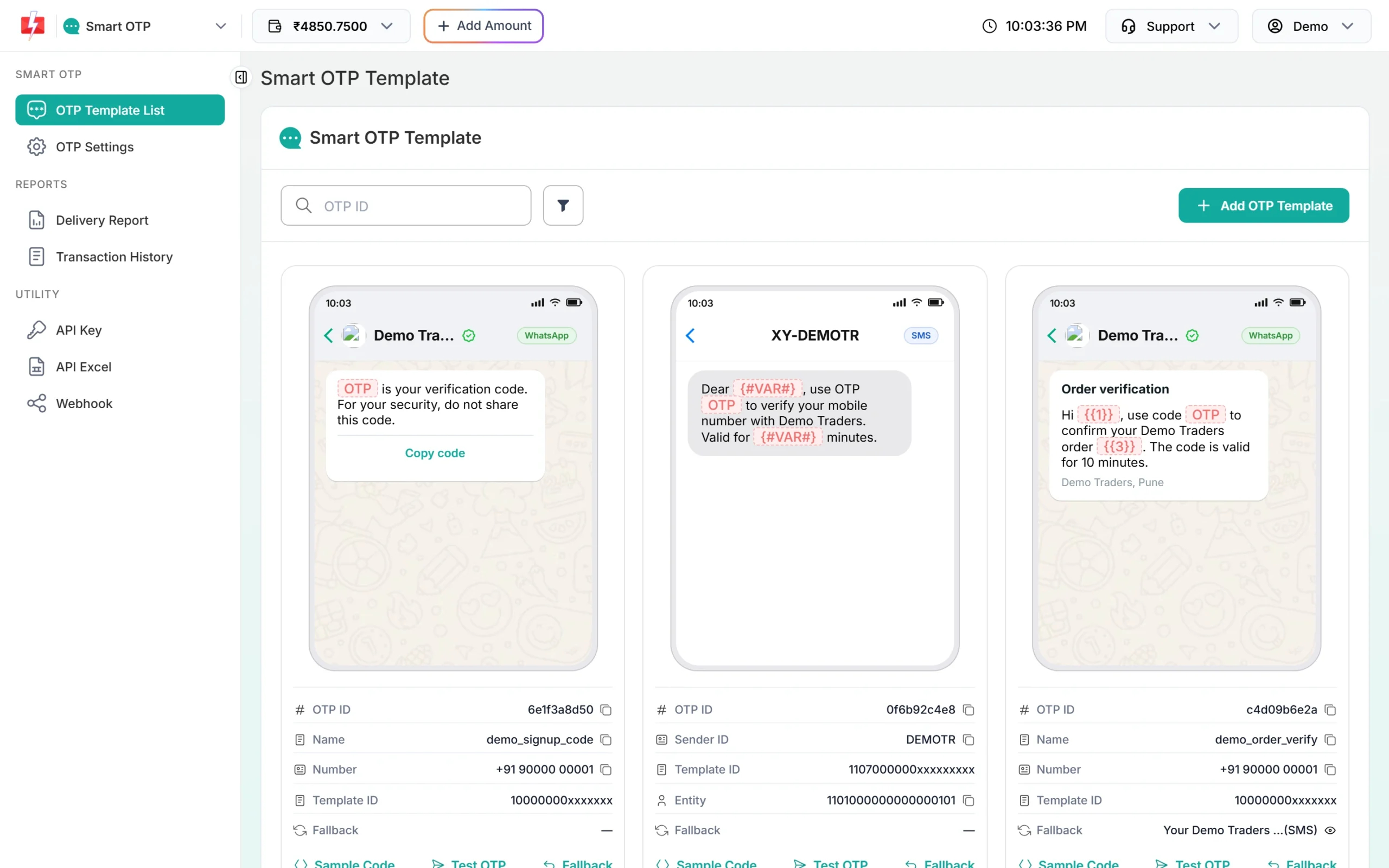
Your OTP templates, one card per OTP ID. -
Create an SMS OTP template
Click Add OTP Template and stay on SMS Channel. Pick Select Entity, then Select Sender, then Select Template. Only approved templates linked to that sender that have at least one variable are listed. The OTP Content Preview shows the text. Click the variable button that should carry the OTP. The chosen one reads “Variable 1 (Selected)” and so on. Click Assign OTP Template.
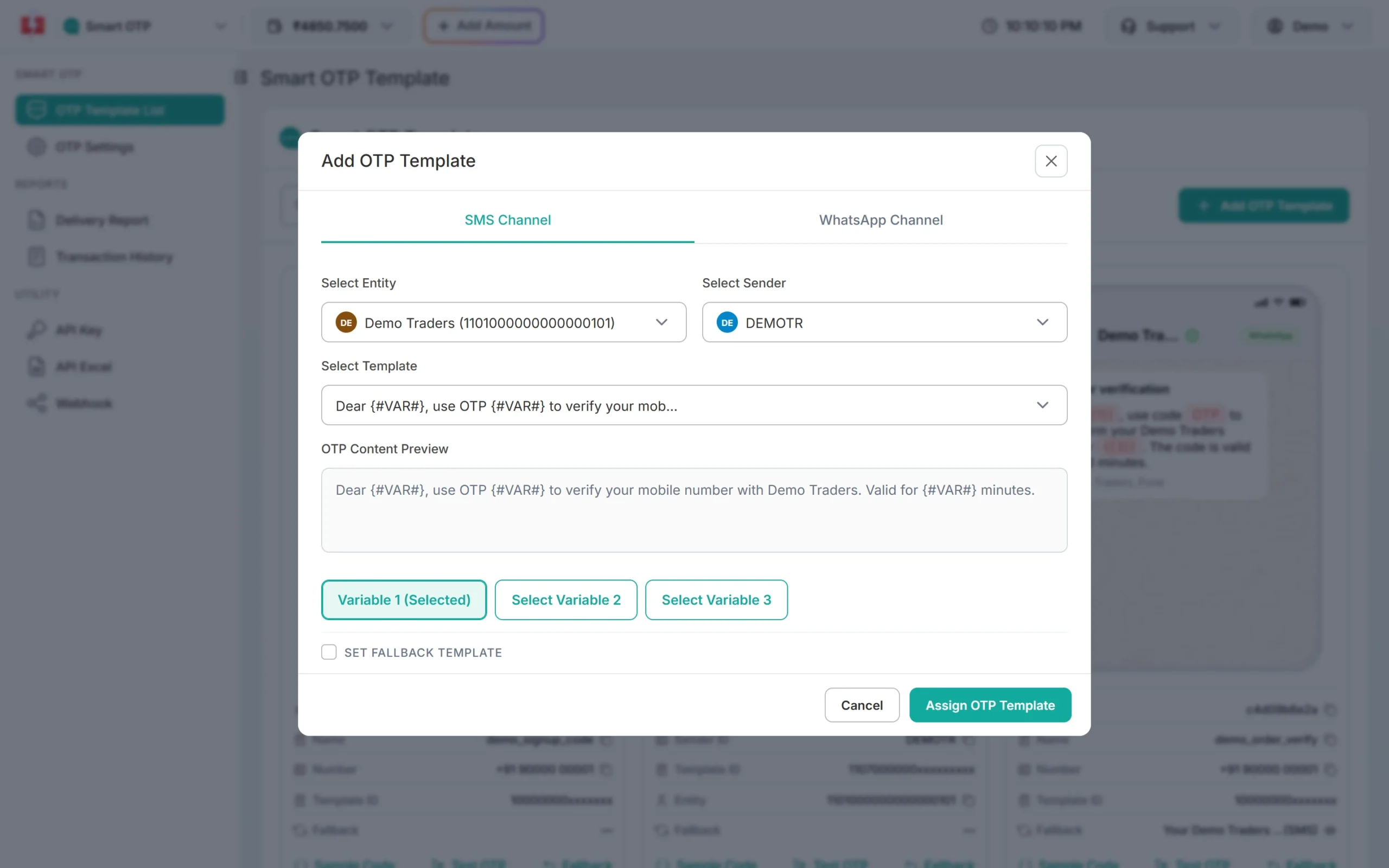
Choose the DLT template and the variable that holds the OTP. If no entity appears, add your Entity ID in DLT Manager first. One DLT template can be used in only one Smart OTP template. A second try shows “You have already created an OTP template for this DLT content.” -
Or create a WhatsApp OTP template
In the same window click WhatsApp Channel. Choose Select WhatsApp Business Number, then Select WhatsApp Template (Authentication/Utility). Marketing templates never appear here. Pick the OTP variable and click Assign OTP Template. You will see “WhatsApp OTP Template created successfully”.
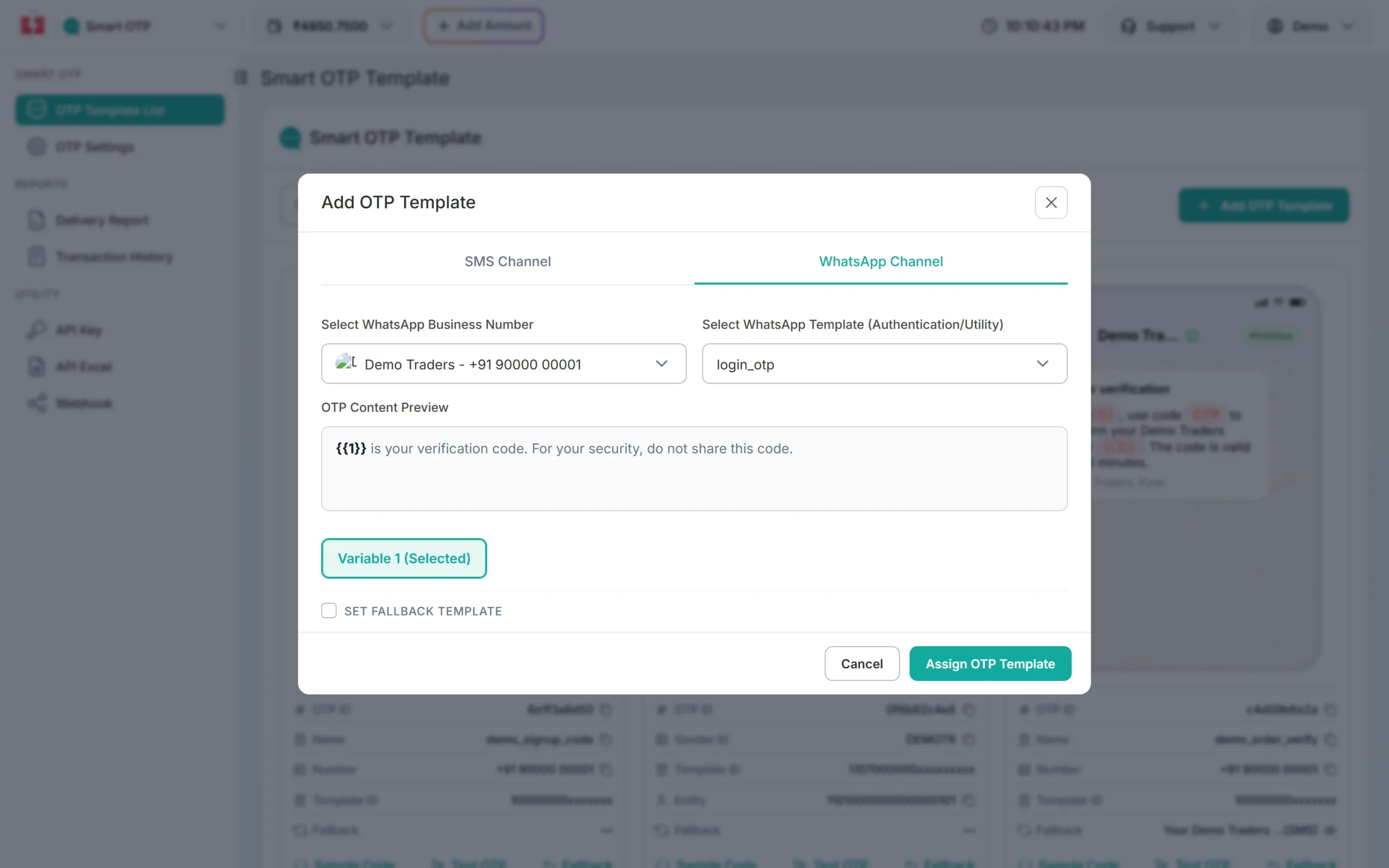
A WhatsApp OTP template using an Authentication template. The template is active as soon as you save it. There is no separate approval for Smart OTP because the DLT or WhatsApp template is already approved.
-
Add a fallback on the other channel
Tick SET FALLBACK TEMPLATE before you save. For an SMS template the fallback is WhatsApp: choose the number, the template and the OTP variable. For a WhatsApp template the fallback is SMS: choose the entity, sender, DLT template and variable. To add, change or remove a fallback later, click Fallback on the card. Untick the box and save to remove it.
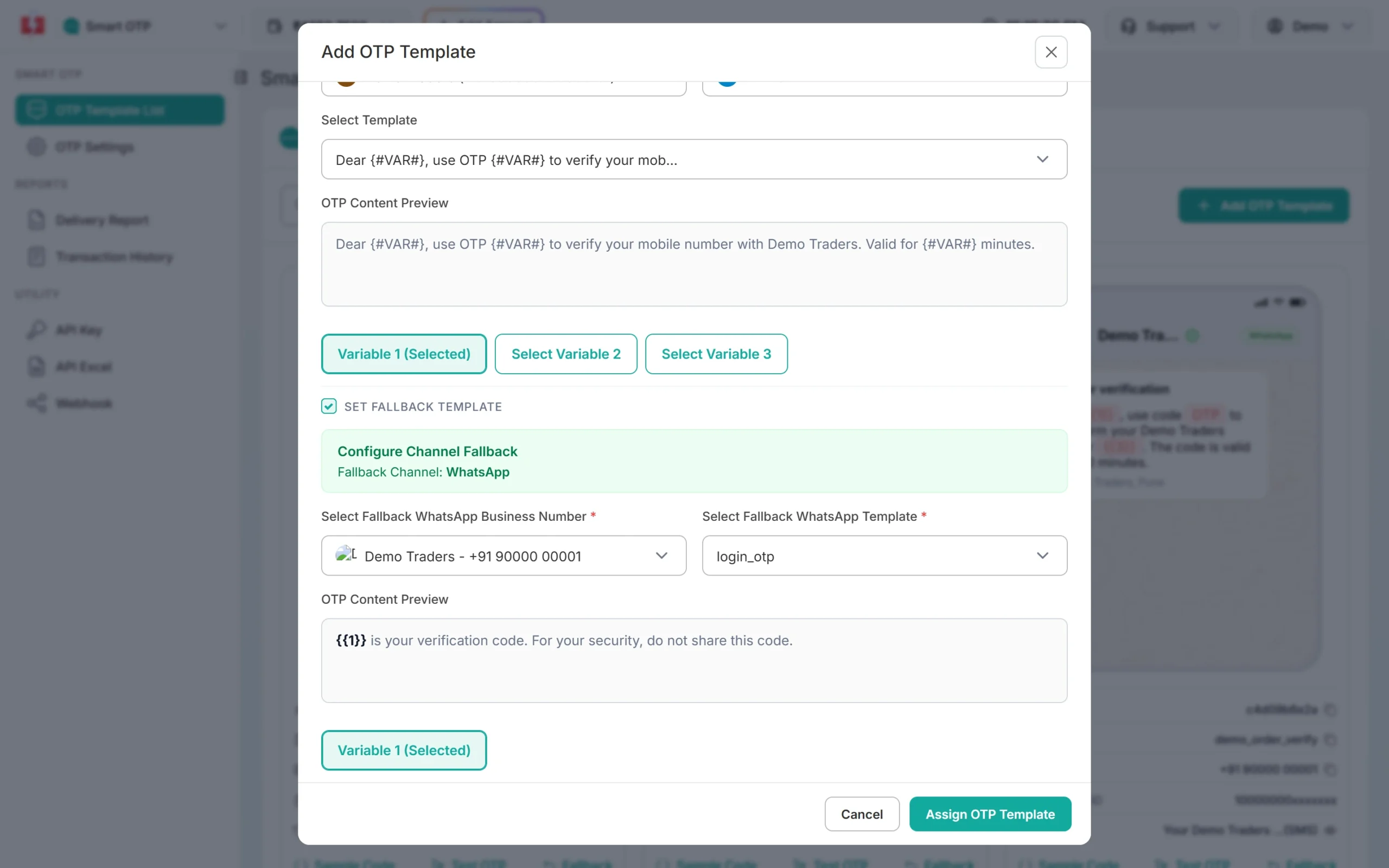
An SMS OTP with a WhatsApp fallback. -
Set verify attempts and resend wait
Click OTP Settings. Max Verify OTP Limit (Per SMS) is how many times a user can try to verify one OTP (1 to 100). SMS Resend / Time Limit (Seconds) is the wait before the same template can go to the same number on the same channel again (0 to 3600, 0 means no wait). Click Save Settings. If you never save this page, the limits are 10 attempts and 10 seconds.
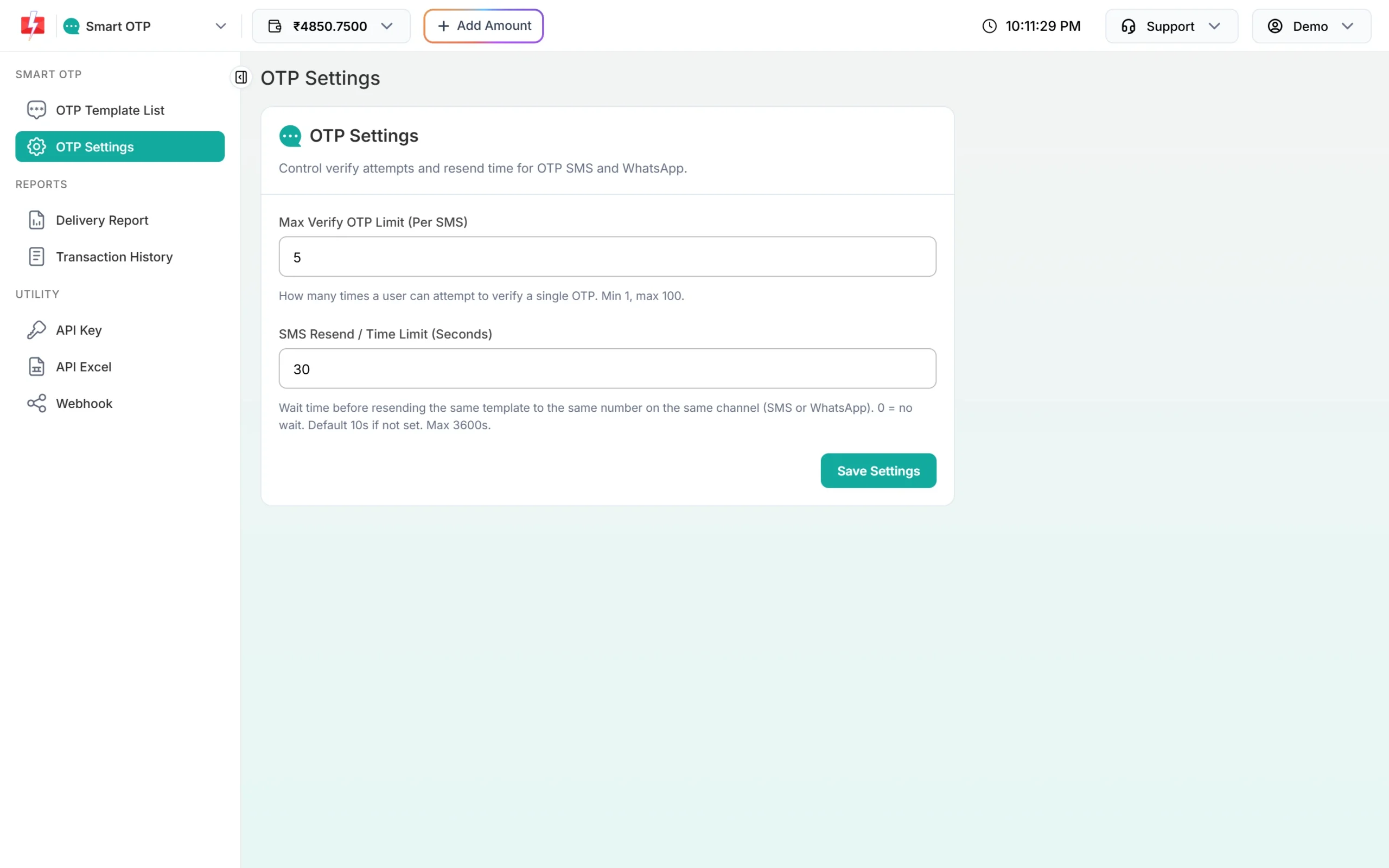
These settings apply to SMS and WhatsApp OTP. -
Send a test OTP
Click Test OTP on the card, type a 10-digit mobile number and click Send Test OTP. The window shows “Message sent. Checking DLR…” and waits for the operator report. You then see “Delivered successfully” or the failure reason. If no report comes in 30 seconds, it shows “Delivery report pending” with a link to the OTP report.
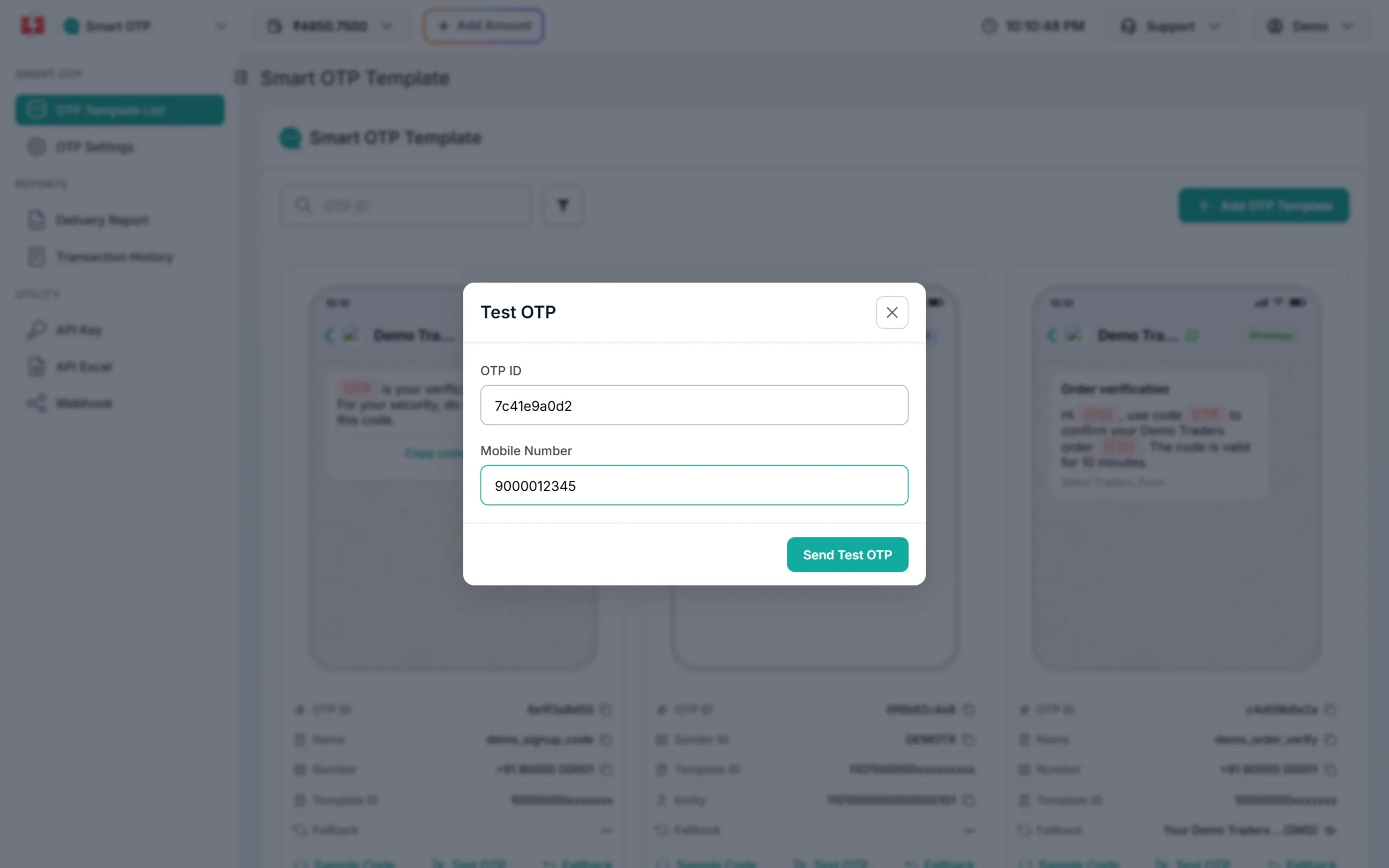
Test OTP uses the same path as the API. A test OTP is a real message and is charged like an API send. Your resend wait, wallet check and DLT checks all apply to it.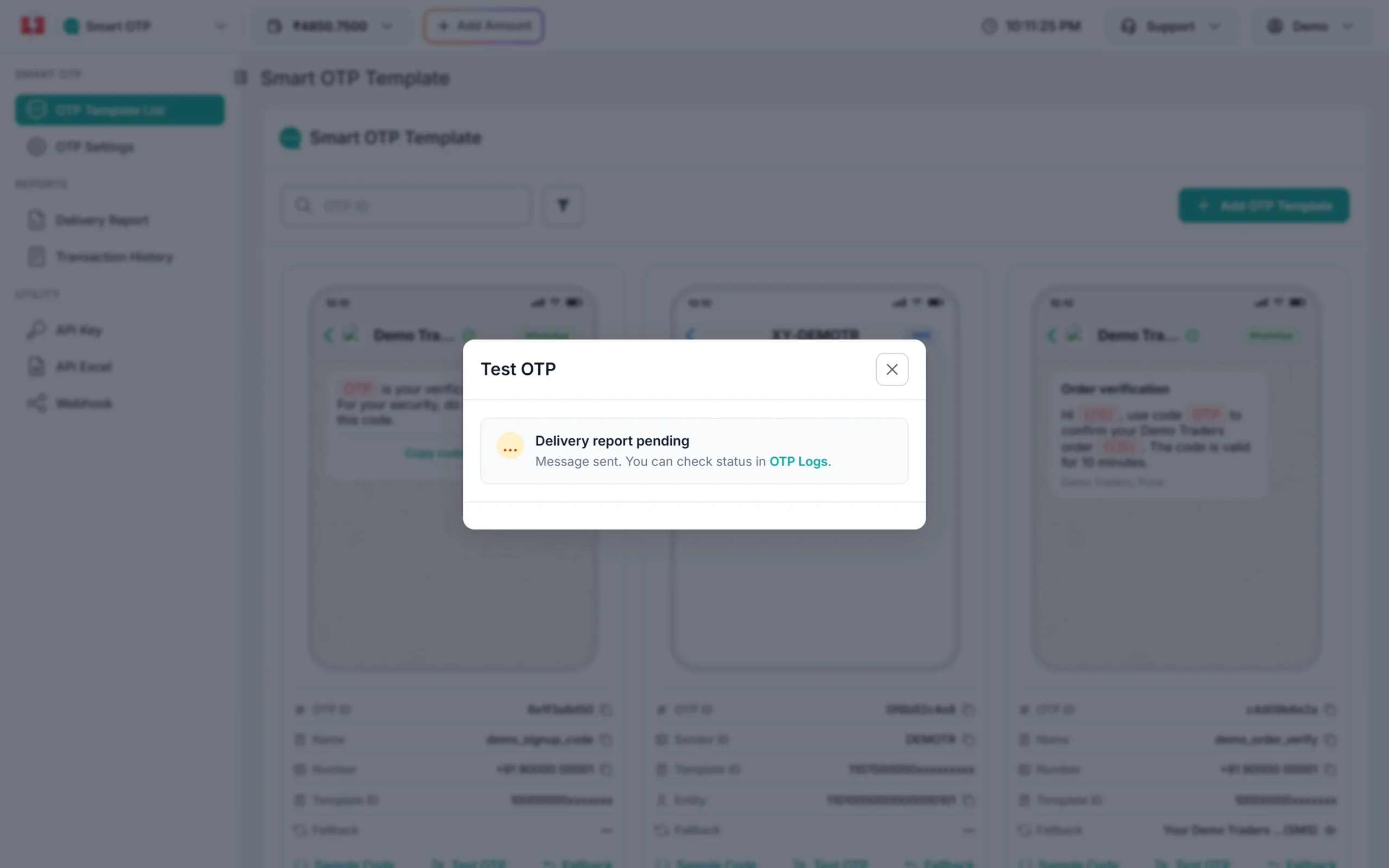
No report yet after 30 seconds. Check the OTP report later.
Connect the Smart OTP API: send, verify, resend
Click Sample Code on a card to get ready code in cURL, PHP, Node.js or Python for Send OTP, Verify OTP and Resend OTP. The OTP ID of that card is already filled in. Full reference is on docs.fast2sms.com.
All three calls accept POST (JSON) or GET. Put your API key in the authorization header exactly as it is. Do not add “Bearer” in front of it, or you get “Invalid authorization key”.
1. Send the OTP
curl -X POST 'https://www.fast2sms.com/dev/otp/send' \
  -H 'authorization: DEMO_API_KEY' \
  -H 'Content-Type: application/json' \
  -d '{"mobile":"9999999999","otp_id":"DEMO_OTP_ID","otp_expiry":15,"otp_length":6}'
Success:
{"return":true,"status_code":200,"request_id":"O...","message":"OTP sent successfully"}| Parameter | Required | What it does |
|---|---|---|
mobile |
Yes | 10-digit number. A leading 91 is removed. |
otp_id |
Yes | The OTP ID from your template card. |
otp_expiry |
No | Minutes the OTP stays valid, 1 to 10080. Default 15. |
otp_length |
No | 4 to 10 digits. Default 6. Other values become 6. |
otp |
No | Your own OTP value, up to 10 characters. |
variables_values |
No | Values for the other variables, separated by |. The OTP variable is filled for you. |
udf1, udf2, udf3 |
No | Your own reference values, stored with the send. |
// optional notes inside the JSON. Remove them before you send, because JSON does not allow comments.2. Verify the code the user typed
curl -X POST 'https://www.fast2sms.com/dev/otp/verify' \
  -H 'authorization: DEMO_API_KEY' \
  -H 'Content-Type: application/json' \
  -d '{"mobile":"9999999999","otp":"123456"}'
A match returns HTTP 200 with “OTP verified successfully”. Let the user in only on this answer.
3. Resend the same OTP
curl -X POST 'https://www.fast2sms.com/dev/otp/resend' \
  -H 'authorization: DEMO_API_KEY' \
  -H 'Content-Type: application/json' \
  -d '{"mobile":"9999999999"}'
Resend sends the same OTP again with the same OTP ID and expiry, and gives a new request ID. It works only within 10 minutes of the first send and up to 5 sends in total, counting the first one. Each resend is charged.
Prefer plain URLs? Under API Excel, the Smart OTP API Excel file lists every active OTP ID with ready send, verify and resend URLs.
API answers and errors
| Call | Message | What to do |
|---|---|---|
| Any | Authorization key required / Invalid authorization key | Send the key in the authorization header without “Bearer”. |
| Any | Invalid Authentication, Authorization Key Disabled | Turn on API Access on the API Key page. |
| Any | IP is blacklisted from Dev API section | API Security is on. Add your server IP to Whitelisted IPs. |
| Send | Invalid OTP ID | Check the ID. A deleted template’s ID stops working. |
| Send | Please wait N seconds before requesting a new OTP | Your OTP Settings resend wait is still running for this number. |
| Send | Insufficient wallet balance. You need at least ₹… | Add money to your wallet. |
| Send | WhatsApp Business Number is not active or connected | Reconnect the number in WhatsApp Manager. |
| Send | Entity blocked / Content template blocked / Sender ID blocked | Check the entity, template or sender in DLT Manager. |
| Verify | Invalid OTP | Wrong code. The user can try again until the attempt limit. |
| Verify | OTP expired | Send a new OTP. |
| Verify | Maximum verification attempts reached. OTP is no longer valid. | Send a new OTP. |
| Verify | OTP not found or already verified | See “Verify fails” below. |
| Resend | OTP resend window (10 minutes) has expired. Please request a new OTP. | Call send again. |
| Resend | Maximum resend limit (5 times) reached. Please try again later. | Wait, then call send again. |
How fallback works
If the first message is reported as failed within 120 seconds of sending, Fast2SMS sends the same OTP once on the fallback channel. The fallback is charged as its own message. It is skipped if your wallet balance is too low, or, for a WhatsApp fallback, if the number is not connected. The user verifies the same code either way.
Check the OTP delivery report
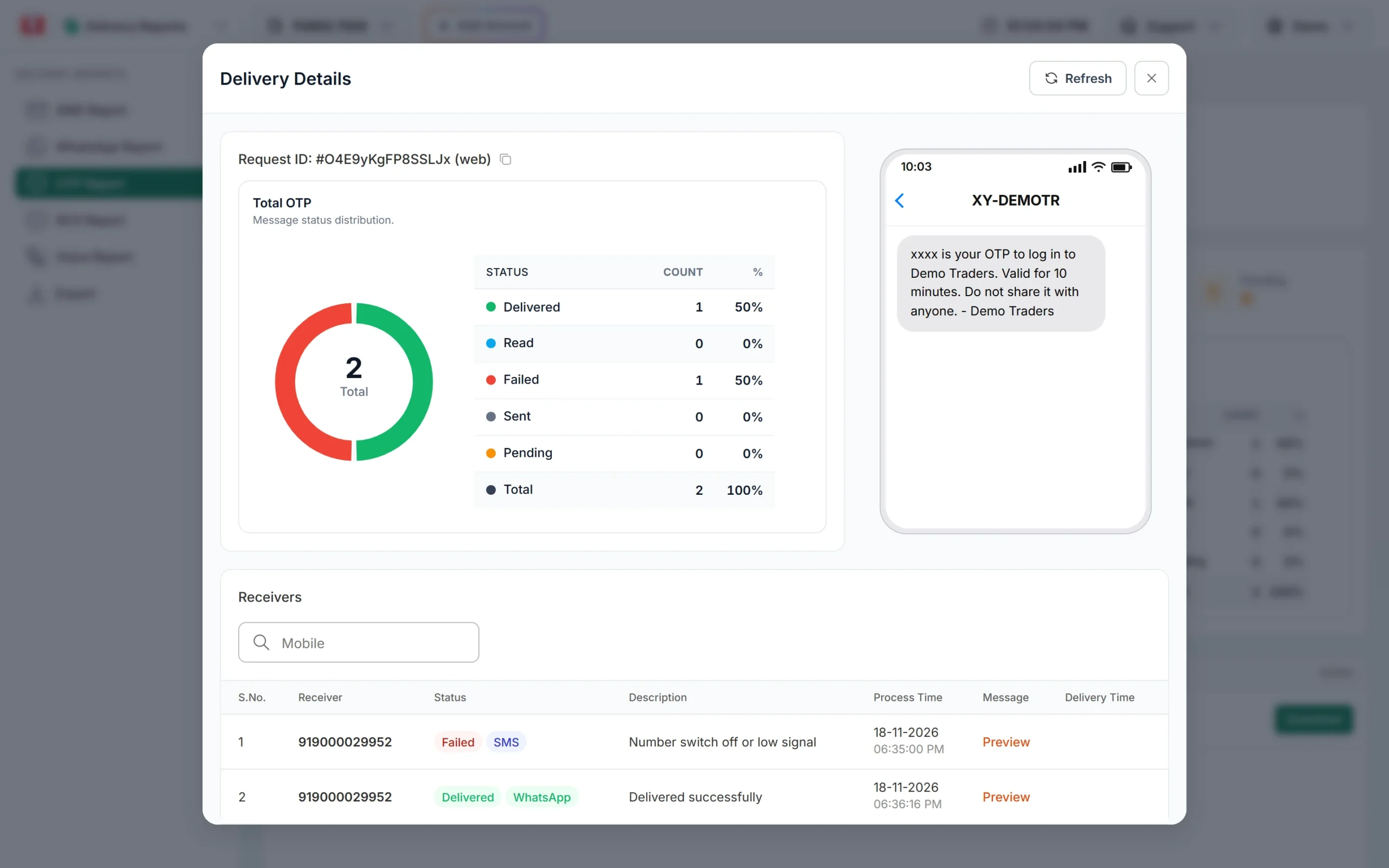
Click Delivery Report in the Smart OTP menu to open OTP Report. It opens on the last 2 days and shows Total, Delivered, Read, Failed, Sent and Pending. The OTP digits in each message are shown as xxxx. Use the filter to pick an OTP Channel, a mobile number or a request ID.
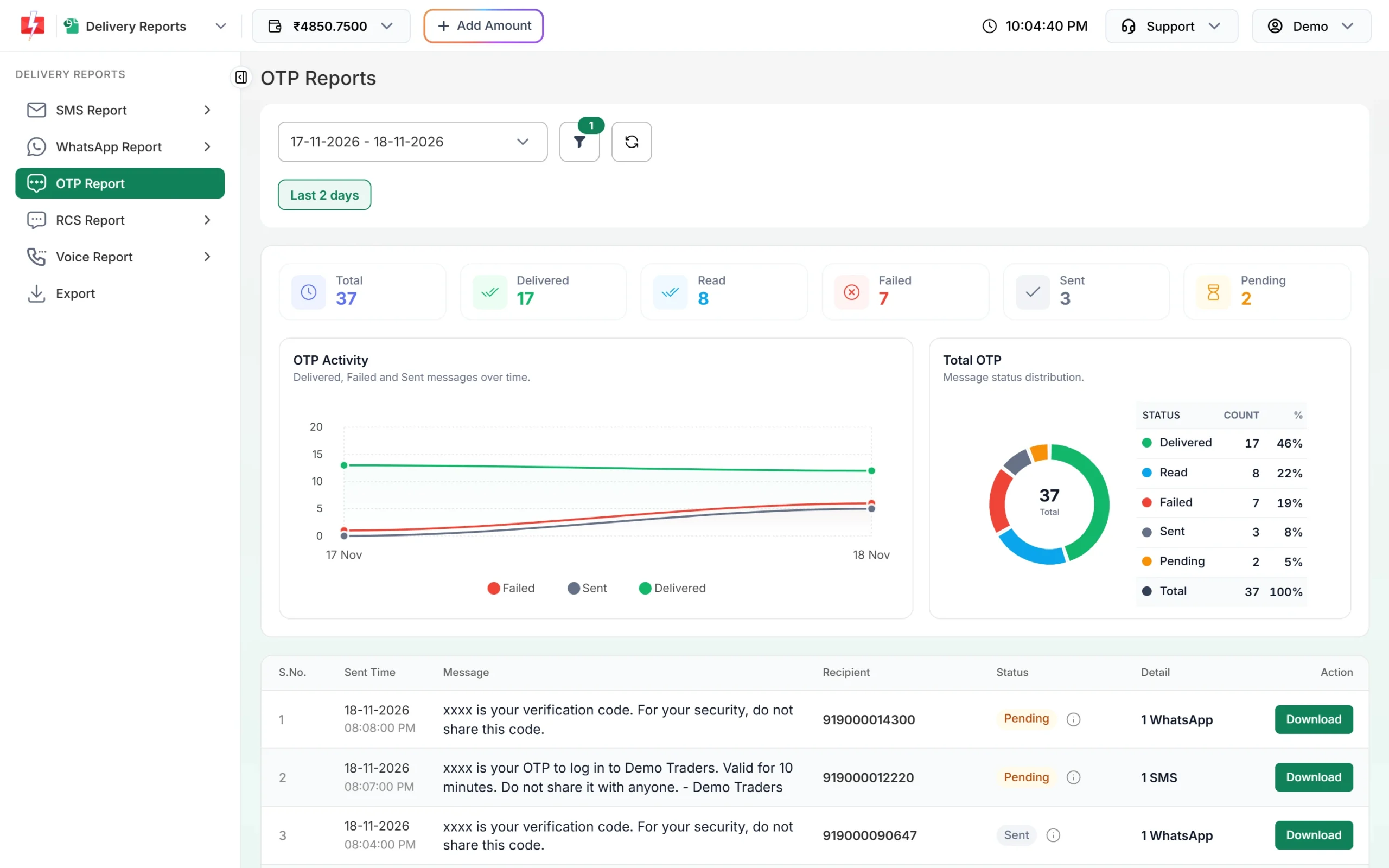
Click a row to open Delivery Details. When a fallback was sent, you see two receiver rows under the same request ID, one with an SMS badge and one with a WhatsApp badge.
Want to know which users actually verified? Use Export in Delivery Reports. The OTP export file has Verified (Yes, No or Expired) and Verified At columns. The panel pages do not show this. For what each delivery status means, see SMS delivery report statuses explained. To get statuses on your own server, set up an OTP webhook.
Common problems and fixes
OTP not received
Open the OTP report and find the number. If it shows Failed, open Delivery Details for the reason, such as a switched-off phone, DND, a blocked or invalid number. If it is Pending or Sent, the operator has not confirmed it yet. Add a fallback on the other channel so a failed SMS can still reach the user on WhatsApp, or the other way round. If the API returned an error, the OTP was never sent; check API Logs under Account Settings.
Verify fails even though the code looks right
Verify checks only the latest unverified OTP for that mobile number. When you send a new OTP to the same number, every older OTP for that number stops working, even one sent with a different OTP ID. If your user taps “send” twice and types the first code, verify fails. Ask users to use the newest message, or use Resend, which repeats the same code. An OTP that is already verified also returns “OTP not found or already verified”.
Resend gives “Please wait” or stops working
“Please wait N seconds” comes from your SMS Resend / Time Limit in OTP Settings. The resend window (10 minutes) and the 5-send limit are fixed and cannot be changed in settings. Show a timer on your resend button that matches your wait setting.
My DLT or WhatsApp template is not in the list
For SMS, the DLT template must be approved, linked to the chosen sender, and have at least one variable. For WhatsApp, it must be approved and in the Authentication or Utility category, on the same number.
“Invalid OTP ID” after deleting a template
Deleting a template needs your account password and makes its OTP ID invalid in all API calls. Create a new template and update the OTP ID in your code.
Frequently asked questions
Is a test OTP free?
No. Test OTP sends a real message and charges your wallet like an API send.
Does resend send a new OTP?
No. Resend sends the same OTP again, and each resend is charged. To get a new code, call send again.
Can I set my own OTP value?
Yes. Pass it in the otp parameter, up to 10 characters. If you leave it out, Fast2SMS makes one with the length you ask for.
How long is an OTP valid?
15 minutes by default. Set otp_expiry in minutes, from 1 to 10080.
Is the fallback charged?
Yes. The fallback message is charged on its own channel. In Transaction History it shows with “Fallback” in the line.
Can I send OTP with the DLT SMS API instead?
Yes. You can send an OTP with the DLT SMS API or the DLT Manual API using your own approved DLT OTP template. In that case your app creates the code and checks it. Smart OTP is our recommended option because it sends on SMS and WhatsApp with fallback, uses a priority route and has verify and resend built in.
Where can I see if a user verified the OTP?
Only in the OTP report export file, in the Verified and Verified At columns.
Related guides
- Webhooks in Fast2SMS: get delivery reports on your own URL
- How bulk SMS works in Fast2SMS
- SMS delivery report in Fast2SMS: every status explained
- OTP SMS for websites: Smart OTP with WhatsApp fallback explained
- WooCommerce OTP not received? Causes and fixes
- Fast2SMS OTP SMS
- Fast2SMS API documentation