
To send a bulk voice call from Excel in Fast2SMS, open Bulk Voice Call, choose CSV File under Send To, upload your Excel, CSV or TXT file (up to 10 MB), and pick the column that has the mobile numbers. Fast2SMS cleans the list for you: it trims 91 and 0 in front of numbers, removes duplicates and drops invalid numbers before you confirm.
This guide is for anyone who keeps customer lists in Excel or exports them from a billing or CRM tool. It shows how to prepare the sheet, upload it, check the counts and fix the usual problems.
Before you start
- An approved voice file (or one of the free sample files) and a paid transaction of ₹100 or more on your account.
- Wallet balance for the campaign. The confirmation popup shows the amount before anything is sent.
- Your file: .xlsx, .xls, .csv or .txt, up to 10 MB, with up to 1,00,000 numbers per campaign.
How to prepare your Excel sheet
Your sheet can have other columns such as Name or City. Fast2SMS only reads the one column you choose. For best results:
- Keep one number per cell. If a cell has two numbers (“98765 43210 / 98123 45678”), split them into two rows.
- Use 10-digit Indian mobile numbers. 9876543210, 919876543210 and 09876543210 all work; the 91 or 0 is trimmed. Numbers must start with 6, 7, 8 or 9.
- Format the column as Text. Otherwise Excel may show 9.88E+09 or drop leading zeros. Select the column, right-click, Format Cells, Text.
- A header row is fine. A first row without digits, such as “Mobile”, is skipped.
- Landlines and international numbers are not called. They are counted as invalid.
Not sure about the format? Click Sample CSV on the CSV File tab to download an example.
How to send a bulk voice call from an Excel file
-
Open Bulk Voice Call and choose CSV File
Go to Bulk Voice Call, type a Campaign Name (for example “November offer – customer list”) and pick the Campaign Type. Under Send To, click CSV File. An upload box appears with the Sample CSV link above it.
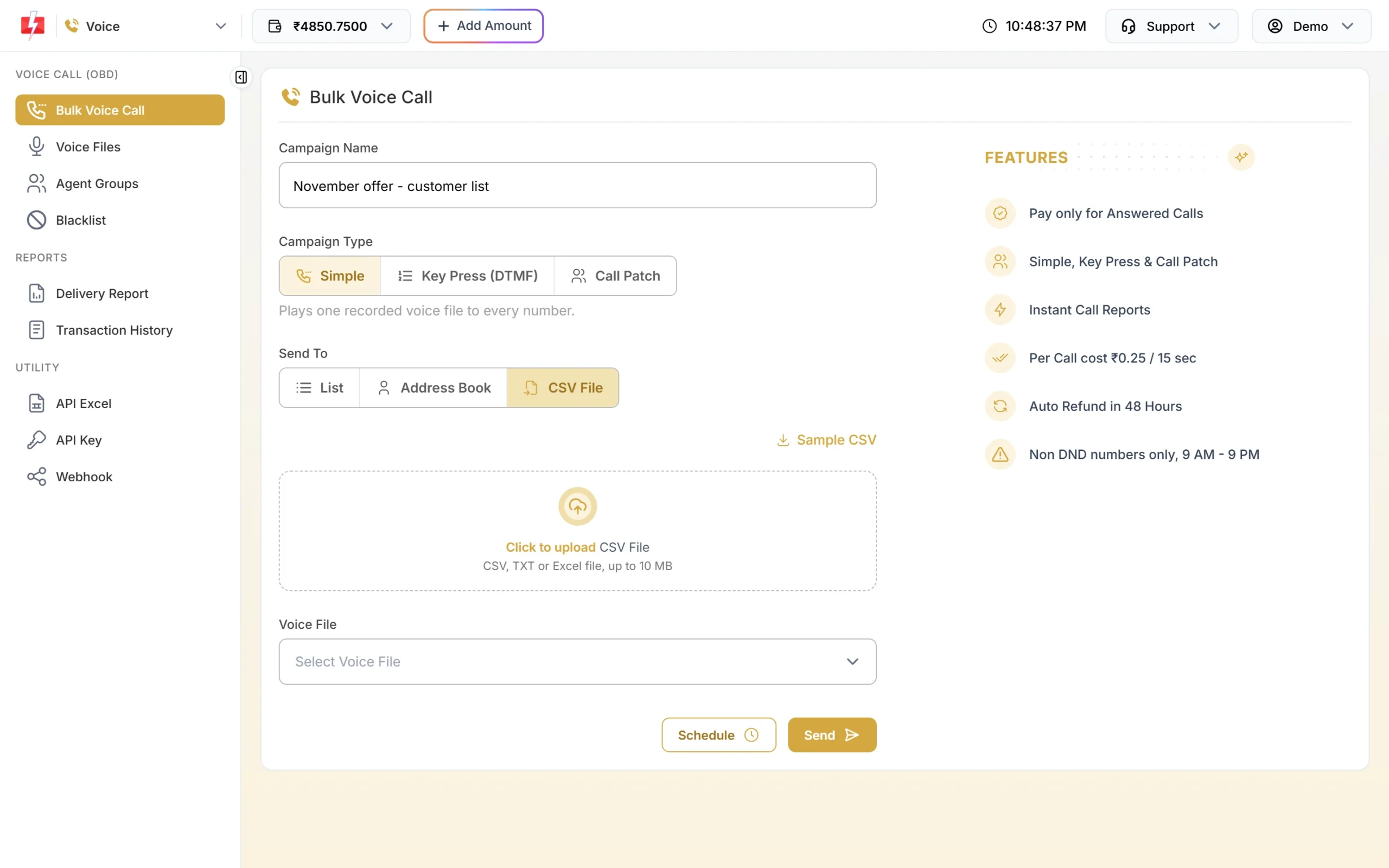
The CSV File tab accepts CSV, TXT and Excel files. -
Upload the file and check the preview
Click the upload box and choose your file. You see the file name, its size and the number of contacts, plus a preview table of the first rows with your column names. Use Replace File to pick a different file, or Cancel to remove it.
-
Choose the column with mobile numbers
Under Select Column Name which has Mobile Numbers, pick the right column, such as MOBILE. If your sheet has two number columns (for example Mobile and Alternate), only the chosen one is called.
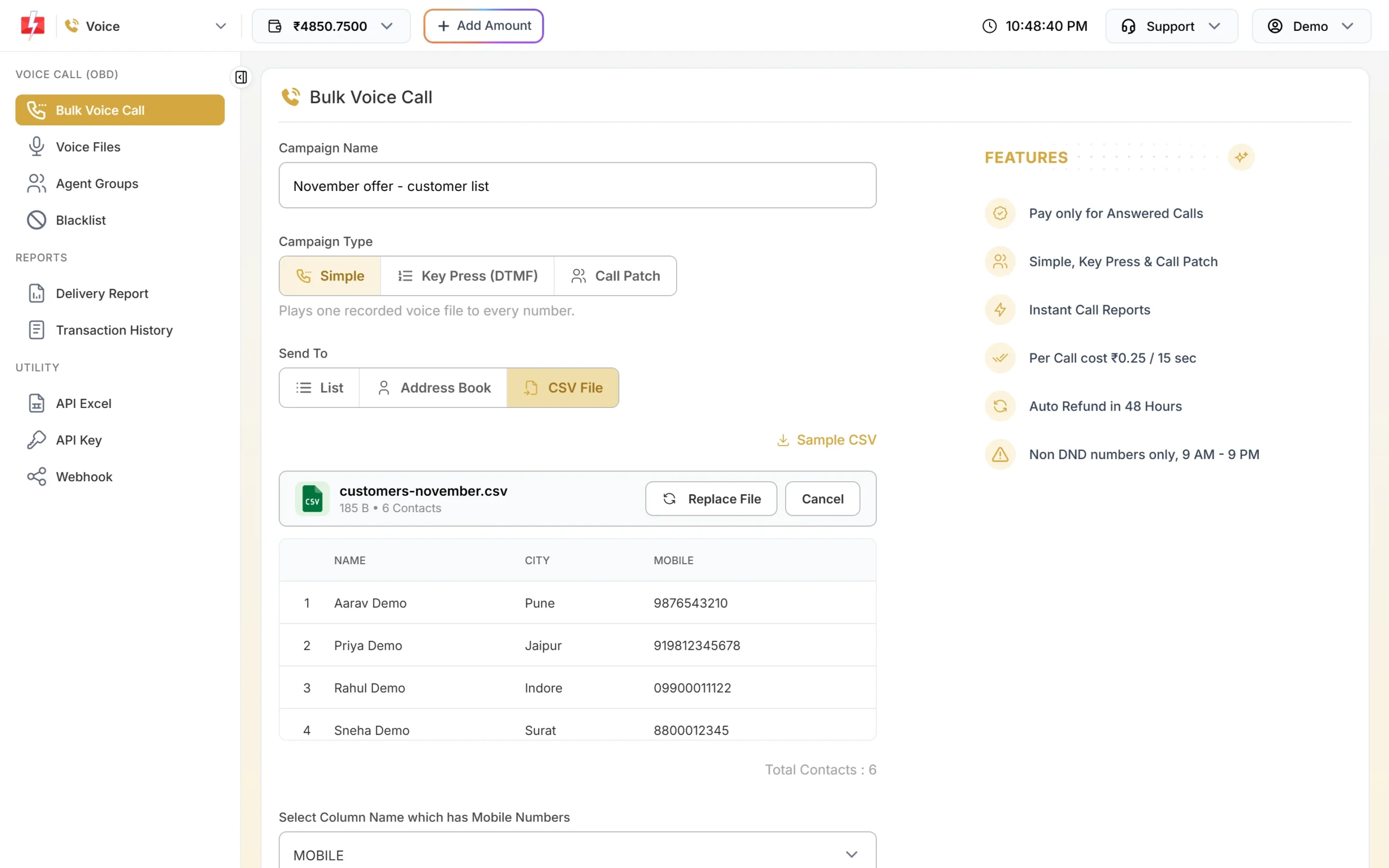
The preview shows your columns. Pick the one with mobile numbers. -
Pick the voice file
Choose your approved recording in Voice File (or set up the Key Press or Call Patch steps). The same recording plays to every number in the file.
-
Check the counts and confirm
Click Send or Schedule. The Campaign Preview & Confirmation popup shows Total Numbers, Duplicate Numbers, Invalid Numbers, Blacklisted Numbers and Valid Numbers, and the cost for the valid numbers only. Click Confirm & Send when it looks right.
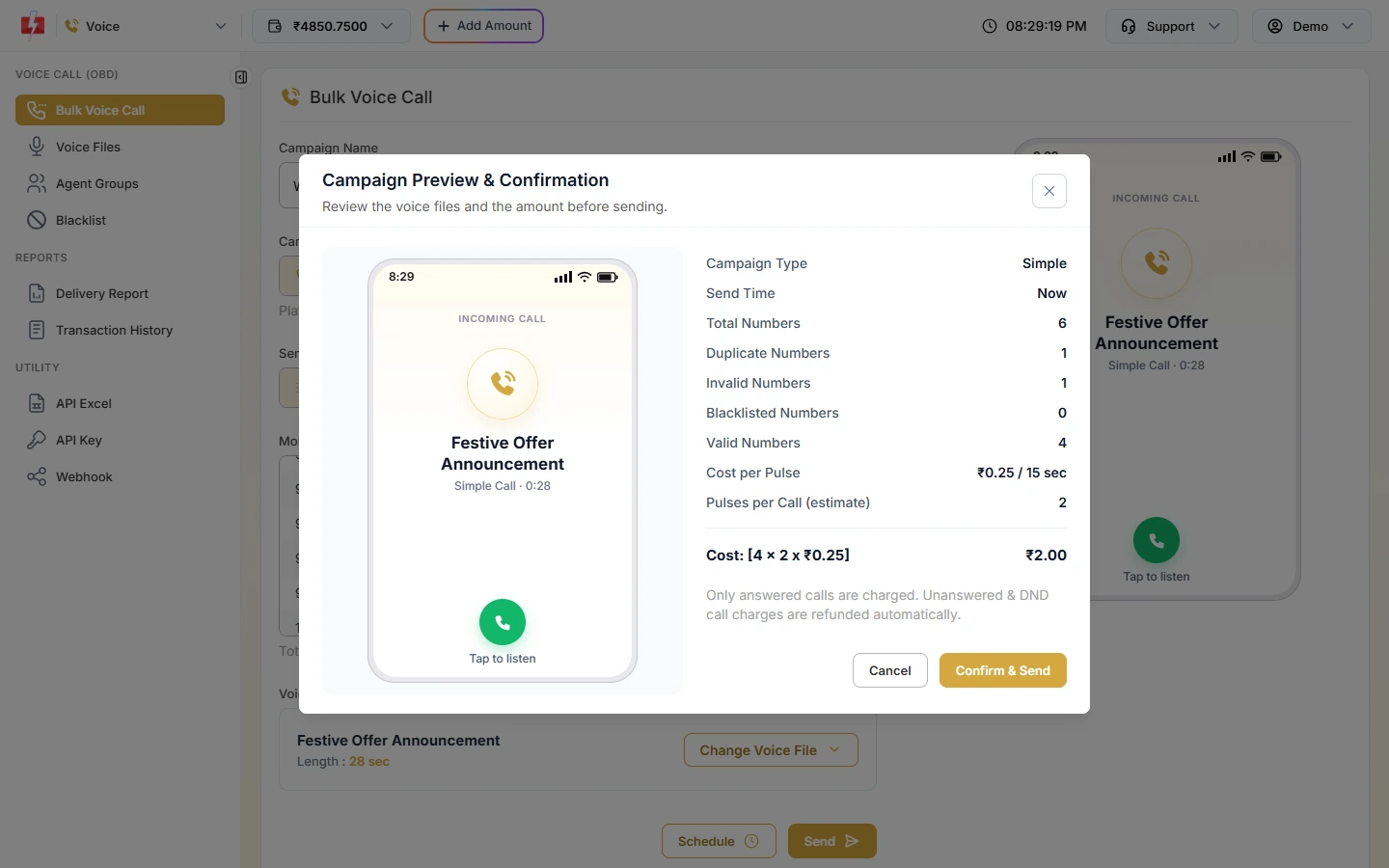
Only valid numbers are called and charged.
Why the count in the popup is lower than your file
Take the sample file shown above. It has 6 rows: 8800012345 appears twice and one row has only 5 digits. The numbers written as 919812345678 and 09900011122 are fine, because 91 and 0 are trimmed. So 6 total numbers give 1 duplicate, 1 invalid and 4 valid numbers, just like the popup above.
| Counted as | Why |
|---|---|
| Duplicate Numbers | The same number appears more than once, including after 91 or 0 is trimmed. It is called once. |
| Invalid Numbers | Not 10 digits after trimming, does not start with 6 to 9, landline, or international. |
| Blacklisted Numbers | The number is in your voice Blacklist. It is never called. |
| Valid Numbers | Numbers that will be called. The held amount is based on these. |
DND numbers are not removed in the popup. The operator skips them during the campaign, they show as DND in the report, and they cost nothing.
Large files and multi-day sends
- One campaign can have up to 1,00,000 numbers. For a bigger list, split the file into parts and send them as separate campaigns.
- If you schedule over a date range, one campaign is created per day for up to 31 days. Numbers multiplied by days can be at most 10,00,000 in one send.
- Big lists take time to call. Start early in the day so calls finish before 9 PM, when running campaigns are paused.
Common problems and fixes
| Problem | Fix |
|---|---|
| “Maximum 1,00,000 numbers per campaign.” | Split the file into two or more files. |
| Most numbers show as invalid | You picked the wrong column, or Excel turned numbers into 9.88E+09. Format the column as Text and save again. |
| File does not upload | Check it is CSV, TXT, XLSX or XLS and not more than 10 MB. Remove extra sheets and formatting. |
| Header row counted as a number | Make sure the header has no digits, for example “Mobile” instead of “Mobile 1”. |
| “All numbers are in your voice blacklist.” | Remove numbers from Blacklist only if they were added by mistake. |
Frequently asked questions
Can I upload an Excel file directly, or must it be CSV?
You can upload .xlsx or .xls directly. CSV and TXT files work too.
Can the call say each customer’s name from my Excel file?
No. Fast2SMS uses only the mobile number column. Everyone hears the same recorded voice file.
Do I need to remove 91 from the numbers?
No. 12-digit numbers starting with 91 and 11-digit numbers starting with 0 are trimmed to 10 digits automatically.
Are duplicate numbers charged twice?
No. Duplicates are removed before sending, so each number is called once.
Can I save the list for next time?
Yes. Import it into Address Book as a group and pick the group under Send To next time.
Can I send voice calls from Excel automatically?
Use the Voice API with your own script. The details are under API Excel in the Voice menu.