
A good IVR menu says your business name, offers three or four clear options, and gets the caller to a person or an answer quickly. Below are IVR menu examples and greeting scripts for Indian businesses, in English and Hindi, that you can record and use in Fast2SMS Cloud Telephony or in a Key Press voice campaign.
Change the names, keys and timings to fit your business, then record them in a quiet room as MP3 or WAV files.
Rules for an IVR menu that callers do not hang up on
- Say your brand name in the first sentence. Callers want to know they reached the right place.
- Keep it to 3 or 4 options. Put the most common reason first.
- Say the reason before the key. “For sales, press 1” is easier to follow than “Press 1 for sales”.
- Always give a way to a person. For example, press 9 or stay on the line.
- Repeat the menu once if no key is pressed, then send the caller to a default group.
- Keep each prompt short. A greeting of 5 to 10 seconds and a menu of 15 to 20 seconds works well.
Greeting scripts
| Use | Script |
|---|---|
| Standard welcome | “Thank you for calling Demo Traders. This call may be recorded for quality.” |
| Hindi welcome | “Demo Traders में कॉल करने के लिए धन्यवाद। गुणवत्ता के लिए यह कॉल रिकॉर्ड की जा सकती है।” |
| Language choice | “For English, press 1. हिंदी के लिए 2 दबाएं।” |
| After hours | “Thank you for calling Demo Traders. Our office is open Monday to Saturday, 10 AM to 7 PM. Please call us during these hours, or press 1 to leave your number and we will call you back.” |
| Holiday | “Demo Traders is closed today for the festival. We will be back tomorrow at 10 AM. Thank you for your patience.” |
| All agents busy | “All our team members are on other calls. Please stay on the line, or call again in a few minutes.” |
IVR menu examples by business
Retail shop or online store
“For a new order, press 1. To track an order, press 2. For returns and refunds, press 3. To speak to our team, press 9.”
Clinic or diagnostic lab
“To book an appointment, press 1. For test reports, press 2. For our address and timings, press 3. For any other help, stay on the line.”
Tip: for timings and address, use a recorded message (Playback) so the caller does not need an agent.
School or coaching institute
“For admissions, press 1. For fee payment, press 2. For class timings, press 3. To speak to the office, press 9.”
Service centre or repairs
“To book a service visit, press 1. To check the status of your repair, press 2. For warranty questions, press 3. To speak to our team, press 9.”
Tip: for status checks, ask the caller to type their job number with a Number input step, and look it up through your system with a Webhook step.
Real estate
“For new projects and site visits, press 1. If you already own a home with us, press 2. For home loan help, press 3.”
Hindi menu
“नया ऑर्डर देने के लिए 1 दबाएं। ऑर्डर की जानकारी के लिए 2 दबाएं। हमारी टीम से बात करने के लिए 9 दबाएं।”
How to build these menus in Fast2SMS Cloud Telephony
The IVR Flow Builder works on a canvas where you drag in blocks and join them:
| Block | Use it for |
|---|---|
| Playback | Your greeting, timings, address or holiday message |
| Menu | “Press 1, press 2” options, with a default path if no key is pressed |
| Number input | Collect an order number, job number or pin code |
| Time conditions | Office hours by day and holidays |
| Ring group | Ring an agent, a team or a mobile number |
| Webhook | Send call data to your system or look something up during the call |
| Call end | End the call after a message |
A simple flow: Time conditions, then Playback (welcome), then Menu, with each key going to a Ring group. After hours, Time conditions sends the caller to the after-hours Playback and Call end. Changes apply from the next call.
Menus for outbound calls (Key Press campaigns)
You can also use a menu in calls you send out. In Bulk Voice Call, choose Key Press (DTMF). The customer hears your menu file, presses a key, and the key is saved in your report.
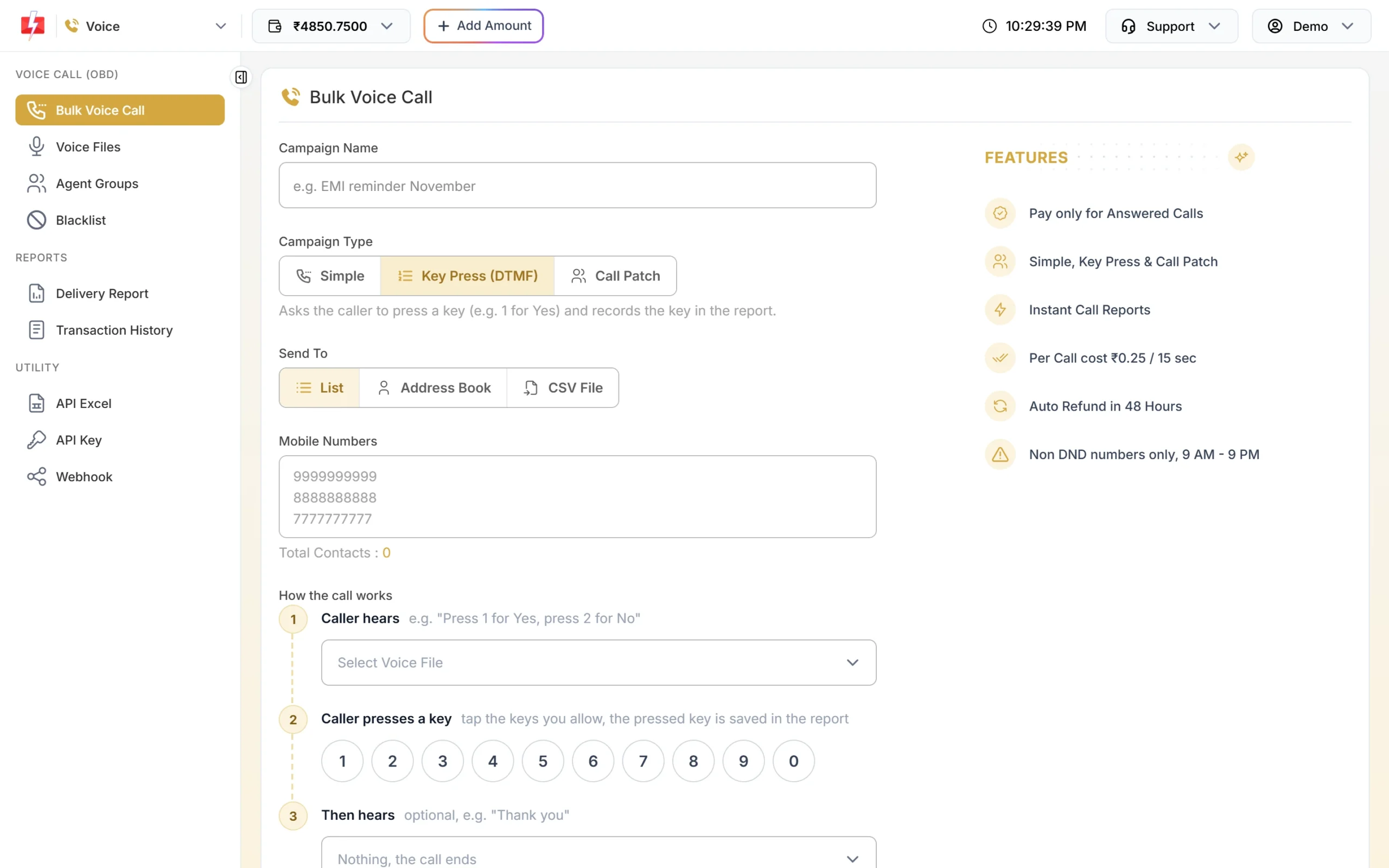
Example scripts for outbound menus:
- Appointment confirmation: “This is Demo Clinic. Your appointment is tomorrow at 11 AM. To confirm, press 1. To cancel, press 2.”
- Delivery check: “This is Demo Traders. Your order will reach you today. If you will be at home, press 1. To change the delivery day, press 2.”
- Interest check with Call Patch: “Demo Traders has opened a new store near you. To talk to our team now, press 1.”
Voice files for outbound calls must say your brand name clearly and are approved by the operator before use.
Frequently asked questions
How many options should an IVR menu have?
Three or four is enough for most businesses. Use a second-level menu only if you really need it.
Can the IVR be in Hindi or a regional language?
Yes. Record your prompts in any language and upload them as MP3 or WAV files. You can offer a language choice as the first menu.
Can I change the menu myself?
Yes. In Fast2SMS Cloud Telephony you edit the flow in the IVR Flow Builder, and the change applies to the next call.
What happens if the caller presses nothing?
The Menu block has a default path. Repeat the menu once, then send the caller to an agent group or a message.
Should I say that calls are recorded?
If you record calls, it is good practice to tell callers at the start, as in the welcome scripts above.
Can I use these menus in bulk voice calls?
Yes. Use Key Press (DTMF) to record answers, or Call Patch to connect people who press a key to your agents.