
For bulk voice calls in Fast2SMS, upload your message as an MP3 or WAV file of up to 5 MB, or record it in the browser. Every file is checked by the operator and can be used once it is approved, usually within a few hours. Each upload costs ₹10, which is refunded automatically if the operator rejects the file.
Sending in bulk? For high voice call volumes our team offers discounted rates. Talk to our team or see voice call pricing.
This guide covers the voice file format, how to upload, what each status means, the content rules and the most common reasons a voice file is rejected.
Voice file format and size
| Item | Requirement |
|---|---|
| File type | MP3 or WAV, or record with your microphone using Record in Browser |
| File size | Up to 5 MB |
| Name | Required, up to 60 characters |
| Used As | Required: what the file is for in the call |
| Length | No fixed limit, but you pay per 15-second pulse, so 15 to 30 seconds works well |
| Upload fee | ₹10 per upload, refunded if the operator rejects the file |
How to upload a voice file
-
Open Voice Files
In the Voice app, click Voice Files in the sidebar. Your files are shown as phone cards with a status tag, the type, the length, the File ID and the upload date. Use the search box, filter or Sync Status at the top.
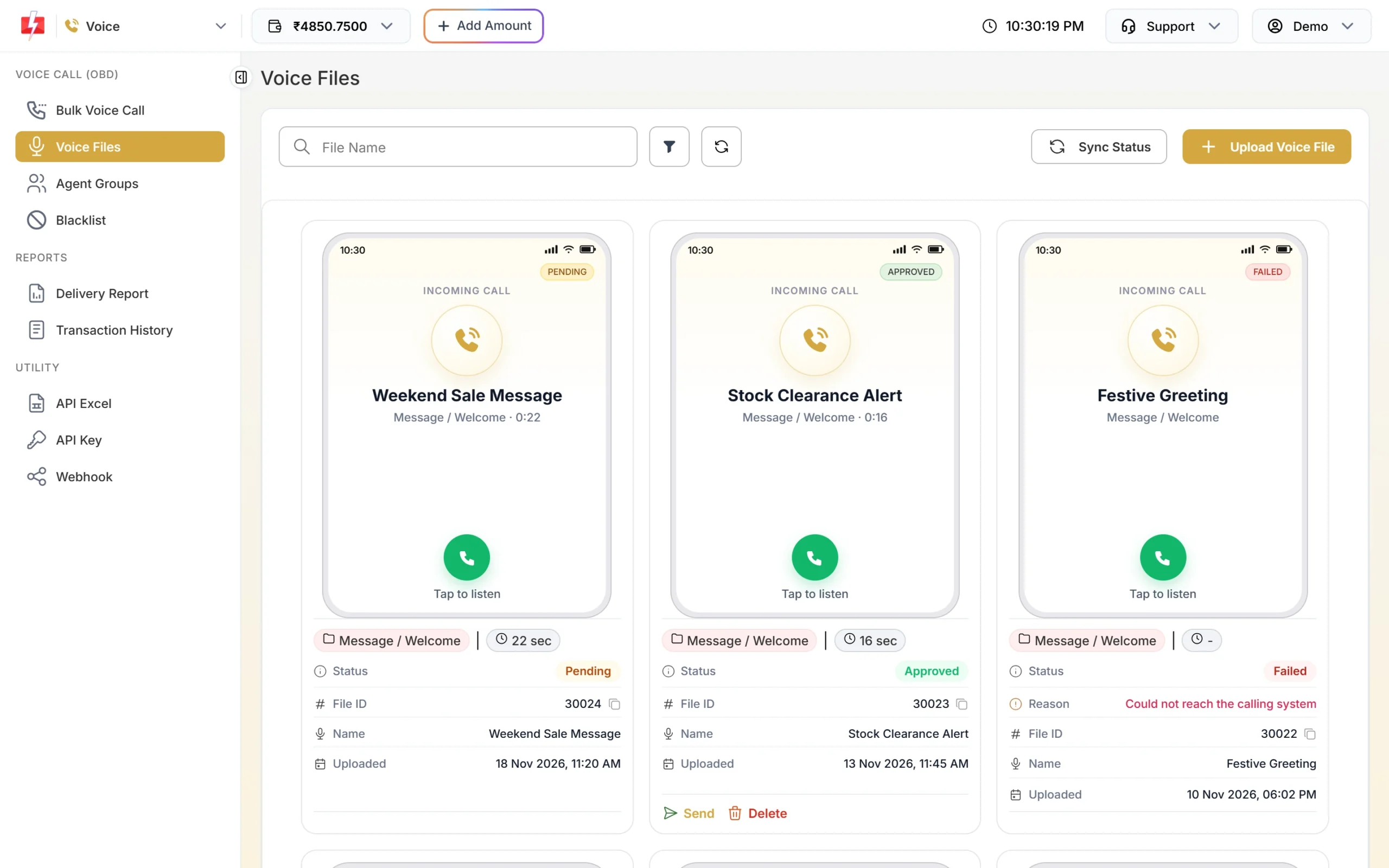
Every file shows its status and File ID. -
Read and accept the Voice File Rules
Click Upload Voice File. The Voice File Rules popup opens first. It lists the one must-have rule, saying your company or brand name clearly, and the topics that are not allowed. Click I Accept to continue.
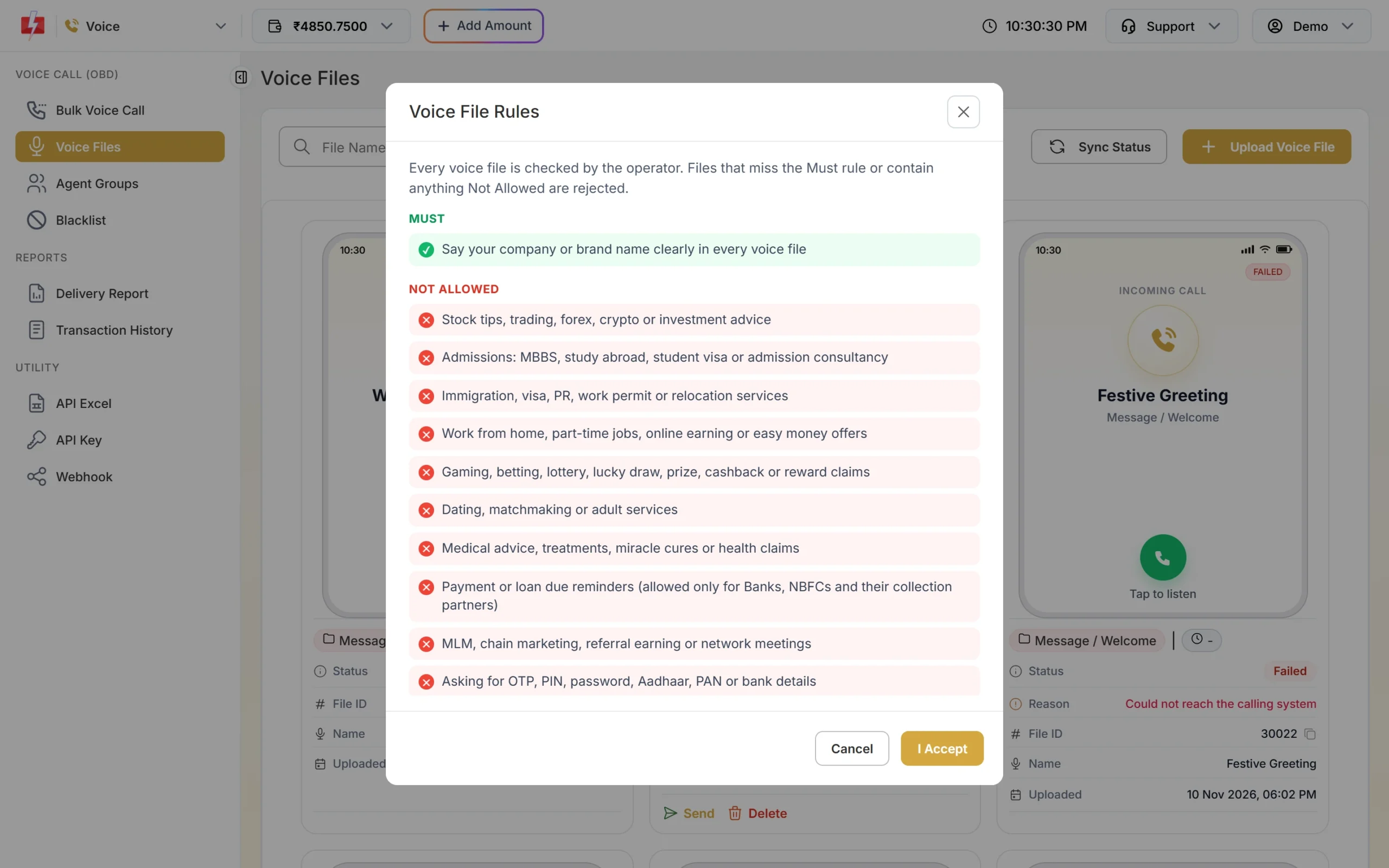
Files that miss the Must rule or contain anything Not Allowed are rejected. -
Fill the upload form
Enter a Name you will recognise, for example “EMI reminder Hindi”. Choose Used As (see the table below). Then click the box to upload an MP3 or WAV file, or click Record in Browser to record with your microphone. Click Upload (₹10.00).
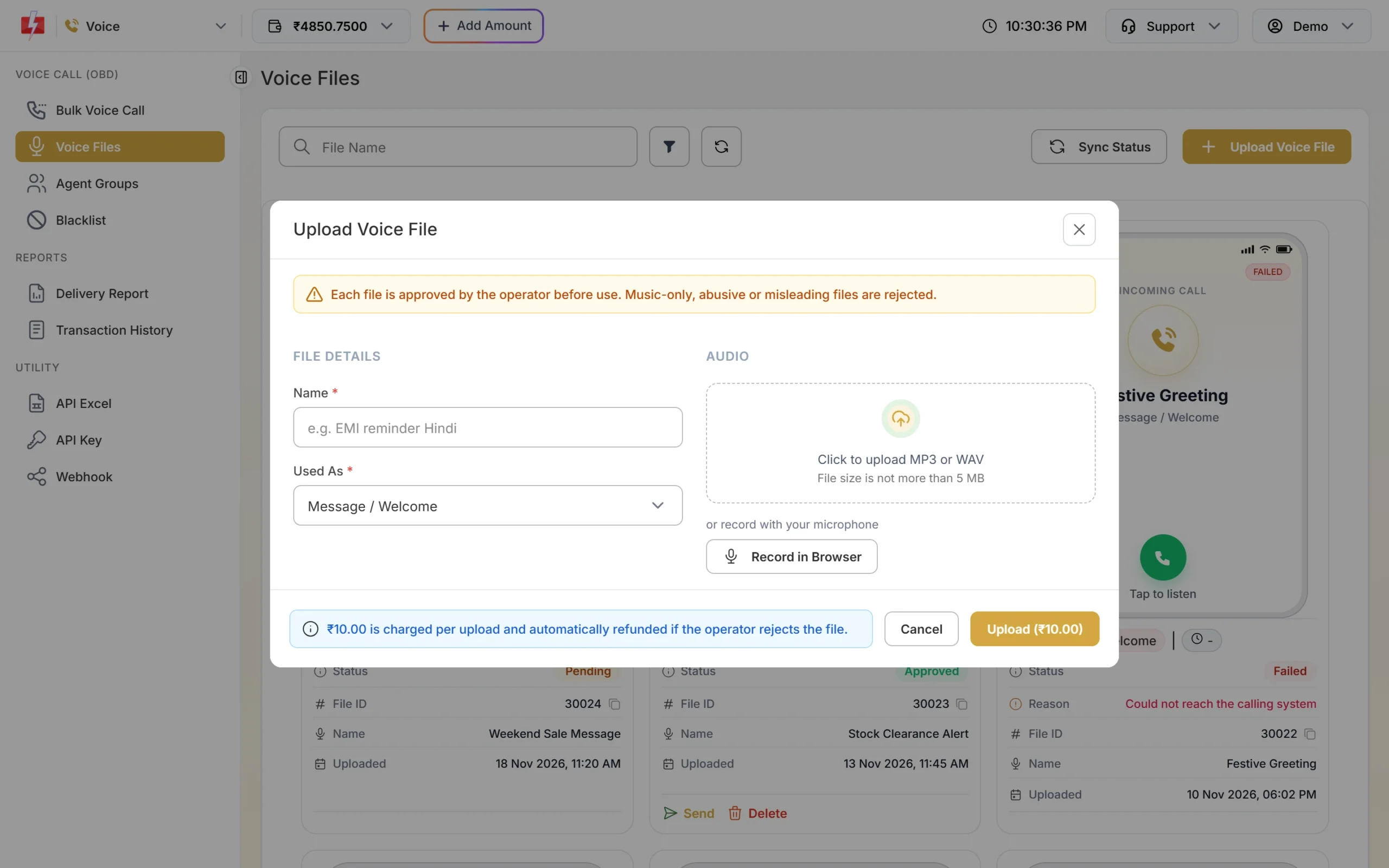
₹10 is charged per upload and refunded if the file is rejected. -
Wait for approval
The file shows Pending while the operator checks it. The page checks for updates every 30 seconds, and you can click Sync Status to check now. Approval usually takes a few hours. Once it shows Approved, click Send on the card to use it in a campaign.
-
If the file is rejected, read the reason
A rejected file shows the operator’s Reason on its card, for example that the audio is not clear because of background music. The ₹10 fee is refunded and you also get a WhatsApp notice. Fix the recording and upload a new file.
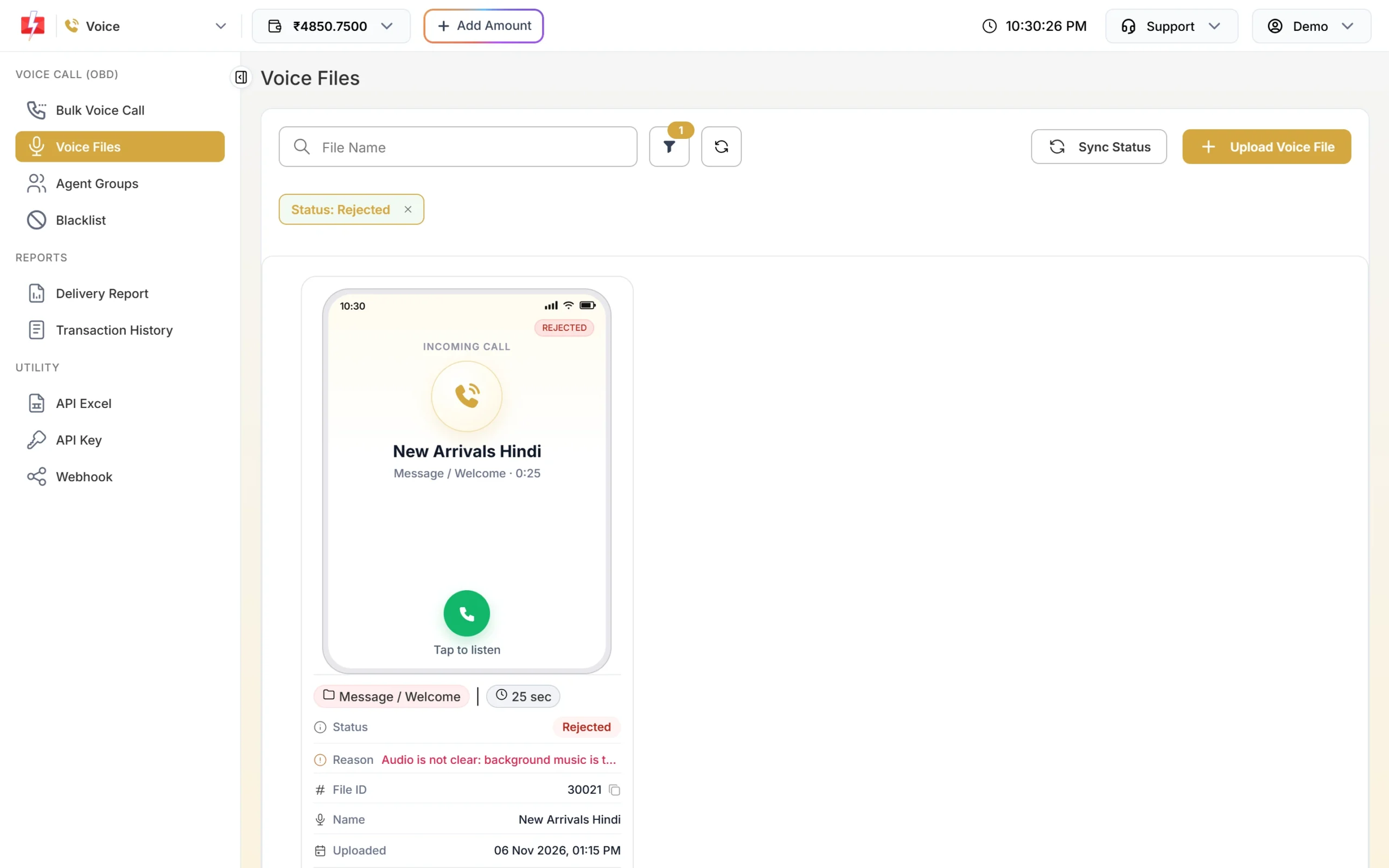
Filter by Status to see only rejected files.
What does each Used As option mean?
| Used As | When it plays |
|---|---|
| Message / Welcome | The main message of a Simple call, or a greeting before the menu |
| Menu (press a key) | Asks the caller to press a key, in Key Press and Call Patch calls |
| Thank You | Plays after the caller presses a key |
| No Key Pressed | Plays if the caller does not press any key |
| Wrong Key Pressed | Plays if the caller presses a key you did not allow |
| No Agent Available | Plays in Call Patch when no agent picks up |
Voice file statuses
| Status | Meaning | Fee |
|---|---|---|
| Pending | The operator is checking the file. It cannot be used yet. | Charged |
| Approved | Ready to use in campaigns. | Charged |
| Rejected | The operator refused the file. See the Reason. | Refunded |
| Failed | The upload to the operator did not go through. | Refunded |
| Removed | The file was approved earlier but the operator removed it later. It cannot be used. | Not refunded |
Why are voice files rejected?
The most common reasons are:
- Brand name not said clearly. Every file must say your company or brand name.
- Unclear audio, such as loud background music, noise or a very low voice. The upload popup also says music-only files are rejected.
- Not allowed topics: stock tips, trading, forex or crypto; admissions consultancy; immigration and visas; work from home or easy money; gaming, betting, lottery or prize claims; dating; medical claims; MLM; political content.
- Asking for private details such as OTP, PIN, password, Aadhaar, PAN or bank details.
- Pretending to be a government body, bank, RBI, police, court or telecom company.
- Payment or loan due reminders from anyone other than banks, NBFCs and their collection partners.
- Abusive, false or misleading content, scams, or illegal or tobacco products.
Upload limits
- Up to 2 files can wait for approval at a time.
- Up to 10 uploads a day.
- After a rejection, you can upload the next file after 1 hour.
- If 3 or more files are rejected in one day, uploads are blocked for 15 days.
- One upload at a time. If you see “Another voice file is being uploaded”, wait a moment.
Free samples: Every account gets 7 free sample files that are already approved: Simple Call, Key Press Call and Call Patch in Hindi and English, plus a Thank You file. Use them to test a campaign while your own file is pending. Sample files cannot be deleted.
Common problems and fixes
| Message you see | What to do |
|---|---|
| You need to complete one transaction of ₹100.00 or more before uploading a voice file. | Recharge ₹100 or more once, then upload. |
| Insufficient wallet balance: ₹10.00 is needed to upload a voice file. | Add money to your wallet. |
| Your 2 voice files are waiting for approval. | Wait until one of them is approved or rejected. |
| Your last voice file was rejected. You can upload a new voice file after … | Fix the reason shown on the card and upload after the time given. |
| You can upload up to 10 voice files a day. | Try again tomorrow. |
| This voice file is waiting for approval and cannot be deleted. | Only approved or removed files can be deleted. |
Frequently asked questions
What audio format do bulk voice calls need?
MP3 or WAV, up to 5 MB. You can also record directly in the browser.
How long does voice file approval take?
Usually a few hours. The status changes from Pending to Approved or Rejected on the Voice Files page.
Is the voice file upload fee refunded?
Yes, if the operator rejects the file or the upload fails. A file that is approved and later removed by the operator is not refunded.
How long should a voice message be?
About 15 to 30 seconds is a good length. Each answered call is charged per 15-second pulse, so a shorter file costs less.
Can I record a message in Hindi?
Yes. The free sample files come in Hindi and English, and you can upload your own recording in the language your customers speak.
Where do I find the File ID for the API?
On each file card under File ID. Click the copy icon next to it.
Can I edit a voice file after uploading?
No. Upload a new file with the change. You can delete an approved file you no longer need, unless a scheduled or running campaign uses it.