
You can send bulk WhatsApp messages from an Excel or CSV file in Fast2SMS and give every customer their own name, order number or amount. Upload the file on the CSV File tab of Bulk WhatsApp, choose the column with mobile numbers, then match each template variable to a column. This guide covers how to prepare the Excel sheet, upload it, fill the variables and fix the common upload errors.
Before you start
- A connected WhatsApp number and an APPROVED template. Note how many variables it has, for example {{1}} for the name and {{2}} for the order number.
- An Excel (.xlsx or .xls) or CSV file of 20 MB or less.
- Wallet balance for the whole list.
- Customers who opted in to get WhatsApp messages from you.
How to prepare your Excel sheet
Put one customer per row and one piece of information per column. The first row should hold the column names.
| mobile | name | order_no | amount |
|---|---|---|---|
| 9999999999 | Neha | DT-1036 | 3,480 |
| 8888888888 | Ritesh | DT-1045 | 1,299 |
| 7777777777 | Meera | DT-1050 | 2,150 |
Rules that save you trouble:
- Mobile numbers: 10-digit Indian mobile numbers starting with 6, 7, 8 or 9. Leave out +91, 0, spaces and dashes.
- The first data row must be a valid number. The panel checks it, and if it is wrong you get “Invalid Mobile Number in <column>”.
- Format the mobile column as Text in Excel so long numbers do not turn into 9.99E+09.
- No empty cells in the columns you use for variables. A message with an empty variable can fail or look broken to the customer.
- To start, click Sample CSV on the upload screen and fill that file.
Steps to send bulk WhatsApp from Excel
-
Open Bulk WhatsApp and choose the sender
Click Bulk WhatsApp in the WhatsApp sidebar and pick your number in Select Sender Number. Only Connected numbers are listed.
-
Click CSV File and upload
Under Send To, click CSV File, then Click to upload. You can upload .xlsx, .xls or .csv files up to 20 MB (“File size is not more 20MB”).
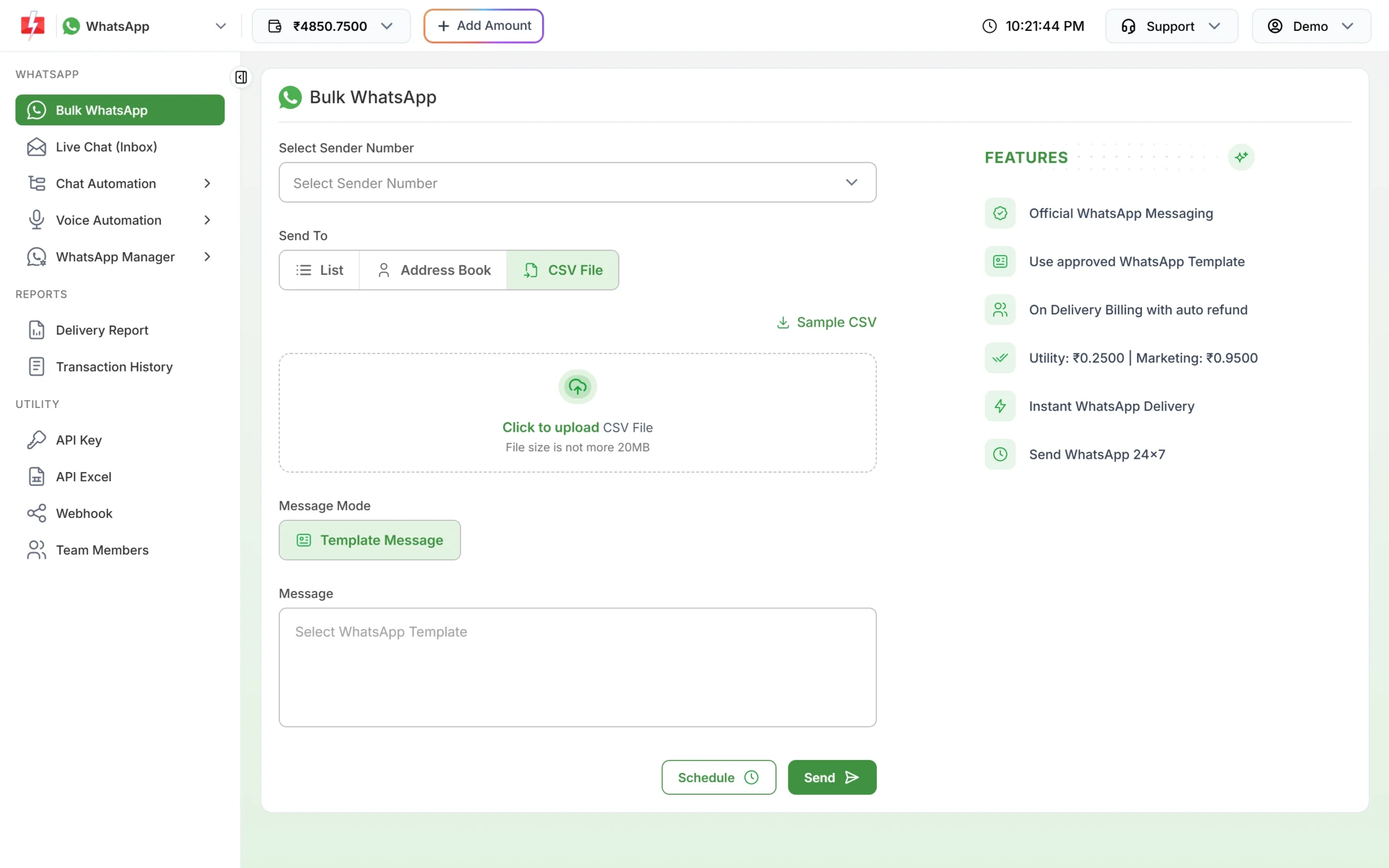
The CSV File tab with the Sample CSV link and upload box. -
Choose the mobile number column
After the upload, select your mobile column under “Select Column Name which has Mobile Numbers”. If you skip this, you see “Select Column Name which has Mobile Numbers.” as an error.
-
Select the template
Leave Message Mode on Template Message, click “Select WhatsApp Template” and pick your approved template. The form shows the template name, its “Template Type” and a phone preview.
-
Match each variable to a column
For each variable, such as Variable 1 ({{1}}), choose the column that holds its value: name for {{1}}, order_no for {{2}}, and so on. Every customer then gets their own values. If you leave one out, you see “Please select column for <name> ({{n}}).”
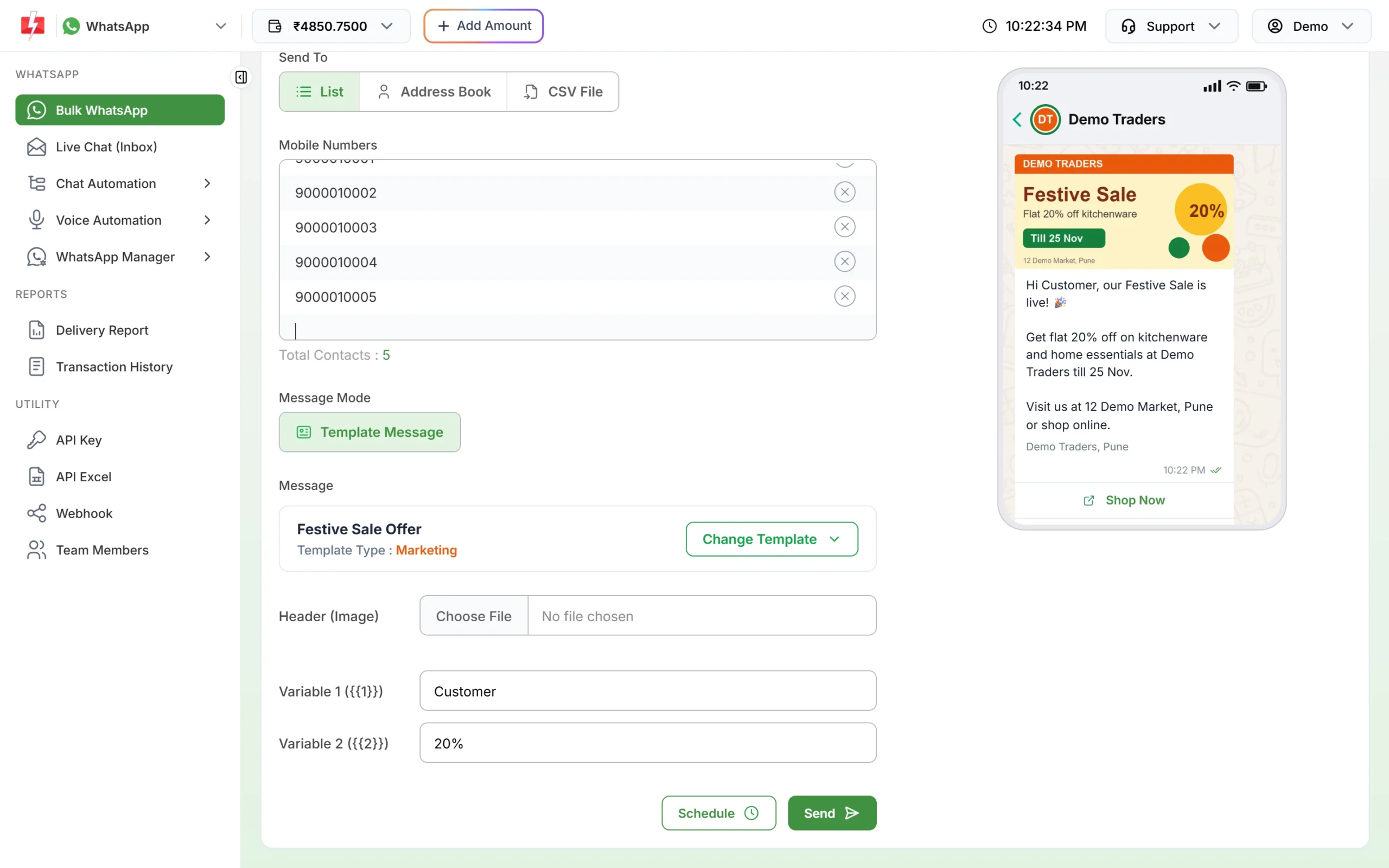
Each variable gets a value. With a file, you choose a column for each one. -
Add the header file if the template has one
A template with a media header shows a file box such as Header (Image). This file is the same for everyone in the campaign: JPG or PNG up to 5 MB, MP4 up to 16 MB, or PDF up to 100 MB. A PDF also needs a Document Filename.
-
Send or schedule, then check the preview
Click Send, or Schedule for later. The Message Preview & Confirmation window shows Total Numbers, Duplicate Numbers, Valid Numbers, Invalid Number and the total cost. Check that Valid Numbers matches your sheet, then click Confirm & Send.
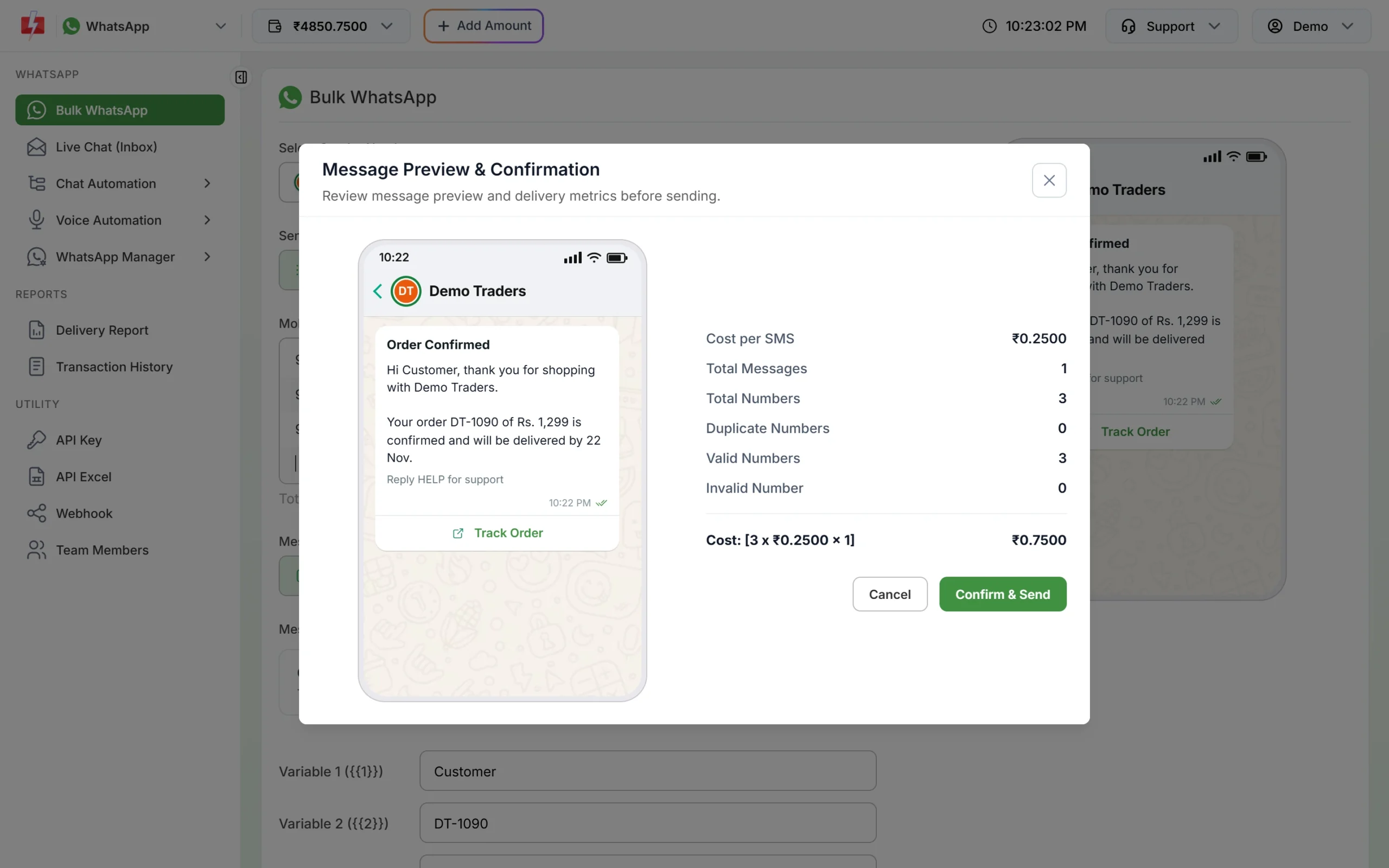
Compare Valid Numbers with the rows in your file.
What happens to duplicates and wrong numbers
- A number that appears twice is sent once and charged once. The preview shows it under Duplicate Numbers.
- Numbers that are not valid 10-digit Indian mobiles are dropped and not charged. They show under Invalid Number.
- Numbers that are valid but not on WhatsApp will fail after sending and are refunded to your wallet automatically.
List, Address Book or Excel: which one to use?
| Option | Best for |
|---|---|
| List | A few numbers that all get the same message. Paste them one per line or separated by commas. |
| Address Book | Saved contacts and groups you message again and again. |
| CSV File (Excel) | Large lists, and any campaign where each customer needs their own name, amount or order number. |
Common upload errors and fixes
| Error | Fix |
|---|---|
| Please upload CSV file. | You clicked Send before uploading. Upload the file first. |
| Maximum File Upload Size 20MB Exceed. | Split the sheet into smaller files, or delete unused columns. |
| Invalid Mobile Number in <column>. | The first data row is not a valid 10-digit mobile, or you picked the wrong column. Remove +91, spaces and header text from that row. |
| Select Column Name which has Mobile Numbers. | Pick the mobile column after uploading. |
| Please select column for <name> ({{n}}). | Match every template variable to a column. |
| No uploaded sheet found. Please upload a sheet first. | The upload did not finish. Upload the file again. |
| Valid Numbers much lower than your rows | Numbers stored with +91, 0 or as 9.99E+09. Fix the mobile column format and upload again. |
Frequently asked questions
Can I upload an Excel file for bulk WhatsApp?
Yes. Fast2SMS accepts .xlsx, .xls and .csv files up to 20 MB on the CSV File tab of Bulk WhatsApp.
How do I add the customer’s name to each WhatsApp message?
Use a template with a variable such as {{1}} for the name, put names in a column of your sheet, and match Variable 1 to that column after uploading.
Should I include +91 in the numbers?
No. Use plain 10-digit mobile numbers starting with 6, 7, 8 or 9.
Can each customer get a different image or PDF?
Not in Bulk WhatsApp. The header file is one per campaign. To send each customer their own invoice PDF, use the WhatsApp API with a different media URL per number.
How many numbers can I upload at once?
The limit is the 20 MB file size. Your WhatsApp messaging limit decides how many different customers you can reach in 24 hours, so split very large lists across days.
Can I use a Google Sheet?
Download it as .xlsx or .csv from Google Sheets (File > Download) and upload that file.