
This guide shows you how to create a WhatsApp template in Fast2SMS, send it to Meta for review and fix it if it is rejected. It is for anyone who has connected a WhatsApp number and now wants to send campaigns, alerts or OTPs. By the end you will know which category to pick, how to fill each part of the template, what every status means and how to test the template before your first send.
यह गाइड हिंदी में पढ़ें: WhatsApp template कैसे बनाएं और Meta से approve कैसे कराएं
Before you start
- A WhatsApp number with status Connected in WhatsApp Manager > Numbers. If you have not connected one yet, follow the WhatsApp Business API onboarding guide.
- The exact text you want to send, with the parts that change per customer (name, order number, amount) marked as variables.
- For an image, video or PDF header, the file ready on your computer.
Creating a template costs nothing. You pay only when you send messages with it.
Which WhatsApp template category to choose
Meta checks that your content matches the category you pick, and the category decides the price of every message you send with the template.
| Category | Use it for | Price per message (at the time of writing) |
|---|---|---|
| Marketing | Offers, launches, discount codes, festival campaigns, “we miss you” messages | ₹0.95 |
| Utility | Updates about something the customer already did: order confirmed or shipped, payment received, appointment reminder, fee due. No promotional lines. | ₹0.25 |
| Authentication | Only one-time passwords and verification codes. No promotions and no links. | ₹0.25 |
Sending in bulk? For high WhatsApp volumes our team offers discounted rates. Talk to our team or see WhatsApp pricing.
Rates can change, so check the WhatsApp pricing page. For OTPs, our recommended route is Smart OTP, which sends on WhatsApp and SMS with automatic fallback on a priority route.
How to create a WhatsApp template: step by step
-
Open Create WhatsApp Template
Go to WhatsApp Manager > Templates and click Add Template. You can also open the three-dot menu of a number in Numbers and choose Add Template. If you have more than one number, the second way is the safest, because the template is created for that exact number. The sender number is shown at the top right of the form.
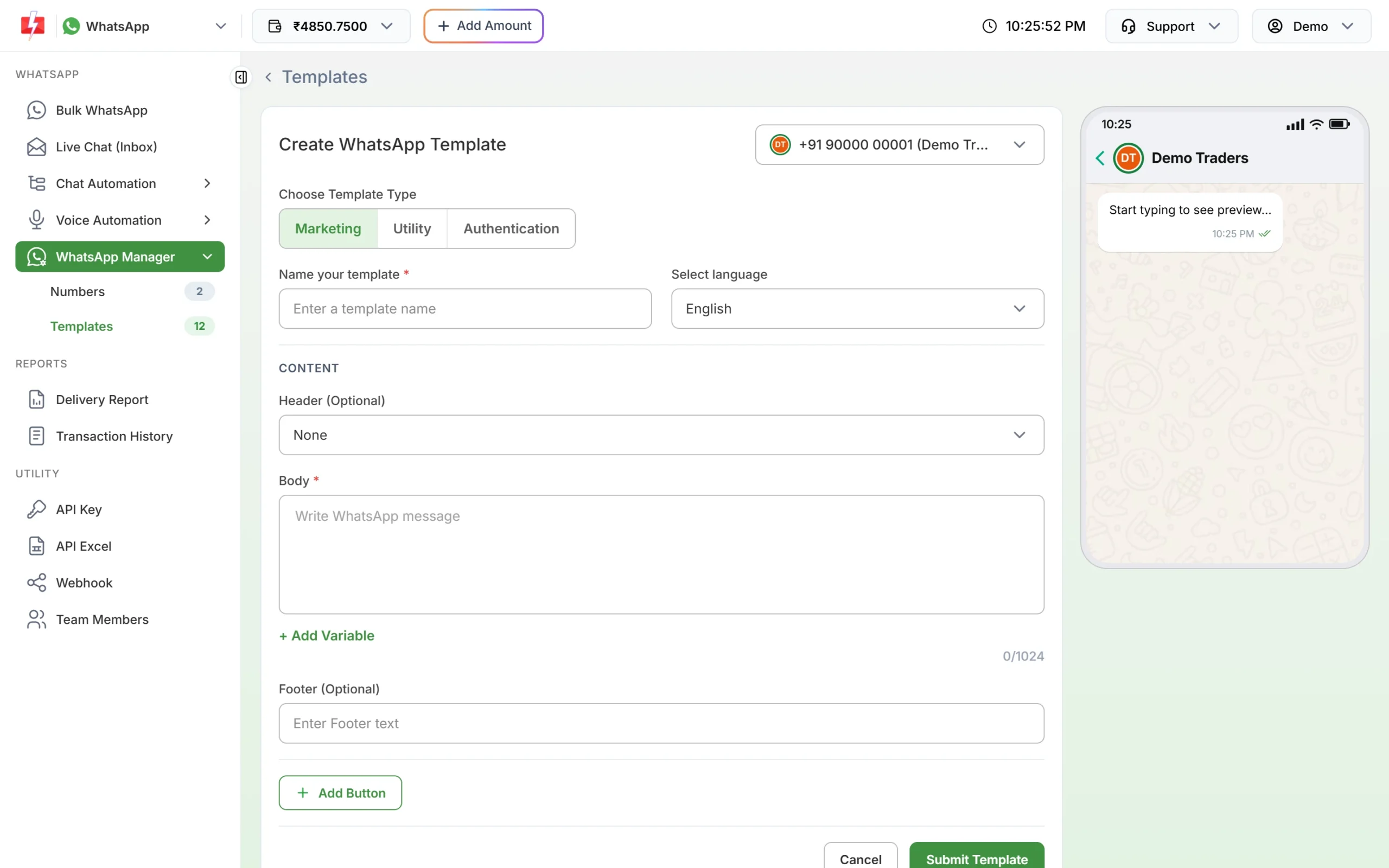
The empty form. The phone preview on the right updates as you type. -
Pick the type, name and language
Under Choose Template Type, click Marketing, Utility or Authentication. In Name your template, type a short name such as
order_shipped. The panel turns letters to lower case and spaces into underscores for you. Only small letters, numbers and underscores are allowed, the name must not already exist, and names starting with “auto_generated” are reserved. In Select language, choose English, Hindi or Gujarati. -
Add a header (optional)
Choose the Header (Optional) type:
- Text: up to 60 characters, with at most one variable.
- Image: JPG, JPEG or PNG, up to 5MB.
- Video: MP4 or M4V, up to 16MB.
- Document: PDF, up to 100MB.
The file you upload here is a sample for Meta’s review. When you send a campaign later, you upload the actual header file for that campaign.
-
Write the body and add variables
Type your message in Body (up to 1,024 characters, the counter shows how many you have used). Click + Add Variable to insert {{1}}, {{2}} and so on where the text changes per customer. For each variable a box appears under “Samples for body content”. Fill in a realistic example, such as a name or an order number. Every sample is required, and Meta uses them to understand your message.
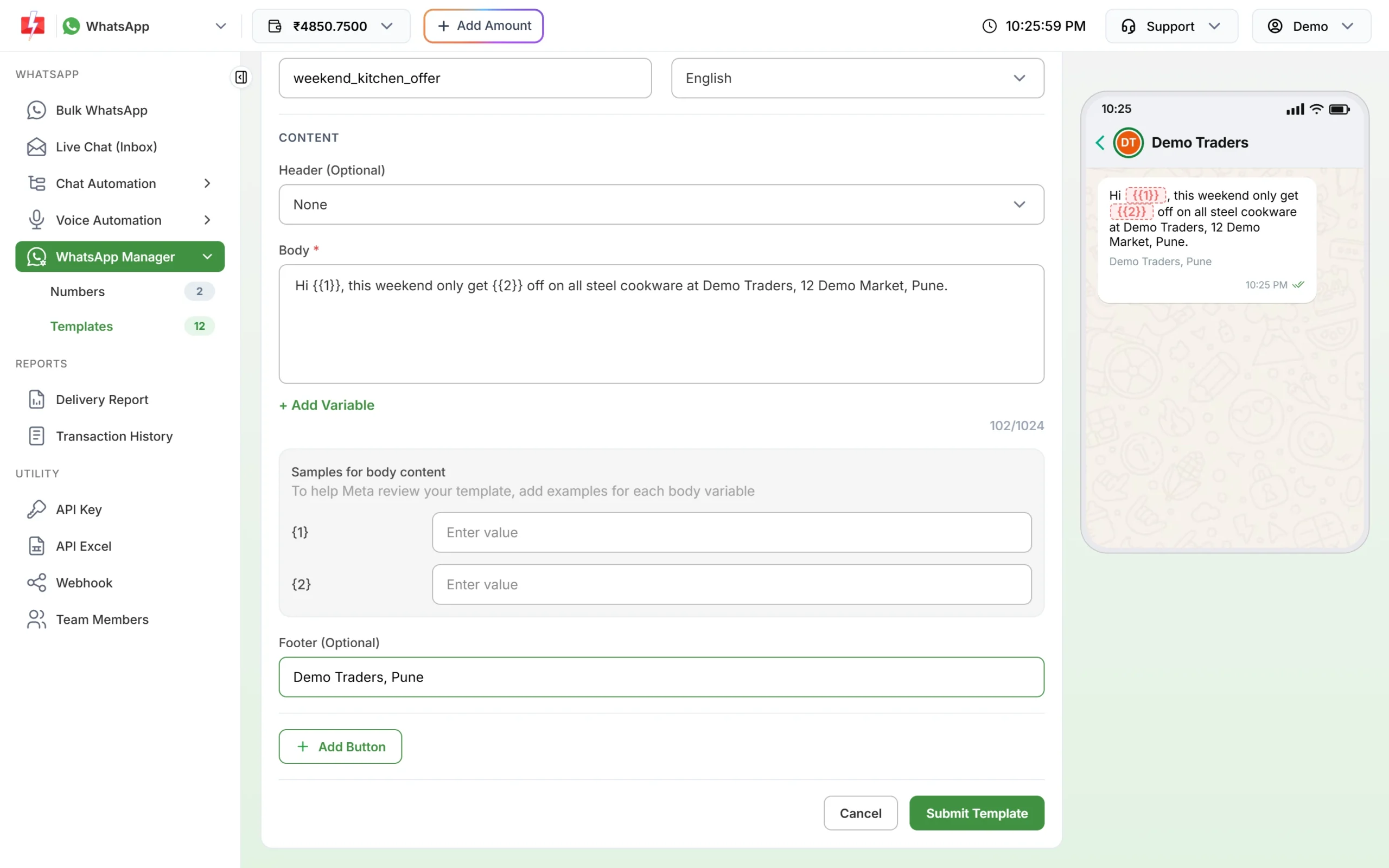
A marketing body with two variables. Each variable needs a sample. -
Add a footer and buttons (optional)
Footer (Optional) takes up to 60 characters, for example your shop name and city. Click Add Button to add buttons. Button text can be up to 40 characters and must be different on each button.
Button type What it does Max per template Custom Quick reply the customer can tap 3 Visit website Opens a link. Static or Dynamic URL. 2 Call Phone Number Calls your number. Enter it with country code, for example +919876543210. 1 Copy offer code Copies a coupon code (up to 20 characters) 1 For Utility templates you can also set a Message validity period from 30 seconds to 15 minutes. If you leave it, the standard 10-minute validity applies.
-
Check the preview and submit
Read the phone preview on the right once more. Click Submit Template. A confirmation window shows the name, type and preview. Click Create Template. You see “WhatsApp template created successfully!” and the panel opens the Templates tab, where your template shows as PENDING until Meta decides. Approval usually takes from a few minutes to a few hours.
Authentication (OTP) templates are different
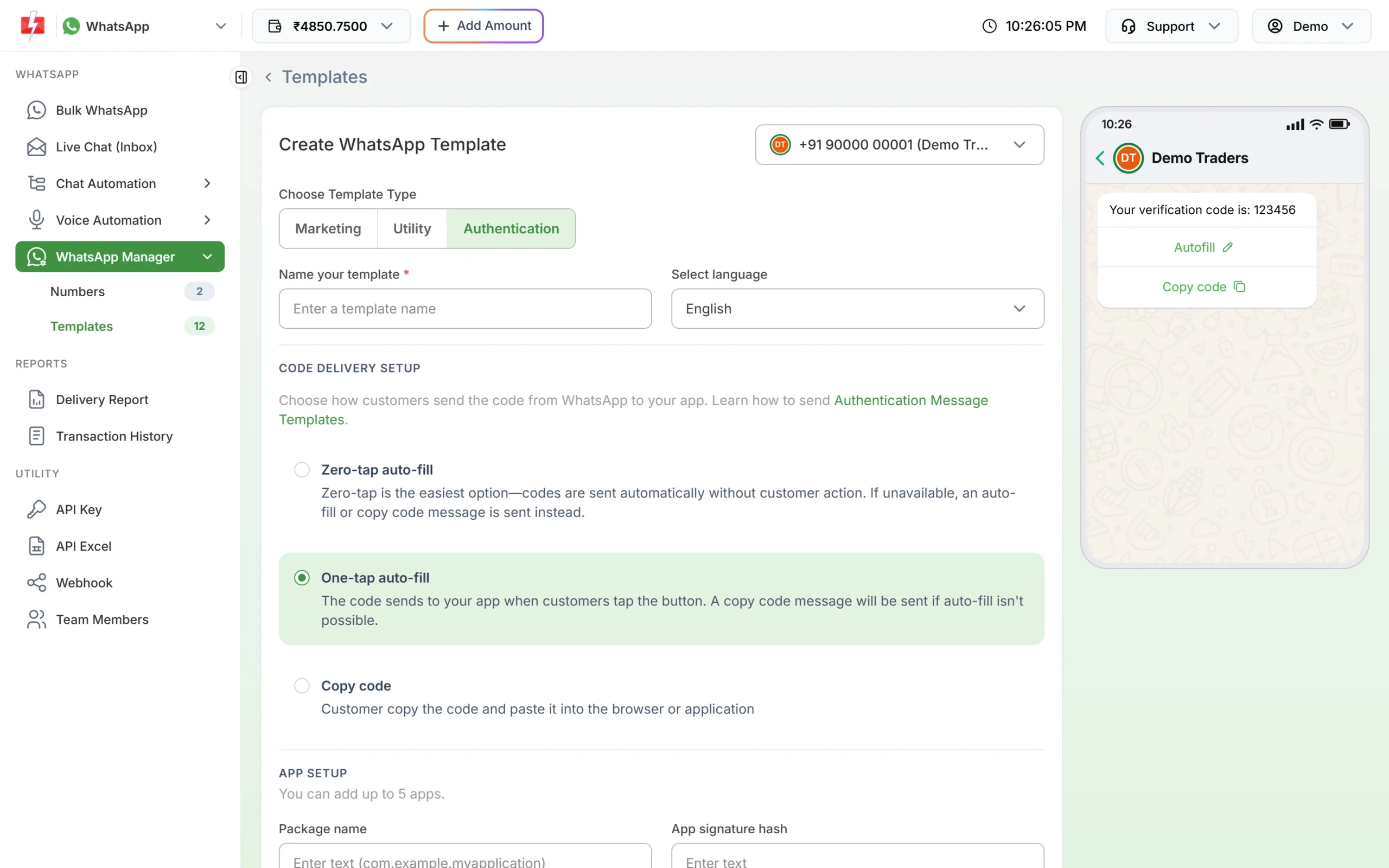
When you pick Authentication, the body is fixed by Meta: “Content for authentication message templates can’t be edited.” You choose how the code reaches your app under CODE DELIVERY SETUP: Zero-tap auto-fill, One-tap auto-fill (default) or Copy code. For the auto-fill options, add your Android app under App setup (up to 5 apps, each with a package name and an 11-character app signature hash). You can tick “Add security recommendation” and “Add expiry time for the code” (1 to 15 minutes, default 10).
Template statuses and what they mean
Each template is shown as a phone-style card in WhatsApp Manager > Templates, with its status at the top, the category and language, the Message ID, name, sender number and Meta’s Template ID (partly hidden). Click Sync Template to fetch the latest statuses from Meta.
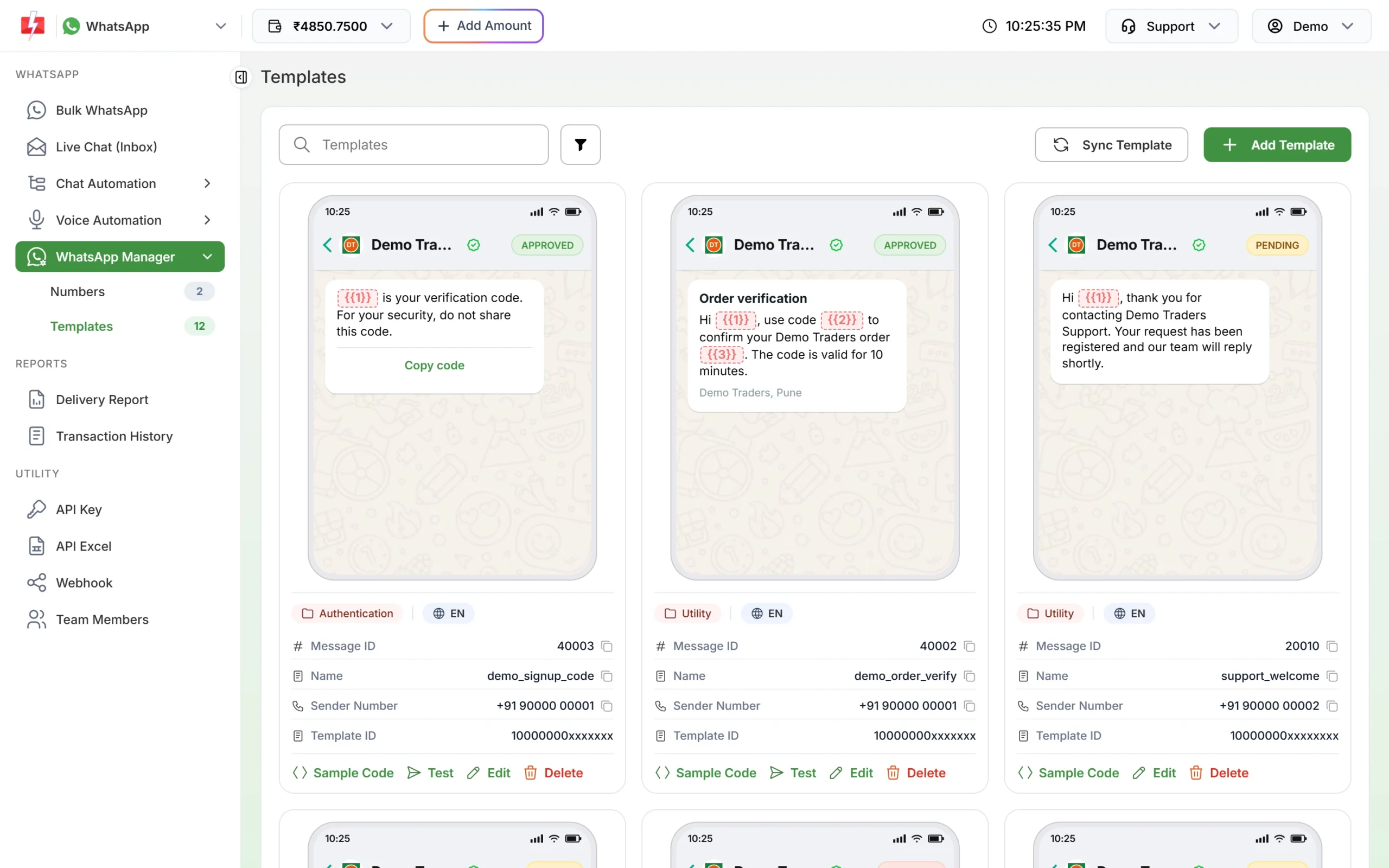
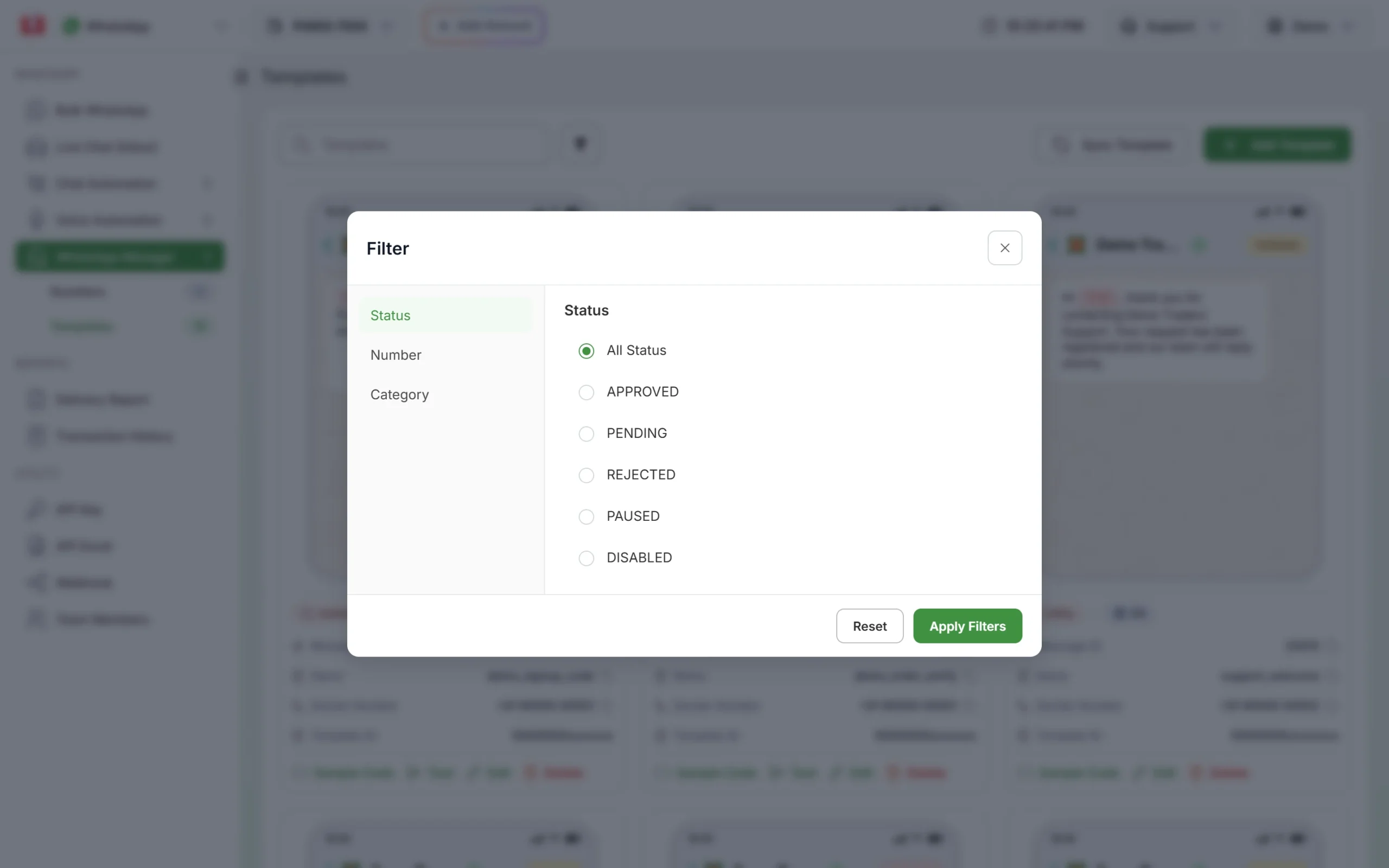
| Status | Meaning | Can you send it? |
|---|---|---|
| APPROVED (green) | Meta accepted the template. | Yes. It appears in Bulk WhatsApp and has a Test button. |
| PENDING (orange) | Meta is still reviewing it, or you edited it and it went back for review. | No. Wait for the result. |
| REJECTED (red) | Meta refused it. | No. Fix the content and submit again. |
| PAUSED (orange) | Meta paused it, usually because of low quality (customers blocking or reporting it). | No. Messages queued with it fail with “Template is PAUSED”. |
| DISABLED (orange) | Meta switched it off for good, usually after it was paused several times. | No. Create a new template. |
Use the filter button to show only one status, one number or one category.
Why templates get rejected, and how to fix them
If the submission itself fails, the panel shows “Failed to submit template.” followed by Meta’s reason. If Meta rejects the template after review, the card turns REJECTED. To read Meta’s note, open the number’s menu in Numbers and click Meta Manager, which opens your templates in Meta’s WhatsApp Manager.
| Reason | Fix |
|---|---|
| Offer or discount lines inside a Utility template | Remove the promotion, or create the template as Marketing. Meta may also move such a template to Marketing. |
| A variable at the very start or end of the body, for example “{{1}}, your order…” | Put fixed words before and after, for example “Hi {{1}}, your order is ready. Thank you.” |
| Too many variables for the amount of text | Add more fixed text or use fewer variables. |
| A header, body, footer or button that is too long | Stay within the limits above and shorten the text. |
| Content against WhatsApp’s policies | Rewrite the message so it follows WhatsApp’s template rules. |
| Promotions or links in an Authentication template | Keep authentication only for codes. |
| “Failed to upload header media sample file…” | Use a supported file type and size, then submit again. |
| “A template with this name already exists.” | Choose a different name. |
Test the template and get the API code
-
Send a test
On an APPROVED card, click Test. In “Test WhatsApp Template”, the Mobile Number is filled with your account mobile. Enter a value for each variable and click Send Test WhatsApp. On success you see “Test message sent successfully!”.
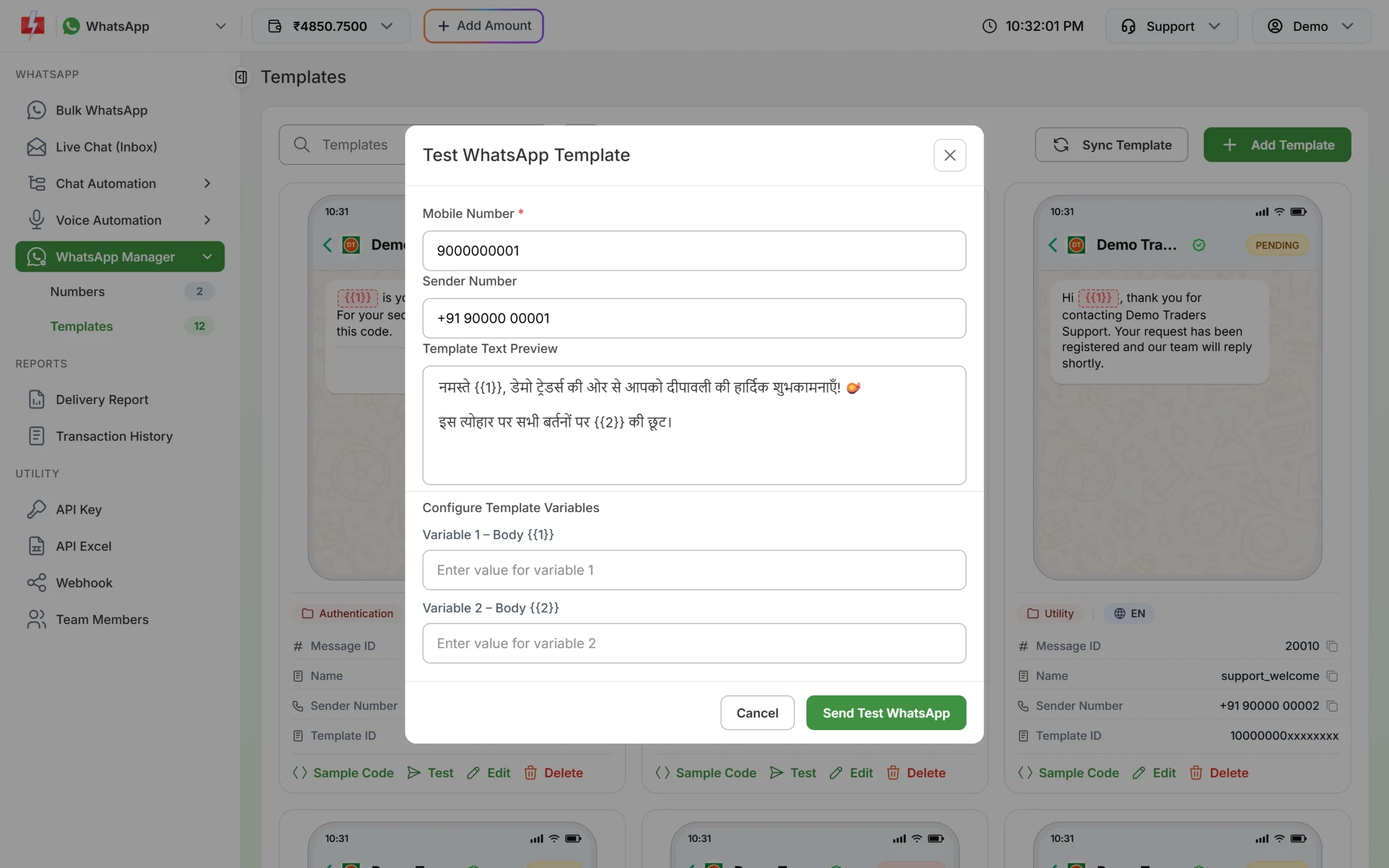
Send yourself a test before a campaign. -
Copy the sample code
Click Sample Code on the card, pick a language (for example cURL) and click Copy. The request goes to
https://www.fast2sms.com/dev/whatsappwith your API key inauthorization, the template inmessage_id, the numbers innumbersand the variable values invariables_values, separated by|. Use the Message ID from the card, not Meta’s Template ID.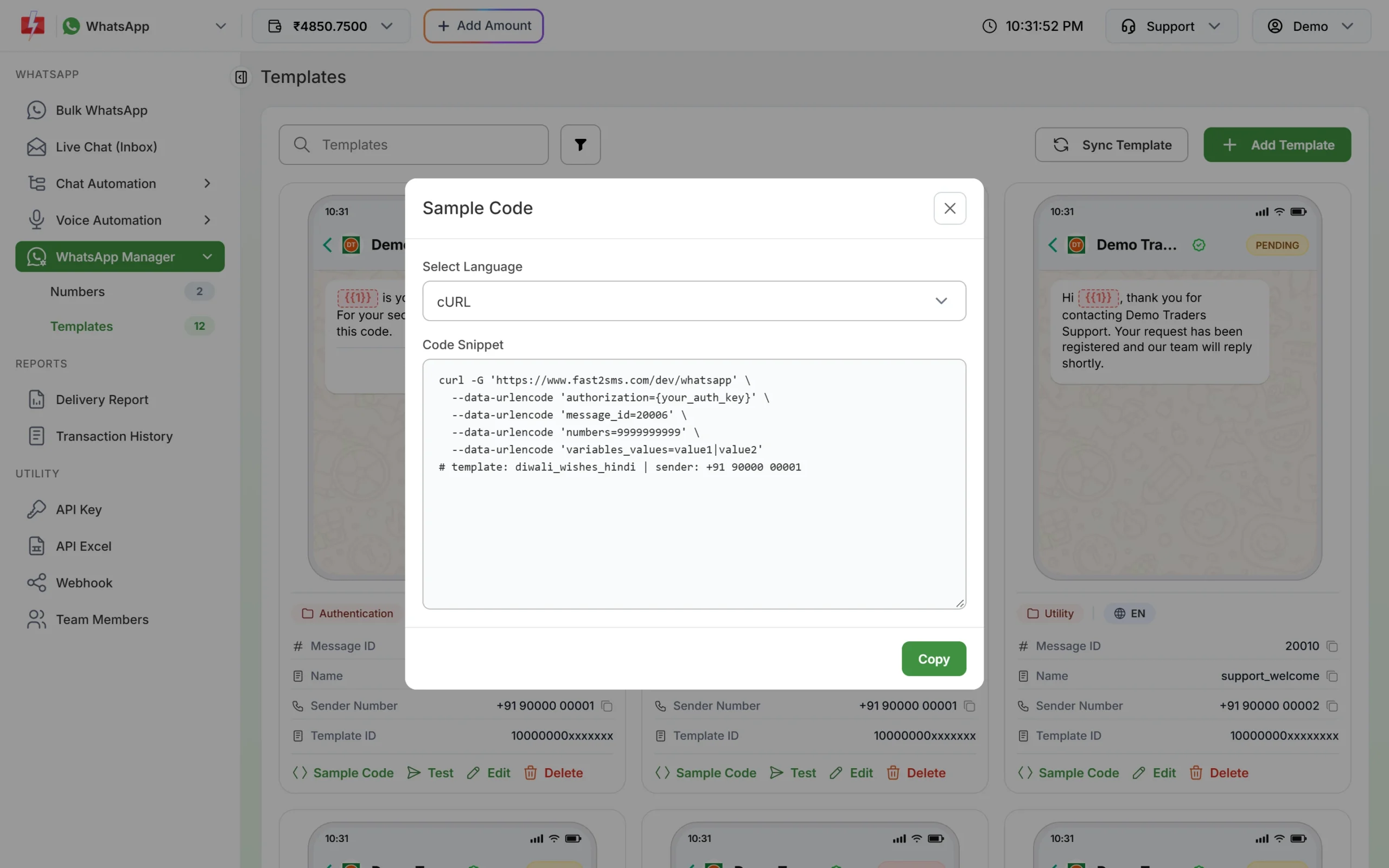
Sample Code gives a ready request for that template.
To send the template to many customers, read how to send bulk WhatsApp messages in Fast2SMS.
Edit or delete a template
Click Edit on a card. The name, language and sender number cannot be changed (a Meta rule). You can change the content, header file, footer and buttons. If you change the content, the template goes back to PENDING for Meta’s review and cannot be sent until it is approved again. Meta does not allow edits while a review is running and limits how often a template can be edited.
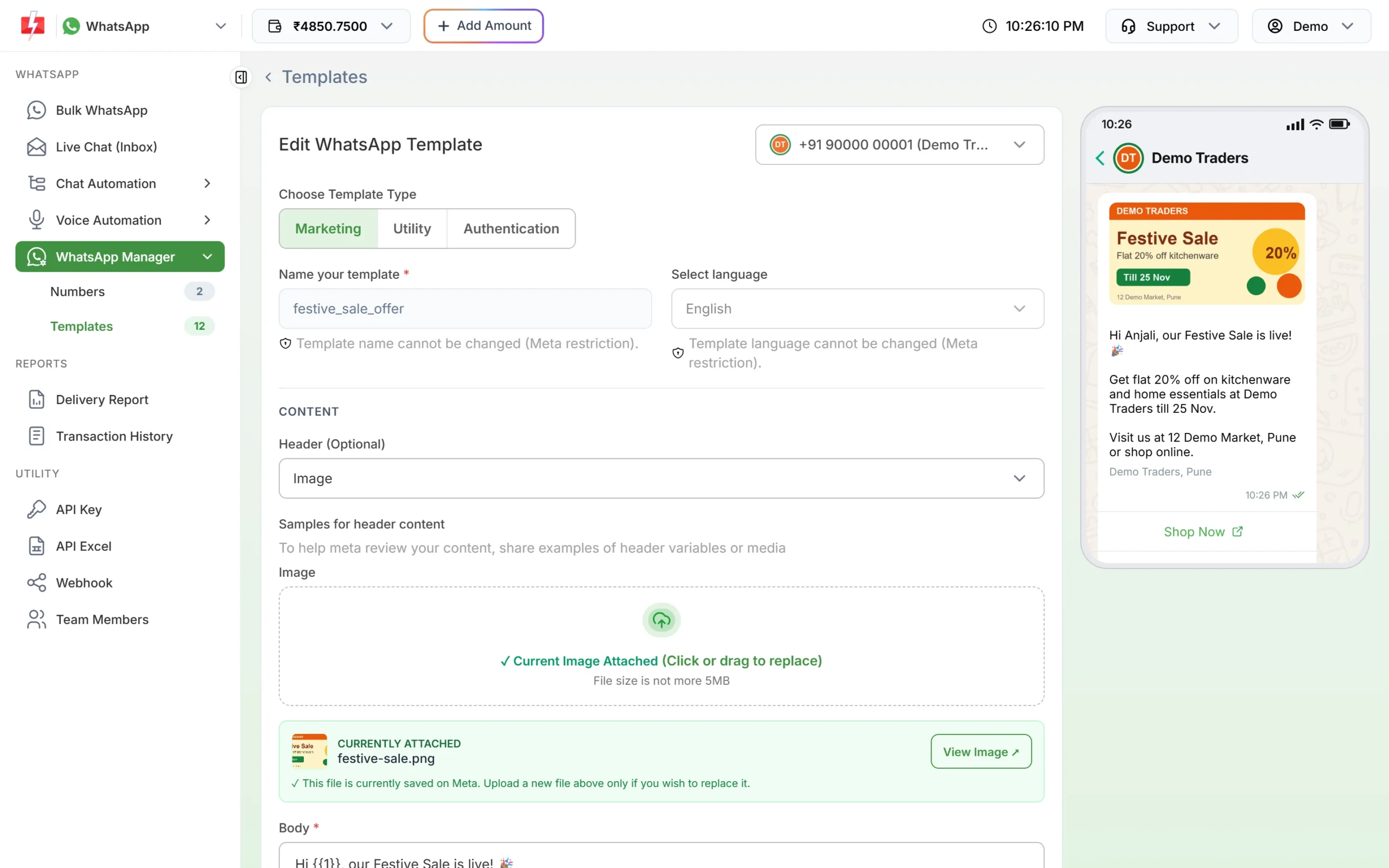
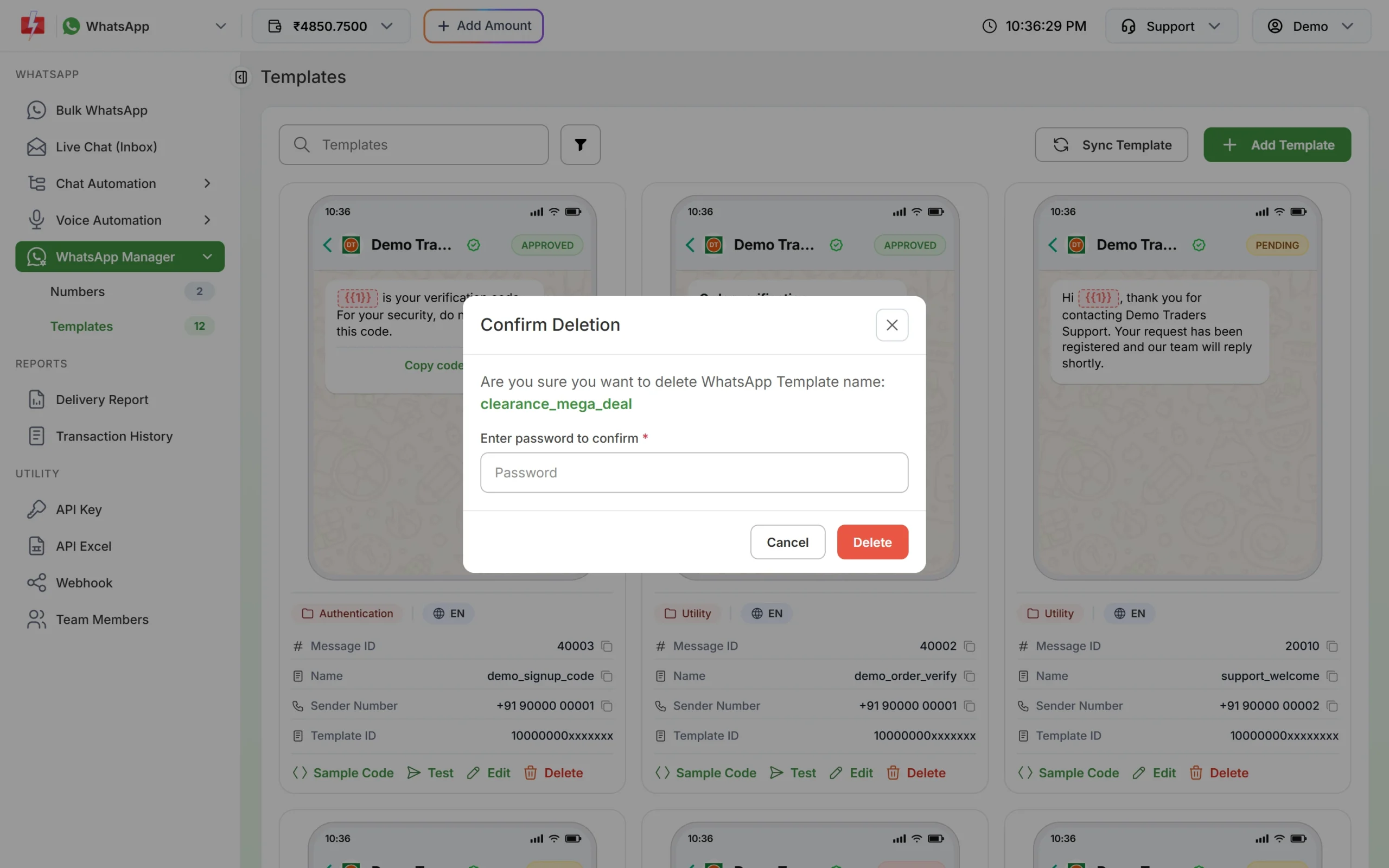
To delete, click Delete, enter your account password and click Delete. The template is removed from Meta too, so this cannot be undone.
Frequently asked questions
How long does WhatsApp template approval take?
Usually from a few minutes to a few hours. Click Sync Template to refresh the status.
Why can’t I see my template in Bulk WhatsApp?
Only APPROVED templates of the selected sender number are listed. Check the status in Templates and that you picked the right sender.
Can I change the category of a template?
Yes, from Edit. The change is sent to Meta and the template is reviewed again. Meta can also change the category itself if the content fits another one.
Which languages can I use?
The form offers English, Hindi and Gujarati. Choose the language when you create the template, because it cannot be changed later.
How many templates can I create?
Meta limits the number of templates per WhatsApp Business account (250 according to Meta’s error documentation). Delete templates you no longer use.
Do I need a template to reply to a customer?
No, not within 24 hours of the customer’s last message. You can reply in your own words from Live Chat. After 24 hours, only a template can be sent.
What is the difference between Message ID and Template ID?
The Message ID is Fast2SMS’s own ID for the template, and it is the value you pass as message_id in the API. The Template ID is Meta’s ID and is shown partly hidden.